
Privileges
When you specify privileges for a role, you are defining the commands available to the members of that role for the selected Quark Publishing Platform application.
The privileges that a user has is a union of the privileges associated with the role that is assigned to them as a user, and the privileges associated with the role that is assigned to any group in which they are a member.
When the members of a role do not have the privilege to perform a task, the command
will be unavailable or hidden. To specify privileges, log in to the Quark Publishing
Platform Web Admin interface at http://[IP address of Platform Server computer]:61400/admin and then click Roles and Privileges on the left.
There are two types of privileges:
-
Content Privileges: These privileges control the way that users interact with content.
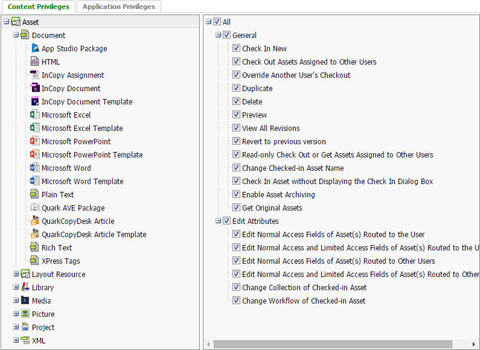
Different content privileges are available for different asset types, and privileges may work differently depending on which asset type is selected.
-
Application Privileges: These privileges control the application features that are available to users.
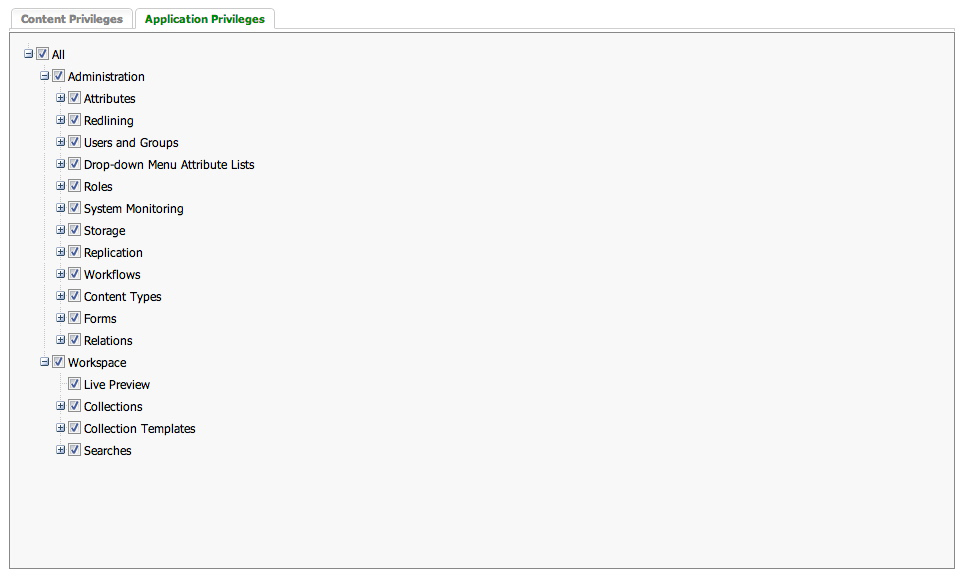
Content privileges
Content privileges are generally related to the degree and type of access that users have to content.
Content privileges: General
This section includes general privileges.
-
Check In New: Role members can check in new articles, projects, pictures, and other assets.
-
Check Out Assets Assigned to Other Users: Role members can check out articles, projects, pictures, and other assets that are assigned to other users.
-
Override Another User's Checkout: Role members can check out articles, projects, pictures, and other assets that are checked out by another user. For example, if a user has an asset checked out and you have the privilege to override a checkout, you can select the asset, press Option/Alt, and click Check Out on the Quark Publishing Platform Workspace toolbar. A message informs you that the asset is checked out by a specific user. If you continue with the override checkout, the other user will receive notice as well. The other user cannot check the asset in unless he or she renames it (and has the privilege to check in new assets). The new asset is a separate asset, unrelated to the original.
-
Duplicate: Role members can duplicate articles, projects, pictures, and other assets.
-
Delete: Role members can delete articles, projects, pictures, and other assets.
-
Preview: Role members can preview articles, projects, pictures, and other assets.
-
View All Revisions: Role members can view all revisions of articles, projects, pictures, or other assets within the collections to which the user belongs on Quark Publishing Platform Server.
-
Revert to Previous Version: Role members can revert articles, projects, pictures, and other assets to previous versions.
-
Read-only Check Out or Get: Assets Assigned to Other Users: Role members can copy read-only versions of articles, projects, pictures, and other assets. Users can retrieve copies of assets from Quark Publishing Platform Server without checking out the assets.
-
Change Checked-in Asset Name: Role members can change the names of checked-in assets that are assigned to other users.
-
Check In Asset without Displaying the Check In Dialog Box: Check this box to enable users to bypass the Check In dialog box by pressing Option/Alt while clicking Check In Asset.
-
Enable Asset Archiving: This privilege allows users to archive Quark Publishing Platform assets.
-
Get Original Assets: Role members can get the original version of assets.
-
Publish: This set of privileges lets you control whether role members can publish in the various formats supported by Quark Publishing Platform.
Content privileges: Edit Attributes
This section includes several privileges that you can enable or disable for attributes assigned to each Quark Publishing Platform file type. When you create attributes, you can specifically limit their access to users who have the privilege to edit normal- and limited-access attributes by checking Limited Access in the Create Attribute dialog box. Users with the privilege to edit only normal-access fields cannot edit limited-access attributes. For example, members of the "Editors" role may have access to a limited attribute, such as "Editor's Approval." But members of the "Writers" role may not be able to edit the field because they only have the privilege to edit normal-access fields.
The privileges include:
-
Edit Normal Access Fields of Asset(s) Routed to the User: Role members can edit Normal Access attributes for articles, projects, pictures, and other assets routed to them.
-
Edit Normal Access and Limited Access Fields of Asset(s) Routed to the User: Role members can edit Normal Access and Limited Access attributes for articles, projects, pictures, and other assets routed to them.
-
Edit Normal Access Fields of Asset(s) Routed to Other Users: Role members can edit Normal Access attributes for articles, projects, pictures, and other assets that are routed to another user.
-
Edit Normal Access and Limited Access Fields of Asset(s) Routed to Other Users: Role members can edit Normal Access and Limited Access attributes for articles, projects, pictures, and other assets that are routed to another user.
-
Change Collection of Checked-in Asset: Role members can move a checked-in asset to a different collection.
-
Change Workflow of Checked-in Asset: Role members can move a checked-in asset to a different workflow.
Content privileges: Job Jackets
This section includes several privileges that control whether role members can override Job Jackets features.
-
Override Default Job Jackets File or Job Ticket Template: Role members can use a Job Jackets file or Job Ticket that is not the default.
-
Override Layout Evaluation Rules While Checking In a Project: Role members can check in a project even if it fails layout evaluation.
-
Override Layout Evaluation Rules While Printing a Project: Role members can print a project even if it fails layout evaluation.
Content privileges: Edit Redlining
Use these privileges to control whether users can accept and reject changes, as well as whether they can enable and disable redline change tracking.
-
Accept and Reject Changes (Selected/Displayed/All): Role members can accept and reject redlining changes.
-
Enable/Disable Tracking: Role members can turn redline tracking on and off.
Content privileges: Article Components
This section includes several privileges related to article components.
-
Drag and Drop Components to Form Primary Attachments Only: Role members can drag and drop components to create primary attachments only.
-
Drag and Drop Components to Secondary Attachments: Role members can drag and drop components to create secondary attachments.
-
Override Primary Attachment of Components: Check this box to enable users to press the Shift key while attaching an article component that is already a primary attachment. This creates a new primary attachment.
-
Enable Drag and Drop for Components across Collections: Check this box to enable users to attach article components to projects in different collections.
-
Detach Components from Projects: Check this box to enable users to detach a component from a project.
-
Add Components to Articles: Role members can add components to articles.
-
Delete Components from Articles: Role members can delete components from articles.
-
Rename Components and Change Component Types: Role members can rename components and change their component types.
-
Retain Local Resources During Article Check-in: Role members can keep local resources associated with an article after the article is checked in.
Content privileges: Edit Pictures
Use the controls in this area to enable users to manage picture attachments.
-
Drag and Drop: Role members can drag and drop pictures from the Workspace Browser window into a layout.
-
Enable Drag-and-drop for Pictures across Collections: Check this box to enable users to attach pictures to projects in different collections.
-
Detach Pictures from Projects: Check this box to enable users to detach a picture from a project.
-
Modify Picture Placement Properties: Role members can change the properties of imported pictures.
-
Replace or Clear Picture: Role members can replace or remove imported pictures.
Content privileges: Editing
These privileges specify how role members can format text.
-
Edit Text: Members of the role can edit text in checked-out articles.
-
East Asian Typography Features: Members of the role can use East Asian typographic features.
-
Paragraph Formats: This section includes privileges for applying paragraph formatting.
-
Character Formats: This section includes privileges for applying character style sheets and certain character attributes (bold, italic, underline, superscript, subscript, and strike-through).
-
Notes: This section includes privileges for creating and editing notes, as well as editing and viewing notes created by other users.
Application privileges
Application privileges are generally related to the degree and type of access that users have to application features.
Application privileges: Administration
The following privileges apply to workflow and file management.
-
Attributes: This section includes three privileges to view, create and modify, and delete asset attributes.
-
Redlining: Use these privileges to control whether users can accept and reject changes, as well as whether they can enable and disable redline change tracking.
-
Users and Groups: This section includes privileges to view, create and modify, and delete users and groups of users. You can also manage users imported from a Lightweight Directory Access Protocol (LDAP) list.
-
Drop-down Menu Attribute Lists: This section includes three privileges to view, create and modify, and delete lists that you can include in drop-down menu attributes.
-
Roles: This section includes three privileges to view, create and modify, and delete roles.
-
System Monitoring: This section includes three privileges to view the system monitor, log off users, and shut down Quark Publishing Platform Server.
-
Storage: The storage function allows you to specify locations for Quark Publishing Platform Server to store assets, as well as rules for each kind of file type.
-
Repositories: This section includes three privileges to view, create and modify, and delete storage repositories.
-
Storage Rules: This section includes three privileges to view, create and modify, and delete locations for storing different file types.
-
Workflows: This section includes privileges to view, create/modify, and delete workflows.
-
Content types: This section includes privileges to view, create/modify, and delete content types.
-
Forms: This section includes privileges to view and modify forms.
-
Relations: This section includes privileges to view, create/modify, and delete relationships.
Application privileges: Workspace
The following privileges apply to the Quark Publishing Platform workspace.
-
Collections: This section includes privileges to create, delete, duplicate, move, copy, browse, and modify collections.
-
Collection Templates: This section includes privileges to create, delete, duplicate, move, and copy collection templates.
-
Searches: This section includes privileges to create/modify, share/unshare, and delete searches. It also lets you enable enhanced search displays.
-
Live Preview: Allows users to have a live preview of rendered XML documents in the References/Preview pane of Quark XML Author and Quark Author Web Edition.