
Script Manager
A script is a set of commands written in an interpreted language to automate certain application tasks. You can use server-side scripts with Quark Publishing Platform Server. The Quark Publishing Platform Script Manager application allows you to manage automated scripts that perform actions without requiring another Quark Publishing Platform application or user intervention. Script writers can access almost all Quark Publishing Platform Server services through the Quark Publishing Platform Script Manager interface, including all Data Transfer Objects (DTOs) and Java™ Message Service (JMS) messages.
Scripts can initiate actions based on Quark Publishing Platform events, a predefined schedule, or a user's single click. Your Quark Publishing Platform installation includes sample scripts that you can import into Quark Publishing Platform Script Manager.
For example, you can import a sample script called "PublishAssetOnStatusChange.js" that automates the steps required for creating PDFs from QuarkXPress projects when the Quark Publishing Platform status changes.
The Quark Publishing Platform Server comes pre-configured with two scripting engines: JavaScript™ (using Rhino) or Groovy (a scripting language for Java Virtual Machine environments). However, you can write scripts in any language that is supported by Apache Bean Scripting Framework (BSF), and you can plug the corresponding scripting engine into the Bean Scripting Framework.
Quark Publishing Platform Script Manager configuration
After you install Quark Publishing Platform Server, look for the "ScriptManager" folder in the Quark Publishing Platform Server application folder (also in the Quark Publishing Platform installation). This folder contains "ScriptManagerStartup.bat "(Windows), a folder of sample scripts, and (after you log on with Quark Publishing Platform Script Manager) a log folder with incremented versions of "Quark Publishing PlatformScriptManager.log" to report runtime errors and warnings. On Windows, the "ScriptManager" folder also contains Java archive files (JAR files).
Sample scripts are provided in the "ScriptManager" folder.
Working with Quark Publishing Platform Script Manager
The Quark Publishing Platform Script Manager user interface includes commands for creating, importing, exporting, and editing scripts for Quark Publishing Platform Server. In addition to writing and editing scripts with Quark Publishing Platform Script Manager, you can execute scripts manually, schedule scripts to run at certain times, or define Quark Publishing Platform events that trigger scripts, such as the first check-in of an asset.
When you are logged on with Quark Publishing Platform Script Manager, you can view saved scripts and individual script information by double-clicking the Quark Publishing Platform Server folder icon at the top of the Stored Scripts column.
The "PublishAssetOnStatusChange" script in the illustration below had already been imported and saved.
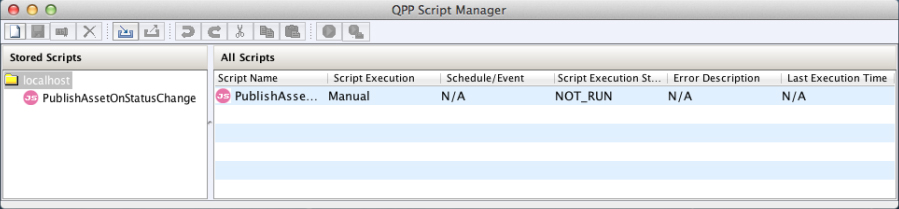
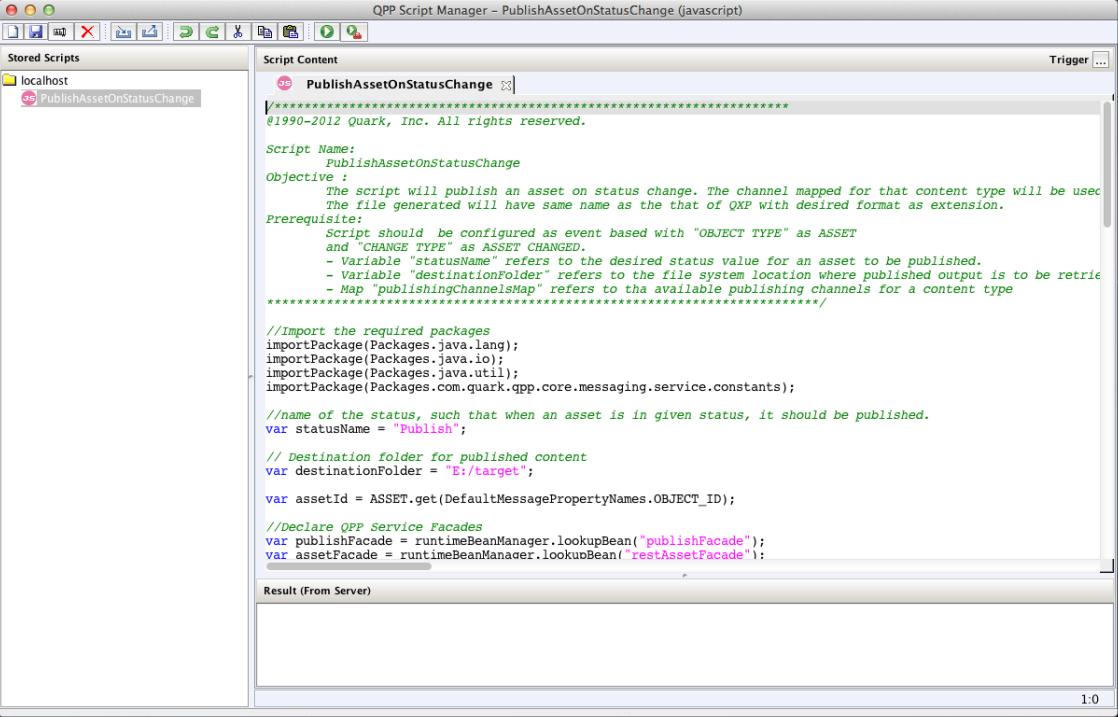
Double-click a script listed in the Stored Scripts column to view it. When a script displays, many Quark Publishing Platform Script Manager menu commands are available from the toolbar at the top of the window.
Logging on with Quark Publishing Platform Script Manager
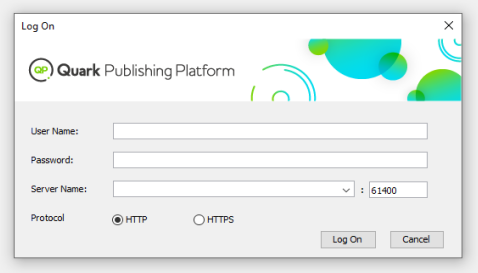
You must log on before you can create or edit a script for Quark Publishing Platform Server.
-
Double-click "Quark Publishing Platform Script Manager.app" (Mac OS) or "ScriptManagerStartup.bat" (Windows).
-
Enter your user name, password, and Quark Publishing Platform Server name, then click Log On.
Creating a script
You can write scripts with Quark Publishing Platform Script Manager, import Quark Publishing Platform sample scripts for editing and execution, or import other scripts for editing and execution.
-
To write a new script, choose File > New > javascript or File > New > groovy.
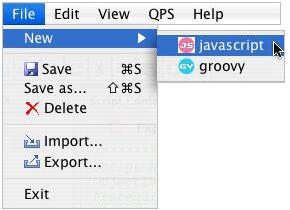
Use the New submenu to create a script in Quark Publishing Platform Script Manager. A new tab displays in the Quark Publishing Platform Script Manager window, and the script name displays in the Stored Scripts list on the left side of the Quark Publishing Platform Script Manager window.
Although you can create and modify scripts with the Quark Publishing Platform Script Manager application, most script writers use a separate authoring application for writing JavaScript or Groovy scripts. Consult your script authoring software documentation to learn about structuring JavaScript or Groovy scripts.
-
Choose File > Save to retain your work as you write your script.
Saving a script transmits the script content to Quark Publishing Platform server where it is saved. A new or imported script is not added to Quark Publishing Platform until it is saved.
Importing a script
You can use File > Import to import JavaScript or Groovy scripts in Quark Publishing Platform Script Manager. Your Quark Publishing Platform Server installation includes sample scripts that you can import, edit, and execute.
-
Choose File > Import.
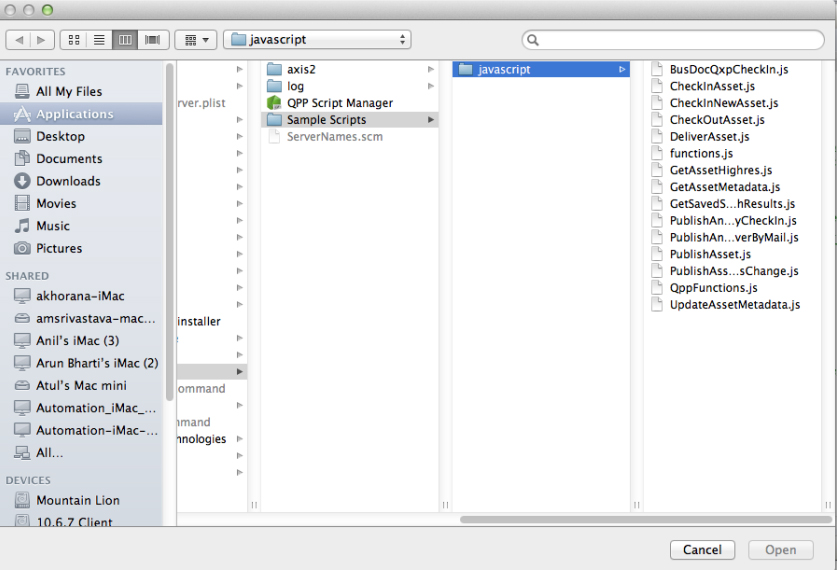
You can find Quark Publishing Platform sample scripts in the "javascript" folder in the "Sample Scripts" folder. -
Navigate to the "javascript" folder, select a script, and click Open.
The Stored Scripts area lists open scripts in Quark Publishing Platform Script Manager. -
Scroll through the script to view the variables and structure.
-
Choose File > Save to save the script.
The script you imported remains unchanged, but you must save the imported script in Quark Publishing Platform Script Manager.
Deleting and exporting scripts
You must log on and open a script in Quark Publishing Platform Script Manager before you can export or delete it.
-
Double-click the script name in the Stored Scripts list on the left side of the Quark Publishing Platform Script Manager window (or click the Script tab in the Script Content area).
-
To delete a script, select it and choose File > Delete or click the Delete icon in the Quark Publishing Platform Script Manager toolbar. A warning message allows you to cancel the deletion.
-
To generate a standalone script file, select it and choose File > Export, or click the Export icon in the Quark Publishing Platform Script Manager toolbar.
-
Enter a name for your exported script and click Save.
Writing, editing, and triggering a script
To automate a process, you need to write or import a script that directly uses services and data provided by Quark Publishing Platform Server to perform required tasks. All Quark Publishing Platform Server objects are accessible to the script, and operations as defined in the Quark Publishing Platform Server API can be invoked to produce required results. To use the script, you must save it first while logged on to Quark Publishing Platform Server.
Whether your execute a script manually or according to schedule or Quark Publishing Platform event, the script is executed on the Quark Publishing Platform Server computer. Not all of the Quark Publishing Platform Console output displays in the Quark Publishing Platform Script Manager Result window. Only the final result or error returned by the script execution displays in Quark Publishing Platform Script Manager.
Accessing Quark Publishing Platform Server objects
You can use the RuntimeBeanManager to access Quark Publishing Platform Server objects. By default RuntimeBeanManager is a declared bean from Bean Scripting Framework (BSF), which makes it directly available to scripts. You can use the lookup method to access any server object.
The sample script text below demonstrates how to access server objects.
var assetFacade = runtimeBeanManager.lookupBean("restAssetFacade")
var queryFacade = runtimeBeanManager.lookupBean("queryFacade")
Loading a script in a script
You can use a load(.) method in Quark Publishing Platform Script Manager to add an existing script to another script. Loading a script includes the entire script within the current script so that its variables and methods can be used. Specifying "load(S1)" loads a script named S1. Specifying "load(S1, S2, Sn)" loads scripts named "S1," "S2," and "Sn."
Quark Publishing Platform Script Manager includes two sample scripts that contain common functions for Quark Publishing Platform and QuarkXPress Server Manager ("QppFunctions.js" and "QxpsmFunctions.js"). You can save time by importing and loading these sample scripts.
Logging and debugging scripts
The following functions are helpful methods for logging details in scripts. The log level set for Quark Publishing Platform Server determines whether log comments are logged or not.
-
print(.)
Prints string values of the variable arguments. The printing occurs on the server standard output. For example, you can specify
print("Hello")orprint(arg1, ..., argN). -
debug(.)
Logs a debug comment in the Quark Publishing Platform Server log file.
-
info(.)
Logs an informative comment in the Quark Publishing Platform Server log file.
-
warn(.)
Logs a warning comment in the Quark Publishing Platform Server log file.
-
error(.)
Logs an error comment in the Quark Publishing Platform Server log file.
-
exception(.)
Logs an exception in the Quark Publishing Platform Server log file. For example:
{//do something}catch (err) {exception(err);}
Using utility methods in scripts
Use the following methods to read URLs and to run, spawn, and synchronize functions.
-
readUrl(.)
Opens a connection to the given URL, reads all its data, and converts the data to a string using specified character encoding or default character coding (if an explicit coding argument is not provided). For example,
readUrl(url)orreadUrl(url, charCoding). -
runCommand(.)
Executes the specified command with the given argument and options as a separate process and returns the exit status of the process. For example,
runCommand(command)orrunCommand(command, arg1, ..., argN). -
spawn(.)
Runs a given function or script in a different thread. For example,
function g() {//do something;)orspawn(g);. -
sync(.)
Creates a "synchronized" function (a java synchronization method) from an existing function. The new function synchronizes on the "this" object of its invocation.
var o = { f: sync(function(x) {print("entry");Packages.java.lang.Thread.sleep(x*1000);print("exit");})};
Triggering a script
Quark Publishing Platform Script Manager scripts can execute in three ways. You can run a script manually from within Quark Publishing Platform Script Manager, you can schedule a script to execute at specific intervals, or you can specify events that occur within a Quark Publishing Platform workflow that "trigger" the script.
-
Display the script in the Script Content area of the Quark Publishing Platform Script Manager window.
-
Save the script.
-
Click the Trigger button on the right side of the Quark Publishing Platform Script Manager window. The Script Execution dialog box displays.
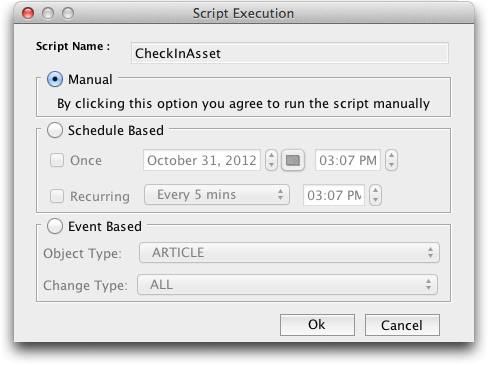
Use the Script Execution dialog box to manually execute a script, schedule a script execution, or define a Quark Publishing Platform event to trigger the script. -
To execute the script, click Manual, and click OK. The script executes.
-
To schedule a script to execute once, click Schedule Based, check Once, then choose a date and time. The script will execute at the scheduled time.
-
To schedule a script to run at regular intervals, click Schedule Based, check Recurring, then specify the intervals.
-
To specify a Quark Publishing Platform event that triggers the script, click Event Based and choose an option from the Object Type drop-down menu. The options in the Change Type drop-down menu change according to your Object Type drop-down menu choice.
-
Choose an option from the Change Type drop-down menu, then click OK.
Quark Publishing Platform event-based script example
The sample script below is triggered to publish and deliver a PDF version of an asset to a particular location when the asset's status is changed. In this case, the Object Type is called "ASSET" and the Change Type is "ASSET_CHANGED".
The whole script needs to replaced by following content:
importPackage(Packages.java.lang);
importPackage(Packages.java.io);
importPackage(Packages.java.util);
importPackage(Packages.com.quark.qpp.core.messaging.service.constants);

//name of the status, such that when an asset is in given status, it should be published.
var statusName = "Publish";

// Destination folder for published content
var destinationFolder = "E:/target";

var assetId = ASSET.get(DefaultMessagePropertyNames.OBJECT_ID);

//Declare QPP Service Facades
var publishFacade = runtimeBeanManager.lookupBean("publishFacade");
var assetFacade = runtimeBeanManager.lookupBean("restAssetFacade");

/*Map of content types and publishing channel ids.
Depending upon the asset's content type, corresponding publishing channel will be considered
*/
var publishingChannelsMap = {'QuarkXPress Project':'qxpPdf', 'Business Document':'busDocPdf'};

/*
Channel parameters for publishing channel with id : qxpPdf
*/
var parametersForQxpPdf = new java.util.HashMap();
parametersForQxpPdf.put("SPREAD_VIEW", "FALSE");

/*
Channel parameters for publishing channel with id : busDocPdf
*/
var parametersForBusDocPdf = new java.util.HashMap();
parametersForBusDocPdf.put("XSL_URI", "classpath:BusDoc2QXPS.xslt");
parametersForBusDocPdf.put("QXP_TEMPLATE_URI", "classpath:BLTEMP.qxp");

/*
Map of publishing channel id and publishing parameters
*/
var parametersMap = { 'qxpPdf' : parametersForQxpPdf, 'busDocPdf' : parametersForBusDocPdf};

//Declare a string buffer
var stringBuffer = new StringBuffer();

//names of the attributes to be fetched
var attributes = ["Name", "Status", "Content Type"];

var assetInfo = assetFacade.getAsset(assetId, null/*majorVersion*/, null/*minorVersion*/, attributes,
false/*get child asset relations */,
false /* get parent asset relations*/,
[]/*Relation types*/,
null /*Rendition Type */,
 null /* Output stream*/,
null /*layout number*/, null/*page number*/);

var attributesList = assetInfo.getAttributeValueList().getAttributeValue();

var assetName = "";
var currentStatus = "";
var contentType = "";

for(var i = 0; i<attributesList.size(); i++){
var attributeValue = attributesList.get(i);
if(attributeValue.getName().equalsIgnoreCase("Name")){
assetName = attributeValue.getValue();
}
if(attributeValue.getName().equalsIgnoreCase("Status")){
currentStatus = attributeValue.getValue();
}
if(attributeValue.getName().equalsIgnoreCase("Content Type")){
contentType = attributeValue.getValue();
}
}

//In case the asset is in desired status
if(currentStatus.equalsIgnoreCase(statusName)){

try{
var pdfFile = new File(destinationFolder + "/"+ assetName+".pdf");
var fileOutputStream = new FileOutputStream(pdfFile);

//get publishing channel id on the basis of content type
var publishingChannelId = publishingChannelsMap[contentType];
var publishingChannelParameters = parametersMap[publishingChannelId];

publishFacade.publishQPPResource(assetId, fileOutputStream, publishingChannelId, null /* Since we want to publish the given asset, hence delivery channel is null*/,
publishingChannelParameters);
stringBuffer.append("\n"+assetName+" has been published as PDF at location "+destinationFolder);
}catch(exception){
stringBuffer.append("Error while publishing the asset with name : "+assetName+"\n");
stringBuffer.append(exception);
}finally{
if(fileOutputStream != undefined){
fileOutputStream.close();
}
}
}
stringBuffer.toString();
Executing a script manually
Even if you define a Quark Publishing Platform event to trigger a script or schedule the script execution, you can execute a script manually at any time.
-
Display the script in the Script Content column.
-
To execute a script, choose QPP > Execute or click the Execute button.
-
To execute a specific function of a script, choose QPP > Execute Parameter. The Execute Parameters dialog box displays.
-
Enter a name in the Method name field, specify parameters (you can add and delete parameters), and click OK to execute the specific parameter(s).