
Maintenance and asset management
Quark Publishing Platform provides remote server monitoring and other tools to promote effective server maintenance. Using the Quark Publishing Platform Client, administrators perform asset management functions to archive completed projects, restore archives, and so forth. This chapter explains how to use these tools.
Monitoring user activity and logging off users
When you select the server name in the Quark Publishing Platform Web Administrator, information about Quark Publishing Platform Server and the users logged on to it displays. To use this information:
-
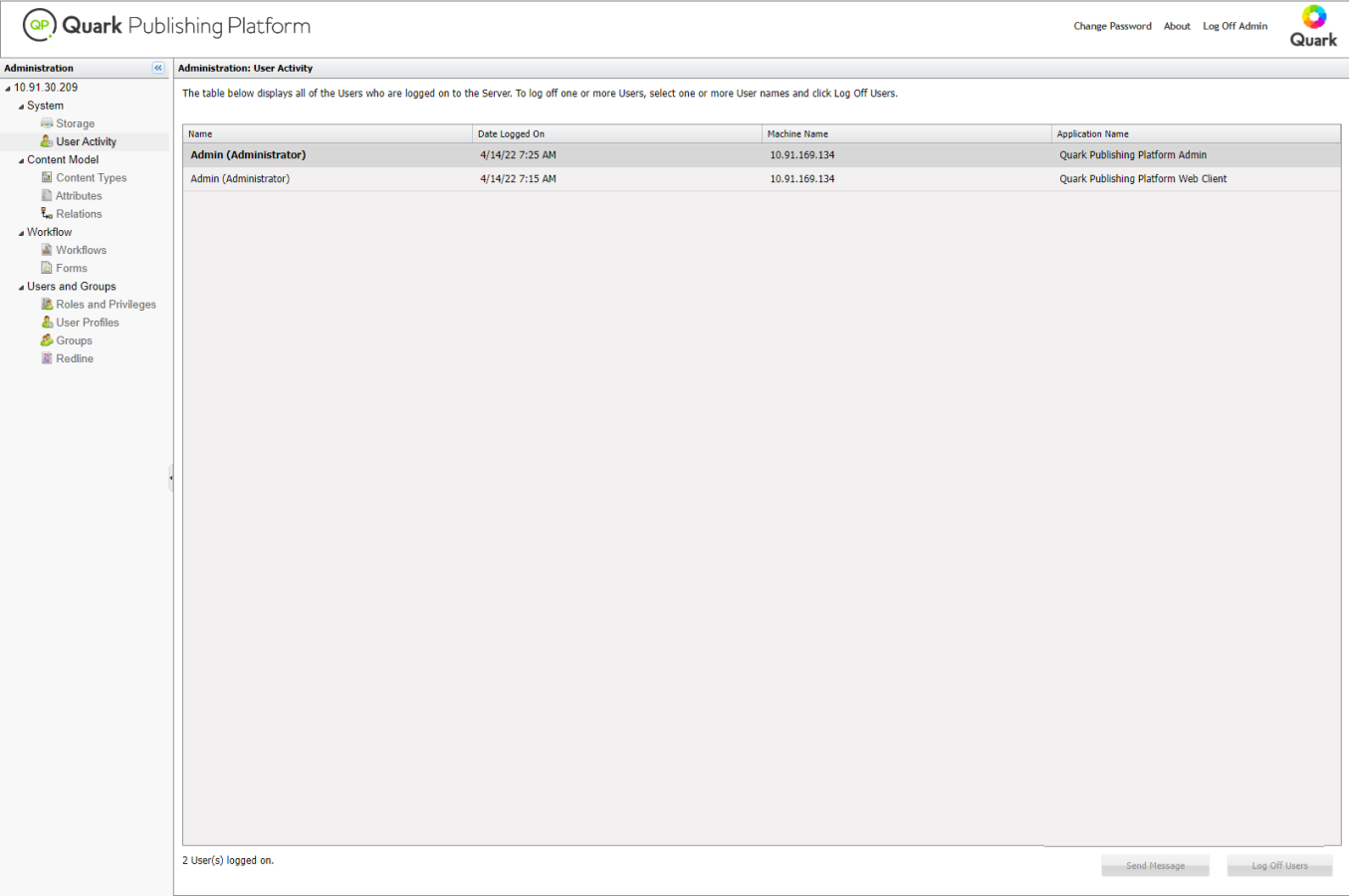
Click User Activity. The displayed list includes the number of users who are currently logged on to Quark Publishing Platform Server, their names, the time and date each user logged on, each user's machine name, and each user's application (including Quark Publishing Platform Script Manager).
-
To log off a user, select the user and click Log Off Users. You can select multiple users to log off more than one at a time.
Deleting assets
You can delete assets using Quark Publishing Platform Client, QuarkCopyDesk, QuarkXPress, or Quark Publishing Platform Web Client. Your preference settings determine how the deletion process for checked-out and attached assets works for each application.
To specify how Quark Publishing Platform Client, QuarkCopyDesk, QuarkXPress, or Quark Publishing Platform Web Client responds when you attempt to delete checked-out assets and assets attached to QuarkXPress projects, use the Checked-out Assets and Attached Assets drop-down menus in the Asset Deletion Options area of the respective Preferences dialog box. The controls are identical for both options. Choose Delete Asset Without Warning to delete checked-out or attached assets without displaying a warning. Choose Never Allow Deletion to prevent the deletion of checked-out or attached assets. Choose Ask Before Deleting to display an alert so you can decide each time you delete a checked-out or attached asset.
To delete assets:
-
Display the search results pane and select one or more assets you want to delete.
-
Click Delete in the Quark Publishing Platform Client Workspace toolbar. If the selected assets are not checked out or attached to a QuarkXPress project, they are deleted. If the selected assets are checked out or attached, the delete process continues according to your preference settings.
Archiving assets
You can use Quark Workspace Client (web client) and Publishing Platform Client (thick client) to archive Quark Publishing Platform assets when you're finished with them, and Quark Publishing Platform provides a restore mechanism if you need to reintroduce these assets to your Quark Publishing Platform workflow. Archiving assets requires the "Enable Asset Archiving" privilege.
To archive assets:
-
Display the Workspace pane and select one or more assets to archive.
-
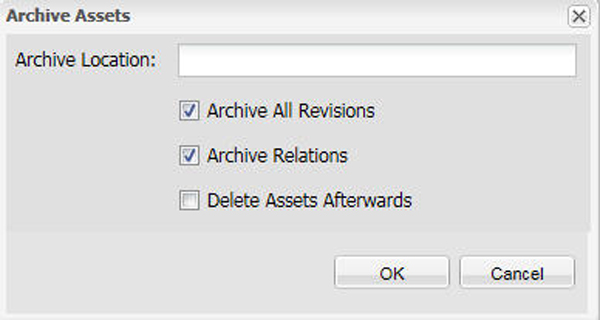
Click Archive in the Quark Publishing Platform Client Workspace toolbar or right-click to open the context menu and select the Archive Assets option. The Archive Assets dialog box displays:
-
Specify a folder for storing the archives. This folder should exist on the machine on which Quark Publishing platform server is running. Select the options you want to apply and click OK.
-
The selected assets are copied to the location you specify, and the attribute information for these assets is combined in a single XML file.
If Delete Assets Afterwards is checked, Quark Publishing Platform will delete the assets after the archive process. If Delete Assets Afterwards is unchecked, the original assets remain on Quark Publishing Platform Server.
Quark Publishing Platform confines an archive file and its corresponding XML file to a single folder. When you name the XML file and the folder that contains it, you can identify archive characteristics, such as the date the archive was created. Using descriptive names will help you identify the archive if you need to restore the assets later.
Restoring assets
You can restore Quark Publishing Platform assets that have been archived if you have the "Enable Asset Archiving" privilege.
In versions 9 and later of Quark Publishing Platform, restoring a project also restores the corresponding versions of all assets attached to that project, and all of those assets are attached to the project. However, if you revert to a previous version of a project, any attached assets are detached.
To restore assets:
-
Display the Workspace pane and click Restore in the Quark Publishing Platform Client Workspace toolbar. The Restore dialog box displays.
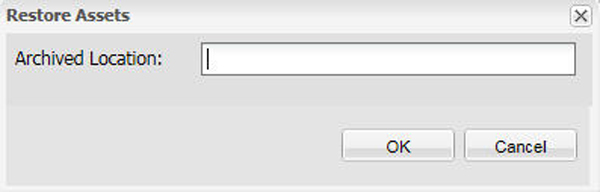
Use the Restore dialog box to locate the archive file you want to restore. -
Specify the location of the archived asset you want to restore and click OK.
Using descriptive names for the archive folder and XML file when you create the archive will help you identify assets for restoration.
If one or more of the attributes for the archived assets are no longer part of the server configuration, you can choose alternative attributes in many cases. However, when switching attributes is not possible, the restore process skips to the next archived file. You will need to re-create the missing attribute to restore these skipped assets.
If an asset with the same name and file type is already checked in to Quark Publishing Platform Server, an error occurs and identifies the asset in the log file.
Your "Restore" log files are stored in the same folder where you store archive files. If you do not have write access to the folder where you store archive files, Quark Publishing Platform Server will prompt you to specify a location.