Work with a Repository
Create a New Document from a Server Template
Quark Publishing Platform Adapter for Quark XML Author allows you to use documents that are already available in the repository as templates to create new documents. You can use a document template that contains minimum required elements and attributes (for example, custom guidance text or instructions) based on the type of document you want to create.
To create a new document from a template:
-
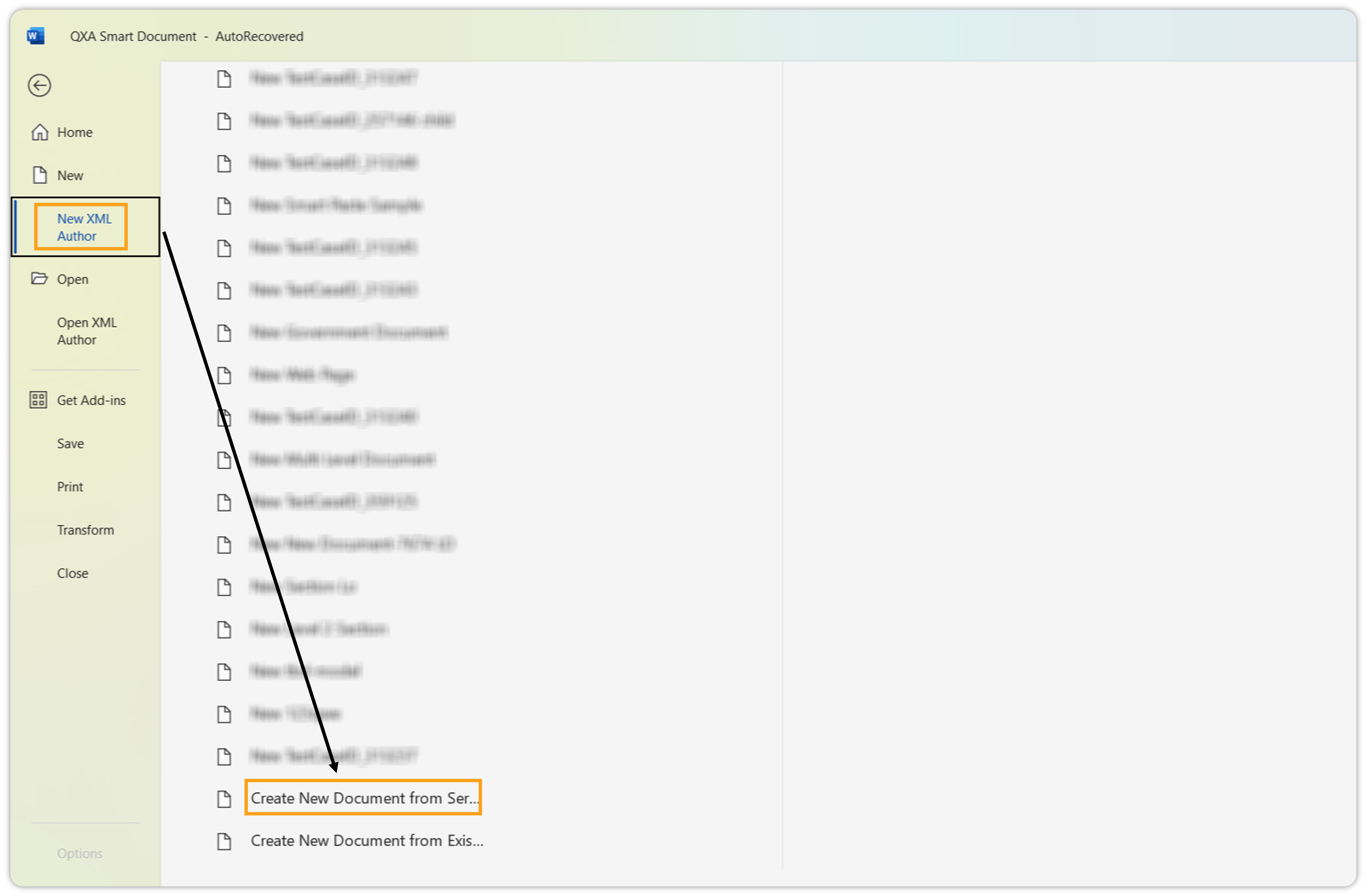
Click File > New XML Author > New Document from Server Template.
-
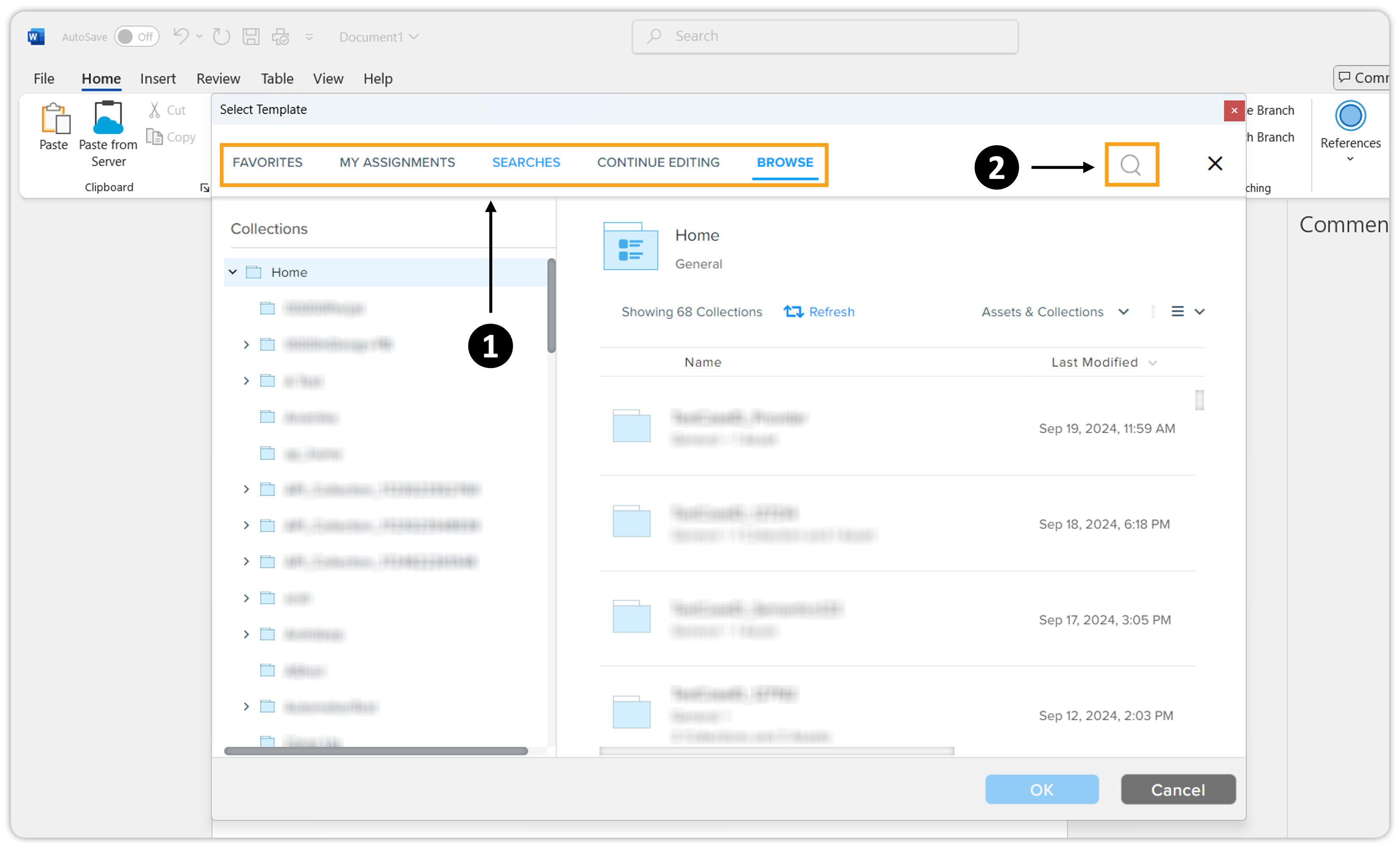
On the Select Template dialog, you can find the template that you want to use in the following ways:
-
Select one of the following paginated browsing tabs and navigate to the template:
-
Favorites: Lists the most frequently used folders and files.
-
My Assignments: Lists the documents assigned to you (logged-in user).
-
Searches: Lists the Saved Searches on the server that are accessible to you.
-
Continue Editing: List the documents that you are currently working on.
-
Browse: Displays the document repository that is accessible to you.
-
-
Search for the template in the Search tool.
-
-
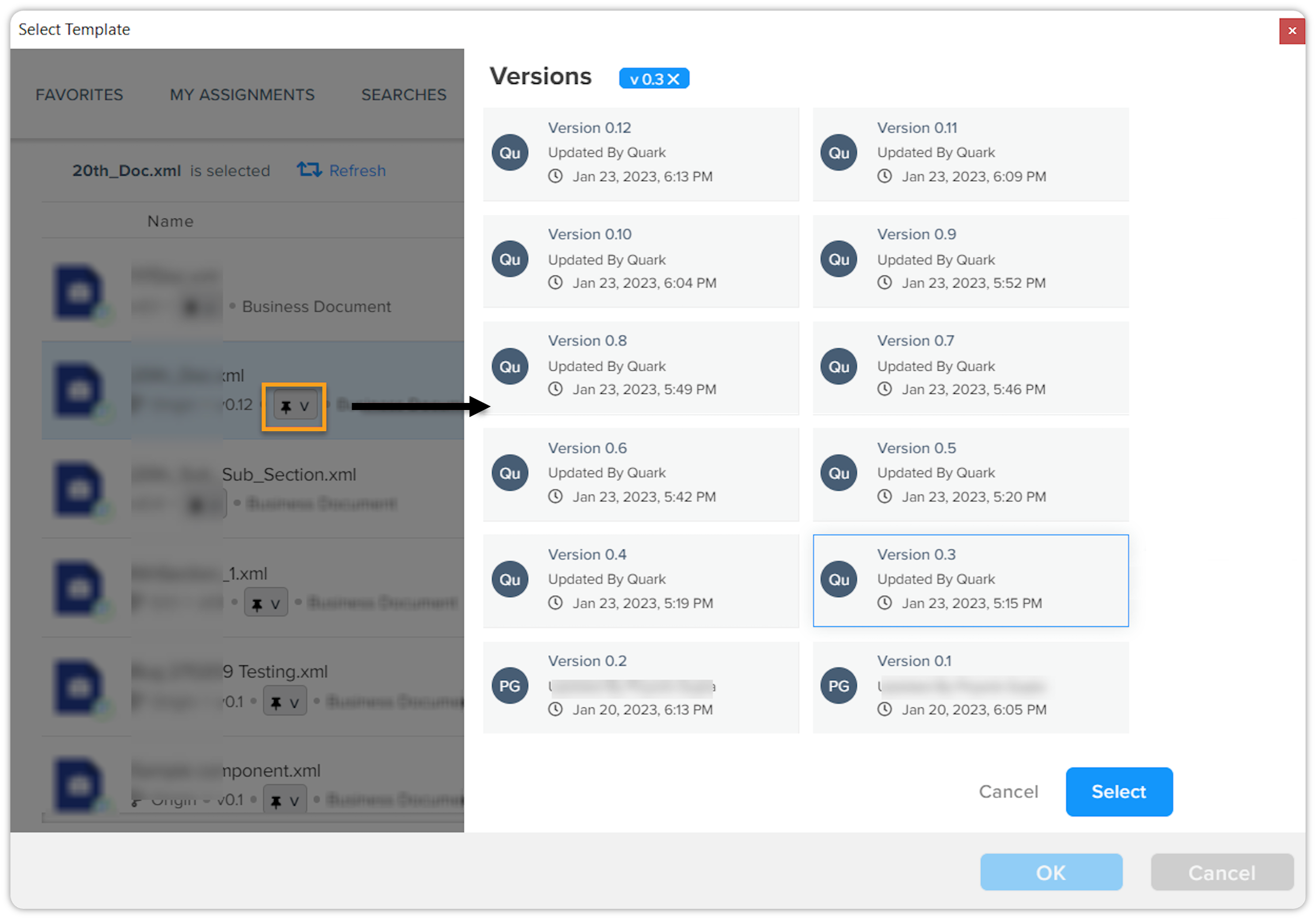
Select the document template and its version or branch (if required), and then click OK.
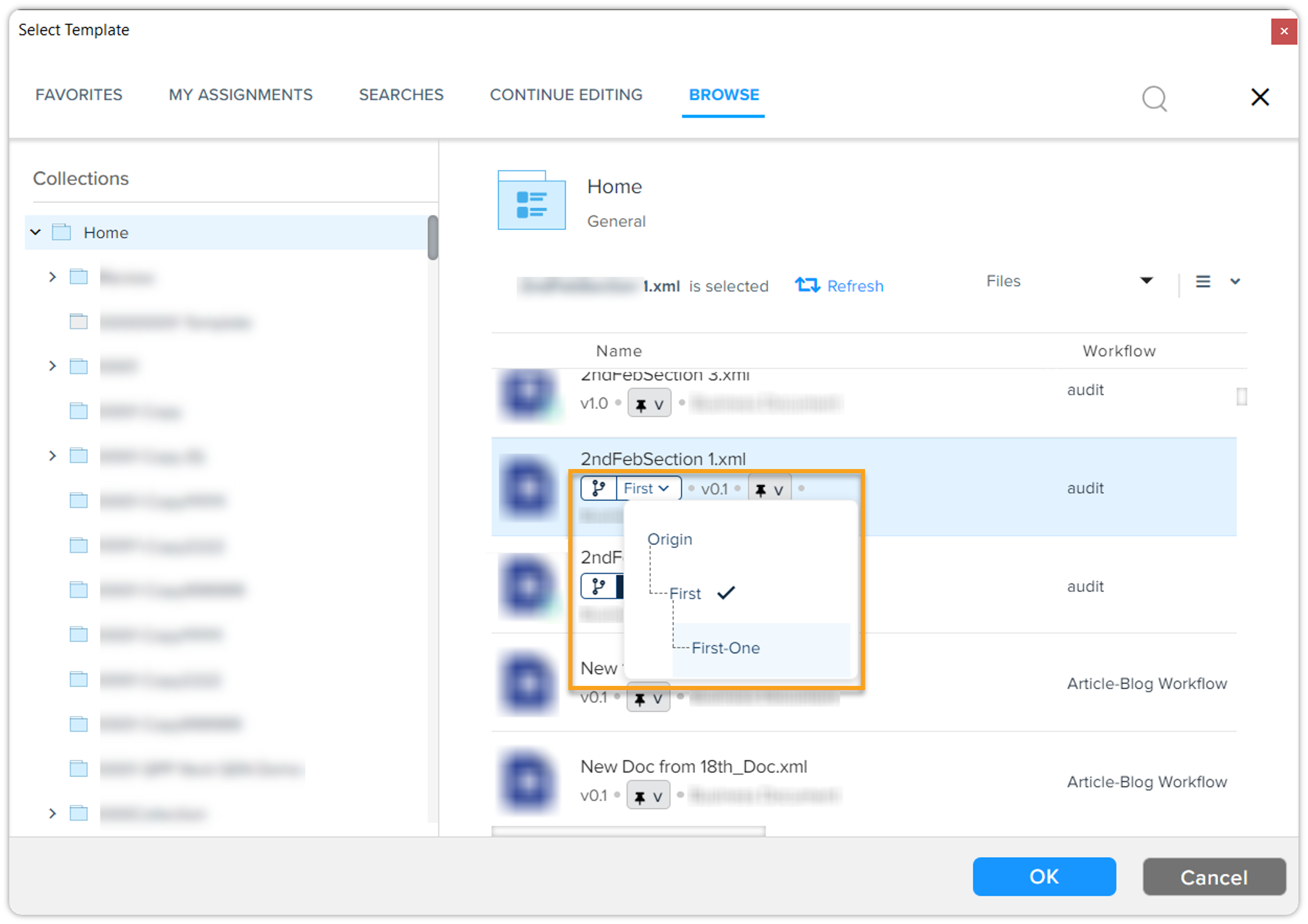
 To select a branch, expand the list of branches through the branch pill icon.
-
Quark Publishing Platform Adapter for Quark XML Author creates a new document based on the template you selected.
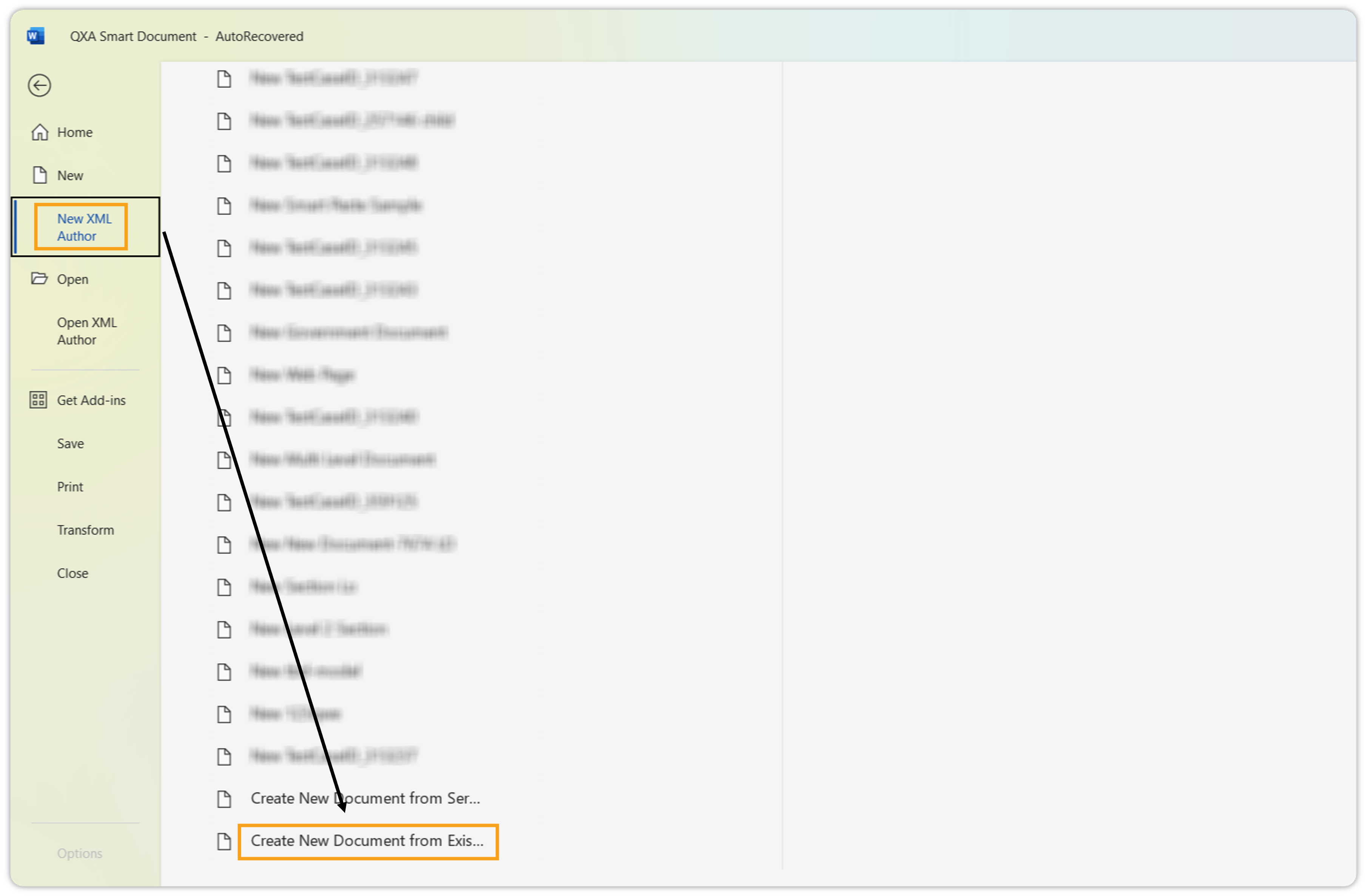
Create a New Document from Existing Document
Besides creating a new document from a server template, you can also create a new document from existing document(s) that are already available in the repository.
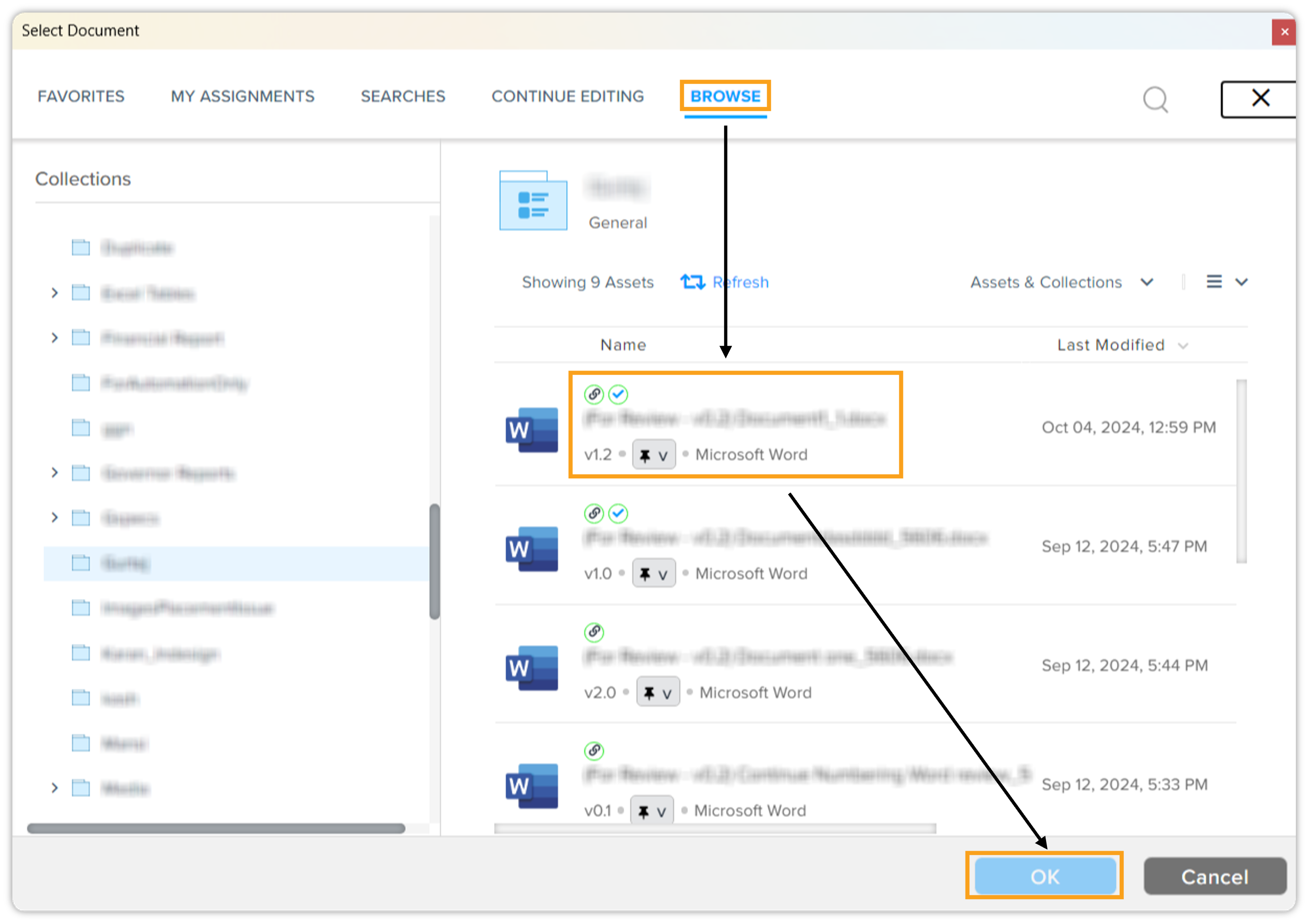
On the Select Document dialog, you can find the document that you want to use.
Open a Document from the Repository
Quark Publishing Platform Adapter for Quark XML Author allows you to open documents that are already saved in the repository.
To open a document from the repository:
-
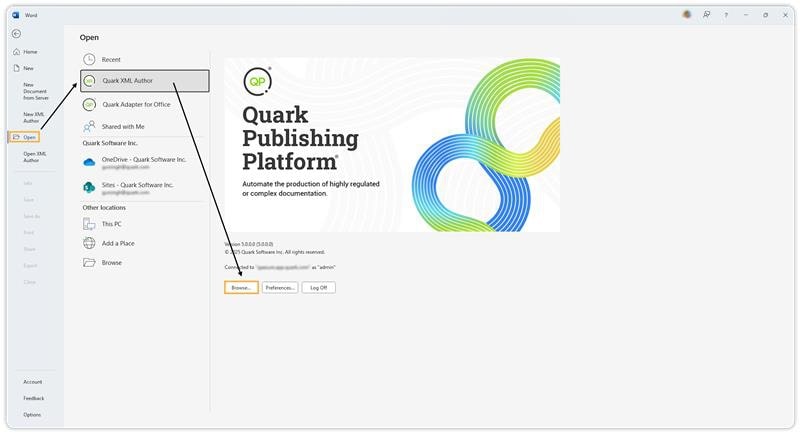
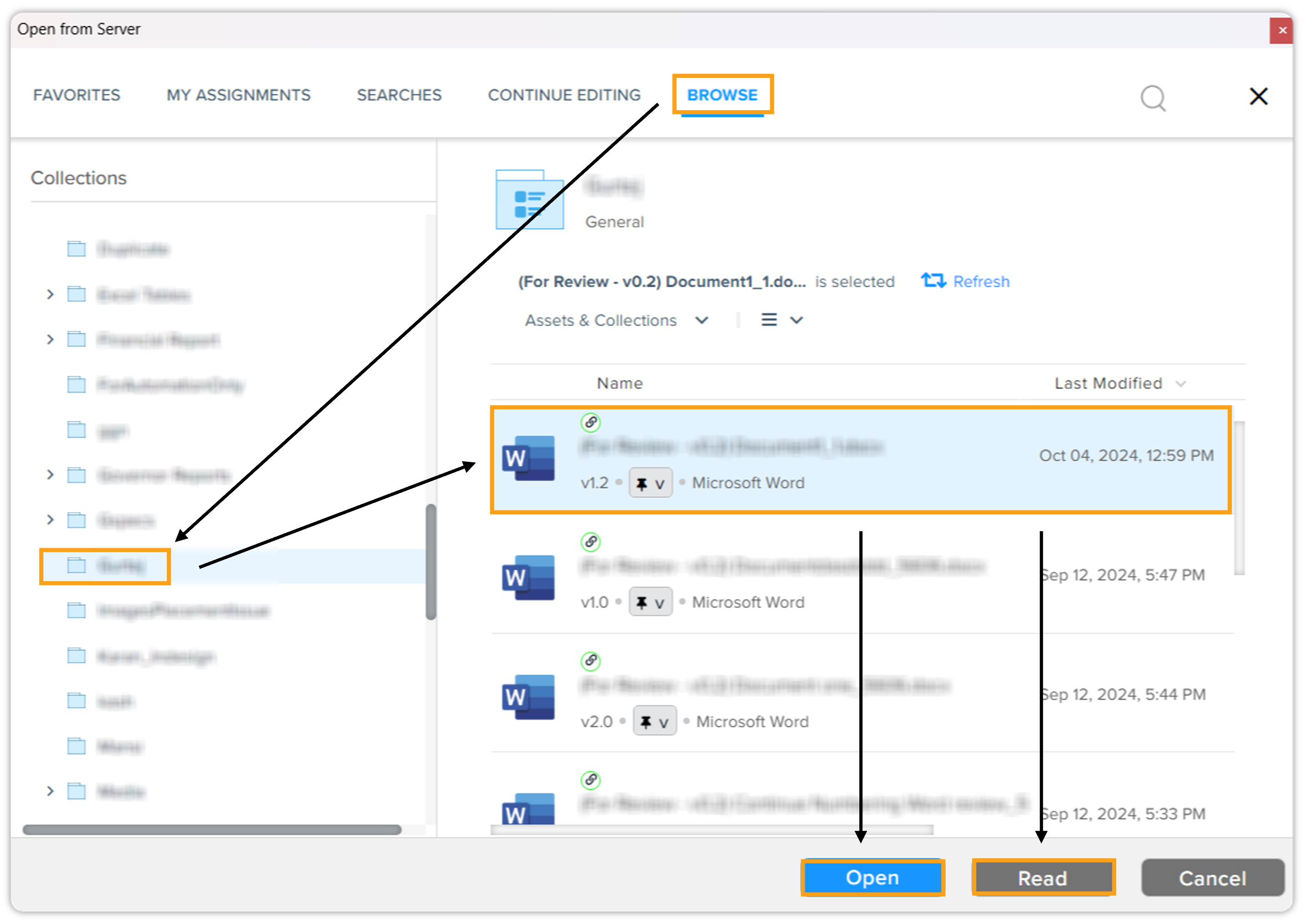
Click File > Open > Quark XML Author > Browse.
-
In the Open from Server dialog box, use one of the paginated tabs or the Search tool to find to document that you want to edit or view.
 You can also open a document that is originally created in Quark Publishing Platform as long as it is of content type Smart Document.
-
Select the document (and its version or branch, if required) and then:
-
Click Open if you want to edit the document.
-
Click Read if you only want to view the document.
-
-
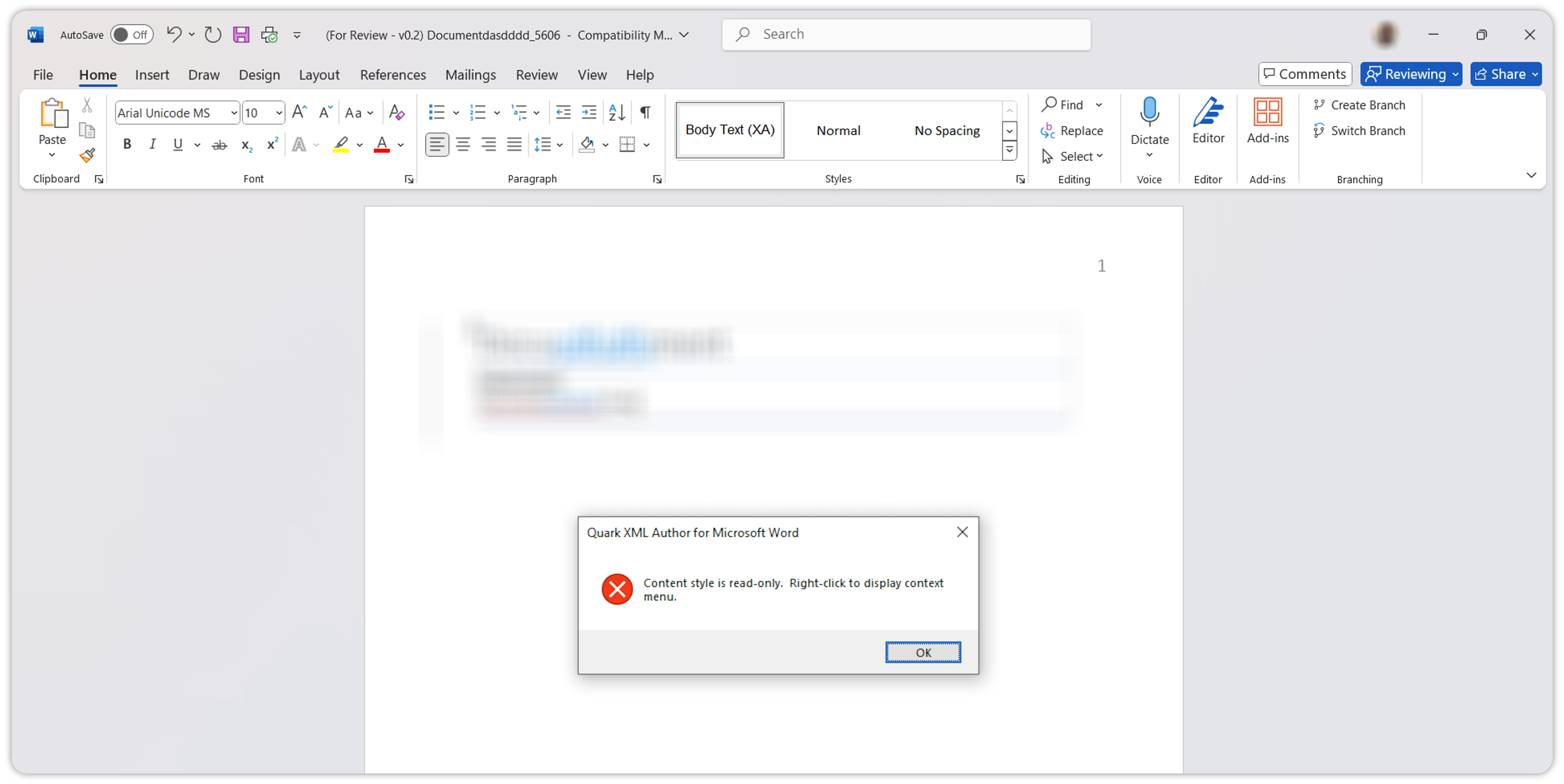
Quark Publishing Platform Adapter for Quark XML Author opens the document.
Visual Consistency Across Authoring Environments
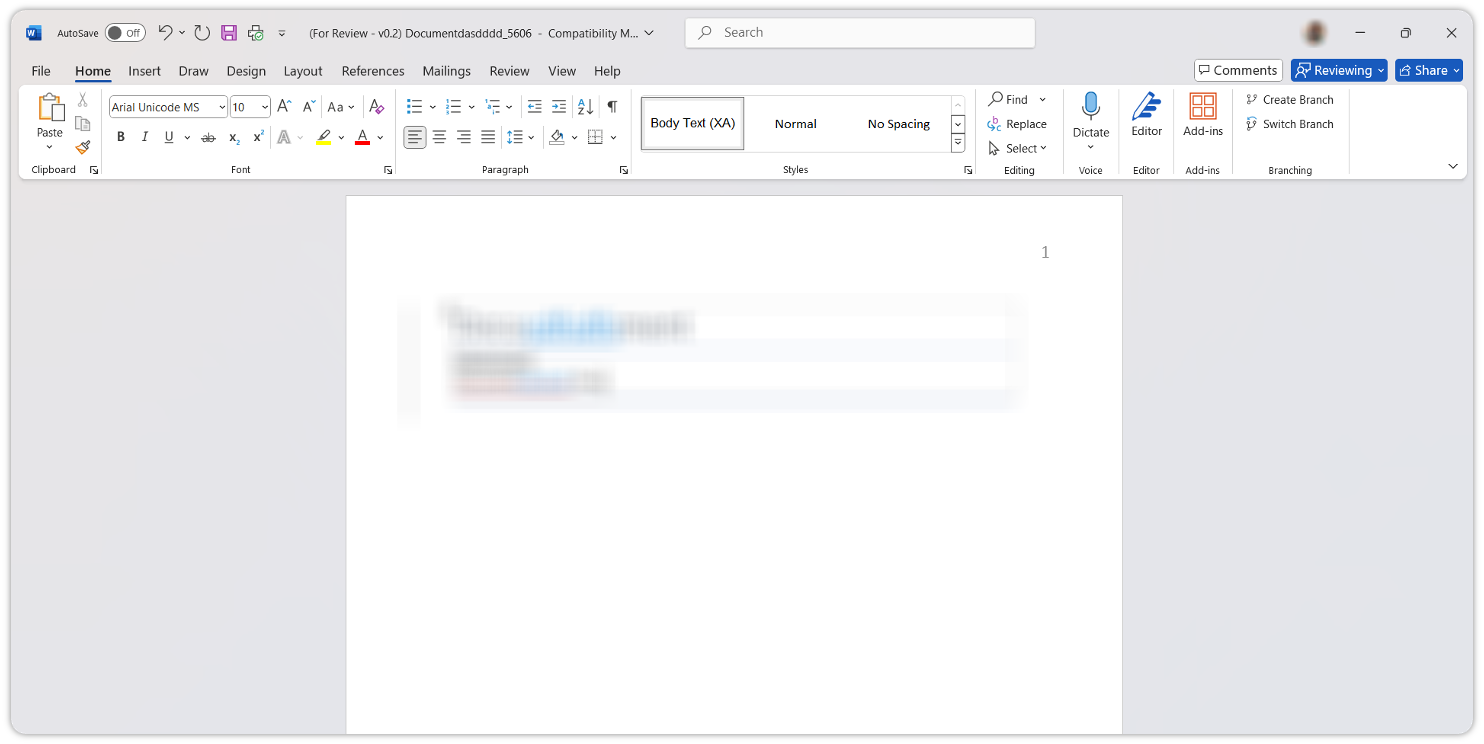
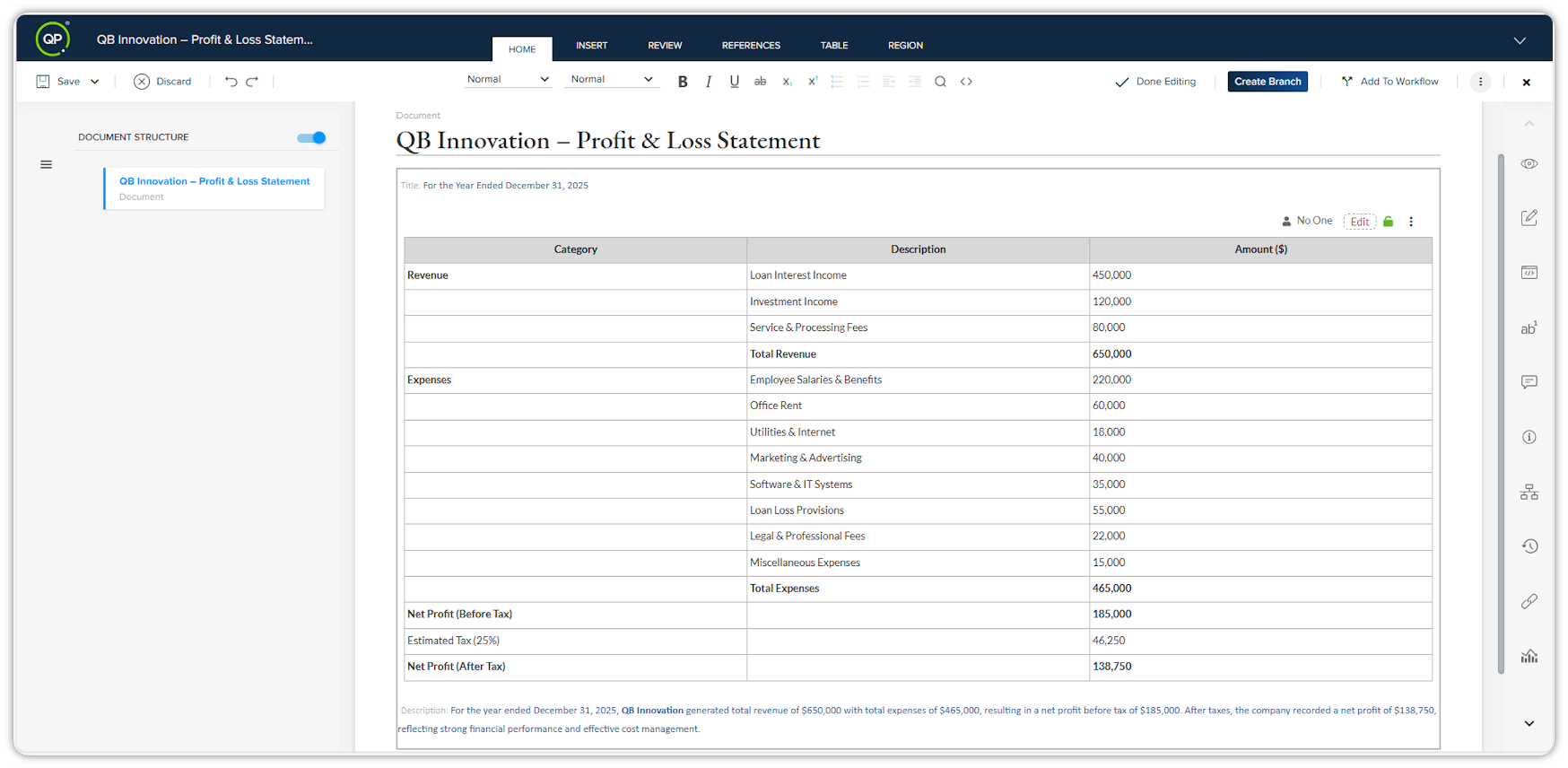
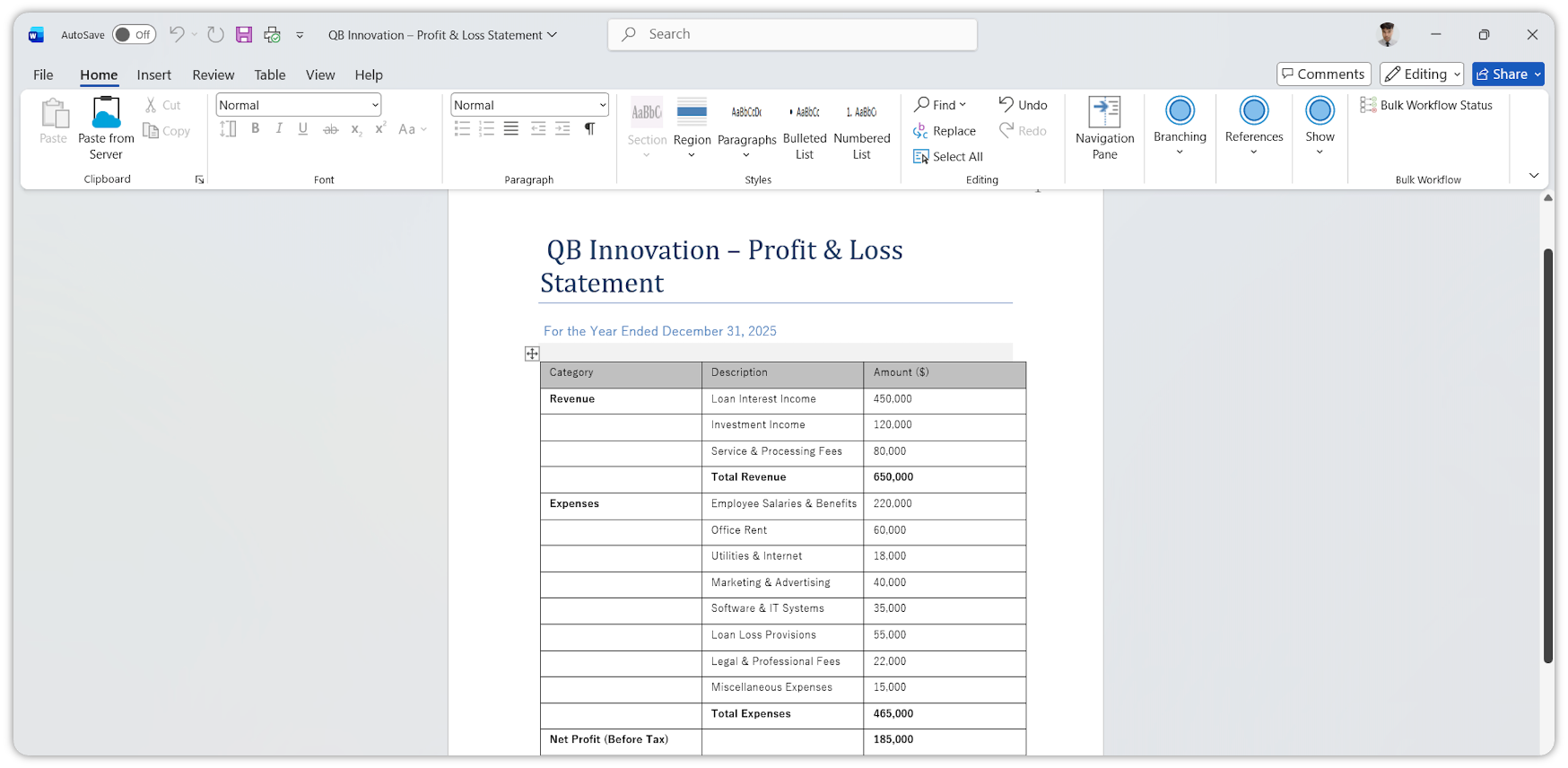
If a document is created in Quark Author (QA) and you subsequently open that same document in Quark XML Author (QXA), all table and figure captions will maintain their visual identity. To ensure a seamless experience between the two applications, these captions will automatically appear in QXA with the signature blue shaded highlight, exactly as they are rendered in QA, the web-based editor.
The following screenshots illustrate how the same document appears in both environments, demonstrating the consistent rendering of smart metadata:
Save a Document to the Repository
When you save a document to the server (check-in) in Quark Publishing Platform Adapter for Quark XML Author, components within the document become available for referencing by other documents.
To save a document that you have finished authoring:
-
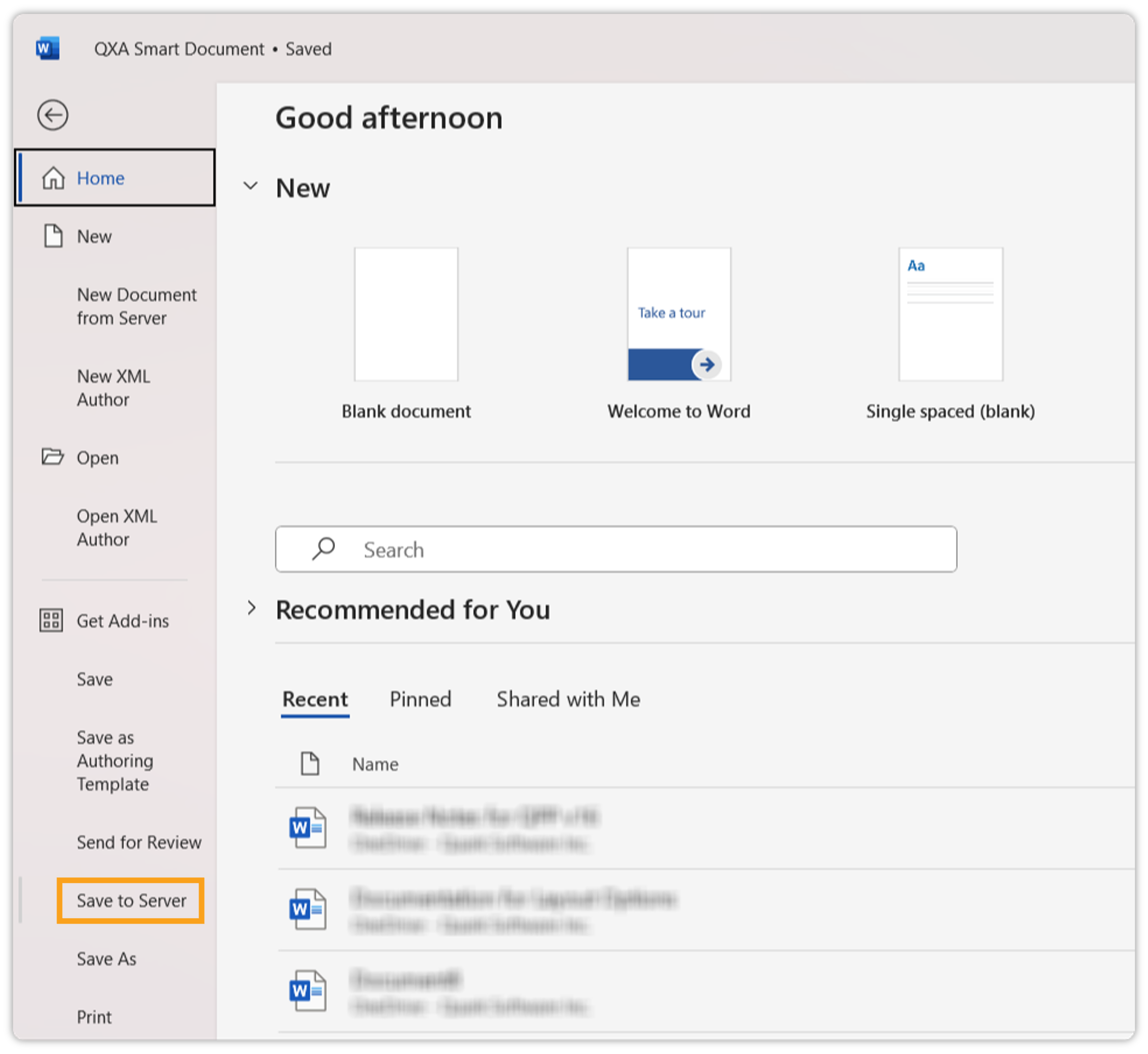
Click File > Save to Server to open the Save dialog box.
-
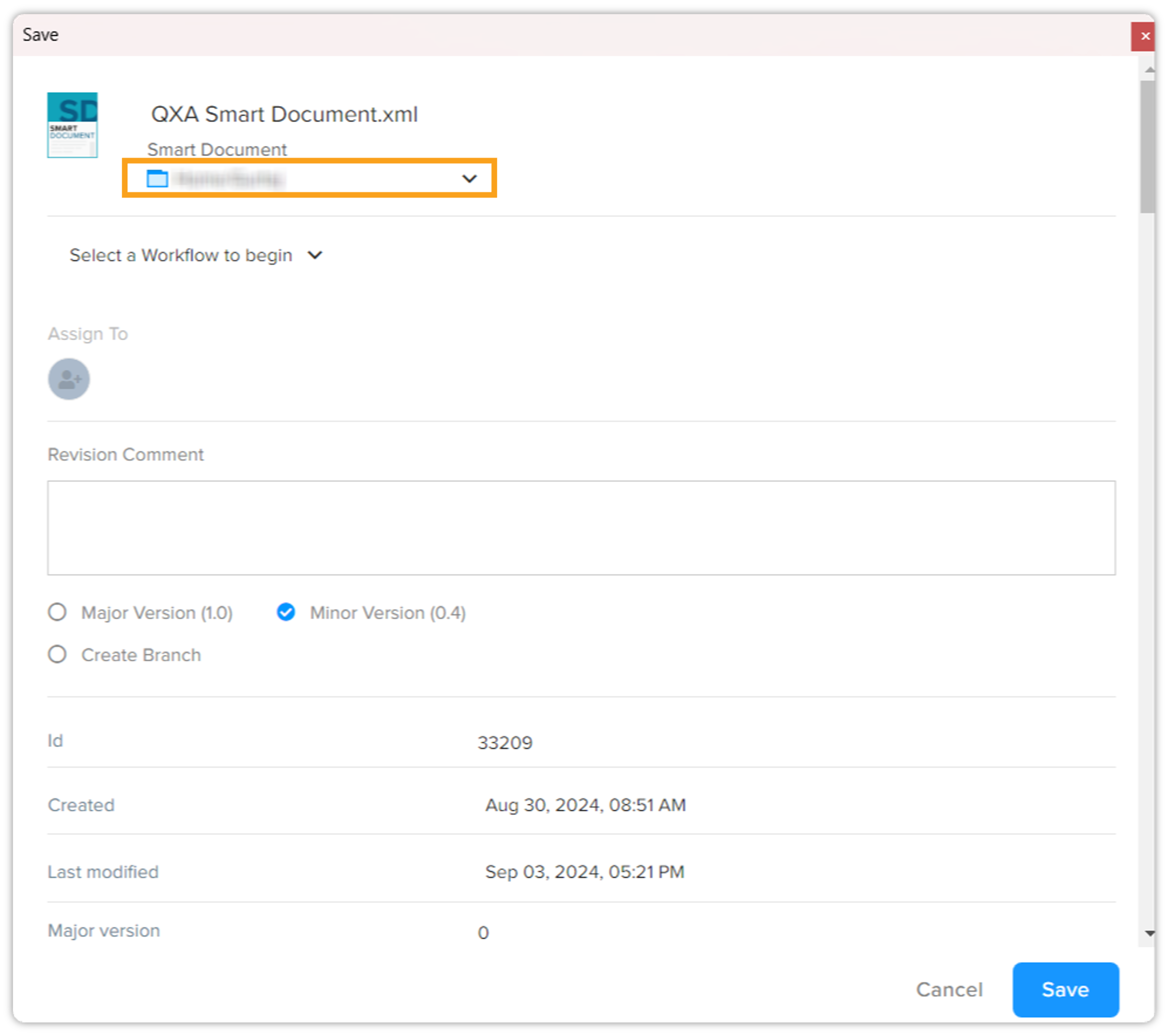
On the Save dialog box, select a location in the repository where you want to save your document.
-
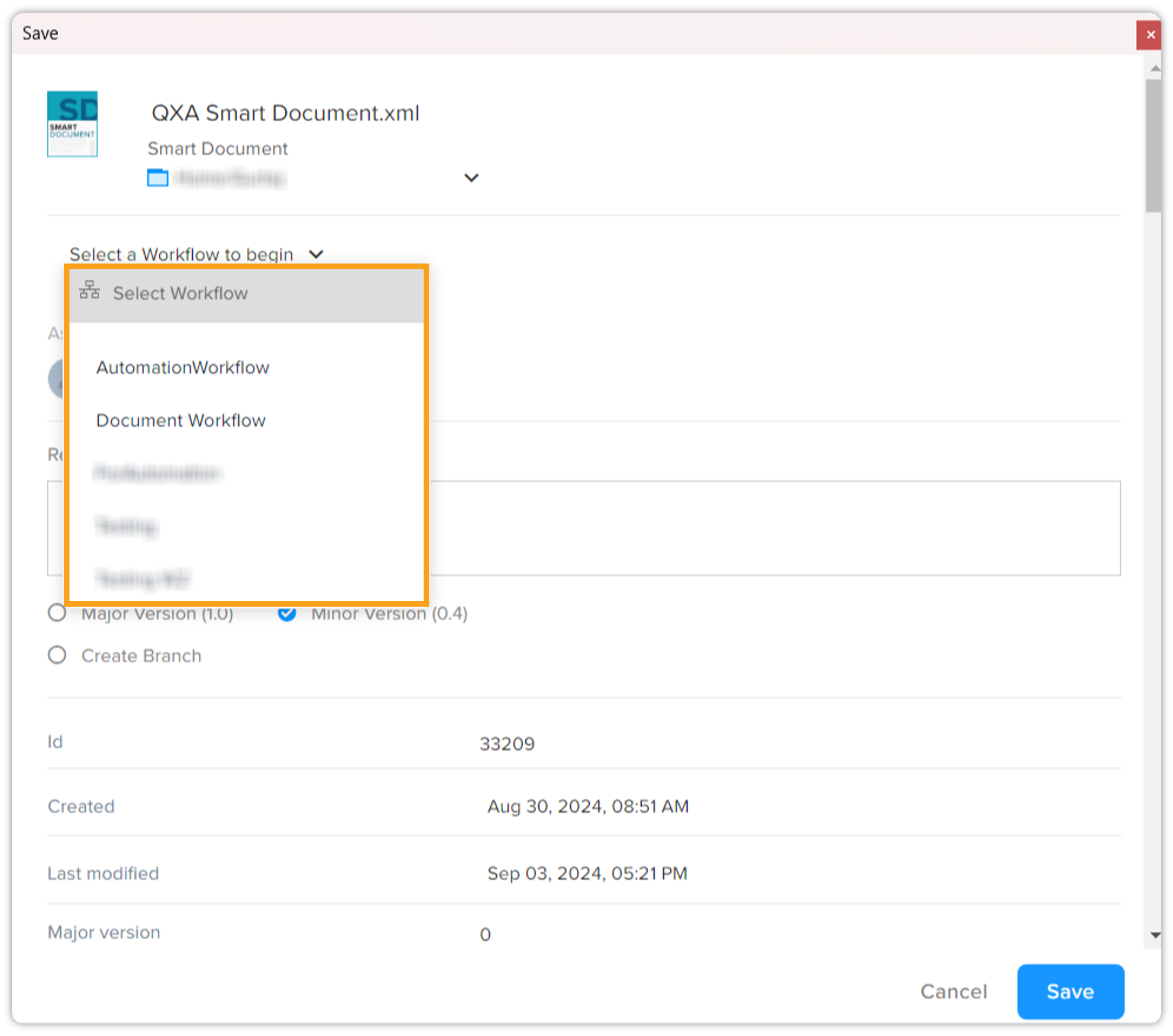
Select a workflow from the Workflow drop-down menu. Workflows define the life-cycle stages of a document. For example, the workflow of a document can have the stages: Author, Review, and Publish.
-
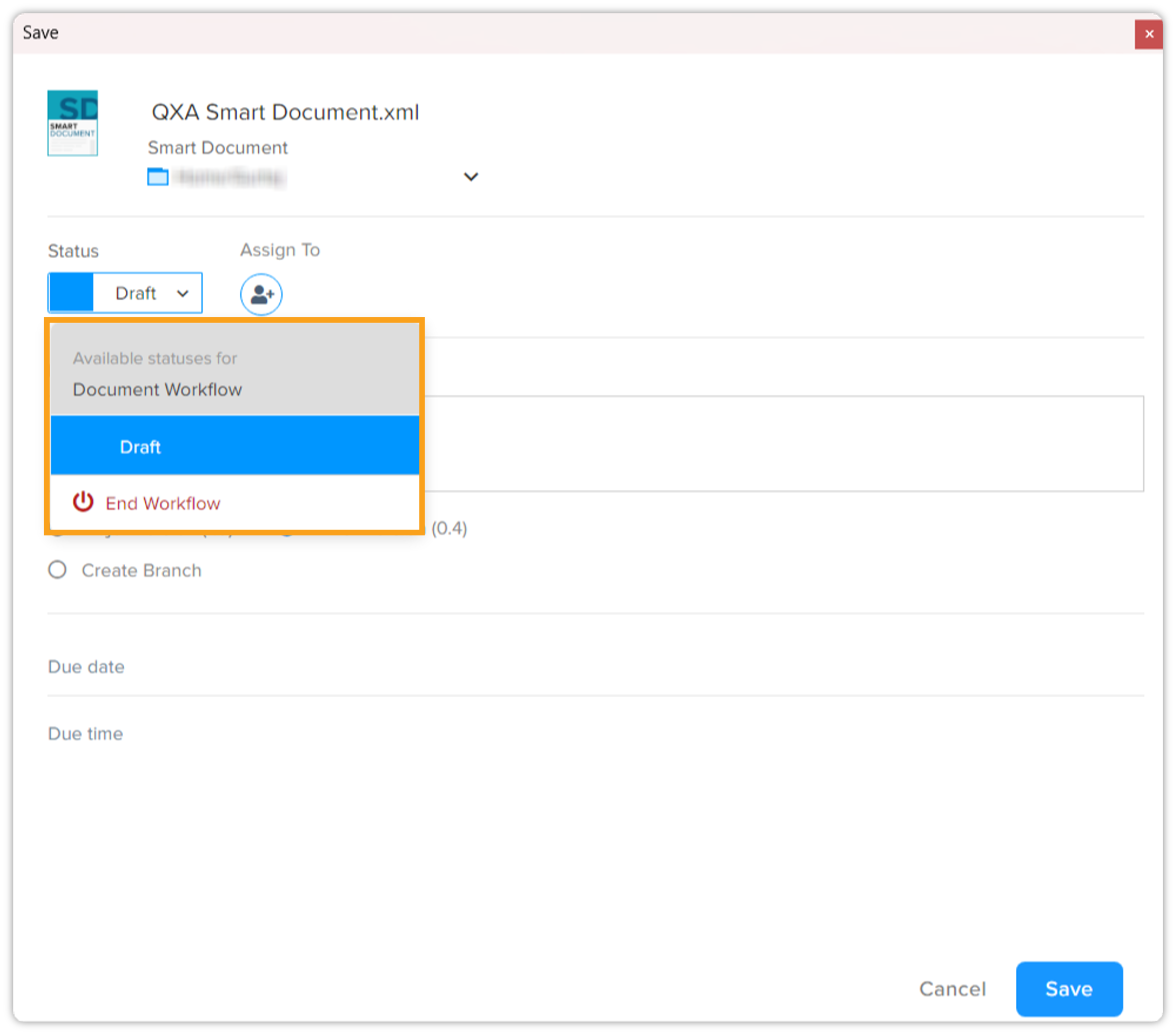
Select a stage from the Status drop-down menu within the selected workflow. By default, Quark Publishing Platform Adapter for Quark XML Author selects the stage that is listed first in the list or the stage that the document is already in if the document is a revision of an already available document.
-
-
Choose the people or group you want to assign (for example, for review) the authored document if required, and then click Assign.
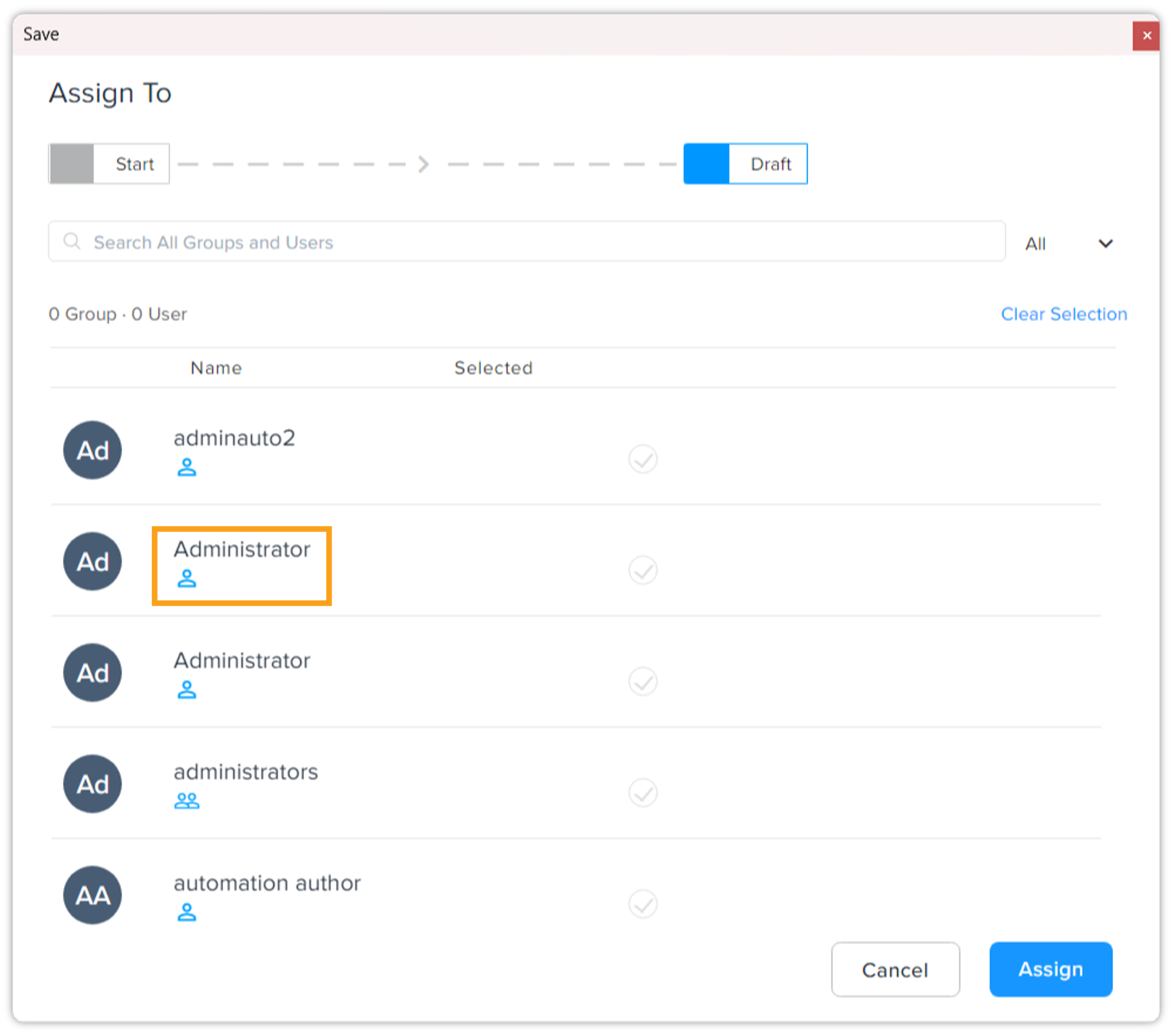 If your workflow uses automatic status-based assignment, the Assign To menu automatically selects people/groups when you select an option from the Status drop-down menu.
-
Enter a revision comment, if required.
Quark Publishing Platform Adapter for Quark XML Author displays revision comments when you open a document to view or edit. -
Choose a version type — major or minor, or create a branch.
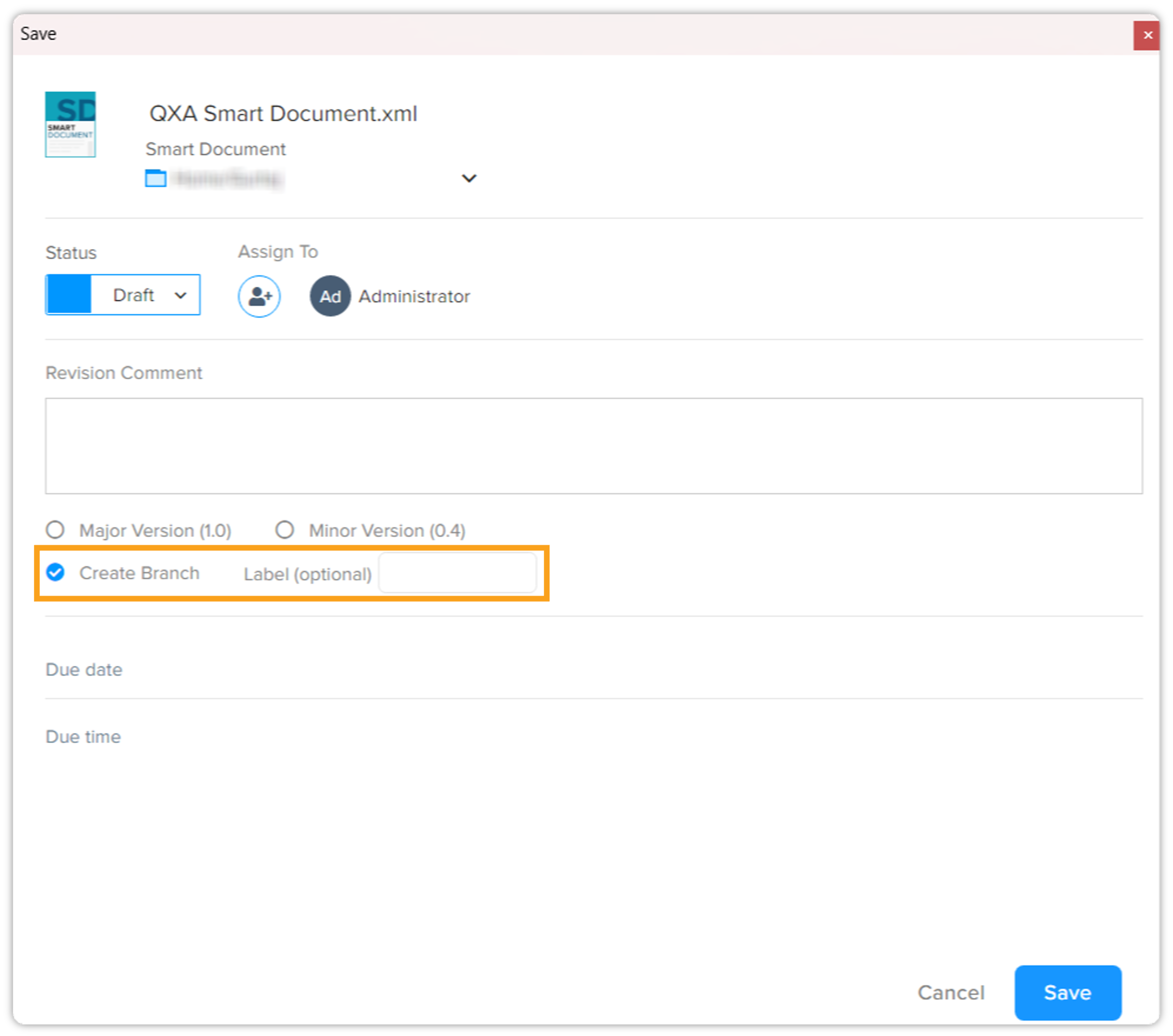 When you select Create Branch checkbox, Quark Publishing Platform Adapter for Quark XML Author displays another optional field Branch Label in which you can enter the name you want to assign to your branch. If you don't assign a label, Quark Publishing Platform Adapter for Quark XML Author assigns a branch number automatically. More on this in the section Version Number and Branch Notation.
-
Click Save.
On the Save dialog box, there are several fields that represent the metadata of the current document such as created by, last modified, checked out by, and soon.
Done Editing
The option Done Editing is equivalent to saving the file to the server, except that Quark Publishing Platform Adapter for Quark XML Author displays the option when you close a document from the window menu button Close. And unlike the option Save to Server & Close, the option Done Editing keeps the document open after saving the document to the server. To save a document to the server through the option Done Editing:
-
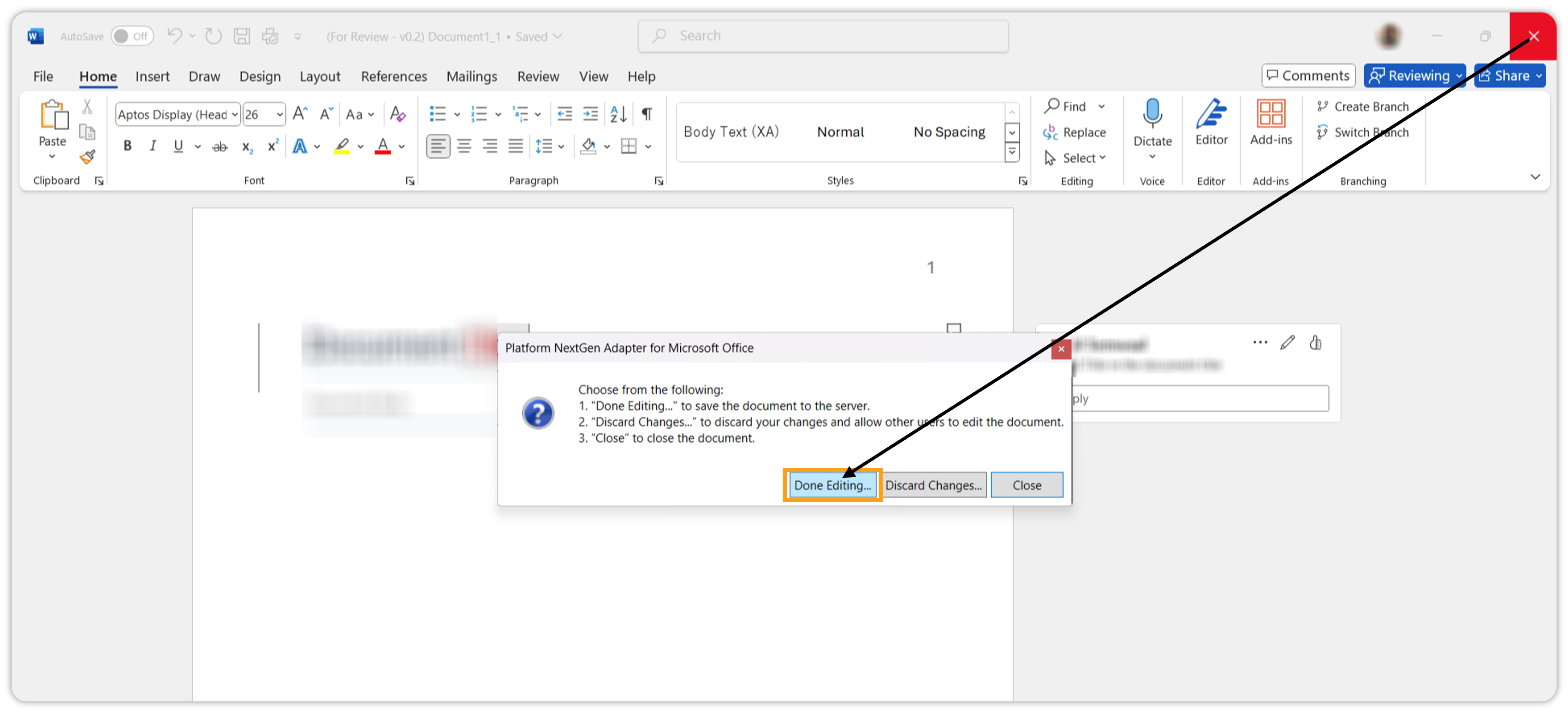
Click the Close Window button.
-
In the Close Window dialog box, click Done Editing to open the Save dialog box.
-
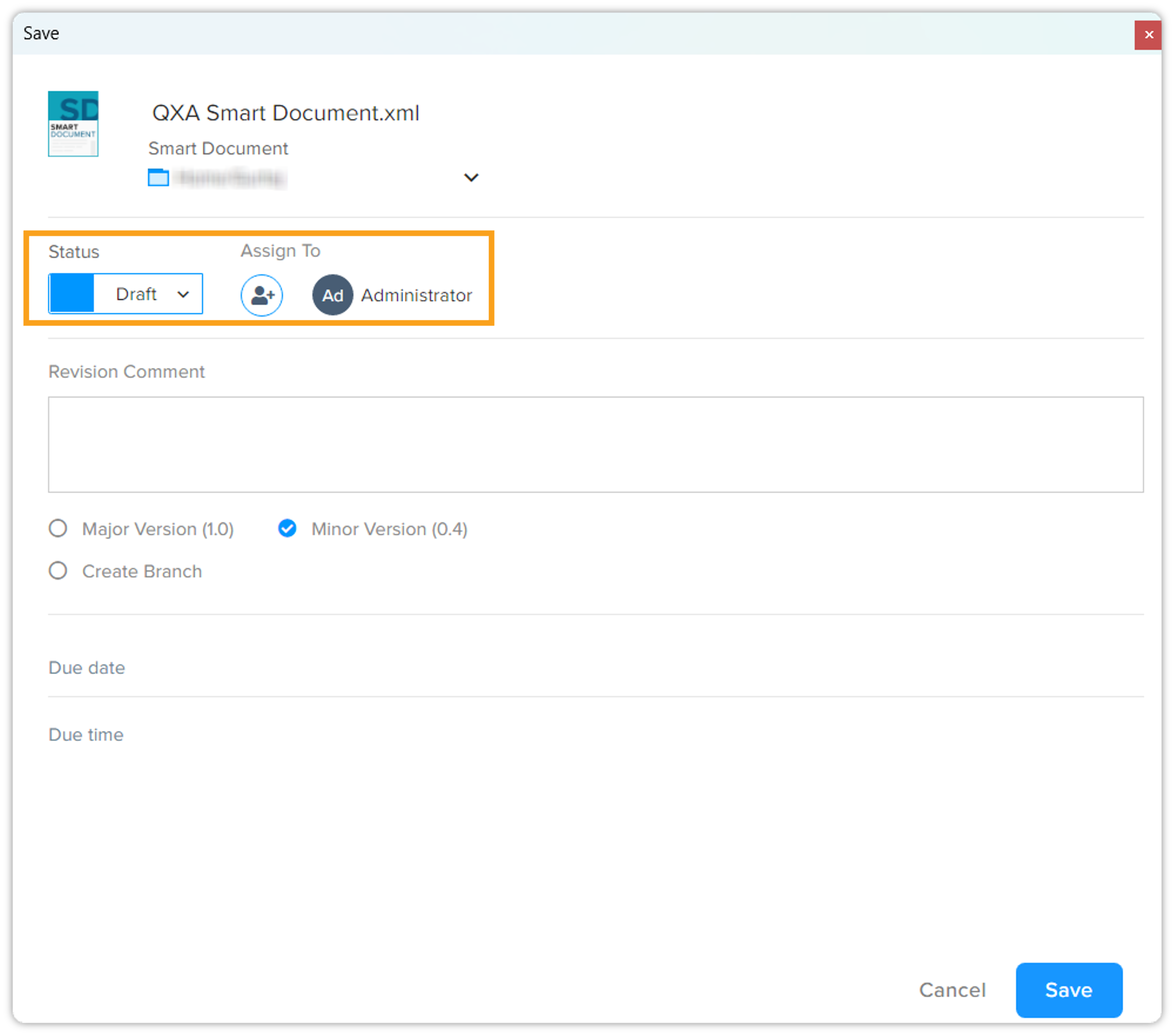
In the Save dialog box, if applicable, select location, Status, Assign To, Revision Comment, version number, or create a branch.
-
Click Save.
Quark Publishing Platform Adapter for Quark XML Author saves and checks in the document on the server.
Discard Changes
When you open a document from the repository for editing (check out a document) and after you have made some changes, if you do not want to keep the changes, you can discard those changes.
To discard the changes that you have made to a document:
-
Click the Close Window button.
-
In the Close Window dialog box, Click Discard Changes.
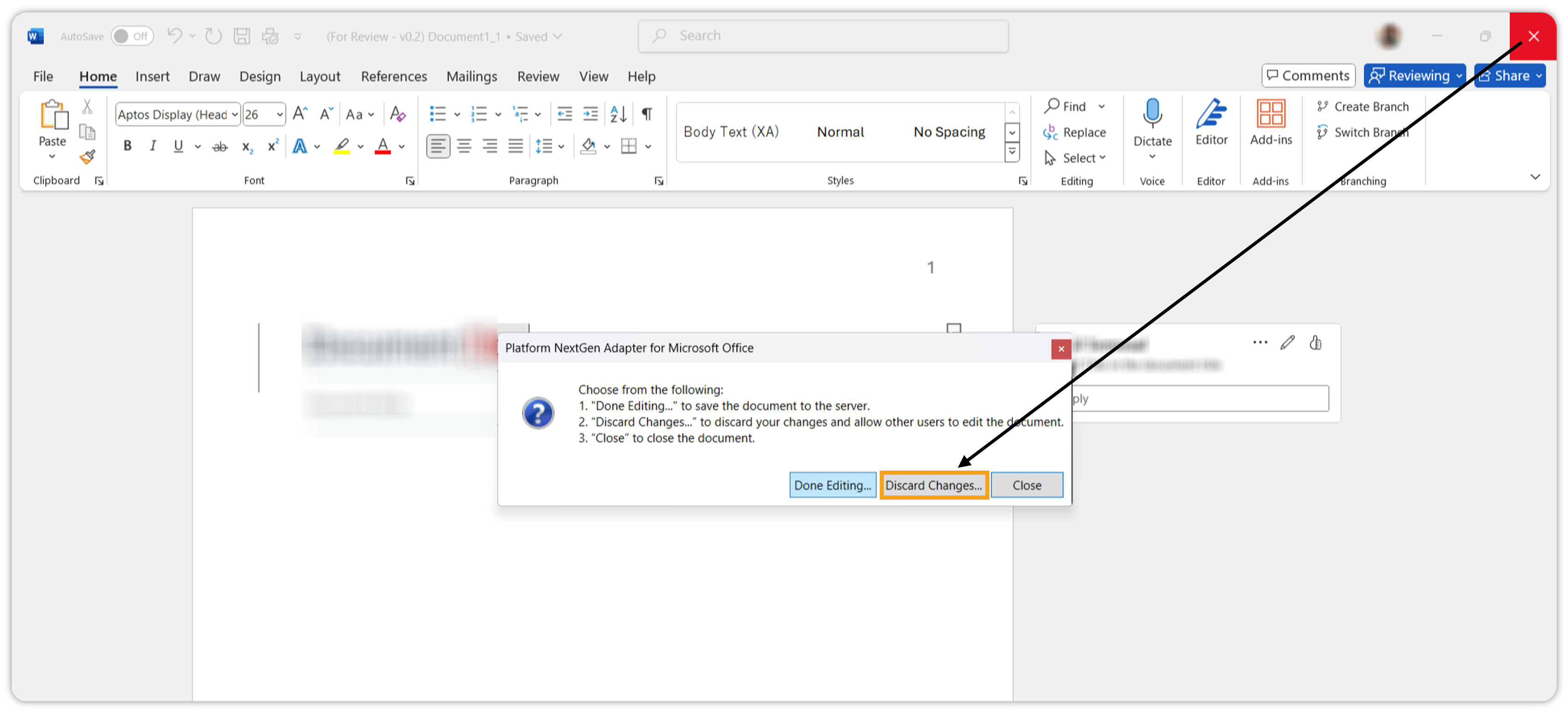
-
Quark Publishing Platform Adapter for Quark XML Author restores the document to the last version saved on the Server.
When you discard changes, the status of the document in the repository also changes from Checked-out to Checked-in, which allows other users with proper authentication to open the document for editing.
Browsing Options
When you are opening a file from a server or saving a file to a server, you can use the following browsing options:
-
Switch between list view and grid view. By default, Quark Publishing Platform Adapter for Quark XML Author displays results in the list view.
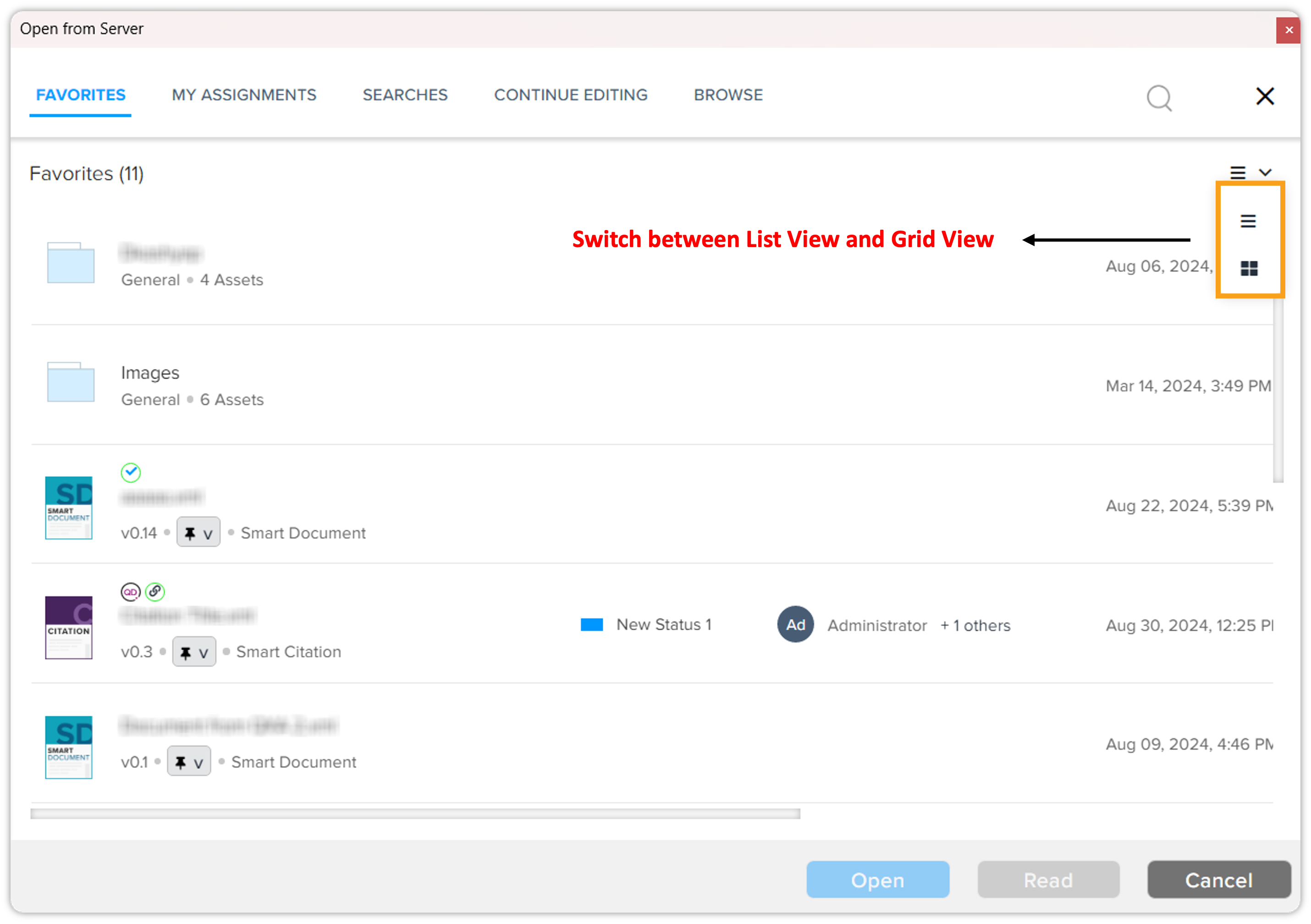
-
Sort results in the list view. Quark Publishing Platform Adapter for Quark XML Author displays customized sorting options based on the paginated tab you use. For example, under the tab My Assignments, you can sort the results by Name, Status, Assigned To, Created (date of creation), Last Modified, Last Modifier, and Collection (location in the repository).
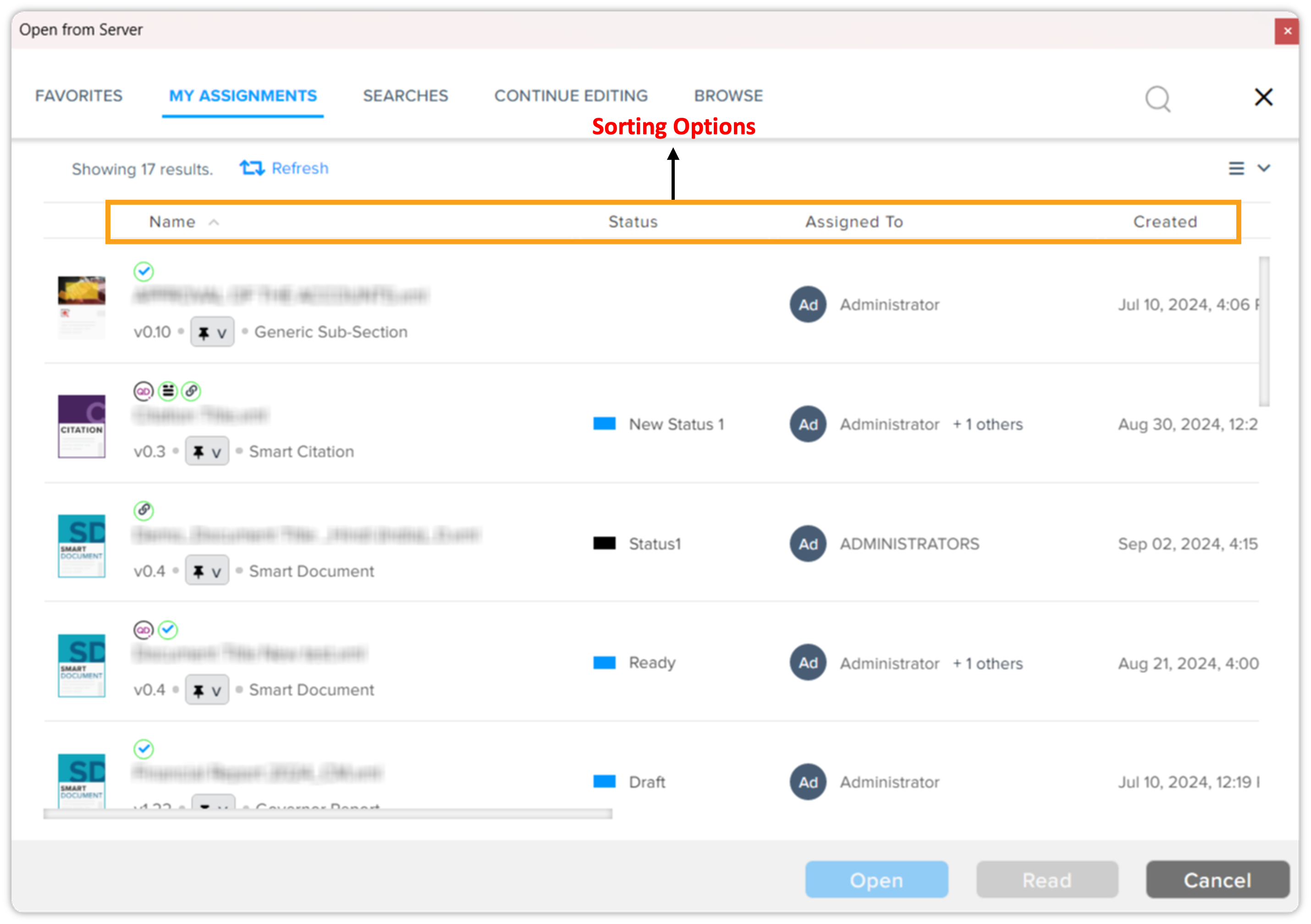
-
Use popular and previously made searches.
-
Refresh results when you don't find a file/folder where you expect to find that file/folder within the repository.
-
Switch between result types: Assets & Collections, Assets, or Collections.
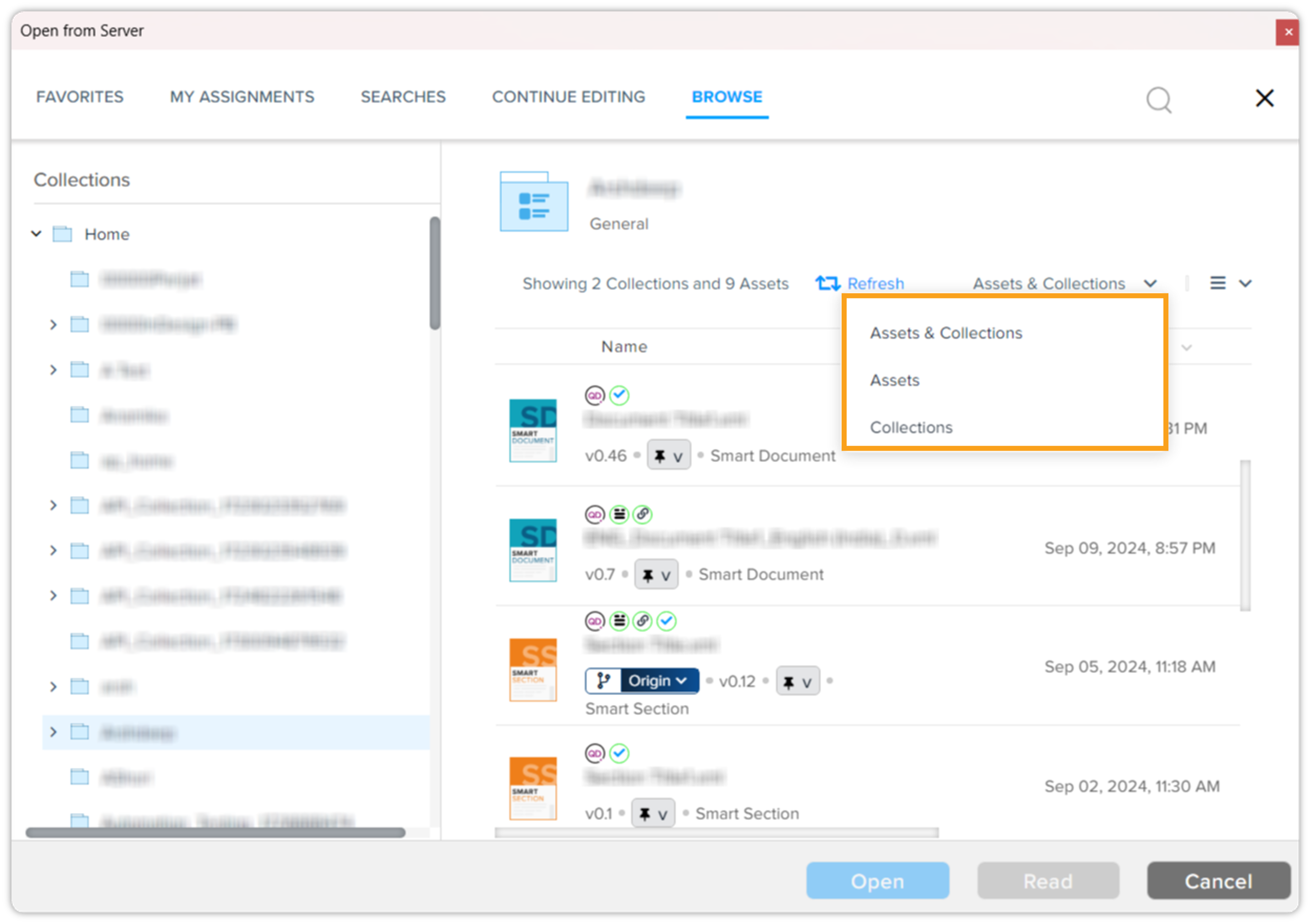
Icons
Some files in the repository can have an icon next to them, which either represents the content type or the state the file is currently in.
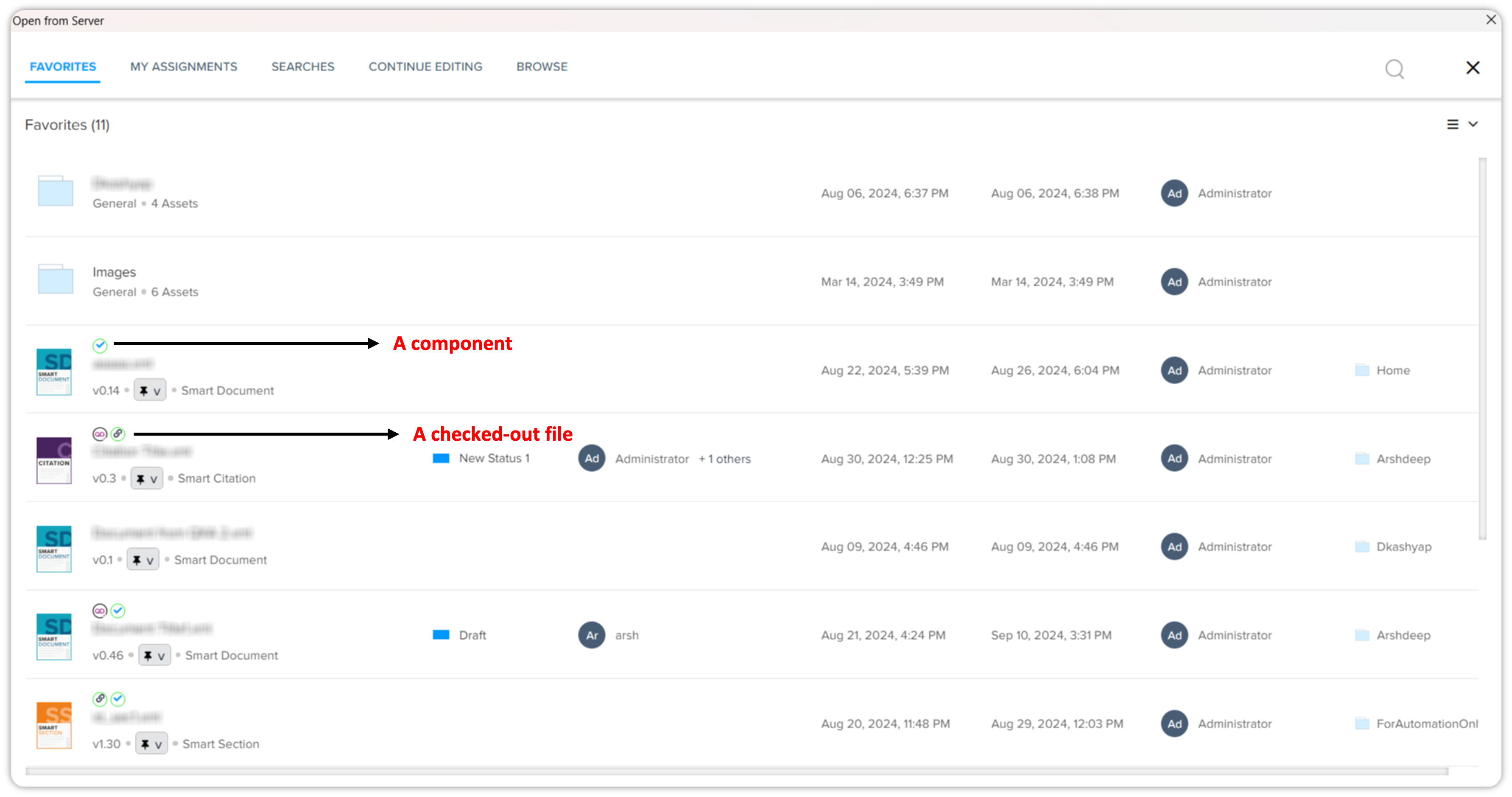
The following table lists these icons with their description:
|
Icon |
Name |
Description |
|
|
Component |
Represents that the file is being used as a component in another document. |
|
|
Checkout |
Represents that the file is check-out and is enabled for editing. |
|
|
Represents that the file has branches and which branch is currently selected. |