
Author in Microsoft Word
In structured authoring, a document must conform to the structure that the underlying XML schema specifies. To adhere to the XML schema, QPP Adapter for Quark XML Author disables some Microsoft Word functions that don't apply to an XML document. This automatically prevents you from performing a command that might affect the structure of your document.
The 'Undo' and 'Redo' features within an XML Author session operate similarly to Undo and Redo within a standard Word authoring session. For every Undo action that is supported in QPP Adapter for Quark XML Author, Redo is also supported. The Repeat Last Action feature is not supported. In Word, Repeat is integrated with the 'Redo' feature.
Microsoft Word Views
Supported views
QPP Adapter for Quark XML Author supports the following Microsoft Word views:
-
Draft
-
Print Layout
Unsupported views
QPP Adapter for Quark XML Author does not support the following Microsoft Word:
-
Web Layout
-
Outline View
-
Full-Screen Reading
Unavailable Microsoft Word Features
The following is a list of common Microsoft Word features that are not available in QPP Adapter for Quark XML Author:
-
Macro Recording
-
Grammar Checker
-
Select Browse Object
-
Tools
-
Quick Access Toolbar
-
Page Setup
-
-
Ruler
-
Document Map
-
Thumbnail View
-
Reply to comments and mark comments done
-
Collapse / Expand Outline Styles
-
Live Layout and Alignment Guides
-
Word 2013 Design tab
-
Reviewing Pane
Available Word Features
QPP Adapter for Quark XML Author supports the following commonly used features of Microsoft Word:
-
Insert Table Rows and Table Columns
-
Backstage View
-
Cell Border Dragging
-
Smart Paste
-
Track Changes for Multiple Users
-
Display for Review
-
Navigation Pane
Comments
The QPP Adapter for Quark XML Author fully supports the Microsoft Word Comments feature, functioning in much the same way with one exception: commenting is not permitted on read-only elements, such as components.
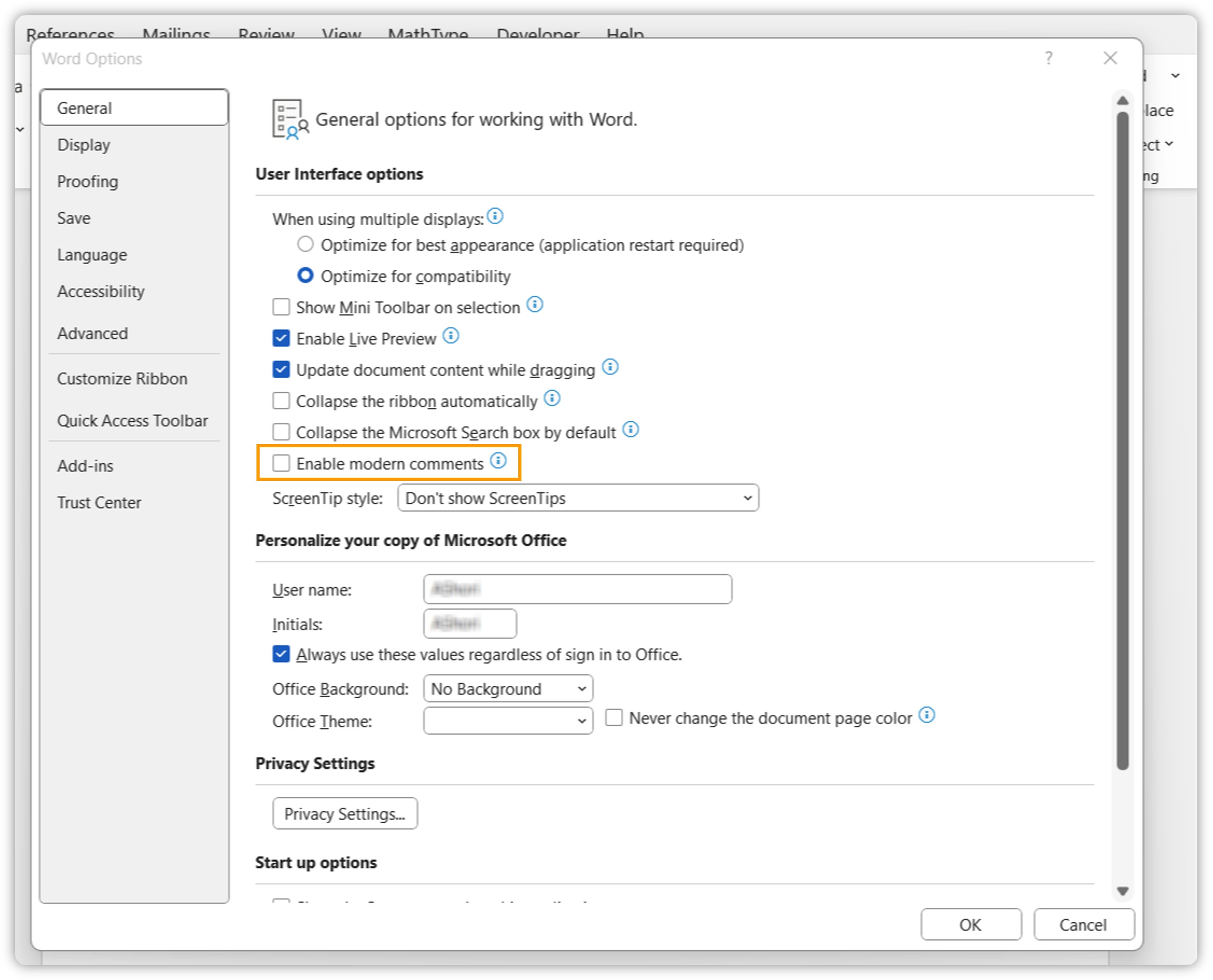
Adding Comments
Authors and reviewers can add comments to documents in Quark XML Author, just as they would in Microsoft Word. Comments are supported at every level of the document, including Section level, Table level, Region level, and more.
To comment on a specific word or phrase:
-
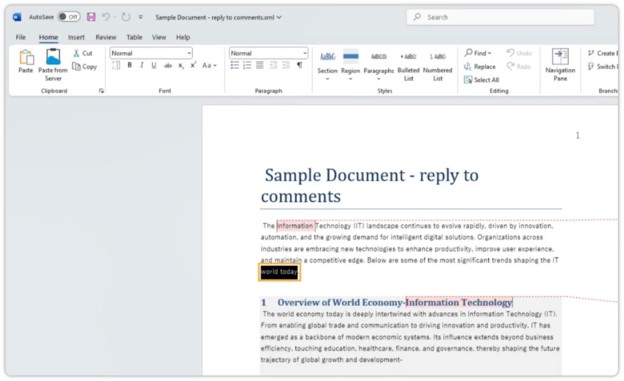
Select the Text: Highlight the word or phrase you wish to comment on.
-
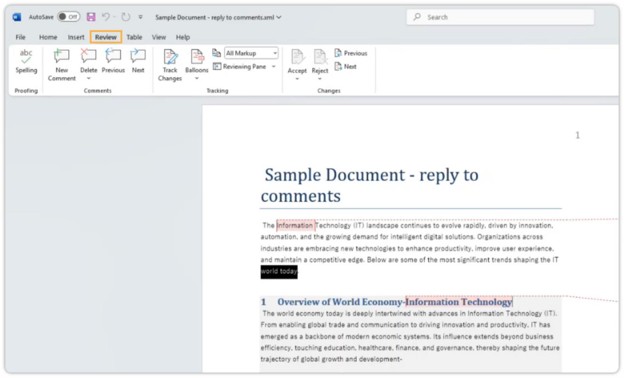
Navigate to the Review Tab: Click on the Review tab in the toolbar.
-
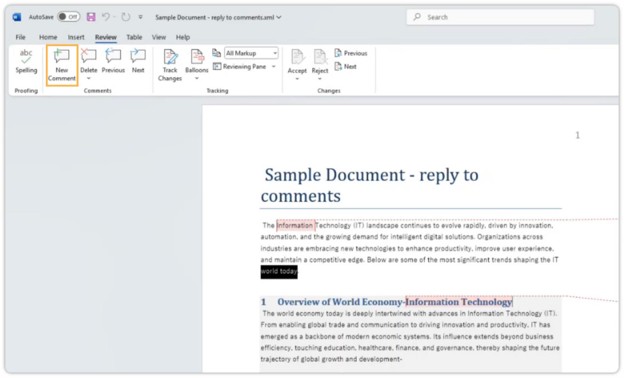
Click on New Comment: Select New Comment from the options.
The comments will appear in two locations:
-
On the right-side panel.
-
At the bottom pane of the document.
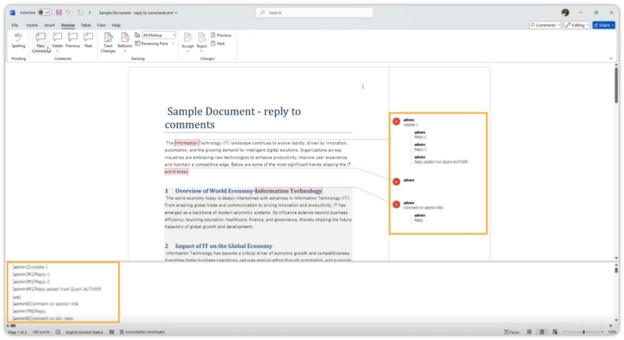
You can view and add comments from either location.
Replying to Comments
In addition to adding new comments, users can now reply to existing comments, enhancing the collaborative experience:
Right-Side Pane
-
Click on the comment you wish to respond to, and you will see the option to Reply.
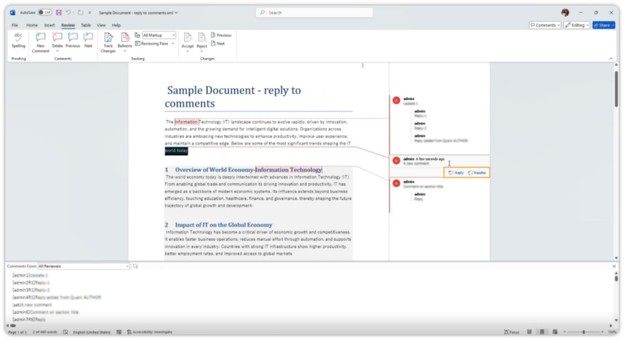
Bottom Pane
-
Right-click on the comment to access a menu with options to Edit, Reply, or Delete the comment.
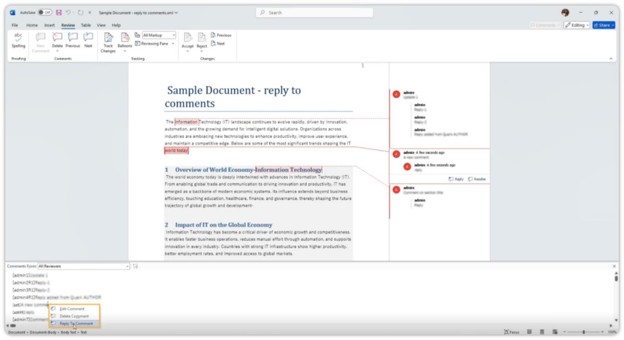
This streamlined commenting and replying process promotes effective discussion and feedback among authors and reviewers, ensuring that conversations around the content are coherent and easily accessible.
Find and Replace
QPP Adapter for Quark XML Author supports Microsoft Word’s Find and Replace feature and acts the same way, with one exception. QPP Adapter for Quark XML Author’s Replace feature does not modify read-only elements such as element labels or content that is part of a content reference. You can only modify text via Replace if the text is editable.
The Find and Replace dialog does not allow you to specify stylistic information, as XML content does not contain any style information.
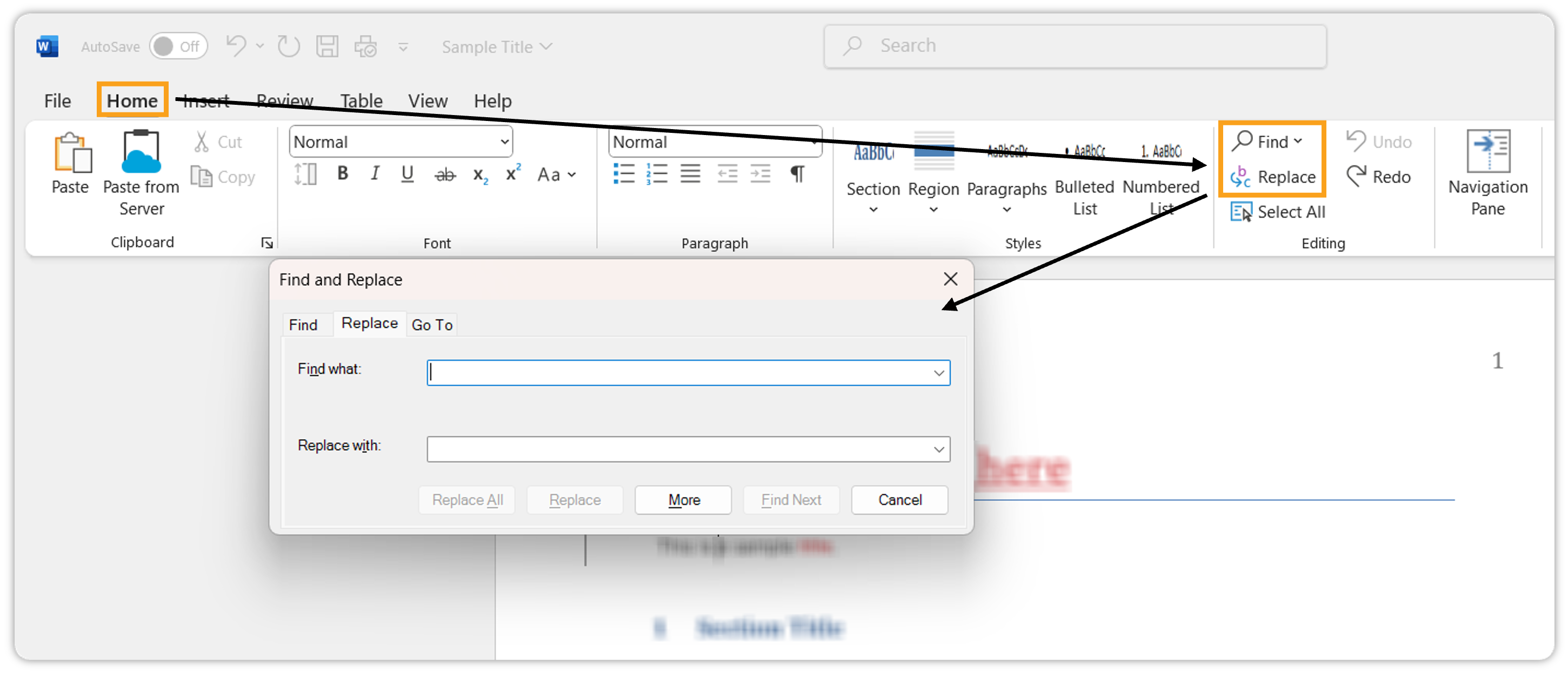
Printing
QPP Adapter for Quark XML Author supports Microsoft Word's Print feature. QPP Adapter for Quark XML Author prints the WYSIWYG view of the document.
Spelling Checker
QPP Adapter for Quark XML Author supports Microsoft Word’s Spelling feature and acts the same way, with one exception. It doesn't spell check or modify read-only elements such as element labels or content that are part of a content reference. You may only modify text via spell check if the text is editable.
On the Microsoft Word canvas, any text that is deemed misspelled displays a red wavy underline even if it is read-only.
To do a manual spell check:
-
Click Review > Spelling.
Track Changes
QPP Adapter for Quark XML Author supports Microsoft Word's Track Changes feature. It only tracks changes for editable content but not for structural and element-level changes (with a few exceptions).
QPP Adapter for Quark XML Author tracks commands like insert, modify, and delete for elements, but the visual indicator for these actions varies with each element. When you copy a content element containing tracked changes, QPP Adapter for Quark XML Author filters out the tracked deletions and does not paste them along with the content element.
QPP Adapter for Quark XML Author tracks the changes in the text in a table but does not track the structural changes, such as delete a table, delete a row, delete a column, insert a row, split cell, and merge cells. For Word Tables, QPP Adapter for Quark XML Author tracks the insertion and deletion of Word Tables within a QXA document.
Differences
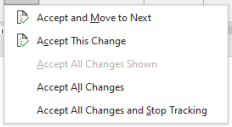
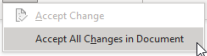
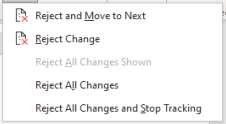
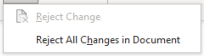
In QPP Adapter for Quark XML Author, the 'Accept' and 'Reject' track changes drop-down menus differ from Microsoft Word. The following table displays the differences:
|
|
Microsoft Word |
QPP Adapter for Quark XML Author |
|
Accept drop-down menu |
|
|
|
Reject drop-down menu |
|
|
View Reviewing Pane
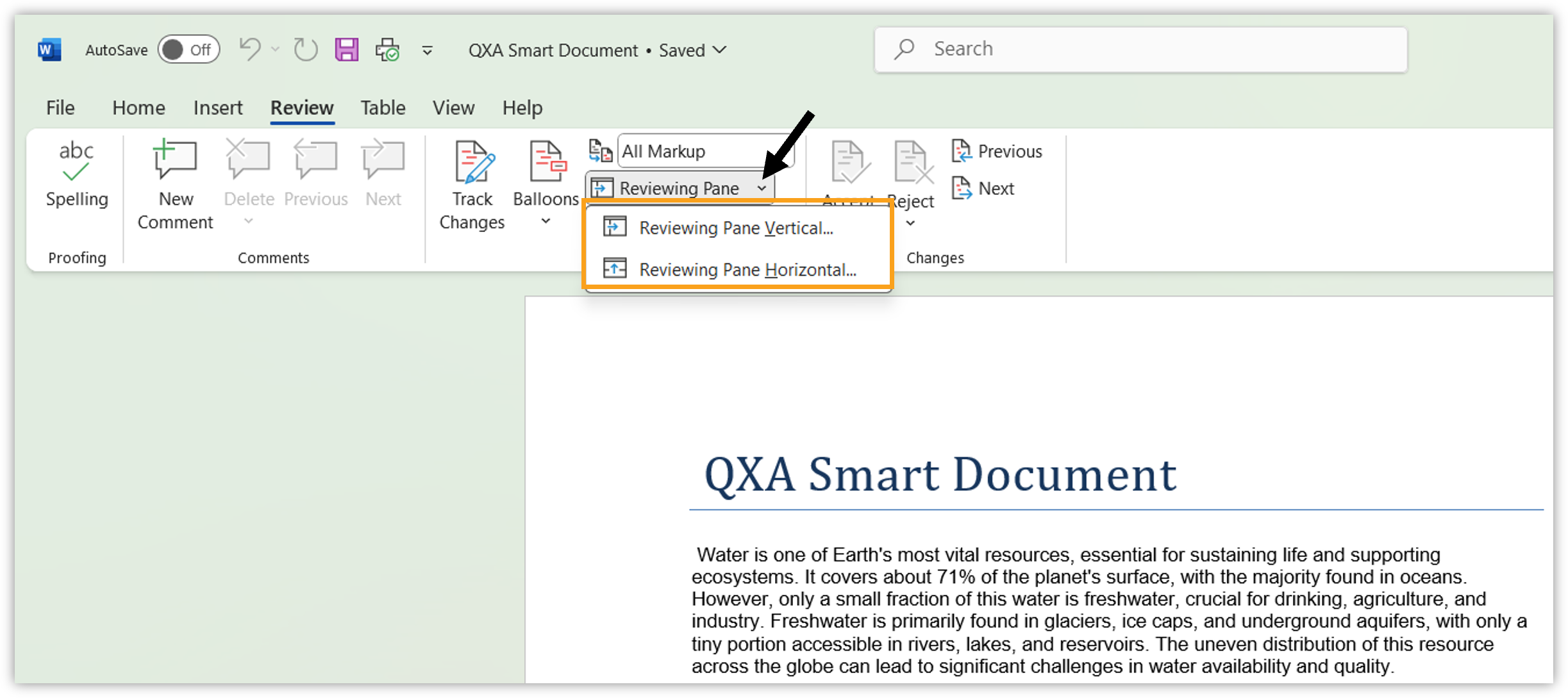
QPP Adapter for Quark XML Author displays the list of revisions made in a document in the Reviewing pane.
To view the Reviewing pane:
-
In the header ribbon, click Review.
-
In the tool group Tracking, click the Reviewing Pane drop-down menu.
-
Select an orientation for the Reviewing pane based on your preferences (vertical or horizontal).