
Configuration Overview
The configuration of XML Author specifies the user interface within Microsoft Word and assigns XML Author features and functionality to those user interface controls. Word 2010 and later expose a user interface called the Backstage view.
At the document level, the user interface for XML Author must be designed for the following scenarios:
-
Word with no document or a standard Word document loaded
-
Word with an XML Author document loaded
This is true for all suported Microsoft Word versions.
At the control level, the following user interface controls may be customized:
-
User interface labels
-
Titles
-
Descriptions
-
Screentips
-
Keytips
The text for these is created and maintained in a resource file separate from the configuration files for ease of localization.
Quark XML Author makes it possible to alter or disable Microsoft Word commands and options to maintain the XML structural integrity of a Quark XML Author document. These options can be constrained to prevent Quark XML Author users from invalidating the document against an XML Schema, even when the same action may be allowed in MS Word.
Two files specify how constraints apply to commands and options:
-
AppConfig.xml: applies regardless of what Quark XML Author document class is active.
-
DocConfig.xml: a document-class specific file which allows your organization to develop multiple document classes. Each of these may have a unique interface within Word. The name of this document-level configuration file may vary and is referred here as DocConfig.xml for the sake of convenience.
Configuration Synopsis
The main components for configuration reside in AppConfig.xml and the DocConfig.xml file:
The following components are common to all supported versions of Microsoft Word.
Shortcut Keys. Shortcut keys define keystroke combinations to launch common Quark XML Author or Microsoft Word commands.
Extensibility Interface. This section identifies the arguments required to launch the Extensibility Interface, which provides access to external processes for defining or auto-populating attribute values for content elements.
Details for each component appear in later sections of this document.
Word Configuration
Disabling commands
A Word command can be enabled/disabled at the command level. This enables/disables the command across all occurrences in the Word user interface including: Ribbon, Toolbar, Menus, Backstage and Quick Access Toolbar.
To disable a command, specify the command without a repurpose designation.
For example,
<command idMso="MyCommand"/>See “<command>”.
The UI is disabled in XML Author and enabled in Word.
Repurposing commands
A Word command can be repurposed at the command level to a new function. This repurposes the command to a single new function across all occurrences in the Word user interface including: Ribbon, Toolbar, Menus, Backstage, and Quick Access Toolbar.
For more information on repurposing controls, see the MSDN web page:
Search for the phrase "Overriding Commands and Repurposing Controls".
To repurpose a command, specify the command with a repurpose designation.
For example,
<command idMso="FileSave">
     <InternalClass name="DocumentSave" nativeFormat="false" filter="Save2007"/>
</command>
The UI is enabled in XML Author and Word. In XML Author, the command invokes the repurpose designation. In Word, the command invokes the standard Word feature.
Note: On the QAT, the only Word command that cannot be repurposed/overridden is Undo. See “Quick Access Toolbar (QAT)”.
Special considerations: command and buttons
The visibility of a Word command is not controlled at the command level, but rather at the individual button or menu. See “Common Attributes”.
If there are any UI elements (i.e. Ribbon button) using the same idMso, their visible, enabled, and action override behavior will be inherited from the command. On the other hand, if an idMso is used in a UI element but not a command, then these values can be set explicitly. The enabling/disabling behavior will be inherited from the command and should not be used in the UI element.
Table 2‑1: Visibility Settings
Settings may be combined using the pipe character.
For example visible = "Word | OLEWordDocument".
|
Visibility |
Attribute |
|
visible in all Word and XML Author documents |
visible=”true” |
|
not visible in all Word and XML Author documents |
visible=”false” |
|
only visible in XML Author documents |
visible=”xa” |
|
only visible in Word documents |
visible=”Word” |
|
only visible in embedded Word documents |
visible=”OLEWordDocument” |
Note: If a command is not defined, and a particular idMso is used in multiple UI elements, the visibility of the first declaration found in the configuration will be used, and all other UI elements will inherit from the first decleration.
Note: An action override for an idMso can only be set in a command node, not in a UI element.
XML Author cannot hide commands on the QAT. See “Quick Access Toolbar (QAT)”.
User Interfaces
Ribbon. The ribbon is a component of Word.
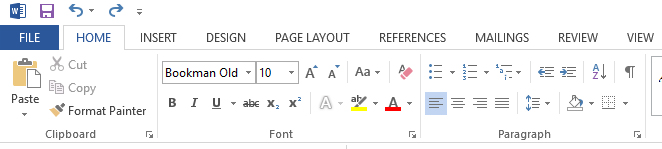
Figure 2‑1: The Word 2010 Ribbon
Backstage View. The Backstage view is used only in the File menu of Word 2010 and later.
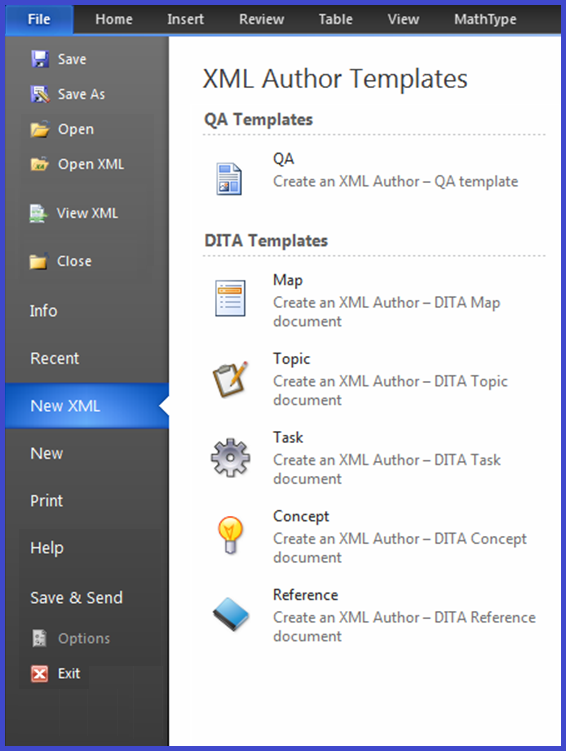
Figure 2‑2: File > XML Author submenu
Dynamic Configuration
Dynamic configuration allows the system to query and pull custom component and configuration updates from the server. Configurations can vary based on user roles and can be managed in a Platform collection. Configuration updates can be pushed to clients, and clients can check for configuration updates on launch.
The following components allow for dynamic configuration:
OverrideConfig event. This event enables the custom Extensibility Interface to pull updates to the configuration.
OverrideAppConfigPath delegate. This delegate enables the custom Extensibility Interface to override the application configuration path.
These components can be defined in the Appconfig file as shown in the following example:
<ExtensibilityInterface>
<MethodInfo>
  <Method
<Method id="OverrideConfiguration” assembly="external application assembly
  name" class="external application class name"
  method="OverrideConfiguration">
    <Argument type="Tokens">
  <!—Server ConfigurationPathIdentifier – Specifies the CMS specific
     idenifier for the configuration folder at the server. For Platform,
     the identifier supports a role based collection path (* signifies the
     default or fallback role):
        Role|<Role 1>,Path|<Collection Path 1>;Role|<Role 2>,Path|<Collection Path 2>
     LocalConfigurationPath – Specifies the folder path at the local file
       system where the downloaded configuration if kept.
     CopyFilter – Specifies the recursive file search filter for files in
       The installation location to be copied to the local configuration
       path.You can specify multiple filters using "|" as a separator. This
       filter is required only if the server folder keeps partial
       configurations.-->

  <Token>Server ConfigurationPathIdentifier=
           Role|*,Path|;Role|Analyst,Path|Home/Configuration/Analyst;
            Role|Editor,Path|Home/Configuration/Editor
  </Token>
  <Token>LocalConfigurationPath=
           %Appdata%\Quark\XML Author\DynamicConfig
  </Token>
  <Token>CopyFilter=
           Schemas/*.*|en/*.*|es/*.*|fr/*.*|ja/*.*
  </Token>
  </Argument>
    <Argument type="Delegates ">
  <Delegate>OverrideAppConfigPath</Delegate>
  </Argument>
  </Method>
</MethodInfo>
</ExtensibilityInterface>