
Application Configuration: Internal Classes
Internal Classes are functions that are built into Quark XML Author. In many cases, they replace similar native Word features, such as Insert Table.
The InternalClass element's attributes contain the name of the application class that will handle the operation when the user selects the menu item/clicks the button/invokes the shortcut key associated with the command. The name attribute is required. Depending on what class is used, there may be other required and optional attributes. This chapter defines the internal classes supported by Quark XML Author and the additional parameters, if any, that can be used with them. The example below shows how DocumentOpen can be implemented.
<InternalClass name="DocumentOpen" filter="Word Documents (*.doc)|*.doc|Quark XML
                              Author Documents (*.xml)|*.xml"/>
As you can see, DocumentOpen requires an additional parameter, which is specified as the InternalClass element's filter attribute.
AcceptRevision
Accepts the currently selected document revision or, if the acceptAll parameter is present and set to true, accepts all document revisions. If neither parameter is present, any revision(s) in the current selection will be accepted.
Table 5‑1: AcceptRevision Parameters
|
Parameter |
Required |
Definition |
|
acceptAll |
no |
Boolean. Set to true to accept all revisions in the document. Defaults to false. |
|
keyCode |
no |
Integer. Specifies the keyCode for a specific document node. If keyCode is a valid node, AcceptRevision will accept revision(s) for the node specified. |
AssignAttribute
Assigns a value to a document attribute or document element attribute. If the attribute is not found on the current document, the nearest ancestor element which contains this attribute is located and the attribute value is assigned to that element (if found).
Table 5‑2: AssignAttribute Parameters
|
Parameter |
Required |
Definition |
|
attributeName |
yes |
String. The document attribute or document element attribute, as specified in the document class schema, to which a value will be assigned. |
|
attributeValue |
no |
String. Specifies the value that will be assigned to the attribute named by the attributeName parameter. |
|
generateUndo |
no |
Specifies whether or not an undo event should be generated for this attribute assignment. Defaults to false. |
|
namespace |
no |
String. Specifies the namespace of the attribute named as the value of attributeName. |
|
toggleGroup |
yes |
String. Specifies the name of the toggle group to which the menu item containing the InternalClass belongs. |
|
xpath |
no |
String. If an xpath for a particular element is provided, it is used as the starting point for finding the containing attribute specified by the attributeName. If it is not provided the XomCurrentNode is used. |
ChangeToList
Changes the selected element to a list item. If the selection contains multiple elements, changes all of them to list items. There are some restrictions depending on the selection of elements in the user interface:
-
Top-level selection elements have to be at the same level and of same parent. In other words, the user cannot select list items of different lists, nor can the user select a para type element with depth=x and another non-descendant para with depth <> x.
-
The top-level selection can ONLY include para or list type selections AND cannot include both para type and list type selections.
-
The selection for list type elements must include the first or the last list item, or both.
-
Top level selections must not be defined with minOccurs=1, maxOccurs=1/1+.
-
The presence of any required child elements (for list type elements, both required children under list container as well as required children under the para type child) disqualifies them from being changeType candidates.
-
Both of these element types must appear as optional unbounded (minOccurs=0, maxOccurs=unbounded) children under their parent definitions.
-
There can be any optional descendant structure amongst the para/list types. In that case, if the current selection does have a descendant structure for each of the top-level para/list type elements, each of those instance structures would have to be “equivalent” to the schema descendant structure of the corresponding para or list type for a target to be a valid change type
Other specific behavior depends on the values of the parameters.
Table 5‑3: ChangeToList Parameters
|
Parameter |
Required |
Definition |
|
merge |
no |
Boolean. Set to true to force new list items to merge with the adjacent list (if one exists) upon conversion rather than being inserted as the sole child of a new list. Defaults to false. |
|
target |
yes |
String. Comma-delimited list of list elements that may be used. Specifies the XML name of the list element to use as the parent of the changed element. Multiple levels of list can be specified by providing a comma separated list of list elements. The exact list element that will be used is dependent on the XAS and the location of the element to be changed. In the example below, the selected element could be changed to an item in a bullet list or a sub-list.
Note that there is no space after each comma. Technically, a “list” type element is a specialized element identified by the following schema pattern in the schema: Invisible Section with a 1+ sequence of (visible) para type element children. Although list elements are discussed here, the target element can be any element as long as it follows the same pattern. |
ChangeToPara
Changes the selected element (usually a list item) to a paragraph. If the selection contains multiple list items, all are converted to separate paragraphs.
Table 5‑4: ChangeToPara Parameters
|
Parameter |
Required |
Definition |
|
target |
yes |
String. Specifies the XML name of the paragraph element. In the example below, the paragraph element is <p>.
A paragraph type element is identified in the schema by the presence of the <para> tag in the schema. Presence of the excludeFromChangeToContextMenu attribute on an ElementDef can be used to filter out any unwanted items from being potential ChangeTo candidates. |
ClearUndoStack
Clears the stack of undo actions used by the Quark XML Author’s Undo function. Does not use parameters.
Copy
Copies the selection to the clipboard. Does not use parameters.
CreateRendition
Creates a document rendition according to the values specified by its parameters.
Table 5‑5: CreateRendition Parameters
|
Parameter |
Required |
Definition |
|
destination |
no |
String. Specifies the path to which the exported file and embedded media should be saved. The path may be absolute or relative to the application folder. It may also include a default file name. If the name is omitted, the Save As dialog will display, targeted at the specified location. If this attribute is omitted, the Save As dialog will display and the user will have to specify the location and file name. Supports two patterns: {cd} (Current location of active document) and {ApplicationData} (Environment variable-APPDATA). The destination can either be one of these patterns or it can start with them. |
|
expandRef |
no |
Boolean. Indicates whether or not the reference elements should be expanded into the components they reference before processing the XSLT. Set to true, to expand all references. Defaults to false. |
|
filter |
no |
String. When specified, if destination is omitted, OR if {cd} is specified and one doesn’t exist (document hasn’t been saved), user is prompted with a Save As dialog. Within this dialog, the ‘Save as type’ filter is specified by this attribute. See below for more information. |
|
params |
no |
String. Used to supply parameter values to the stylesheet. Parameters are specifies as name=value pairs separated by the pipe character (|). For example:
"name=value | name2=value2 | ..." |
|
supportPath |
no |
String. When a document is rendered/previewed, all files under the folder specified will be copied to the final destination of the rendered document. This process will overwrite any files of the same name and skip over files that it cannot copy. Specified as either a full path to an existing directory or a relative path to an existing directory under the Quark XML Author application folder. |
|
xpath |
no |
String. Apply the transform to a fragment of the current active document pointed to by the supplied xpath instead of the entire document. The xpath must be relative to the ExportedRoot. |
|
xslt |
no |
String. Specifies the path and name of the transform stylesheet. The path may be a URL, an absolute path, or a path relative to the application folder.
|
filter
The Save As dialog is displayed only if the destination parameter has no value. The optional filter attribute, if populated, determines what filters will be present in the Save as Type drop-down box in the Save As dialog. The value of the filter attribute is a resource ID in the Resources file.
The resource ID identifies a string list of filter types. Each filter type comprises two parts: the filter text and the filter definition, which are separated by the pipe character (|).For example, to specify a filter to create a html rendition, you would use the pair shown below as the value of the "HTML Rendition" resource ID:
HTML Rendition = HTML Document (*.html)|*.html
This would produce the filter shown in Figure 5‑1 .
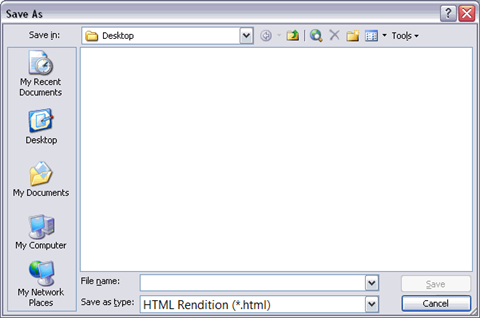
Figure 5‑1: Save As dialog
Of course, the actual resource ID is arbitrary and can have any name you want. The filter is specified in this way to aid in localization.
If neither destination nor filter are specified, the rendition is saved to the Quark XML Author temp directory with a Quark XML Author-generated filename, e.g. preview_1.html.
StyleSheet Child Nodes
CreateRendition may have any number of StyleSheet child nodes. This provides the ability to perform chained transformations with the output of one stylesheet provided to the next. Any XSLT parameters that need to be supplied to the individual stylesheet can be specified by the params attribute as shown in the example shown below.
<Stylesheet xslt="stylesheet name" params="name1=value1|name2=value2"/>
Using CreateRendition to Load External Objects
CreateRendition supports configurable stylesheet extensions that allow the execution of .NET code from within the transform itself. When CreateRendition is invoked, Quark XML Author inspects the top of the XSLT for <?XpressExtension?> processing instructions. For each instruction that is found (multiple instructions are allowed), the .NET object is loaded and made available to the transform. Additional parameters required by the .NET object can be supported using the "params" attribute.
The format of the XSLT processing instruction is shown below:
<?XpressExtension namespace="ns" assembly="Assembly" object="Invision.objectname"
                                    ?>
Cut
Cuts the selection from the document and copies it to the clipboard. Does not use parameters.
DeleteComment
Deletes the currently selected comment (or comment for the current selection).
Table 5‑6: DeleteComment Parameters
|
Parameter |
Required |
Definition |
|
deleteAll |
no |
If a value is specified for the query attribute, then deleteAll is ignored. Set to true to delete all comments in the current document. If set to false, the first comment in the current selection is deleted. Defaults to false. |
|
query |
no |
Value is a regular expression that allows extracting selective comment nodes. For example:
The query attribute value is expressed as a series of property=value pairs, where the named property is either a property of Word comments or any custom attributes defined in the configuration. Property values must be enclosed in single quotation marks. AND (&&) and OR (||) operators can be used in the expression. |
DeleteTable
Deletes the currently selected table (or the table in which the cursor is presently located). Does not use parameters.
DeleteTableCol
Deletes the table column in which the cursor is located. Does not use parameters.
DeleteTableRow
Deletes the table row in which the cursor is located. Does not use parameters.
DocumentAttributes
Opens the Attribute Panel for the root element of the Document. Does not use parameters.
DocumentClose
Closes the document.
Table 5‑7: DocumentClose Parameters
|
Parameter |
Required |
Definition |
|
filename |
no |
String. Specifies the name of a file to be closed rather than the currently active document. |
|
ignoreChanges |
no |
Boolean. Set to true to allow the user to close the document without being prompted to save changes. Set to false to prompt the user to save. Defaults to false. |
DocumentNew
Creates a new document of the specified type.
Table 5‑8: DocumentNew Parameters
|
Parameter |
Required |
Definition |
|
defaultName |
no |
String. Specifies a default name for the new document. The default name is created from a regular expression given in curly brackets. A string pattern can be appended to the regular expression value. For example, {NOW(yyyyMMdd)}-???.xml The pattern in {} is a regular expression. NOW specifies today and the string in brackets specifies the date pattern to be used. The string after the } is appended to the date. {NOW(yyyyMMdd)}-INVISION.xml specifies the current date, with –INVISION.xml appended to the date. If defaultName is not specified, the value to be used is pulled from the NewDocumentTitle config resource and the appropriate number (1,2,3 etc.) is added to the string. See “Resource Files” for information about the NewDocumentTitle resource value. |
|
templateXml |
yes |
String. Specifies the path and filename of the template file from which the document will be created. The path may be absolute or relative to the application folder. |
DocumentOpen
Invokes the Open dialog.
Table 5‑9: DocumentOpen Parameters
|
Parameter |
Required |
Definition |
|
filter |
no |
String. See below for more information. |
|
fullfilepath |
no |
String. Specifies the fully qualified path of the document to open or specifies the folder that should be displayed in the Open dialog. |
filter
If it is populated, the Open dialog box's Files of type drop-down box will contain filters the attribute value specifies. The value of the filter attribute is a resource ID in the Resources file.
The resource ID identifies a string list of filter types. Each filter type comprises two parts: the filter text and the filter definition, which are separated by the pipe character (|). For example, to specify a filter to display only Word documents, (.DOC and .DOCX) you would use the pair shown below as the value of the "OpenWordDocs" resource ID:
OpenWordDocs = Word Document (*.doc)|*.doc This would produce the filter shown in Figure 5‑2.
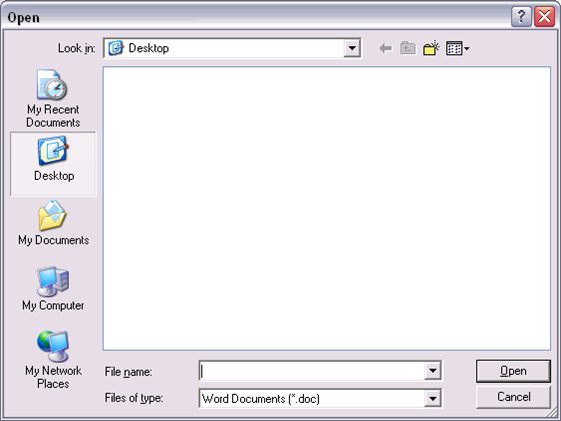
Figure 5‑2: Open Dialog
Each filter set is likewise separated by a pipe character. For example, if we wanted to add Quark XML Author Documents (*.xml)|*.xml to the example already given above, it would look like the example below.
OpenWordDocs = Word Document (*.doc)|*.doc|Quark XML Author Document (*.xml)|*.xml
It is always wise to include a filter that shows All Files (*.*). Adding this filter to the example above produces the example below.
OpenWordDocs = Word Document (*.doc)|*.doc|Quark XML Author Document (*.xml)|*.xml|All
                                    Files (*.*)|*.*
Of course, the actual resource ID is arbitrary and can have any name you want. The filter is specified in this way to aid in localization.
DocumentOpenWord
Invokes the native Word FileOpen dialog for opening documents. The dialog uses default Word filters and does not use any Quark XML Author document filters. Primarily used for accessing a file on a remote web server via native Word’s native WebDAV capabilities. For a remote file, the function attempts access using the Windows default credentials to download the file and if unsuccessful, prompts for username/password. The login prompt repeats if an Unauthorized status code is received on a WebDav open request. Does not use parameters.
DocumentSave
Saves the current document.
 Note that Quark XML Author leverages Word's native AutoSave functionality so that
documents are automatically saved periodically according to the setting in the user's
Word environment.
Using DocumentSave by itself simply saves the document. However, the following parameters can be passed to modify the save function.
Table 5‑10: DocumentSave Parameters
|
Parameter |
Required |
Definition |
|
defaultFilepath |
no |
String. If the document has never been saved, then the SaveAs feature is invoked and this parameter is used. Specifies the folder that should be used as the Save In folder in the Save As dialog. The dialog uses this path as the current folder of the dialog. The user is not restricted to this path. |
|
transform |
no |
String. Specifies the location and filename of the default stylesheet for the document class. The value of this parameter may be a URL, an absolute path, or a path relative to the application folder. The file name must be included. |
|
filter |
no |
String. If the document has never been saved, then the SaveAs feature is invoked and this parameter is used. See “DocumentSaveAs” for more information. |
Also these parameters overwrite any values specified in the DefaultSaveOptions node.
DocumentSaveAs
Invokes the Save File dialog box so that the user can select a location and filename for the document. Supports WebDAV saves.
Table 5‑11: DocumentSaveAs Parameters
|
Parameter |
Required |
Definition |
|
filter |
no |
String. If the document has never been saved, then the SaveAs feature is invoked and this parameter is used. See below for more information. |
|
defaultFilepath |
no |
String. Specifies the folder that should be used as the Save In folder in the Save As dialog. The dialog uses this path as the current folder of the dialog. The user is not restricted to this path. |
|
transform |
no |
String. Specifies the location and filename of the default stylesheet for the document class. The value of this parameter may be a URL, an absolute path, or a path relative to the application folder. The file name must be included. |
|
useWordDialog |
no |
Boolean. Specifies whether or not the Word Dialog should be displayed. Set to true to allow the user to save the Quark XML Author document as a Word document. |
|
fullfilepath |
no |
String. Specifies the fully qualified path of the document to open or specifies the folder that should be displayed in the Open dialog. |
filter
The optional filter attribute, if populated, determines what filters will be present in the Save as Type drop-down box in the Save As dialog. The value of the filter attribute is a resource ID in the Resources file.
The resource ID identifies a string list of filter types. Each filter type comprises two parts: the filter text and the filter definition, which are separated by the pipe character (|). For example, to specify a filter to save as a Word document, you would use the pair shown below as the value of the "SaveWordDocs" resource ID:
SaveWordDocs = Word Document (*.doc)|*.doc
This would produce the filter shown in Figure 5‑3.
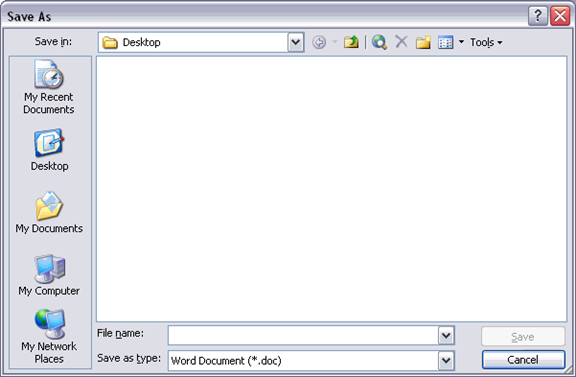
Figure 5‑3: Save As Filter
Of course, the actual resource ID is arbitrary and can have any name you want. The filter is specified in this way to aid in localization.
EmailRendition
Creates a document rendition according to the values specified by its parameters and invokes Send to Mail Recipient with the document rendition as an attachment.
 All of EmailRendition's parameters are optional. However, if the rendition parameter
is omitted, at least one of the other parameters must be used.
Table 5‑12: EmailRendition Parameters
|
Parameter |
Required |
Definition |
|
destination |
no |
String. Specifies the path to which the exported file and embedded media should be saved. The path may be absolute or relative to the application folder. It may also include a default file name. If the name is omitted, the Save As dialog will display, targeted at the specified location. If this attribute is omitted, the Save As dialog will display and the user will have to specify the location and file name. |
|
expandRef |
no |
Boolean. Indicates whether or not the reference elements should be expanded into the components they reference before processing the XSLT. Set to true, to expand all references. Defaults to false. |
|
filter |
no |
String. See below for more information. |
|
params |
no |
String. Used to supply parameter values to the stylesheet. Parameters are specifies as name=value pairs separated by the pipe character (|). For example:
"name=value | name2=value2 | ..." |
|
rendition |
no |
String. Specifies the file format value of the Mail Attachment. Valid values are nativeFormat or xpressFormat: nativeFormat, which sends as a .doc file; or xpressFormat, which attaches the Quark XML Author .xml file. For example: rendition=”xpressFormat” or rendition=”nativeFormat” Using rendition is preferred over omitting it. However, if it is omitted, at least one of the other parameters must be included. |
|
xslt |
no |
String. Specifies the path of the transform stylesheet The path may be a URL, an absolute path, or a path relative to the application folder. |
filter
The Save As dialog is displayed only if the destination parameter has no value. The optional filter attribute, if populated, determines what filters will be present in the Save as Type drop-down box in the Save As dialog. The value of the filter attribute is a resource ID in the Resources file.
The resource ID identifies a string list of filter types. Each filter type comprises two parts: the filter text and the filter definition, which are separated by the pipe character (|). For example, to specify a filter to save as a Word document, you would use the pair shown below as the value of the "SaveWordDocs" resource ID:
SaveWordDocs = Word Document (*.doc)|*.doc
This would produce the filter shown in “Filter Figure”.
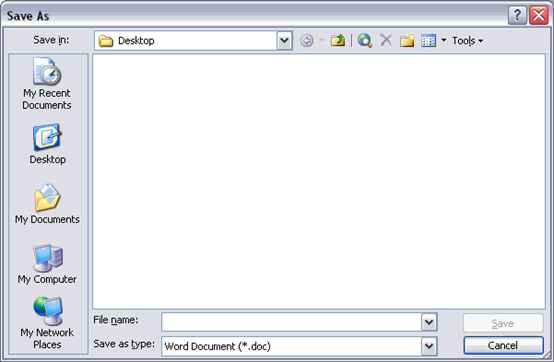
Figure 5‑4: Save As Filter
Each filter set is likewise separated by a pipe character. For example, if we wanted to add Quark XML Author Document (*.xml)|*.xml to the example already given above, it would look like the example below.
SaveWordDocs = Word Document (*.doc)|*.doc|Quark XML Author Document (*.xml)|*.xml
It is always wise to include a filter that shows All Files (*.*). Adding this filter to the example above produces the example below.
SaveWordDocs = Word Document (*.doc)|*.doc|Quark XML Author Document (*.xml)|*.xml|All
                                    Files (*.*)|*.*
Of course, the actual resource ID is arbitrary and can have any name you want. The filter is specified in this way to aid in localization.
If neither destination nor filter are specified, the rendition is saved to the Quark XML Author temp directory with a Quark XML Author-generated filename, e.g. MyDoc.doc.
EmphasisAction
Used to apply emphasis.
Table 5‑13: EmphasisAction Parameters
|
Parameter |
Required |
Definition |
|
emphasis |
yes |
String. Specifies the name of the emphasis that should be applied. Must be an emphasis style defined in the document schema. In the example below, the style bold would be applied to the selected text.
|
|
key |
no |
String. Specifies sub-style values for a particular emphasis. |
|
value |
no |
String. Specifies sub-style values for a particular emphasis. |
EmphasisHandler
Invokes the Quark XML Author emphasis handler for displaying a combo box of allowed emphasis items at the current location. Does not use parameters.
FindAndReplace
Provides Find, Replace, and navigation functionality for Quark XML Author documents similar to native Word functionality. There are some important differences in functionality:
-
The Replace button is disabled for find phrases which the schema makes illegal to be replaced. A tooltip shows the reason for disabling the button.
-
The Replace All button will only replace selections which are editable and ignore all non-editable selections.
-
The Goto list box is restricted to the following 6 types: Page, Section, Line, Comment, Table, and Graphic.
-
The Enter page number text box in the Goto tab has the following restrictions:
-
The text must be a numeric value.
-
The numeric value can be preceded with a + or a - to indicate a relative Goto.
-
This behavior is a subset of the features Word offers which supports a wider variety of formats in the text box. For example, s2p5 is a valid value and takes the user to the page five in section two of the Word document.
-
The replace/Replace all will not work on read-only (i.e accessMode=Review) documents.
-
The gotoNext() and GotoPrevious() functionality still invokes the Word's Goto/Find Next. The browse object in the lower right corner of the documents on the vertical scrollbar (the round icon and the two arrow buttons around it) still invoke Word functions.
Table 5‑14: FindAndReplace Parameters
|
Parameter |
Required |
Definition |
|
tab |
yes |
String. The required tab parameter may have one of three values: Find, Replace, and Goto. These values refer to the three tabs available in the Find and Replace dialog. The value specified defines the default tab to be presented when the dialog is displayed to the user. |
FormattingAction
Used to apply/remove character formatting, font color or highlight color for the selected word, phrase or text elements.
Typography such as bold and italic may be applied to a word, phrase or multiple text elements. This formatting feature is similar to the formatting feature in Word.
From the ReadMe description: In Business Document solutions, the ability to apply stylistic emphasis such as bold and italics has been replaced with new paragraph styling in a new feature called Character Formatting. This applies to: Bold, Italic, Underline, Strikethrough, Superscript, and Subscript. These styles are applied using the same user controls as in previous versions of XML Author. For example, the Bold button on the Home ribbon. Different from the previous inline elements version of these styles, metadata may not be applied to these new styles. In Business Document solutions, text foreground color may be applied to a word, phrase or multiple text elements. This is done using the Font Color feature. In Business Document solutions, text background color may be applied to a word, phrase or multiple text elements. This is done using the Text Highlight Color feature.
Table 5‑15: FormattingAction Parameters
|
Parameter |
Required |
Definition |
|
formattingName |
yes |
String. Specifies the name of the formatting that should be applied. Must be a name of the formatting style defined in the document schema. From the Business Documents XAS schema:
These definitions are available to all configurations and are enabled by default in Business Documents configuration. Serialization name is “name”. For example, “b” for Bold. However, custom configurations can customize the name and friendly name of formatting definitions.. Example calls:
|
|
colorValue |
no |
String. For formattingName equals color or highlight, this specifies the color name or RGB value of the color that should be applied to the selection. If the selection already has a color and the current color is different than this becomes the new color. The color value could be in hex string or color name string. Example:"0000FF", "blue" etc. |
FormattingActionChangeCase
Used to change case for the selected word, phrase or text elements. This formatting feature is similar to the formatting feature in Word.
Table 5‑16: FormattingActionChangeCase Parameters
|
Parameter |
Required |
Definition |
|
changeCase |
yes |
String. Specifies the name of the formatting that should be applied. Example calls:
|
FormatTableCellShading
Invokes the Cell Shading dialog, which allows users to assign a background color to the current selection of table cells. Does not use parameters.
This requires that cells of a table section are defined with an attribute of the datatype tableCellBackgroundColor. See “Table 11‑8”. For this discussion, let’s refer to this as simply the “color” attribute.
The user’s color selection is applied to the selected cells on the Word canvas and is applied to the color attribute in the XML for each selected cell. However, if the user selects "No Color", then the default color is applied to the Word canvas and the color attribute is removed in the XML.
In the user interface, the toolbar or ribbon button is enabled if the current cell or selected cells are editable and are defined with a color attribute.
In the Cell Shading dialog, the colors available can be specified in the attribute definition. This is typically used to limit the user to a specific set of colors. For example, only three specific colors are available for header cells. If no colors are specified in the attribute definition, then the colors available are Word’s stock colors for cell shading.
Selections containing cells with different color attribute definitions
In this situation, the colors available in the Cell Shading dialog are the intersection of the colors available for each different color attribute definition. The colors that are found to be in common are displayed in the user interface. If the intersection is zero colors, then no colors are available and the only action the user can take is to select “No Color. The system removes the color attribute for all selected cells.
IndentElement
Triggers indent/decrease indent behavior for the current element, depending on the value of the indent parameter.
Table 5‑16: IndentElement Parameters
|
Parameter |
Required |
Definition |
|
indent |
yes |
String. Valid values are: IncreaseIndent and DecreaseIndent. When the value of indent is IncreaseIndent, IndentElement changes the selected element to the element type specified by the element definition’s increaseIndent attribute. When the value of indent is DecreaseIndent, IndentElement changes the selected element to the element type specified by the element definition’s decreaseIndent attribute. Consider the following element structure:
If a ListItem2 element is selected, invoking the first example below would change the element to a ListItem3. Invoking the second example below would change the element to a ListItem. Example 1: Increase Indent
Example 2: Decrease Indent Note that multiple targets for Increase/Decrease Indent may be specified in the increaseIndentand decreaseIndent attributes of SectionType. See “SectionType” on page 232 for details. |
InlineAttributes
Toggles the display of portionmarks on or off.
Table 5‑17: InlineAttributes Parameters
|
Parameter |
Required |
Definition |
|
Type |
no |
String. Valid values are PreText and PostText which specifies the type of portionmark to be affected. Defaults to PreText. See Section 9.1 for information about portionmarks. |
InsertXACrossref
This applies to embedded Word documents only.
Inserts a cross-reference link at the current cursor location in the embedded Word document if a valid target is on the clipboard. The valid target is a destination in an XML Author document. The destination may be in the document that is the parent of the embedded Word document or it may be another XML Author document. Does not use parameters.
Example:
<!-- Internal class to insert Cross-Reference when working in an embedded OLE document -->
<button id="InsertXACrossRef" imageMso="CrossReferenceInsert" size="large">
  <InternalClass name="InsertXACrossRef"/>
</button>
InsertComment
Inserts a comment into the document. Does not use parameters.
InsertColumnBreak
Toggles the columnBreak attribute value on the next visible element following the cursor location between true and false. See section 12.3 for information on the columnBreak attribute. Does not use parameters.
InsertCustomLink
Inserts a cross-reference link at the current cursor location if a valid target is on the clipboard. Does not use parameters.
Example:
<!-- Internal class to insert Cross-Reference when working in an XML Author document -->
<button id="InsertCustomLink" imageMso="CrossReferenceInsert" size="large" getEnabled="GetEnabled">
  <InternalClass name="InsertCustomLink"/>
</button>
InsertElement
The internal class InsertElement is used only within the DocConfig file to specify elements to be inserted, and what child elements to automatically insert. For example, a Section element might have a mandatory Title element, to be followed by one or more Paragraph elements. When the user inserts a Section element, the syntax of the displayName value will instruct Quark XML Author to insert the required child elements. You can also specify optional elements to be automatically inserted.
displayName
Required. String. The displayName parameter value uses the following syntax:
<InternalClass name="InsertElement" displayName="Element[Child[Grandchild/Grandchild/Grandchild]]">
Brackets
The [] brackets signifies a parent-child relationship, and the slash indicates sibling relationships. So the example cited above, of a Section with mandatory Title and one or more paragraphs, would look like the following example:
<InternalClass name="InsertElement" displayName="Section[Title/Paragraph()]">
Parenthesis
Parenthesis can be used to indicate content objects:
Table type element
A tilde (~) indicates a table type element.
<InternalClass name="InsertElement" displayName="CALS Table(~)" externalMethodFriendly="true"/>
MediaContent object
An asterisk (*) indicates a MediaContent object, such as shown below.
<InternalClass name="InsertElement" displayName="Quark Extensions[Local Media[Media(*)/Media
                                       Caption]"/>
Default text value
Parenthesis can also contain text that will indicate a default text value. This value will override any default value specified in the XAS:
<InternalClass name="InsertElement" displayName="Quark Extensions[Local Media[Media(*)/Media
                                       Caption(Cartoon here)"/>
Reserved Characters
When specifying displayName for either “InsertElement”or “Insert Emphasis” note that there are several special characters reserved by the system. If these characters are used as part of the displayName value, you must replace them with the corresponding code shown in the table below.
Table 5‑18: Control Codes for Reserved Characters
|
Character |
Description |
Code |
|
/ |
Forward slash |
%#fs%# |
|
[ |
Left Square Bracket |
%#ls%# |
|
] |
Right Square Bracket |
%#rs%# |
|
{ |
Left Curly Bracket |
%#lc%# |
|
} |
Right Curly Bracket |
%#rc%# |
|
* |
Star |
%#st%# |
|
~ |
Tilde |
%#ti%# |
|
> |
Greater Than |
%#gt%# |
|
< |
Less Than |
%#lt%# |
|
' |
Apostrophe |
%#apos%# |
|
" |
Quotation Mark |
%#quot%# |
|
& |
Ampersand |
%#amp%# |
For example, the InsertEmphasis Internal class below would insert CH2(parens) into the document:
<InternalClass name="InsertEmphasis" displayName="Symbol(CH2%#lc%#parens%#rc%#)"/>
These codes can also be used in the schema when specifying default text for an ElementDef. (See section 14).
Insert Emphasis
Inserts an emphasized text node into the specified XML node at the cursor position.
Table 5‑19: InsertEmphasis Parameters
|
Parameter |
Required |
Definition |
|
displayName |
yes |
The friendly name of the emphasis as defined in the schema and any text to insert are provided in the required displayName attribute. The friendly name is provided first, with text to insert in parenthesis. For example:
The example above will insert [Company Name] at the cursor location where the Company emphasis is allowed. Can be used as a placeholder for XML data when transforming Quark XML Author document to output. The value of displayName for InsertEmphasis has the same restrictions regarding special characters as it does for InsertElement. See Table 5‑18: Control Codes for Reserved Characters. |
InsertEndNote
Inserts an end note emphasis named in the parameter. End notes can be inserted in any element type. There must be a corresponding EndNote element definition and an emphasis style defined for the notes themselves. See section 14.8 for a full discussion about configuring end note capability.
Table 5‑20: InsertEndNote Parameters
|
Parameter |
Required |
Definition |
|
emphasisName |
yes |
String. Specifies the name of the emphasis defined for the note. |
InsertEntityReference
Invokes the Insert Entity Reference dialog, which allows users to select an entity reference to insert into the document. Does not use parameters.
InsertFootnote
Inserts a footnote at the current cursor location.
Table 5‑21: InsertFootNote Parameters
|
Parameter |
Required |
Definition |
|
noteType |
no |
String. Specifies whether the inserted note should be a Footnote or Endnote. Defaults to Footnote. |
InsertHyperlink
Invokes the Quark XML Author Insert Hyperlink dialog. The resulting Text to display is inserted into the document, emphasized, and its href attribute assigned the value of the Address. As with Word, when the current selection is within the link emphasis, invoking InsertHyperlink allows editing the link. Does not use parameters.
InsertInlineElement
Allows inserting of an inline element (media or OLE) for a para type element.
Table 5‑22: InsertInlineElement Parameters
|
Parameter |
Required |
Definition |
|
displayName |
yes |
|
InsertPageBreak
Toggles the pageBreak attribute value on the next visible element following the cursor location between true and false. See section 12.3 for information on the pageBreak attribute. Does not use parameters.
InsertSectionBreak
Toggles the sectionBreak attribute value on the next visible element following the cursor location between true and false. See section 12.3 for information on the sectionBreak attribute.
Table 5‑23: InsertSectionBreak Parameters
|
Parameter |
Required |
Definition |
|
breakType |
no |
String. Specifies the type of section break to be inserted. May be set to either sectionBreaknextPage or sectionBreakContinuous. Defaults to sectionBreaknextPage if not specified. |
|
columnCount |
no |
String. Specifies the number of columns in the section break. The value for this attribute should be an integer from 1 to 12. When columnCount is used, it is recommended (not required) that breakType attribute is set to sectionBreakContinuous. See section 5.555.55, SetColumns, |
InsertTable
Displays the Insert Table dialog. For more information about elements that affect this dialog, see “TableStyle” and “Template”.
Table 5‑24: InsertTable Parameters
|
Parameter |
Required |
Definition |
|
definition |
yes |
String. Specifies the name of the table definition that should be used for the new table. See “Table” for more information. |
|
style |
no |
String. Specifies the name of the TableStyle that should be used for the new table. See TableStyle for more information. |
|
template |
no |
String. Specifies the name of the table template that should be used for the new table. See “Templates” for more information. |
InsertTableColumn
Insert a new column in the table.
Table 5‑25: InsertTableColumn Parameters
|
Parameter |
Required |
Definition |
|
direction |
yes |
String. Specifies where the new column should be inserted relative to the current selection. Valid values are: right and left. |
InsertTableRow
Insert a new row in the table.
Table 5‑26: InsertTableRow Parameters
|
Parameter |
Required |
Definition |
|
direction |
yes |
String. Specifies where the new row should be inserted relative to the current selection. Valid values are: above and below. |
ManageTextEntities
Invokes the Manage Text Entities form, which allows users to add, edit, and remove content entities and values. Does not use parameters. This applies to internal content entity definitions. External content entities defined outside of the document are not displayed in the form.
MergeComments
Used to merge into the current document the comments of other documents.
Selecting Files
To allow the user to select those documents, do not use the <Token> element and MergeComments will display the MergeComments dialog.
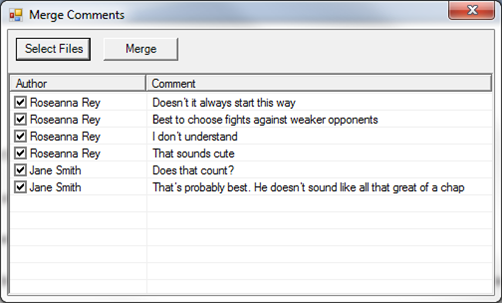
Figure 5‑5: Merge Comments dialog
To provide the list of other documents programmatically, use the optional <Token> element.
<InternalClass name="MergeComments">
  <Token>filepath=...</Token>
  <Token>filepath=...</Token>
  ...
</InternalClass>
Each of the filepath tokens must point to a valid file.
Automatically Merging All Comments
Use the optional <AutoMerge> element to automatically merge all comments rather than allowing the user to choose on a comment-by-comment basis which comments should be merged. Only used in conjunction with <Token>.
<InternalClass name="MergeComments">
  <Token>filepath=...</Token>
  <Token>filepath=...</Token>
  <AutoMerge/>
  ...
</InternalClass>
MergeTableCells
Merges the selected table cells. Does not use parameters.
PageLayout
Invokes the interface for setting page orientation. Does not use parameters.
Paste
Paste the clipboard contents into the document at the current location. Does not use parameters
DefaultPasteOptionAsText
Allows you to specify whether to or not to automatically paste copied content as Unicode text without formatting when using the CTRL-V short cut.
<DefaultPasteOptionAsText>true</DefaultPasteOptionAsText>
NOTE: If this parameter is not defined, the default value is false. When the value is false, the text that is pasted is based on the current cursor position as well as the data available on the clipboard. It could be pasted as unicode text, formatted text or an <element>.
PreviewRendition
Creates a document rendition according to the values specified by its parameters and displays the rendition in the specified application. PreviewRendition uses the same set of parameters as CreateRendition with the addition of the appPath parameter.
Table 5‑27: PreviewRendition Parameters
|
Parameter |
Required |
Definition |
|
appPath |
no |
String. Location of the launch application. |
|
destination |
no |
String. Specifies the path to which the exported file and embedded media should be saved. The path may be absolute or relative to the application folder. It may also include a default file name. Supports two patterns: {cd} (Current location of active document) and {ApplicationData} (Environment variable-APPDATA). The destination can either be one of these patterns or it can start with them. |
|
expandRef |
no |
Boolean. Indicates whether or not the reference elements should be expanded into the components they reference before processing the XSLT. Set to true, to expand all references. Defaults to false. |
|
filter |
no |
String. When specified, if destination is omitted, OR if {cd} is specified and one doesn’t exist (document hasn’t been saved), user is prompted with a Save As dialog. Within this dialog, the ‘Save as type’ filter is specified by this attribute. See below for more information. |
|
params |
no |
String. Used to supply parameter values to the stylesheet. Parameters are specifies as name=value pairs separated by the pipe character (|). For example: "name=value | name2=value2 | ..." |
|
supportPath |
no |
String. When a document is rendered/previewed, all files under the folder specified will be copied to the final destination of the rendered document. This process will overwrite any files of the same name and skip over files that it cannot copy. Specified as either a full path to an existing directory or a relative path to an existing directory under the Quark XML Author application folder. |
|
xpath |
no |
String. Apply the transform to a fragment of the current active document pointed to by the supplied xpath instead of the entire document. The xpath must be relative to the ExportedRoot. |
|
xslt |
no |
String. Specifies the path and name of the transform stylesheet. The path may be a URL, an absolute path, or a path relative to the application folder. |
filter
The Save As dialog is displayed only if the destination parameter has no value. The optional filter attribute, if populated, determines what filters will be present in the Save as Type drop-down box in the Save As dialog. The value of the filter attribute is a resource ID in the Resources file.
The resource ID identifies a string list of filter types. Each filter type comprises two parts: the filter text and the filter definition, which are separated by the pipe character (|). For example, to specify a filter to save as a Word document, you would use the pair shown below as the value of the "SaveWordDocs" resource ID:
SaveWordDocs = Word Document (*.doc)|*.doc
This would produce the filter shown in “Figure 5‑6”.

Figure 5‑6: Save As Filter
Each filter set is likewise separated by a pipe character. For example, if we wanted to add Quark XML Author Document (*.xml)|*.xml to the example already given above, it would look like the example below.
SaveWordDocs = Word Document (*.doc)|*.doc|Quark XML Author Document (*.xml)|*.xml
It is always wise to include a filter that shows All Files (*.*). Adding this filter to the example above produces the example below.
SaveWordDocs = Word Document (*.doc)|*.doc|Quark XML Author Document (*.xml)|*.xml|All
                                    Files (*.*)|*.*
Of course, the actual resource ID is arbitrary and can have any name you want. The filter is specified in this way to aid in localization.
If neither destination nor filter are specified, the rendition is saved to the Quark XML Author temp directory with a Quark XML Author-generated filename, e.g. MyDoc.doc.
StyleSheet Child Nodes
PreviewRendition may have any number of StyleSheet child nodes. This provides the ability to perform chained transformations with the output of one stylesheet provided to the next. Any XSLT parameters that need to be supplied to the individual stylesheet can be specified by the params attribute as shown in the example shown below.
<Stylesheet xslt="stylesheet name" params="name1=value1|name2=value2"/>
Using PreviewRendition to Load External Objects
PreviewRendition supports configurable stylesheet extensions that allow the execution of .NET code from within the transform itself. When PreviewRendition is invoked, Quark XML Author inspects the top of the XSLT for <?XpressExtension?> processing instructions. For each instruction that is found (multiple instructions are allowed), the .NET object is loaded and made available to the transform. Additional parameters required by the .NET object can be supported using the "params" attribute.
Table 5‑28: PreviewRendition Parameters
|
Parameter |
Required |
Definition |
|
params |
no |
String. Used to supply parameter values to the stylesheet. Parameters are specifies as name=value pairs separated by the pipe character (|). For example: "name=value | name2=value2 | ..." |
The format of the XSLT processing instruction is shown below:
<?XpressExtension namespace="ns" assembly="Assembly" object="Invision.objectname"
                                    ?>
Redo
Invokes Quark XML Author’s Redo function. Does not use parameters.
Similar to Word, the Redo stack is cleared each time an action is pushed onto the Undo stack.
RejectRevision
Rejects the currently selected document revision or, if the rejectAll parameter is present and set to true, rejects all document revisions. If neither parameter is present, any revision(s) in the current selection will be rejected.
Table 5‑29: RejectRevision Parameters
|
Parameter |
Required |
Definition |
|
keyCode |
no |
Integer. Specifies the keyCode for a specific document node. If keyCode is a valid node, RejectRevision will reject revision(s) for the node specified. |
|
rejectAll |
no |
Boolean. Set to true to reject all revisions in the document. Set to false to reject all revisions in the current selection. Defaults to false. |
SaveToRepository
Saves the current document to the specified repository.
Table 5‑30: SaveToRepository Parameters
|
Parameter |
Required |
Definition |
|
assembly |
yes |
String. Specifies the file name of the .NET class library of the external process, without the .dll extension. For example, About.dll would be identified simply as About. A relative path to the assembly may be supplied. |
|
class |
yes |
String. Specifies the fully namespace-qualified class name within the .dll file being called by the Save function. For example, Invision.Xpress.Extensible.MultiSelectPopup. |
Tokens
Token child elements can be used to specify additional parameter information. See section 6.2.1.2 for more information on using tokens.
Delegates
Indicates that the Argument will have one or more Delegate child nodes that will make a call to an external DLL for information. The syntax is shown in the example below.
<Delegate>InvokeInternalClass</Delegate>
Delegates refer to methods in the external DLL that may be called to perform functions within the application. Some are named similarly to methods in other assemblies, and may be called by them. See section 6.4, for a list of available delegates and information on how to use them.
SetAccessMode
Allows user to change the accessMode property of a document dynamically.
Table 5‑31: SetAccessMode Parameters
|
Parameter |
Required |
Definition |
|
accessMode |
yes |
String. The required accessMode parameter specifies the access mode to which the author can change the document. The parameter may be set to one of the values listed in Table 5‑32. |
Table 5‑32: accessMode Values
|
Value |
Definition |
|
Author |
User can perform all editing and authoring functions. |
|
Comment |
User cannot edit document content. User can view, add, modify and delete all comments including comments created by other authors. |
|
RestrictedComment |
User cannot edit document content. User can view their own comments in Balloons or use the Reviewing Pane to add, modify and delete comments, and see other's comments. |
|
Review |
Read-only access. User can view the document, but cannot change any content or any comments. |
|
Revise |
Does not affect the editing experience, but is used to indicate when menu options are available. |
User Experience
The user experience for working with comments is currently not documented in an out-of-the-box user guide so we are describing the experience here for archival purposes.
Editing Comments
Comments may only be edited in Word’s Reviewing Pane.
Viewing Comments
In Word’s comment balloons, only the comments of the current author are displayed.
In Word’s Reviewing Pane, the comments of all authors are displayed.
Access Modes and SharePoint
For details on modeling access modes in SharePoint see the “QXA_Technical_Reference_Manual_Adapter_for_SharePoint_EI_4.0” manual.
SetColumns
Launches the Quark XML Author Columns dialog. Does not use parameters. See the user guide for details on the user experience.
SpellChecker
Launches the Quark XML Author spelling checker. Does not use parameters.
ShowAttributesHandler
Displays the Attributes Panel dialog.
Table 5‑33: ShowAttributesHandler Parameters
|
Parameter |
Required |
Definition |
|
xpath |
no |
String. An xpath value that describes the element that will be affected. The xpath is from the XomRoot. If an xpath for a specific element is provided, the visible attributes for that element are displayed in the Attributes Panel dialog. If an xpath is not provided, the XomCurrentNode is used as the starting point in a search for an element that has visible attributes. If the current element does not have visible attributes, the nearest ancestor element is located and evaluated. If not found, this process continues recursively up the document tree. In regards to the user selection, the container of that selection should be evaluated. For example, if text selection is within an emphasis, then the containing emphasis is the starting point. |
SplitTableCells
Splits the currently selected table cell. Does not use parameters.
StyleHandler
Invokes the Quark XML Author style handler. Does not use parameters.
TableAutoFitBehavior
Sets the column width behavior for the selected table.
Table 5‑34: TableAutoFitBehavior Parameters
|
Parameter |
Required |
Definition |
|
value |
yes |
Specifies whether columns have fixed width or a width proportional to the number of columns in the table. Valid values are Fixed and Proportional. If set to Fixed, invoking TableAutoFitBehavior will set the table to fixed-width columns. The table width will change as columns are inserted into or deleted from the table but the column widths will not. The table may extend past the edge of the Word canvas as a result. If set to Proportional, invoking TableAutoFitBehavior will set the table to proportional-width columns. The table width will not change as columns are inserted into or deleted from the table. Columns will be resized as columns are added to or removed from the table so that their widths are proportional to the table size. That is, if a table has four columns and a fifth is added, each column will be 1/5 the width of the table. If a table has four columns and one is removed, the remaining columns will be resized to 1/3 the width of the table. |
TableBorders
Invokes the toolbar drop-down table borders tool, which allows the user to apply borders to table cells.
Table 5‑35: TableBorders Parameters
|
Parameter |
Required |
Definition |
|
borderType |
yes |
String. Specifies the border type to apply to the currently selected table cells. |
TableCellAlignment
Invokes the Table Cell Alignment handler.
In Word, the handler uses the following parameter:
Table 5‑36: TableCellAlignment Parameters
|
Parameter |
Required |
Definition |
|
align |
yes |
String. Specifies the alignment of content within the cell. The first character species the vertical alignment: t=top, m=middle, and b=bottom. The second character species the horizontal alignment: j=justify, r=right, c=center and l=left. |
For example,
<toggleButton id="TableCellAlignTopLeftXA" label="Align Top Left" imageMso="TableCellAlignTopLeft" showLabel="false">
<InternalClass name="TableCellAlignment" align="tl"/>
</toggleButton>
TableDistributeColumns
Distributes currently selected table columns so that all are equal width. Does not use parameters.
TableDistributeRows
Distributes currently selected table rows so that all are equal height. Does not use parameters
TableRefresh
Redraws the selected table. Does not use parameters.
QuarkSubSection
Displays Text Direction dialog. Allows user to change the text direction for the table cell. Does not use parameters.
ToggleCommentsPane
Toggles the Comments Pane opened and closed. Does not use parameters.
ToggleEmpty
Toggles the Empty style between its standard font height/background color and the specified values.
Toggles the Empty style between its standard font height/background color and the specified values.
ToggleEntityView
Toggles the display of content entities in the document between the entity names and their values. Does not use parameters.
ToggleKeepWithNext
For the selected element, toggles the value of the keep-with-next attribute between true and false. Does not use parameters.
ToggleTrackChange
For the current document, toggles the Track Changes feature bbetween true and false. Does not use parameters.
ToggleVisibleElement
Renders an element, emphasis, or set of elements or emphasis, identified by the xpath parameter, visible or hidden, depending on the value of the state parameter. Invoking this Internal Class sets the value of the inv:visible attribute for the specified element(s) to true if state="Show" or to false if state="Hide".
Only elements that are defined as visible in the XAS can be hidden/shown in this manner.
 Children of the table node (table heading rows, table body, and so forth) cannot be
hidden/shown independently of the parent table
Table 5‑38: ToggleVisibleElement Parameters
|
Parameter |
Required |
Definition |
|
state |
yes |
String. Valid values are: Show or Hide. If set to Show, existing inv:visible attributes for the specified element(s) are removed (because this attribute defaults to true.) If set to Hide, the specified element(s) are assigned the inv:visible attribute with the value false. |
|
xpath |
yes |
String. An xpath value that describes the element or elements that will be affected. |
ToggleWidowOrphanControl
For the selected element, toggles the value of the widow-control attribute between true and false. Does not use parameters
Undo
Invokes Quark XML Author’s Undo function. Does not use parameters.
Similar to Word, the Redo stack is cleared each time an action is pushed onto the Undo stack.
UpdateSchema
Dynamically changes the Quark XML Author Structure (XAS) and re-renders the document. This change only affects the current document. Instead of parameters, uses one or more child <ElementDef> nodes similar to the XAS definition element of the same name. For example, consider an ElementDef for a node that is initially visible in the document:
<ElementDef name="heading-instruction" friendly="Instruction" visible="true" style="Heading Instruction">
  <!-- Element structure defined -->
</ElementDef>
To dynamically change the definition's visible value from true to false, the Internal Class would be defined as shown below:
<Internal Class="" name="UpdateSchema">
  <ElementDef name="heading-instruction" friendly="Instruction" visible="false" style="Heading Instruction"/>
  </InternalClass>
Note that the <ElementDef> node is a leaf node only.
The following ElementDef attributes may be changed: visible, style, excludeFromContextMenu.
WordDialogEdit
Invokes the Word dialog named in the dialogName parameter.
Table 5‑39: WordDialogEdit Parameters
|
Parameter |
Required |
Definition |
|
dialogName |
yes |
String. The Word dialog that should be invoked. For example, wdDialogInsertSymbol. |