
OLE Word Document Integration
Allows the user to embed a fully functional Word document within an XML Author document. The user can edit the document without restrictions, but the intended use of this feature is to support embedded large/complex tables. The embedded table may be any size with a maximum of 63 columns.
This OLE object can be inserted directly into an XML Author document, but when the user needs to edit, editing is performed in a separate Word window.
All Word table features are available including all tables style features. Banding, rotated text, etc.
Embedded Table User Experience
The user is able to insert Word tables at locations within the document structure that are allowed according to configuration. At these locations, the Context Menu and insertables list displays “Word Table”. When the user inserts a Word Table, the system displays a scaled rendering of the embedded table on the canvas in XML Author.
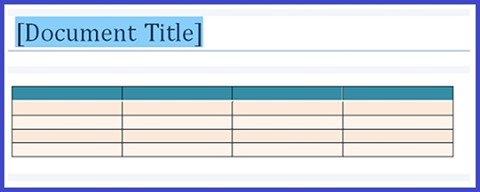
Figure 23‑1: New Word Table on the XML Author canvas
The scaled rendering displays the content of the first “printed” page of the table.
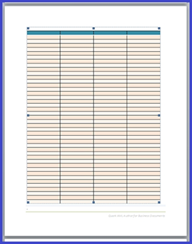
Figure 23‑2: First page of a Word Table on the XML Author canvas
Editing
To edit, double-click the table image. A new Word window is launched containing the table content.
The Word table is ready for editing.
Viewing
If the XML Author document or the embedded Word document is designated as read-only (in the XML or in the schema definition), the new Word window is launched in a password protected read-only mode.
Copy and Paste
User is able to copy content from other applications, such as Excel, and paste that content into the Word table editor. This allows the user to maintain content in applications other than Word.
Implementing Embedded Table Support
To configure OLE Word Document support, add an element definition that facilitates OLEWordDocuments to the configuration. Because the user can edit the Word document "without restrictions", the configuration does not have to specify all elements possible, but instead only has to specify table styles and settings and metadata and inline element definitions.

Figure 23‑3: Configuration-XSD OLEWordDocument definition
Quark XML Author supports the following OLEWordDocument elements:
ParaType, TableType, TableRowType, TableCellType: used to specify the metadata and inline element definitions for the associated element.
OLEWordDocument contains the following attributes:
The following attributes specify the initial formatting and styling of an embedded Word table. <TableStyles> defined in the configuration are not available.
Table 23‑1: OLEWordDocument Attributes
|
Attribute Name |
Required |
Definition |
|
defaultColumnCount |
no |
Default number of columns. Valid values are 1-63. If a number greater than 63 is specified, then 63 is used. If not specified, the default is 3. |
|
defaultRowCount |
no |
Default number of rows. If not specified or not a valid number, the default is 3. |
|
tableStylesTemplate |
no |
Specifies the location and filename of the Word template (.dotx file) for custom table styles. The location may be specified as a fully qualified path or as a relative path to the main XML Author template (.dotx file). Only table styles in this tableStylesTemplate are available to the user in this scenario. <TableStyles> defined in the configuration are not available. However, you can refer to “TableStyle” for an example of the user interface. |
|
defaultWordTableStyle |
no |
Specifies a style in the tableStylesTemplate that is used as the default table style when a user initially inserts a table. If not specified or if a table style is specified that is not in the template, the system uses the TableGrid style. Built-in Microsoft Word table styles are not directly supported, but you can derive a new custom style from a built-in style. |
Starter documents
The custom table style template acts as a starter document for the table because it can include starter content for the embedded Word table. For more information, see “Starter Documents and Templates”. The template may include headers and footers, but these are not rendered on the XML Author Word canvas unless the text boxes are included for content such as page number. It is also recommended that the top and bottom margins of the table template be smaller by about 1/4 inch than the corresponding margins used in the template.dotx in order to minimize the creation of unnecessary blank pages.
Sample configuration
In this sample configuration, the Element Definition uses the <OLE> node as a child of <Section>. For details on this node, see “OLE” and “OLEWordDocument”.
<!-- Sections -->
<ElementDef name="body" friendly="Section Body" visible="false">
  <Section>
    <Choice minOccurs="0" maxOccurs="unbounded">
      <!-- Other Choice items elided -->
      <OLEType name="wordTable"/>
    </Choice>
  </Section>
</ElementDef>
An example of an element definition using OLEWordDocument is shown below.
When the embedded file is created, it is initialized with a default table according to the configuration-specified attributes.
<!-- OLE Table -->
<ElementDef name="wordTable" friendly="Word Table" referenceAttribute="conref">
<OLE readonly="false">
<OLEWordDocument defaultColumnCount="4"
defaultRowCount="5"
tableStylesTemplate="table-template.dotx"
defaultWordTableStyle="My Style" />
</OLE>
<Attributes>
<AttributeType name="id"/>
<AttributeType name="conref"/>
</Attributes>
&extensibility;
</
ElementDef
>
Images
Images that are inserted in the embedded Word document are stored at a location specified in the configuration. See “ImageFilePath”.
Emphasis
The OLEWordDocument element can be configured to allow the user to apply emphasis to text-based elements.
The following shows a emphasized paragraph within an embedded Word document.

Figure 23‑4: A paragraph with emphasis applied
The <ParaType> node contains a collection of <EmphasisType> nodes that specify the allowed emphasis.
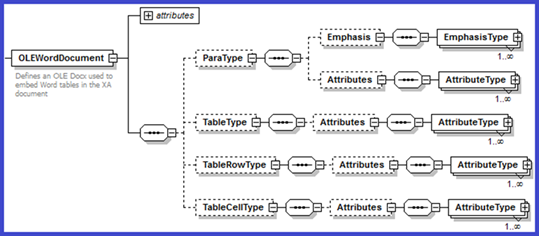
Figure 23‑5: Configuration-XSD OLEWordDocument > EmphasisType definition
The <EmphasisType> node contains the following attributes.
Table 23‑2: OLEWordDocument > ParaType> EmphasisType Attributes
|
Attribute Name |
Required |
Definition |
|
name |
Yes |
Contains the name of an EmphasisDef defined earlier in the configuration. An EmphasisDef that is defined for an XML Author document may be used/repurposed for this or a separate EmphasisDef may be defined that is only used for OLEWordDocument. |
|
charStyle |
Yes |
Specifies the "Word character style" that should be applied to text that receives this emphasis. This may be a custom character style that you have put in the “tableStylesTemplate” in <OLEWordDocument>. This only applies to Emphasis in ParaType. The other child elements are table elements that do not directly contain text and therefore do not require this style setting. Word has character and paragraph styles. In the Word Styles tool, the icon to the right is an “a” for character styles or the para marker icon or it can be both. A style can act as both a character and a paragraph style. A style that is both can be used in our configuration, but not a style that is only a paragraph style. |
In the sample configuration, the following emphasis are made available for paragraphs: Intense Reference and Intense Emphasis.
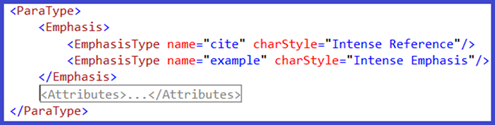
Figure 23‑6: Paratype > EmphasisType definitions
Nested emphasis is supported, but configuration rules for what and how are ignored. Style is ignored. Friendly and Attributes defined for the emphasis are used/respected/honored. Read-only settings are honored.
Metadata
The OLEWordDocument element can be configured to allow the user to apply metadata to the following elements:
-
Paragraphs
-
Tables
-
Table rows
-
Table cells
-
Inline elements
For table, row, cell, inline elements, when the user selects content and applies metadata, XML Author wraps the selection in a Word Content Control. The user sees the Control with its Titletab (Table, row, cell, inline).
For paragraph, XML Author does not use a Word Content Control because it has certain limitations. Therefore, XML Author handles paragraphs internally. No content control is shown on the Word canvas.
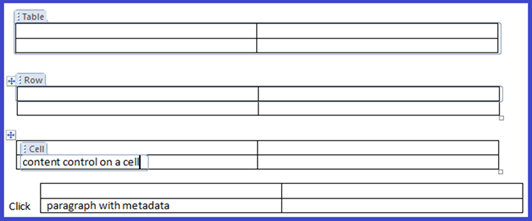
Figure 23‑7: Metadata data applied to various element types in an embedded Word document
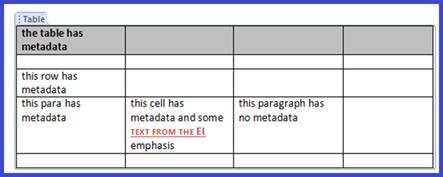
Figure 23‑8: Metadata data applied to various element types in an embedded Word document
The OLEWordDocument element may contain the following child elements which are used for storing metadata: TableType, TableRowType, TableCellType, and ParaType. See “Table” for details on table elements.
These OLEWordDocument child elements are used for tracking metadata that has been applied by the user or the system. When the user right-clicks on something, the feature is invoked. When metadata is applied to a piece of content in the OLE Word document a corresponding element is created in the Pseudo XOM and a corresponding Word Content Control (paragraphs are handled differently) is created in the Word document. The metadata that is applied by the user is stored in the attributes of the Pseudo XOM element. What is the Psuedo XOM? It is a collection of nodes similar to the XML Author XOM, but much lighter. It does not track every content element in the embedded Word document. It only contains nodes for content elements to which metadata has been applied. Nodes/ Content Items are created on demand as a result of passing XomCurrentNode to an EI method. In the same way that a custom dialog requires XomCurrentNode to view and edit attributes for the current element. The RemoveContentItem delegate is used when the user has deleted all metadata for a content element. See "RemoveContentItem".
The configuration of the OLEWordDocument child elements includes the definition of each attribute where the metadata will be stored. Each attribute is defined using an AttributeType element. The AttributeType references an AttributeDef already defined in the configuration.
Note that the following are reserved names in the Psuedo XOM: table, row, cell, p.
Each content type node, such as <ParaType>, contains a collection of <AttributeType> nodes that describes the attributes used for storing metadata.
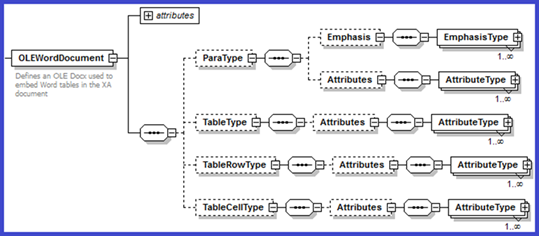
Figure 23‑9: Configuration-XSD OLEWordDocument > AttributeType definition
The <AttributeType> node contains the following attribute.
Table 23‑3: OLEWordDocument > ParaType> AttributeType Attributes
|
Attribute Name |
Required |
Definition |
|
name |
Yes |
Contains the name of an AttributeDef defined earlier in the configuration. An AttributeDef that is defined for an XML Author document may be used/repurposed for this or a separate AttributeDef may be defined that is only used for OLEWordDocument. |
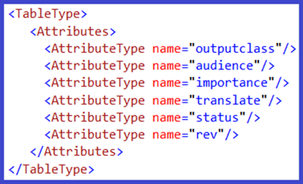
The following example configuration shows the definition of table attributes for storing metadata.
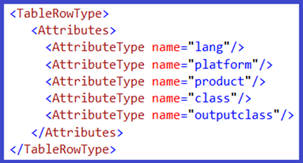
The following example configuration shows the definition of table row attributes for storing metadata.
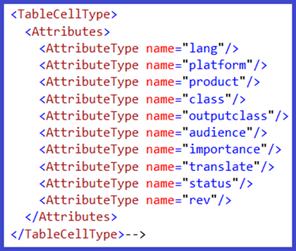
The following example configuration shows the definition of table cell attributes for storing metadata.
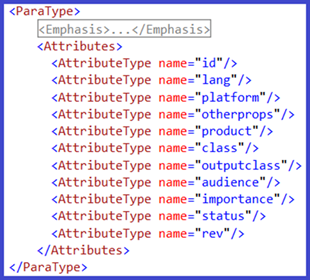
The following example configuration shows the definition of paragraph attributes for storing metadata.
Metadata can also be applied to inline elements/emphasis.
Metadata default values
The default values specified for the referenced AttributeDefs are used as the default values for the metadata of "new" elements added to an embedded Word document.
For example,
AttributeDef name="lang" default=”en”
This is known as prepopulating. In addition to prepopulating, the configuration defines what attributes are available for storing metadata and what attributes may be stored during the serialization process. Prepopulating is performed if the element is created by Core XML Author as opposed to an EI. If the element is created by an EI, the EI takes responsibility for which attributes are populated.
Metadata and use cases
Table 23‑4: Metadata Use Cases in OLE Word Document
|
Action |
Result |
|
Copy and paste an element containing metadata. |
New element is created that contains a copy of the original element's content and its metadata. |
|
Paragraph 2 is merged into paragraph 1. Both paragraphs have metadata. |
The content of paragraph 2 is appended to paragraph 1. Paragraph 1's metadata is unaffected. Paragraph 2's metadata is not preserved. |
|
Enter is pressed in a paragraph causing a new paragraph to be created. The original paragraph has metadata. |
Metadata is cloned if the cursor was positioned at the start of the paragraph when the user pressed Enter. Otherwise metadata is not cloned. |