
Getting Started
Introduction
QuarkXPress application is built upon robust extensible architecture framework and allows its system integrators to extend its functionality as per their customers need. You can do this by writing a C++ XTension using the C++ XDK of the QuarkXPress application. You can develop a QuarkXPress XTension only if you are familiar to these technologies and development tools like XCode on Mac or Microsoft Visual Studio on windows platform. Java scripting support in QuarkXPress (i.e. qx.js) allows its system integrators as well as the direct users to extend the functionality of application without writing a C++ XTension. It is not only the learning of aging technologies like C++ and development tools in the modern era, you also have to pay the license cost for development tools. Also, you must have a working knowledge of programming for the platform for which you are developing the XTensions.
You can do almost everything through JavaScript except adding the fundamental capabilities into the software. To do such type of extensibility, you need to write a C++ XTensions using its C++ XDK. Through JavaScript, you can create projects, layout and boxes etc. You can modify its geometry and content using QXML DOM APIs. You can import text or graphic type of content into layout boxes and format the content. Any action that can change the layout or 'its content can be scripted. There even are a few things you can do in JavaScript which are fundamentally missing in the software or that you cannot do using the application's user interface.
You can create and display dialog boxes for simple user interactions like showing alert, confirmation or getting input from user. Very soon, you can create dialogs, palette and menus through JavaScript. You can not only communicate with file system for reading and writing text files using the JavaScript but communicate with other applications also.
Java Scripting can do everything from very small tasks (like changing the background color of the box) to providing complete features. You can invoke one JavaScript into another JavaScript that allows you to create re-usable scripts. You can start with simple scripts that do only one thing and move on to scripts that automate your entire publishing workflow.
Working with the JavaScript palette
Open the JavaScript palette by choosing Window > JavaScript.
JavaScript Palette

Use the JavaScript palette to perform the following functions:
-
Add a new JavaScript (
 ).
-
Edit the selected JavaScript in the registered JavaScript code editor on your machine.
-
Run the selected JavaScript in the palette.
-
Refresh the palette to see newly installed scripts.
-
Delete the script from the palette.
-
Search for your script by name.
-
Navigate to different folders under the scripts root directory.
Running a script
To run a script, open the JavaScript palette (Window > JavaScript) and select the script to run. Execute the script using the Run  button in the palette. You can also execute the script by double clicking it or through
context menu.
Once the script begins executing, the following actions are performed:
-
A compound undo is created to record all the changes performed through the script allowing you to undo if necessary.
-
The JavaScript palette displays a progress bar, showing the progress of the running script. The progress bar is terminated when the script execution ends, either successfully or with failure. You can see the status of script execution for each script in the palette.
-
The JavaScript palette places a green tick beside each successfully completed script and a red tick beside each failed one. You can view a failed scripts error using the tooltip.
Writing your "HelloWorld" JavaScript
To create a "hello world" JavaScript sample in QuarkXPress, follow these steps:
-
Open the JavaScript palette (Window > JavaScript).
-
Click the
icon.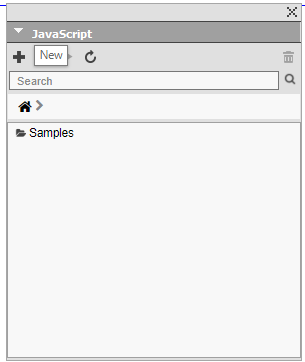 A new entry with the name 'untitled.js' will be added to the list of scripts.
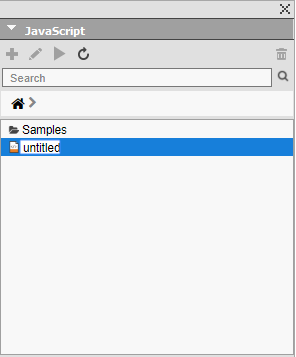
-
Rename the script according to your preference.
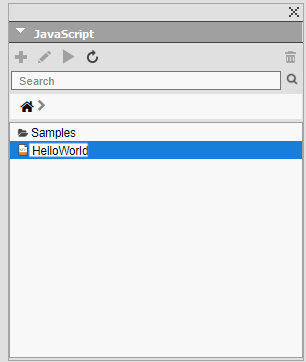
-
Initially the file will be empty. To edit the script, click the Edit
 button. The file will open for editing in the registered editor.
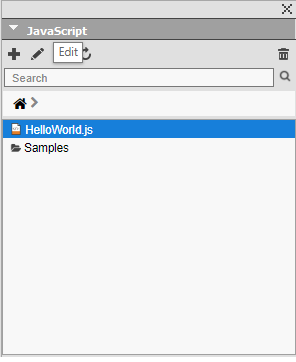
-
Add the following code to the script and save it.
app.createProject('HelloWorld.qxp');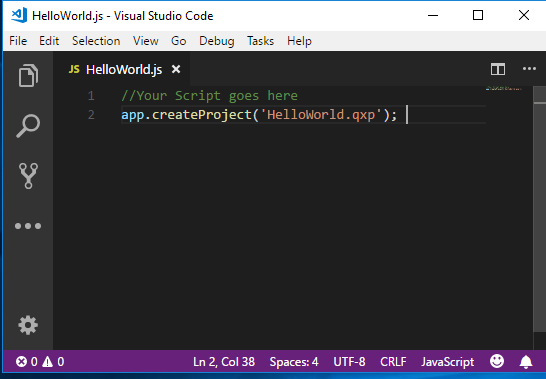
-
To run the script, double click the script name or select the script from the list and click the Run
button on the JavaScript palette.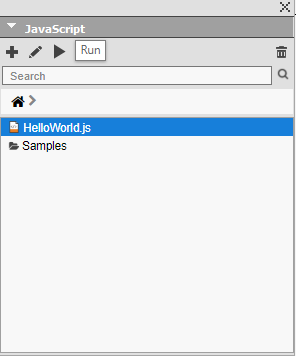
Editing the sample scripts
You cannot directly edit the scripts shipped with the application. If you want to edit these scripts, do so by duplicating them.
Duplicate these scripts using the JavaScript palette:
-
Navigate to the folder that contains the script you want to duplicate.
-
Select the script or folder, right click, and choose Copy.
-
Navigate to your home directory (e.g.
C:\Users\<user>\Documents\Quark\QuarkXPress 2019\json Windows and<Machine-name>\<volume>\Users \<user>\Documents\Quark\QuarkXPress 2019\json macOS). -
Right click in the empty area and Paste. The selected scripts or folder will be copied to your home directory.
-
(Optional) If you want to change the name, you can do it through context menu. Navigate to the location (
right click > Open Folder LocationorOpen File Location). -
Change the name and click Update
 in the JavaScript palette.
-
Select the script and click Edit. It will open the script in the register code editor. Modify it and save the changes before running it.
Installing new scripts
Installing new scripts in QuarkXPress is simple: put the scripts in the 'js' folder. The JavaScript palette displays the scripts from two different locations on your machine; from the application folder and from the user documents folder.
Place new scripts in the user document folder, which resides here:
Windows®: \Users\<username>\Documents\Quark\QuarkXPress 2019\js.
macOS®: /Users /<username>/Documents/Quark/QuarkXPress 2019/js.