Branching
Quark Publishing Platform NextGen Adapter for Quark XML Author allows you to create several versions of an asset for different audience segments or geographical regions through branching. Branching allows better asset and version management because unlike duplicating an asset, branching does not create separate copies of an asset.
When you create a branch of a document and make any changes to that branch, Quark Publishing Platform NextGen Adapter for Quark XML Author does not impact the original document (the origin branch) or any other branch of the document.
Create a Branch
Quark Publishing Platform NextGen for Quark XML Author allows you to create a branch of a document from the following places on the user interface:
-
Home ribbon to create the branch of an asset
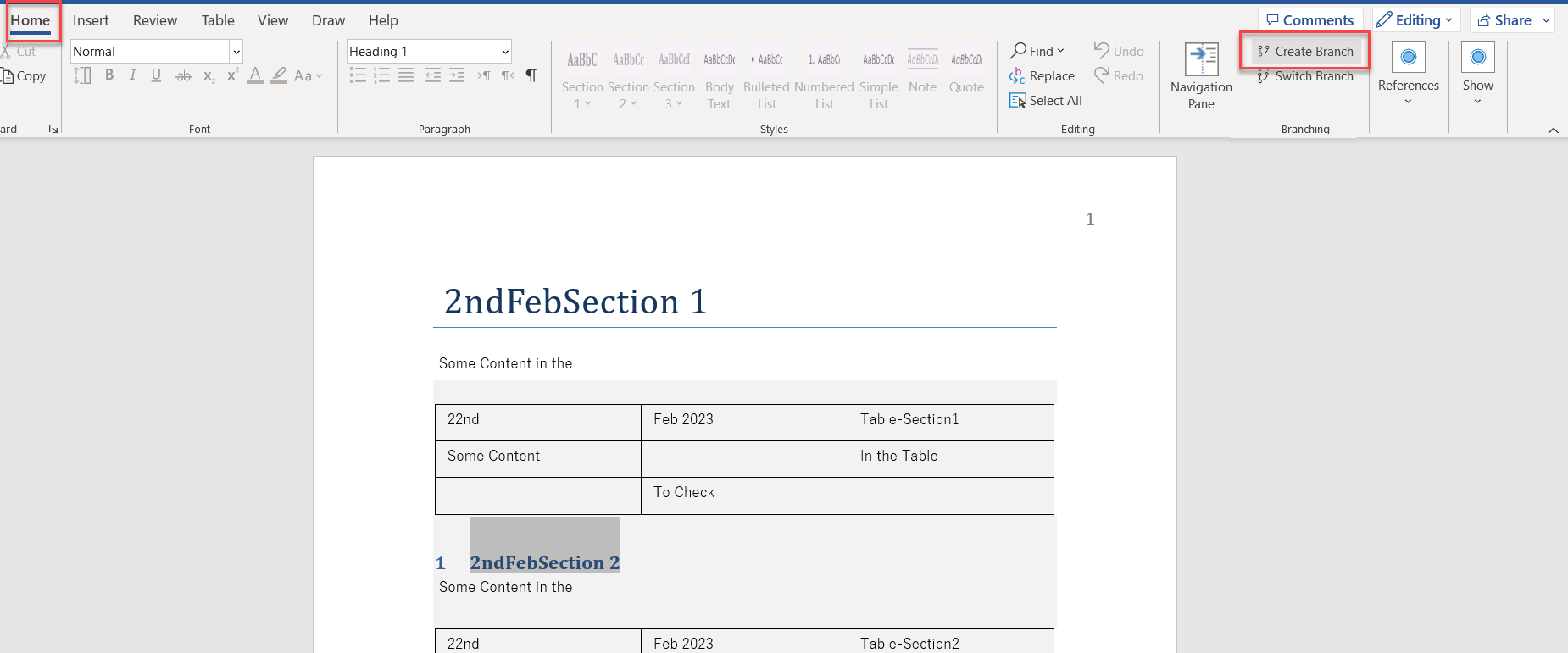
-
Navigation pane to create a branch of a section in the asset through the kebab menu icon next to the section
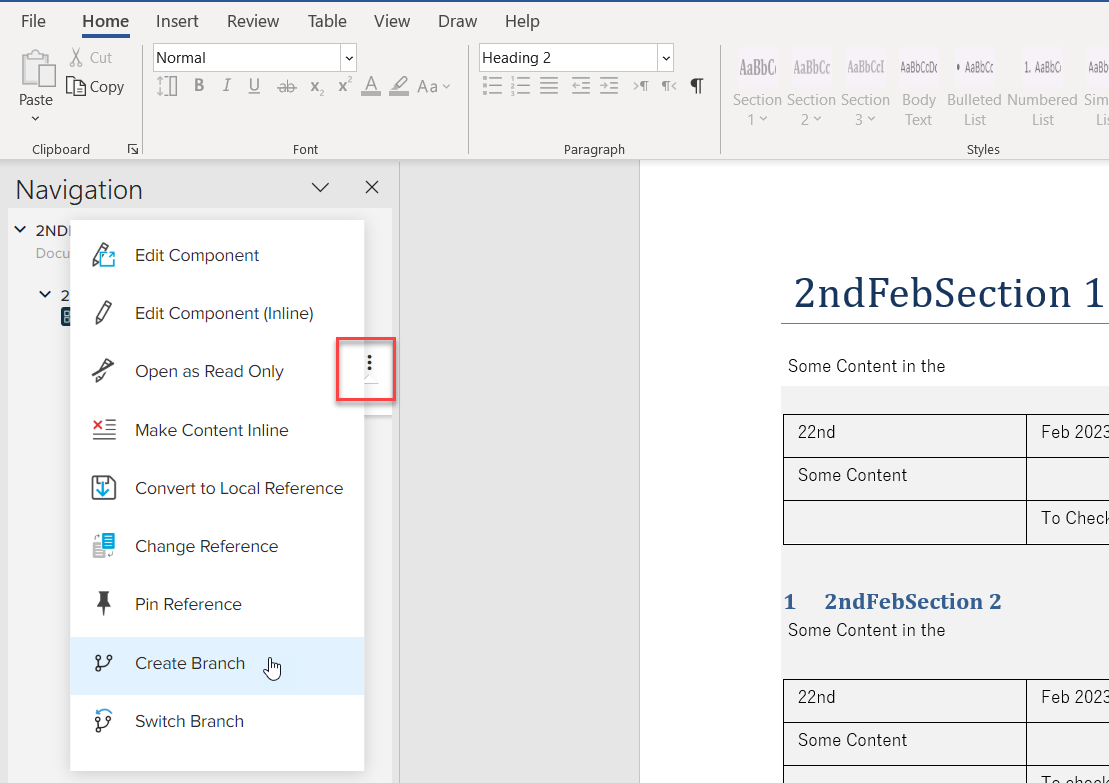
-
Smart Document Pane to create a branch of a linked reference in the asset through the kebab menu icon on the listed component
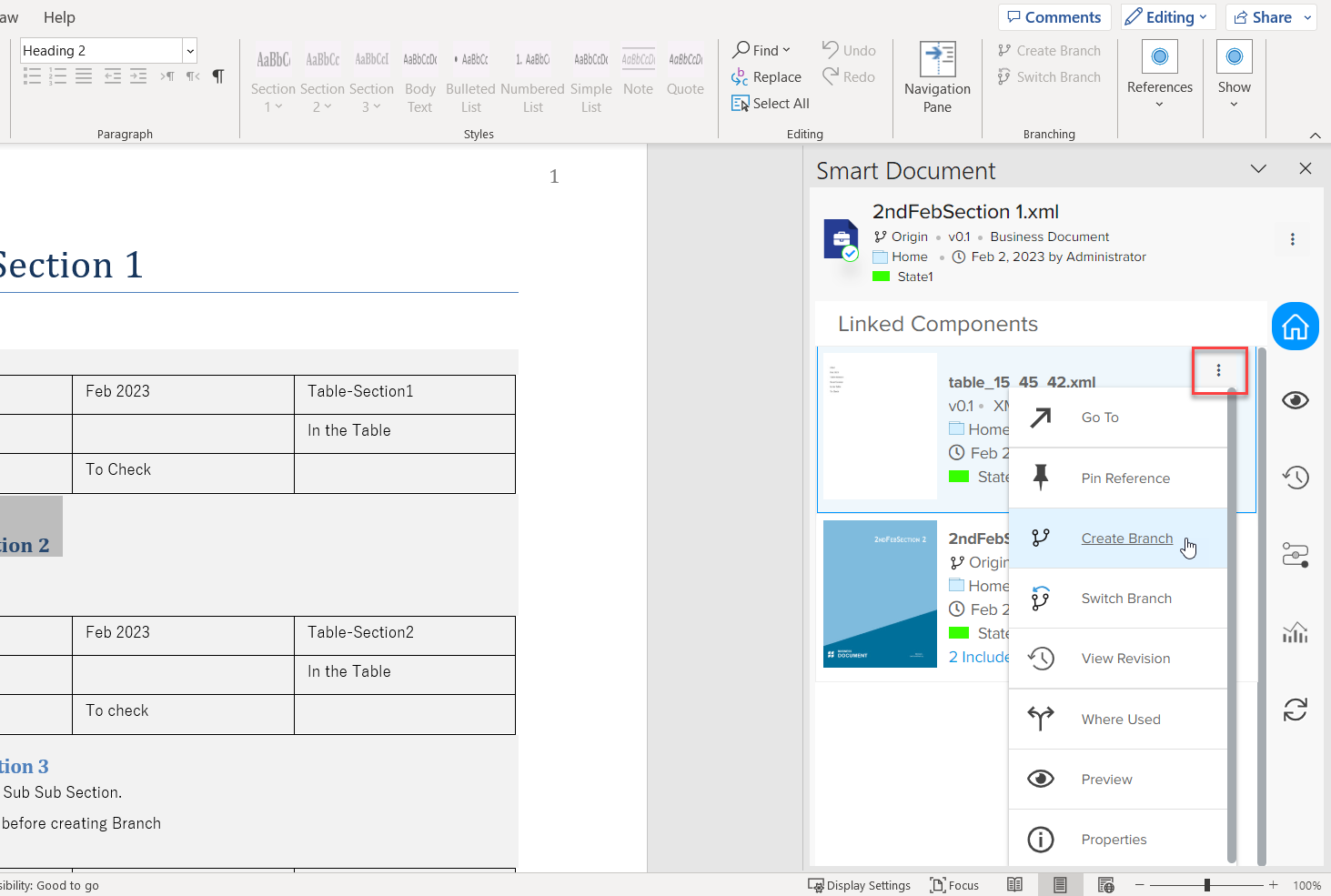
The process to create a branch is the same for the assets, sections, and components, which is as follows:
-
Select the button or context menu option Create Branch (based on where you are on the user interface) to open the dialog Create Branch.
-
In the dialog Create Branch, provide a name for the branch in the field Branch Label.
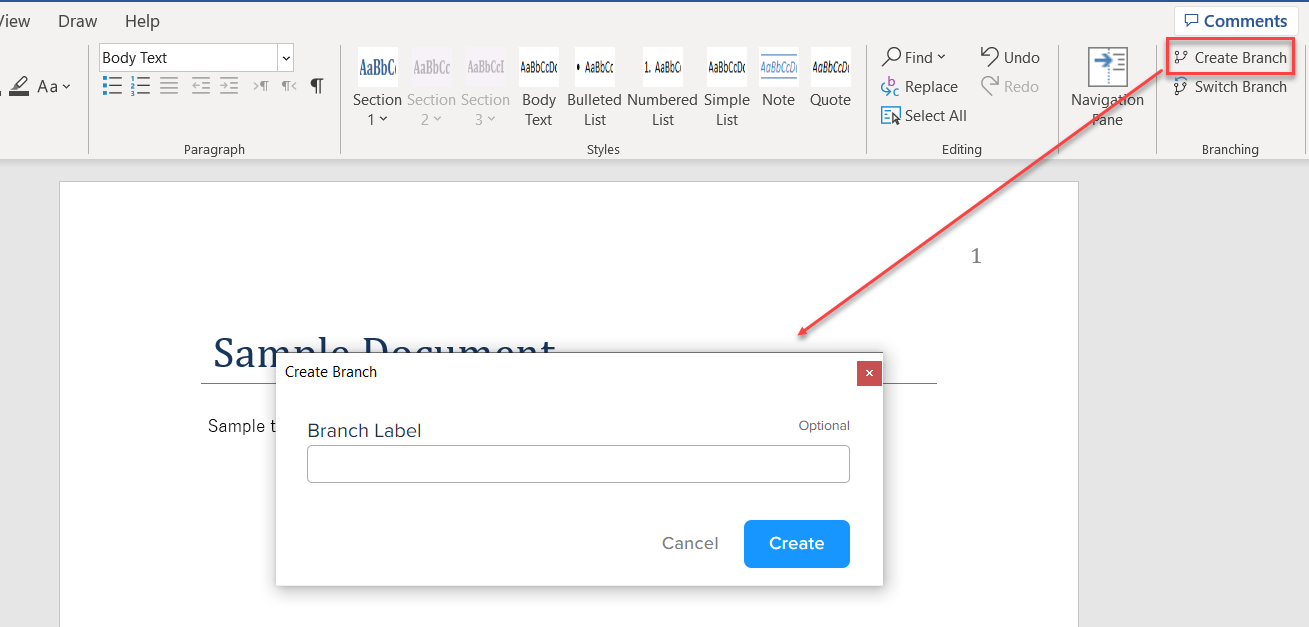 The field Branch Label is optional. When you do not provide a name for the branch, Quark Publishing Platform NextGen for Quark XML Author automatically assigns a number to the branch. For more information, see the section Version Number and Branch Notation.
-
Select the button Create to save the new branch on the server.
Version Number and Branch Notation
Quark Publishing Platform NextGen Adapter for Quark XML Author increases the version number of an asset by 0.1 every time you edit and check it back into the repository. For example, if you have opened version 0.5 of a document to edit, and then when you check in the document, Quark Publishing Platform NextGen Adapter for Quark XML Author creates version 0.6 of the document.
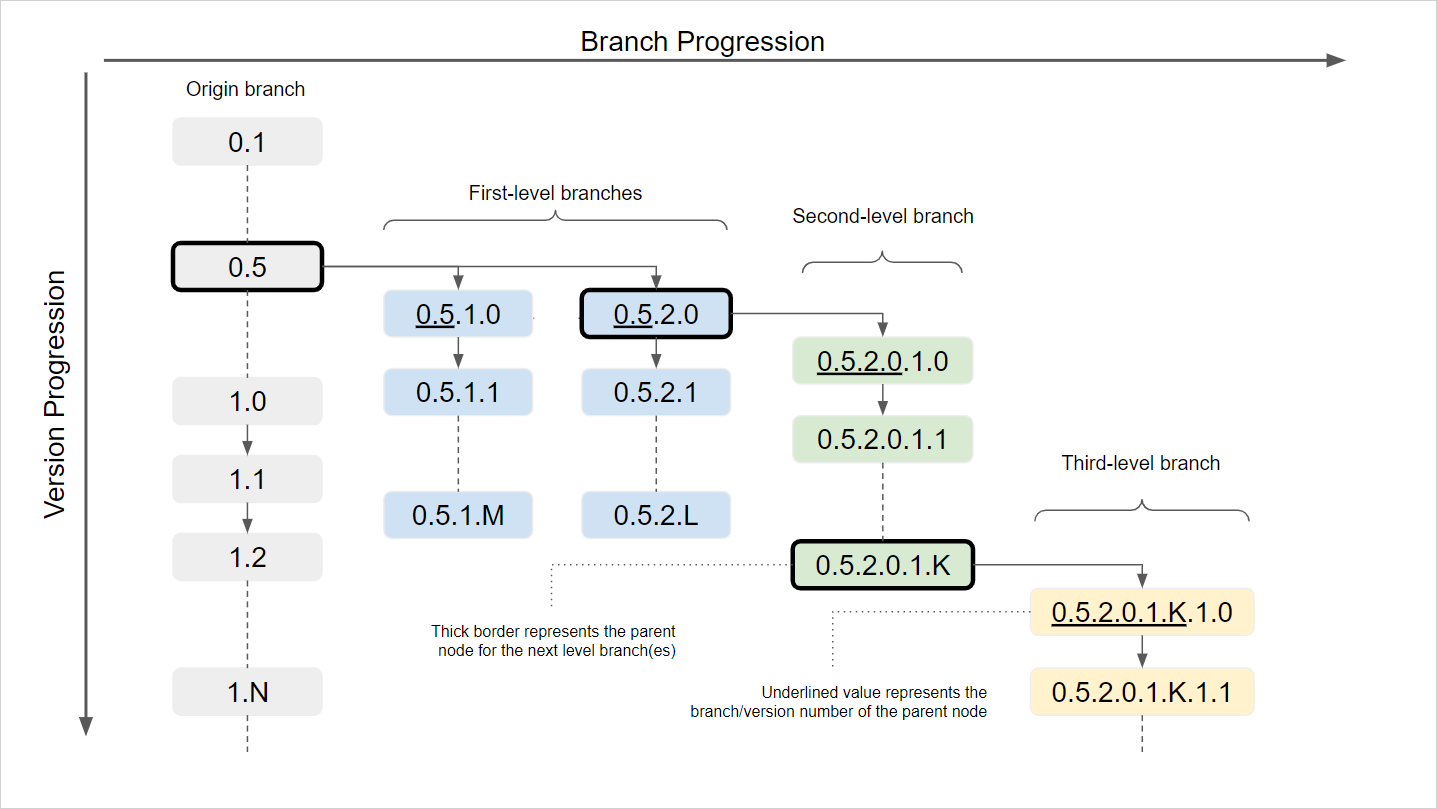
When you create a branch of an asset, Quark Publishing Platform NextGen Adapter for Quark XML Author creates the branch from the version of the asset you are currently on, which also becomes the parent node of the sub-branch that you have just created.
Quark Publishing Platform NextGen Adapter for Quark XML Author also automatically assigns a branch number to a branch you create. When you do not assign a custom branch label, Quark Publishing Platform NextGen Adapter for Quark XML Author sets the automatically assigned branch number as the branch name.
The branch number contains the version/branch number of the parent node, the sequence order of the branch originating from that node, and the version number of the branch. For example, when you create a branch from version 0.5 of the default or the origin branch of the document, Quark Publishing Platform NextGen Adapter for Quark XML Author assigns branch number 0.5.1.0 to the new branch, where:
-
the last value represents the version number of the branch
-
the second last value represents the sequence order of the branch originating from the same parent node
-
the remaining value represents the version/branch number of the parent node
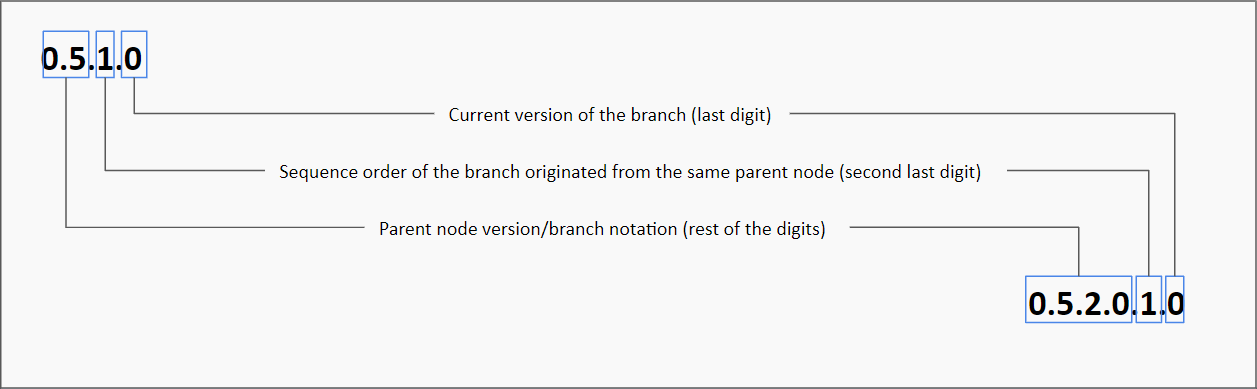
If you create a second branch from version 0.5, the branch number of the second branch would be 0.5.2.0. And if you create a sub-branch from the second branch the branch number would be 0.5.2.0.1.0.
Branch Representation
Quark Publishing Platform NextGen for Quark XML Author displays the branching information
of an asset (along with the branching icon  ) at the following places on the user interface:
-
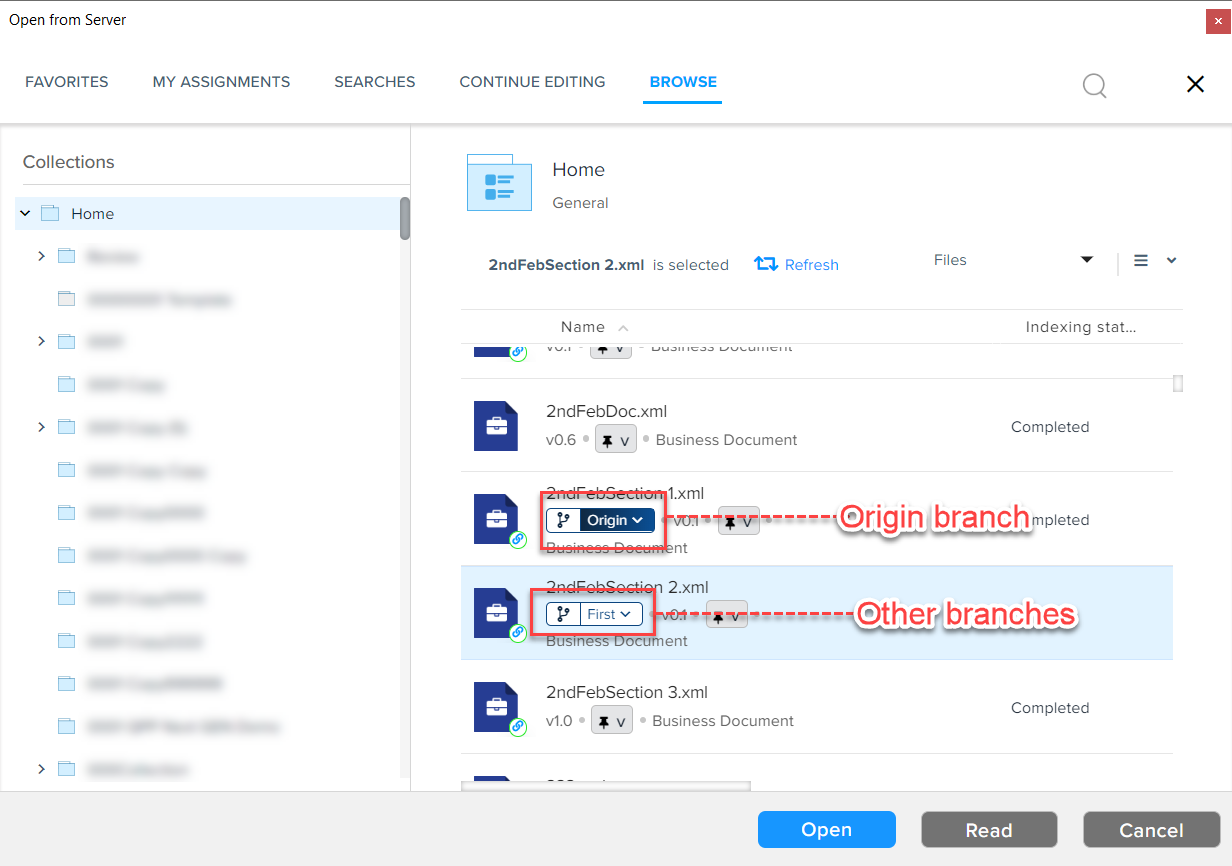
In the dialogs to insert/open a component/document such as Open from Server, Select Template, Replace from Server, and so on. In these dialogs, the branch information appears in a pill element right before the version number. For the origin branch, the pill element has a darker color fill.
-
On the Smart Document pane, the branch information appears right below the file name. You can also see the branch information for the linked components in a similar position.
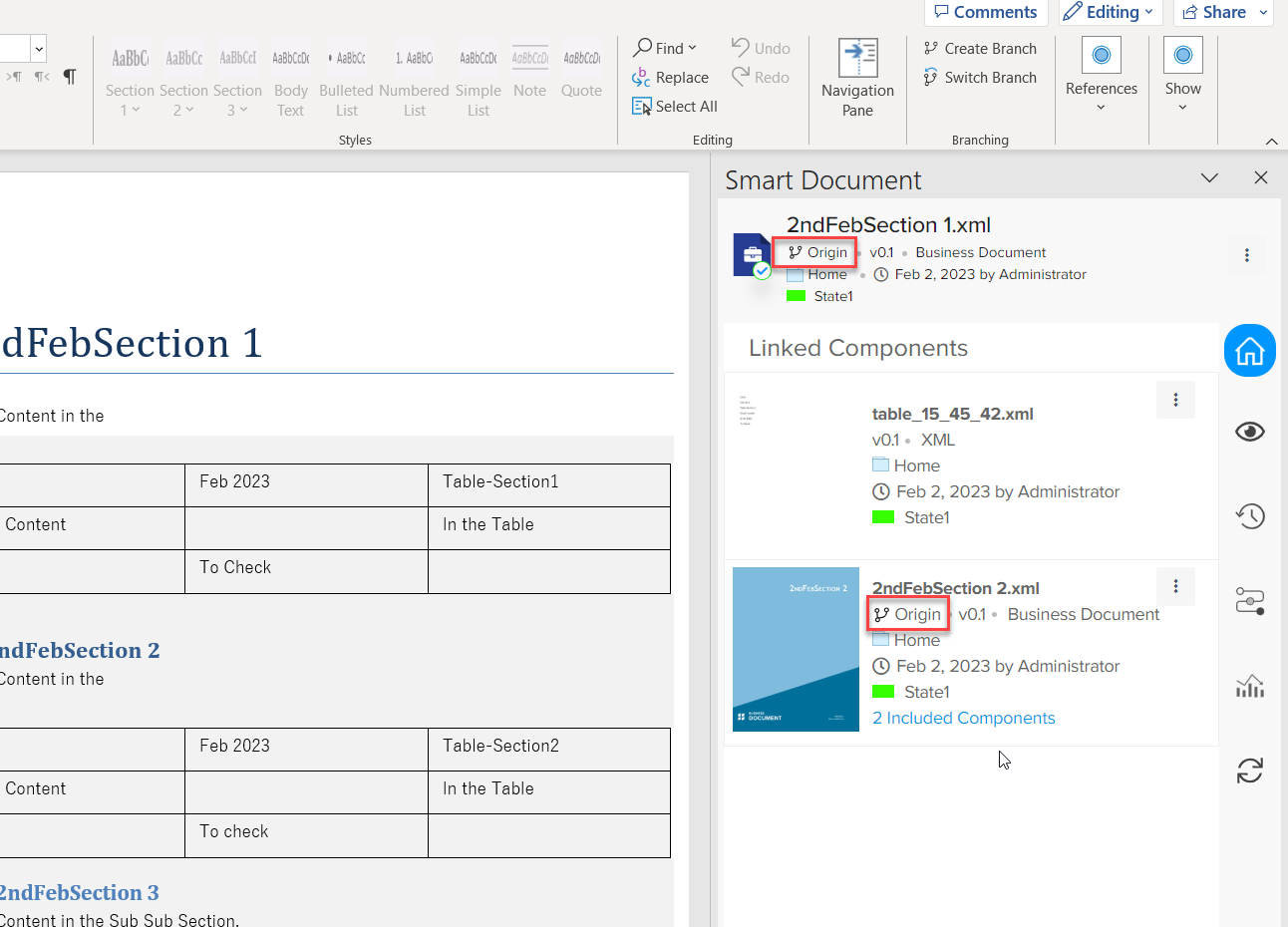
-
Additionally, branch information also appears along with the file name at the top of the window in the parenthesis.
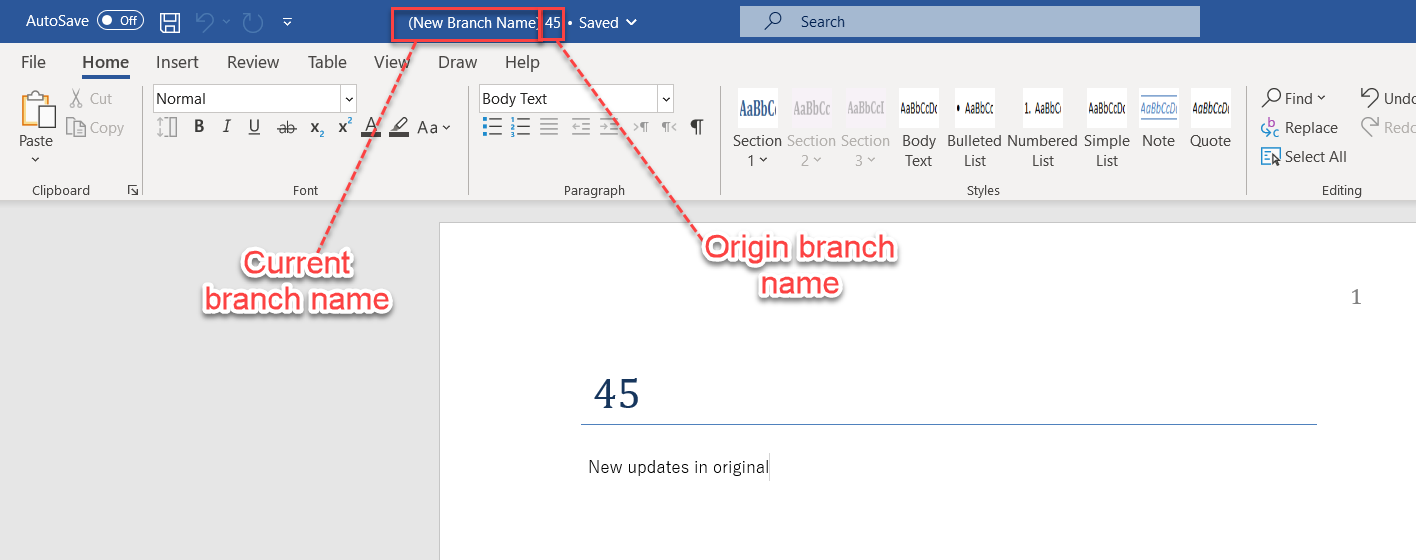
Switch Branch
Quark Publishing Platform NextGen for Quark XML Author provides the option to switch
a select a specific branch along with the option to create a branch. To see the position
of the option on the user interface, refer to the section Create a Branch. The icon for Switch Branch is  .
Additionally, you can also switch the branch of an asset or component while opening or importing it from the server through any of the insertion dialogs such as Open from Server, Select Template, Replace from Server, and so on.
To switch and select a branch in an insertion dialog:
-
Select the dropdown menu icon on the branch information pill element to expand the list of branches available for the asset.
-
Select the branch you want to switch to.
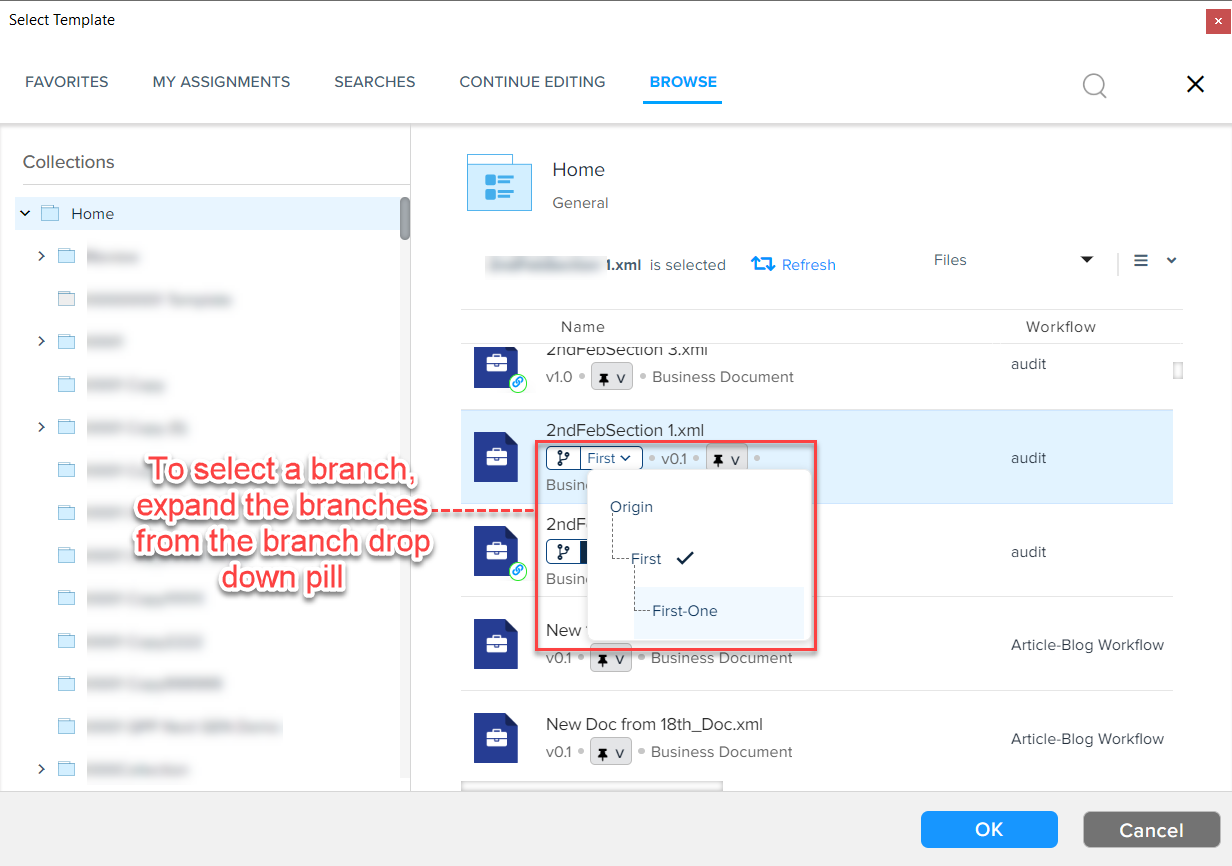
To switch and select a branch on the authoring canvas user interface:
-
Select the button or context menu option Switch Branch (based on where you are on the user interface) to open the dialog Switch Branch.
-
In the Switch Branch dialog, select the branch you want to switch to and then select the button Switch Branch.
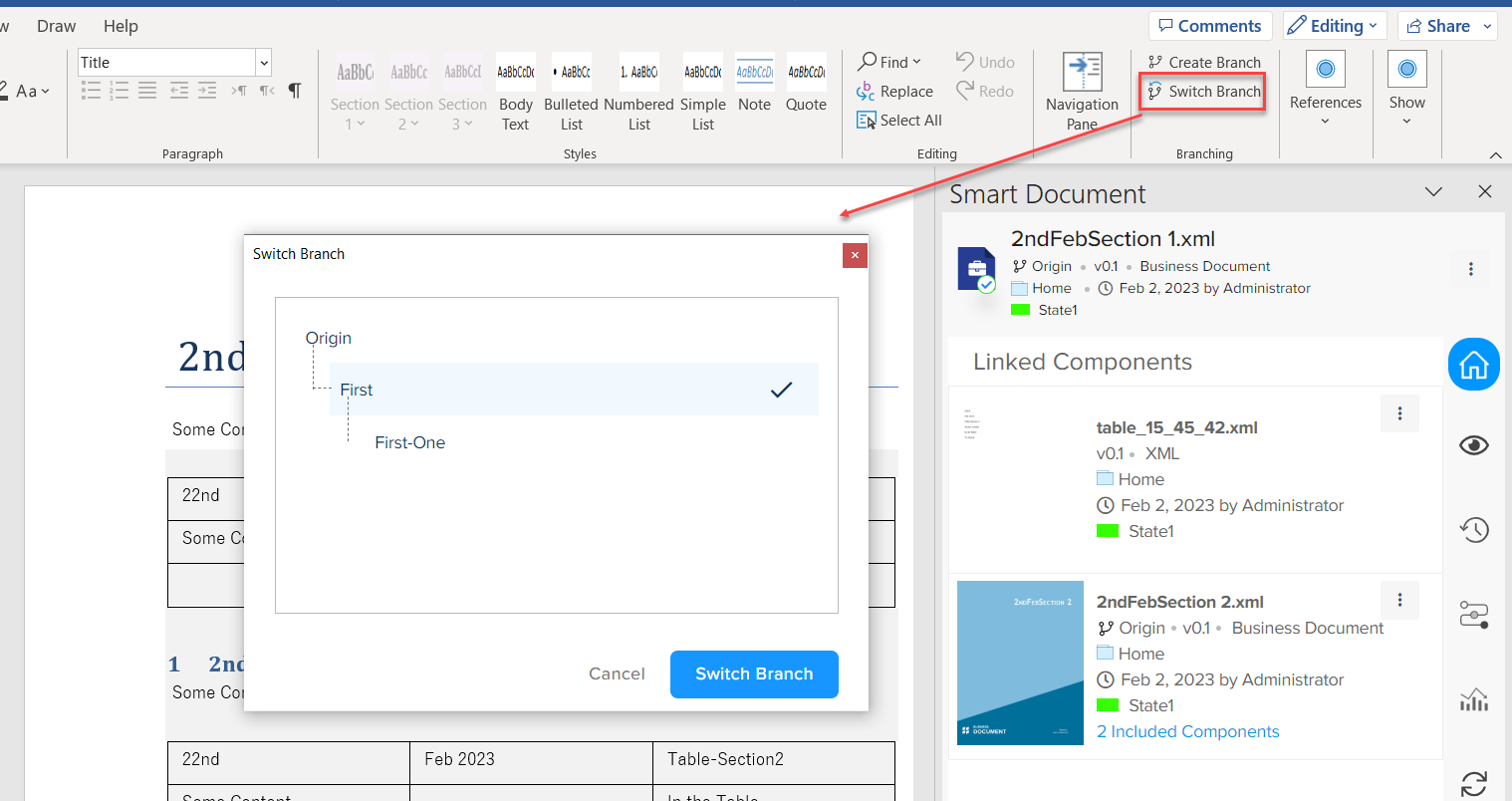
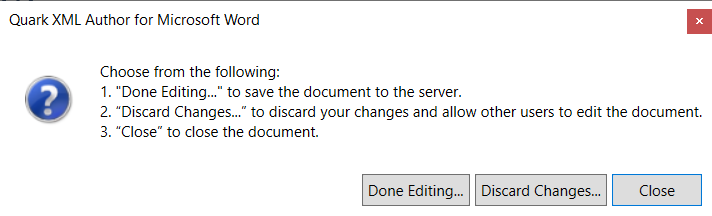
-
Done Editing: Saves the currently opened document to the server and opens the selected branch.
-
Discard Changes: Discards the changes made to the currently opened document (returns to the previously checked-in state) and opens the selected branch.
-
Close: Displays another prompt asking what you want to do with the changes made in the currently opened document branch before switching to the selected branch.