Content References
This section provides details on all the content reference-related features and capabilities that Quark XML Author offers.
Insert Content References
You can reference content elements such as tables, figures, images, lists, and paragraphs in a document in another document.
To insert a content element reference:
-
Open document D2, which contains the element that you want to reference.
-
Select the content that you want to reference.
-
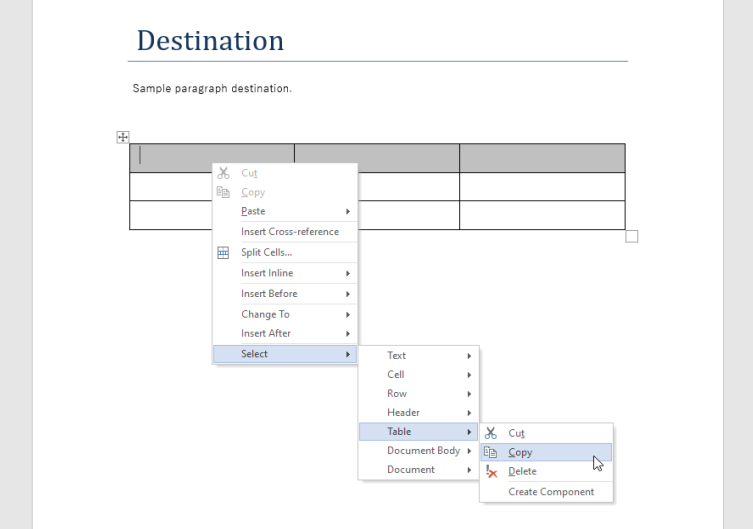
Right-click and in the context menu, select Select > {element style} > Copy.
-
One the document D1 in which you want to insert a content element reference.
-
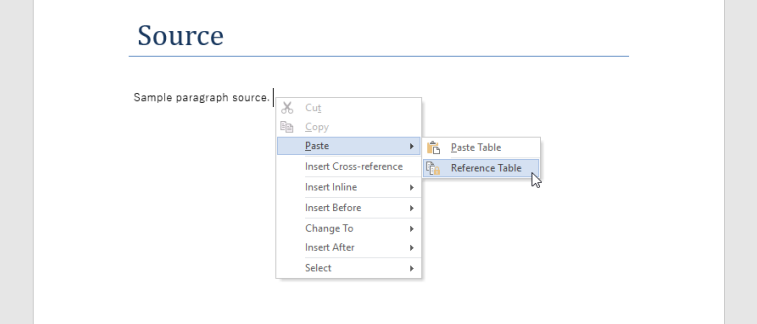
Position the cursor where you want to insert the content element reference, right-click and in the context menu, select Paste > Reference {element style}.
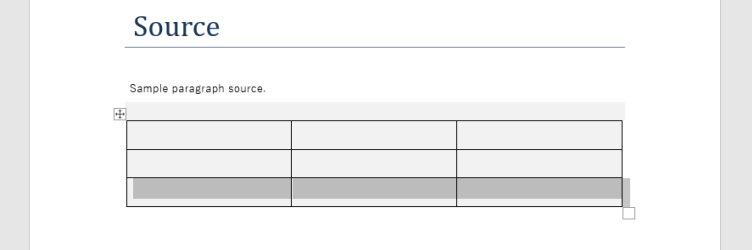
Quark Publishing Platform NextGen Adapter for Quark XML Author inserts a read-only copy of the referenced content element.
Content Reference as a Component
Quark Publishing Platform NextGen Adapter for Quark XML Author allows you to save a content element as a component to the repository as a separate entity from the document that originally contains that content element and then to use it as a reference in a separate document.
Create a Component
To create and save a component:
-
Open the document that contains the content element that you want to convert into a component.
-
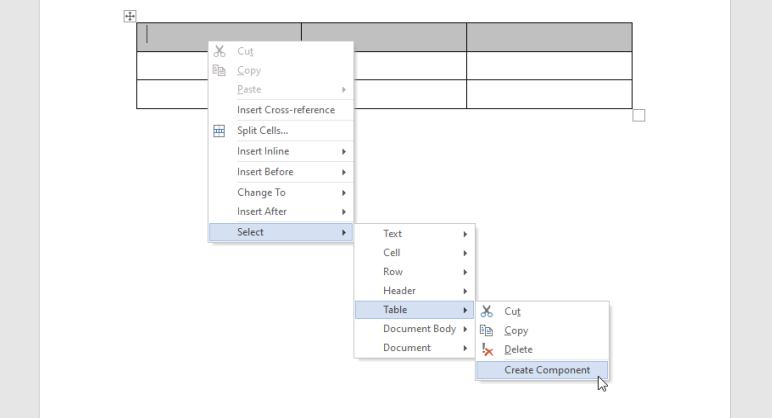
Select the element (group of elements), right click and in the context menu, select Select {element name} > Create Component.
-
In the dialog box Save, select a location, a workflow, and other required parameters, and then select Save.
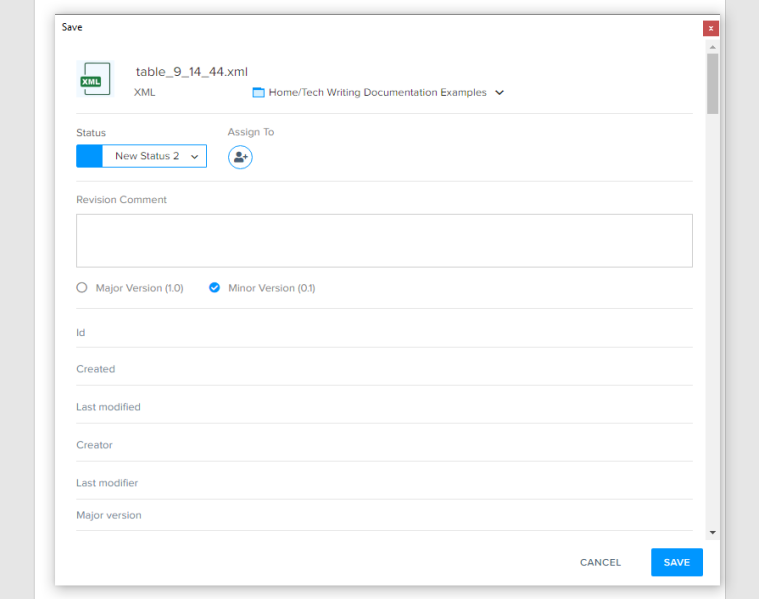
Quark Publishing Platform NextGen Adapter for Quark XML Author creates a component (a separate XML document) in the repository to be used as a component reference in other documents.
Insert a Component Reference
To insert a content reference from a repository:
-
Position the cursor in your document where you want to insert a component reference.
-
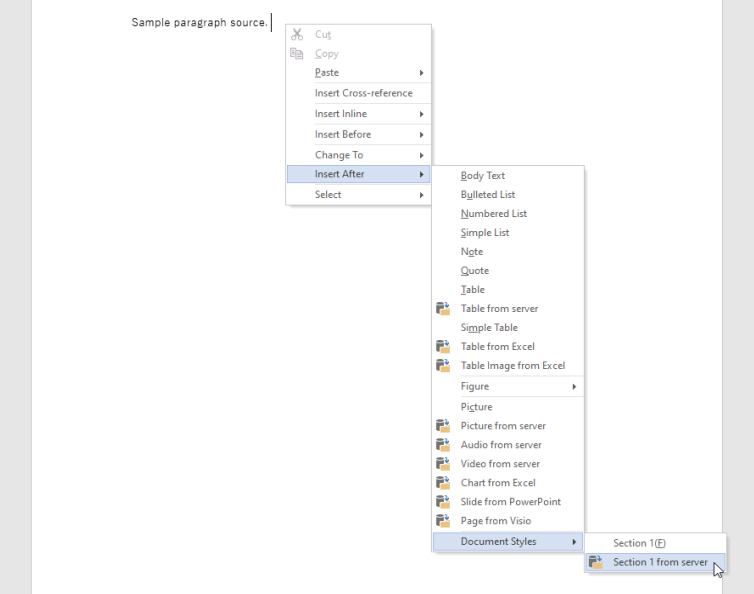
Right-click and in the context menu, select Insert Before / Insert After > Document Styles > Section # from server to open the dialog box Reference from Server.
-
In the Reference from Server dialog box, browse to the repository folder that contains the component that you want to insert and then select OK.
Quark Publishing Platform NextGen Adapter for Quark XML Author inserts a read-only copy of the component in the current document
Section References
You can insert the content of a section or repository document by inserting a section reference in the current document. Quark Publishing Platform NextGen Adapter for Quark XML Author inserts the content within the reusable section or repository document as a section.
Insert Section References
You can insert a reference to a section or to an entire document that is available in the repository.
To insert a section reference:
-
Position the cursor where you want to insert a section reference.
-
Right-click and in the context menu, select Insert Before / Insert After > Document Styles > Section # from server to open the dialog box Reference from Server.
-
In the Reference from Server dialog box, browse to the repository folder that contains the section or document that you want to insert and then select OK.
Copy Content References
Quark Publishing Platform NextGen Adapter for Quark XML Author allows you to copy an entire content reference to a new location within the same document or to a different document.
To copy a content reference:
-
Open document D1, which contains a content reference that you want to copy.
-
Select the content reference you want to copy, right-click and in the context menu, select Select > {element name} > Copy.
-
Open document D2 in which you want to copy the content reference.
-
Position the cursor where you want to copy the content reference, right-click and in the context menu, select Paste > Reference {element name}.
Quark Publishing Platform NextGen Adapter for Quark XML Author copies the entire content reference along with the attributes.
Broken References
A content reference that is not able to connect to its source content is known as a “broken reference”. The reference may not be able to connect for a variety of reasons.
For example, the source content may have been deleted, or there may have been a change in access or permission to a content library. Quark Publishing Platform NextGen Adapter for Quark XML Author displays a broken reference with a red background.
If the function Refresh Reference does not fix the reference, then you have to confirm that the source content is still available and that you have permission to access it. If you have permission, try repairing the broken reference using the function Replace Reference.
Replace Content References
You can replace an existing content reference with a new reference of the same content type. For example, you can replace a paragraph reference only with another paragraph reference.
To replace a content reference with a new content reference:
-
Open document D1, which contains the content or content reference that you want to insert in place of an old content reference.
-
Select the content, right-click and in the context menu, select Select > {element name} > Copy.
-
Open document D2, which contains the content reference that you want to replace.
-
Delete the content reference you want to replace.
-
Right-click and in the context menu, select Paste > Reference {element name} to insert the new content reference in place of the old content reference.
Refresh Content References
When you refresh a content reference, Quark Publishing Platform NextGen Adapter for Quark XML Author retrieves the referenced content again to incorporate any changes made to that content reference.
To refresh a content reference:
-
Open the document that contains a content reference that you want to refresh.
-
Right-click on the content reference, and in the context menu, select Refresh {element name} Reference.
Convert to a Local Reference
Quark Publishing Platform NextGen Adapter for Quark XML Author allows you to convert a content reference that references a repository content to a content reference that references a new local copy of the same content.
To convert a content reference to a local reference:
-
Right-click on the content reference, and in the context menu, select Select > {element name} > Convert to Local Reference.
-
Specify the folder path on your local machine where you want to store the local reference.
Scroll to a Referenced Content
When a referenced content is in the same document in which its content reference is, you can automatically scroll to the referenced content without manually scrolling the cursor.
To automatically scroll to the referenced content:
-
Open the Smart Document Pane (Home > Show > Smart Document Pane).

-
Select the content reference you want to scroll to.
-
Select the kebab icon
 in the Smart Document Pane and then select Go To.
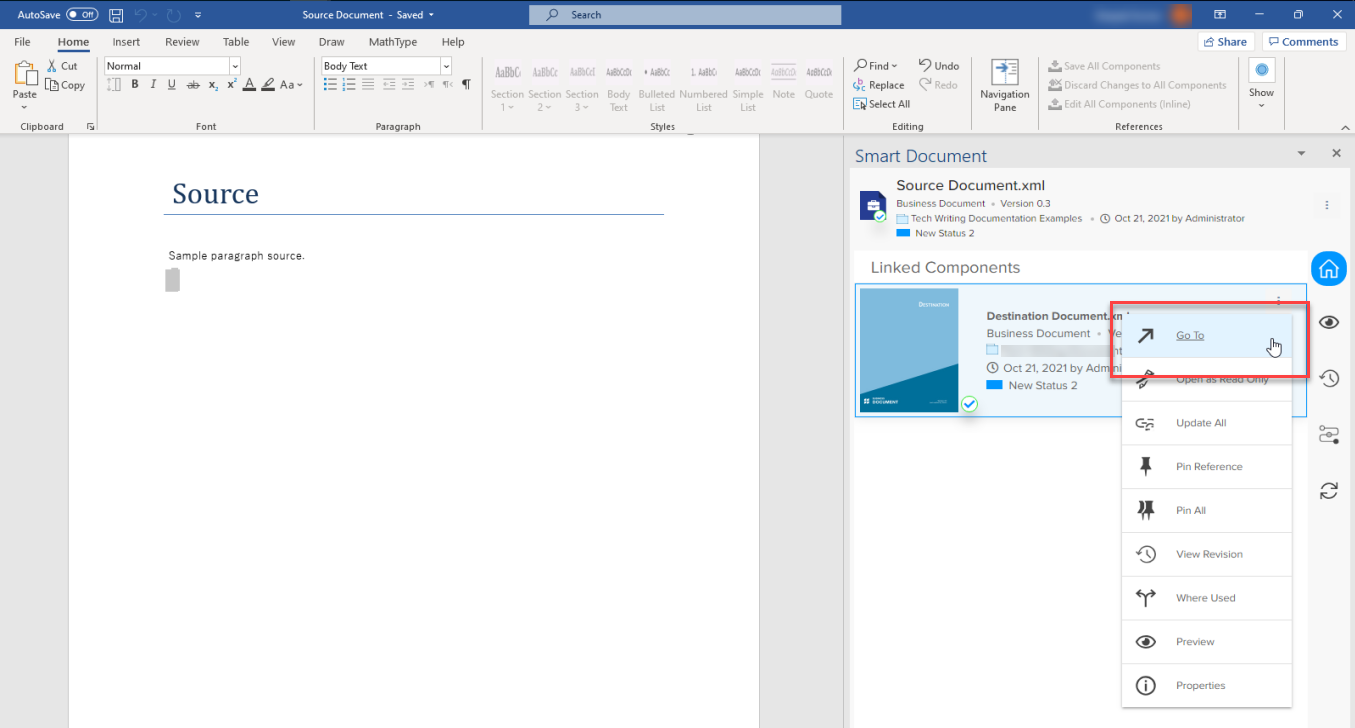
Quark Publishing Platform NextGen Adapter for Quark XML Author scrolls the cursor to the referenced content.
View a Referenced Content
To view referenced content:
-
Right-click on the content reference.
-
In the context menu, select Select > {element name} > Open as Read Only.
Quark Publishing Platform NextGen Adapter for Quark XML Author opens the document that contains the referenced content in a separate document window.
Edit a Referenced Content
To edit referenced content:
-
Right-click on the content reference.
-
In the context menu, select Select > {element name} > Edit Component.
Quark Publishing Platform NextGen Adapter for Quark XML Author opens an editable copy of the document that contains the referenced content in a separate document window.
Edit a Referenced Content Inline
Quark Publishing Platform NextGen Adapter for Quark XML Author also allows you to edit referenced content right through the content reference.
In the same document window. This feature is a convenient alternative to opening and editing the referenced document where the content resides as local or native content.
To edit referenced content inline:
-
Right-click on the content reference.
-
In the context menu, select Select > {element name} > Edit Component(Inline).
Quark Publishing Platform NextGen Adapter for Quark XML Author removes the read-only constraint from the referenced content.
Save Edited Referenced Content
To save a referenced content that you edited inline:
-
Right-click on the edited content.
-
In the context menu, select Select > {element name} > Save Component Changes.
-
In the dialog box Save, specify any changes in the preferences and select Save.
View Content References
You can view all the content references in a document, through the Smart Document Pane.
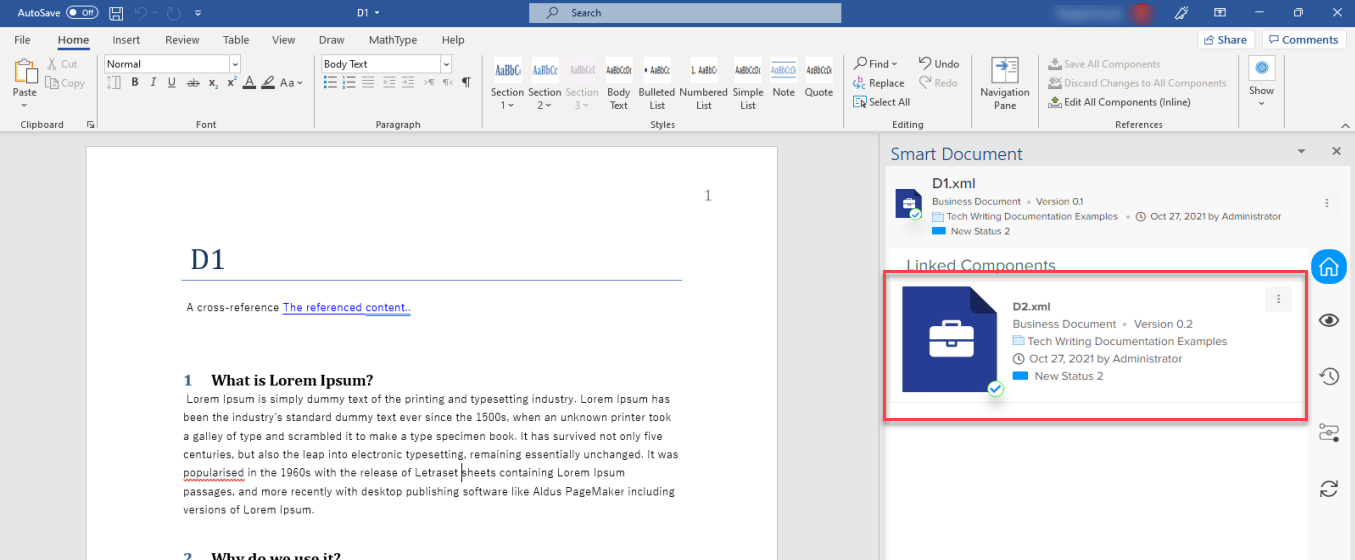
The tab Home in the Smart Document Pane displays the following information about a content reference:
-
A check mark when the file containing the referenced content is checked out.
-
The path or repository collection name where the referenced content is stored.
-
The content type of the referenced content.
-
The date/time of the last modification of the referenced file.
-
The user that last modified the referenced file.
-
The current owner of the file when the file is checked out.
-
The current version of the document.
-
If a reference is pinned to an earlier (specific) version of the content, the list displays an option to push the pin.