
Smart Document Pane
The Smart Document Pane offers a range of features related to the document open in the Word canvas such as previewing the output, seeing older versions, and so on.
To open the Smart Document Pane:
-
In the header ribbon, select the tab Home.
-
Select the dropdown menu Show, and then select Smart Document Pane.
Quark Publishing Platform NextGen Adapter for Quark XML Author opens the Smart Document Pane on the right side of the Word canvas.
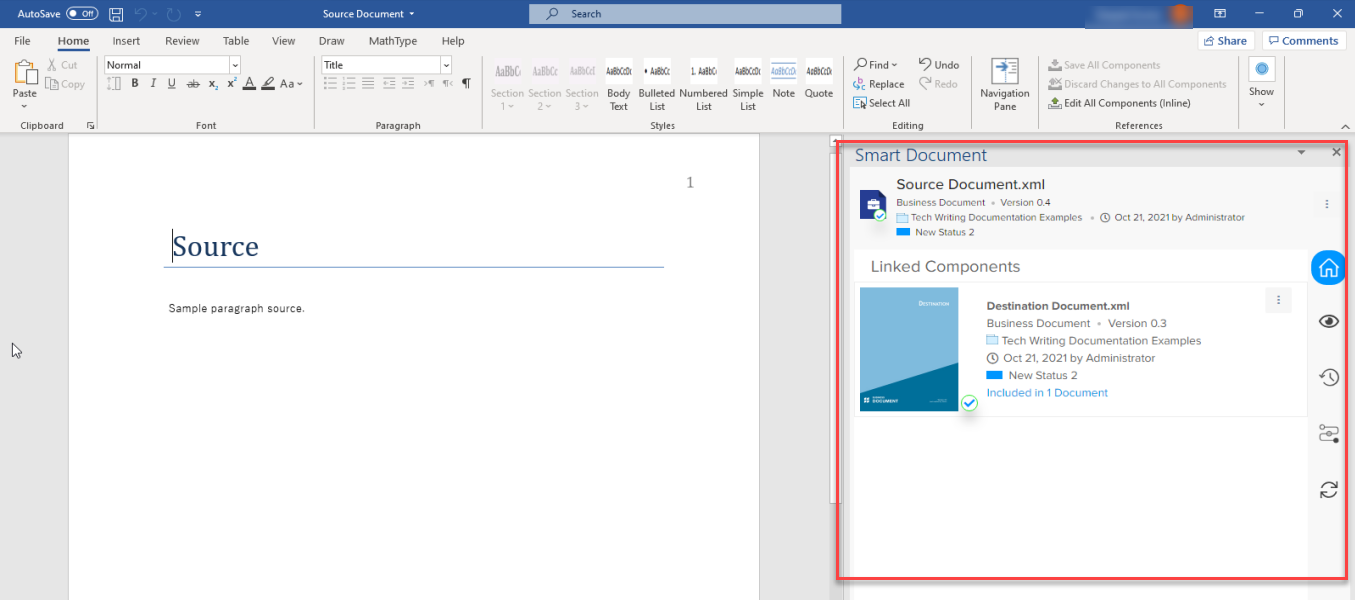
Home Tab
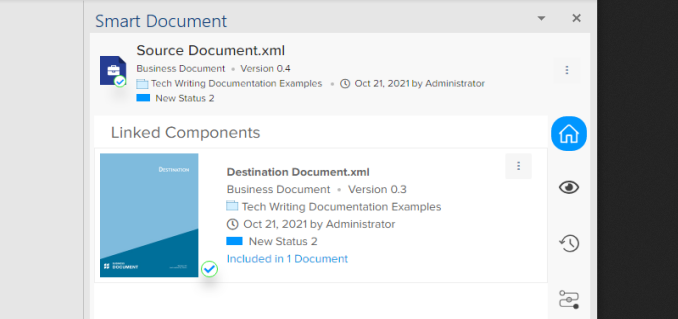
The Home tab displays the following generic information about a document:
-
Location
-
Authored by
-
Last date of modification
-
Status
-
Version number
-
List of content references that are visible on the authoring canvas. For example, if a document has 40 references but the visible authoring canvas has only two, the Home tab only displays the visible references. And as you scroll through the authoring canvas, the Home tab continuously updates the list of content references.
-
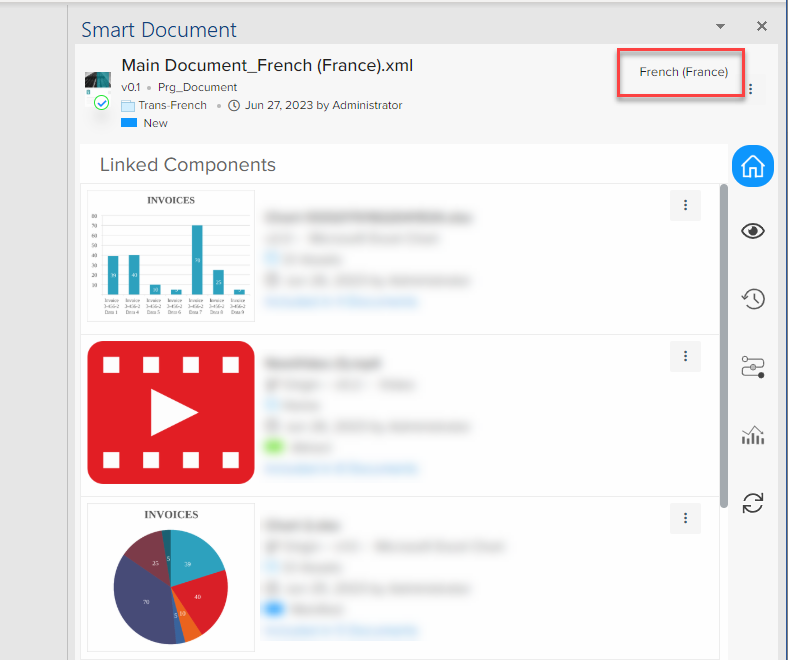
For translated assets, the Home tab also displays the name of the associated translation configuration at the top-right corner.
Asset Actions
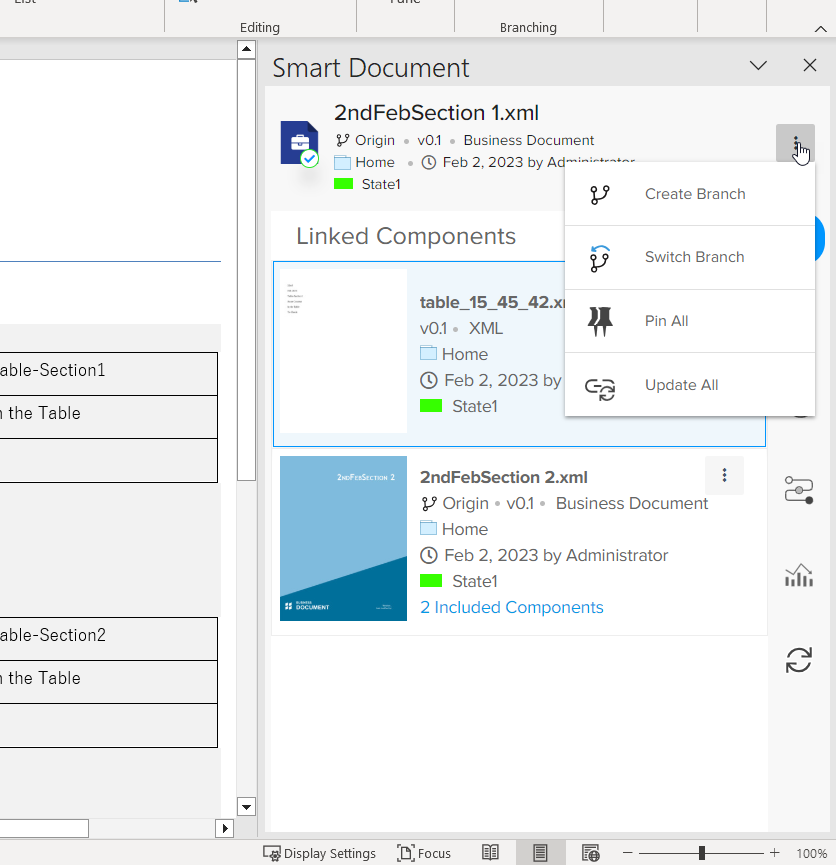
You can access the asset actions through the kebab menu in the Smart Document Pane. These actions are as follows:
-
Create Branch: Allows you to create a branch of the asset.
-
Switch Branch: Allows you to switch the branch of the asset.
-
Pin/Unpin All: Pins all the referenced content used in the asset.
-
Update All: Update all the listed referenced content pieces.
Linked Component Actions
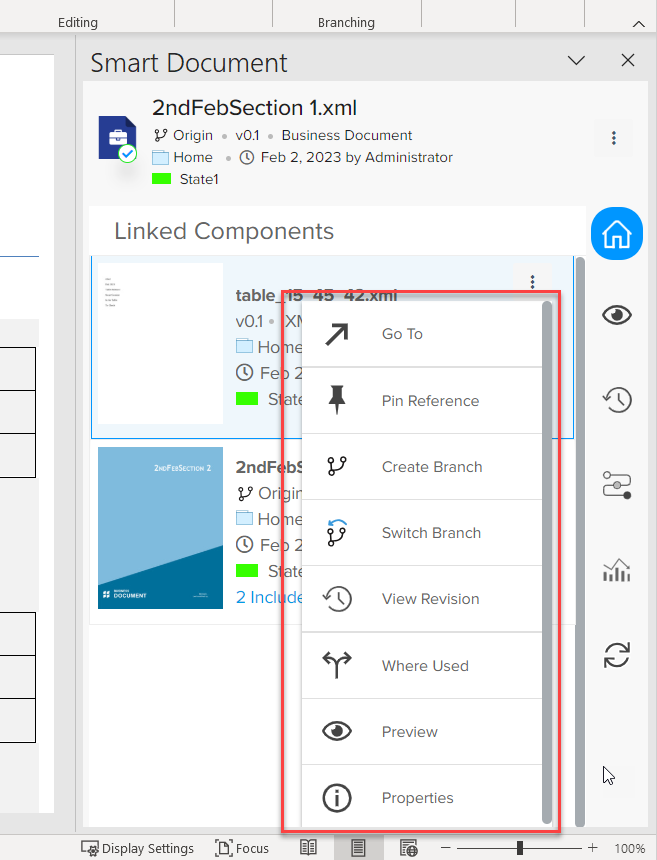
You can access the linked component actions through the kebab menu on a linked component card. These actions are as follows:
-
Go To: Opens the referenced content in a new document window that you edit like a regular document.
-
Open as Read-Only: Opens the read-only version of the referenced content in a new document window.
-
Create Branch: Allows you to create a branch of the component.
-
Switch Branch: Allows you to switch the branch of the component.
-
Pin Reference: Pins the selected referenced content.
-
View Revisions: Same as the tab History.
-
Where Used: Displays all the documents where referenced content is used.
-
Preview: Same as the tab Preview.
-
Properties: Displays document properties such as metadata.
Preview Tab
The Preview tab allows you to preview the publication in several available publishing channel formats.
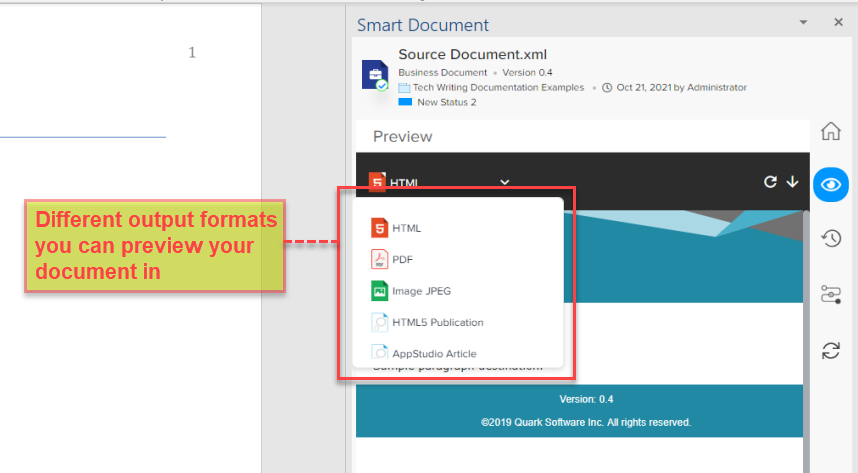
In the Preview tab, you have the following additional features:
-
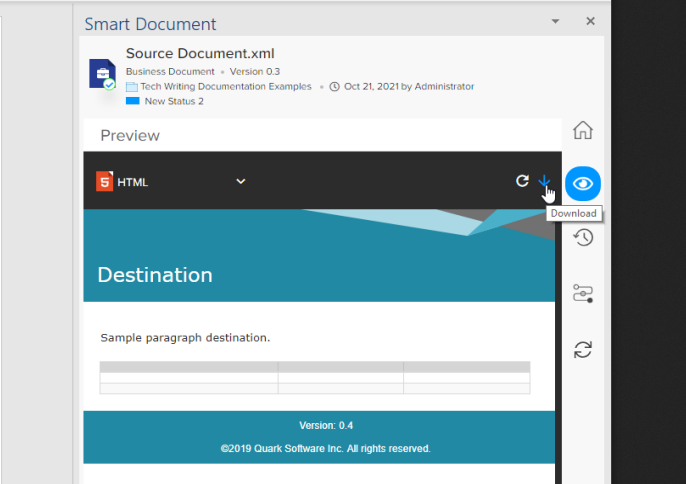
Refresh (refresh the preview to see any changes that you have made in real-time)
-
Download
History Tab
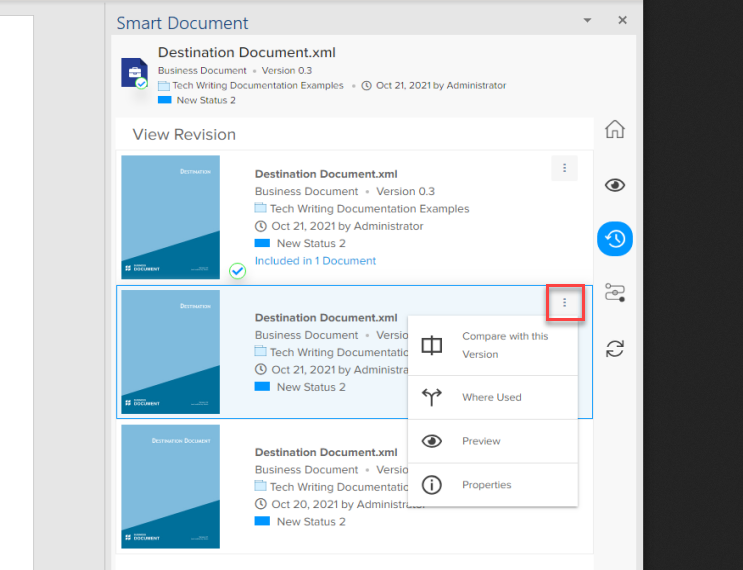
The History tab displays all the versions of the document stored in the repository.
Additionally, the History tab gives you the following options through the hamburger
menu icon  :
-
Compare the open version and the version you select
-
Check to see where a version is referenced
-
Preview a version
-
See properties (such as metadata)
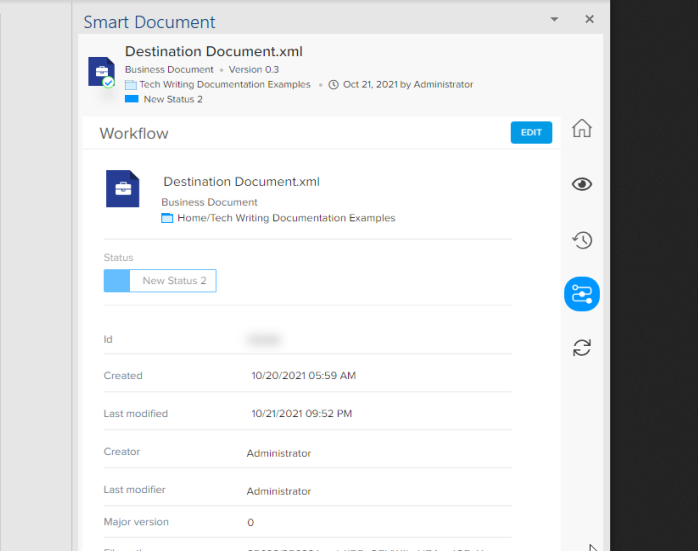
Workflow Tab
The Workflow tab displays information about the workflow and status of a document and allows you to make related edits.
Trends Tab
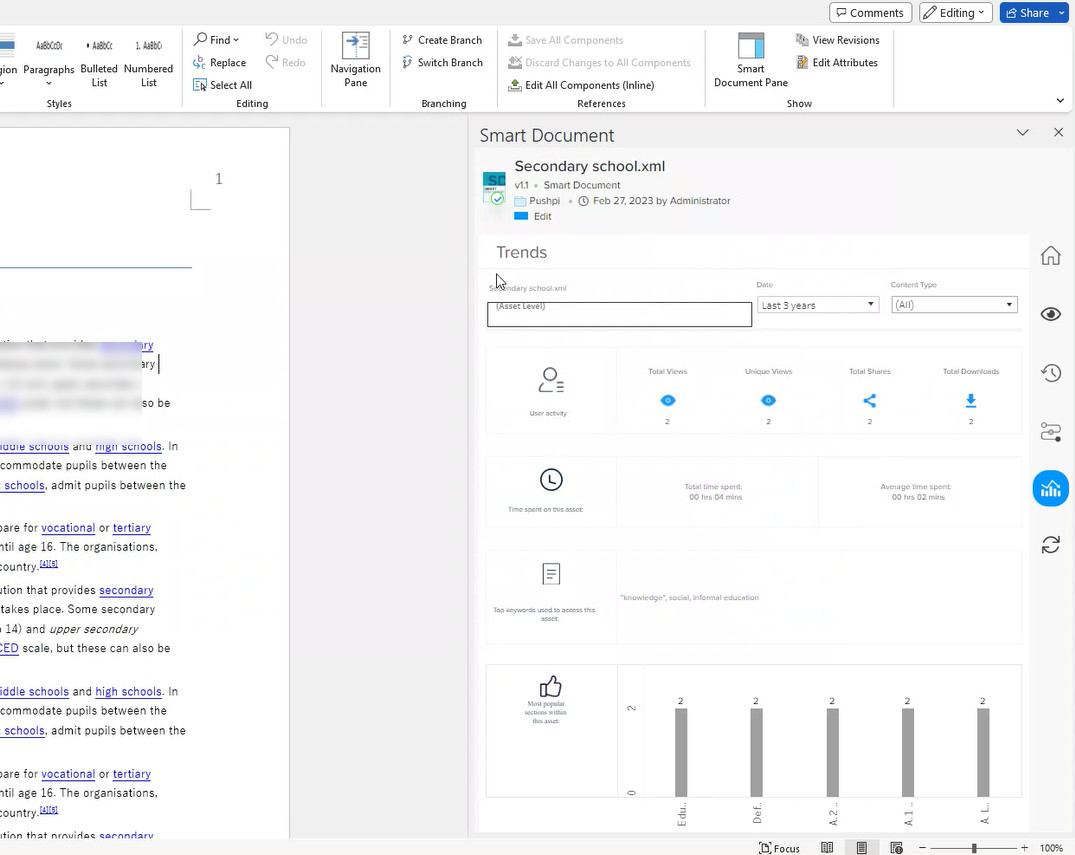
The Trends pane displays the following section and document-level engagement statistics:
-
User Activity: Displays the engagement counts such as the number of views, unique views, shares, and downloads.
-
Time spent on this asset: Total and average time spent on an asset (in hours and minutes).
-
Top keywords used to access this asset: The list of most popular keywords used in the searches to access the current asset.
-
Most popular sections within the asset: Number of views by sections.
Additionally, the Trends tab also allows you to filter the statistics by level (asset or section), time, and content type.
Refresh
The refresh button (icon  ) updates the information available on Smart Document Pane to reflect the most recent
changes.