
Managing backups and file storage
You choose the backup software and determine the backup intervals for your Quark Publishing Platform database, your Quark Publishing Platform assets, and essential files, such as your Quark® Job Jackets® files and script files. Quark recommends synchronizing backups for your database, assets, and essential files to avoid inconsistency if you have to restore a backup. Quark also recommends periodic testing to verify that your backups can be restored successfully, if necessary.
If you move your asset repository, follow the instructions in "Moving Quark Publishing Platform asset repository."
Backing up Quark Publishing Platform Server
Quark recommends stopping Quark Publishing Platform Server before performing a backup, but stopping Quark Publishing Platform Server is not required. Back up your database, your assets, and essential files (such as your FTS index files) on a separate storage device. Although you can back up your entire "Quark Publishing Platform Server" folder, the most important folders include the following:
-
"conf" folder (contains system configuration files, including files edited manually after installation)
-
"index" folder (contains the Full Text Search index files)
Backing up your database
The database contains all metadata for Quark Publishing Platform assets.
If you use a Microsoft® SQL database or an Oracle database, use the backup tools and instructions provided with MS-SQL or Oracle.
Backing up assets
You specify the software and intervals for backing up your Quark Publishing Platform asset repository.
Asset names are encrypted in the Quark Publishing Platform asset repository.
Backing up Index files (full text search)
Quark Publishing Platform Server indexes all files checked into the database so you can perform a search within the text content of Quark Publishing Platform assets. Quark Publishing Platform Server stores index information for full-text search operations in the "index" folder. The "index" folder is at the root level of your Quark Publishing Platform Server folder and is the default location for the files required for full-text indexes. See "Full text indexing configuration" to learn how to change the full-text index storage location by editing "LuceneTextIndexingConfig.properties." If you change the location, back up the new location.
Restoring Quark Publishing Platform Server
If you do not have to restore your Quark Publishing Platform asset repositories, the storage paths to the asset repositories will still be valid after you restore your Quark Publishing Platform database. If you must restore your Quark Publishing Platform asset repositories as well as your database, specify the updated storage location according to the instructions in "Moving Quark Publishing Platform Asset Repository."
For example, if the hard drive fails on the computer running Quark Publishing Platform Server, your latest backup should be stored in a separate location. Re-install Quark Publishing Platform Server according to the instructions in the Quark Publishing Platform ReadMe. After you re-install Quark Publishing Platform Server, make sure it is not running before you restore your database, assets, and other files.
Restoring Assets
Try to use the same path you used for the old asset repository. For example, if you
replace the hard drive on the computer running Quark Publishing Platform Server, you
can copy the asset repository backup to the same location. Even if you need a new
computer, try to have the same path (for example, C:\QPP_Assets).
If you can search for Quark Publishing Platform assets and you need to see the encrypted
file names, view the "File Path" attribute when your search is complete. The master
file and all asset revisions are stored in the same storage location. The encrypted
asset names follow the same pattern (for example, 34.1.1.1.JPG). The first number in the encrypted name denotes the asset ID. The second number
identifies the version number, the third number identifies the rendition type for
previews, and the fourth number identifies the first page of the preview.
If you have to restore hardware, launch Quark Publishing Platform Client and re-establish the link with one or more repositories defined in the Repository tab of the Administration: Storage screen. Do not delete the storage repository and try to create another one.
Restoring Quark Publishing Platform Server database
If you use a Microsoft SQL database or an Oracle database, use the restore tools and instructions provided with MS-SQL or Oracle. When you re-install Quark Publishing Platform Server, you can enter the correct MS-SQL or Oracle information during the installation process.
Restoring Full Text Indexes
Restore the "index" folder in the location specified in the "LuceneTextIndexingConfig.properties" file.
Moving Quark Publishing Platform asset repository
If you move your Quark Publishing Platform asset repository, you can update the asset repository path with Quark Publishing Platform Client. See "Configuring storage options" in A Guide to Quark Publishing Platform for more information about specifying asset storage.
To update the asset repository path:
-
In a Web browser, navigate to
http://[server]:[port]/adminand log on with administration privileges. -
Display the Administration screen and click Storage. The Administration: Storage screen displays.
-
Display the Repository tab, which includes one or more entries in the Repository Name column.
-
Select a repository, and choose Edit > Edit Repository. A warning message displays.

This warning displays when you edit an asset repository -
Click Yes. The Edit Repository dialog box displays.
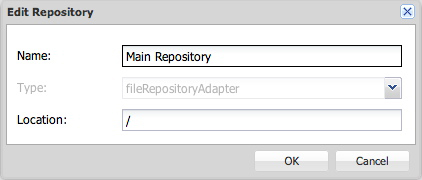
The Edit Repository dialog box -
Enter a new location in the Location field.
-
Repeat steps 4–6 for every repository listed in the Repository tab.