
Working with Smart Content Designer
To design a template in Smart Content Designer:
-
Launch QuarkXPress.
-
Log on to Quark Publishing Platform Server.
-
To import smart content models, do one of the following:
-
Open the Smart Content Models dialog (Edit -> Smart Content Model), click Import and import a new Smart Content Model from the server using the Smart Content Model Picker.
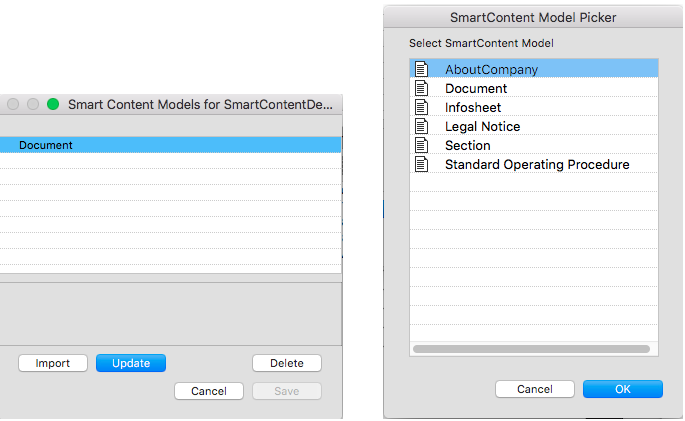 This method can be done without having a QuarkXPress project open. Import as many models as you want, which will then be available in your QuarkXPress application to bind with any QuarkXPress project.
OR
-
Open the Smart Content Flow Planning palette (Window -> Smart Content Flow Planning), choose Import... from the drop-down menu, and import a new Smart Content Model from the server using the Smart Content Model Picker.
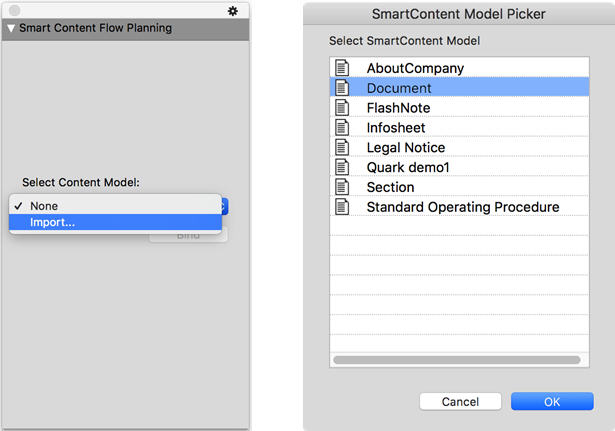
-
-
Open the Smart Content Flow Planning palette (Window -> Smart Content Flow Planning), select a content model and choose Bind to bind the content model to the current project.
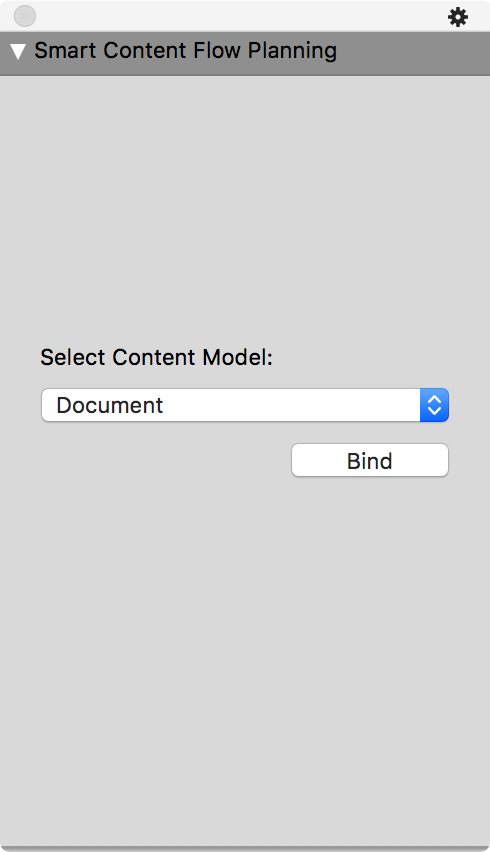
-
Create master page sequence using the Pagination Rules palette. You can define different master pages for first, rest and last pages. The example below has defined the last page to be different from the rest of the pages.
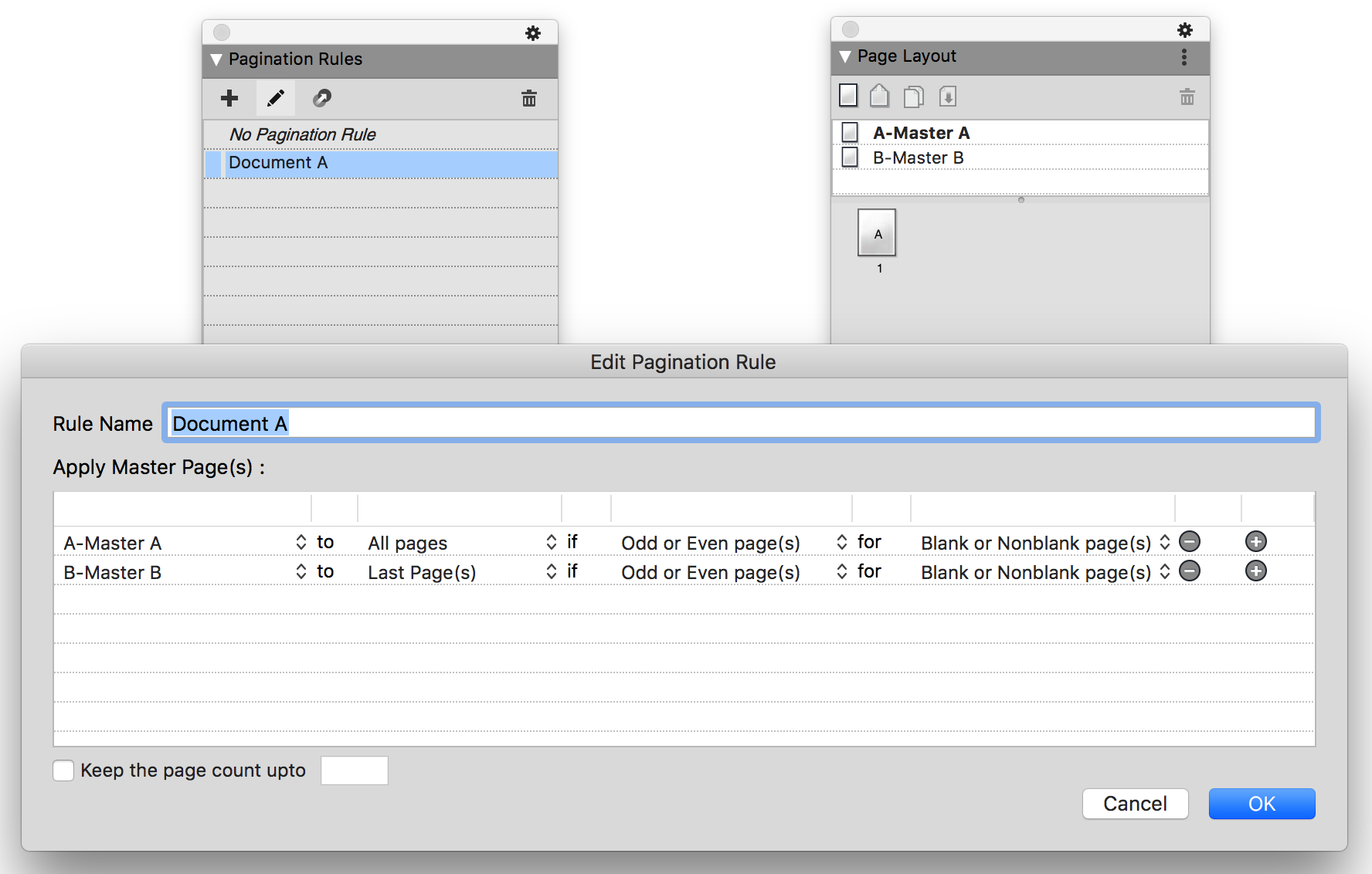 Skip this step if you do not wish to apply pagination rules.
-
Drag and drop master pages or a master page sequence to the flow as required in the Smart Content Flow Planning palette.
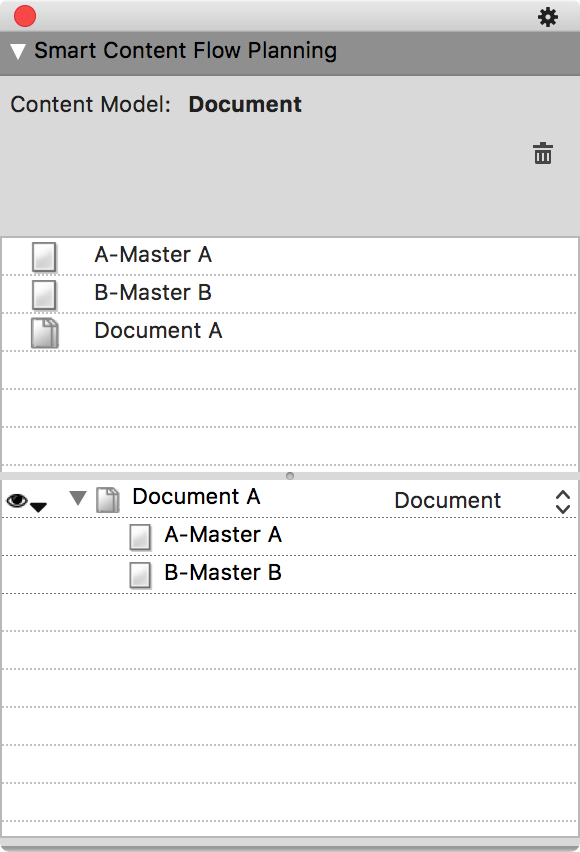 You must drag and drop at least one master page to the flow in order to continue.
-
Create required style sheets and item styles and bind them to schema elements using the Smart Content Style Guide palette.
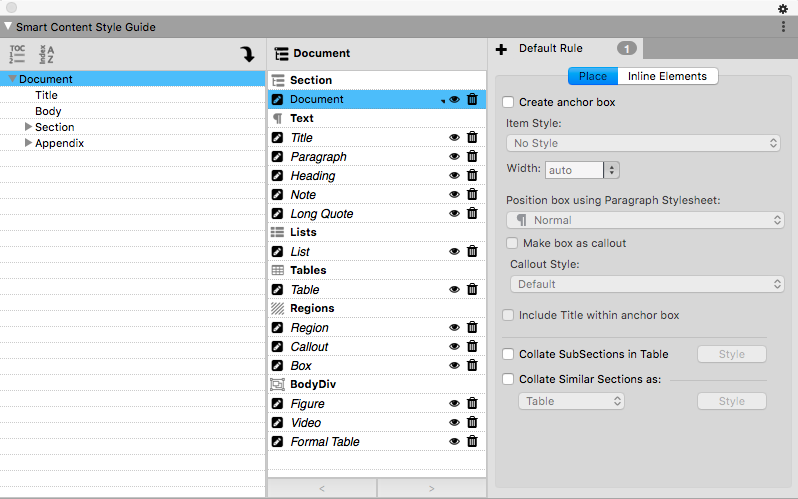
-
Apply conditional styles to elements using the Smart Content Condition Builder dialog.
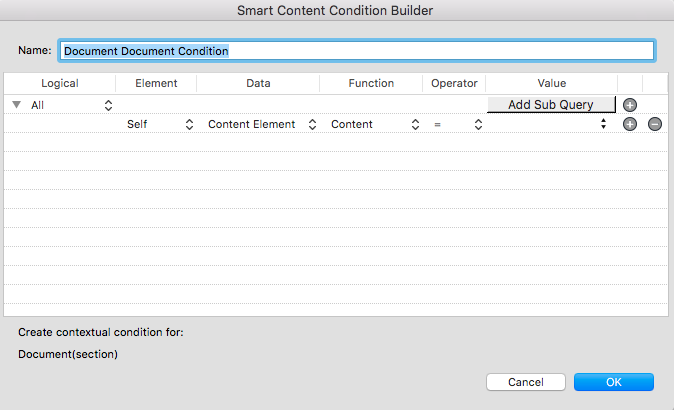
-
Map XML elements to layout elements on the document canvas.
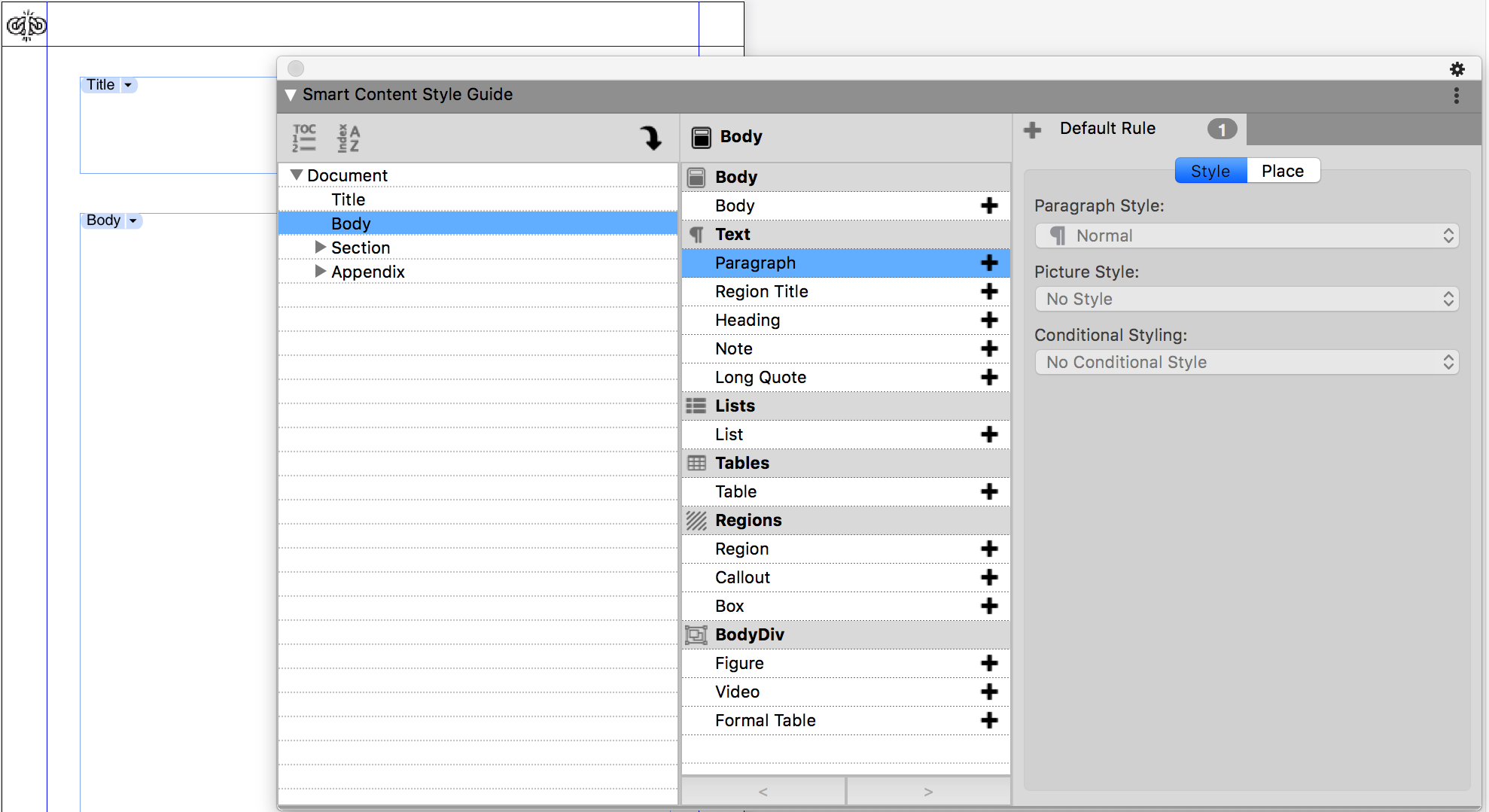
-
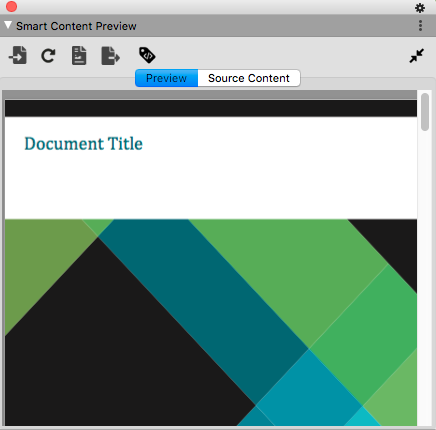
Open the Smart Content Preview window to see a preview of the designed template.
-
Click Import XML and select the xml file from the server or the local file system.
-
Click Preview/Template Layout to see a preview of the template with the selected xml content.