
IME based:Supporting New Languages
Quark XML Author supports localization of the software to any required language that is supported by Microsoft Word. This section describes the steps that must be performed for Quark XML Author to support a new Display Language and who is responsible for each step.
What Must Be Translated
The strings that are displayed in Word UI controls are stored in language specific resource files. These strings can be translated to new languages. These UI controls include:
-
Menu items
-
Buttons
-
Ribbons
-
Forms
-
Dialogs
-
Error Messages
-
Context Menus
Translation Process Overview
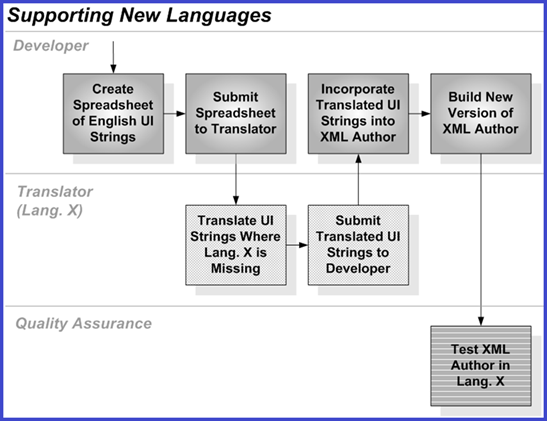
The following swim lane diagram provides an overview of the translation process.
external
The role of Translator may be performed by Quark's current contracted translation service or by a Quark partner. A Quark Developer or Translation Coordinator provides a spreadsheet which requires translation to the Translator. From the Translator's perspective, the process is straightforward in that they receive a spreadsheet essentially containing the following columns:
-
Id
-
English
-
Translation
-
Comments
The Translator is responsible for completing the Translation column. Because some UI strings are acquired directly from Microsoft Word in the new language, these strings are already completed and stored in the Translation column.
For example, the UI strings for the Word features, Spell Checker and Find & Replace. These completed strings do not need to be verified by the Translator.
Icons (internal)
See Icons and Custom Icons for detailed information.
Shortcut keys (internal)
Quark Development acquires the shortcut keys for the new language from Microsoft Word and its documentation. Based on this information, Quark Development updates the shortcut keys in the Quark XML Author global shortcut keys configuration file and DITA for Business Documents' configuration for the new language.
Professional services should refer to those efforts when creating other Quark XML Author solutions in the new language. And if needed, Development can provide to Professional Services a listing of all Microsoft Word shortcut keys in the new language.
Friendlies (internal)
In configurations, strings for friendlies must be translated.
Localization: A step-by-step example
Localizing Quark XML Author for any supported language is a straightforward process. This section contains an example that describes the localization procedure for Quark XML Author.
Pre-requisites
Localizing Quark XML Author requires the following components and software:
-
An installed copy of Quark XML Author.
-
A decompilation tool for the Microsoft .Net library.
-
A resource generation tool and an assembly linker tool. Please visit the following URLs for more information about these tools:
-
A tool to modify the strings contained in the resource files. You may want to try the .NET Resourcer by Lutz Roeder for this purpose or any other tool that you are comfortable with. The .NET Resourcer can be downloaded from the following URL: https://www.lutzroeder.com/dotnet/
The localization procedure
Additional language support needs to be added to the existing installation of Quark XML Author to add resources for a new language.
To add support for a new language:
-
Open the Quark XML Author installation folder.
-
Duplicate the en folder at this location and rename it to the desired locality. For example, if you wish to add support for Chinese, rename the duplicated en folder to zh. The zh folder will now contain the same resource files as the en folder.
-
The zh folder will contain many resource files. The translations for all resources contained in these files need to be added for each file. For this example, see the localization procedure for Quark.XA.Core.Resources.dll.
-
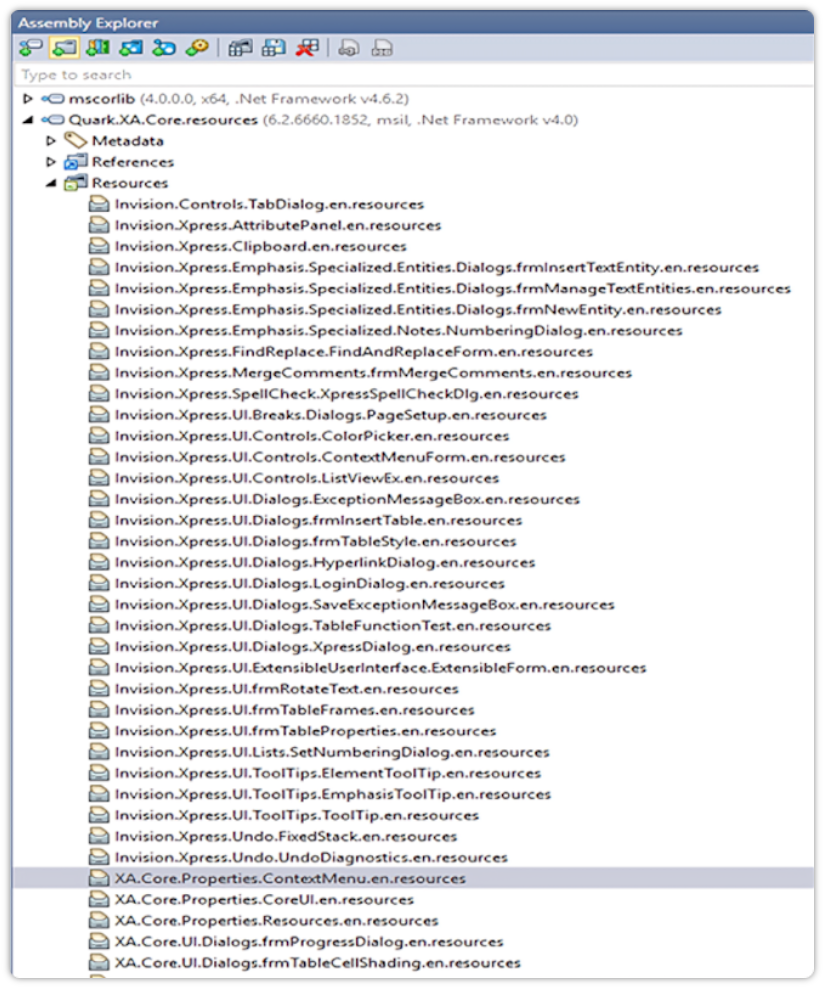
Using the Decompiler tool, decompile Quark.XA.Core.Resources.dll. Once this file is decompiled, all the resources available in this file will be displayed:
-
Localize all the resources available in the zh folder.
-
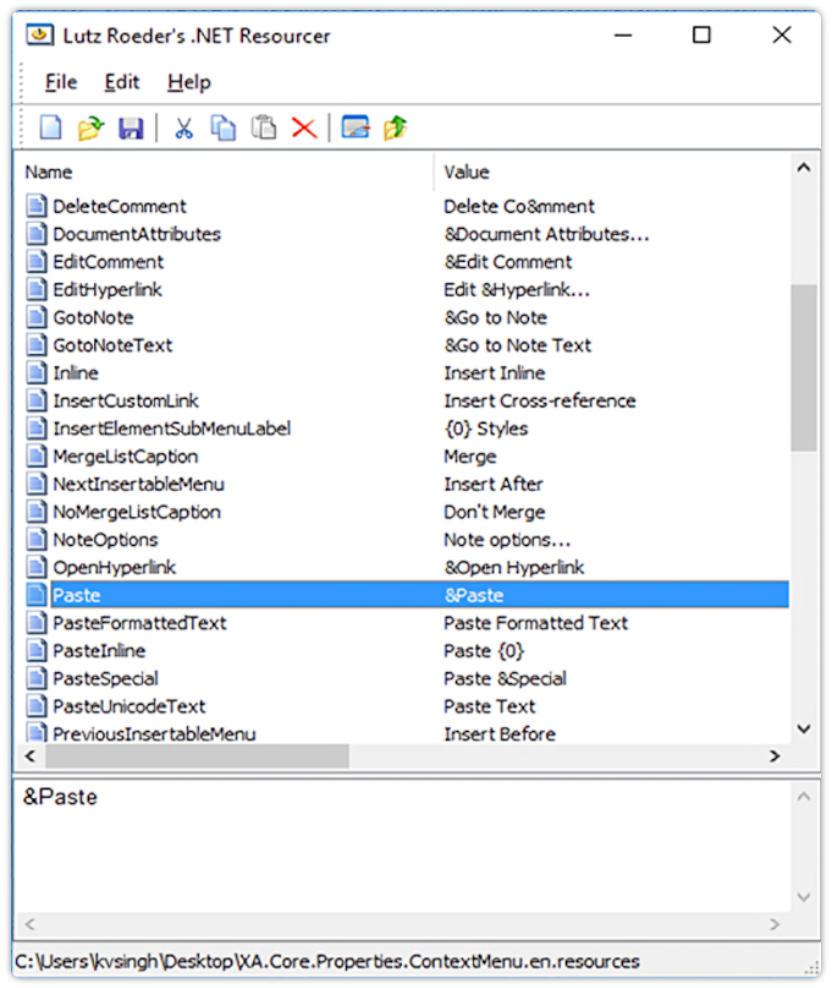
(a). Extract the resource file and save as either a .resources file or a .resx file. (Files with the .resources extension can be localized using the .NET Resourcer or any other tool of your choice. Files with the .resx extension can be opened using any XML editing tool of your choice.) The available resources can then be localized.
-
(b). Save the file with a culture-specific language prefix in the name. For example the XA.Core.Properties.ContextMenu.en.resources file for Chinese will be renamed to XA.Core.Properties.ContextMenu.zh.resources or XA.Core.Properties.ContextMenu.zh.resx.
-
-
All files that have been extracted and saved as .resx must be converted to the .resources format. The conversion will be accomplished using the resgen utility. Repeat the following steps for all resource files for each dll.
-
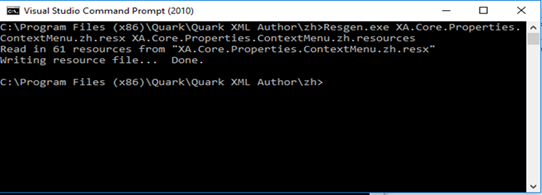
(a). Type the following command in the command prompt to convert XA.Core.Properties.ContextMenu.zh.resx to XA.Core.Properties.ContextMenu.zh.resources: Resgen.exe <Resource File to be converted> <Target Resource File type with extension>.
For example: Resgen.exe XA.Core.Properties.ContextMenu.zh.resx XA.Core.Properties.ContextMenu.zh.resources
-
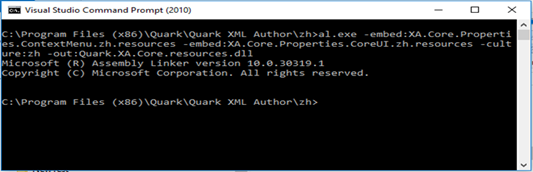
(b). Once all the resource files are available, recreate the resource dll using the assembly linker. To use the assembly linker, execute the following command in the Visual Studio Command Prompt:al.exe –target:lib –embed:<ResourceFile1> <ResourceFile2> …. –culture:<cultureName> out:<outputdll>.
For example: al.exe -target:lib -embed:XA.Core.Properties.ContextMenu.zh.resources - embed:XA.Core.Properties.CoreUI.zh.resources -culture:zh - out:Quark.XA.Core.resources.dll
-
-
Relaunch Quark XML Author.