Middle Eastern Support in QuarkXPress 2027

Enabling Middle Eastern Configuration Settings

To use Right-to-Left languages in QuarkXPress, Middle Eastern Configuration settings need to be enabled in Preferences. QuarkXPress will automatically launch with Middle Eastern Configuration settings if you are using an RTL language OS, such as Arabic or Hebrew.

If you are using a non-RTL language OS like US English, then you need to enable Middle Eastern Configuration in Preferences.

  • Invoke Preferences > Configuration. In the Configuration pane, check the ‘Non-Latin’ check box.
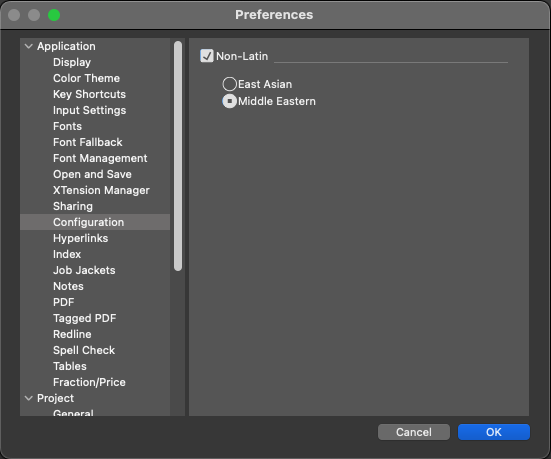
Enabling Middle Eastern Settings 
  • An alert message will be displayed. "Any changes to the configuration settings will require QuarkXPress to quit for the changes to take effect. Do you want to proceed?".

  • Click ‘Yes'.

  • Select the ‘Middle-Eastern’ option

  • Click ‘OK.’ The QuarkXPress application will quit.

  • Relaunch the QuarkXPress application

If you click ‘Yes’, then the changes in the configuration setting are retained, and you can continue performing changes in the Preferences dialog. On clicking OK on the Preferences dialog, the QuarkXPress application will quit.
If you click ‘No’, then the changes in the configuration setting will be undone, and you can continue performing changes in the Preferences dialog. On clicking OK on the Preferences dialog, the QuarkXPress application will not quit.
If any document(s) having unsaved changes is open when you modify the configuration setting in Preferences, the Save alert will be displayed for all the open documents having unsaved changes. Once you save or do not save the ‘dirty’ documents, the QuarkXPress application will quit.
But, if you cancel the Save alert for any document, the QuarkXPress application will not quit. You will need to quit the application manually to enable the Configuration setting changes.