
Attach Layout Options with Content Model
Once the channel is duplicated and customized, layout options for different elements must be attached.
Locate the Smart Document Content Model
-
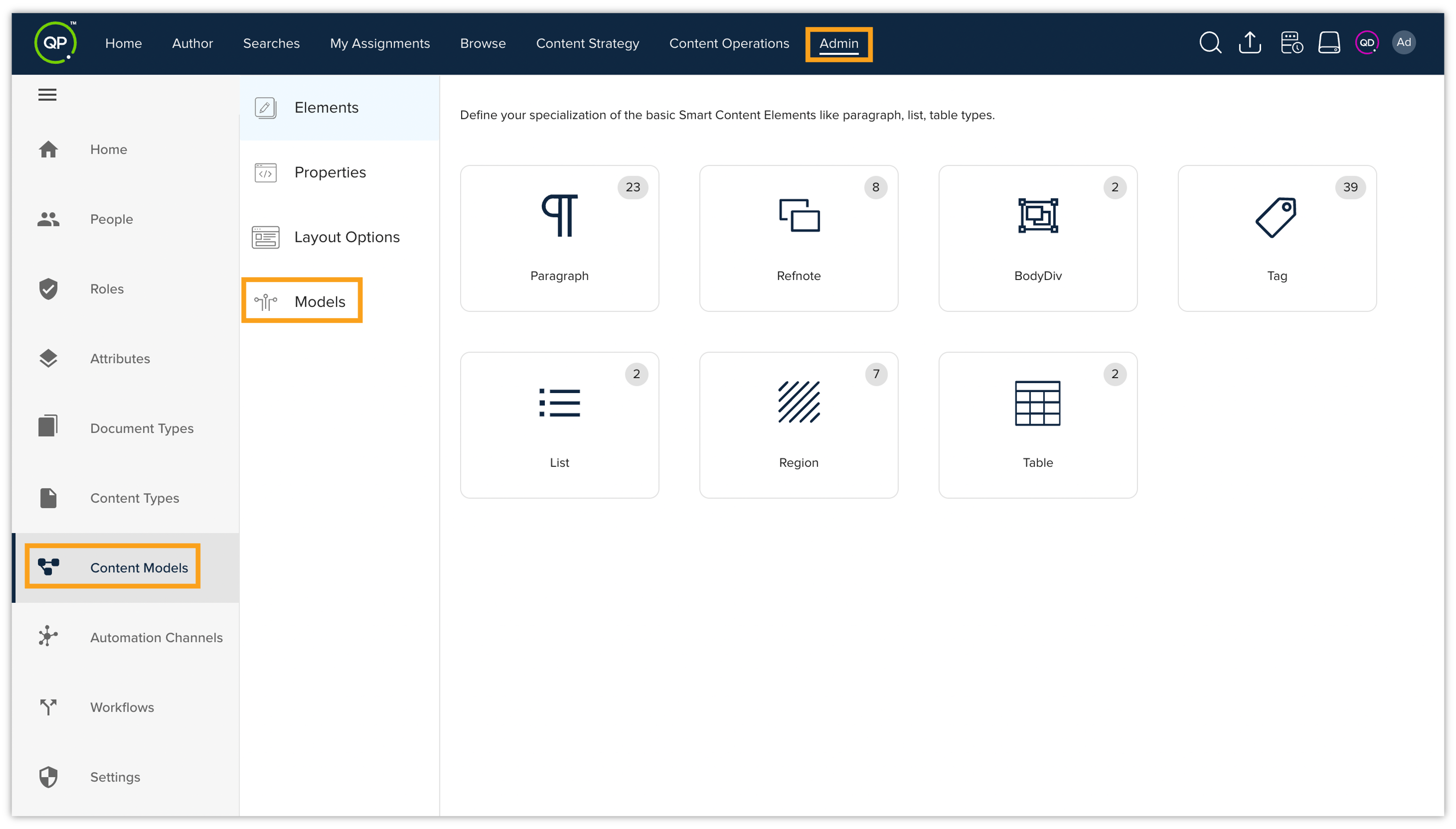
Log in to the Admin panel > Content Models > Models.
-
Use the search functionality to find the Smart Document content model.
-
Once located, click on the Smart Document content model to open it.

-
Click on Edit button to edit the content model.

You'll need to define layout options at different content-levels. Below is a breakdown of the elements and corresponding layout options:
-
Document Layout Options
-
Locate the Layout Options drop-down at the document-level.
-
Select the Document Layout Options from the drop-down menu.

-
-
Section Layout Options
-
Locate the Layout Options drop-down at the section-level.
-
Select the Section Layout Options from the drop-down menu.

-
-
Paragraph Layout Options
-
Locate the Layout Options drop-down at the paragraph-level.
-
Select the Paragraph Layout Options from the drop-down menu.

-
-
Region Layout Options
-
Locate the Layout Options drop-down at the region-level.
-
Select the Region Layout Options from the drop-down menu.

-
-
Table Layout Options
-
Locate the Layout Options drop-down at the table-level.
-
Select the Table Layout Options from the drop-down menu.

-
-
List Layout Options
-
Locate the Layout Options drop-down at the list-level.
-
Select the List Layout Options from the drop-down menu.

-
-
Figure Layout Options
-
Locate the Layout Options drop-down at the BodyDiv level.
-
Select the Figure Layout Options from the drop-down menu.

-
-
Image Layout Options
-
Locate the Layout Options drop-down at the image-level.
-
Select the Image Layout Options from the drop-down menu.

-
After defining the layout options at each level, you need to save the changes by clicking on the Save button.

Attaching Layout Options for Smart Sections and Smart Subsections
In addition to the smart document content model, similar steps must be taken for smart sections and smart subsections models and similar layout options need to be attached at each content element as discussed above.
Setting Values in Content Model
After selecting a layout option for a content model at any level (document, section, paragraph, etc.), you can define its default values, although it's not mandatory. Configuring layout options within a specific content model ensures that any new document created from that model automatically inherits those settings. This eliminates the need to repeatedly configure the layout for each new document based on the same model.
The below steps customize the document layout to fit your specific needs regarding layout options. To set these values:
-
Click the Set Values button associated with your chosen layout option. The Default Values window will appear on the right side of the pane. This window allows you to configure the specific properties of the layout option.
-
Within the Default Values window, you will see a range of fields that you can customize. The available fields depend on the specific layout option you are configuring. For example, the Document Layout Options will have the following fields:

-
Hide Title: A toggle switch to show or hide the title.
-
Pagination Rule: Settings related to pagination, such as applying to All Pages, First Page, Last Page, Blank Page, or End on.
-
Theme Colors: Options to set the Title Color and Box Color.
-
Title Style: Adjustments for Stylesheet, Number of Columns, and Span or Split.
-
Table of Contents: Options to Show TOC in Publishing and set the TOC Title.
-
-
Use the search bar to quickly find a specific option within the window.
-
Once you have configured the desired values, click Save to apply your changes. Alternatively, click Cancel to discard any modifications.
This process ensures that your content model reflects the desired layout and styling. Remember that the specific fields available in the Default Values window may vary based on the layout options you’ve defined. For example, the layout options available at the document level may differ from those at the section level, although some fields will be common across different levels.

However, Quark Author allows users to override these defaults and customize the layout further on a document-by-document basis.
Setting Values for Elements in Document/Section Body
You can also configure default values for various elements within the Document or Section Body, such as Paragraphs, Regions, Tables, Figures, and Images. The process is similar to setting values for document-level or section-level layout options. Below are a couple of examples to illustrate this process:
Example 1: Setting Values for Paragraph in Document Body
-
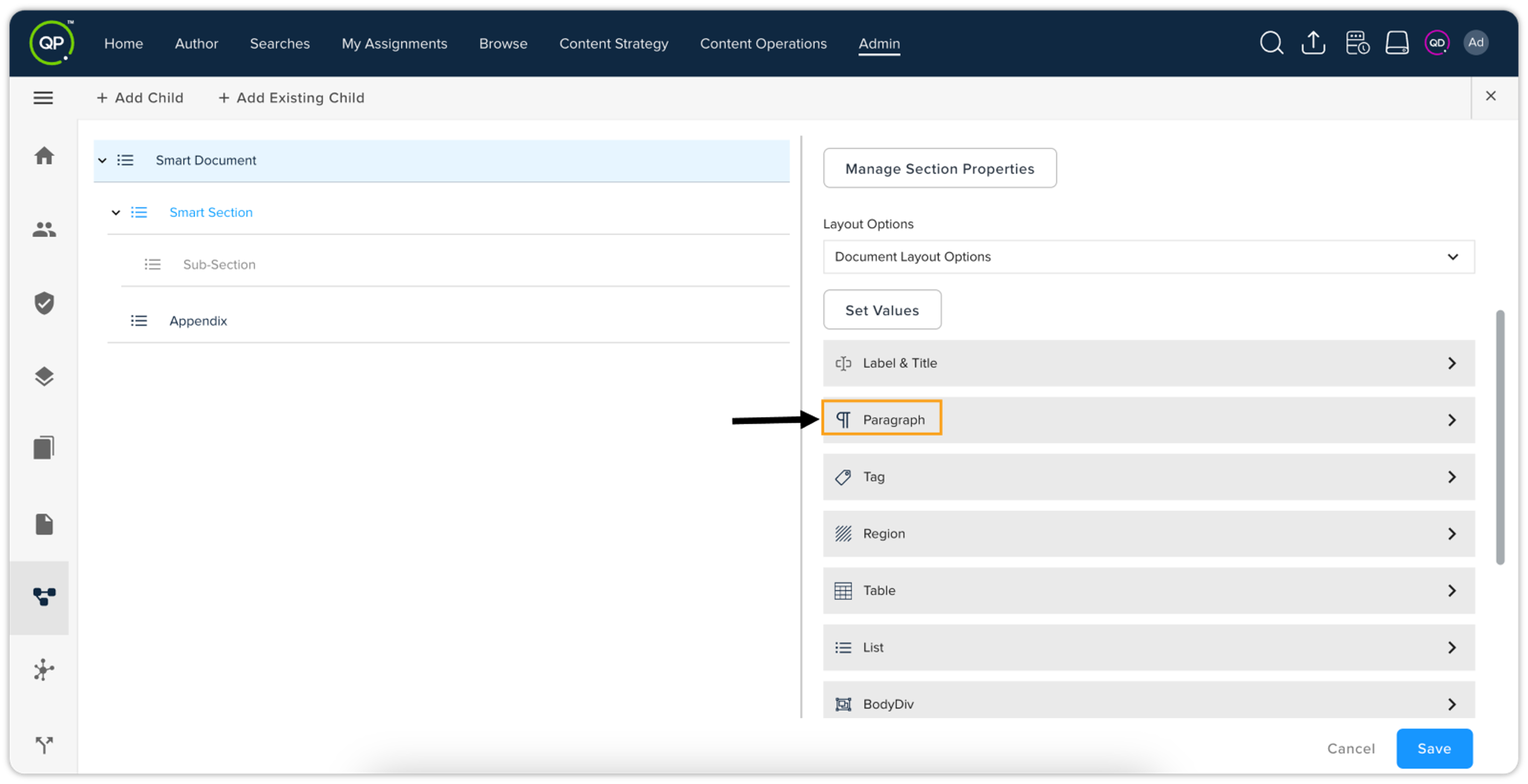
In the hierarchy on the left side of the pane, select Document body. On the right side, verify that the layout options displayed for the Document body are Document Layout Options.

-
Scroll down until you find Paragraph, and click it.
-
The Paragraph section will expand. Click Set Values.

-
The Default Values window will appear on the right side. Define the desired values for the Paragraph layout options.

-
Click Save.
Example 2: Setting Values for Table in Section Body
-
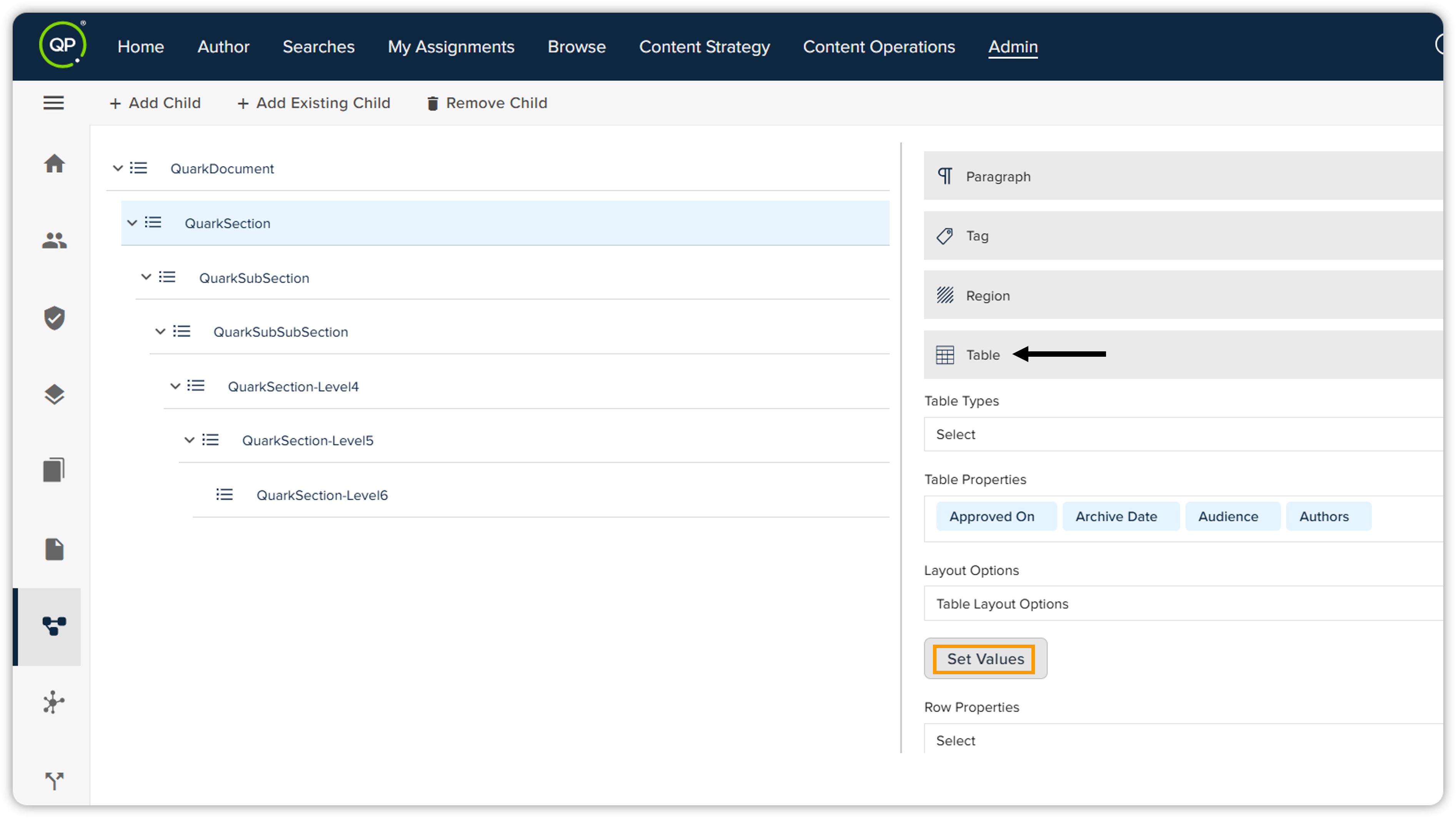
In the hierarchy on the left side of the pane, select Section body. On the right side, verify that the layout options displayed for the Section body are Section Layout Options.

-
Scroll down until you find Table, and click it.
-
The Table section will expand. Click Set Values.
-
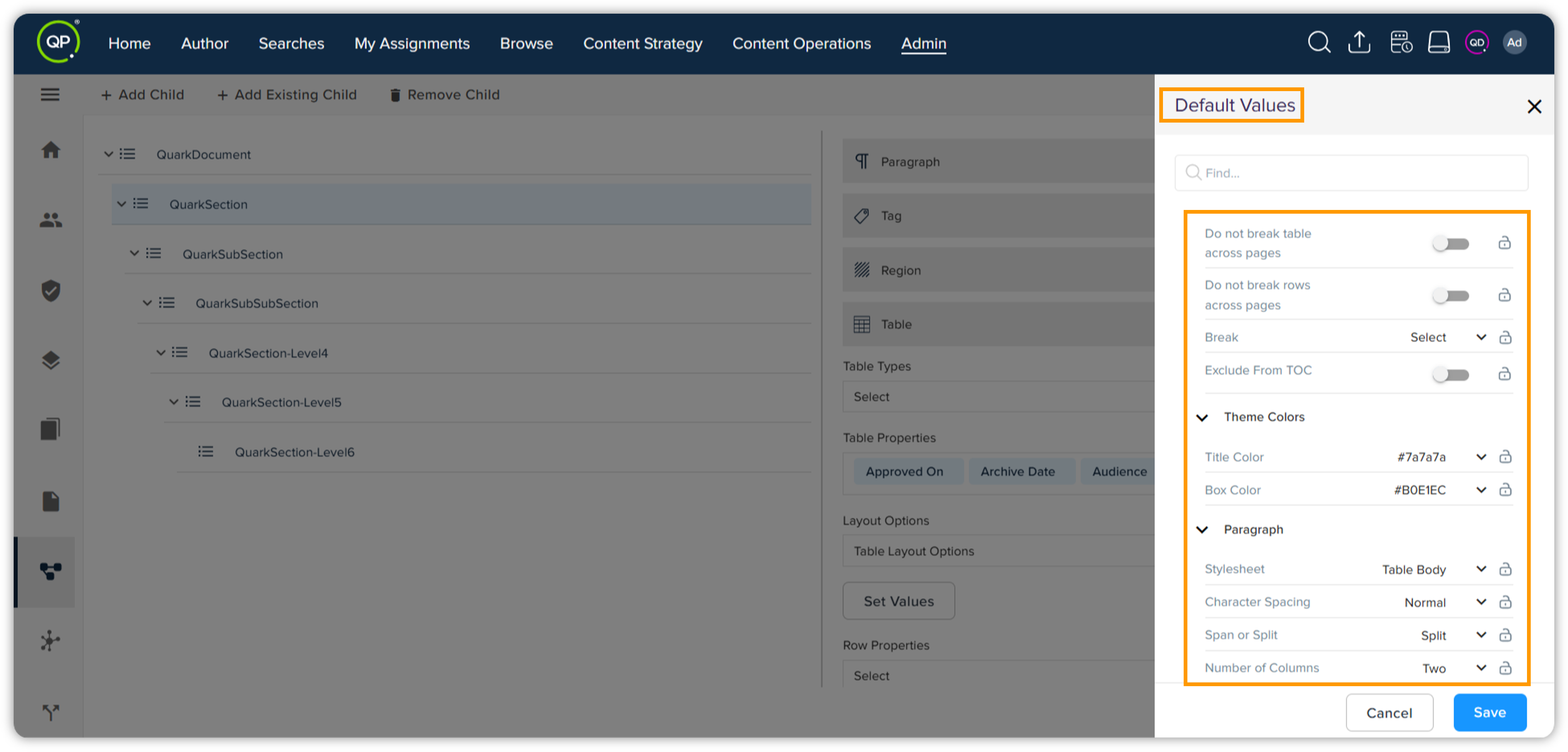
The Default Values window will appear on the right side. Define the desired values for the Table layout options.
-
Click Save.
These examples demonstrate how to access and modify the default values for specific elements within the Document or Section Body. Remember that the available layout options and settings within the Default Values window will vary depending on the element selected.