
Authoring Template and its Integration with Main Document
Understanding the Authoring Template
An authoring template is a predefined template that contains various layout options, styles, and configurations that dictate how the content should be presented. By using an authoring template, you can ensure consistency across multiple documents, making it easier to manage styling and formatting.
Setting Values in Authoring Template
This section explains how to define layout options within an authoring template and how those settings are applied when creating new documents.
Create an Authoring Template
You must first create a document, configure its settings in Quark Author, and then save it as an authoring template. To do so:
-
Go to the Author tab and click See All next to Create New.

-
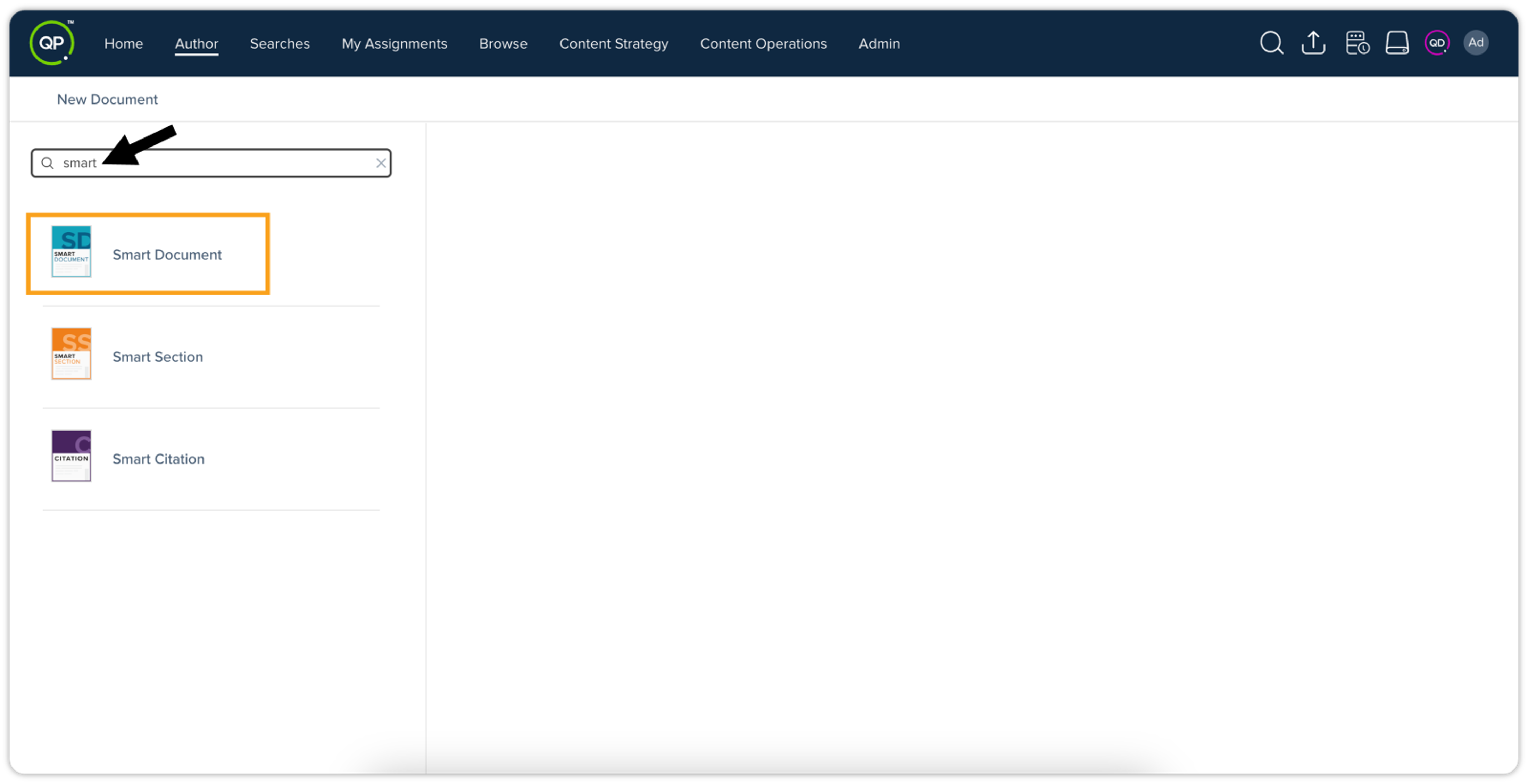
Search for the desired content model (e.g., smart document) and click it.
-
In the right pane, you'll see existing authoring templates. Double-click Blank Smart Document.

-
Enter the document properties and click Create.
-
This opens a blank document in Quark Author. Here, define the document structure by adding sections, elements (tables, regions, etc.), and content.
-
Next, define the layout options for this document, which you will later save as an authoring template.
-
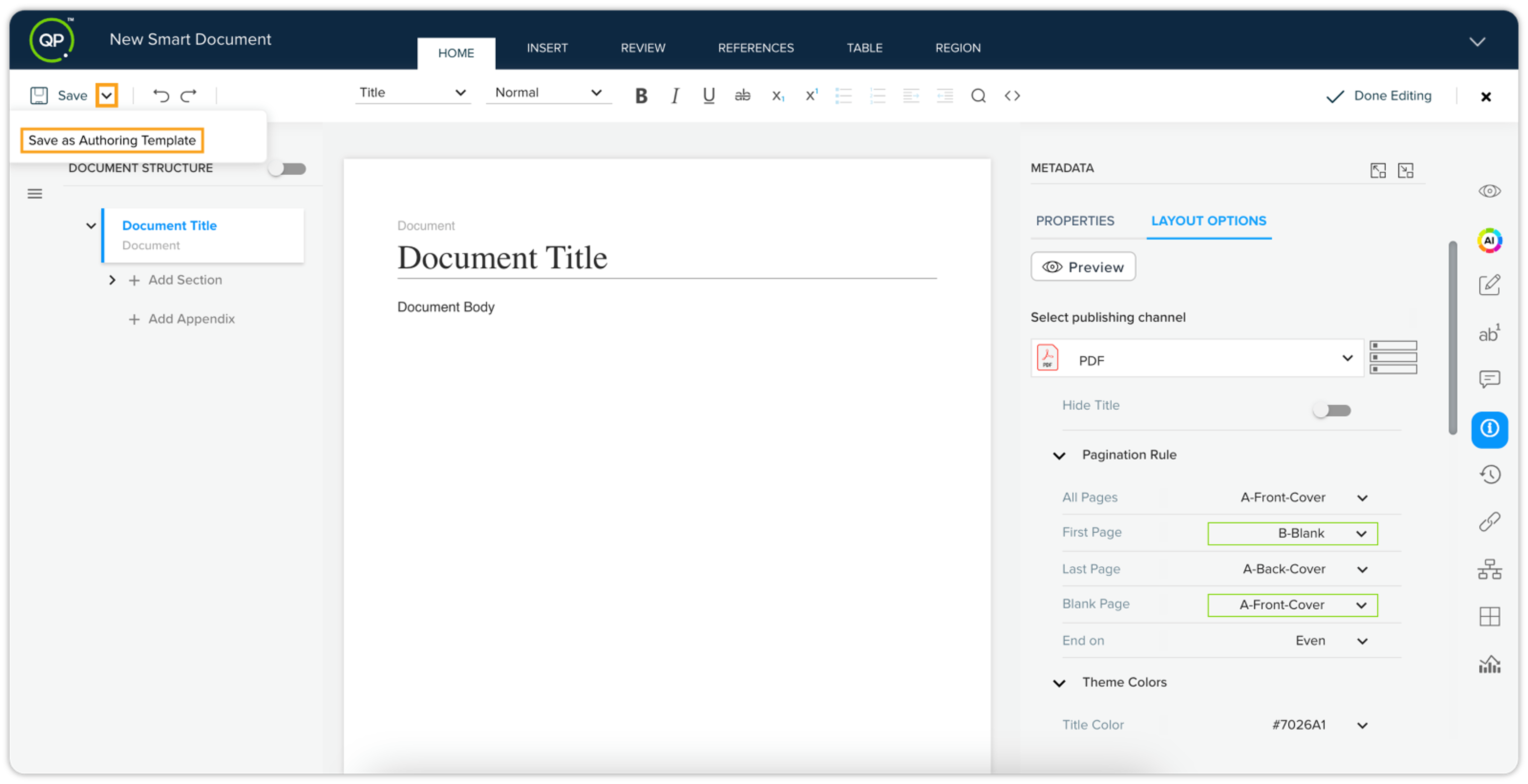
Click the Metadata tab on the Apps pane, and then click the Layout Options tab.

-
If you've previously defined default values for the content model, those values will be displayed here. You can modify these values at various levels: document, section, paragraph, table, etc.
-
Any changes you make to the values will be highlighted in green.

-
To save the document as an authoring template, click the dropdown icon next to the Save button (top left) and select Save as Authoring Template.
-
In the Save As Authoring Template dialog box, enter a name for the authoring template and select a location in the QPP repository. Click Save.

You have now created an authoring template containing specific layout option values.
Creating a New Document from an Authoring Template
To create a new document using the authoring template you just created:
-
Follow steps 1-3 above to reach the screen where you would normally select the Blank Smart Document.
-
Instead of selecting the blank document, double-click the authoring template you created earlier.

-
On the document properties screen, enter (or modify) the properties, and click Create.
A new document will be created, inheriting the structure, content, and layout option values from the authoring template. To confirm:
-
Go to the Apps pane, then the Metadata section, and then the Layout Options tab.
-
You’ll see that the layout option values in this new document match those you defined in the authoring template.

By defining layout options in an authoring template, you can ensure consistency and streamline the document creation process.
Layout Option Priority: Content Model vs. Authoring Template
When an authoring template is created based on a content model (e.g., Smart Document), the layout options defined in the authoring template take priority over those in the content model. Consequently, new documents created using that authoring template will inherit the layout options and default values from the authoring template, superseding any corresponding settings in the underlying content model.
A key advantage of authoring templates is that they allow users to define default values based on the publishing channel. This means you can easily set different values for different channels simultaneously, unlike content models, which only allow for a single, universal set of values that apply regardless of the selected channel.
This ensures greater flexibility in customizing document layouts for specific authoring needs and template designs.