
Attach Layout Options with Content Model
Once the channel is duplicated and customized, layout options for different elements must be attached.
Locate the Smart Document content model
-
Log in to the Admin panel > Content Models > Models.
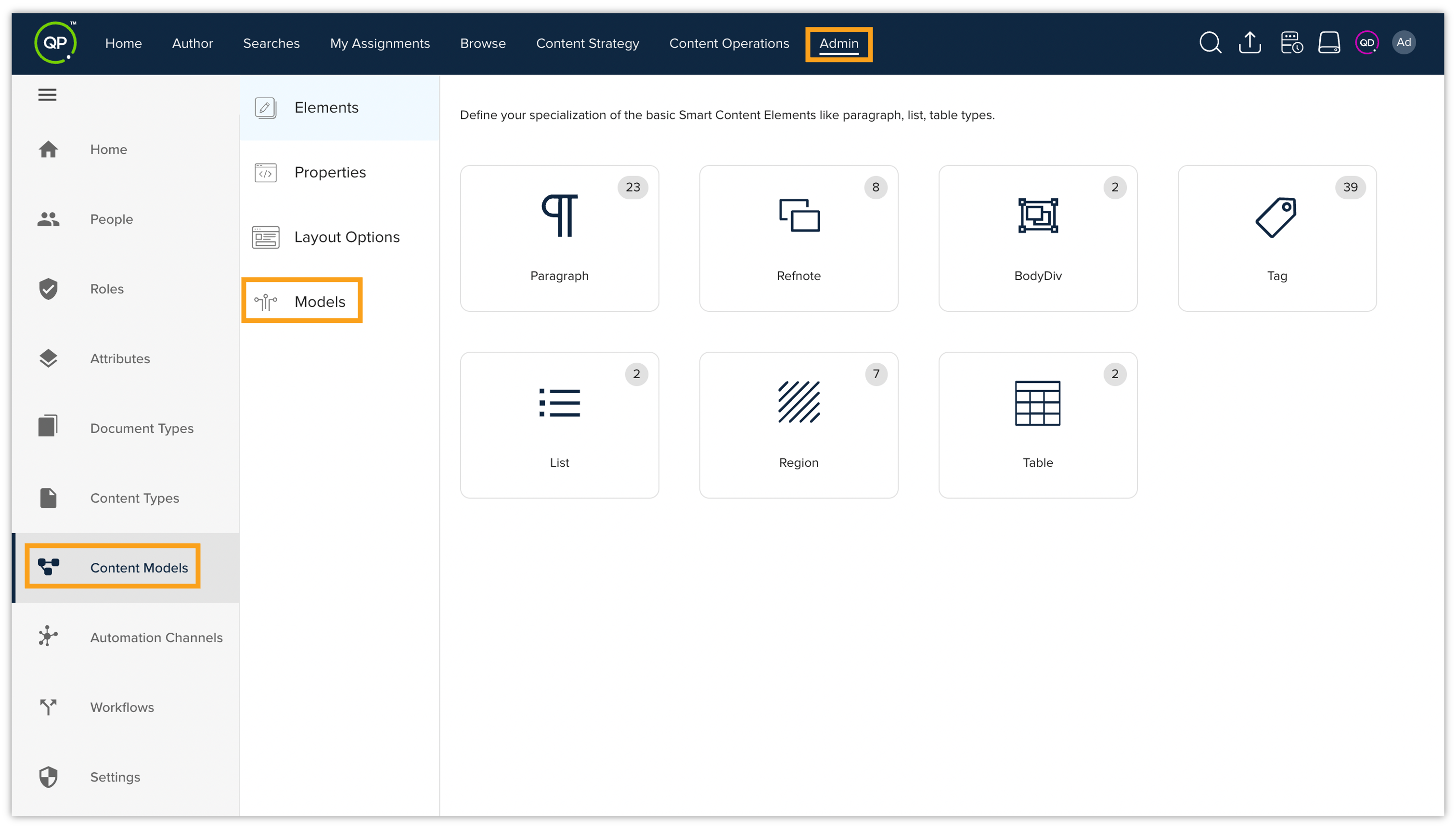
-
Use the search functionality to find the Smart Document content model.
-
Once located, click on the Smart Document content model to open it.
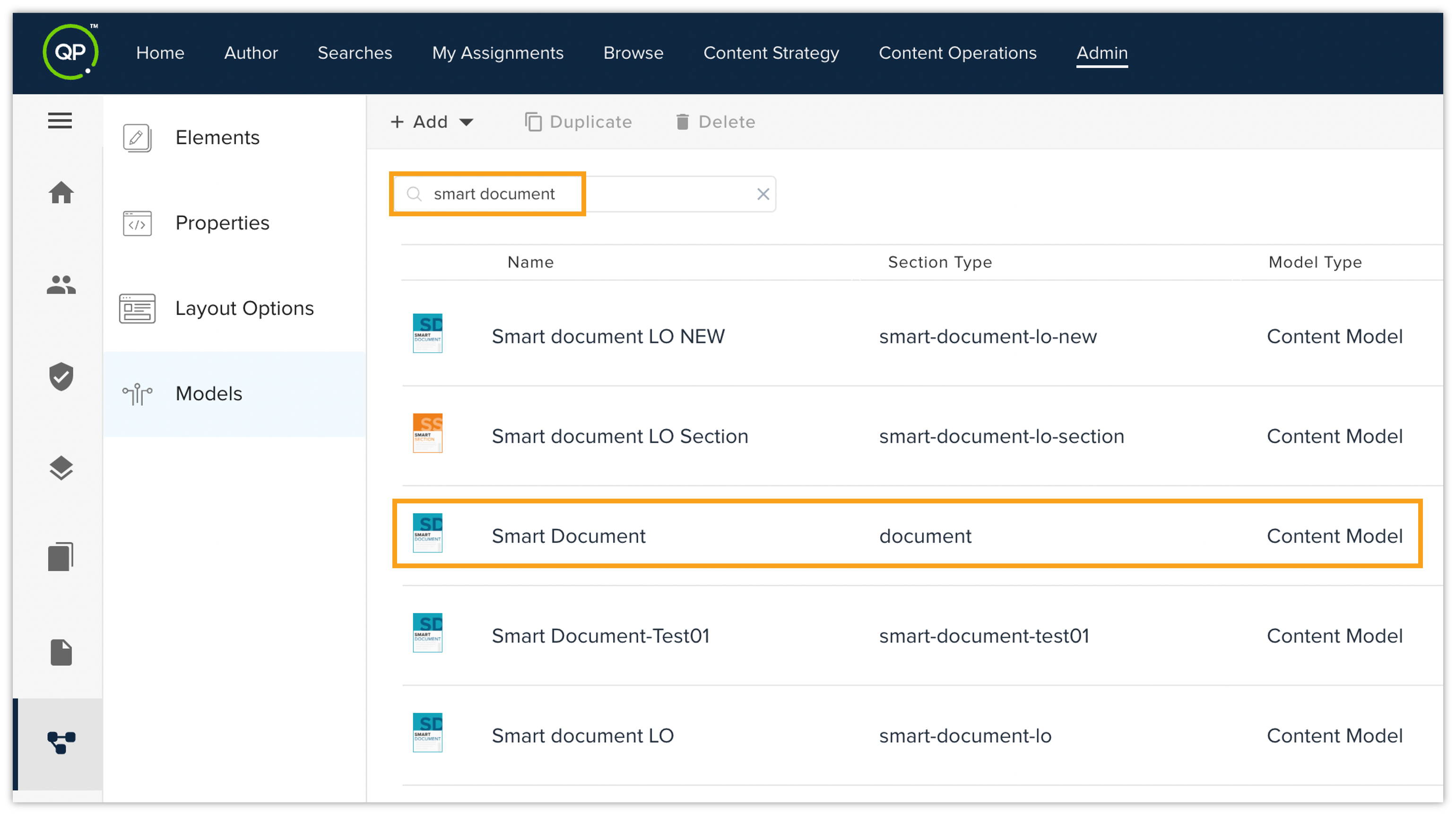
-
Click on Edit button to edit the content model.
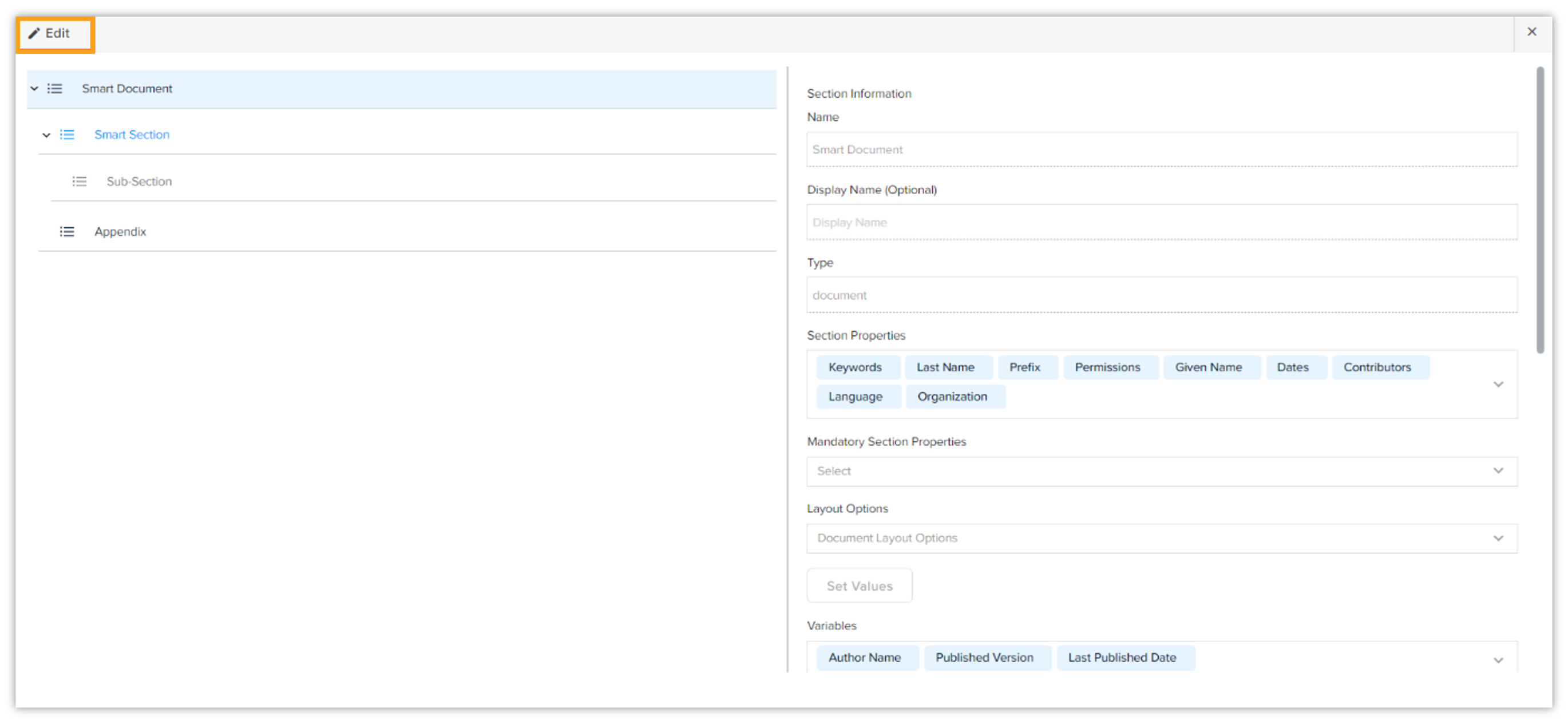
You'll need to define layout options at different content-levels. Below is a breakdown of the elements and corresponding layout options:
-
Document Layout Options
-
Locate the Layout Options drop-down at the document-level.
-
Select the Document Layout Options from the drop-down menu.
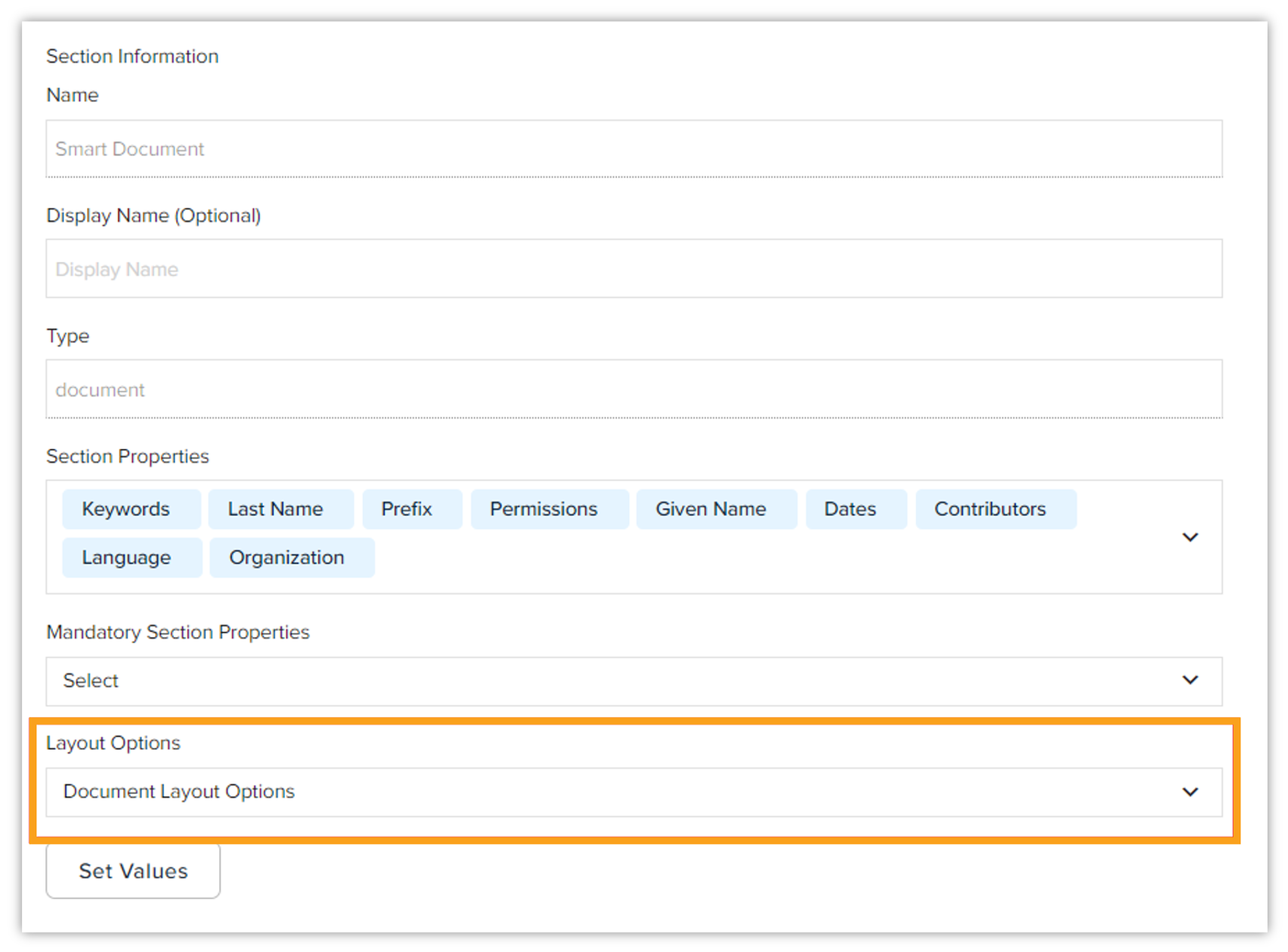
-
-
Section Layout Options
-
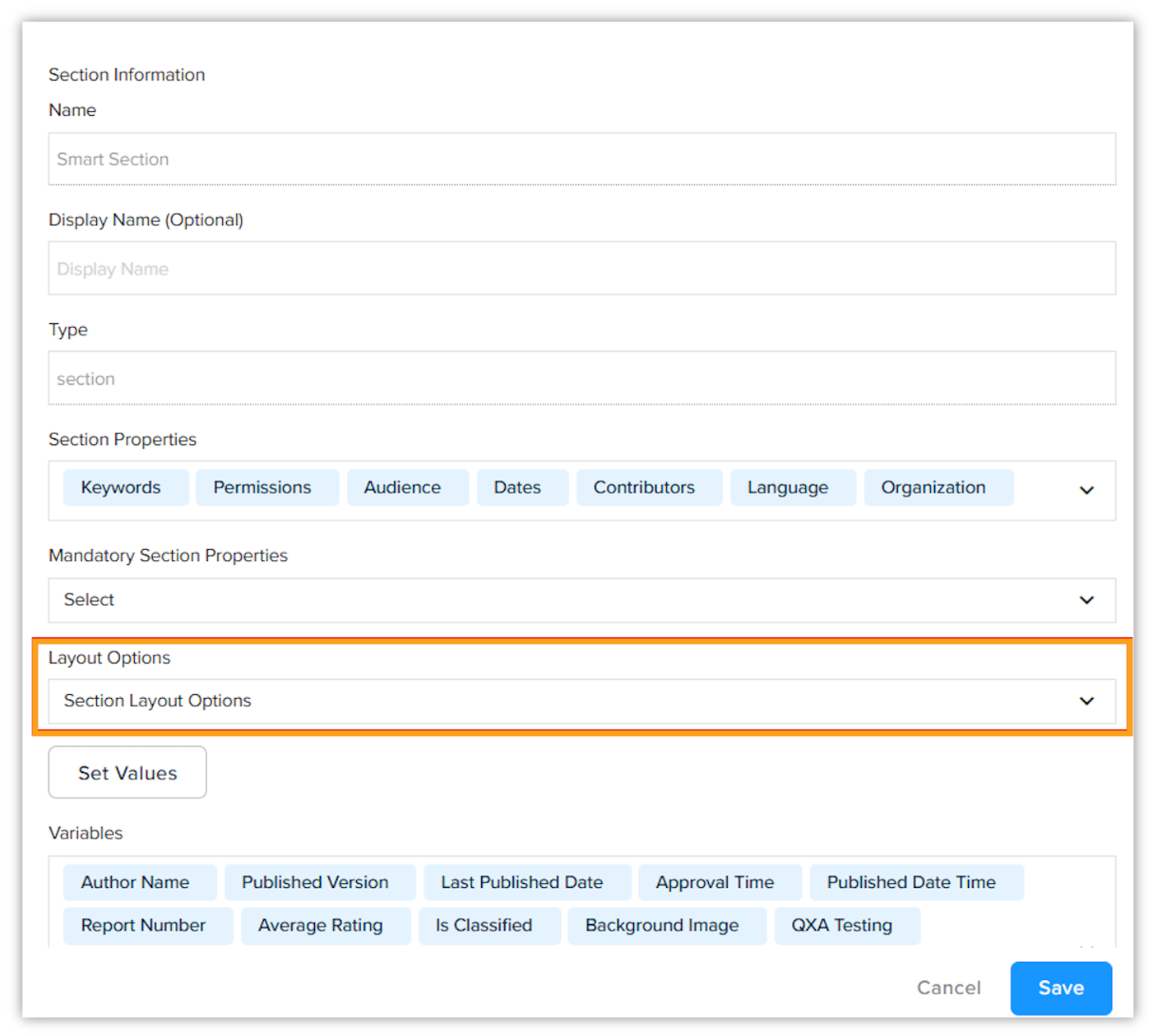
Locate the Layout Options drop-down at the section-level.
-
Select the Section Layout Options from the drop-down menu.
-
-
Paragraph Layout Options
-
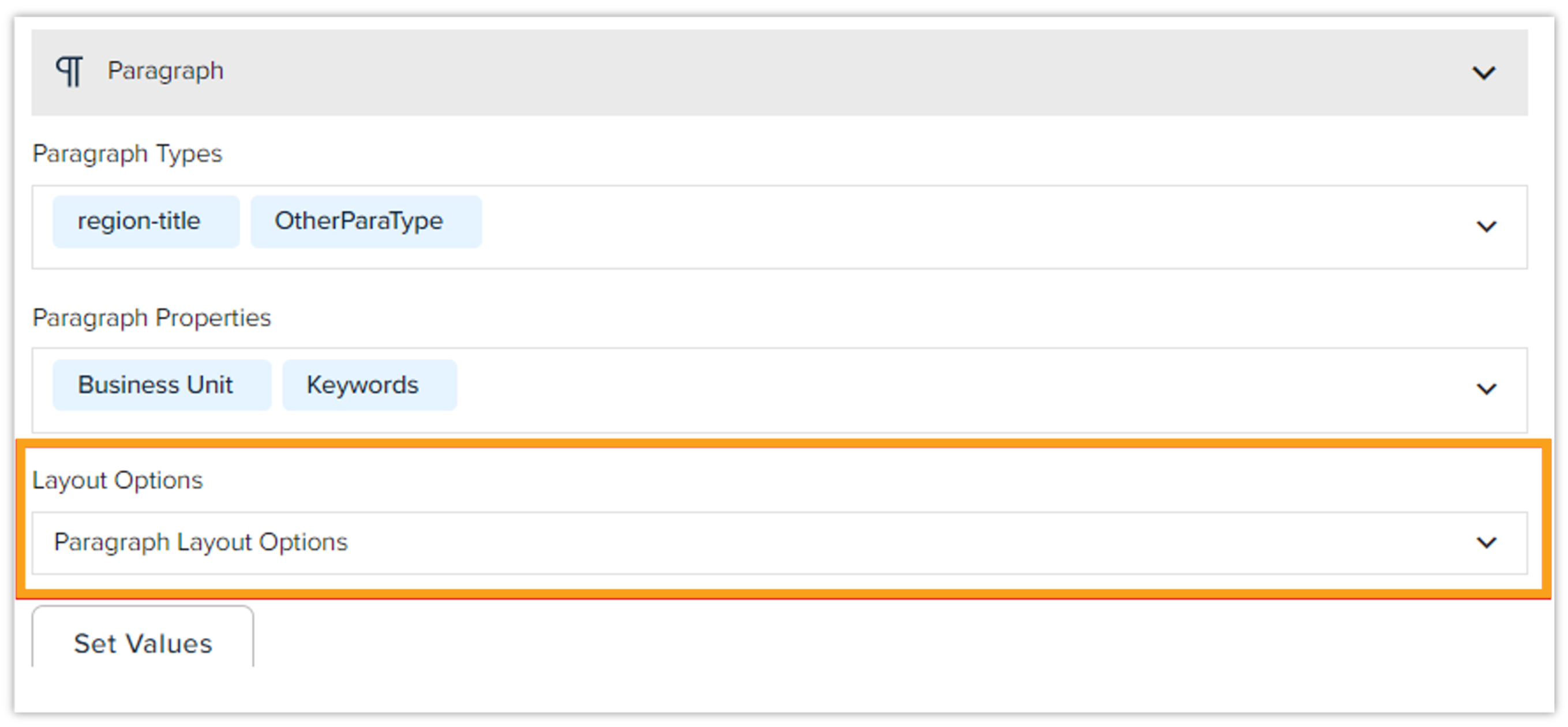
Locate the Layout Options drop-down at the paragraph-level.
-
Select the Paragraph Layout Options from the drop-down menu.
-
-
Region Layout Options
-
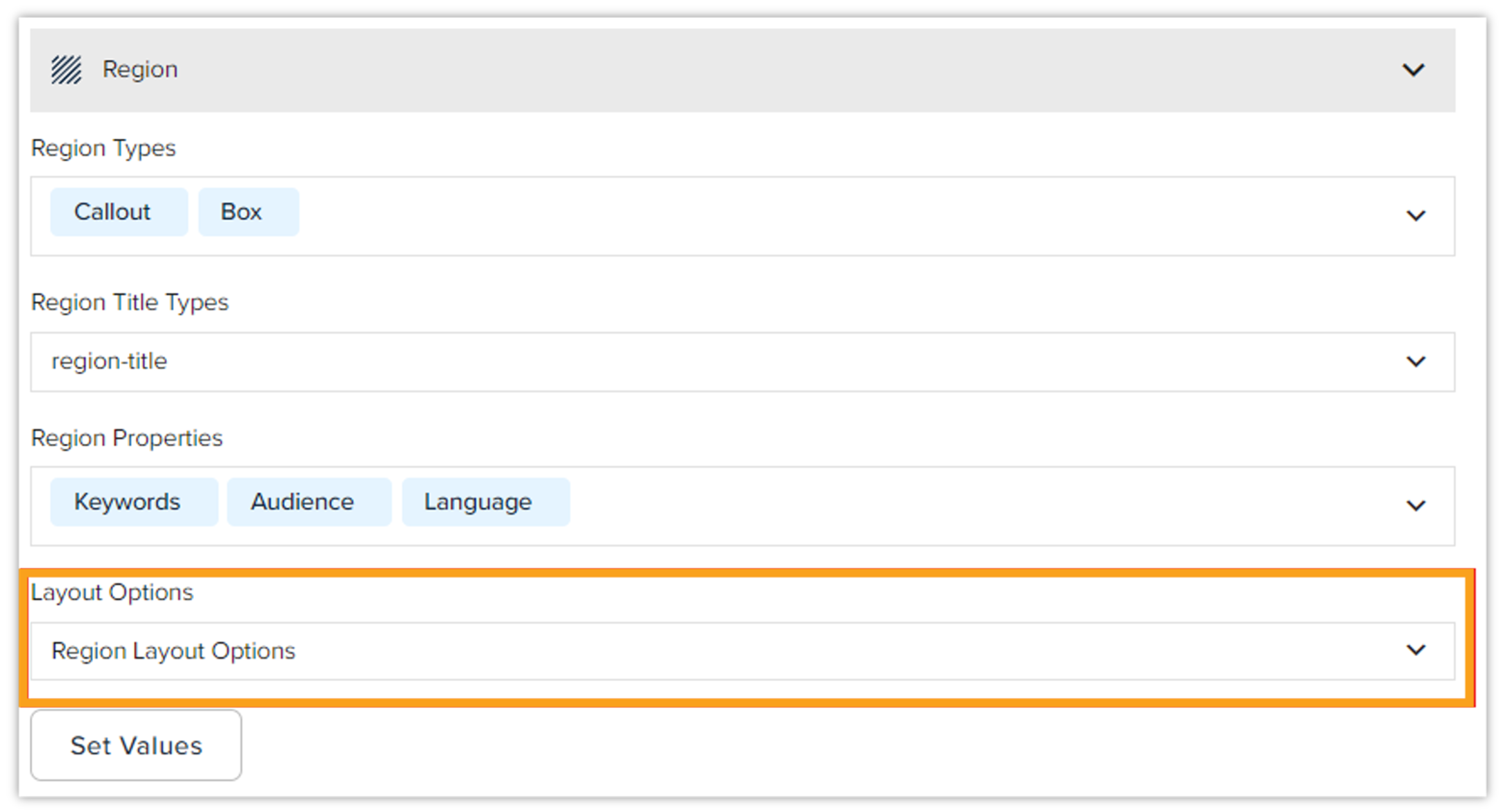
Locate the Layout Options drop-down at the region-level.
-
Select the Region Layout Options from the drop-down menu.
-
-
Table Layout Options
-
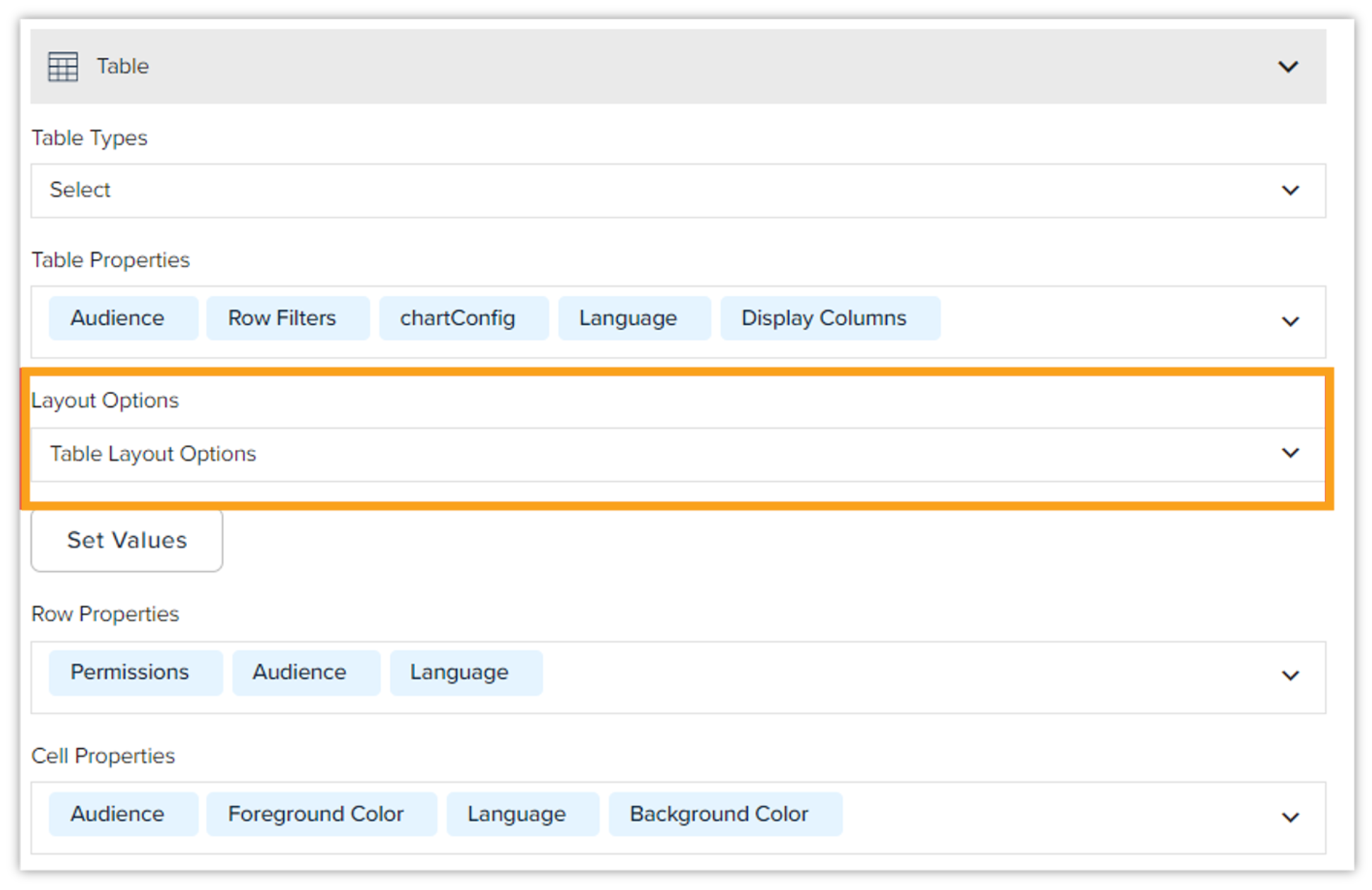
Locate the Layout Options drop-down at the table-level.
-
Select the Table Layout Options from the drop-down menu.
-
-
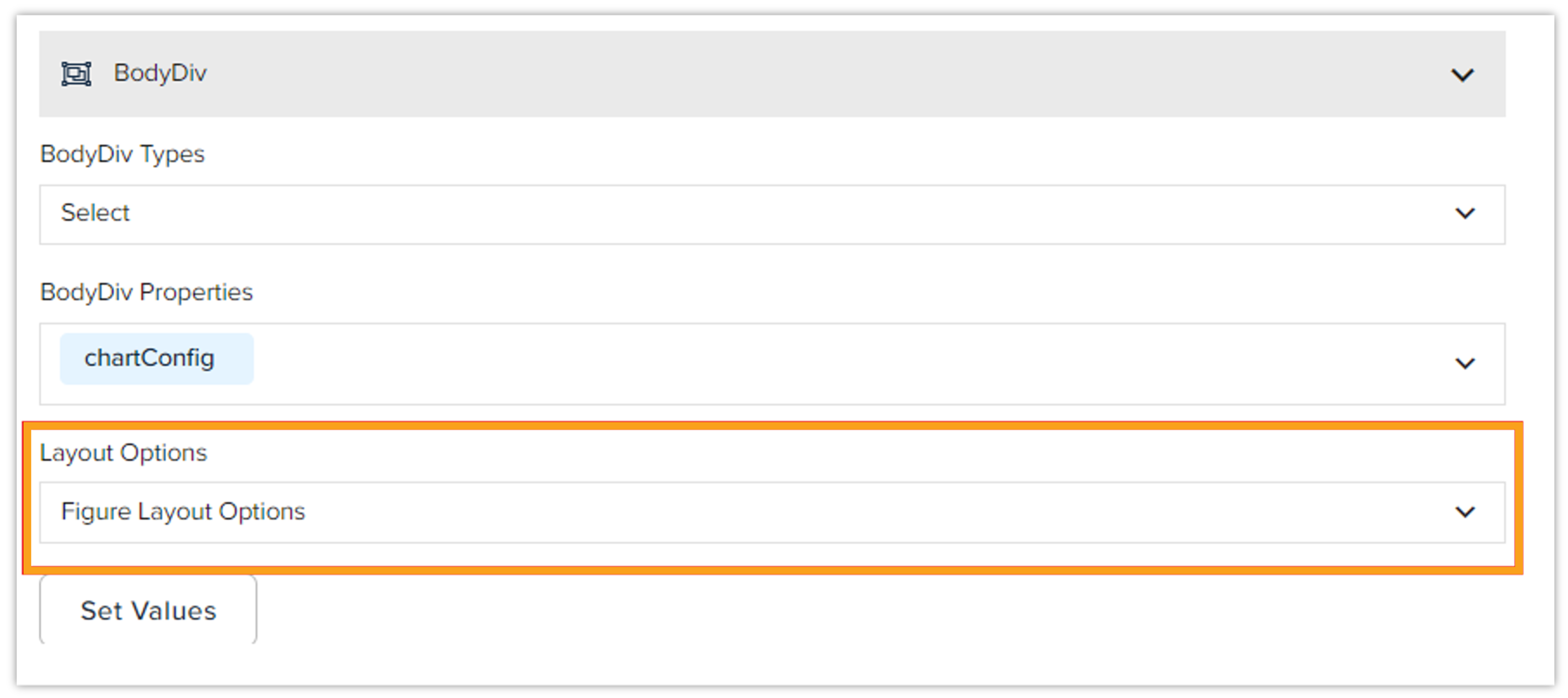
Figure Layout Options
-
Locate the Layout Options drop-down at the BodyDiv level.
-
Select the Figure Layout Options from the drop-down menu.
-
-
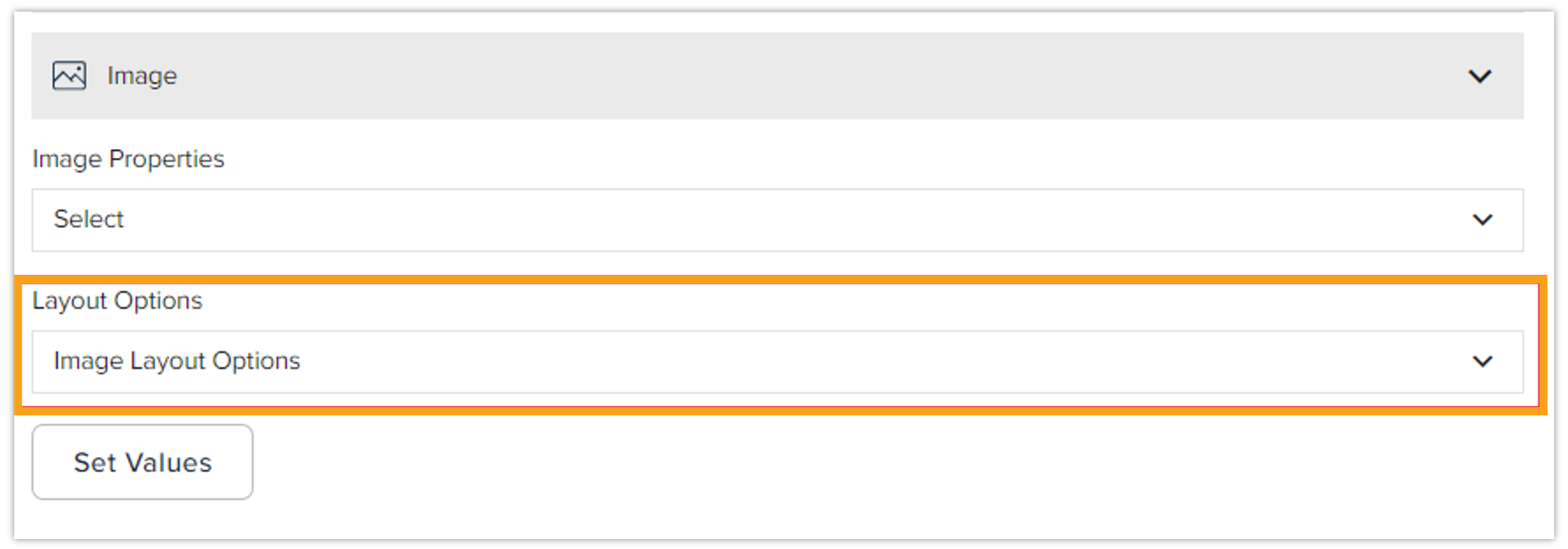
Image Layout Options
-
Locate the Layout Options drop-down at the image-level.
-
Select the Image Layout Options from the drop-down menu.
-
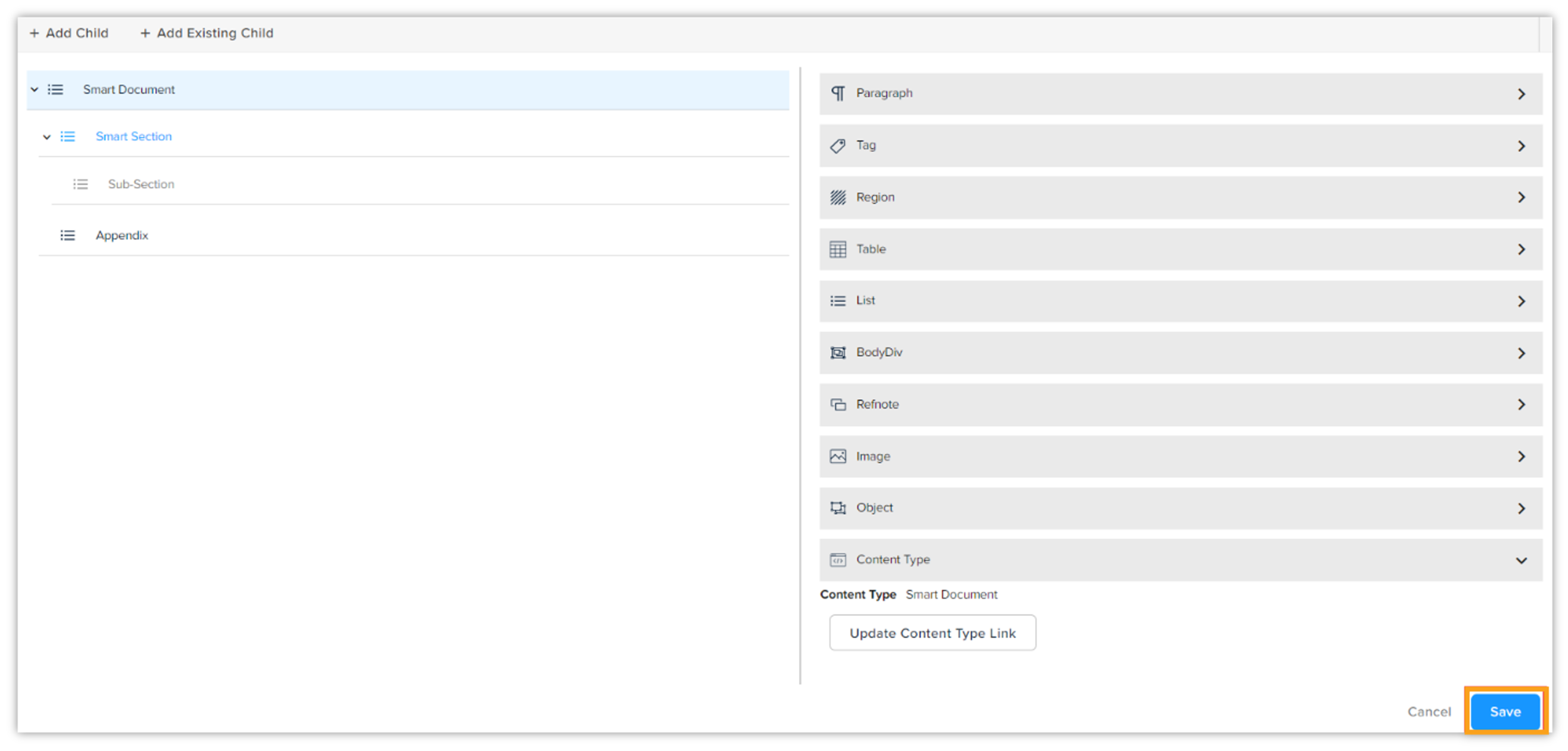
After defining the layout options at each level, you need to save the changes by clicking on the Save button.
Attaching Layout Options for smart sections and smart subsections
In addition to the smart document content model, similar steps must be taken for smart sections and smart subsections models and similar layout options need to be attached at each content element as discussed above.