
Logon to Quark Publishing Platform NextGen Server with Script Manager
To logon to Quark Publishing Platform NextGen Server application through Script Manager, you require an Auth Token (authentication token). To get the Auth Token:
-
Logon to Quark Publishing Platform NextGen Server through a browser.
-
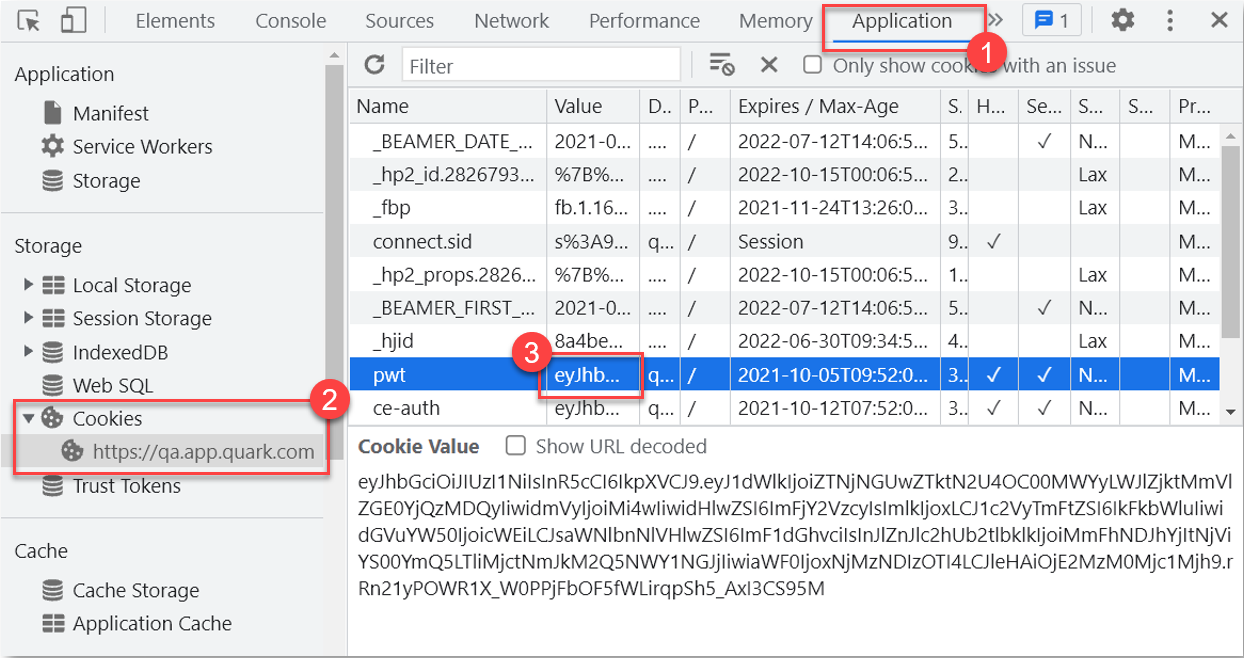
After you are logged in, right click anywhere on the browser page and then in the context menu, select Inspect.

-
In Inspect window, go to the menu tab Application.
-
In the left pane, select Cookies and then select a server (the URL of server) to view a list of cookies related to the server.
-
Select the cookie pwt and copy the value against it, which is the Auth Token.
-
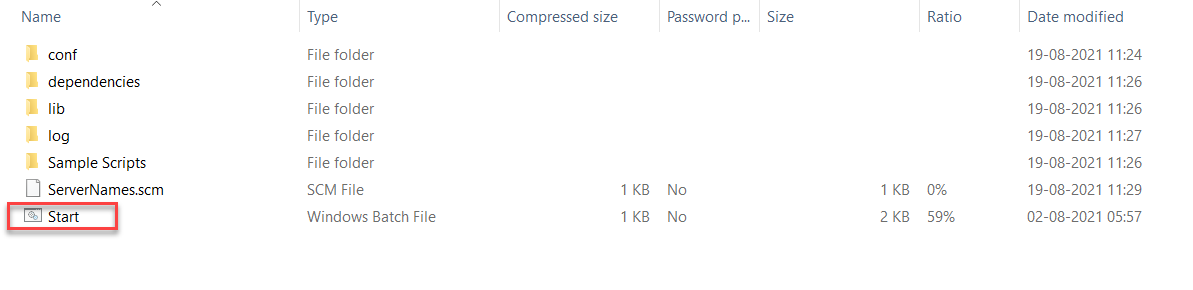
In the extracted folder, double-click on the file Start.bat to open QPP Server Log On dialog box.
-
In the dialog box Log On, provide the following information:
-
Auth Token
-
Server Name
-
Protocol (select HTTPS)

-
-
Select Log On.
Create a Script
To create a new script:
-
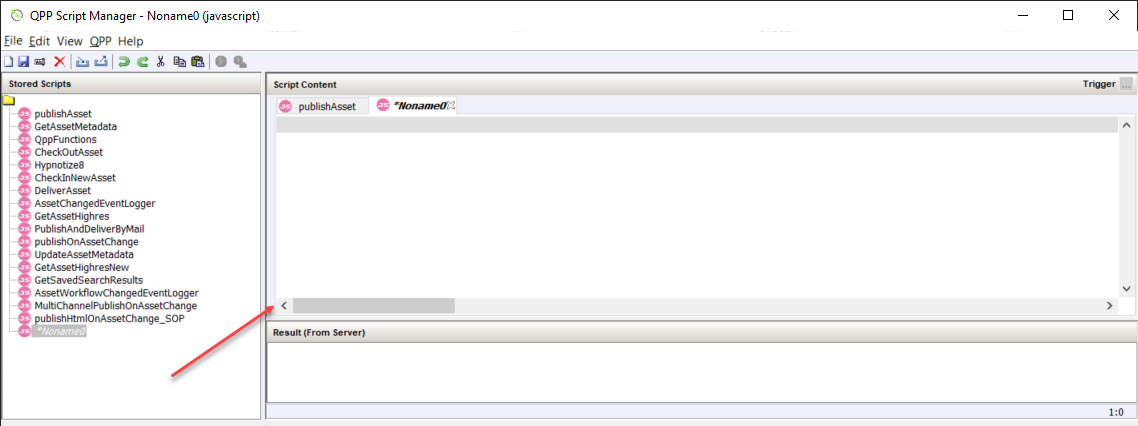
Select File > New > javascript.

Service Manager displays a new script in the Stored Scripts section and a blank script in the section Script Content.
 Although you can create and modify scripts with the Script Manager application, most script writers use a separate authoring application for writing JavaScript. Consult your script authoring software documentation to learn about structuring JavaScript.
-
After you have written the script, select File > Save.
Import a Script
To import a script:
-
Select File > Import.

-
In the dialog box Open, browse to the folder location Sample Scripts > javascript, which contains sample scripts that you can import to edit and then run.

-
Select a script and then select Open.
-
Script Manager opens the script for you to view/edit.

-
Select File > Save.
Delete and Export a Script
To delete a script:
-
Open the script in Service Manager.
-
Use one of the following methods:
-
Select File > Delete.
-
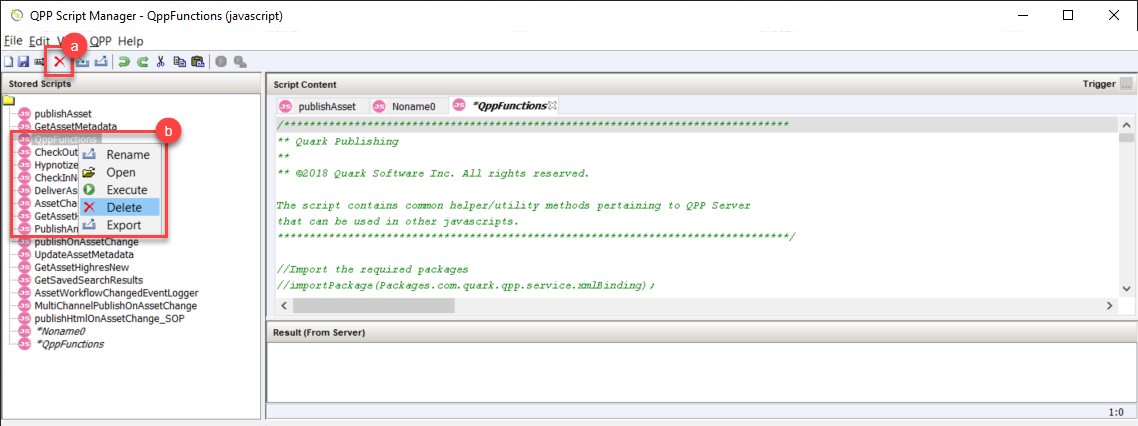
Select the Delete icon
 in the toolbar.
-
Right click on a script name in the Stored Scripts section, and then select Delete in the context menu.
-
-
Service Manager prompts a message for you to confirm the deletion.
-
Select OK/Delete.
To export a script:
-
Open the script in Service Manager.
-
Use one of the following methods:
-
Select File > Export.
-
Select the Export icon
 in the toolbar.
-
Right click on a script name in the Stored Scripts section, and then select Export in the context menu.
-
-
Service Manager opens the Save dialog box.

-
Select a location on your local machine and then select Save.