
Write, Edit, and Trigger a Script
A script has access to all the QPP Server objects and can invoke all the operations defined in QPP Server API to produce required results. To use a script, you first must save it while logged on to QPP Server.
Access QPP Server Objects
You can use the lookup method on the bean RuntimeBeanManager to access Quark Publishing Platform NextGen Server objects. RuntimeBeanManager is a declared bean in Bean Scripting Framework (BSF), which makes it available to scripts by default. For example:
-
var assetFacade = runtimeBeanManager.lookupBean(“restAssetFacade”) -
var queryFacade = runtimeBeanManager.lookupBean(“queryFacade”)
Load a Script inside another Script
You can load a script inside another scrip through method load(.). For example, if you want to load the script S1, run the command load(S1) inside the current script. You can also load several scripts through the load(.) method; for example, the command load(S1, S2) loads the scripts S1 and S2 in the current script.
Log and Debug Scripts
You can use the following methods to log information in scripts:
|
Method |
Description |
|
|
Prints string values of the variable arguments. The printing occurs on the server standard output. For example, you can specify |
|
|
Logs a debug comment in the QPP Server log file. |
|
|
Logs an informative comment in the QPP Server log file. |
|
|
Logs a warning comment in the QPP Server log file. |
|
|
Logs an error comment in the QPP Server log file. |
|
|
Logs an exception in the QPP Server log file. For example:
|
Use Utility Methods in Scripts
Use the following methods to read URLs and to run, spawn, and synchronize functions:
|
Method |
Description |
|
|
Opens a connection to the URL you provide, reads all its data, and then converts the data to a string using specified character encoding or default character coding (if you do not provide an explicit coding argument). For example, |
|
|
Executes the specified command with the argument you provide as a separate process and returns the exit status of the process. For example, |
|
|
Runs a function or script in a different thread. For example, |
|
|
Creates a “synchronized” function (a java synchronization method) from an already available function. The new function synchronizes on the “this” object of its invocation. For example,
|
Trigger a Script
You can run a Script Manager script in the following ways:
-
Manually run a script from within Service Manager.
-
Schedule a script to run at specific intervals.
-
Specify events that occur within a Quark Publishing Platform NextGen workflow that trigger a script execution.
To trigger a script:
-
Select a script to see if its content is in the Script Content section of the Script Manager window.
-
Select File > Save to save the script.
-
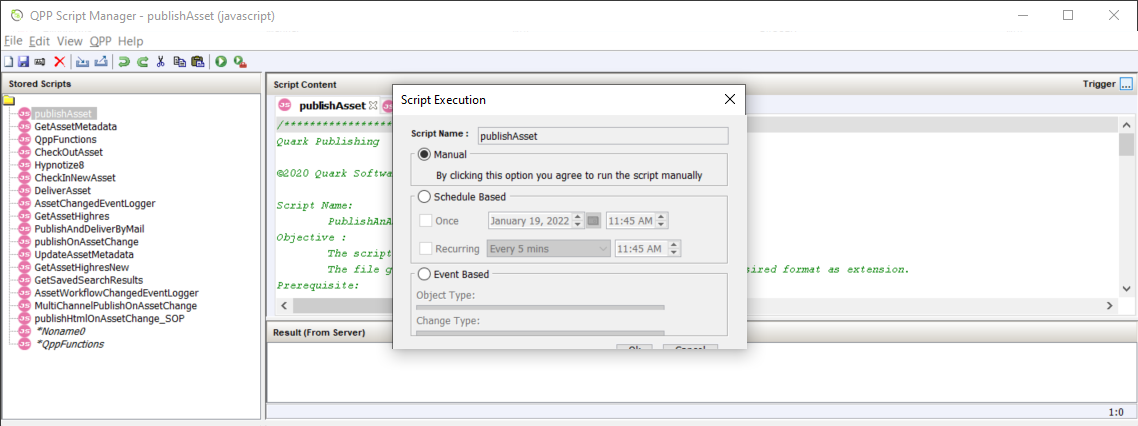
Select the button Trigger at the upper right corner of the Script Content section to open the dialog box Script Execution.

-
In the dialog box Script Execution, make selection(s) based on how you want to run the script:
-
To run the script, select Manual.
-
To schedule a script to run once, select Scheduled Based, select Once, and then select date and time values.
-
To schedule a script to run at regular intervals, select Scheduled Based, select Recurring, select a frequency, and then set the time for first run.
-
To trigger a script on the occurrence of a Quark Publishing Platform NextGen event, select Event Based, select an object from the Object Type drop-down menu, select an option from the Change Type drop-down menu.
The options under Change Type drop-down menu change based on the object type you have selected.
-
-
Select OK.
Event-based Script Examples
The following is an example of an event-based script that publishes the PDF version of an asset at a given location when you change the status of an asset. In the example, the object type is ASSET and you change it to type ASSET_CHANGED.
importPackage(Packages.java.lang);
importPackage(Packages.java.io);
importPackage(Packages.java.util);
importPackage(Packages.com.quark.qpp.core.messaging.service.constants);
//name of the status, such that when an asset is in given status, it should be published.
var statusName = “Publish”;
// Destination folder for published content
var destinationFolder = “E:/target”;
var assetId = ASSET.get(DefaultMessagePropertyNames.OBJECT_ID);
//Declare QPP Service Facades
var publishFacade = runtimeBeanManager.lookupBean(“publishFacade”);
var assetFacade = runtimeBeanManager.lookupBean(“restAssetFacade”);
/*Map of content types and publishing channel ids. Depending upon the asset’s content
                                 type, corresponding publishing channel will be considered.
*/
var publishingChannelsMap = {‘QuarkXPress Project’:’qxpPdf’, ‘Business Document’:’busDocPdf’};
/*
Channel parameters for publishing channel with id : qxpPdf
*/
var parametersForQxpPdf = new java.util.HashMap();
parametersForQxpPdf.put(“SPREAD_VIEW”, “FALSE”);
/*
Channel parameters for publishing channel with id : busDocPdf
*/
var parametersForBusDocPdf = new java.util.HashMap();
parametersForBusDocPdf.put(“XSL_URI”, “classpath:BusDoc2QXPS.xslt”);
parametersForBusDocPdf.put(“QXP_TEMPLATE_URI”, “classpath:BLTEMP.qxp”);
/*
Map of publishing channel id and publishing parameters
*/
var parametersMap = { ‘qxpPdf’ : parametersForQxpPdf, ‘busDocPdf’ : parametersForBusDocPdf};
//Declare a string buffer
var stringBuffer = new StringBuffer();
//names of the attributes to be fetched
var attributes = [“Name”, “Status”, “Content Type”];
var assetInfo = assetFacade.getAsset(assetId, null/*majorVersion*/, null/*minorVersion*/,
                                 attributes,
false/*get child asset relations */,
false /* get parent asset relations*/,
[]/*Relation types*/,
null /*Rendition Type */,
null /* Output stream*/,
null /*layout number*/, null/*page number*/);
var attributesList = assetInfo.getAttributeValueList().getAttributeValue();
var assetName = “”;
var currentStatus = “”;
var contentType = “”;
for(var i = 0; i<attributesList.size(); i++){
var attributeValue = attributesList.get(i);
if(attributeValue.getName().equalsIgnoreCase(“Name”)){
assetName = attributeValue.getValue();
}
if(attributeValue.getName().equalsIgnoreCase(“Status”)){
currentStatus = attributeValue.getValue();
}
if(attributeValue.getName().equalsIgnoreCase(“Content Type”)){
contentType = attributeValue.getValue();
}
}
//In case the asset is in desired status
if(currentStatus.equalsIgnoreCase(statusName)){
try{
var pdfFile = new File(destinationFolder + “/”+ assetName+”.pdf”);
var fileOutputStream = new FileOutputStream(pdfFile);
//get publishing channel id on the basis of content type
var publishingChannelId = publishingChannelsMap[contentType];
var publishingChannelParameters = parametersMap[publishingChannelId];
publishFacade.publishQPPResource(assetId, fileOutputStream, publishingChannelId, null
                                 /* Since we want to publish the given asset, hence delivery channel is null*/,
publishingChannelParameters);
stringBuffer.append(“\n”+assetName+” has been published as PDF at location “+destinationFolder);
}catch(exception){
stringBuffer.append(“Error while publishing the asset with name : “+assetName+”\n”);
stringBuffer.append(exception);
}finally{
if(fileOutputStream != undefined){
fileOutputStream.close();
}
}
}
stringBuffer.toString();
Manually Run a Script
You can also use the following method to run a script manually:
-
Select a script to see its content in the Script Content section of the Script Manager window.
-
In the header toolbar, select QPP > Execute (or select the Execute icon
 ).

To run a specific function of a script:
-
Select QPP > Execute Parameter (or select the Execute Parameter icon
 ) to open the dialog box Execute Parameters.
-
In the dialog box Execute Parameters, provide the following details:
-
Method name
-
Specify parameter(s)

-
-
Select OK.