Topics
Docurated allows you to add tags to documents to curate and categorize documents as topics. You can use topics to filter document results or can search for a document within a topic instead of the entire repository.
You can access the Topics page through the tag icon  or the Topics tab in the expanded left menu pane.
The Topics page lists all the topics defined within an organization, which you can sort by name, date, and number of documents in a topic. You can also search for a topic (or filter results) by name.
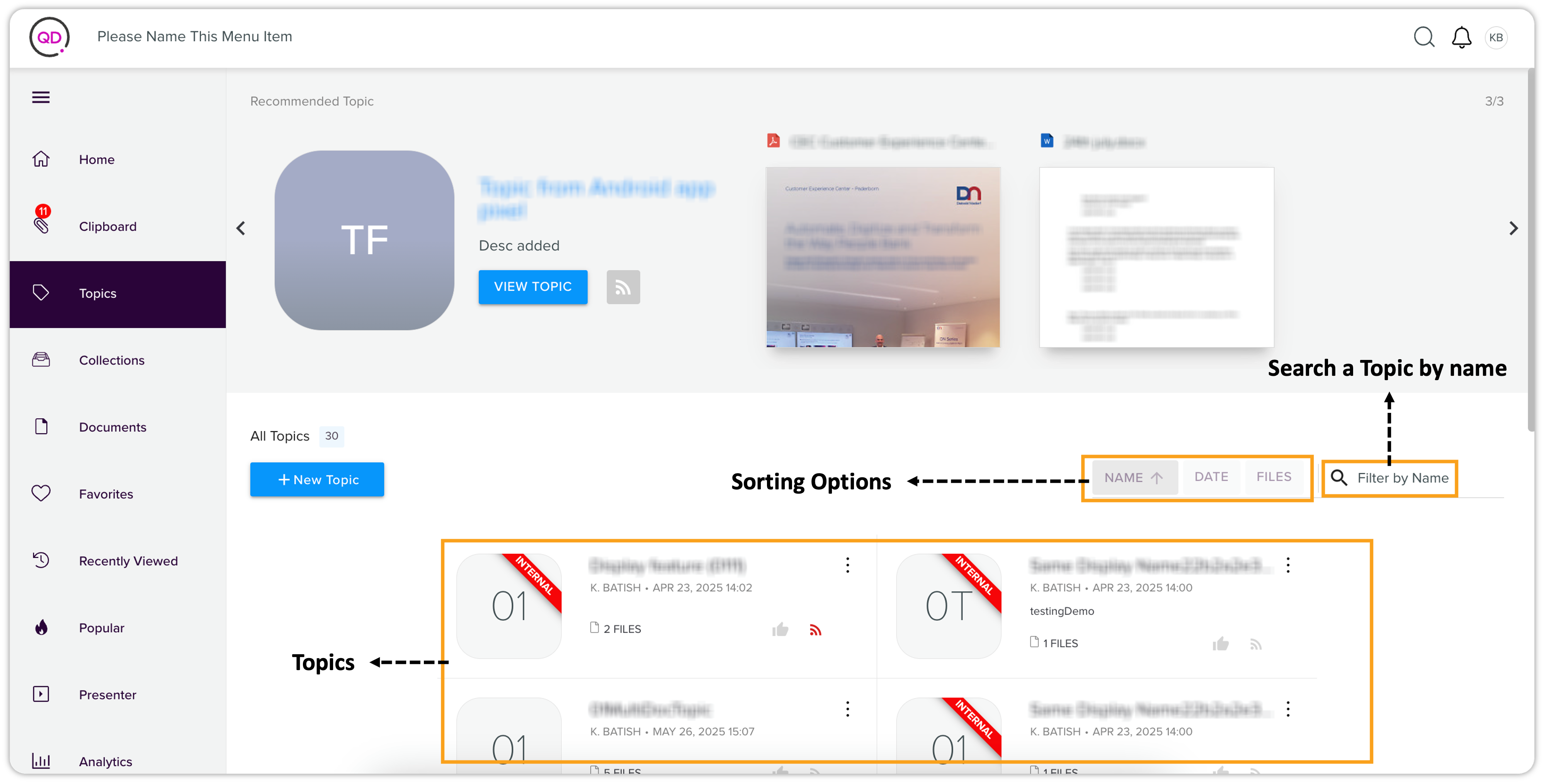
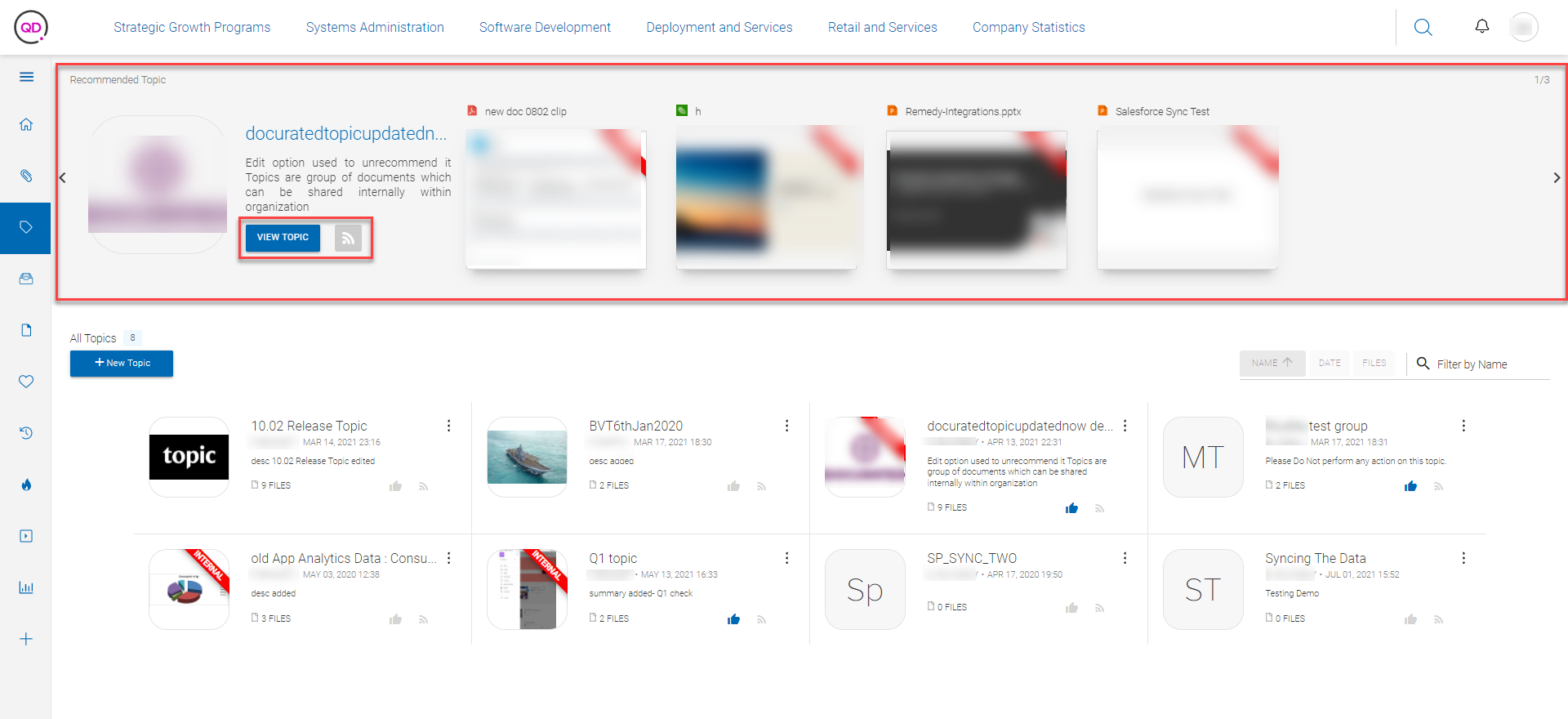
Additionally, the Topics page displays a list of recommended topics along with the thumbnails of the documents
as a slider/web carousel at the top of the page. You can directly access the recommended
topics through the button View Topic and follow the topic through the RSS icon button  on a topic's card.
Topic Card
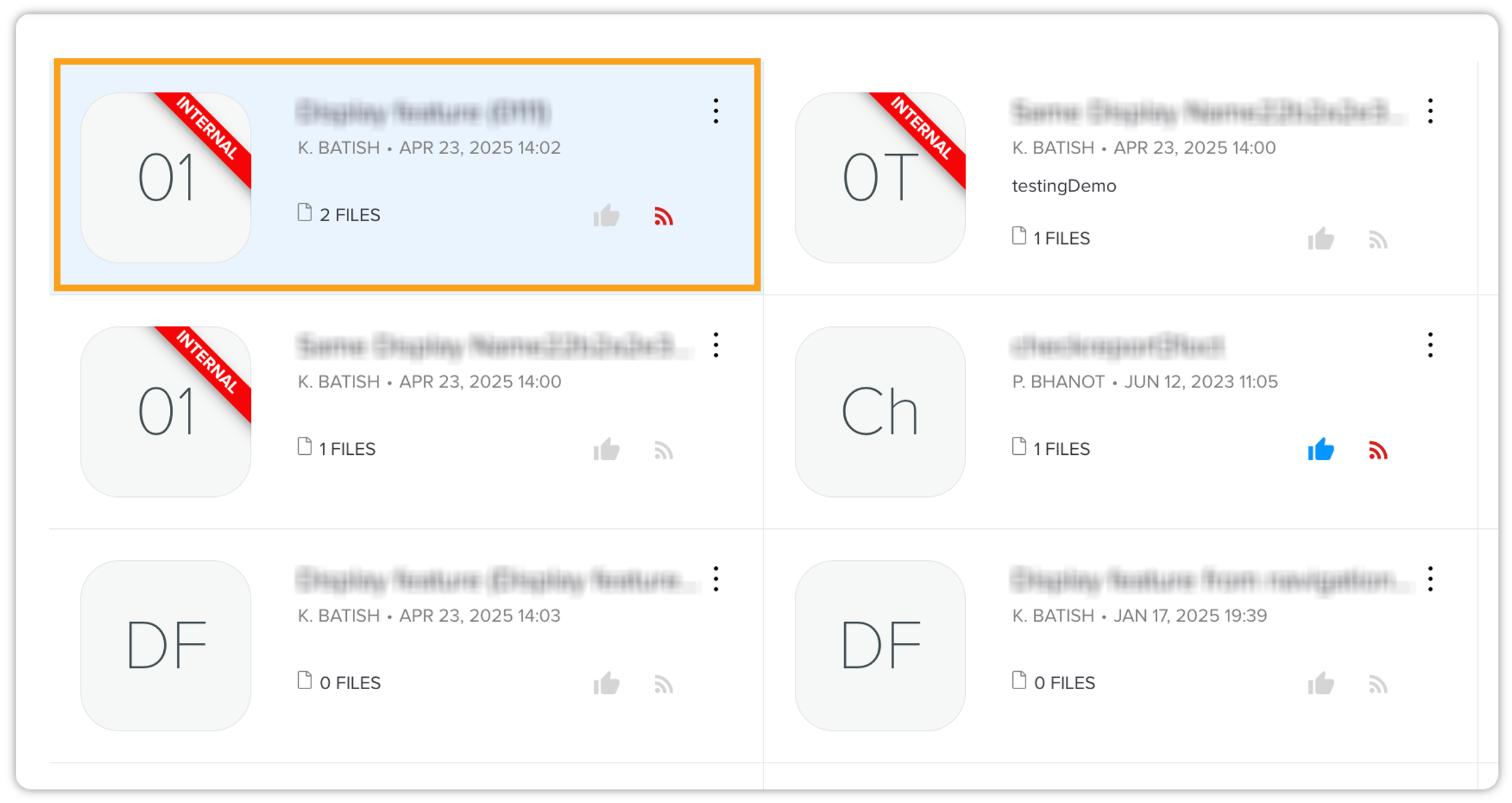
A topic card contains the following information:
-
Topic Thumbnail (if you do not apply an image, Docurated displays the initials of the collection name as the topic thumbnail)
-
Topic name
-
Name of the user who created the topic
-
Date and time of the creation
-
A snippet of the topic description
-
The number of files in a topic
-
The option to recommend the topic
-
The option to follow the topic
Add a New Topic
To add a new topic:
-
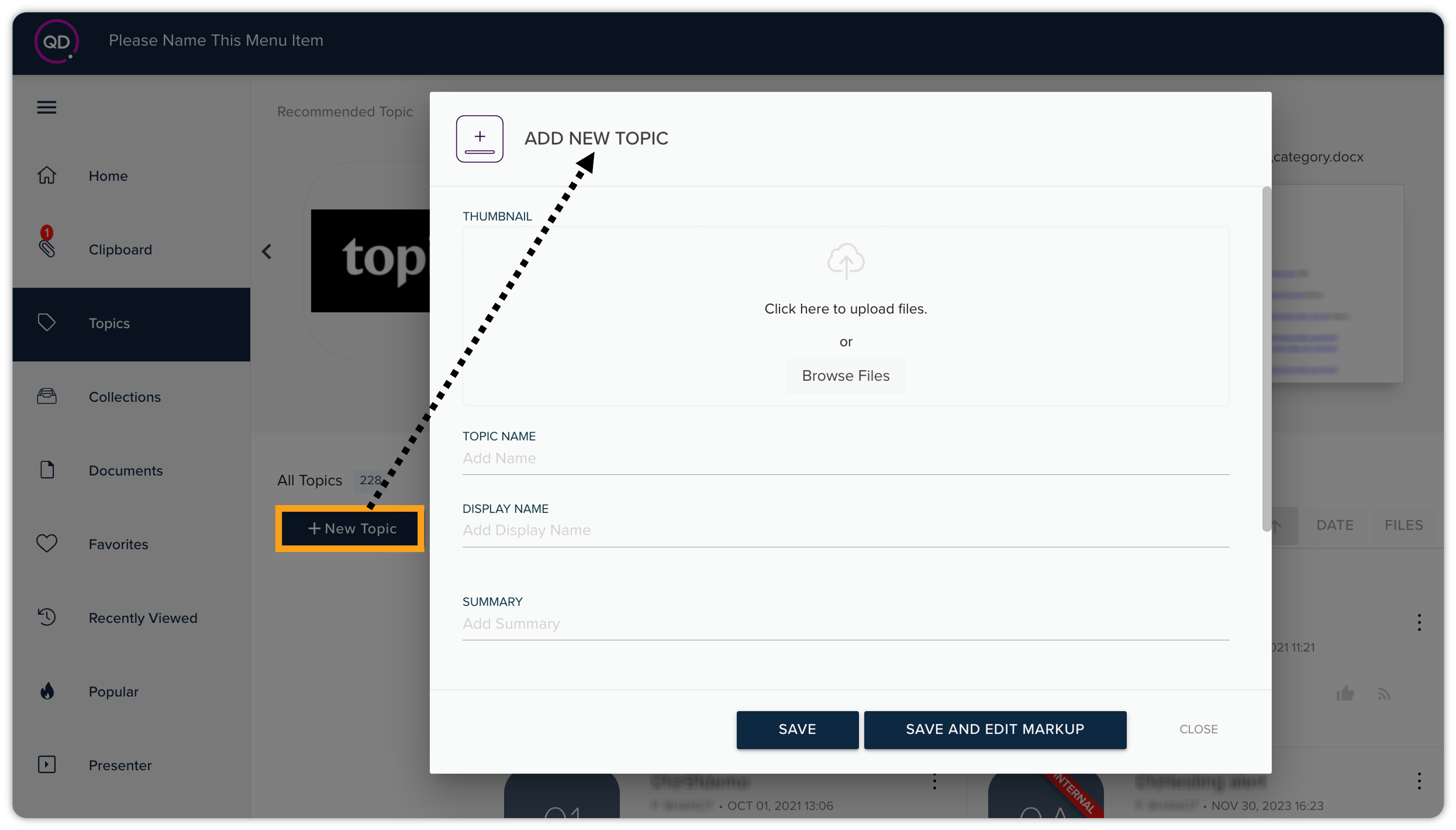
Click + New Topic on the Topics page to open the Add New Topic dialog.
-
In the Add New Topic dialog, add a topic name, display name, summary, and categories (such as the name of a product in your organization).
Docurated allows you to add a new category while you create a new topic through the link Create & Add New Category next to the field Categories. -
Click either Save or Save and Edit Markup.
Additionally, you can perform the following actions through the Add New Topic dialog:
-
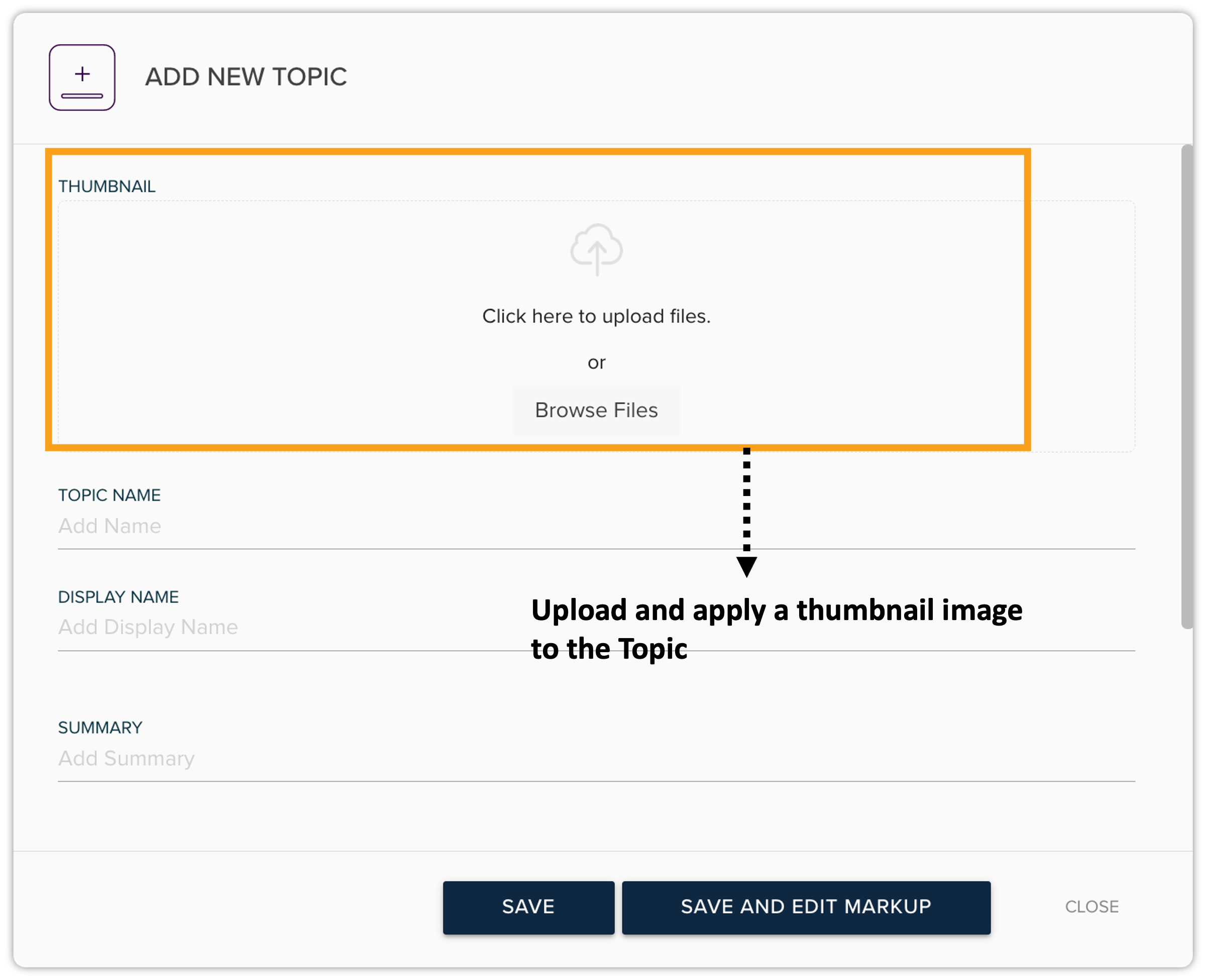
Add a thumbnail image for the topic through the options to upload files at the top of the dialog.
-
Mark the topic as recommended or as internal through their respective checkboxes at the bottom of the dialog.
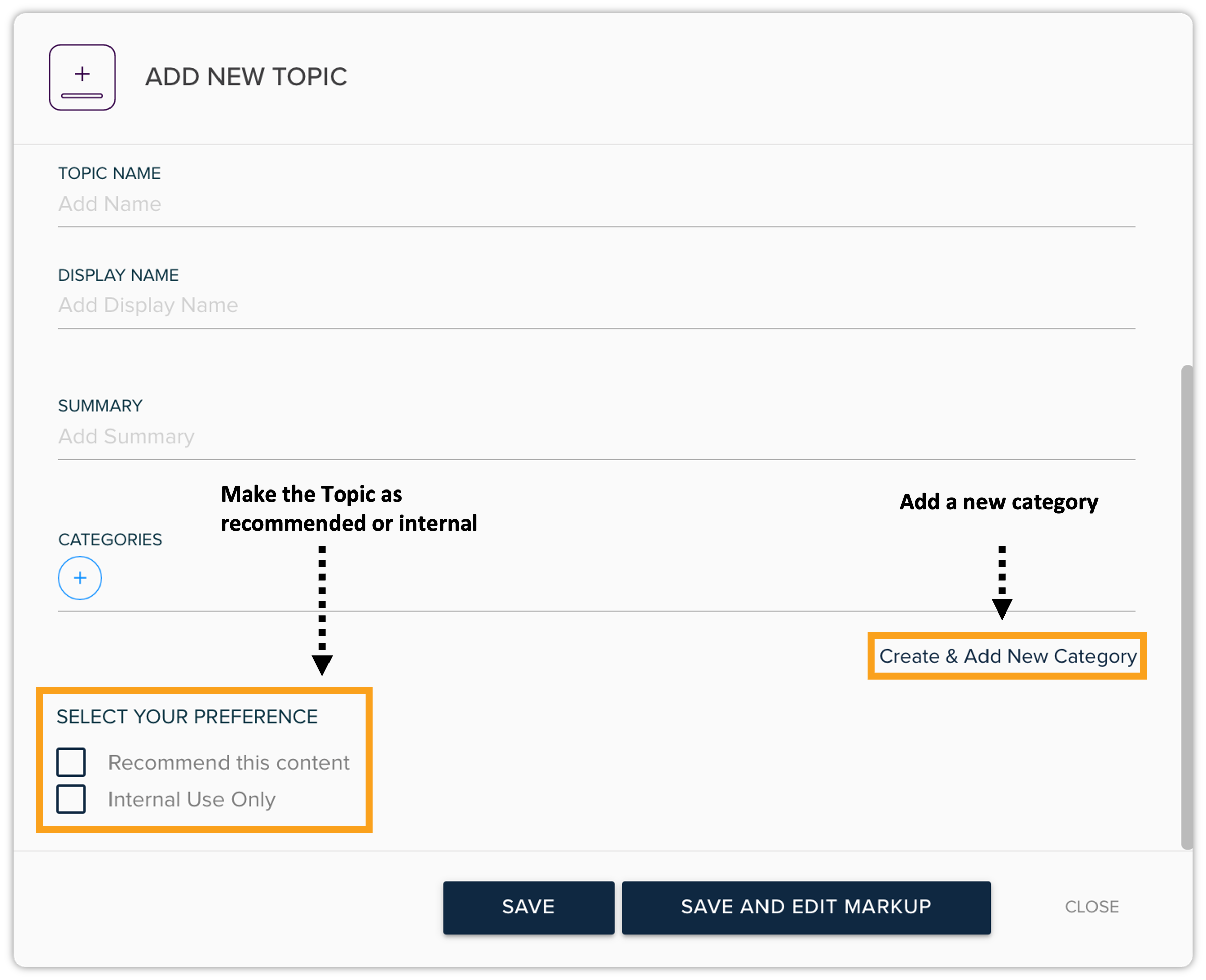 When you mark a document as internal, Docurated adds a ribbon (with "Internal" text on it) on the topic's thumbnail in the listing. By default, an internal document does not have an option to share; however, you can configure the settings if you want to share internal documents with an external audience. For more information, see the Docurated Administrator Guide.
Add a New Category
The process to add a new category is similar to adding a new topic. To add a new category:
-
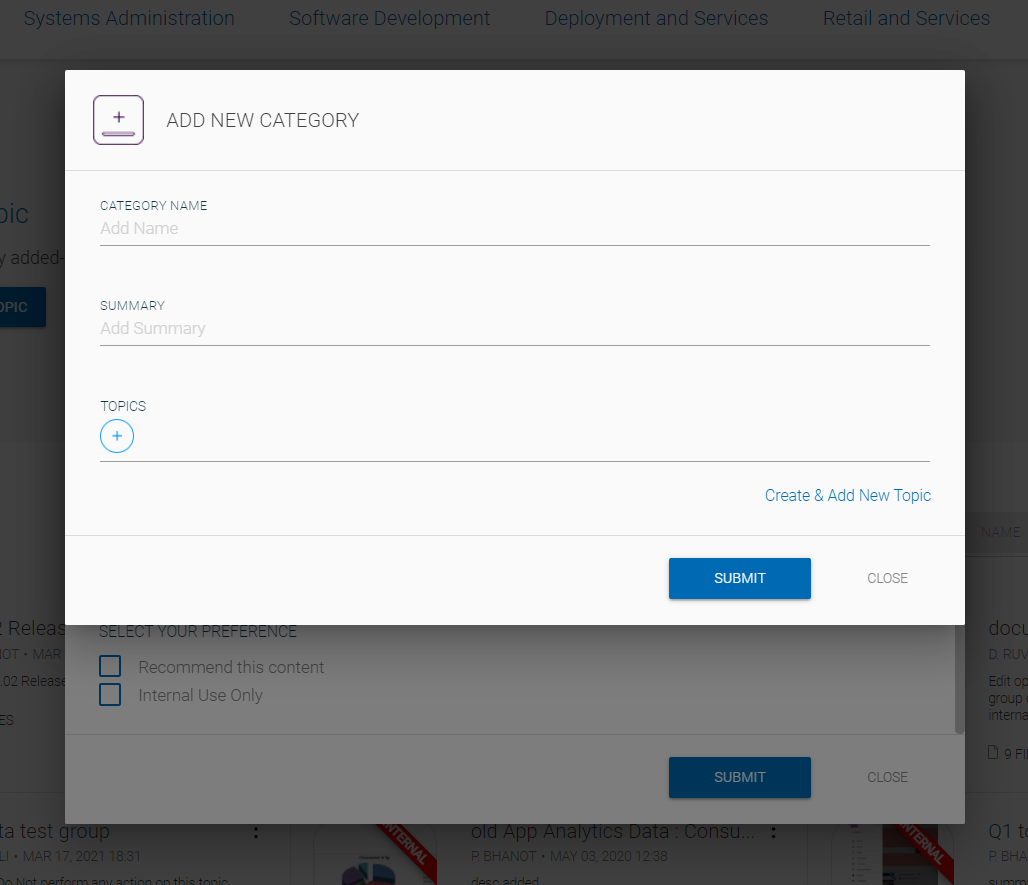
Click the link Create & Add New Category on the Add New Topic dialog to open the Add New Category dialog.
-
In the Add New Category dialog, add a category name, summary, and topics.
You can add a new topic while creating a new category, in the same manner, you can create a category while creating a topic. -
Click Submit.
Topic Actions
You can perform the following actions on the listed topics:
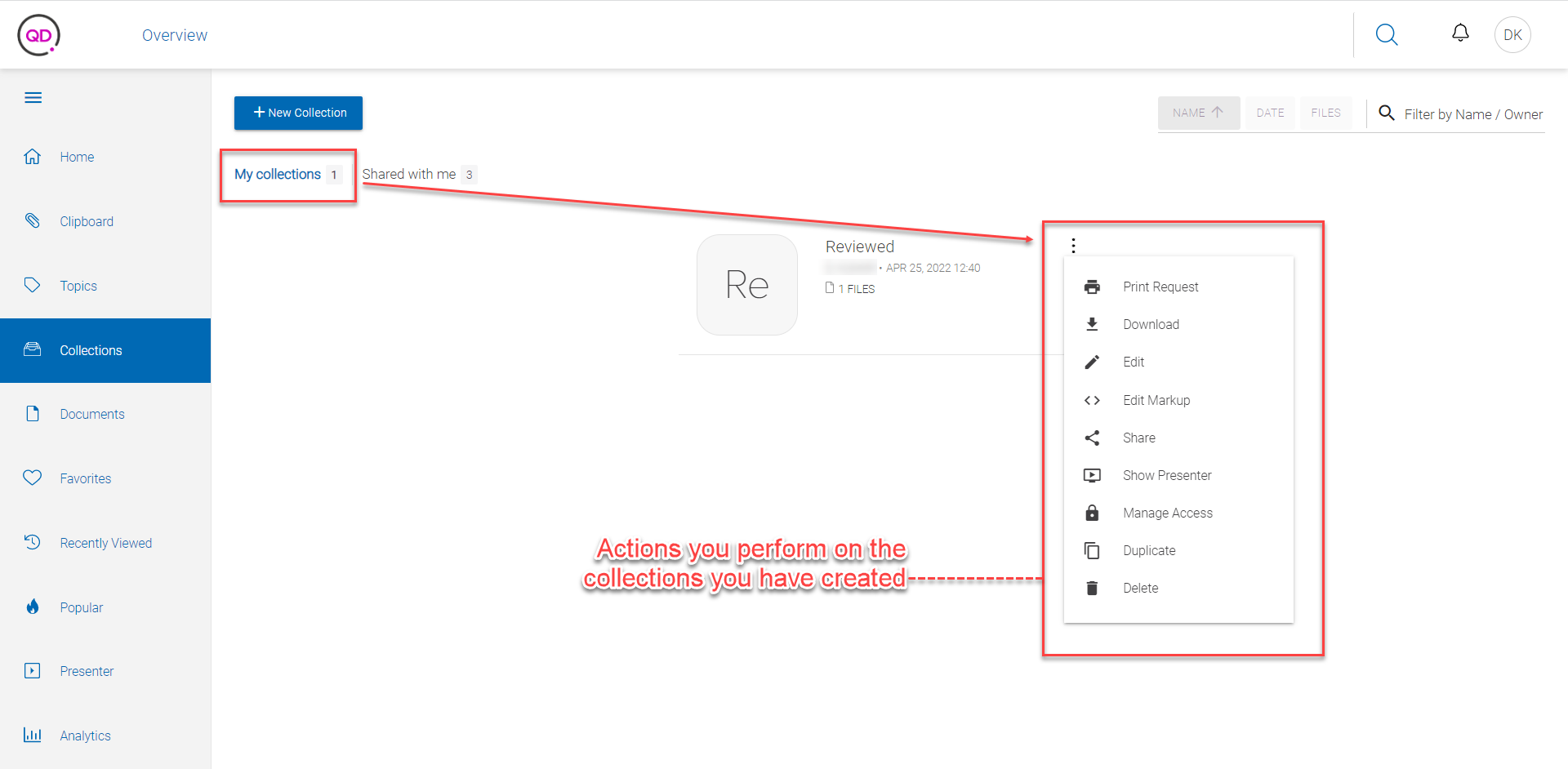
-
Mark as recommended: You can mark a topic recommended through the thumbs up icon
 on the topic listing.
-
Follow a topic: You can follow a topic through the RSS icon
 on the topic listing.
You can access the following actions through the kebab menu on the topic listing:
-
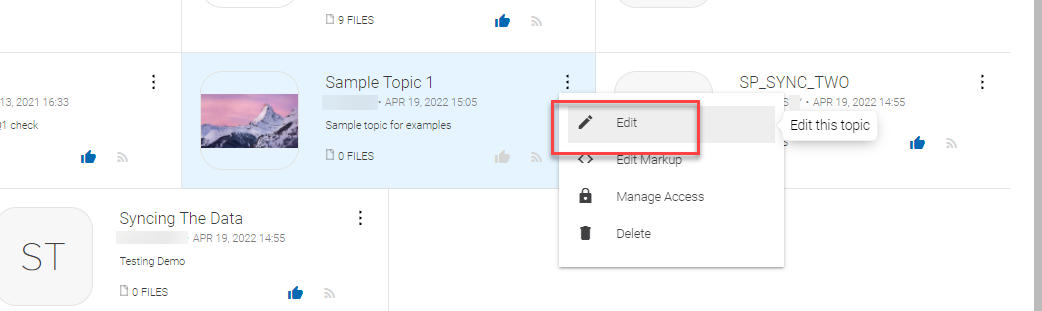
Edit: Allows you to edit a topic, in the same manner, you add a new topic.
-
Edit Markup: Allows you to edit the user interface of the landing page of the topic.
-
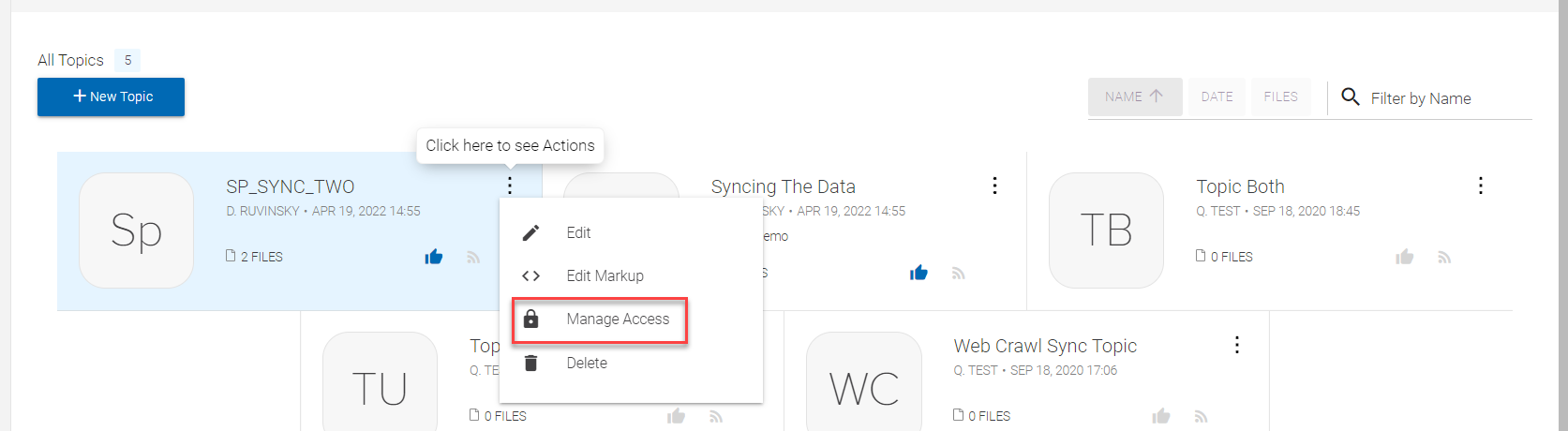
Manage Access: Allows you to define access for the users and user groups in your organization to the topic.
-
Delete: Allows you to delete a topic.
View a Topic
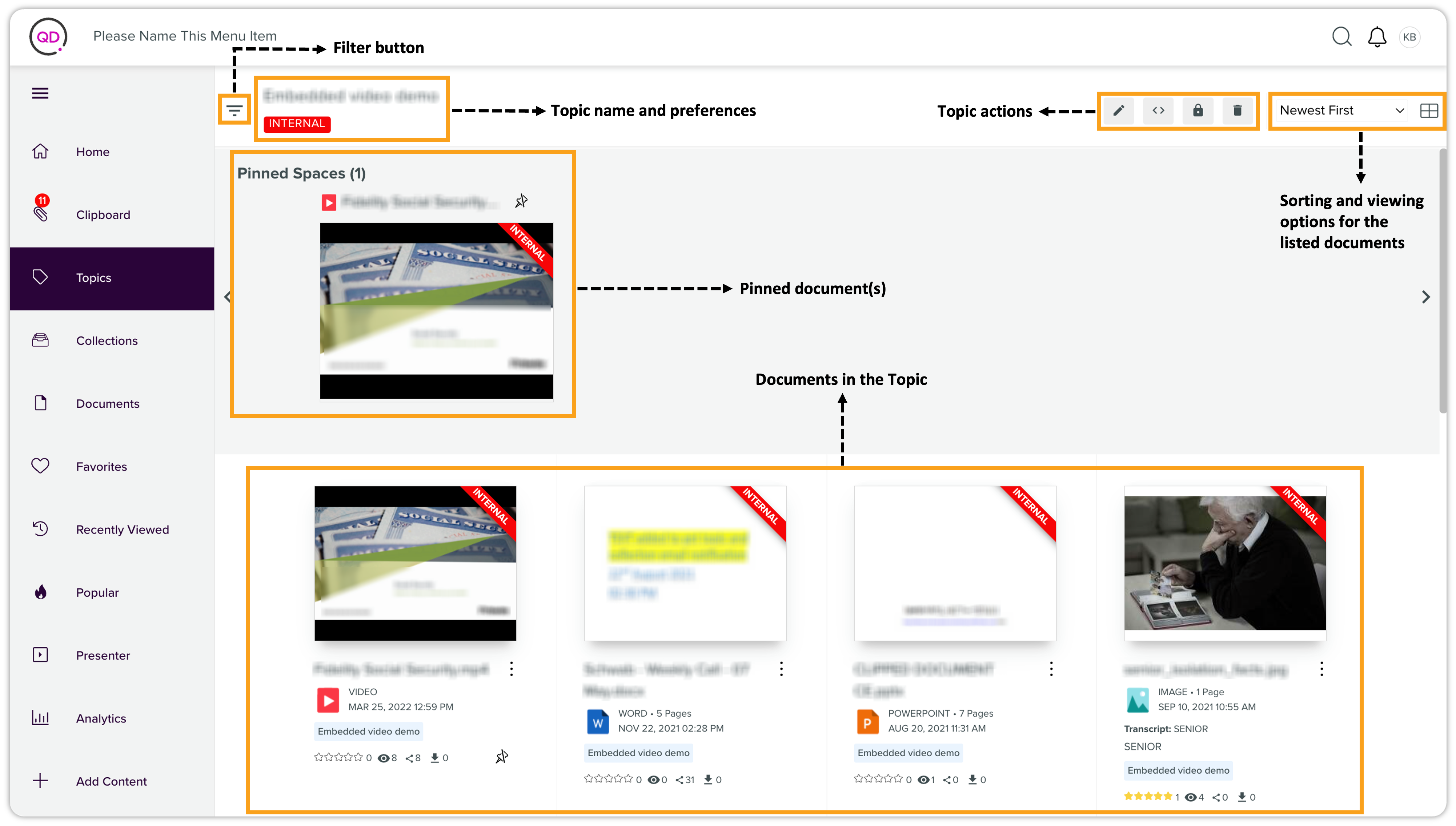
You can view a topic by clicking a topic's card in the listing. A topic landing page has the following elements:
-
Filter options for the documents listed in a topic. You can expand the filters through the icon
 , left to the topic name. These filters are the same as the filters on the Search Results page.
-
Topic name and preferences tags (for example, if you have marked a topic as recommended or as internal).
-
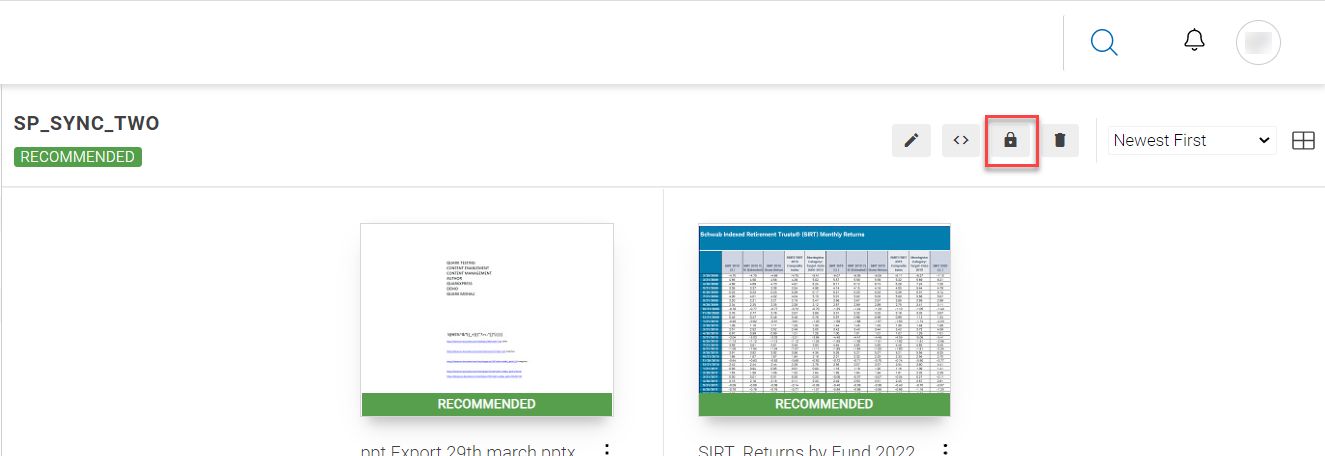
Icons for topic actions (Edit, Edit Markup, Manage Access, and Delete).
-
Sorting and viewing options for the documents listed in a topic. You can sort the documents in a topic, in the same manner, you sort search results, i.e., by relevance, name, views, rating, and so on.
-
The options to pin a document or mark as favorite, which appear on mouse hover.
-
List of documents in the current topic.
Edit a Topic
To edit a topic:
-
To open the Edit Topic dialog, do one of the following:
-
Click Edit from the kebab menu actions on the topic listing page, or
-
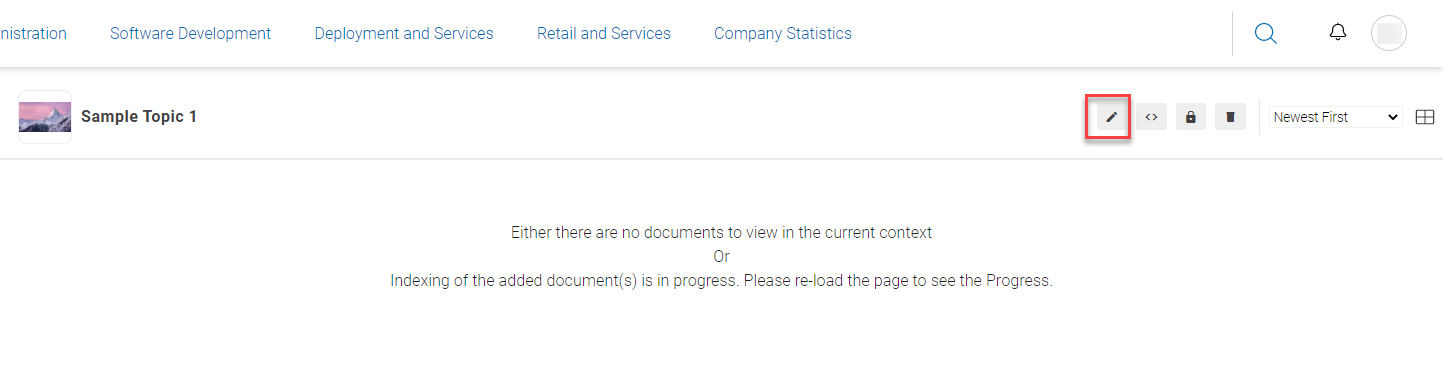
Click the edit icon on a topic's page.
-
-
In the Edit Topic dialog, make the changes you want to edit; for example, change the topic name, thumbnail, summary, categories, or preferences.
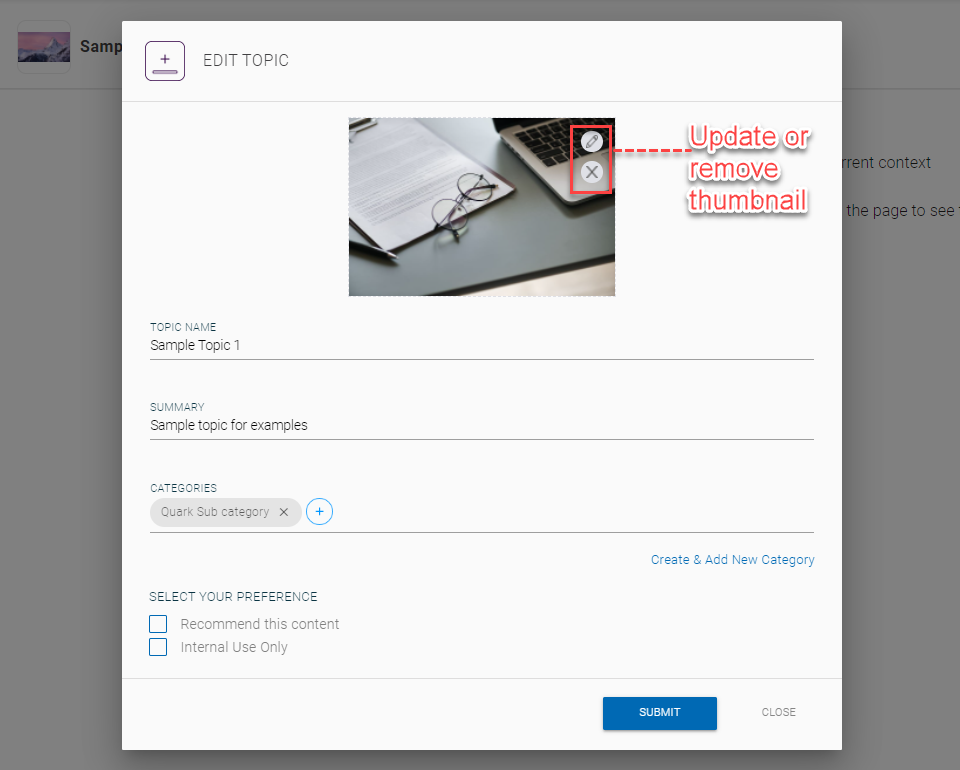
-
Click Submit.
Edit Markup
The Edit Markup action allows you to design the markup of a topic's landing page. You can use HTML5 Markup language to make the changes you want. To edit markup:
-
To open the Edit Markup wizard, do one of the following:
-
Click Edit Markup from the kebab menu actions on the topic listing page, or
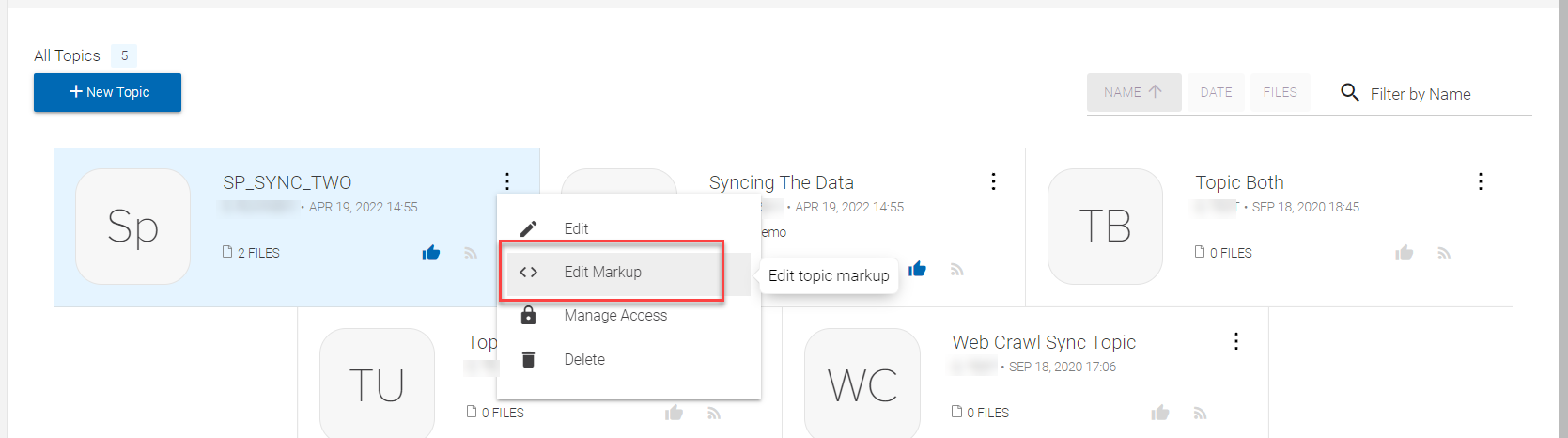
-
Click the markup icon on a topic's page.
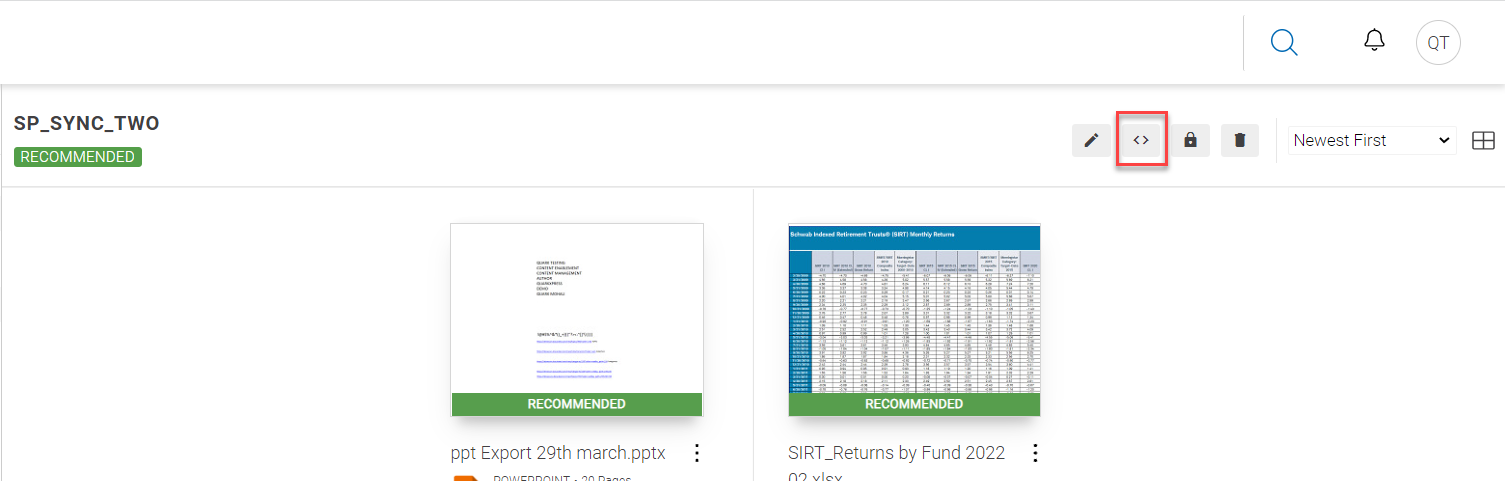
-
-
In the Edit Markup wizard, apply the markup design you want for a topic's landing page.
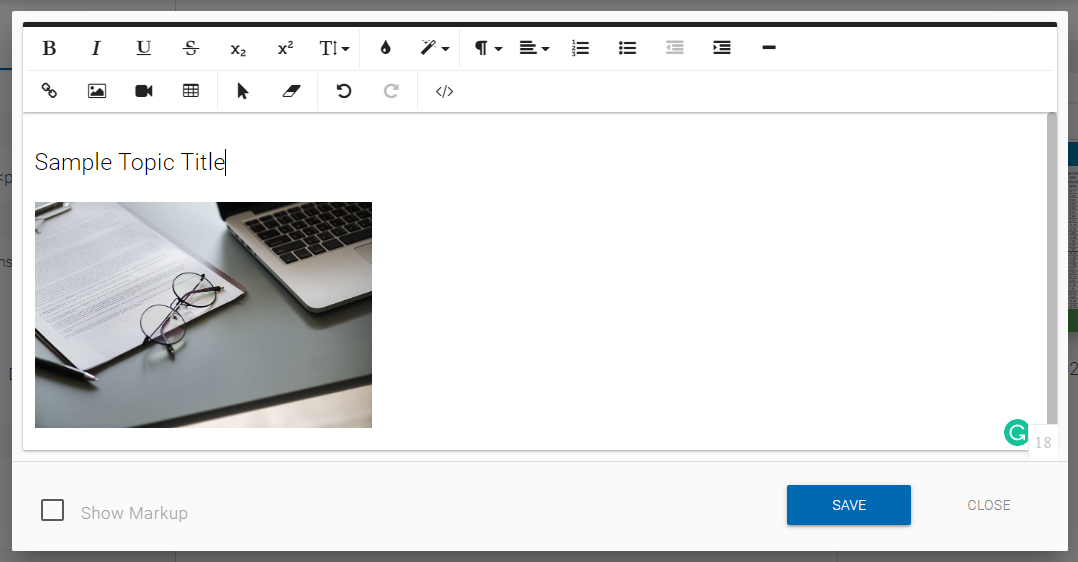
-
Click Save.
Manage Access to Topic
The Manage Access action allows you to manage access to a topic for different users. To manage access to a topic:
-
To open the Manage Access dialog, do one of the following:
-
Click Manage Access from the kebab menu actions on the topic listing page. Or
-
Click the lock icon on a topic's page.
-
-
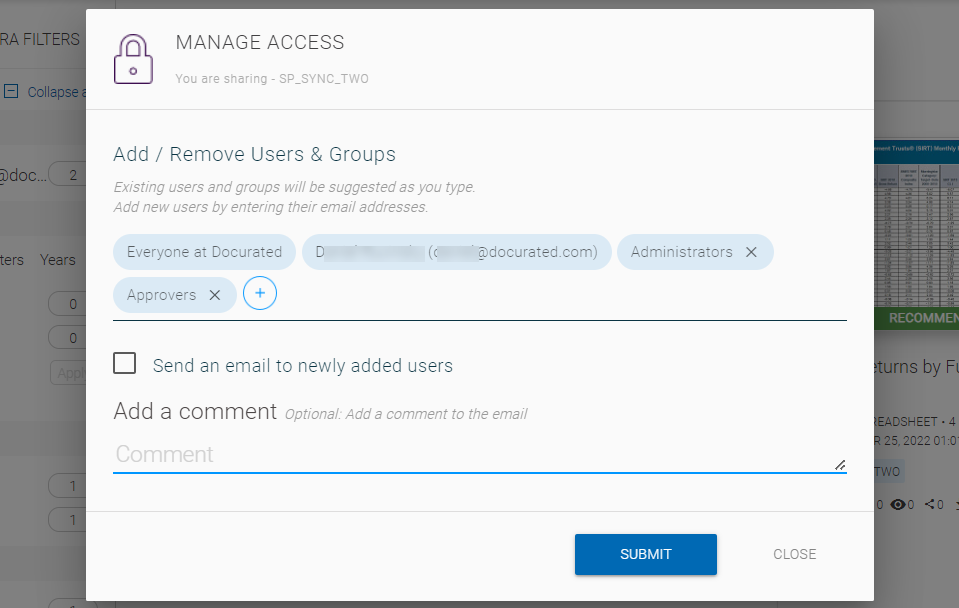
In the Manage Access dialog, add/remove a user to/from whom you want to grant/revoke access to a topic. You can also choose to send an email alert with a custom message to the new users you have added to a topic.
-
To add a user, click the add icon
 to open the list of users in your organization and select a user.
-
To remove a user, click the cross icon against an added user or user group.
-
-
Click Submit.
Download Multiple Documents from a Topic
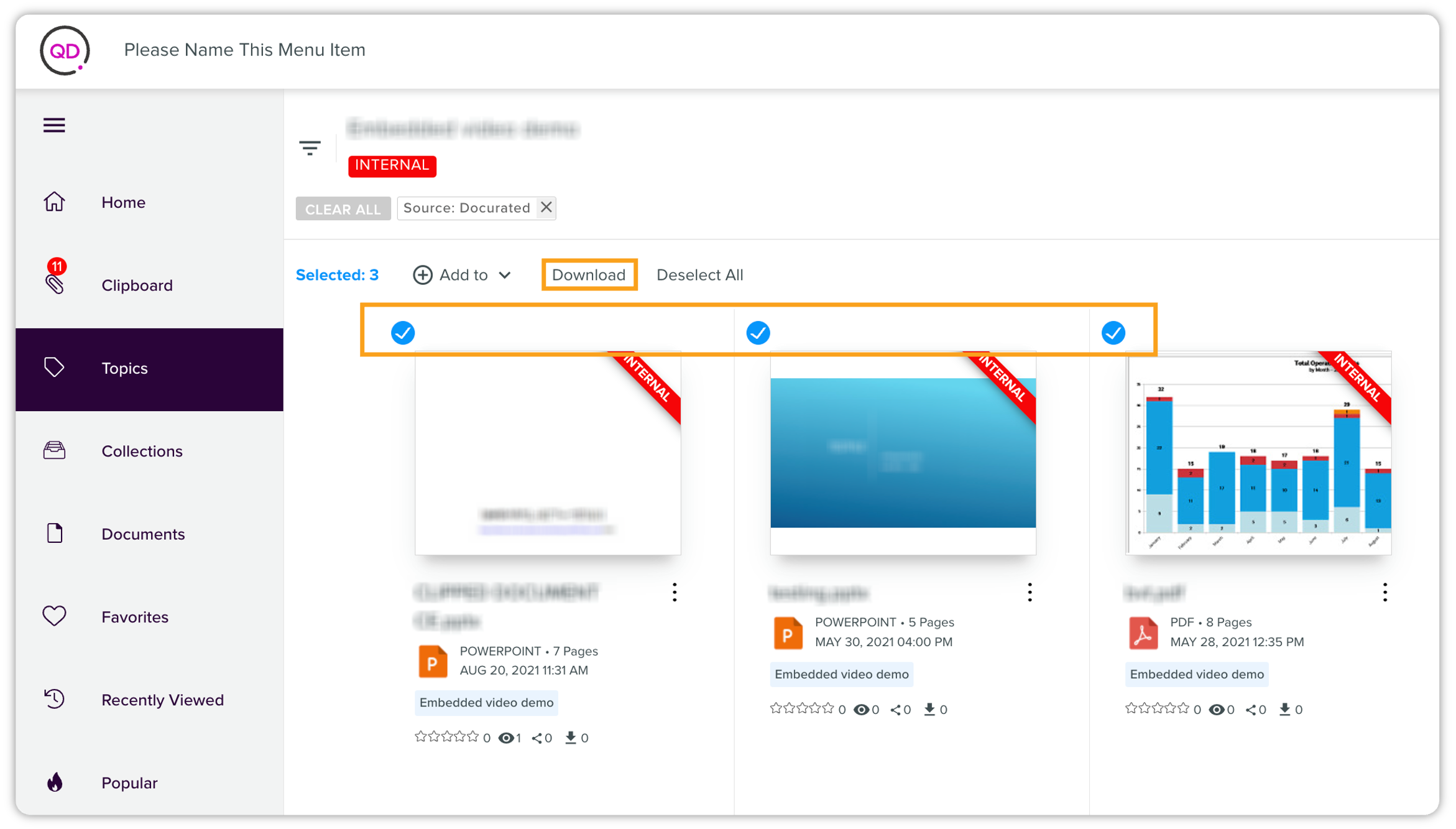
You can download multiple documents stored in a Topic folder. To do this, simply open the Topic folder and select the documents you want to download. Once you select one or more documents, the Download option appears. Click it to download a ZIP file containing the selected documents. To help keep your downloads organized, ZIP files are automatically named after the source folder (e.g., downloading from the "June 2025" Topic folder will result in a "June2025.zip" file).