Documents
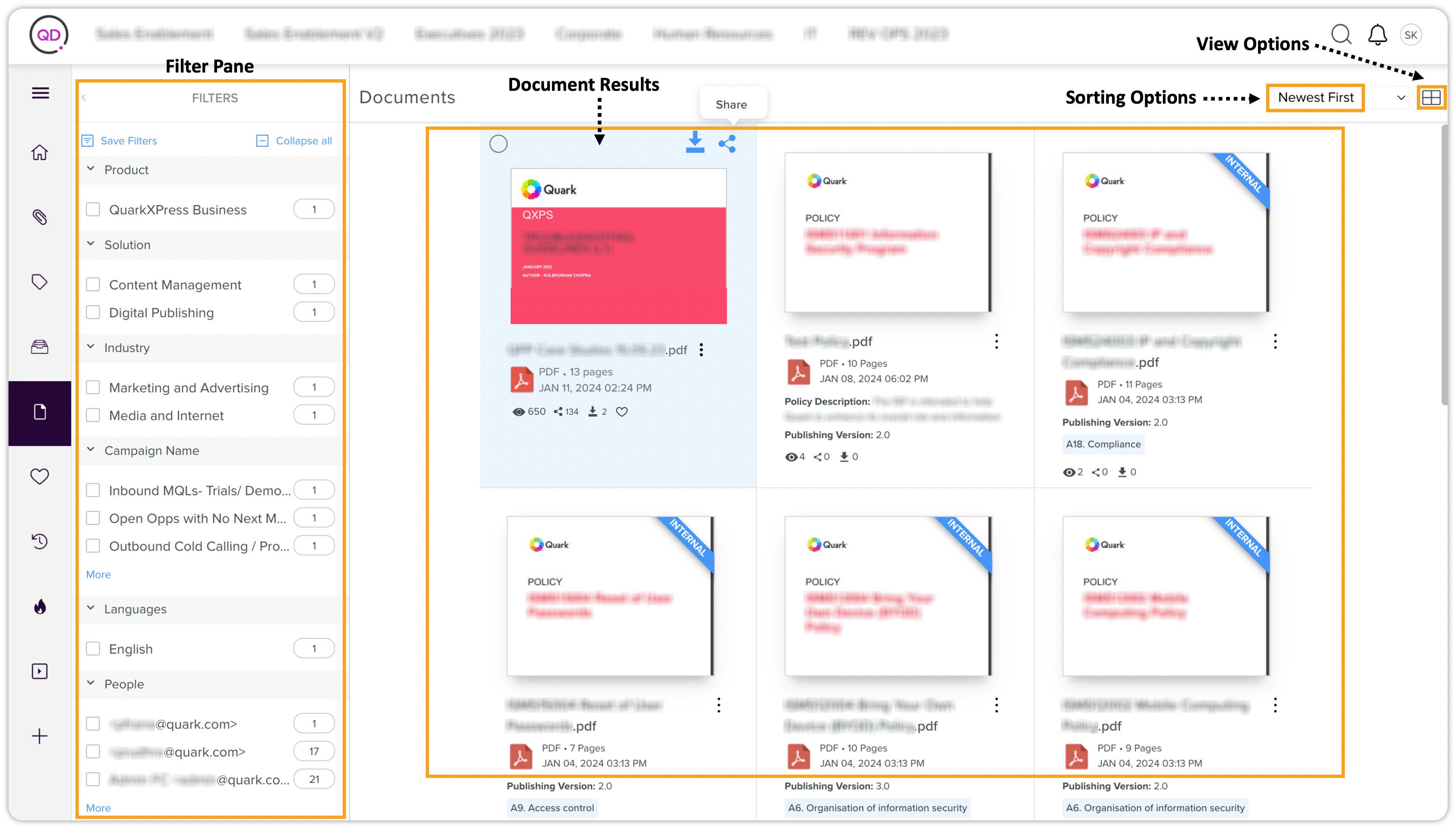
The Documents page lists all the documents on the server you have access. You can filter the documents through the filter pane on the left. These filters are the same as the filters on the Search Results page. You can also sort the documents by relevance, name, views, rating, and so on, and switch the view between grid and snippet views.
Document Card
A document card in the document results contains the following information:
-
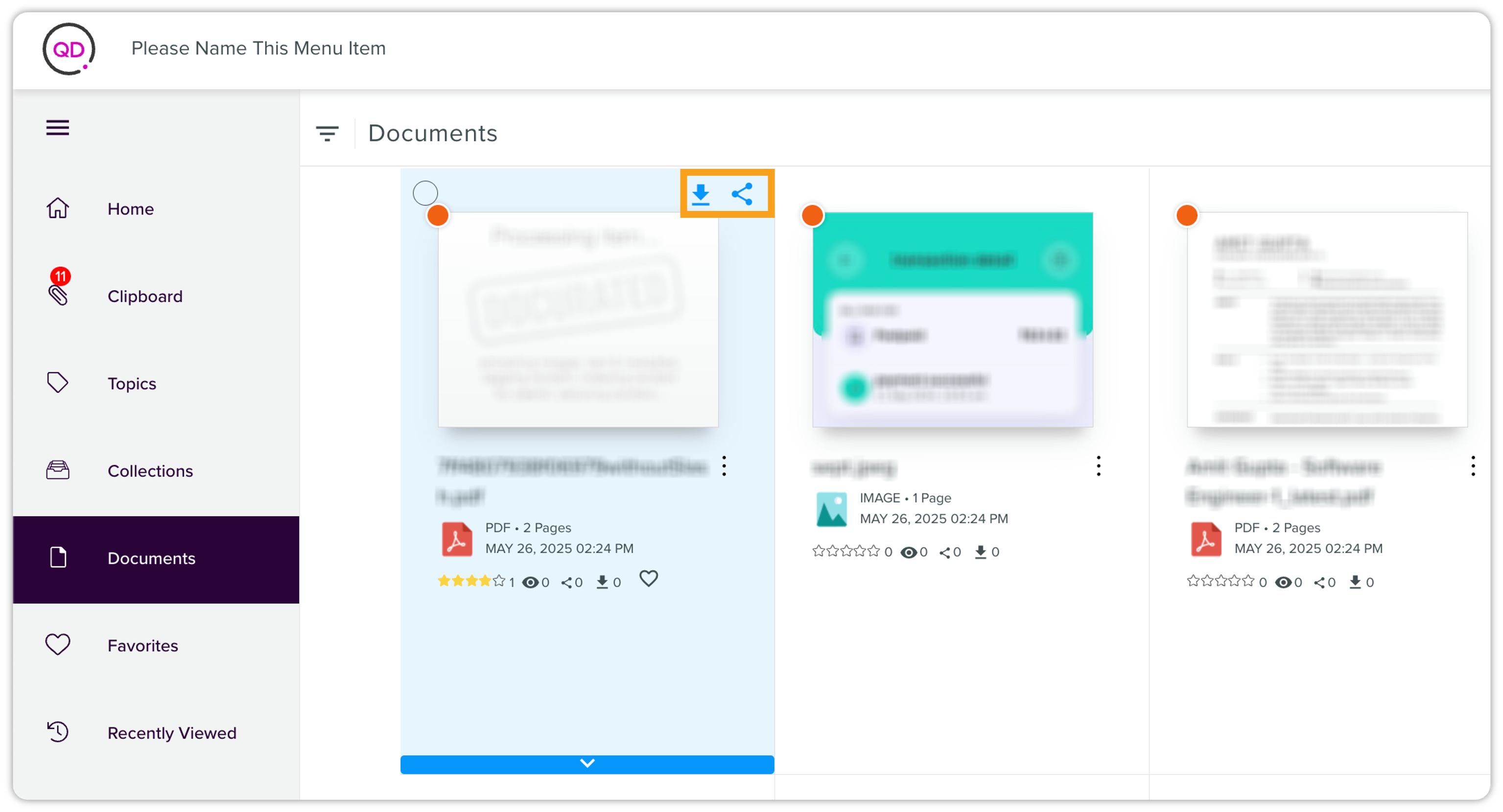
Download & Share options on the top of the document card
-
Document thumbnail (which is the first page/slide/sheet of the document)
-
Document name
-
File type
-
Number of pages/slides in a document
-
Date and time of the creation
-
Name of the topic a document is a part of
-
Document rating (an aggregate of all the versions of a document)
-
Number of views (an aggregate of all the versions of a document)
-
Number of shares (an aggregate of all the versions of a document)
-
Number of downloads (an aggregate of all the versions of a document)
-
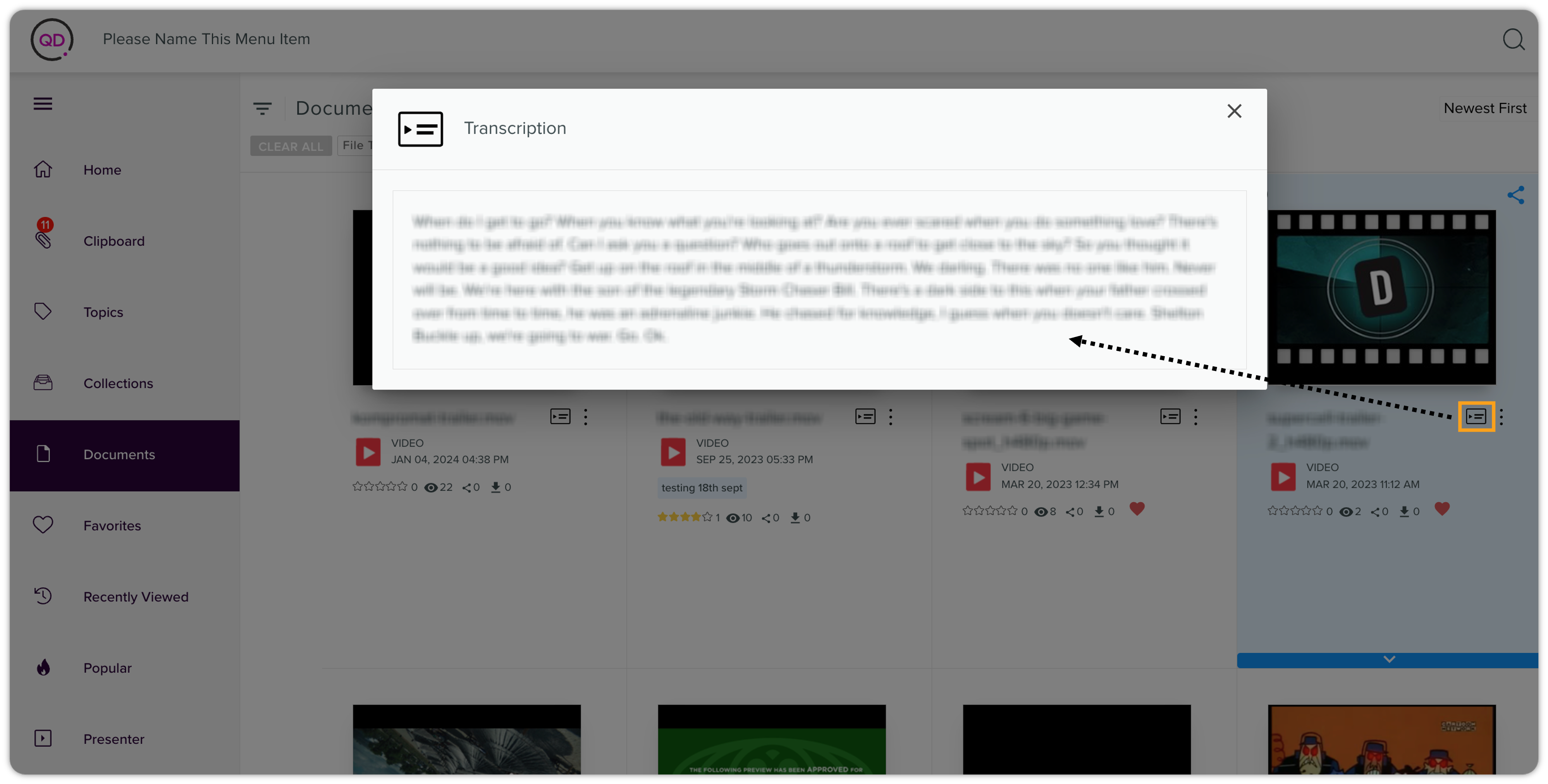
Transcript icon
 [for video files only]
Document Actions
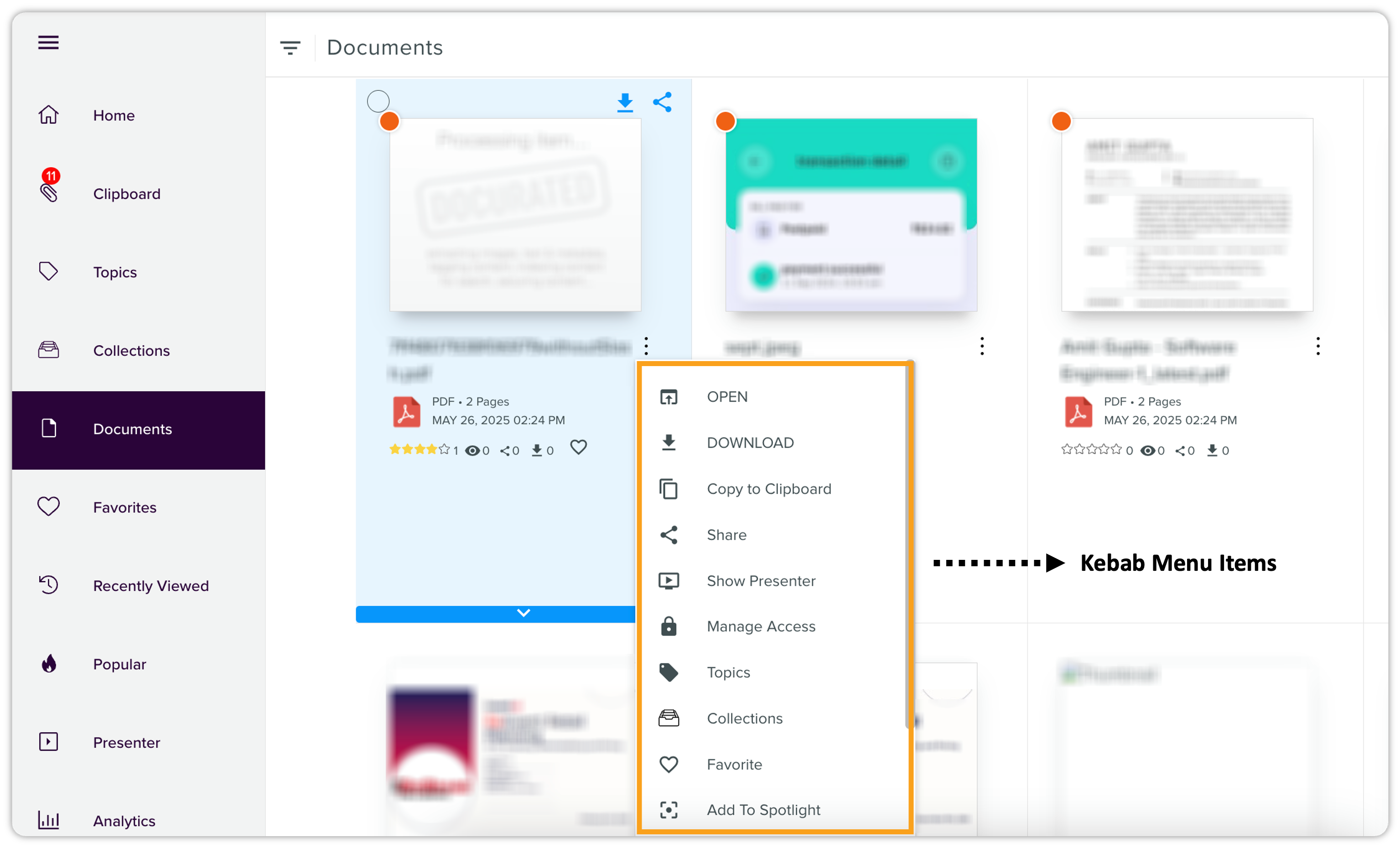
Quark Docurated allows you to perform several actions on a document. Some actions you perform right on the document card and some actions you can perform through the kebab menu at the upper right corner of a document card.
Document Card Actions
You can perform the following actions within a document card, which appear when you hover the cursor over the document card:
-
Download or Share: Upon hovering over the document, the Download and Share options will appear on the document card.
-
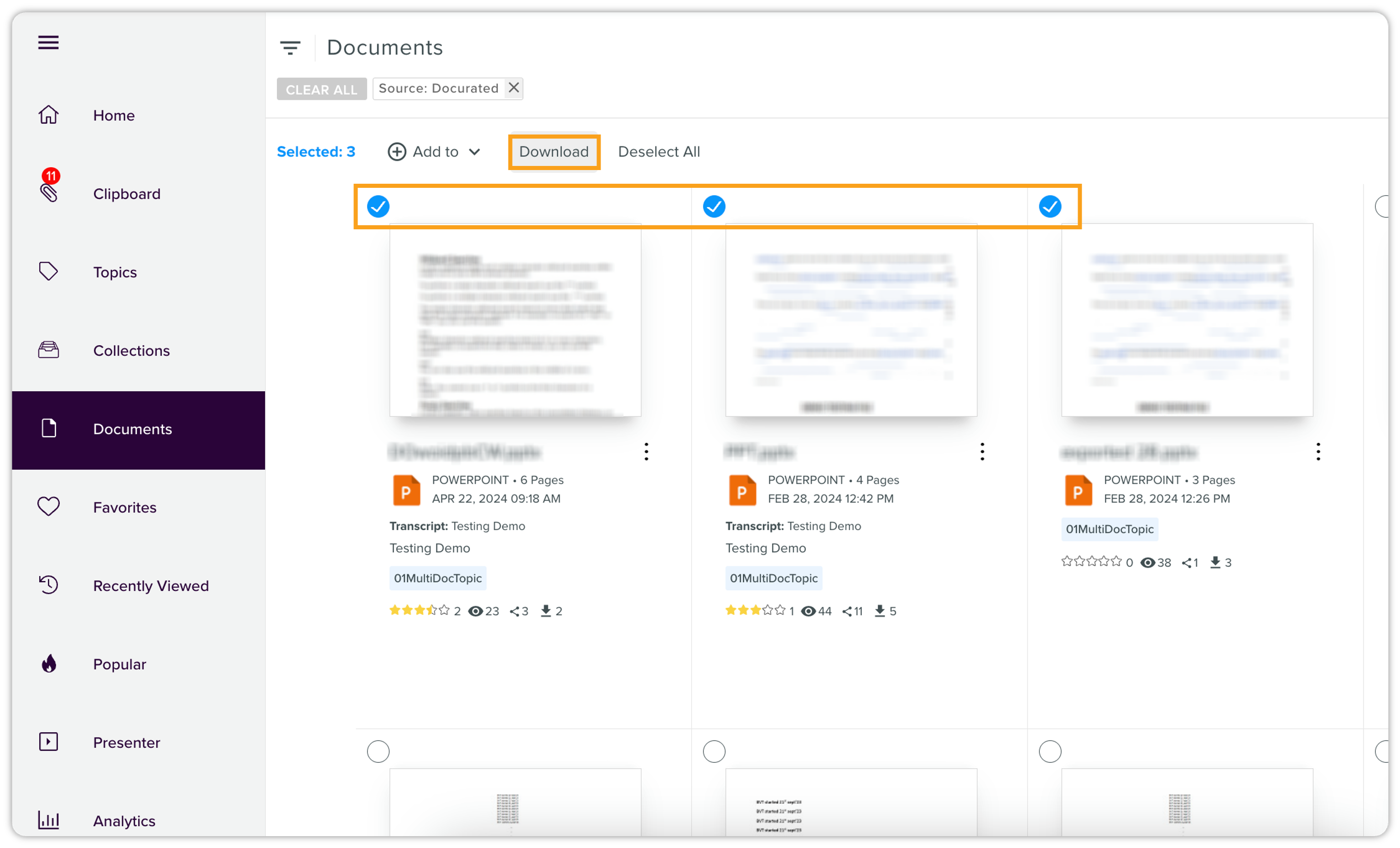
Download Multiple Documents: You can also download multiple documents at a time. Simply select the desired documents you want to download, and then click Download option that appears on the top.
-
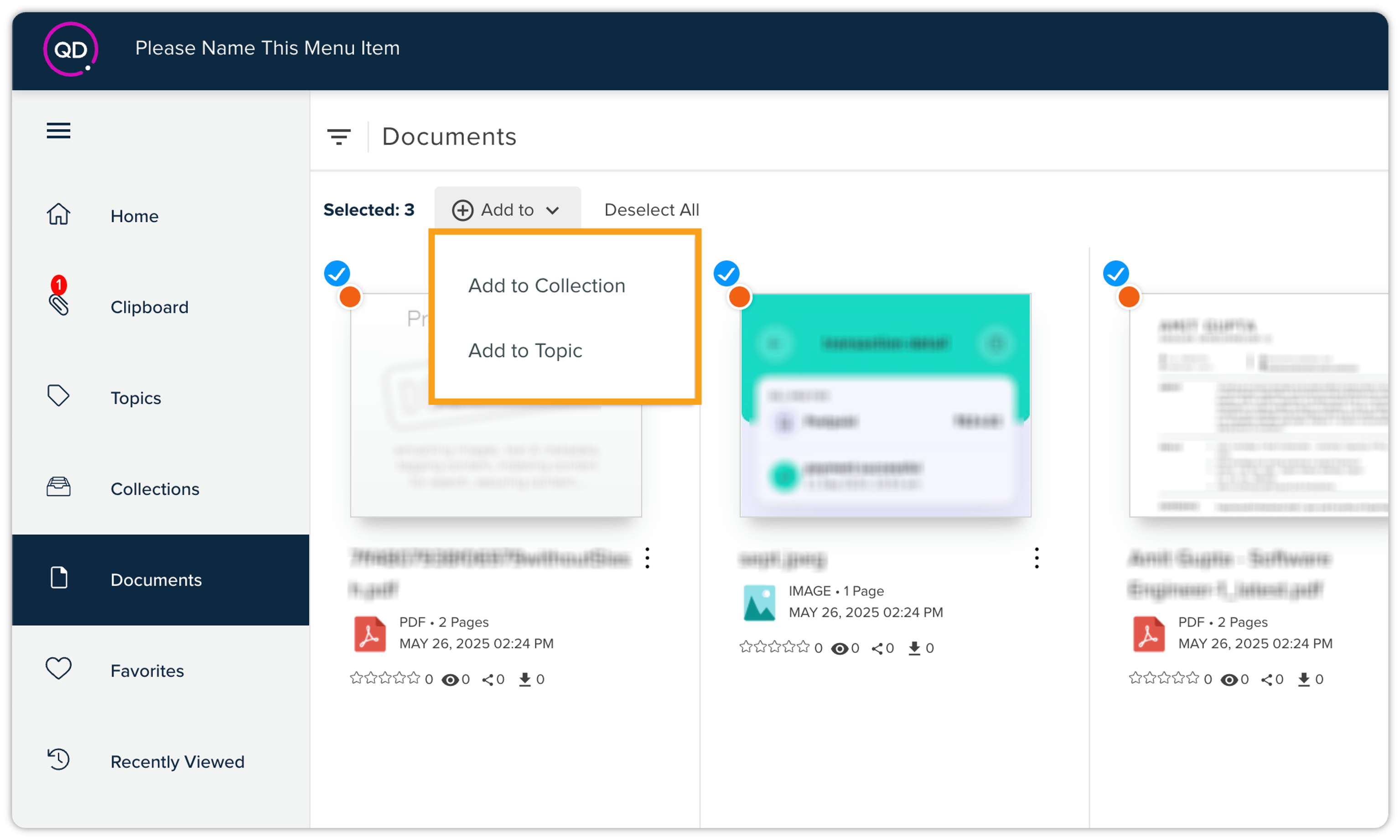
Select a document (select multiple documents) to add to a collection or a topic.
-
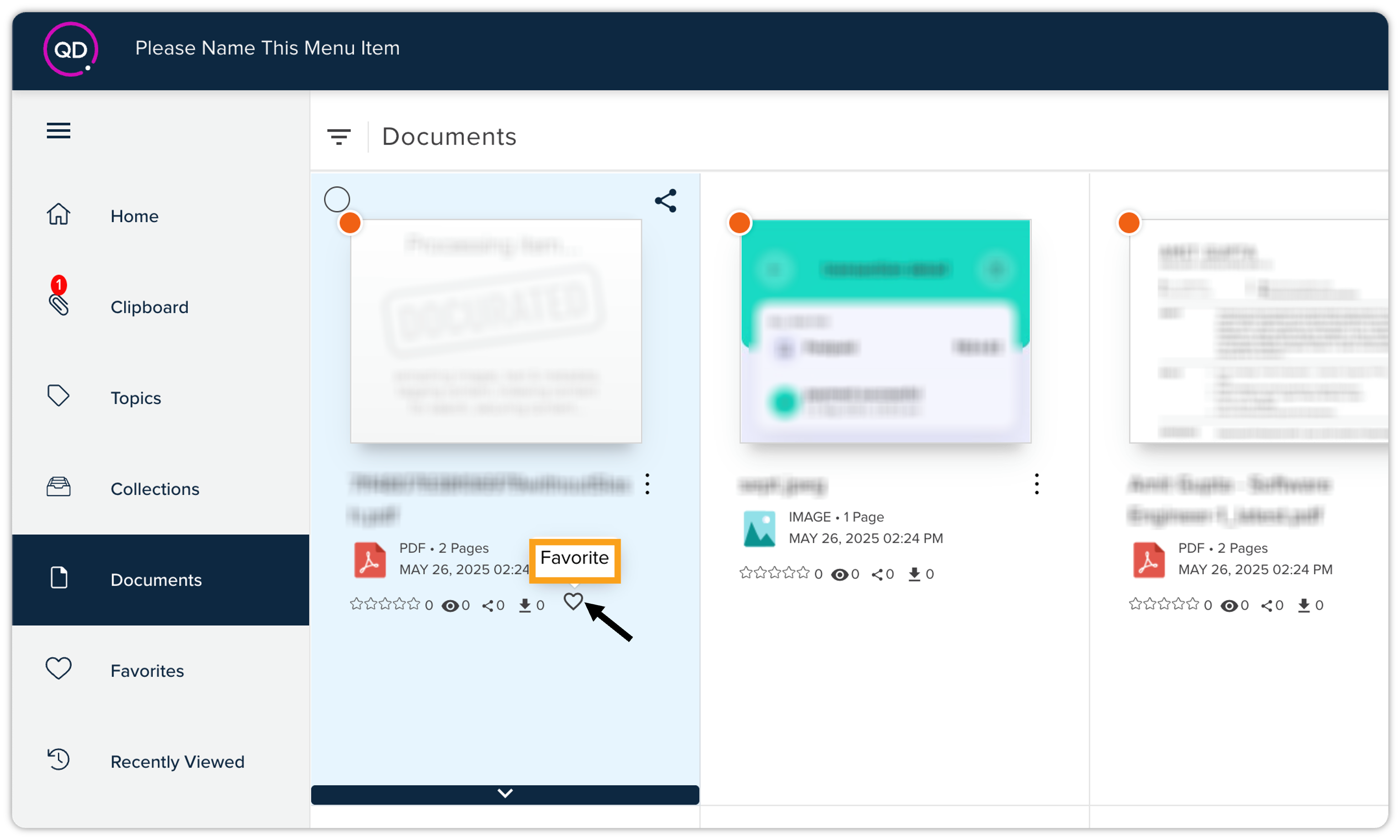
Hover over the document, and mark it as your favorite.
-
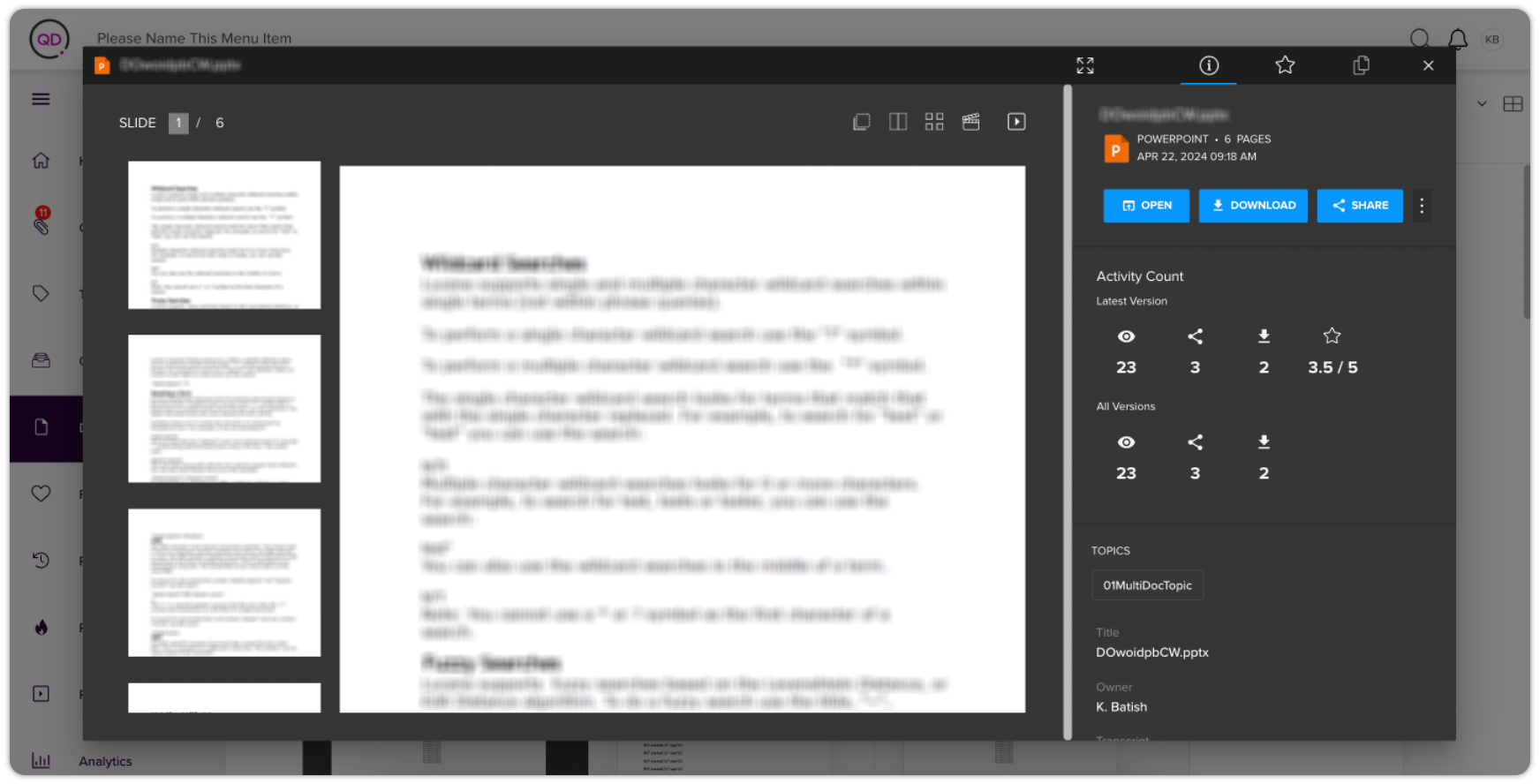
Preview: To quickly preview a document, click it once. This opens the document in an overlay window where you'll find several options. Refer to the Preview Mode section for complete details.
-
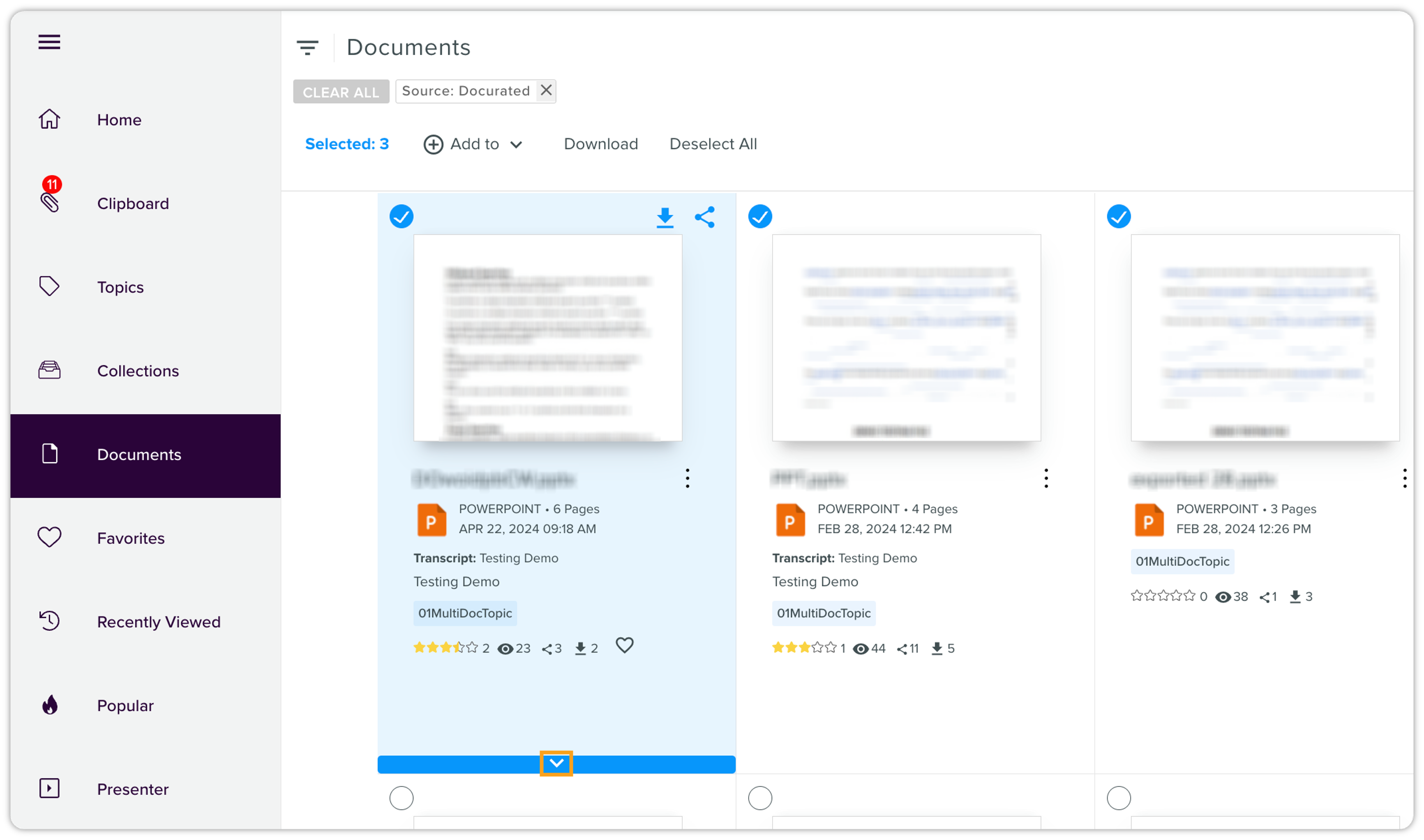
You can also preview documents by clicking the blue dropdown arrow located at the bottom of the document card. This action opens a preview tab at the bottom of the screen, which you can scroll through. To close the preview, simply click the Close icon.
-
-
View the transcript if the document is a video file through the icon
. 
Preview Mode
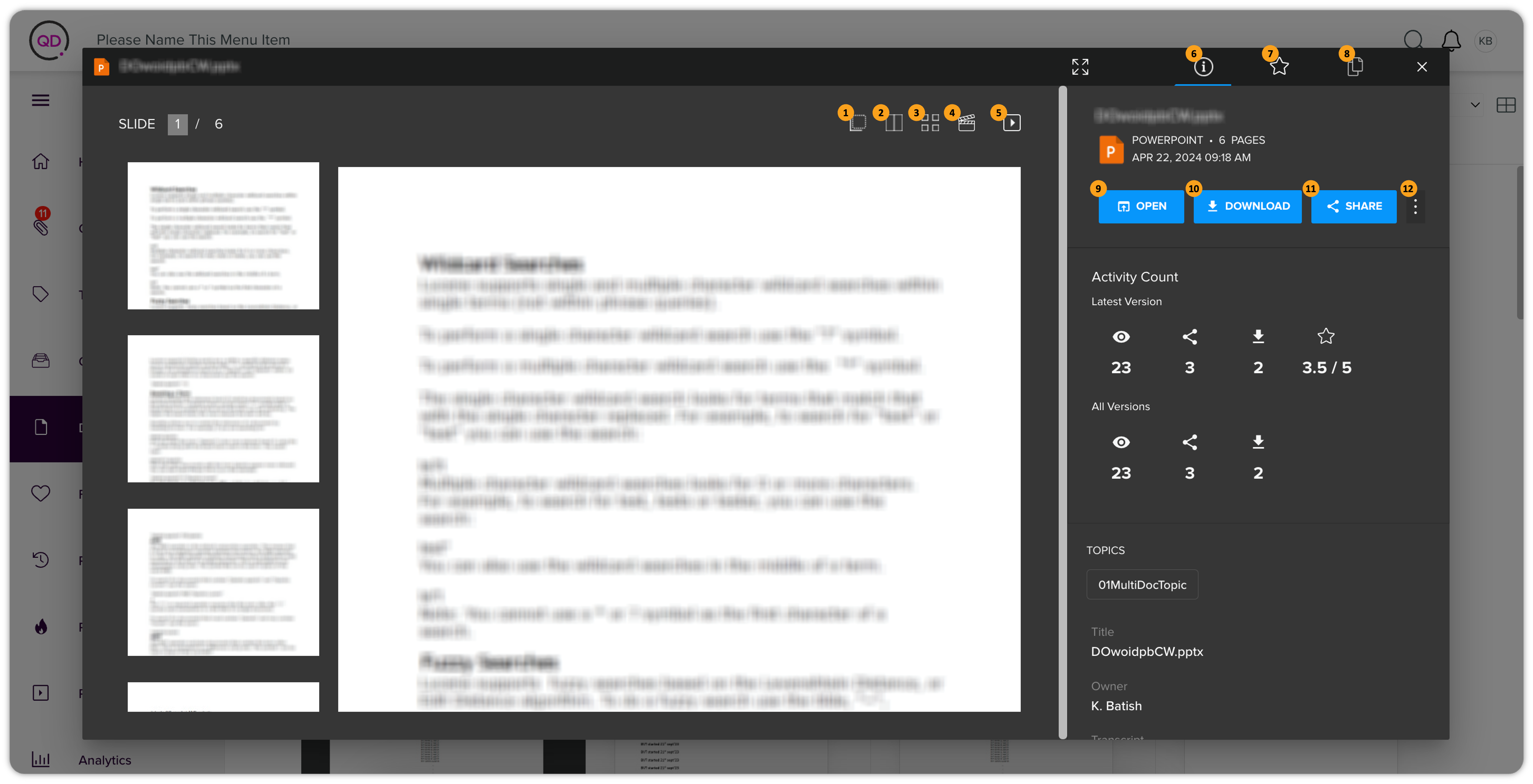
The Preview mode is similar to the presenter mode but with several additional information items and functions, which are as follows:
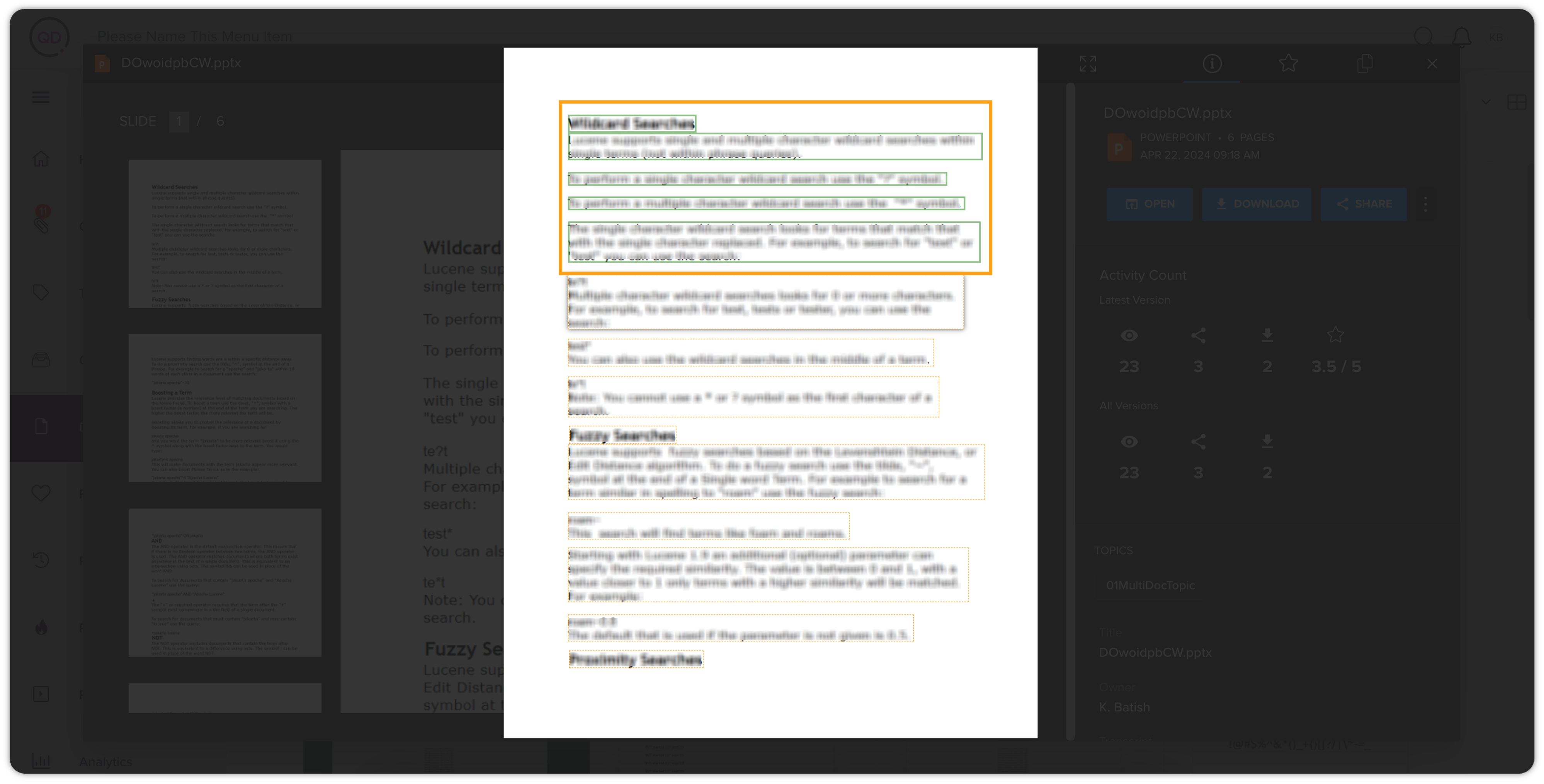
#1: Copy to Docurated Clipboard
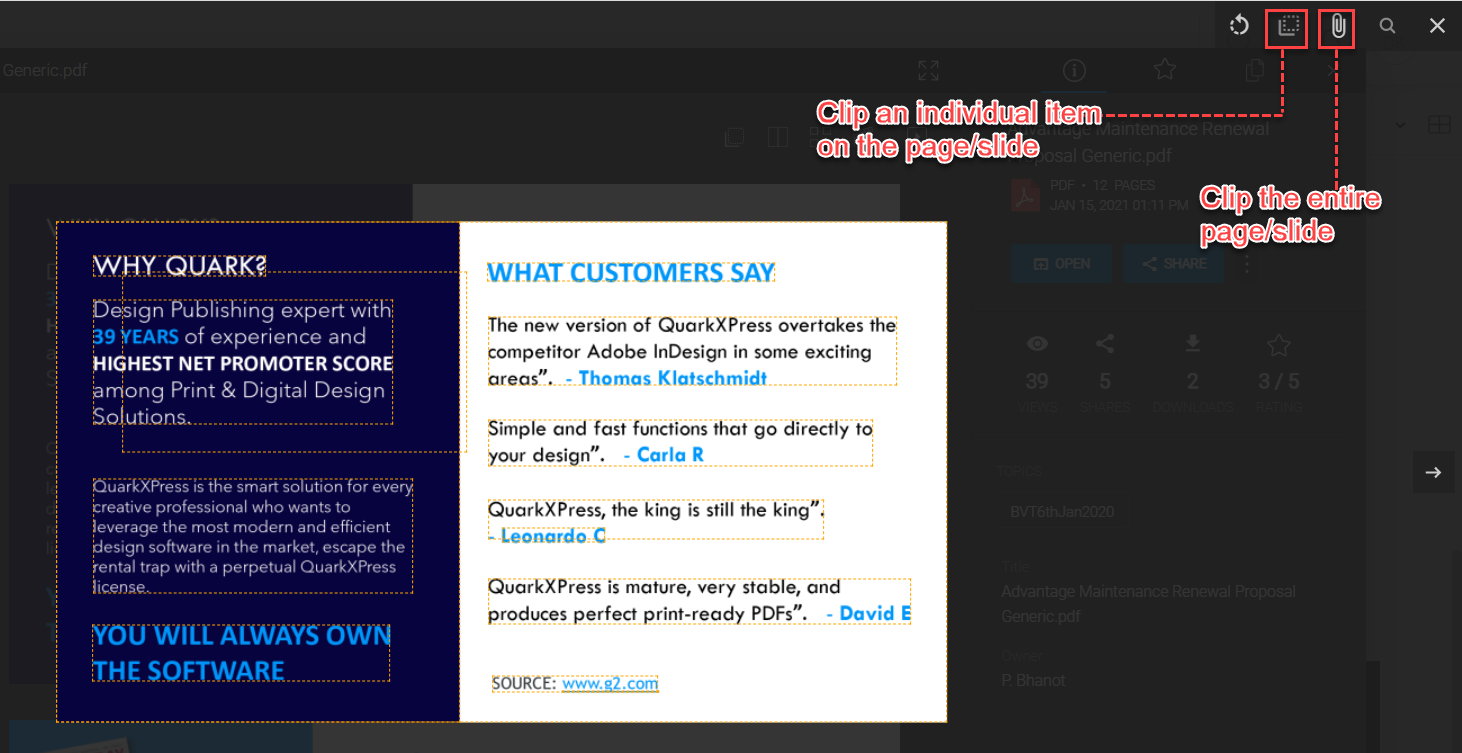
This option allows you to extract images, charts, texts, etc. for copying to the Docurated clipboard. Upon clicking this icon, the document opens up in the overlay window from where you select texts, images, charts, etc. The copied item will be highlighted in green color.
#2: Toggle Thumbnails Bar
This option allows you to hide or display the page/slide thumbnails at the left-hand side of the Preview mode screen. By default, it's enabled. Clicking the icon will disable it and the thumbnail will be hidden.
#3: Show Thumbnails
This option allows you to switch to the grid view to display all the thumbnails of the pages/slides in a document in a grid form.
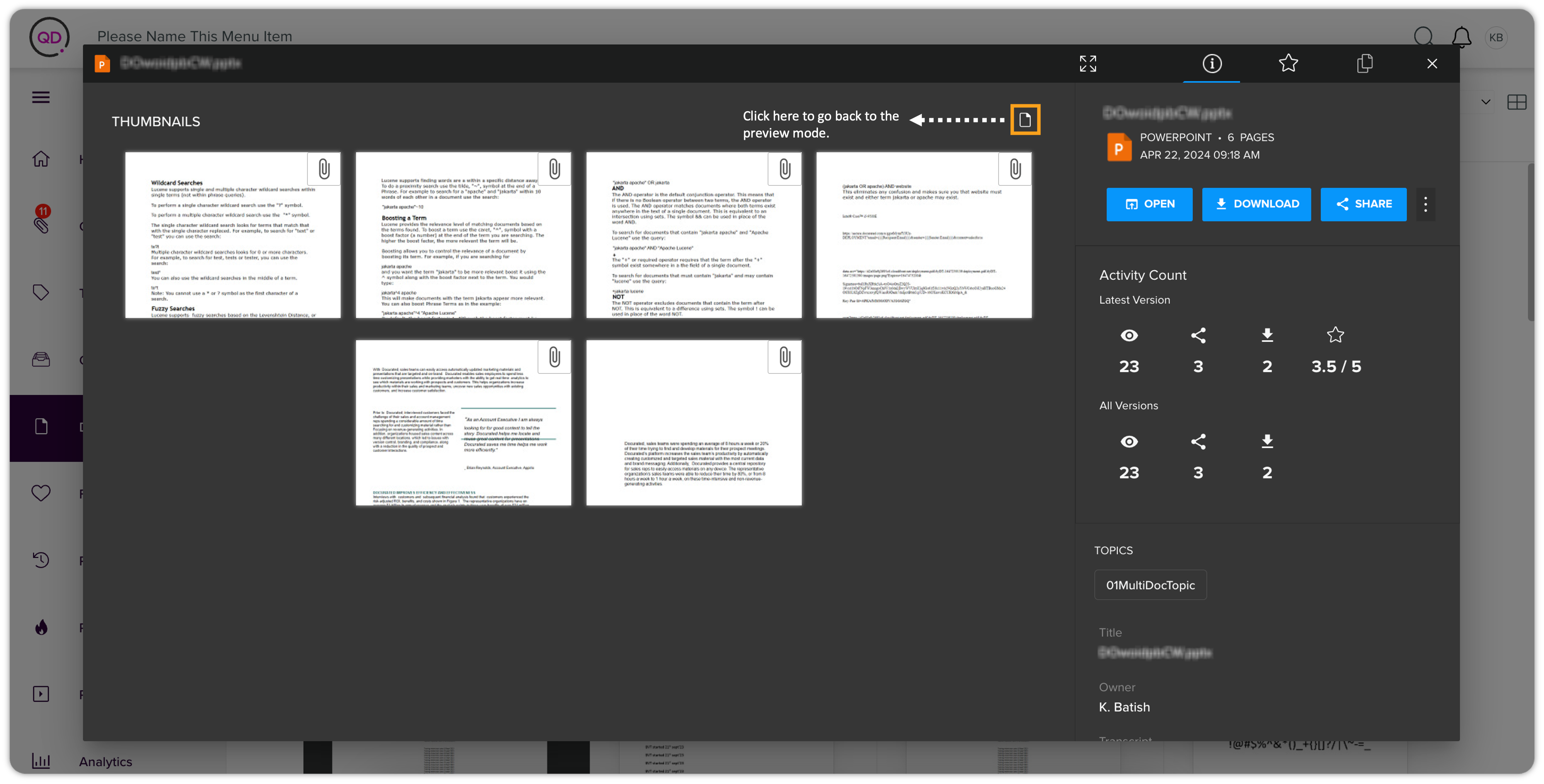
#4: Show Presenter
This option allows you to open the presenter mode within the preview mode. The presenter mode shows the document as a presentation (with slides to navigate).
#5: Presenter
This option allows you to open the presenter mode in a new browser tab.
#6: Document Details
This is the Details tab where you can see the details of the document. Whenever users open the preview mode, this tab is opened by default. It contains the activity count (viewed, shared, downloaded, and the user ratings) for the current version of the document, the aggregate activity count for all the versions of the document, and the information related to the topic, document title, owner of the document, and description.
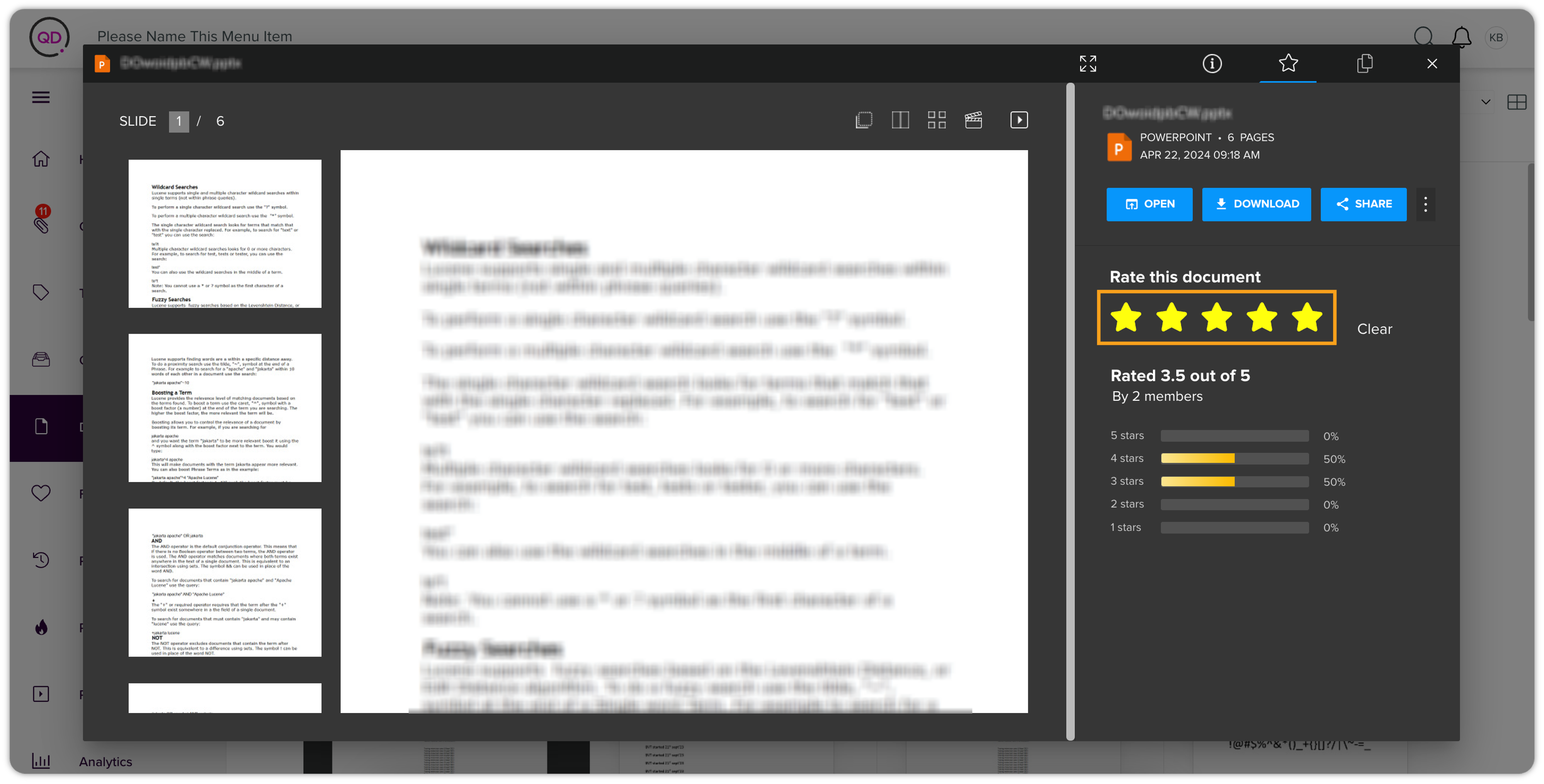
#7: Document's Ratings
This tab displays the rating details of the document and also lets you rate the document.
#8: Check Document Versions
This tab shows the other versions of the document, if available.
#9: Open
Clicking the Open button will open the document in a native application or download it to a local system, based on configuration.
#10: Download
Clicking the Download button will download the document to the local system.
#11: Share
Clicking the Share button will share the document via a link or via email. The process is the same as described in the section Collections > Collection Actions > Share.
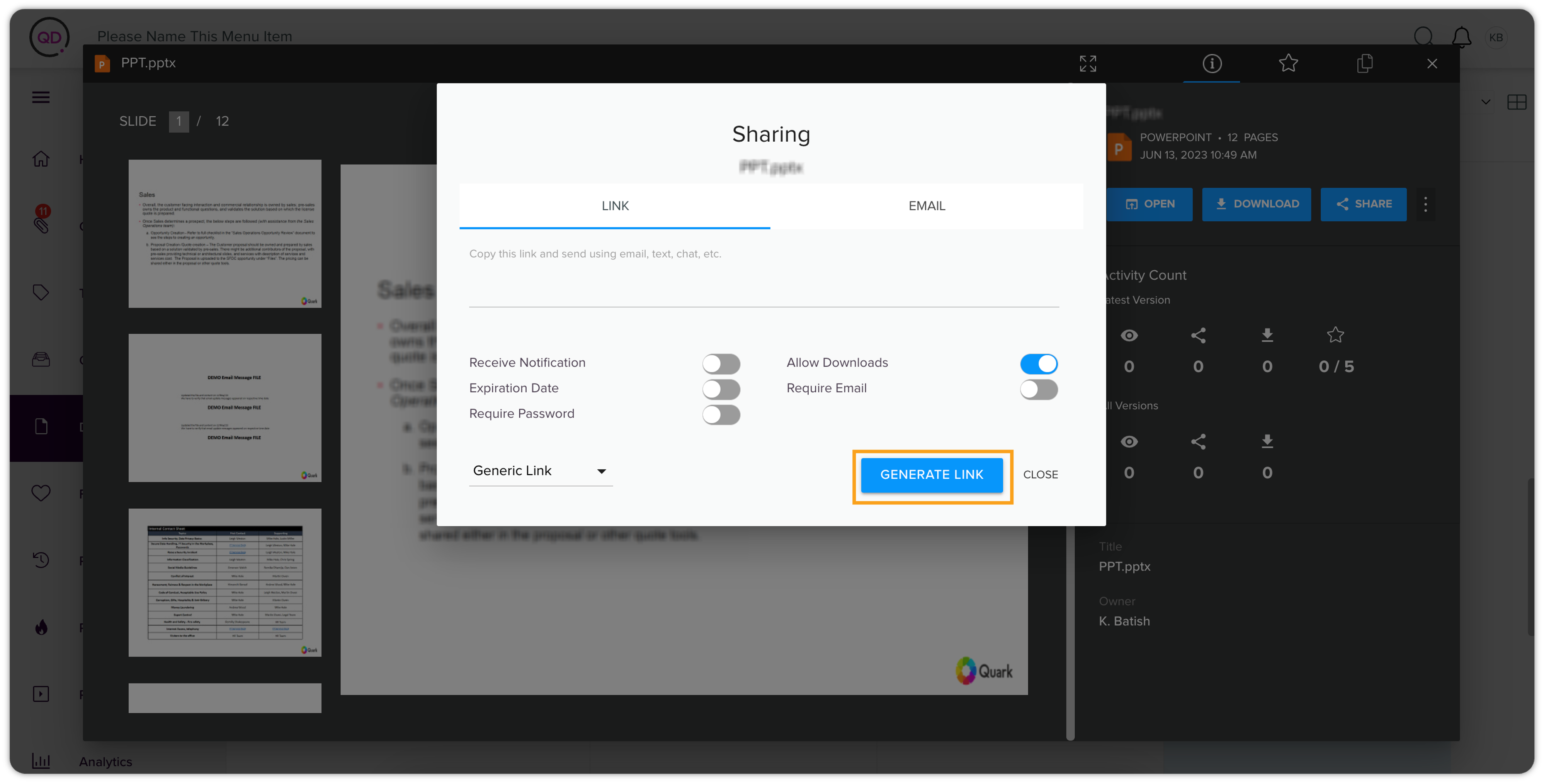
#12: More Options
You can expand the remaining document actions of the kebab menu.
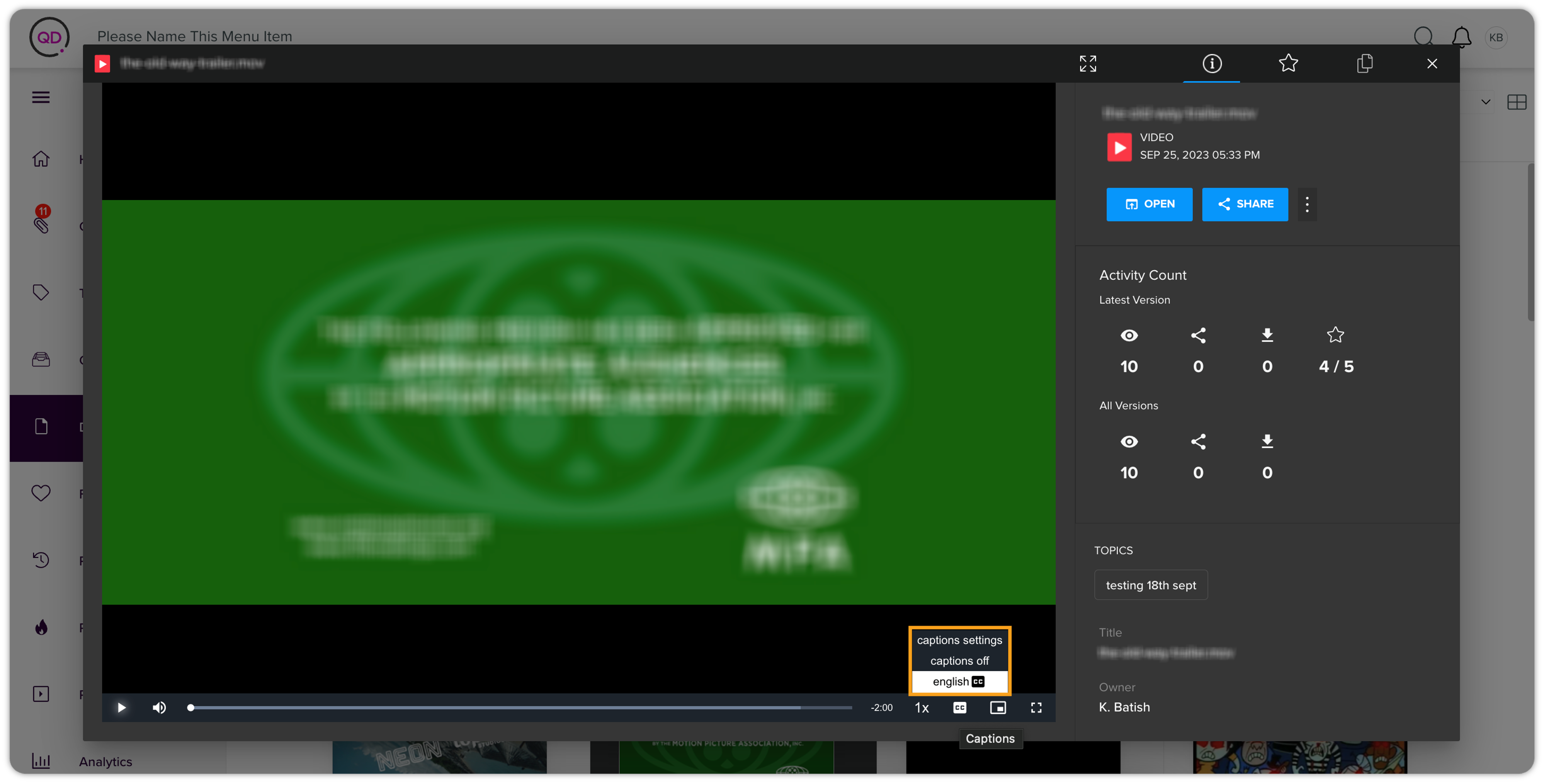
Closed Captions
The option Closed captions is only available for video files with transcript. It allows you to hide/display and manage the captions' font size, color, style, and position (through the option caption settings).
Kebab Menu Actions
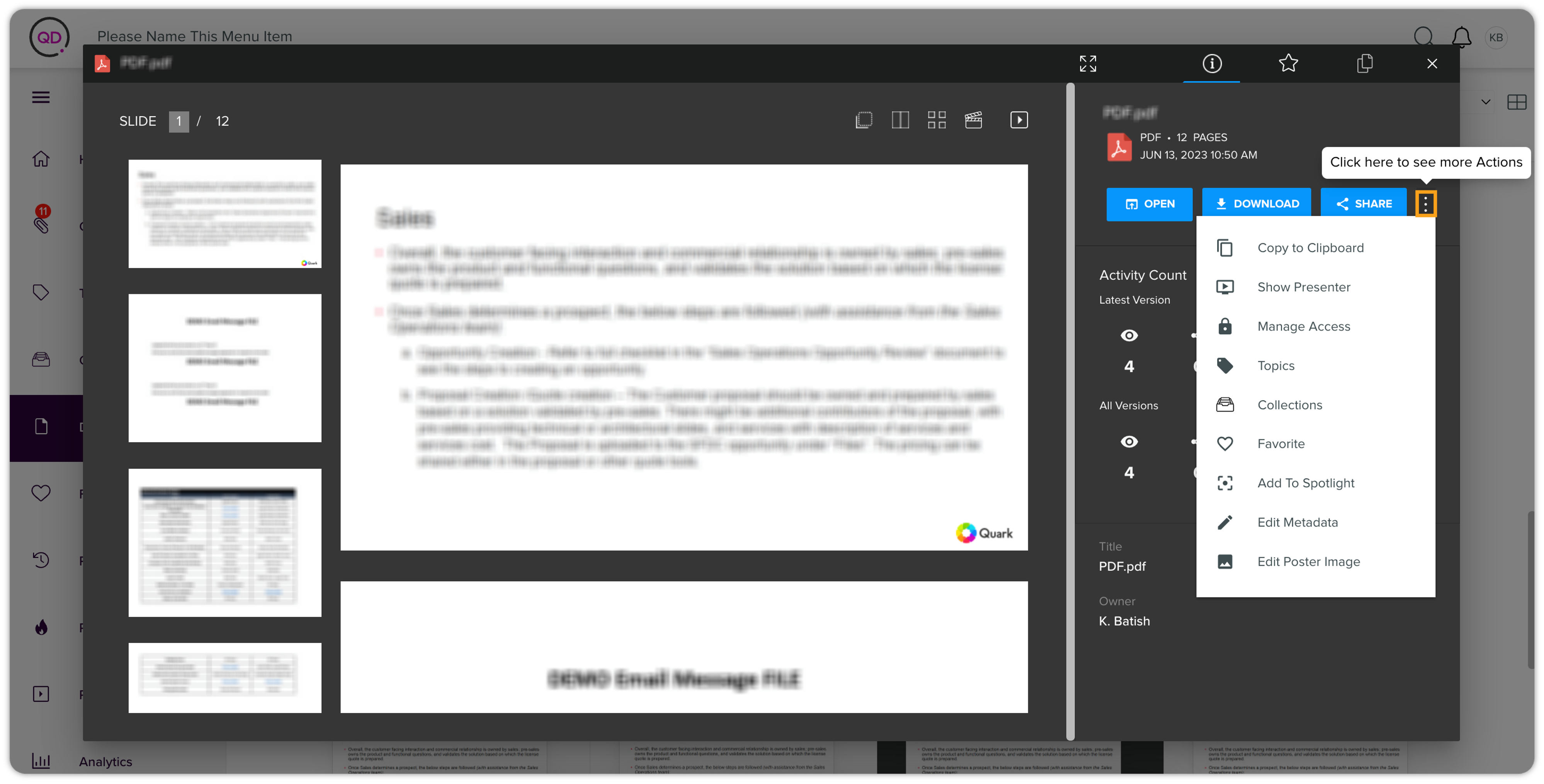
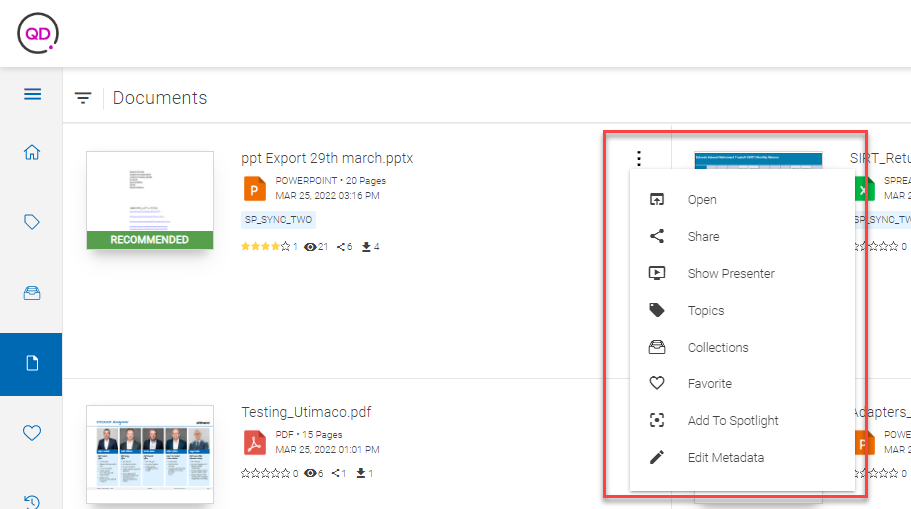
The kebab menu displays the following actions:
-
Open: Allows you to download a document on your local machine.
-
Share: Allows you to share a document via a link or via email. The process is the same as described in the section Collections > Collection Actions > Share.
-
Show Presenter: Opens the document in the Presenter mode in a new browser tab.
-
Topics: Allows you to view and manage the topics of a document.
-
Collections: Allows you to view and manage the collections of a document.
-
Favorite: Marks a document as a favorite.
-
Add to Spotlight: Allows you to add a document as a featured document on the homepage.
-
Edit Metadata: Allows you to view and edit a document's meta information.
Some key kebab menu actions are as follows:
Manage Topics
To view manage topics of a document:
-
In the kebab context menu, click Topics to open the dialog to manage topics.
-
In the dialog:
-
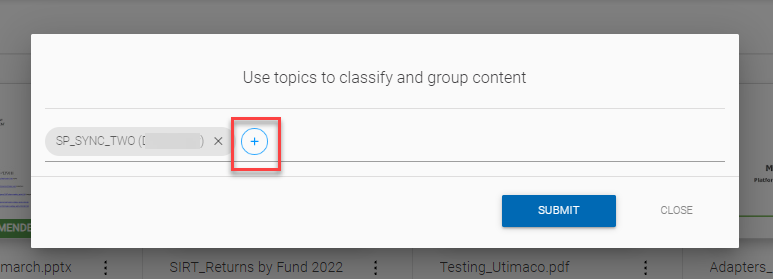
To add a document to a new topic, click the plus icon to expand the list of available topics and then select a topic.
-
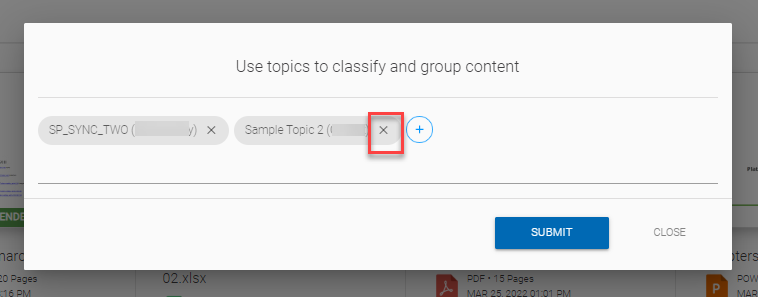
To remove the document from a topic, click the cross against a listed topic.
-
-
Click Submit.
Manage Collections
To view manage collections of a document:
-
In the kebab context menu, click Collectionsto open the dialog to manage collections.
-
In the dialog:
-
To add a document to a new collection, click the plus icon to expand the list of available collections and then select a collection.
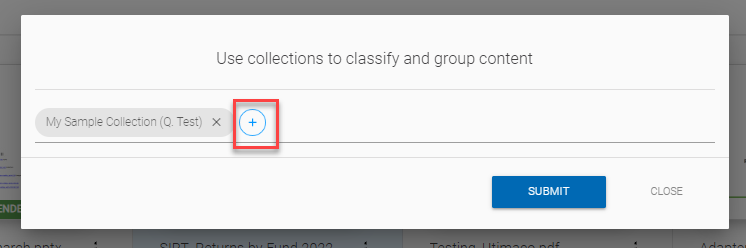
-
To remove the document from a collection, click the cross against a listed collection.
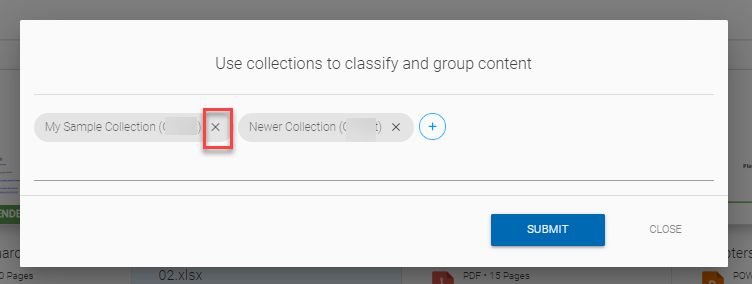
-
-
Click Submit.
Add to Spotlight
To add a document as a featured document (add to spotlight):
-
In the kebab context menu, click Add to Spotlight to open the Add to Spotlight dialog.
-
On the Add to Spotlight dialog, provide the following information:
-
A description for the document listing as a featured document.
-
Select whom (users and groups) you want to see the document as a featured document.
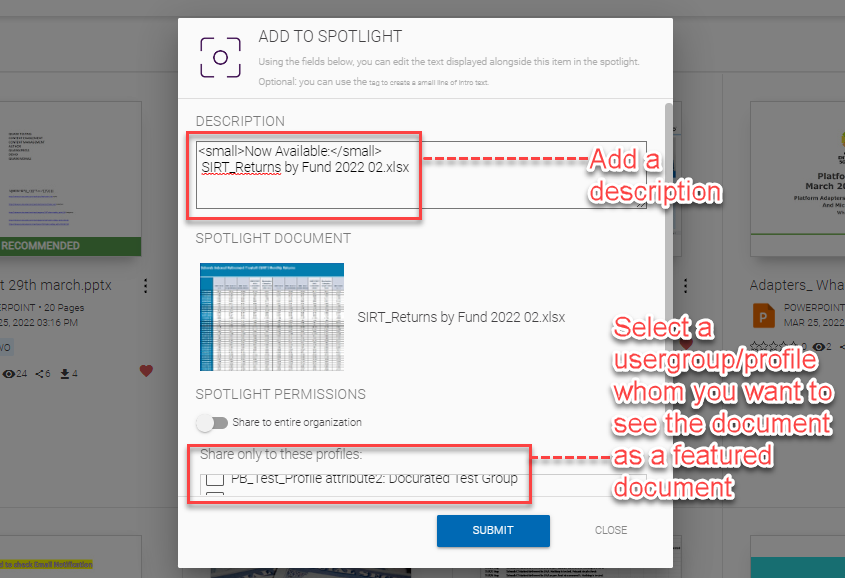
-
-
Click Submit.
Edit Metadata
To edit the metadata of a document:
-
In the kebab context menu, click Edit Metadata to open the Update Document Metadata dialog.
-
In the Update Document Metadata dialog, update any of the following field values:
-
Title
-
Description
-
Expiration Date
-
Intended Use (Public or Private)
-
Content Type (Brochure, Press Release, Report, and so on)
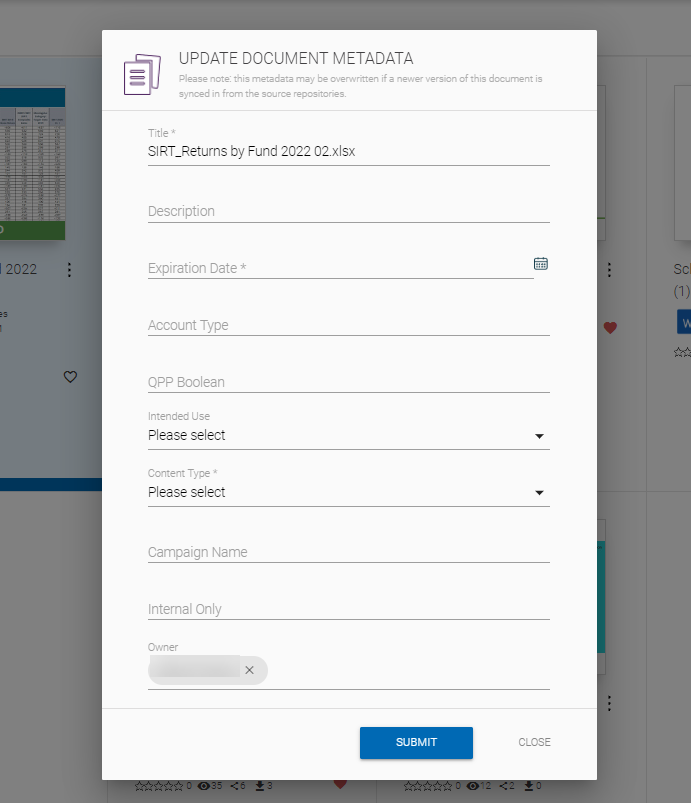
-
-
Click Submit.
Document Actions [Admin]
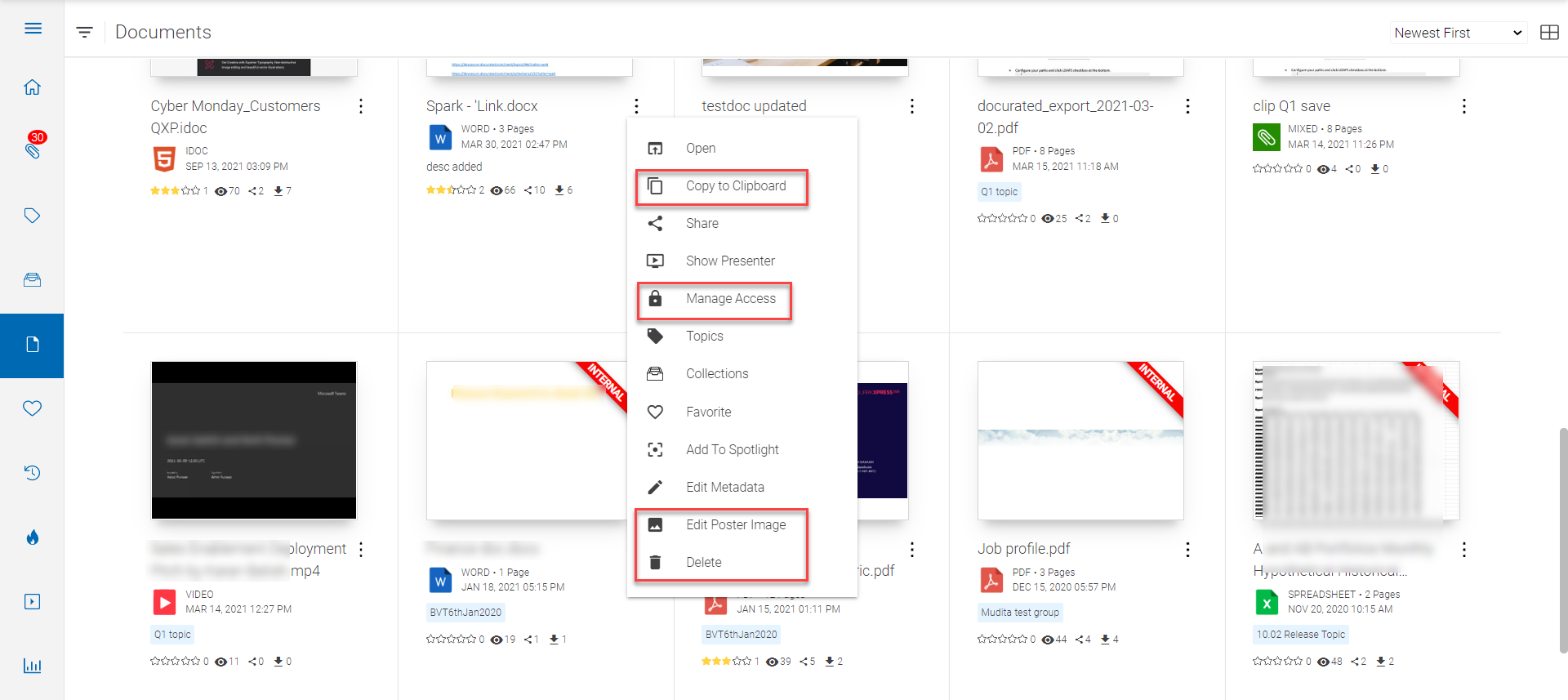
If you are an admin user, you can perform the following additional actions on a document through the kebab menu:
-
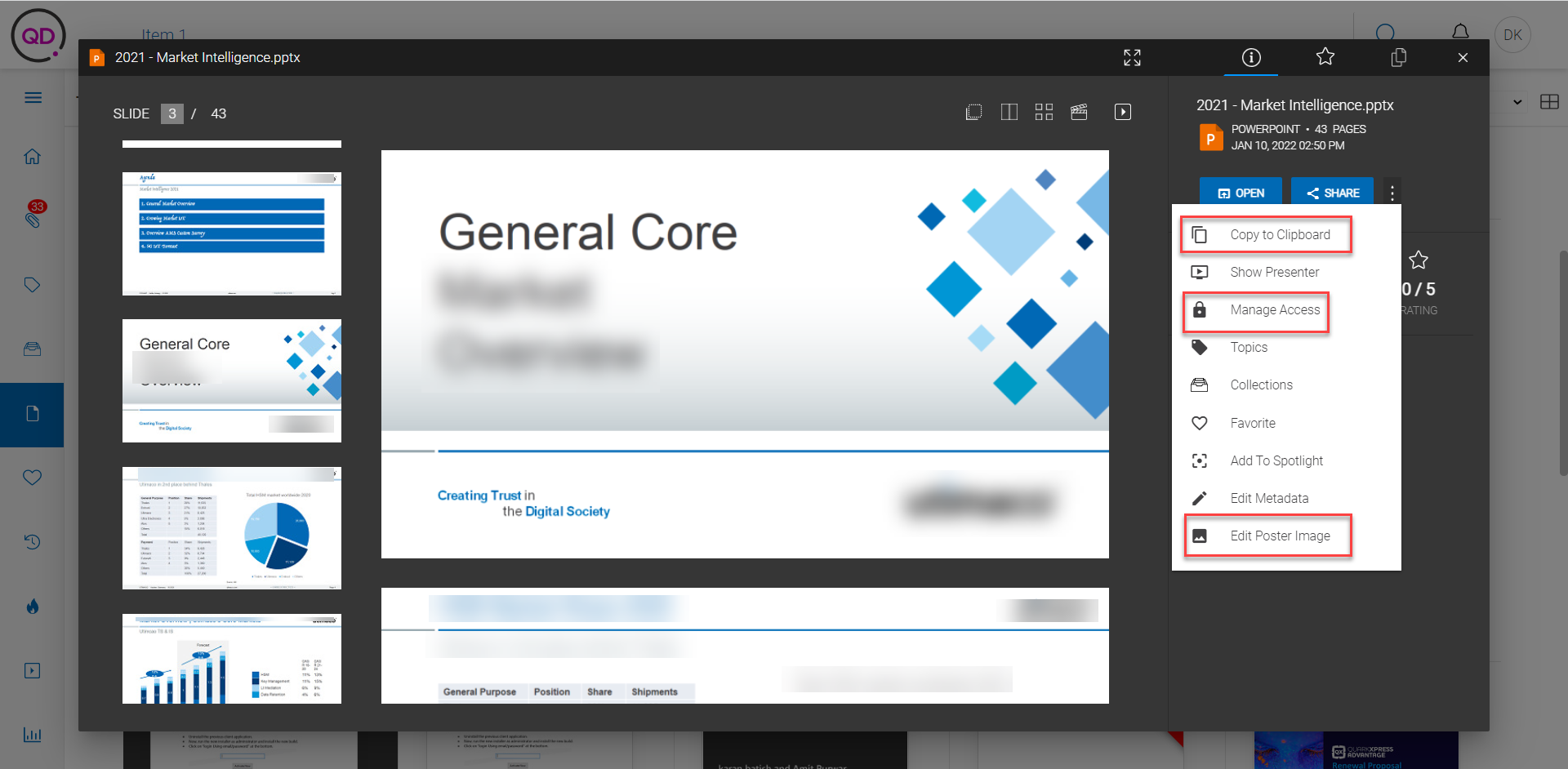
Copy to Clipboard: Allows you to copy all the pages/slides in the document to the clipboard.
-
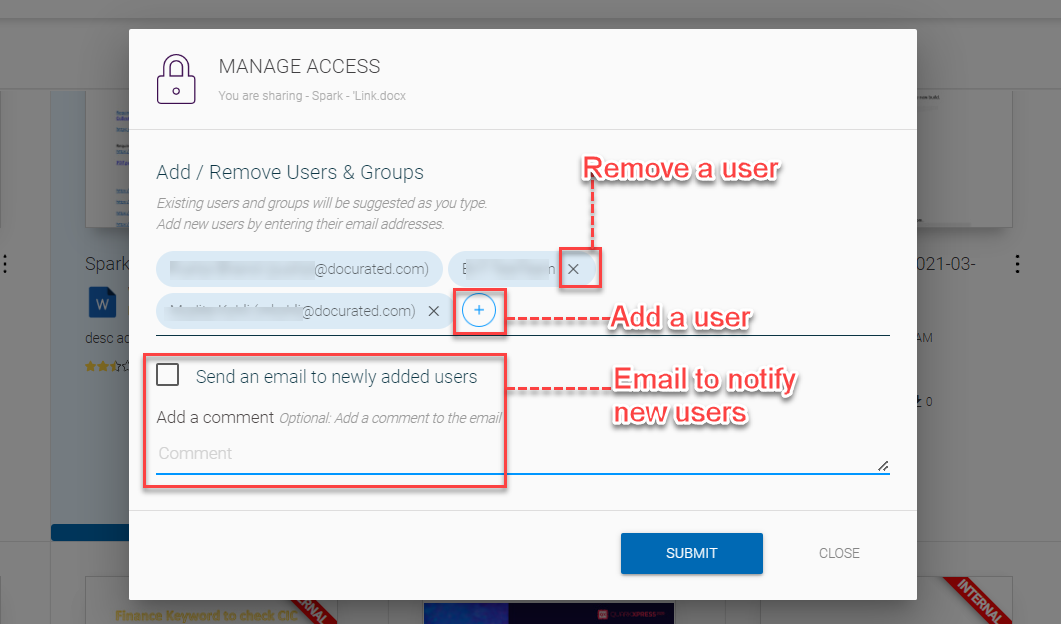
Manage Access: Allows you to add or remove users to the list of users who can access the document. You can also choose to email a user you have just provided access to a document.
-
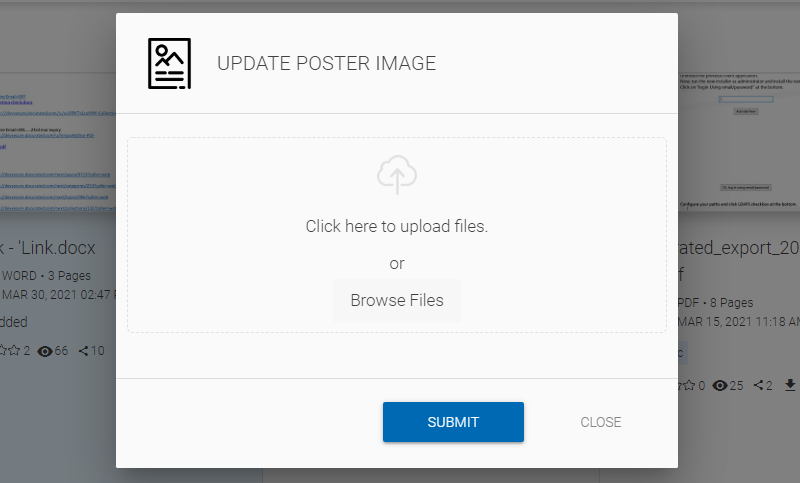
Edit Poster Image: Allows you to update the thumbnail image of the listed document from your local machine.
-
Delete: Deletes a document after you click OK in the confirmation dialog.
-
Transcript [for video files only]: Allows you to generate a transcript based on the audio in a video file.
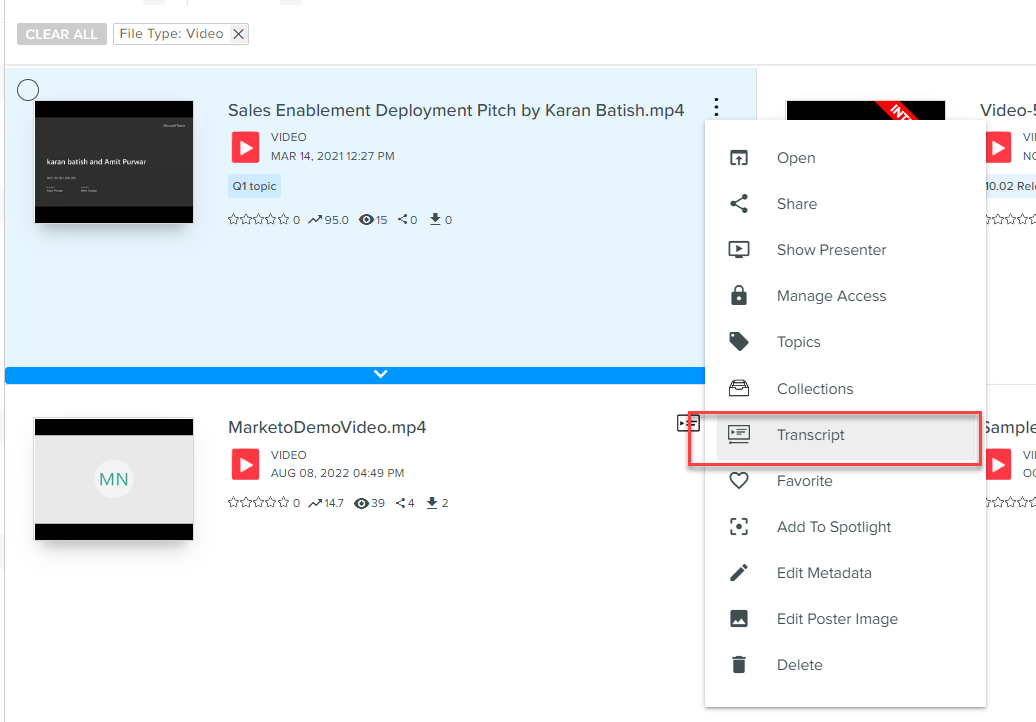 By default, Docurated generates the transcripts for a maximum duration of 60 minutes in a video. This is configurable. For more information, connect with Docurated Support. Additionally, Docurated takes 3 to 4 minutes to generate the transcript for a video.
Additionally, as an admin user, you can perform the following additional actions in the preview mode:
-
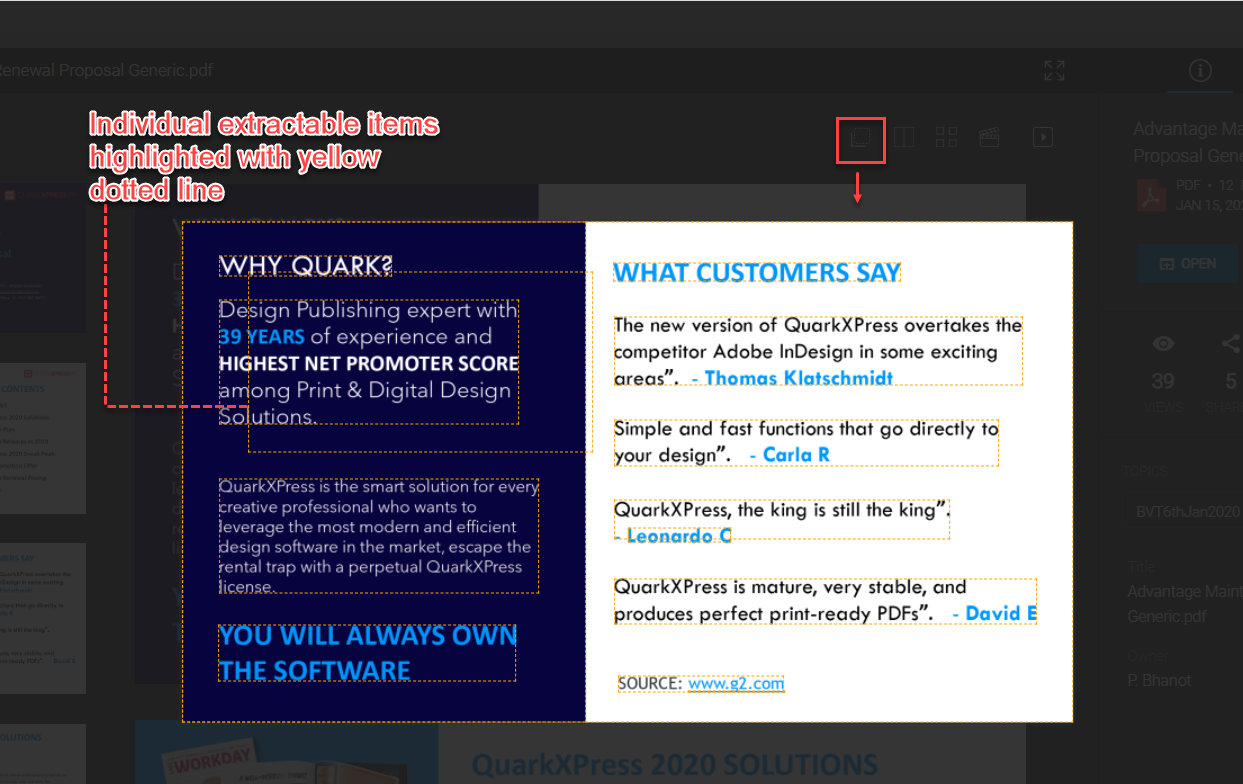
Extract individual elements on a page to directly copy to the clipboard through the icon
 .
-
The additional kebab menu actions as described above in this section.
-
Copy individual slides/pages to clipboard. This option appears in the upper-right corner of your screen when you double-click a slide/page to view it as an image.