
Collections
Docurated allows you to create personalized libraries of documents through collections. These collections are separate from topics, which are defined at an organizational level.
You can access the Collections page through the file folder icon  or the Collections tab in the expanded left menu pane.
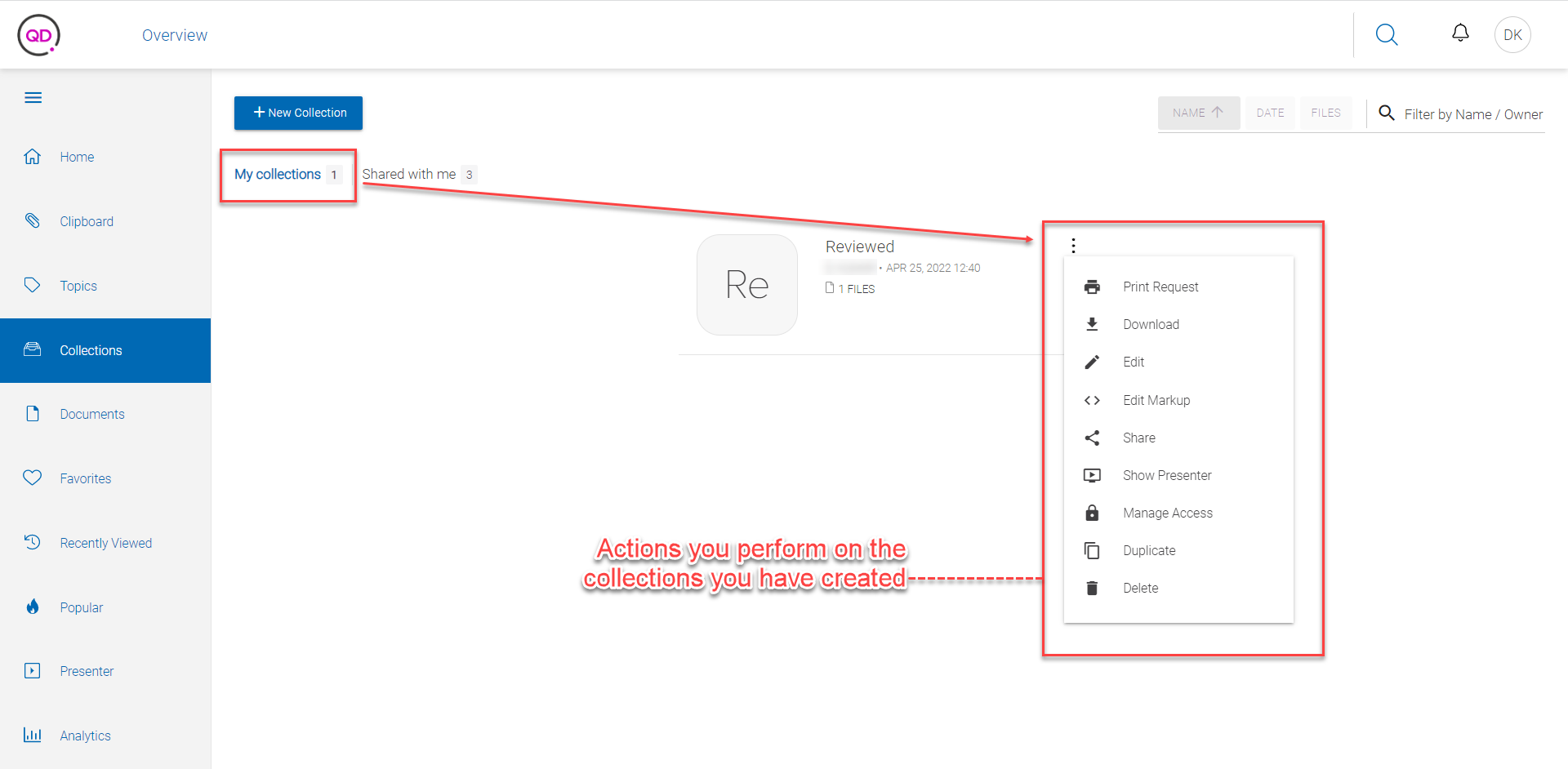
The Collections page lists two types of collections: the collections that you have created under the tab My Collections and the collections that are shared with you under the tab Shared with Me, which you can sort by name, date, and the number of documents in a collection. You can also search for a collection (or filter results) by name or the owner.
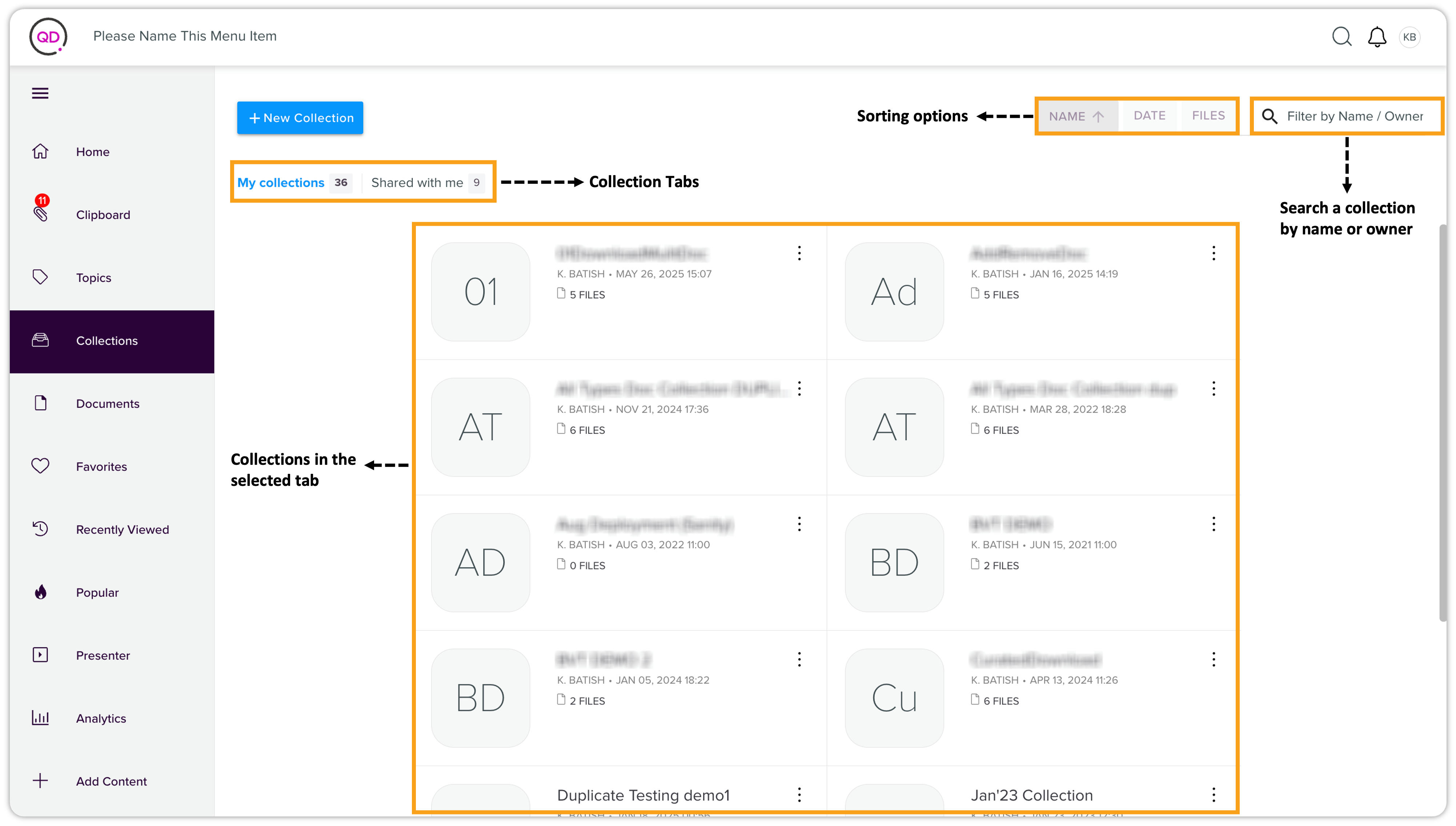
Collection Card
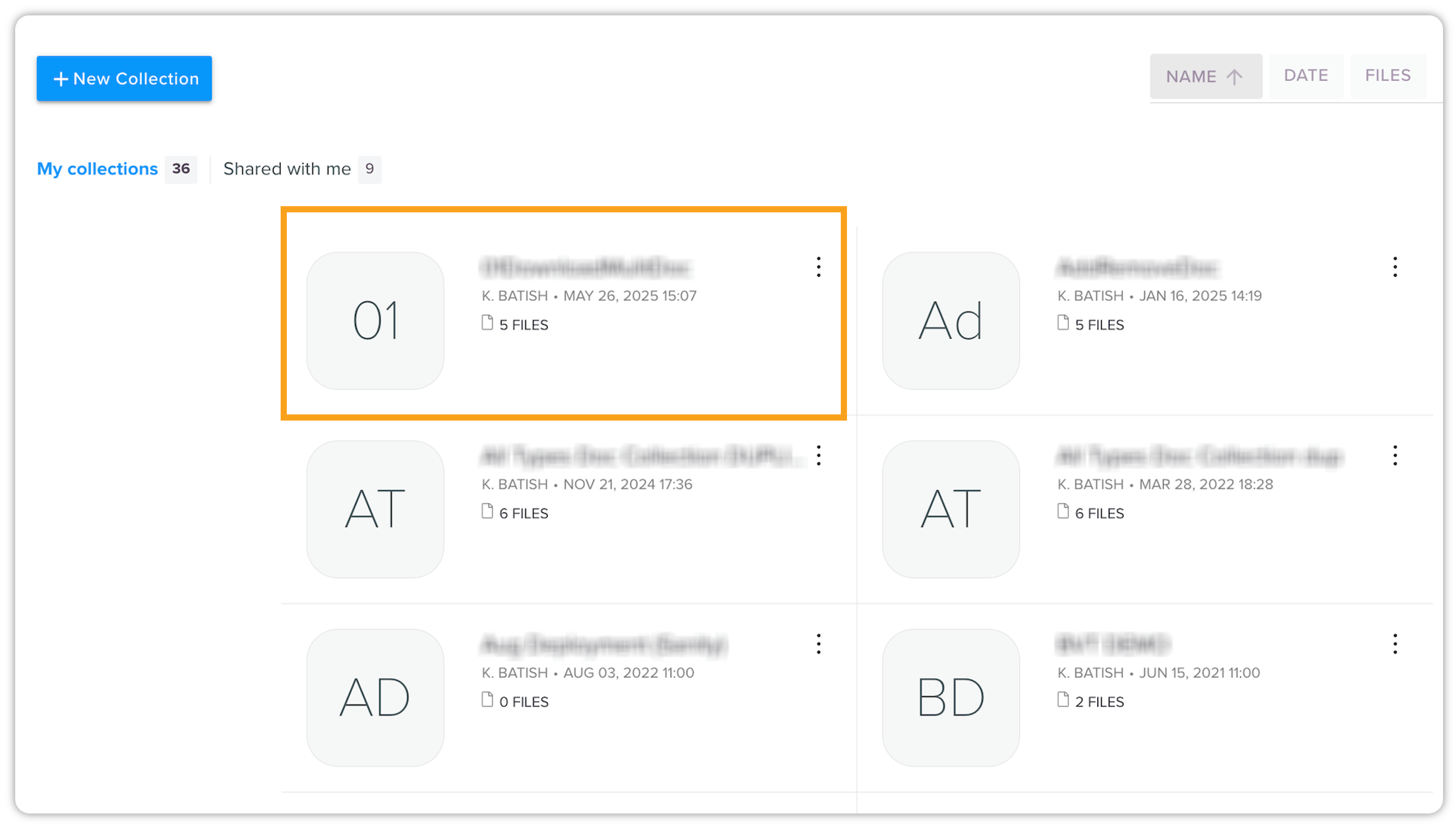
A collection card contains the following information:
-
Collection thumbnail (if you do not apply an image, Docurated displays the initials of the collection name as the collection thumbnail)
-
Collection name
-
Name of the user who created a collection
-
Date and time of the creation
-
The number of files in the collection
Add a New Collection
To add a new collection:
-
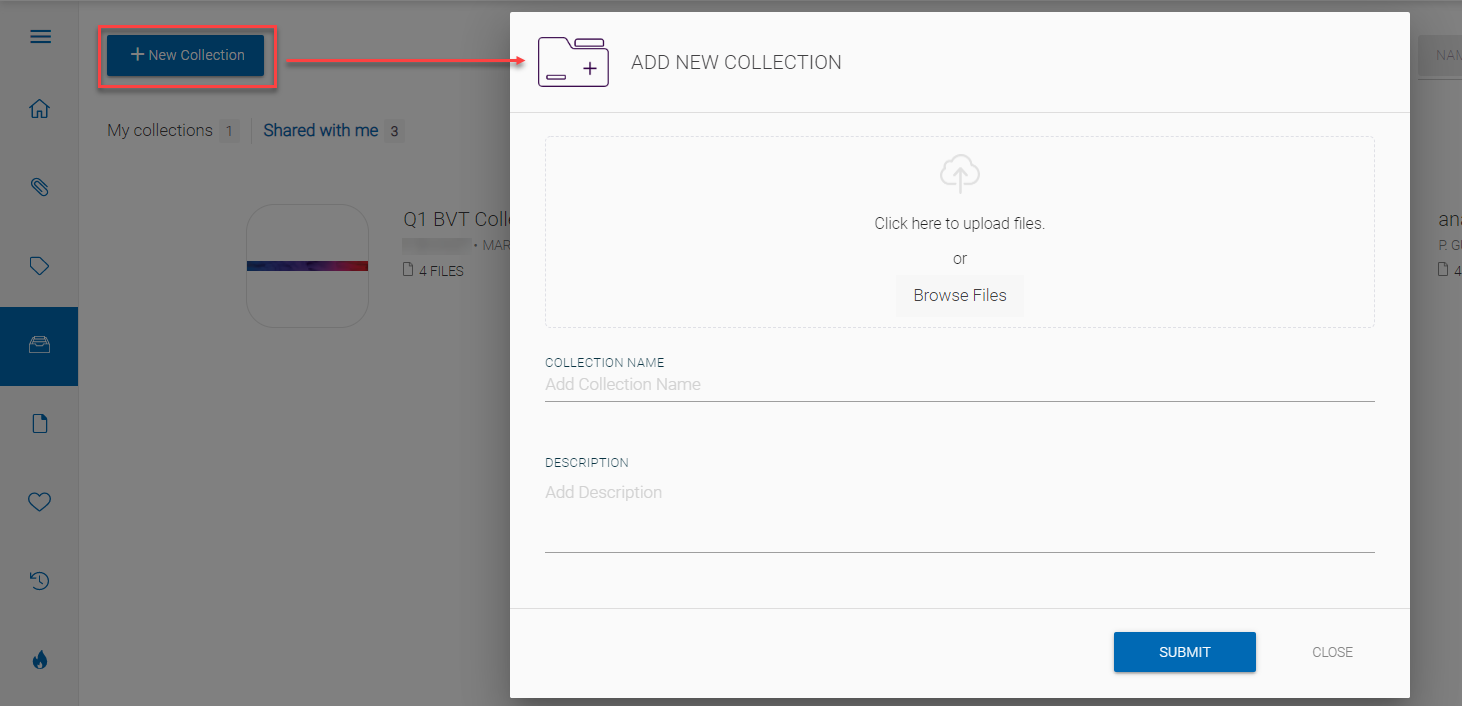
Click + New Collection on the Collections page to open the Add New Collection dialog.
-
In the Add New Collection dialog, add a name, and description, and apply a thumbnail image to the collection.
-
Click Submit.
Collection Actions
Docurated allows you to perform several actions on the collections that you have created or have access to. Generally, you can perform only a fraction of actions on the collections that are shared with you in comparison to the actions you can perform on the collection you have created.
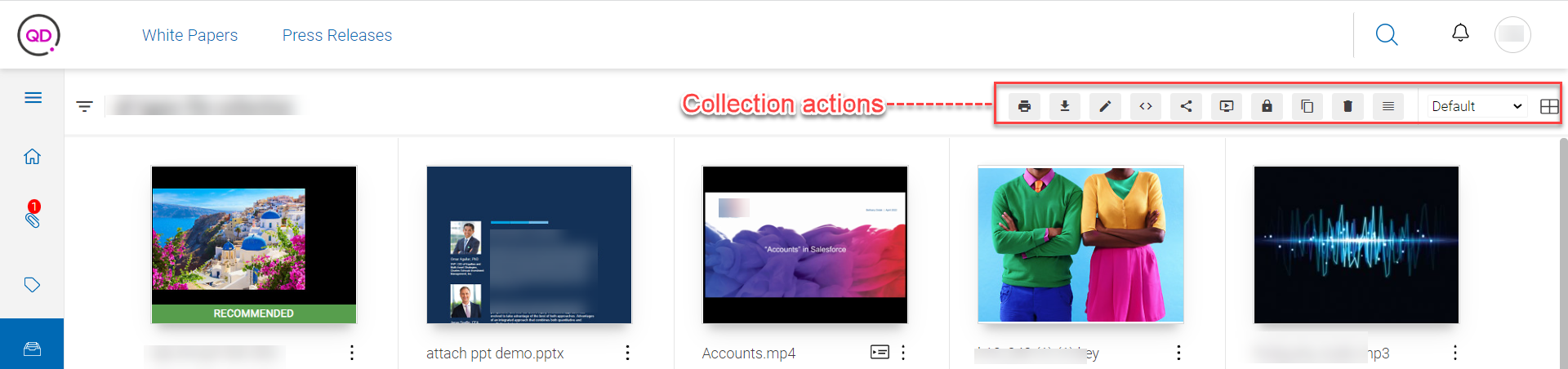
For example, the actions for a collection you have created are (in the same order as in the screenshot):
-
Print Request: Allows you to order the physical copies of the documents within a collection.
-
Download: Allows you to download a zip of the collection at your local machine.
-
Edit: Allows you to edit a collection, in the same manner, you add a new collection.
-
Edit Markup: Allows you to edit the user interface of the landing page of a collection.
You can edit markup of a collection, in the same manner, you edit markup for a topic. For more information, see the section Topics > Edit Markup. -
Share: Allows you to share a collection via sharing a link or via email.
-
Show Presenter: Allows you to open the documents within a collection in the presentation mode.
-
Manage Access: Allows you to define access for the users and user groups in your organization to the collection.
You can manage access to a collection you have created in the same manner you manage access to a topic you have created. For more information, see the section Topics > Manage Access. -
Duplicate: Allows you to create a copy of a collection, in the same manner, you add a new collection.
-
Delete: Allows you to delete a collection.
-
Reorder Items: Allows you to manually reorder the items of a collection.
-
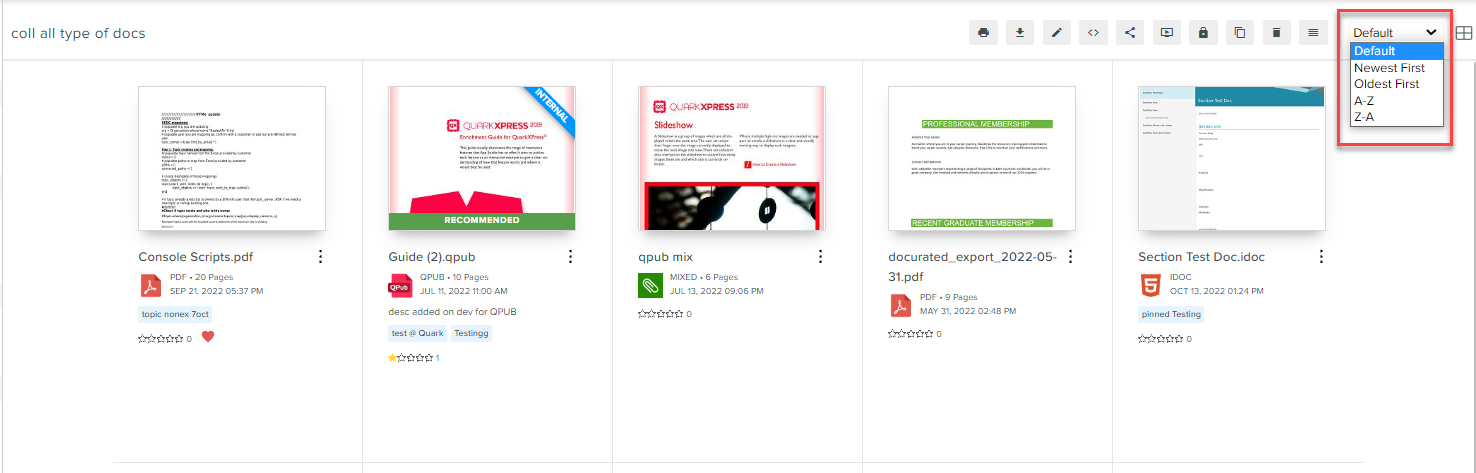
Sorting Options: Allows you to sort items in a collection by age (Newest First/Oldest First) and name (A-Z/Z-A).
-
View Options: Allows you to switch the view between card and thumbnail.
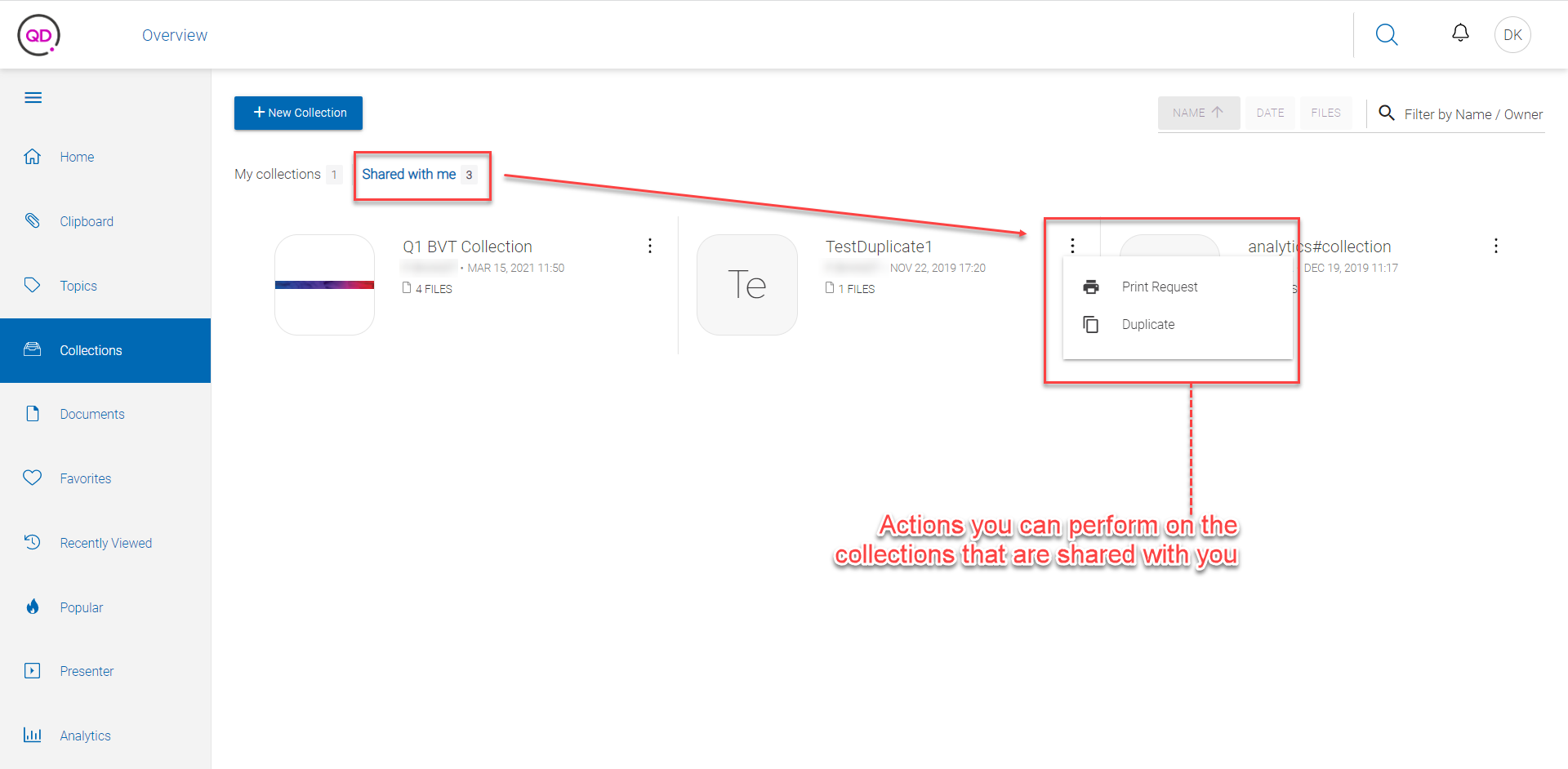
The actions for a collection shared with you are:
-
Print Request
-
Duplicate
You can invoke collection actions through the kebab menu icon  next to a collection listing.
Some key collection actions are as follows:
Print Request
To order the physical copies of the documents within a collection:
-
In the kebab context menu, click Print Request (or click the Print Request icon
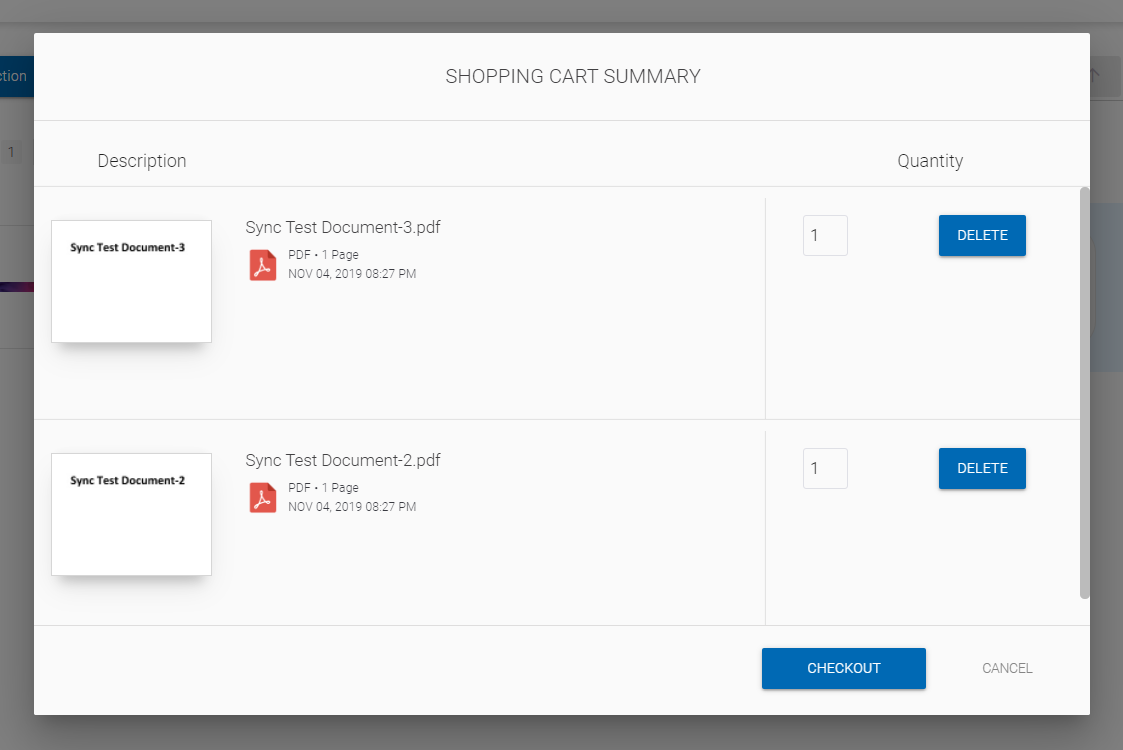
 on a collection's landing page) to open the Shopping Cart Summary dialog.
-
Select the documents and quantity of each document that you want to order.
By default, the Shopping Cart Summary dialog selects one quantity of each of the document in collection you want to order. -
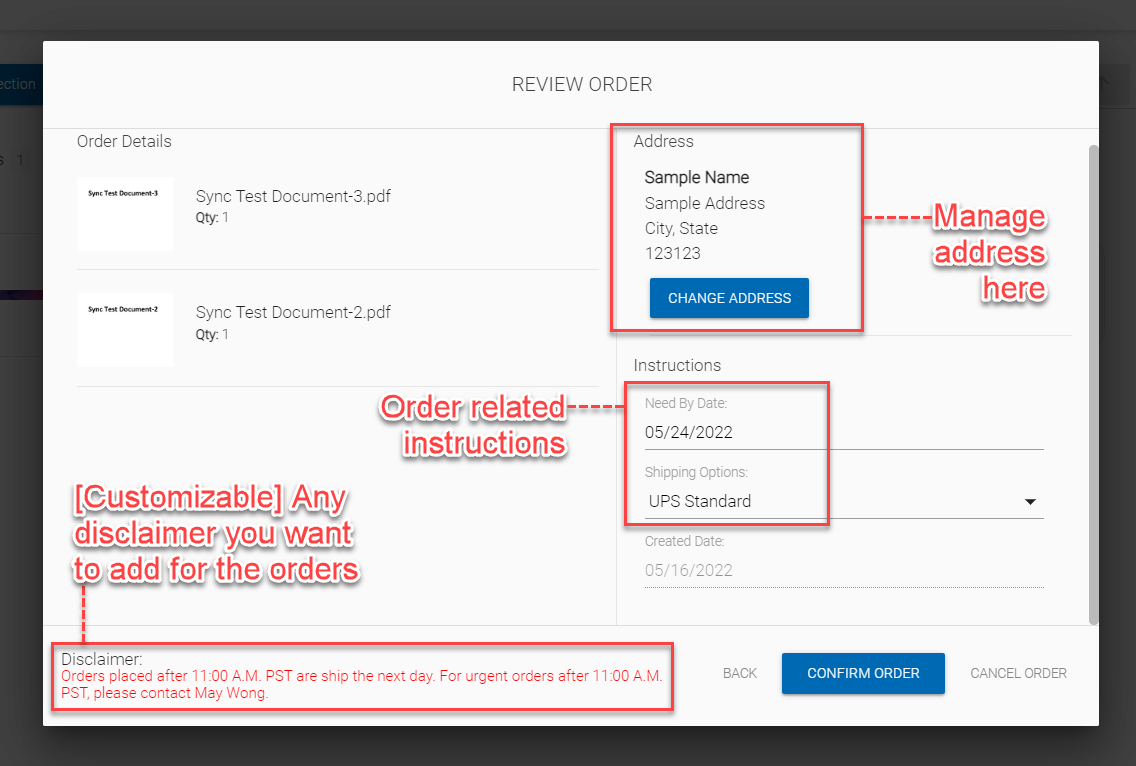
Click Checkout to open the Review Order dialog.
-
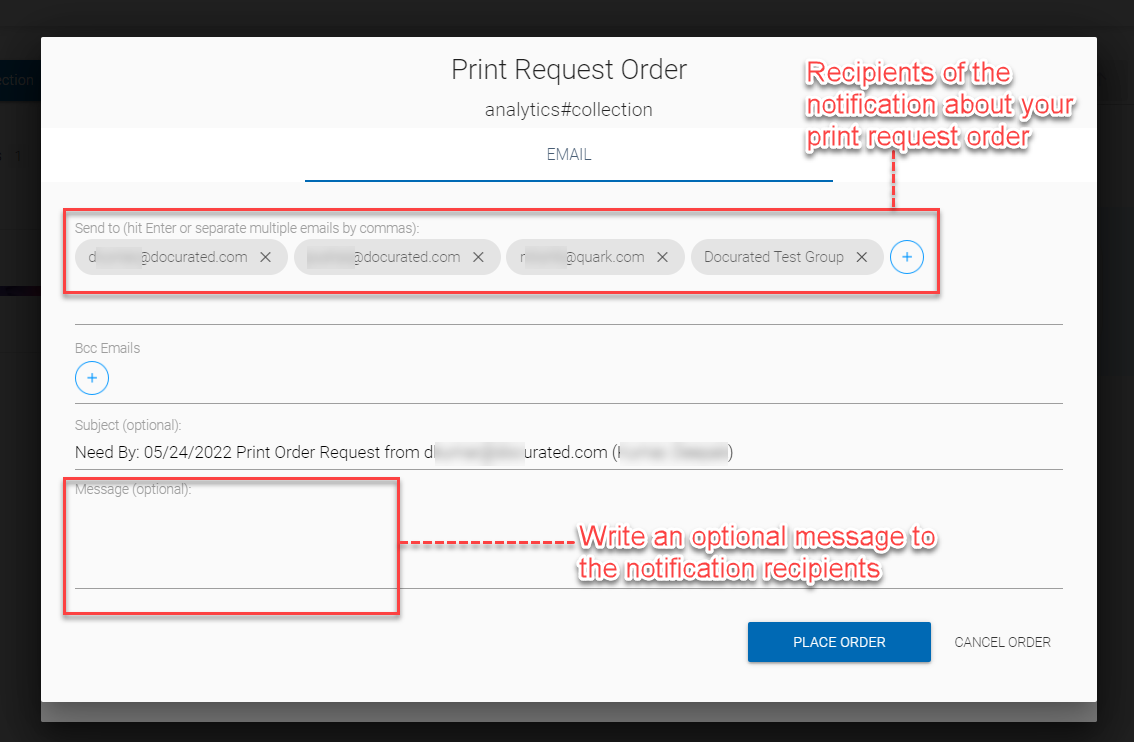
In the Review Order dialog, enter an address, choose a shipping option, and shipping date, and then click Confirm Order to open the Print Request Order dialog.
-
In the Print Request Order dialog, add/remove the users you want to notify about the order, and then click Place Order.
Share
To share documents within a collection:
-
In the kebab context menu, click Share (or click the Share icon
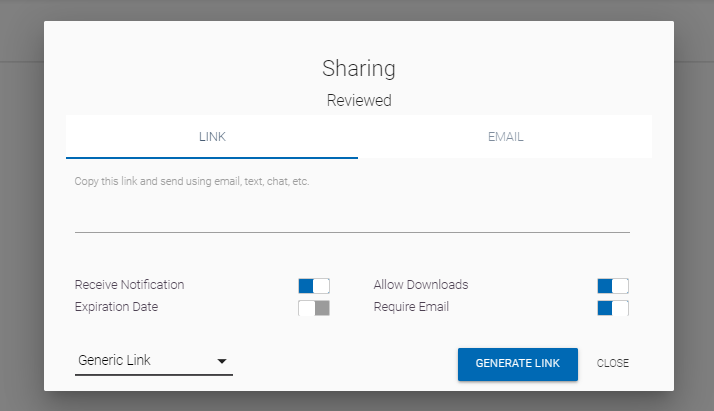
 on a collection's landing page) to open the Sharing dialog.
-
In the dialog Sharing:
-
To share the collection via a link, click Link.
-
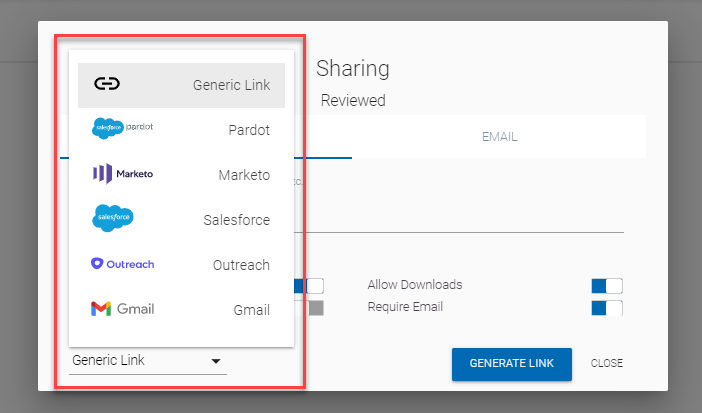
To create a link, click the dropdown menu at left-bottom corner of the dialog.
-
If you want to create an app-specific link, select the app or else select the option Generic Link.
-
Click Generate Link.
-
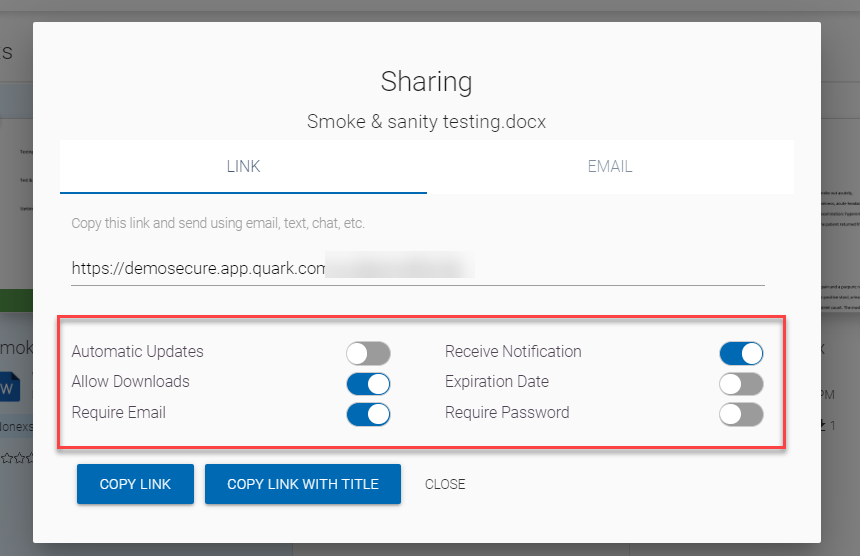
Select/unselect the following checkbox options:
-
Automatic Updates: Enables updates to collection and its items to reflect automatically whenever a recipient uses the link to access the collection.
-
Receive Notification: Enables notifications whenever a user uses to the link to open the collection document.
-
Allow Downloads: Allows users to download a copy of collection documents on their local machines.
-
Expiration Date: Sets an expiration date to the generated link, beyond which a user can't access a collection with the link.
-
Request Email: Sets a constraint that a user is required to provide email to access the collection via link.
-
Require Password: Allows you to generate and assign a password to access the collection you are sharing.
-
-
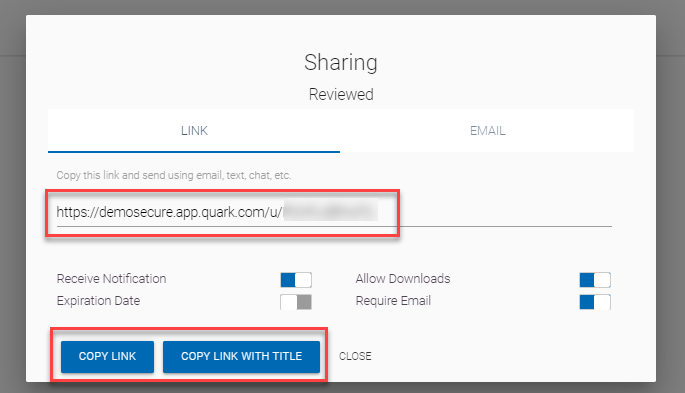
Docurated generates and displays the link with the options to copy the link with/without the title of the collection.
-
-
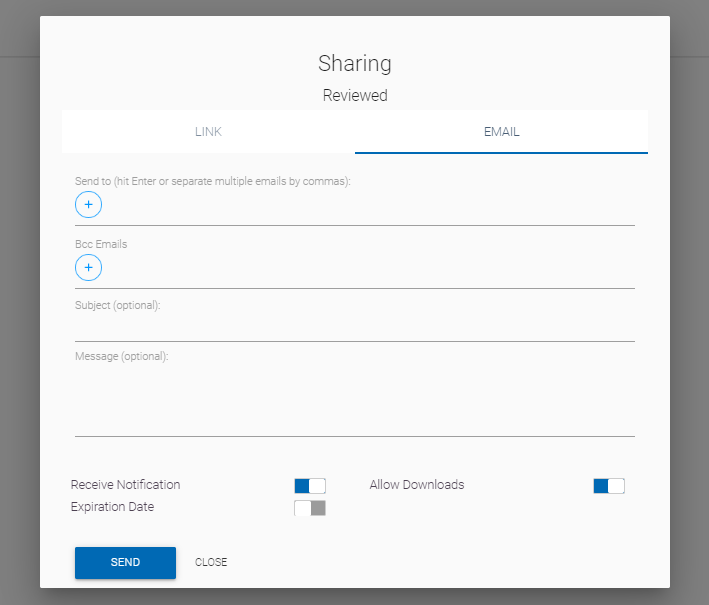
To share the collection via email, click Email.
-
Enter the emails of the recipients, BCC a recipient, enter a subject to the email, and a message.
-
Select/unselect the following checkbox options:
-
Receive Notification
-
Expiration Date
-
Allow Downloads
-
-
Click Send to send the email.
-
-
Once an external shareable link is generated in Docurated, it allows recipients to view the selected collections, topics, or documents without needing to log into the Docurated platform. The content and options visible through this link are determined by the settings defined by the user who created the link. This ensures that external viewers only see what the internal user intends for them to see, maintaining control over the shared content.
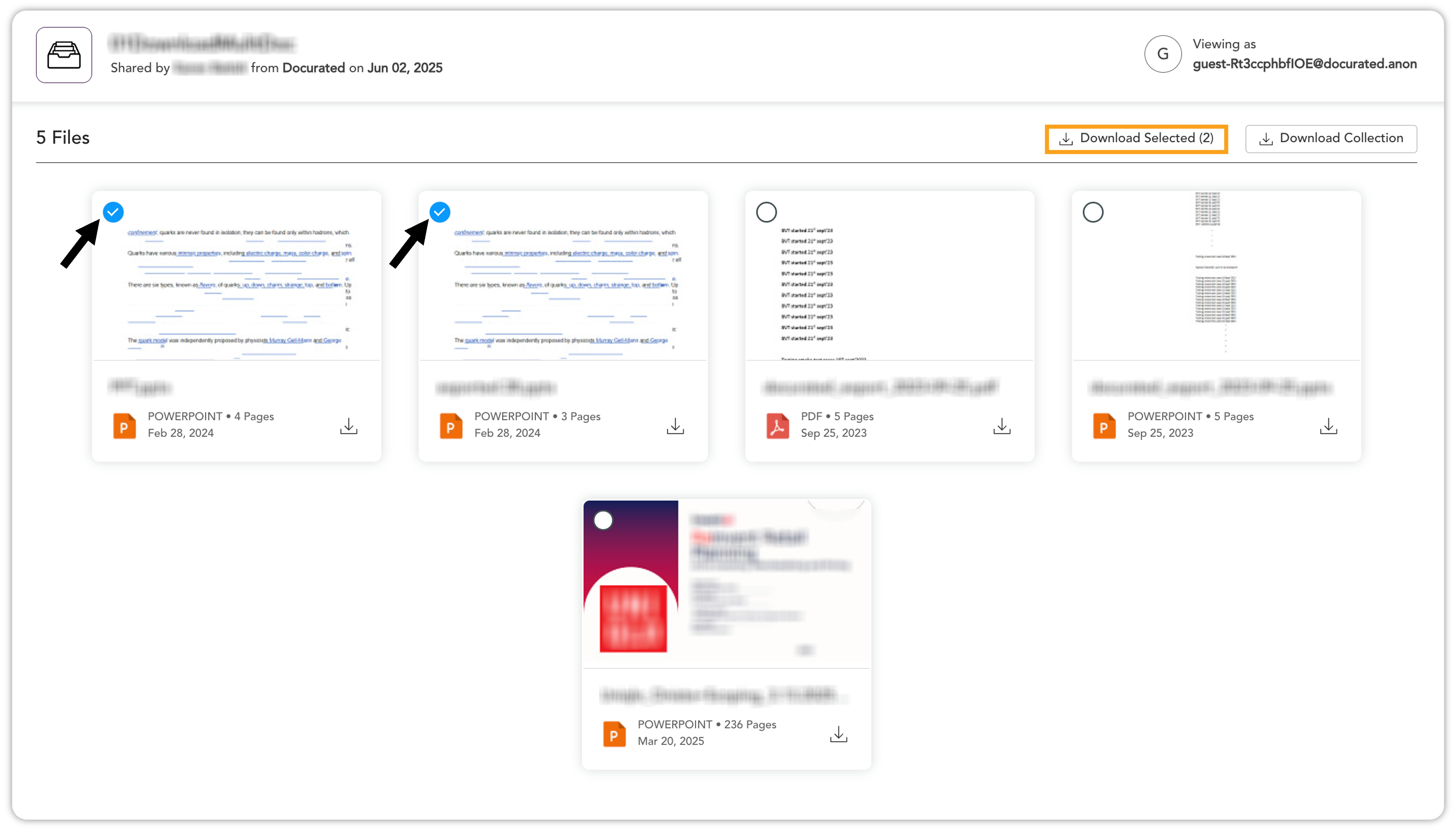
Download Multiple Documents from Collection
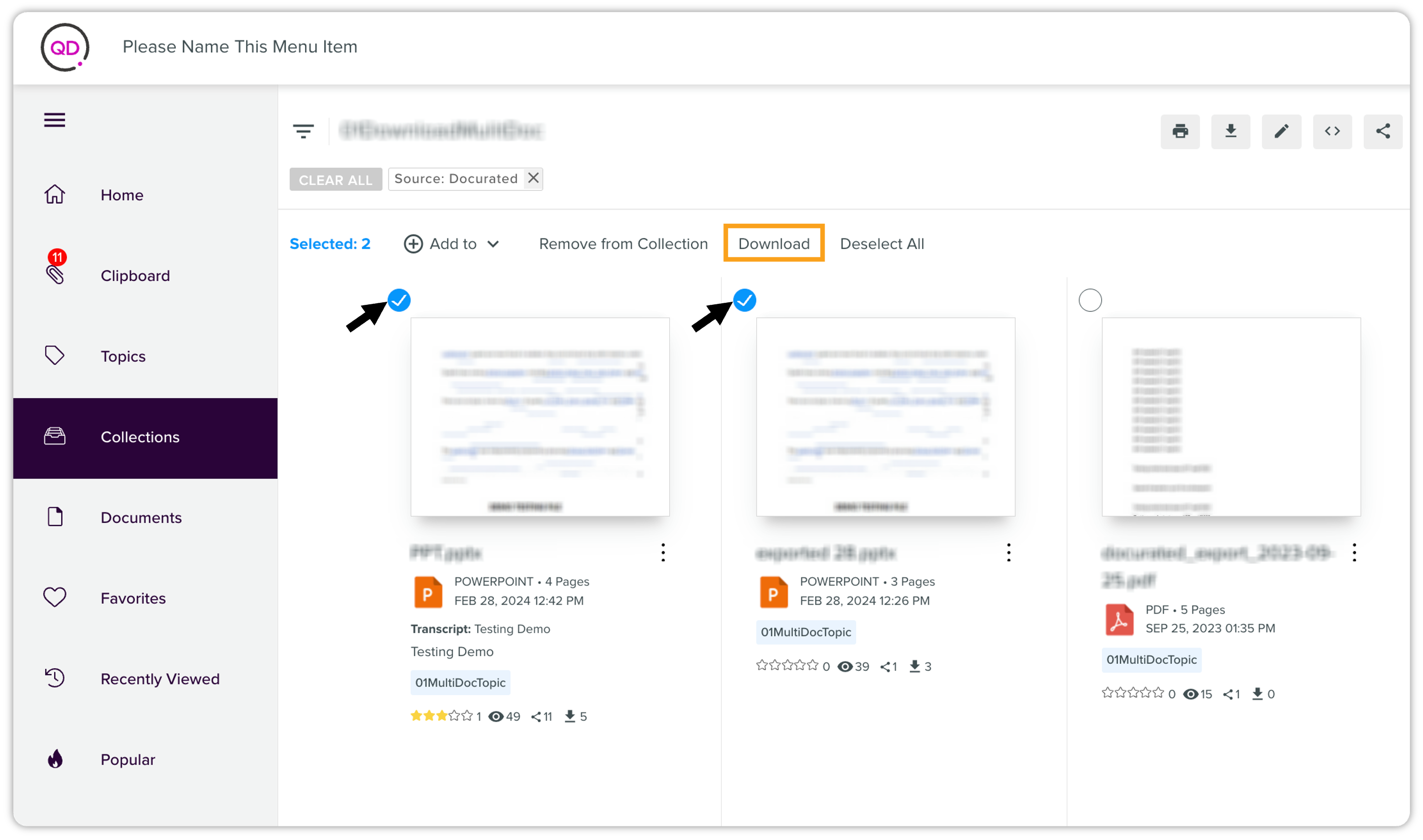
You can download multiple documents stored in a collection in one go. Simply open the collection and select the documents you want to download. Upon selecting one or multiple documents, the Download option appears. Click it to download the selected documents. Within a few seconds, the selected documents will be downloaded in a ZIP file.
To keep your downloads organized, the ZIP file will automatically be named after the source folder, (e.g., downloading from the "June 2025" collection folder will result in a "June2025.zip" file).
Show Presenter
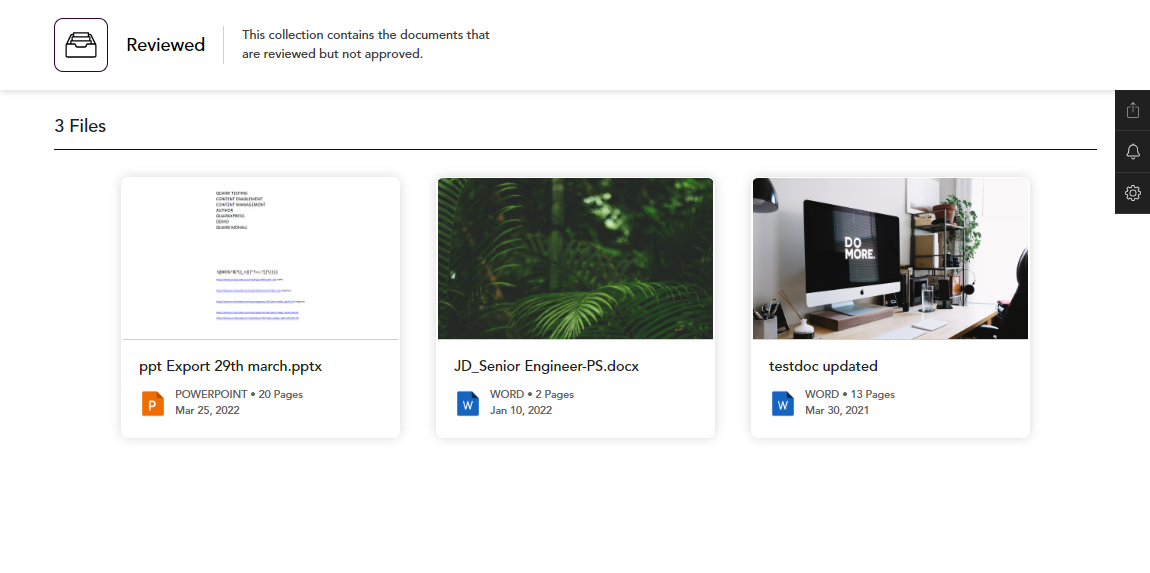
To open a collection document in the presentation mode:
-
In the kebab context menu, click Show Presenter (or click the Show Presenter icon
 on a collection's landing page) to open the Presenter page.
-
In the Presenter page, select the file you want to view in the presentation mode.
-
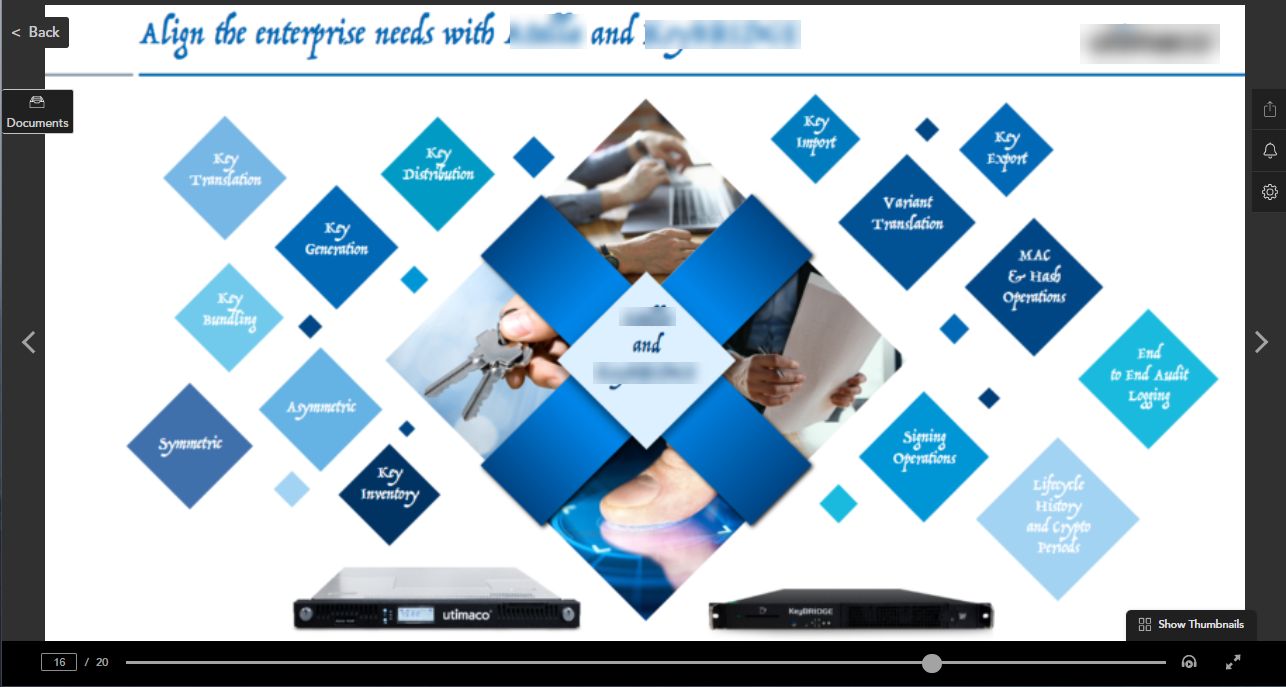
Docurated opens the file in presentation mode, through which you can view/present the file like a PowerPoint presentation.
Presenter Mode Options
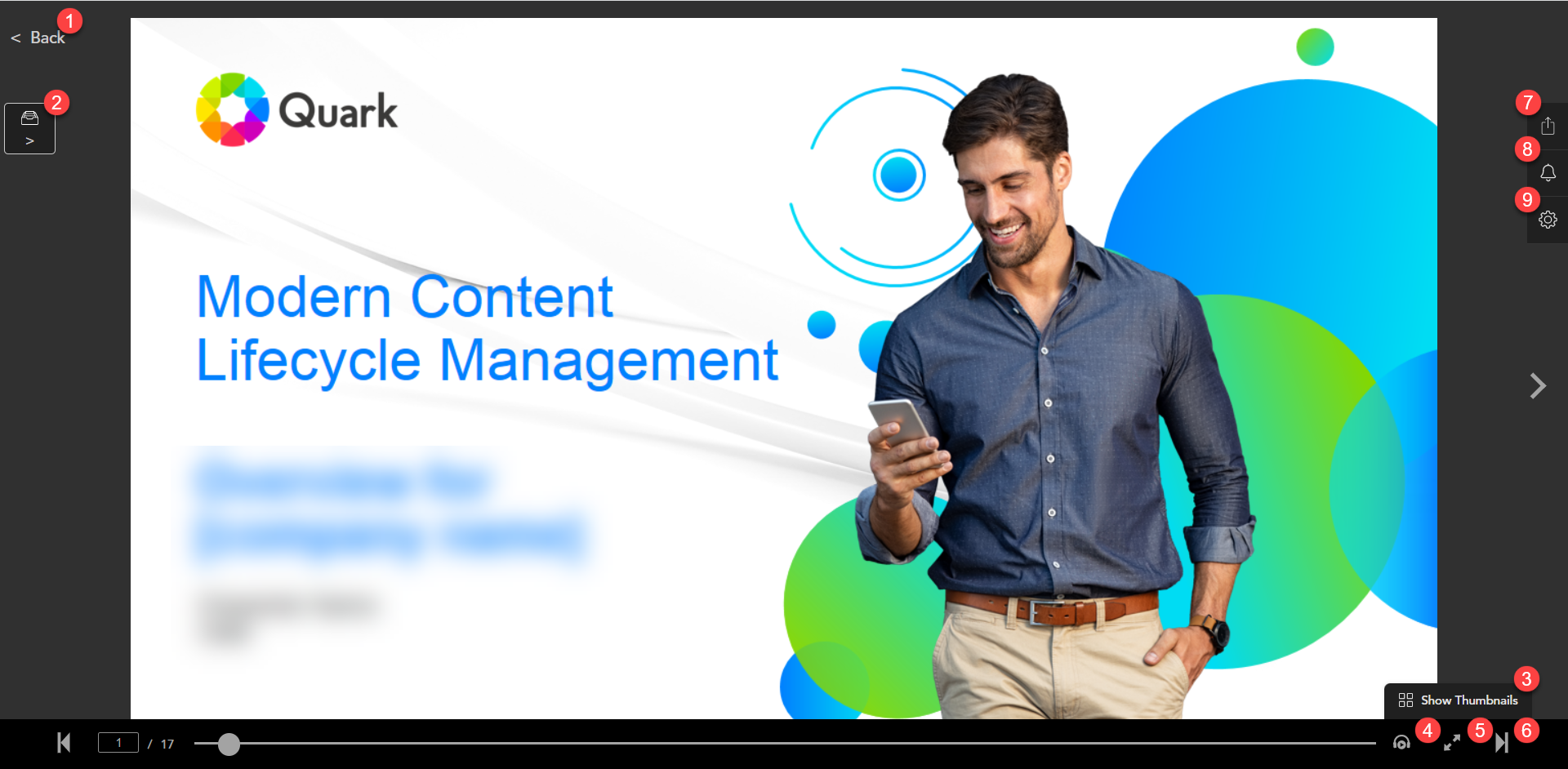
The following options are available on the presenter mode screen:
-
Back: Takes you back to the Presenter page where all the documents in the current collection are listed.
-
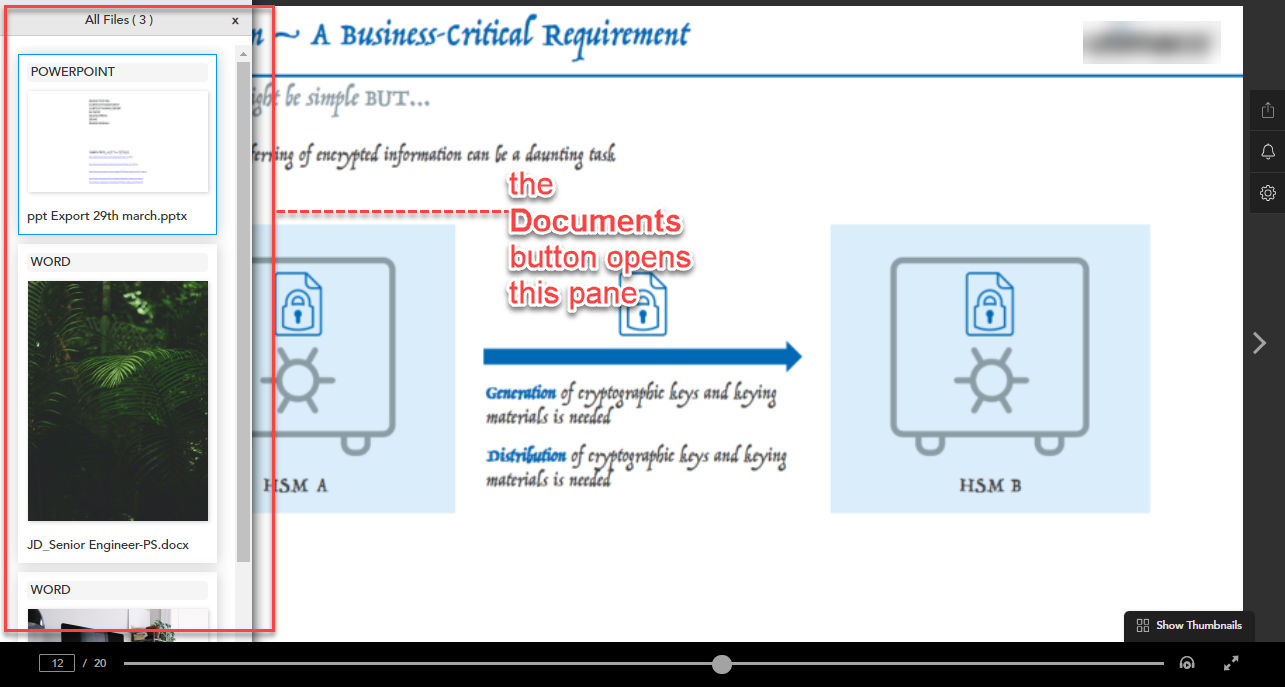
Documents: Opens a list of documents in the current collection in a pane to quickly allow you to present any other document in presenter mode.
-
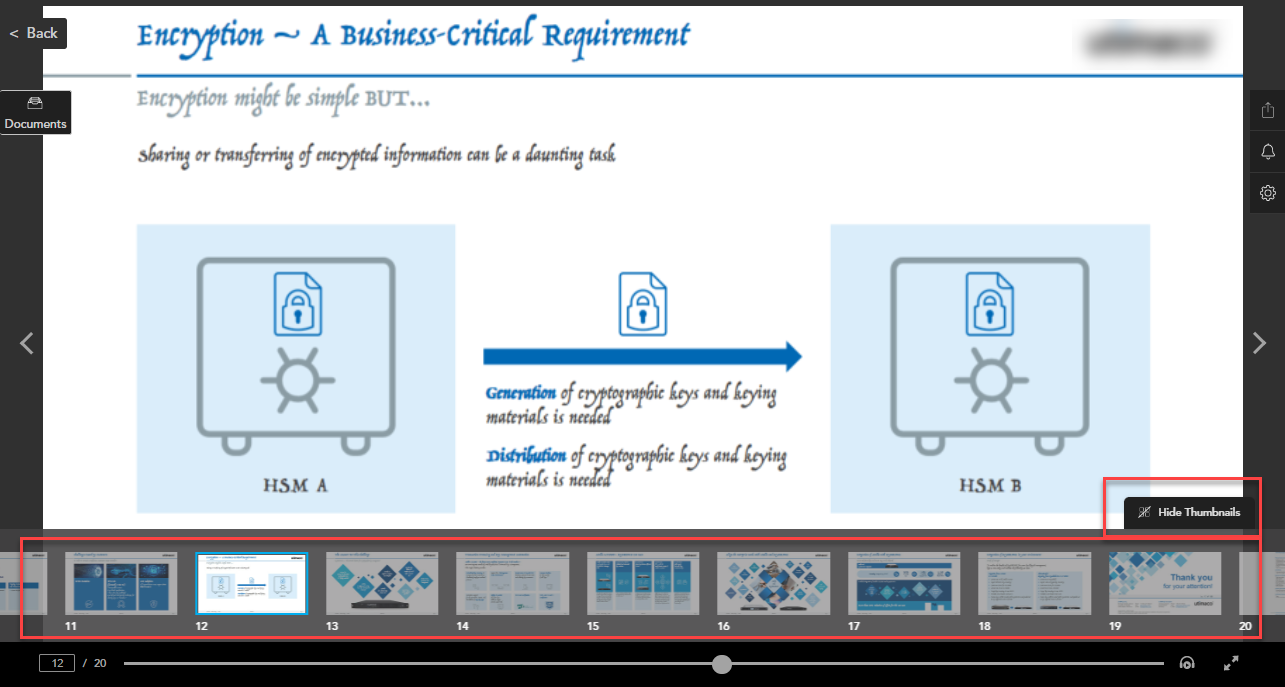
Show/Hide Thumbnails: Allows you to display/hide the thumbnails of the pages/slides of the document along with the document's timeline.
-
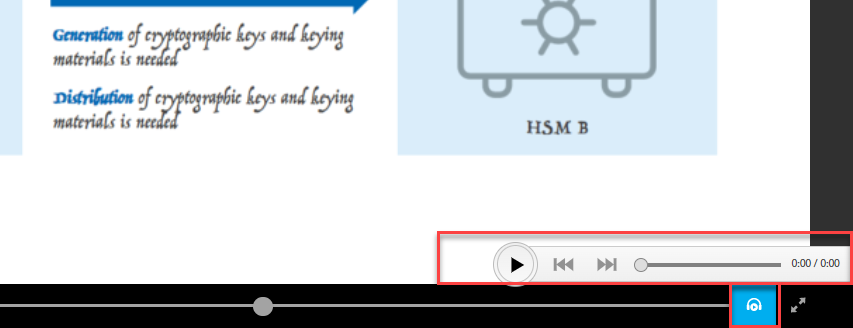
Audio: Allows you to manage volume if there is an audio file embedded within the document.
-
Full Screen/Exit Full Screen: Allows you to go or exit Full-Screen mode.
-
Back/Forward: Allows you to go back to the previous document or go ahead to the next document in the current collection.
-
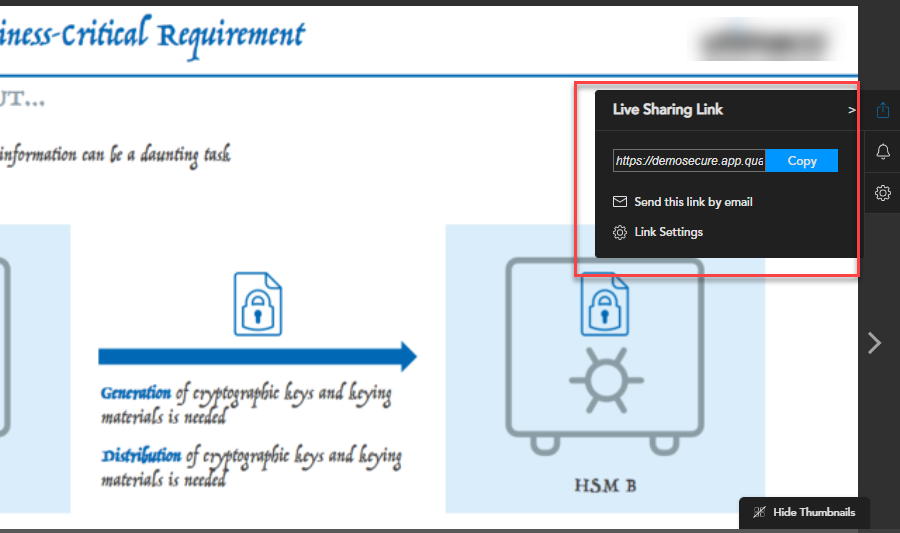
Live Sharing Link: Allows you to share the document via a link or via email, and also provides a link to the link-sharing settings.
-
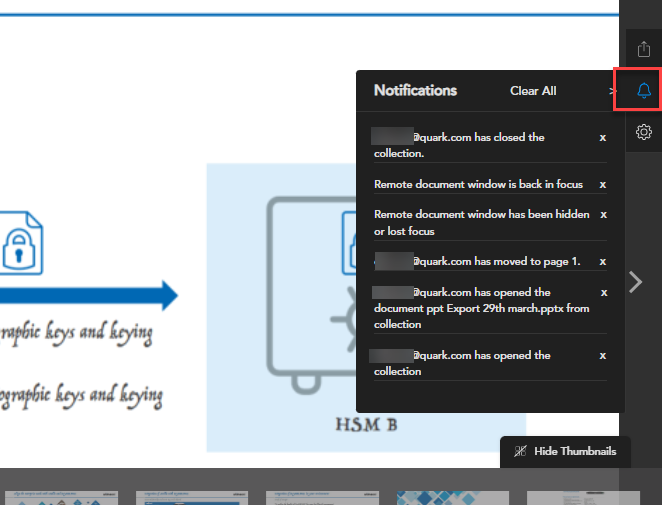
Notifications: Displays the notifications for actions that you have enabled for the document in the link-sharing settings.
-
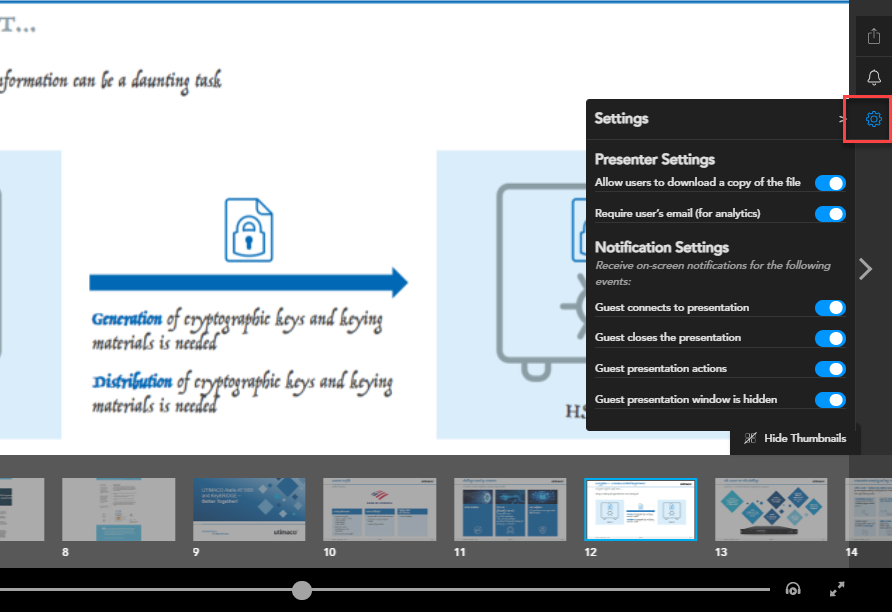
Settings: Allows you to manage the presenter settings such as allowing downloads and requiring email while sharing, and notification settings for the actions performed on a document that has been shared.
View a Collection
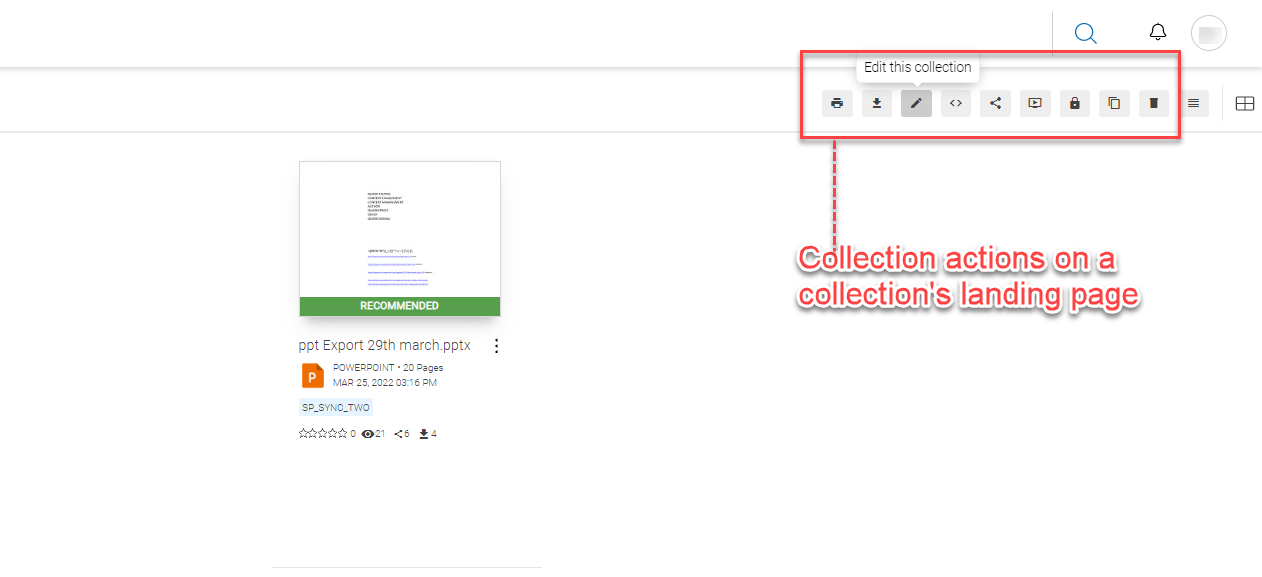
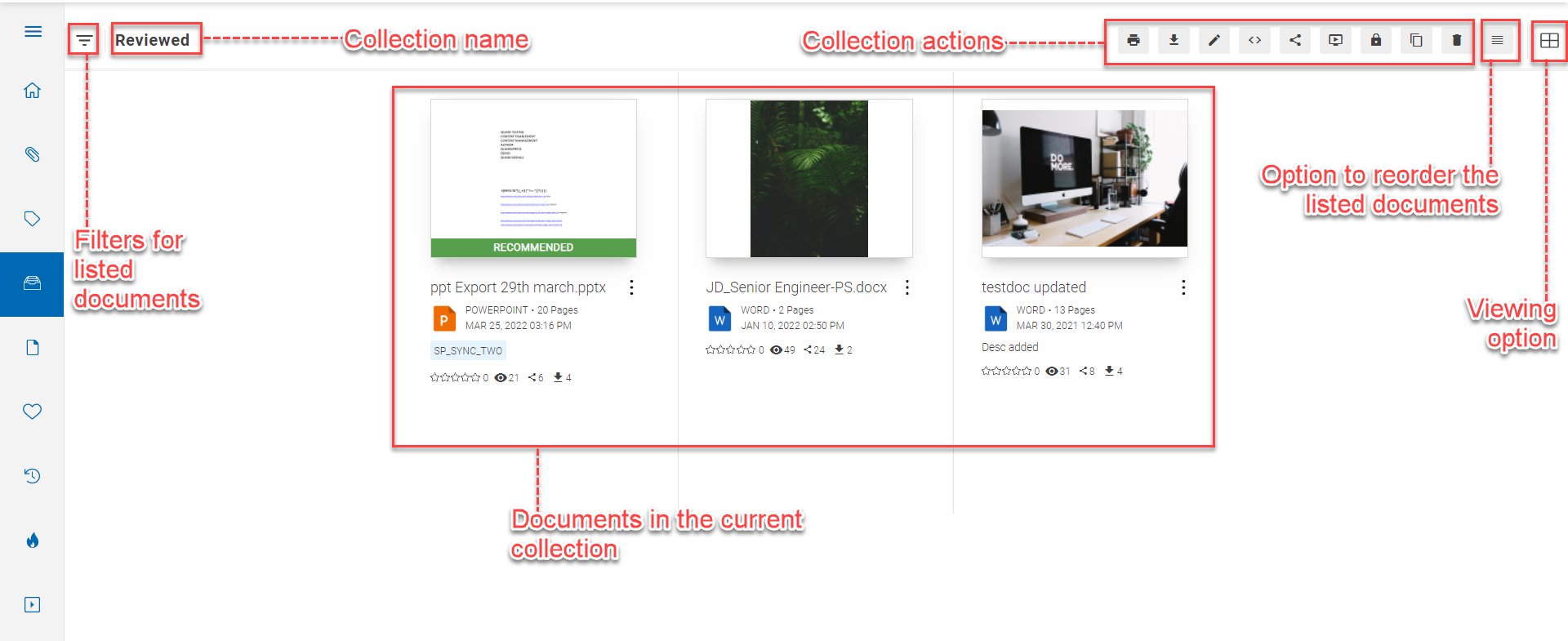
You can view a collection by clicking a collection card in the listing. A collection landing page has the following elements:
-
Collection name.
-
Icons for available collection actions.
-
Filter options for the documents listed in a collection. You can expand the filters through the icon
 , left to the collection name. These filters are the same as the filters on the Search Results page.
-
The options to reorder and change the view of the listed documents.
-
List of documents in the current collection.
Collection Update Notification
A collection owner receives a notification email on daily basis for any updates made to the documents in that collection. The notification email list all the documents that have been updated in the last 24 hours. Additionally, the email also lists the documents that have expired within the last 24 hours.