
Structured Authoring
This section explores structured authoring and constrained authoring and how the user interacts with a document, its structure, components and elements. Working with simple text may be discussed occasionally, but the primary focus is on working with elements.
Quark XML Author versions 4.0 and later allow for mixed content in table cells. Occasionally the behavior of actions upon a given content type are different depending on whether the element is located outside or inside of a table. These differences are noted where applicable.
Some content features act different depending on whether the content element is inside or outside of a table. These differences are discussed in the applicable sections.
Deleting Content Elements and Structure
Deleting content in a structured authoring tool can be significantly different than in Microsoft Word. Deleting simple text is the same in both. But when working with elements, specific behaviors and rules for delete are needed in order to ensure the integrity of an XML document and its structure.
Most content in a standard Word document is not required and therefore may be deleted. However, most XML schemas have some required content. A schema may define a parent element with a required child element that may not be deleted. Some content elements have required elements regardless of the schema. For example, a bulleted list requires at least one item and a table requires at least one row or column or cell. Therefore, the Component Cut, Remove and Delete features are unavailable in these scenarios or the feature may delete a parent (or ancestor) element.
This applies to the delete feature in Quark XML Author that is executed through the Component Cut, Delete and Remove commands. And, this applies whether the commands are executed via the toolbar, Context Menu or shortcut keys.
Backspace and Delete in Structured Authoring
The behavior of the Backspace and Delete keys depends on what is currently selected and the location of the cursor. The behavior is also controlled by structured authoring rules. See “Deleting Content Elements and Structure”.
The following applies to content both outside and inside of tables.
Selection Exists
If the selection contains only text, the text is deleted.
If the selection contains only optional elements, the optional elements are deleted.
Outside of Tables: If the selection contains any required elements, the optional elements are deleted and text in the required elements is deleted.
Inside of Tables: If the selection contains any required elements, the optional elements are deleted and text in the required elements is deleted. This applies to selections that span any table element such as cells, rows, sections, etc.
For a paragraph type cell, an empty paragraph remains. For other cell types, an insertion point remains.
No Selection
In these use cases, the cursor is within an element, but nothing is selected. The cursor is not in an insertion point or Empty.
Pressing the Backspace key will delete text until no text remains to the left of the cursor.
In an optional element, pressing the Backspace key at the leftmost cursor position merges the text with previous element and deletes the current element. This also applies when the current element is a list item.
In a required element, pressing the Backspace key at the leftmost cursor position does not cause a change.
Pressing the Delete key deletes text until no text remains to the right of the cursor. Pressing the Delete key at the rightmost cursor position does not cause a change.
Entering / Pasting Text - Advanced
The behavior of the typing and pasting text depends on what is currently selected.
If the selection only includes text within a single element, that selection is replaced with the character typed or the text that is pasted. The selection can include all text of that single element.
If the selection includes more than one element and a printable character is typed or text is pasted, no change occurs.
Typing in an Empty
When the user types in an Empty, the system uses the insertAfter setting of the previous element. See “Table 14‑2: Section Attributes.” If there are no previous sibling elements, then the parent element setting is used. For example, the first visible Emptyy in a table cell. See “Paragraph and ChildTextnode Elements”.
Tab in Structured Authoring
The following describes the behavior of the Tab key and various Tab key combinations within the Quark XML Authoring experience. This applies to para-type elements: heading, paragraph, list, etc. The behaviors are organized by inside of tables and outside of tables.
Table 16‑1: Tab Behavior Outside of Tables
|
Key Press |
cursor or selection starts at beginning of paragraph |
cursor or selection DOES NOT start at beginning of paragraph |
|
Tab |
increase indent (if configured); otherwise insert tab |
insert tab |
|
Shift+Tab |
decrease indent (if configured); otherwise no action |
no action |
|
Ctrl+Tab |
insert tab |
insert tab |
|
Ctrl+Shift-Tab |
no action |
no action |
Table 16‑2: Tab Behavior Inside of Tables
|
Key Press |
cursor or selection contained within 1 cell (NOT rightmost bottom-most cell) |
|
Tab |
navigate to next cell |
|
Shift+Tab |
navigate to previous cell |
|
Ctrl+Tab |
insert tab (if within 1 para-type); otherwise no action |
|
Ctrl+Shift+Tab |
no action |
When the cursor or selection is in the rightmost bottom-most cell, the Tab behavior is to “add a row”, if the configuration permits that action.
Cut, Copy, Paste in Tables
This section discusses rules and behaviors for cut, copy and paste in tables. The integrity of the document structure must be maintained the same inside of tables as it is outside.
General
Whether an element can be pasted requires that the definition of the element and it’s children definitions are compatible with the definition of the destination element. There may be ancestor definitions that prevent paste. For example, the user cannot paste a row into a header row definition with max occurs of 1. This general statement holds true whether you are pasting content into a table cell from outside a table, pasting content outside a table from a table cell, or pasting table cell to table cell.
Pasting Table Elements
This is an advanced discussion of the Paste table elements feature. Table elements have been placed on the clipboard using either the cut or copy table element feature.
The Paste table elements features functions differently depending on several factors. Are any table elements selected at the paste location? If table elements are selected, are the dimension of the selection different than the dimensions of the table elements you are pasting?
The discussion is organized into the following sections:
-
pasting into a selection
-
pasting without a selection
Pasting Table Elements Into a Selection
When you are pasting into a selection of table elements and the dimensions of the selection are different than the dimensions of the table elements you are pasting, then either repeating or truncation of table cells can occur. The following examples illustrate this logic.
In the first example, the clipboard contains a selection of table cells with the dimension 3 x 2.
|
A1 |
B1 |
C1 |
|
A2 |
B2 |
C2 |
At the paste location, you select 2 cells x 3 cells.
|
|
|
|
|
|
|
|
|
When you paste, the results are as follows.
|
A1 |
B1 |
|
A2 |
B2 |
|
A1 |
B1 |
In the second example, the clipboard contains a selection of table cells with the dimension 2 x 3.
|
A1 |
B1 |
|
A2 |
B2 |
|
A3 |
B3 |
At the paste location, you select 3 cells x 2 cells.
|
|
|
|
|
|
|
|
When you paste, the results are as follows.
|
A1 |
B1 |
A1 |
|
A2 |
B2 |
A2 |
Pasting Table Elements Without a Selection
When you are pasting into a selection of table elements and the dimensions of the selection are different than the dimensions of the table elements you are pasting, then either repeating or truncation of table cells can occur. The following examples illustrate this logic.
In the first example, the clipboard contains a selection of table cells with the dimension 1 x 3 and the content 1, 2, 3.
|
1 |
2 |
3 |
The paste location is a table with the dimension 1 x 3 and the content A, B, C.
|
A |
B |
C |
Place the cursor in the first cell of the paste location. The asterisk indicates the cursor position. No text or table elements are selected.
|
*A |
B |
C |
When you paste, the results are as follows. The content A, B, C becomes 1, 2, 3.
|
1 |
2 |
3 |
In the second example, the clipboard contains a selection of table cells with the dimension 1 x 3 and the content 1, 2, 3.
|
1 |
2 |
3 |
The paste location is a table with the dimension 1 x 3 and the content A, B, C.
|
A |
B |
C |
Place the cursor in the second cell of the paste location. The asterisk indicates the cursor position. No text or table elements are selected.
|
A |
*B |
C |
When you paste, the results are as follows. The content B, C becomes 1, 2 and an additional column is added to the table. This is true no matter how many rows are in the table at the paste location.
|
A |
1 |
2 |
3 |
In the third example, the clipboard contains a selection of table cells with the dimension 3 x 1 and the content 1, 2, 3.
|
1 |
|
2 |
|
3 |
The paste location is a table with the dimension 3 x 2 and the content A, B, C, D, E, F.
|
A |
D |
|
B |
E |
|
C |
F |
Place the cursor in the second cell of the paste location. The asterisk indicates the cursor position. No text or table elements are selected.
|
*A |
D |
|
B |
E |
|
C |
F |
When you paste, the results are as follows. The content A, B, C becomes 1, 2, 3.
|
1 |
D |
|
2 |
E |
|
3 |
F |
In the fourth example, the clipboard contains a selection of table cells with the dimension 3 x 1 and the content 1, 2, 3.
|
1 |
|
2 |
|
3 |
The paste location is a table with the dimension 3 x 2 and the content A, B, C, D, E, F.
|
A |
D |
|
B |
E |
|
C |
F |
Place the cursor in the second cell of the paste location. The asterisk indicates the cursor position. No text or table elements are selected.
|
A |
D |
|
*B |
E |
|
C |
F |
When you paste, the results are as follows. The content B, C becomes 1, 2 and an additional row is added to the table. This is true no matter how many columns are in the table at the paste location.
|
A |
D |
|
1 |
E |
|
2 |
F |
|
3 |
|
Creating Tables from Copied Table Elements
From the Quark XML Author user guide.
The user may insert a table that is filled with table elements that they have already copied to the clipboard.
You may copy a variety of elements to the clipboard including the following: single and multiple cells, rows or sections. The copied elements and their content are used to create a new table at any allowed location. The new table receives a copy of the metadata of the original table.
If the paste command is not available, this indicates that either a table is not allowed at this location or that a table is allowed, but the system cannot create a table at that location, using the copied elements, that is compatible with allowed table configurations.
“strict XML” execution of Cut and Copy
In Quark XML Author configurations prior to 4.0, the Cut and Copy commands located in the Component submenu performed a “strict XML” execution of these commands. In versions 4.0 and later, these commands will execute the same feature as the Cut and Copy commands at root-level of the Content Menu.
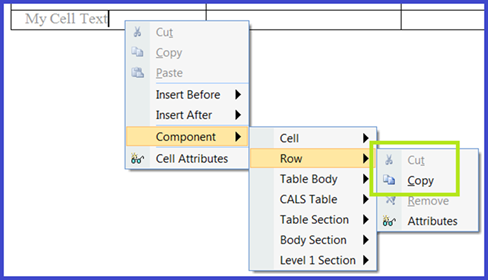
Figure 16‑1: Component > Row submenu: Cut and Copy commands
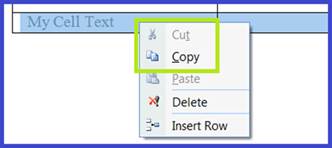
Figure 16‑2: Row root-level Context Menu: Cut and Copy commands
Previously the “strict XML” execution of Cut and Copy placed XML on the clipboard that contained text, string and Unicode, but none of the Quark XML Author formats. This feature was used to pasted XML into other XML tools. However, this feature is deprecated in Quark XML Author version 4.0.
Multiple element - Cut, Copy, Paste
The overview and detailed description of this feature is included the user guide and is the same for each version of the application. This document contains a brief description as well as some additional details applicable to a configuration engineer.
The Cut, Copy, Paste feature works with selections that include multiple elements and multiple content types such as text, images and tables. This includes all metadata and emphasis within the selection as well as child elements.
The Cut and Copy features are supported by:
-
InternalClass: Ribbon buttons
-
Select/Component Context Menus
-
Shortcut keys: CTRL + X, CTRL + C, Shift + DEL, CTRL + Insert
The following provides details about the scenarios and use cases that the Cut, Copy, Paste feature supports. These are in addition to those listed in the user guide:
-
Selection of inline text may be pasted as a new element of the same type as the source element, if valid.
-
Selection of complete text element may be pasted as inline text, if valid.
-
Selection of a block image may be pasted to replace other block images, if valid.
-
Selection of a block image may be pasted to replace an inline content selection. Destination selection may contain text, images and/or equations, if valid.
-
Selection of a block image may be pasted as a new inline image, if valid.
-
Selection of block equation may be pasted to replace an inline content selection. Destination selection may contain text, images and/or equations, if valid.
-
Selection of a block equation may be pasted as a new inline equation, if valid. Selection of inline content may contain images and/or equations. Selection may be pasted as a new element of the same type as the source element, if valid.
-
Selection of an inline image or inline equation may be pasted as a new block image/new block equation element. This feature cannot yet be demonstrated DITA BusDocs, because in the BusDocs configuration the image and equation element require a Figure wrapper/parent element.
-
Selection of an inline equation may be pasted to replace an inline equation.
-
Selection of an inline equation may be pasted as a new inline equation.
A single element selection that includes the Empty above and the Empty below will also invoke the GetComponentId EI, if configured.