
Document Level Configuration
DocConfig files can have any name, but will typically be named to indicate the document schema it supports. For example, a schema named chapter.xas might have a DocConfig file named chapter-config.xml.
In addition to the same Menu, CommandBar, and Shortcut configuration options that the AppConfig file has, the DocConfig file includes the elements defined in the rest of this section.
Portionmarks
Every visible element in a Quark XML Author document has a pre-text and post-text area that can be accessed and changed by four extensibility delegates. See section 6.4 for definitions of these delegates, which are AssignPostText, AssignPreText, GetPostText, and GetPreText. In addition, two document events (RightClickPreText and RightClickPostText, discussed in section 6.5) provide a means to launch Extensibility Interface methods whenever they are invoked. Which Portionmarks are available, their values, and the elements to which they belong are specified in the DLL that these delegates invoke.
Portionmarks can be specifically configured at the document, cell, element and cell element level for any visible element, empowering administrators to control the impact that enabling Portionmarks may have on the performance of the document.
-
Configuring Portionmarks at the table level:
The configurability of Portionmarks is controlled hierarchically. For example, if Portionmarks are enabled at the Document level, but disabled at the Cell level, then subsequent element level and cell element configurations become meaningless. The configurability follows the following hierarchical order:
Document Portionmarks > Cell Portionmarks > Element Portionmarks > Cell Element Portionmarks
-
Configuring Portionmarks for elements outside a table:
Portionmarks for elements outside a table are governed by the Element Portionmarks configuration. The configurability follows the following hierarchical order:
Document Portionmarks > Element Portionmarks
An example is shown below.
<ElementDef name="table-sectionx1" xmlname="section" friendly="Single Section" visible="true" style="SectionMarker" allowPortionmark="true">
    <Section>
      <Sequence minOccurs="1" maxOccurs="1">
        <SectionType name="p-start" readonly="true" default="Section Start"/>
            …….
            ………    </Section>
    <Attributes>
            ……..
    </Attributes>
    </ElementDef>
Making Portionmarks available requires that the Portionmarks node in the document configuration file be populated with Portionmark child elements, which are defined below.
1. Portionmark Attributes
Table 9‑1: Portionmark Attributes
|
Attribute |
Required |
Definition |
|
defaultDisplay |
no |
If set to true, Word will display the portionmark when the document is initially opened. |
|
styleName |
no |
The name of the Word style in the Word template that will be used to render the portionmark data on the screen. The Portion mark style has to be a character based style and not a para based style. |
|
type |
yes |
Must have a value of either PreText or PostText. Only one node of each is allowed. |
|
addCellPortionmark |
no |
If set to false, the table cells portionmarks will be disabled. If set to true, the table cells portionsmarks will be enabled. If it is not defined, then the default value is false. |
An example is shown below.
<Portionmarks addCellPortionmark="false"/>
<Portionmark type="PreText" defaultDisplay="true" styleName="Portionmark"/>
<Portionmark type="PostText" defaultDisplay="true" styleName="Portionmark"/>
</Portionmarks>
NOTE: Setting the value of the addCellPortionmark parameter to true might degrade the performance of some table operations and the document open/save operation.
ReferenceShadingColor
Defines the color that will be used as shading for elements that are referenced from external sources. The color is defined by the values of the red, green, and blue attributes, with each value being an integer between 0 and 255.
An optional child element, FailedShadingColor, can be used to specify the color to be used for a failed or broken reference. The color is defined by the values of the red, green, and blue attributes, with each value being an integer between 0 and 255.
AllowRestartContinueNumbering
If set to Yes, allows the user to restart numbering when a second numbered list is inserted within a document. If set to No, all numbered lists within the document will be numbered sequentially, with no restarting allowed.
DefaultSaveOptions
Attributes of this element specify options for all save operations:
Table 9‑2: DefaultSaveOptions Attributes
|
Attribute |
Definition |
|
allowLocalSave |
Boolean. Defaults to true. If set to false, the user will not be prompted to save changes when the document is closed, even if there are unsaved changes. The user will instead be prompted, "Do you wish to close XML Author and lose unsaved changes?" |
|
defaultFilepath |
When specified, this path is used as the Save In folder in the Save As dialog. The dialog uses this path as the current folder of the dialog. The user is not restricted to this path. |
|
filter |
Specifies the default filter options for the Save dialog box. |
|
nativeFormat |
Boolean. Set to true if document is to be saved in Word format, false if it is to be saved only as XML. Defaults to true. |
|
transform |
XSL code for transforming the document being saved. |
ComponentCopy
If present, this optional node either invokes a transform method specified by its transform attribute, or invokes an Extensibility Interface method, via its getReferenceId attribute, that returns the conref or cross reference target string.
Table 9‑3: ComponentCopy Attributes
|
Attribute |
Required |
Definition |
|
getReferenceId |
no |
The ID of the Extensibility Interface method that returns the conref or cross reference target string. |
|
transform |
no |
Path to the stylesheet used to transform a copied component. |
Commenting
The Commenting node allows you to specify additional custom attributes, and enumerated values for those attributes, for comments that the user adds to the document in the authoring environment. The author can access these attributes by right-clicking in the Word Comment balloon.
The Commenting node contains one or more Attribute nodes.
Attribute
Each Attribute child element of Commenting describes one attribute that can be applied to document comments.
Table 9‑4: Commenting > Attribute Element Attributes
|
Attribute |
Definition |
|
author-att |
The name of the attribute that will contain the author's ID value for each comment. |
|
dateTime-att |
The name of the attribute that will contain date/time stamp value for each comment. |
|
value-att |
The name of the attribute that will contain the value supplied by the user for each comment. |
QuarkSection-Level4
Each Attribute child element of Commenting contains one or more Enumeration nodes that describe the possible values that the author can assign.
Table 9‑5: Commenting > Attribute > Enumeration Element Attributes
|
Attribute |
Definition |
|
autotext |
Any autotext that is to be appended to the comment when the value is selected. You may use the keywords {author} and {timestamp} to insert the author ID and a timestamp along with the selected value. |
|
menuitem |
The value as it will appear to the user in the context menu. |
|
value |
The value that will be assigned to the XML attribute. |
Break
This optional node supports section, page, and column breaks, in conjunction with the sectionBreak, pageBreak, and columnBreak datatypes. See Table 11‑3, in section 11.6.2, for more information on these datatypes and how they are used.
The Break node has three optional child elements: SectionBreak, PageBreak, and ColumnBreak. These elements can have one of two values: restricted and unrestricted. These elements default to unrestricted, and if the Break node is absent from the DocConfig file, the defaults are applied. In the example below, these types of breaks are restricted:
<Break>
  <SectionBreak>restricted</SectionBreak>
  <PageBreak>restricted</PageBreak>
  <ColumnBreak>restricted</ColumnBreak>
</Break>
SectionBreak
When SectionBreak is set to restricted, the Insert Section Break command can only be invoked when the cursor position in the document is on an Empty (Insertion Point) and the next visible element has a sectionBreak attributeType defined (see section 12.3).
When SectionBreak is set (or defaults) to unrestricted, the InsertSectionBreak command can be invoked when the cursor position in the document is on an Empty (Insertion Point) preceding any visible document element. Every visible element in the schema will inherit this capability; there is no need to explicitly define a sectionBreak attributeType for each visible element.
PageBreak
When PageBreak is set to restricted, the InsertPageBreak command can only be invoked when the cursor position in the document is on an Empty (Insertion Point) and the next visible element has a pageBreak attributeType defined (see section 12.3).
When PageBreak is set (or defaults) to unrestricted, the InsertPageBreak command can be invoked when the cursor position in the document is on an Empty (Insertion Point) preceding any visible document element. Every visible element in the schema will inherit this capability; there is no need to explicitly define a pageBreak attributeType for each visible element.
ColumnBreak
When ColumnBreak is set to restricted, the InsertColumnBreak command can only be invoked when the cursor position in the document is on an Empty (Insertion Point) and the next visible element has a columnBreak attributeType defined (see section 12.3).
When ColumnBreak is set (or defaults) to unrestricted, the InsertColumnBreak command can be invoked when the cursor position in the document is on an Empty (Insertion Point) preceding any visible document element. Every visible element in the schema will inherit this capability; there is no need to explicitly define a columnBreak attributeType for each visible element.
AllowHeaderFooterEdit
This optional node can contain either true or false, and defaults to false. An example is shown below:
<AllowHeaderFooterEdit>true</AllowHeaderFooterEdit>
If set to true, document authors can double-click the header/footer regions and modify content in those regions. Quark XML Author will not impose any restrictions on the content in these regions; the WordML content is stored in the document using the CDATA WordSection node.
If set to false (or not specified), Quark XML Author will detect a user's attempt to edit the header and footer document region. Quark XML Author will intercept a double-click event and invoke any EI methods associated with EI event, "DoubleClickHeaderFooter", if any. If this event contains no EI method, Quark XML Author will consume the keystroke.
AllowSoftLinebreaks
This optional node can contain either true or false. Defaults to false. An example is shown below:
<AllowSoftLinebreaks>true</AllowSoftLinebreaks>
If false, document authors cannot insert soft line breaks (using Shift + Enter) into any element in the document. If set to true, document authors can insert soft line breaks in any text element.
Smart Paste
Also when soft line breaks are allowed, clipboard content containing a line break will introduce a PasteSpecial context menu item within a paragraph element. This menu option will allow users to preserve line breaks while pasting text in the document.
Reviewing
The <Reviewing> node is a leaf node with one attribute, modelType, with two possible values: OneNode or TwoNode. Default value is TwoNode.
When set to OneNode, the two node model of representing Revision and Comment nodes is converted in the serialized document to a single node model.
HiddenInsertables
This optional node specifies which empty should be used to calculate insertables when there are hidden elements (made hidden by the use of ToggleVisibleElement Internal class)between the visible nodes surrounding the currently selected empty.
Table 9‑6: HiddenInsertables Attributes
|
Attribute |
Required |
Definition |
|
selectionStrategy |
yes |
Possible values: FirstHiddenElement, LastHiddenElement and AllHiddenElements. FirstHiddenElement considers the empty between current top visible node and the first invisible node. LastHiddenElement considers the empty between the last invisible empty and current bottom visible node. AllHiddenElements considers all empties between every invisible element pairs and combines them into one insertable list. Be careful using the AllHiddenElements setting. If a large number of items are hidden, then the list of items added to the insertables list may result in a large list whose usability is low. |
Change To Menu
The <ShowChangeToMenu> node allows you to specify whether or not “change to” menus are displayed for any elements.
Optional. Boolean. Defaults to true.
For information on controlling the display for a specific element type, see excludeFromChangeToMenu in Table 14‑1.
ShowInsertBeforeMenu
The <ShowInsertBeforeMenu> node allows you to specify whether or not “Insert Before” menus are displayed in the Context Menu for the current element.
Optional. Boolean. Defaults to true.
Insert Before menus contain the list of insertable elements that the user is allowed to insert before a given element. The list is the same as if the user right-clicked on the Insertion Point above the given element.
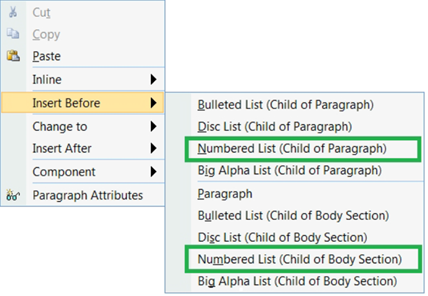
Figure 9‑1: Example of Insert Before submenu
PasteTrackDeletedText
If set to true, this will enable pasting track deleted text.
Defaults to false
<PasteTrackDeletedText>false</PasteTrackDeletedText>
ShowInsertAfterMenu
The <ShowInsertAfterMenu> node allows you to specify whether or not “Insert After” menus are displayed in the Context Menu for the current element.
Optional. Boolean. Defaults to true.
Insert After menus contain the list of insertable elements that the user is allowed to insert after a given element. The list is the same as if the user right-clicked on the Insertion Point below the given element.
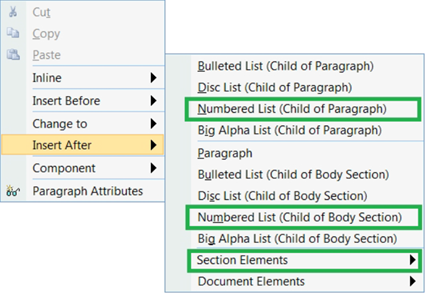
Figure 9‑2: Example of Insert After submenu
EnableFastSave
If set to true, this will enhance save and preview operations by optimizing serialization, resulting in lowering the amount of time taken in save and preview operations.
Defaults to False.
<EnableFastSave>true</EnableFastSave>
ReopenWithoutWordRendition
If set to true, then in case of docx corruption an alert will be shown to user and document will open in same session without using Alt+Open option.
Defaults to True.
<ReopenWithoutWordRendition>true</ReopenWithoutWordRendition>
Note: This attribute is part of Document configuration i.e. …\DocConfig\Misc.xml
EnableOpenDocxSupport
To Enable OpenDocx support in Quark XML Author, add the tag <EnableOpenDocxSupport>true</EnableOpenDocxSupport> in the document configuration. This is enabled by default in the Quark XML Author adapter for Platform (BUSDOCS) configuration. This feature is not available in the standalone version of Quark XML Author as it requires Quark Publishing Platform.
dir
Bidirectional text flow support in Quark XML Author at the document level is achieved by setting the base text direction for an entire document. This is accomplished using the dir attribute on the root element. Valid values for the dir attribute are ltr and rtl (left-to-right and right-to-left). Defaults to ltr.<topic id ="" xmlns:inv="urn:xpressauthor:xpressdocument" xmlns:xsi="http://www.w3.org/2001/XMLSchema-instance" xmlns:xlink="http://www.w3.org/1999/xlink" xsi:noNamespaceSchemaLocation="BUSDOCS.xsd" xml:lang="ar" dir="rtl">