
Searches
The Searches page in QPP is your central hub for content discovery and management. Here you'll find a list of all saved searches accessible to you, providing a quick way to retrieve or filter the required content. To proceed, you must choose a specific search aligned with your information needs, as no default search is selected.
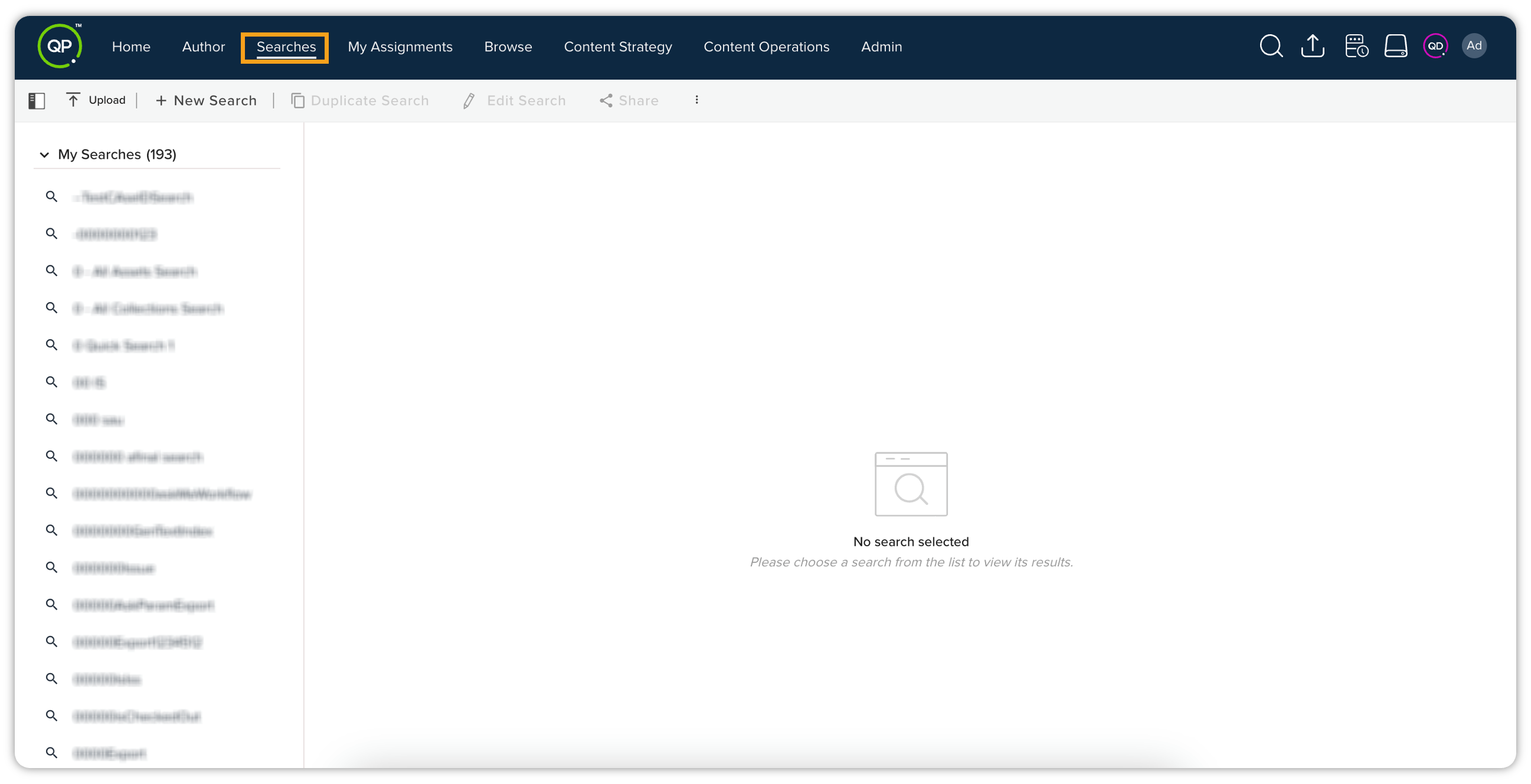
Selecting a search displays its associated results in the adjacent pane, which can be viewed in either a detailed column format or a more visual card layout. Once you've selected a search from the list, a range of options becomes available, including the ability to duplicate, edit, share, or delete the search, as well as export the search results. From this tab, you can also create new searches.
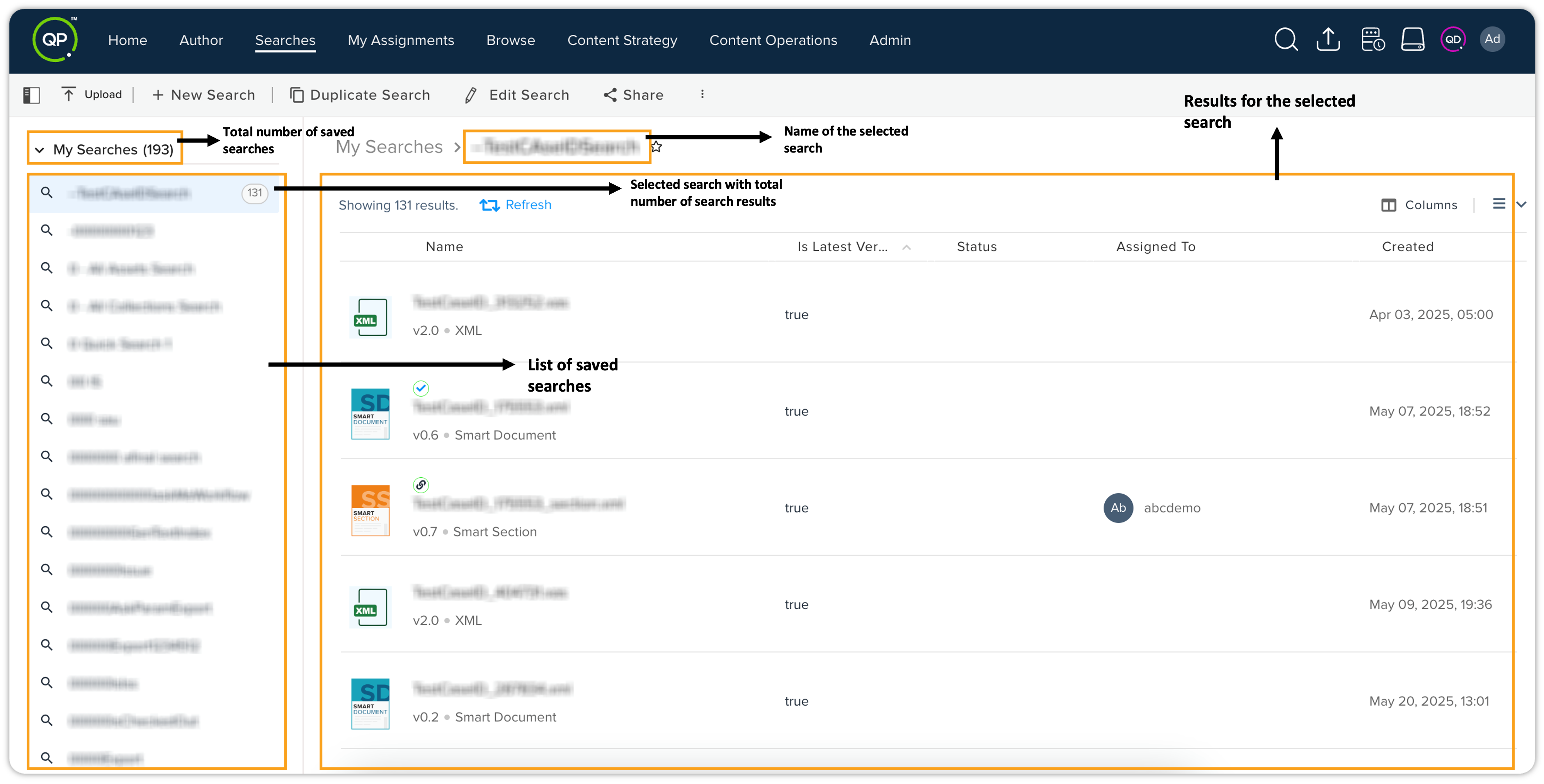
Overview of Searches Page
The Searches page displays the following information:
-
Total number of (accessible) search queries
-
Search query name
-
Number of search results returned (when a search is saved but not executed, QPP doesn't display a number against the search query name)
-
Selected search query
-
Search results
Top-of-the-bar Operations
The Searches page has the following top-of-the-bar operations that appear when you select a search query:

-
Show/hide searches pane: You can show/hide the search queries pane through the icon
 .
-
Upload: Allows you to upload a file/folder from your local machine to the server.
-
New Search: Allows you to create a new search query.
-
Duplicate Search: Creates a copy of the selected search query. When the name of the original search query is "A", Workspace automatically names the copy of the search query "A" as "A Cop 1", which you can edit later.
-
Edit Search: Allows you to edit a search query's attributes.
-
Share: Allows you to share a search query with other users who have the appropriate privileges to access the assets and collections in the search results.
-
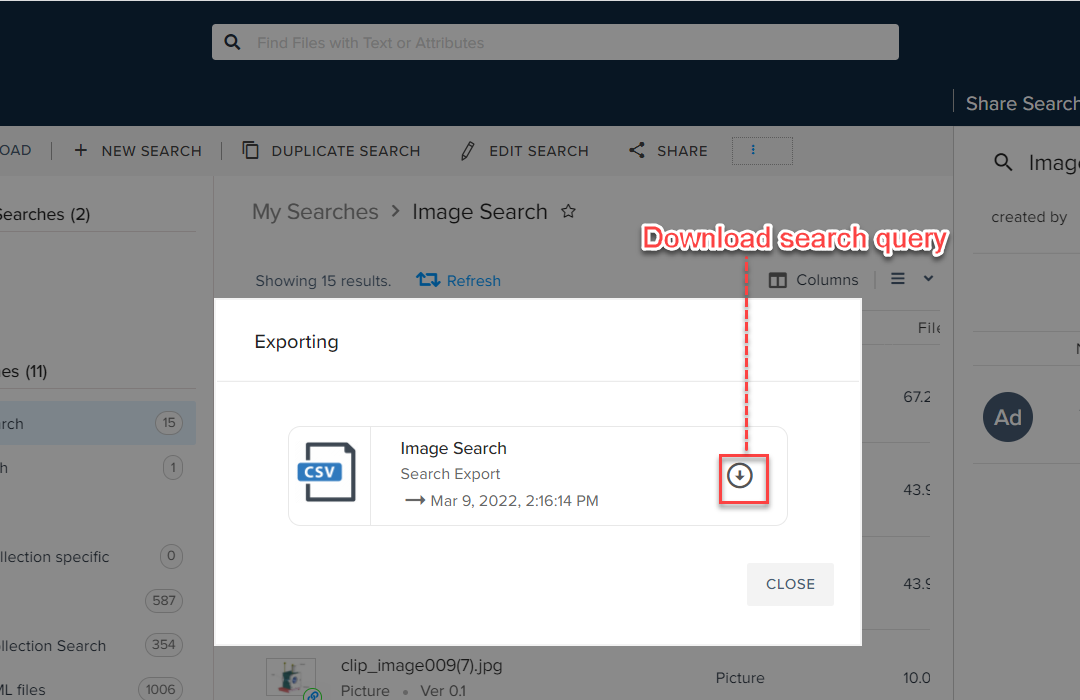
Export Search Results: Allows you to export/download search results as a CSV file.
-
Delete Search: Allows you to delete a search.
Create a New Search Query
To create a new search query:
-
Select the New Search button in the top-of-the-bar operations.
-
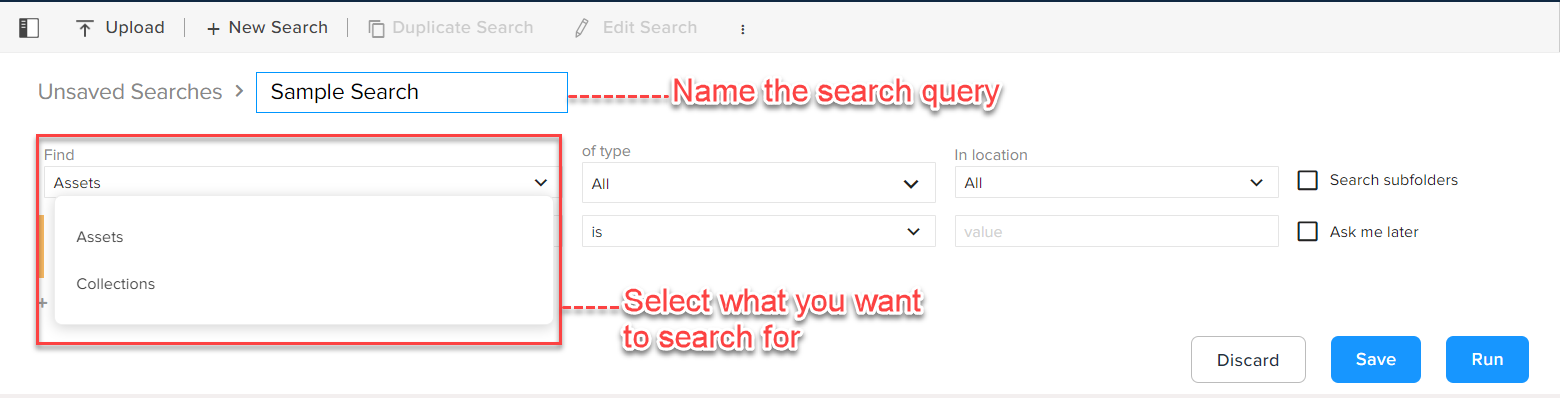
Add a name to the search.
-
Select the following:
-
In the dropdown menu Find, select whether you want to search for an asset or a collection.
-
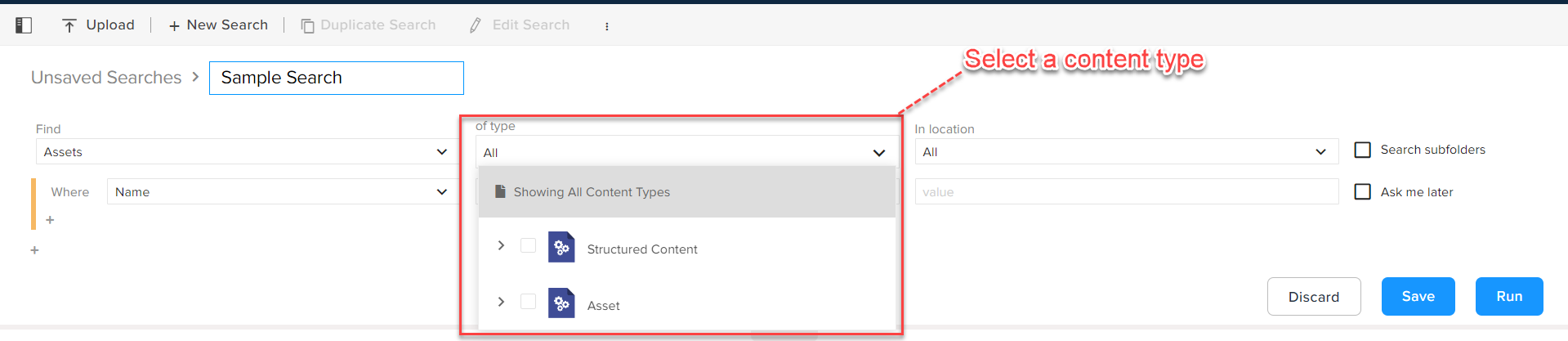
In the dropdown menu of type, select a content-type or a sub-content type.
-
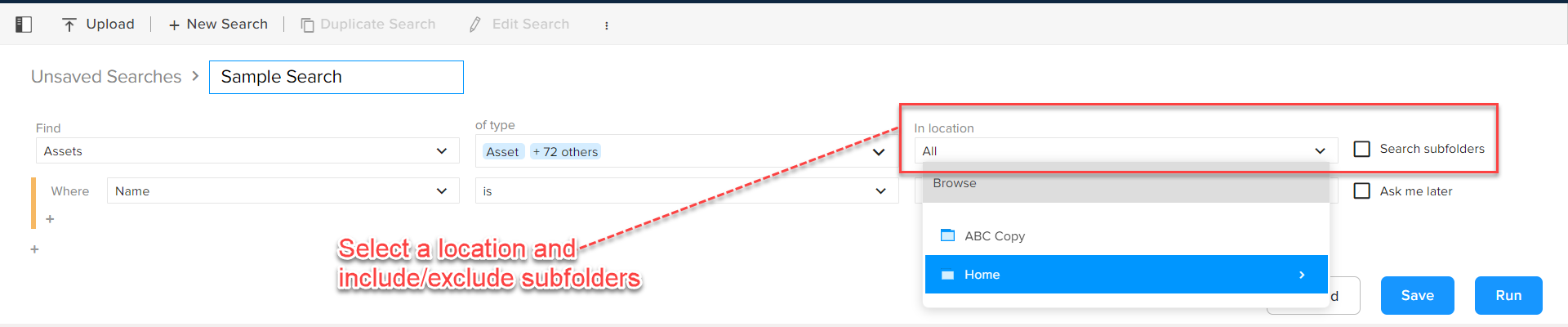
In the dropdown menu In location, select a folder/collection on the server. You can also choose to include a subfolder of a collection through the checkbox Search subfolders.
-
-
Mention a specific condition for an attribute; for example, where Name contains [value].
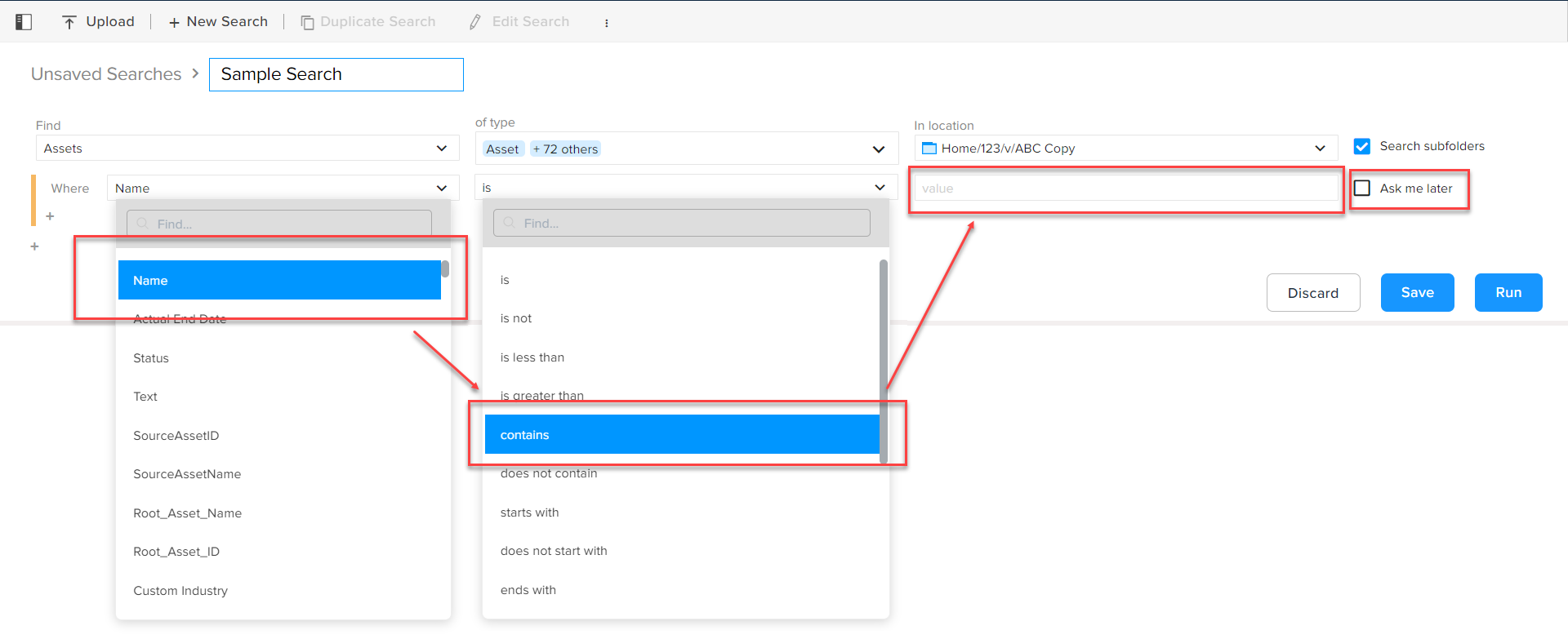 You can also choose not to select a specific condition by selecting the checkbox Ask me later.
-
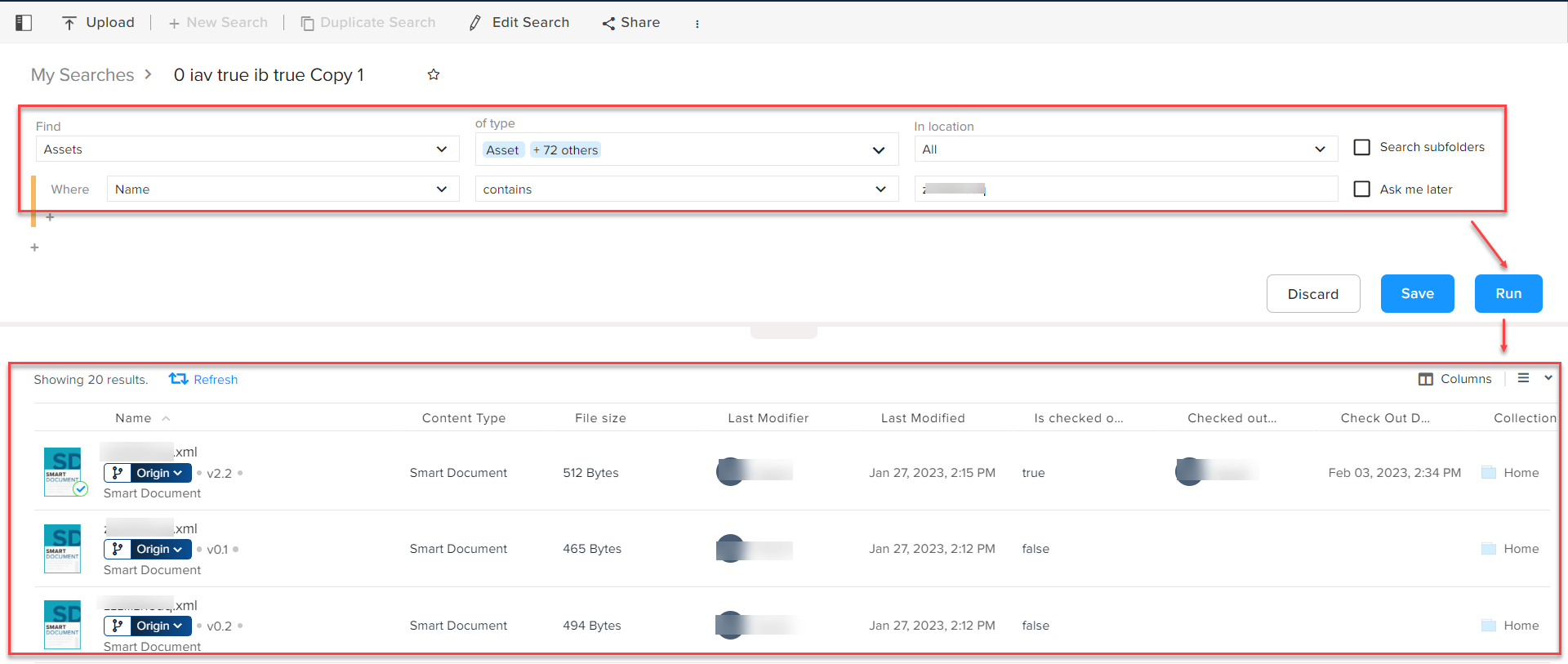
Select the button Run Search to see the search results.
-
Select the button Save to save the search.
Edit a Search Query
To edit a search query:
-
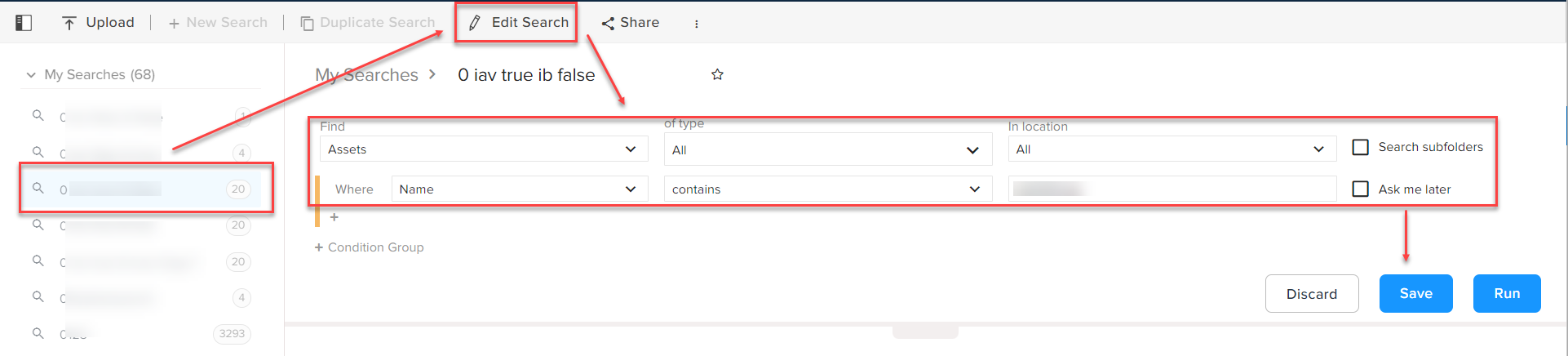
Select the Edit Search button in the top-of-the-bar operations.
-
Edit any of the dropdown values.
-
Select Save.
Share a Search Query
To share a search query:
-
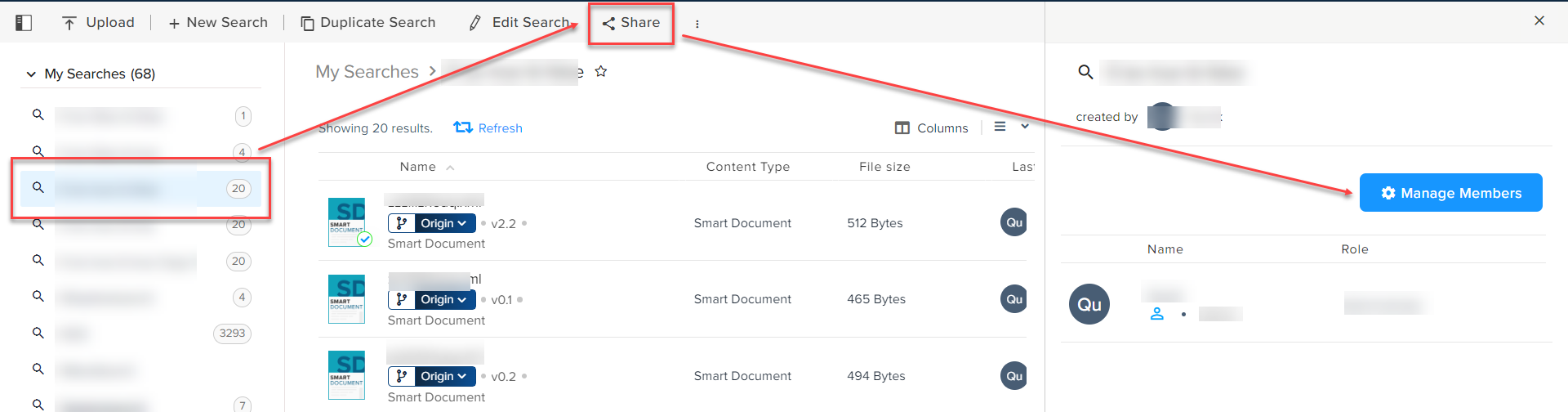
Select the Share button in the top-of-the-bar operations to open the Share Search pane.
-
In the Share Search pane, select the button Manage Members.
-
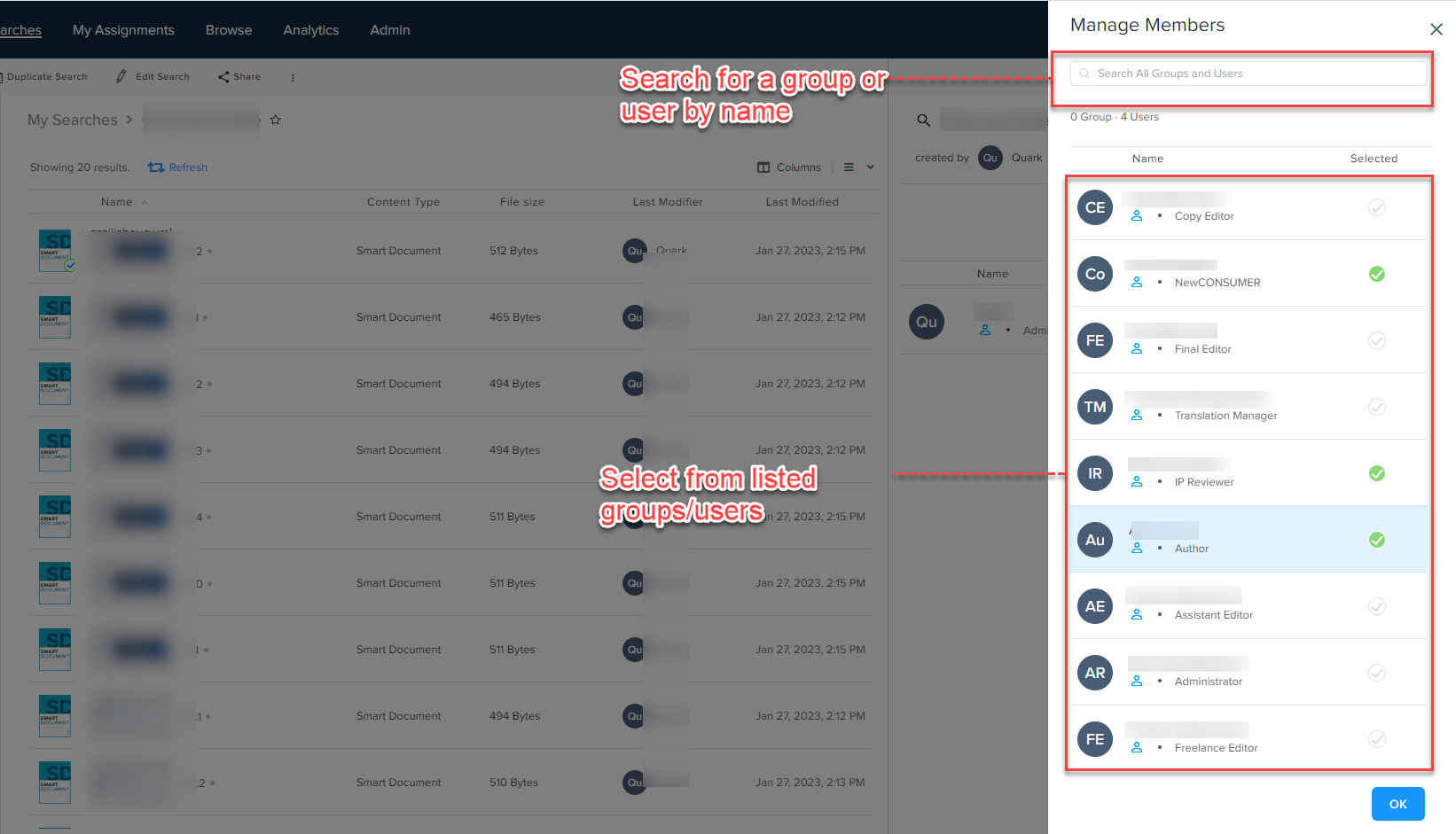
In the Manage Members pane, select the users and user groups with whom you want to share a search and then select OK.
-
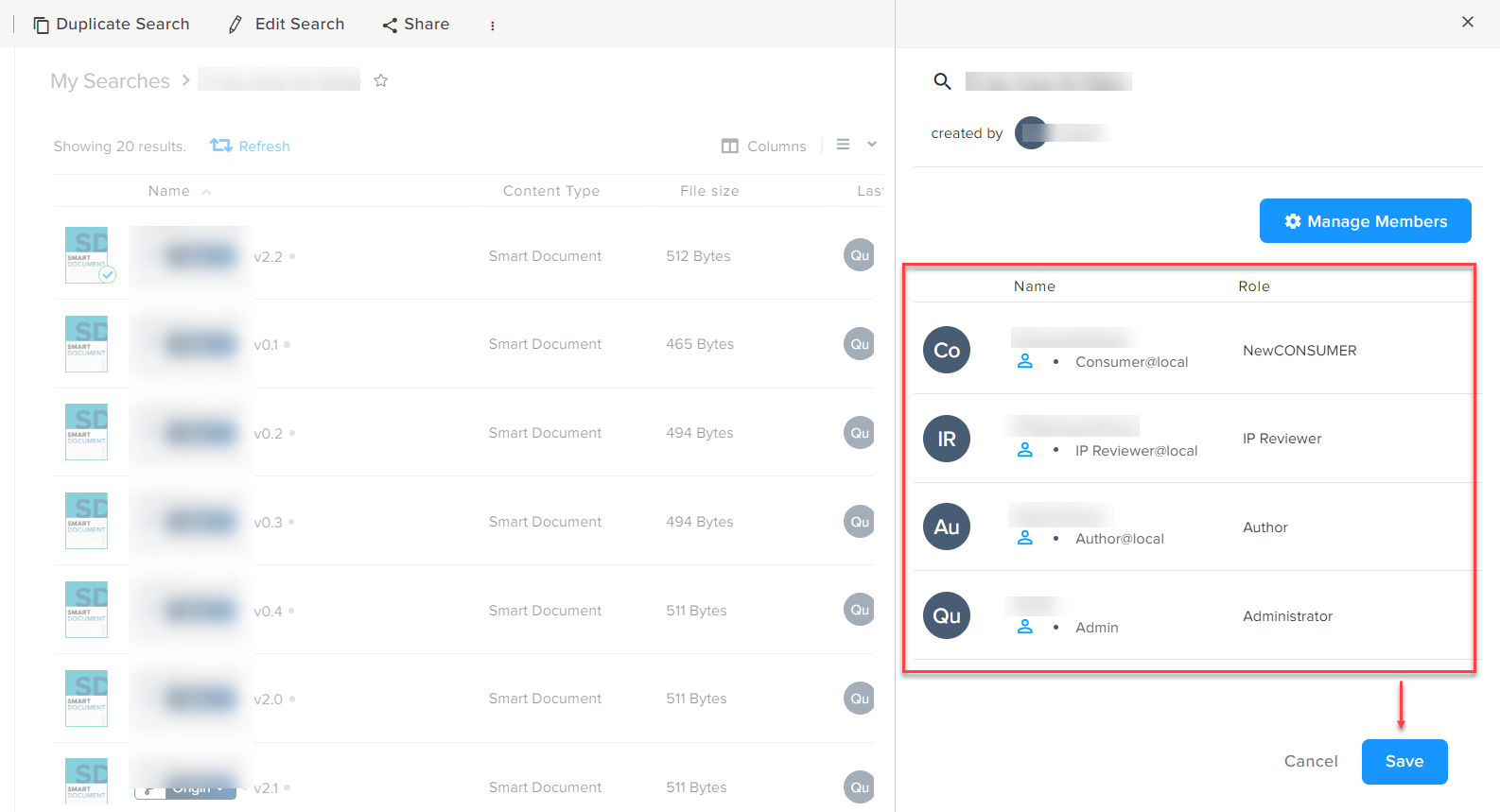
In the Share Search pane (where you can now see all the users and user-groups), select the button Save.
Generic Page Operations
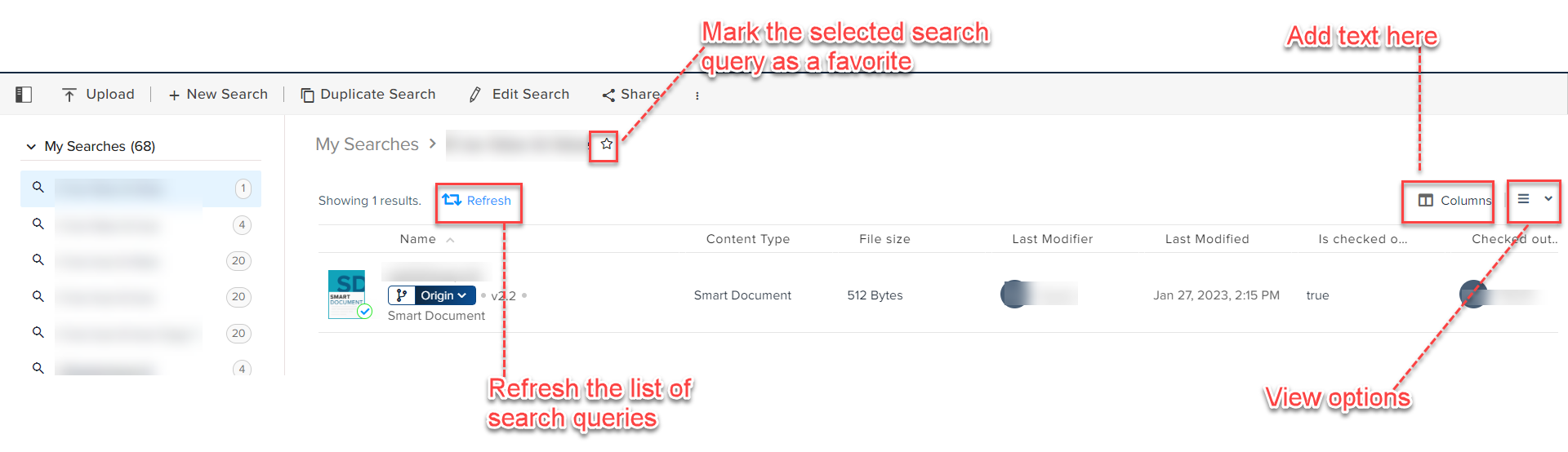
Additionally, you can perform the following operations on the Searches page:
-
Refresh the search query results
-
Mark a search query favorite:
-
Switch the view between list view and grid view
Column Options
To customize the attribute columns for the listed items:
-
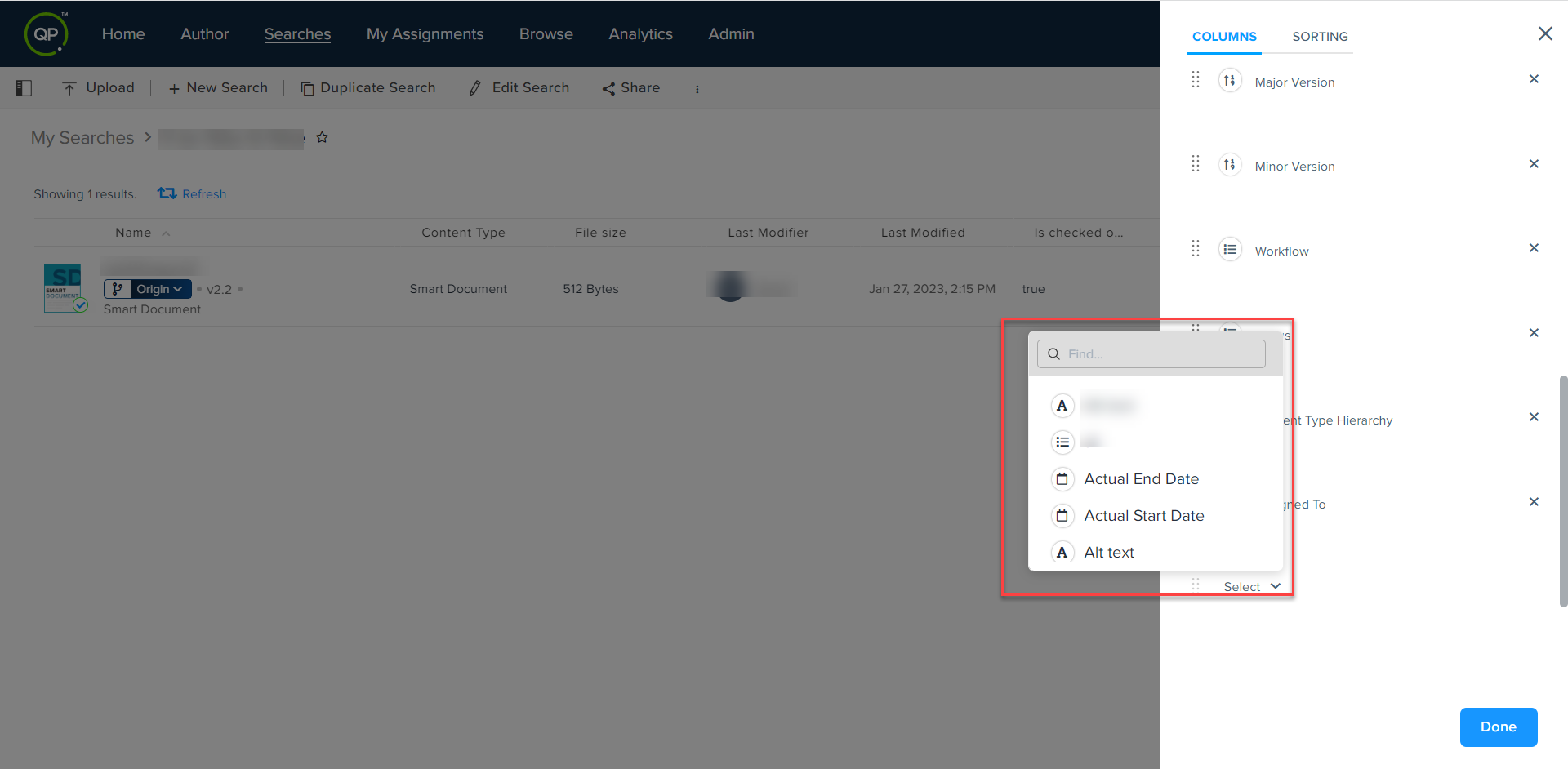
Select the options Columns at the upper-right corner of the page to open the column options pane at the right-hand side of the screen.

-
In the column and sorting pane, add or remove a column.
-
To add a column, select the drop-down menu Select and then select the column you want to add. You can also search for a column by name within the drop-down menu.
-
To remove a column, select the cross icon
 against the column name.
-
-
Select Done.
To sort the results by a column:
-
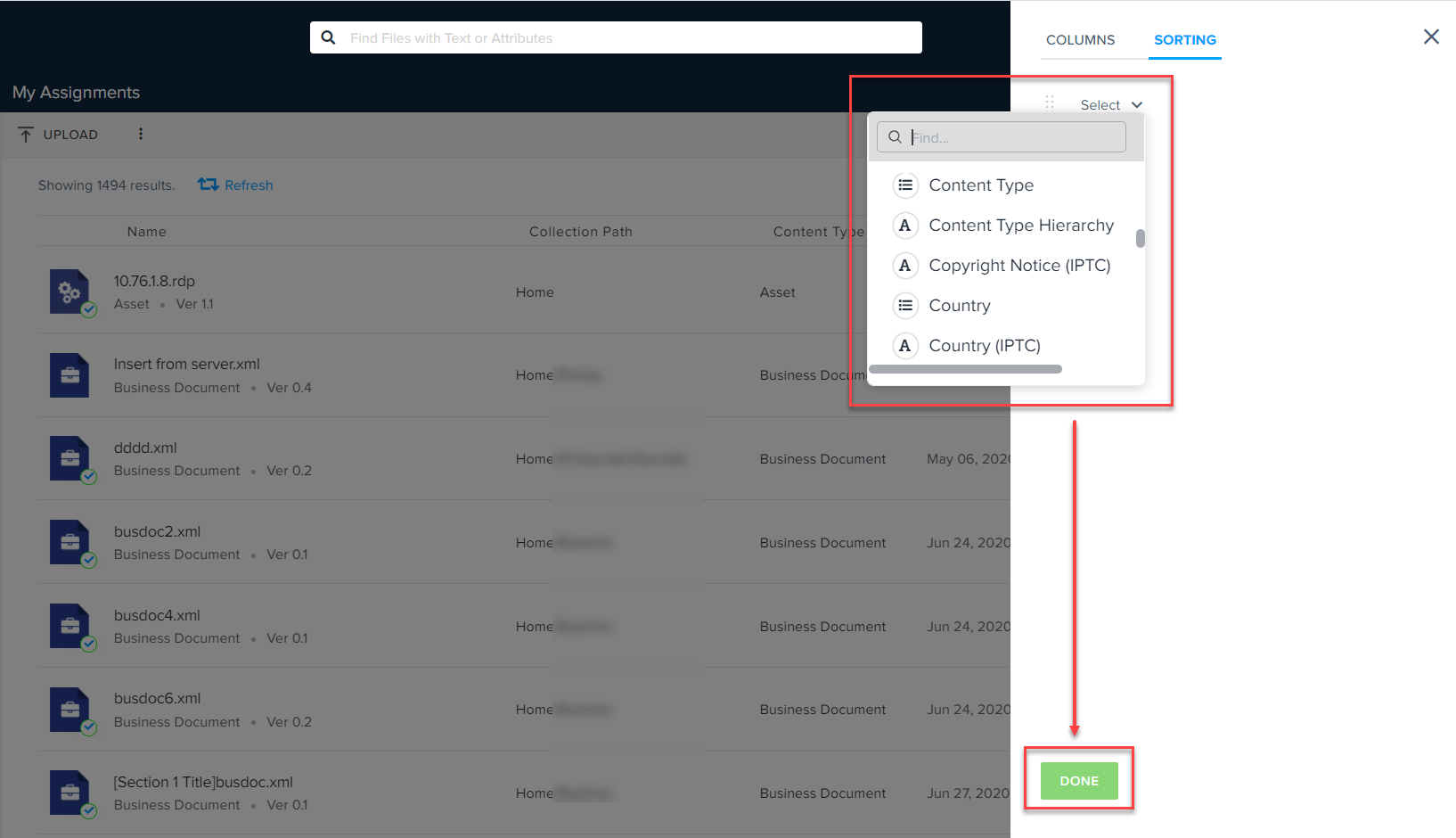
Switch to the tab Sorting in the column and sorting pane.
-
Select the column you want to sort the results by.
-
Select Done.
 for ascending order and
 for descending order.