Configurations
AppConfig.xml
The file AppConfig.xml contains the following application-level configurations:
|
Property |
Value Type |
Description |
|
TransformPath |
String |
This property contains the filename and the relative path to the folder where the XSLT (to publish the documents of a given content type) is stored in the DOCX Converter installer package. The format of the relative path and the XSLT file name is as follows:
|
|
ServerImagesPath |
String |
This property allows you to set the path to the collection where you want to store the images associated with the converted XML files. |
|
SmartCitations* |
Boolean |
When set to 'true', this property allows the DOCX Converter to also convert the citations in the DOCX files. |
|
CommonImagesFolder |
Boolean |
When set to 'true', this property will create a common folder in the destination folder to store images of all the converted documents based on different content models. The default value of this property is 'false'. |
|
RemoveEmptyParagraphs |
Boolean |
When set to 'false', this property will include the empty paragraphs present in the source DOCX while conversion process. The default value of this property is 'true'. |
|
RemoveTableTextAlignment |
Boolean |
When set to 'true', this property will remove the table text alignment present in the source DOCX while conversion process. The default value of this property is 'false'. |
|
AddTableStyles |
Boolean |
When set to 'true', this property will add the table style like cell-text color and cell background color present in the source DOCX while conversion process. The default value of this property is 'false'. |
|
ChangeImagesFormat |
Boolean |
When set to 'true', this property will change the image format during conversion process. When set to 'false', this property will convert the images in their original format. EMF and WMF files can be converted into PNG, JPG, and JPEG. |
|
RestrictTableColumnWidthRange |
Boolean |
When set to 'true', this property restricts the range of table column widths during the DOCX conversion process based on defined minimum and maximum values. When set to 'false', no restrictions are applied, and widths are converted exactly as they appear in the source. The default value of this property is 'true', with a default MinWidth of 5 px and a MaxWidth of 1000 px. |
styleMapping.xml
The configuration file styleMapping.xml is specific to content types and primarily allows you to define, map, and manage the heading levels of the sections and subsections of your document.
A unique copy of the file styleMapping.xml must be available for each of the content type collections in the dynamic configuration path.
In styleMapping.xml you must change the following settings based on your content model –
|
Property |
Value Type |
Description |
|
DocumentType |
String |
This property contains the type of the content type, which must be exactly the same as defined on your QPP server. |
|
HeadingN (where N can be 1, 2, 3, and so on) |
String |
This property allows you to map the DOCX heading level of the sections from the source DOCX files. When set to 'true', creates a common folder in the destination folder to store all the images of every content-model during conversion. The default value of this property is 'false'. |
|
TableCaptionStyle |
String |
This property contains the paragraph style of the table title text. |
|
TableDescriptionStyle |
String |
This property contains the paragraph style of the table description text. |
HeadingN
For example, you want to convert documents of content type Book, whose structure is as follows –
-
Book
-
Prefeace
-
Imprint
-
About Publication
-
-
Chapter 1
-
Chapter
:
-
Chapter N
-
Bibliography
-
The content type Book contains two levels of sections, which are as follows –
-
First level: Preface, Imprint, Chapter (1-N), and Bibliography
-
Second level: About Publication
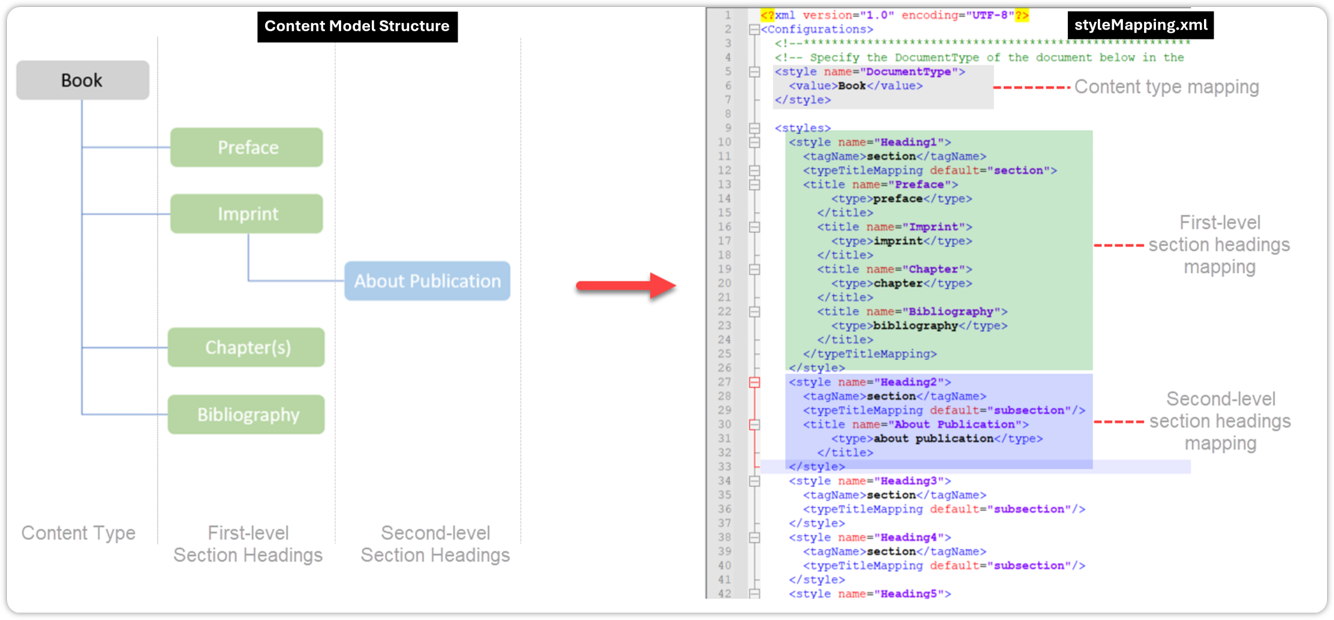
Considering that the sections in the source DOCX files conform to the structure of the content type Book, to ensure that converted XML files do the same, you must map the following style values in the file styleMapping.xml –
-
The content type associated with the content model used in the style DocumentType
-
The first-level headings to the style Heading1 style
-
The second-level headings to the style Heading2 style, and so on
For headings, you can create as many entries as required by adding a new title tag in the corresponding heading style.
Below image shows how you should map document and section heading styles in styleMapping.xml
TableCaptionStyle and TableDescriptionStyle
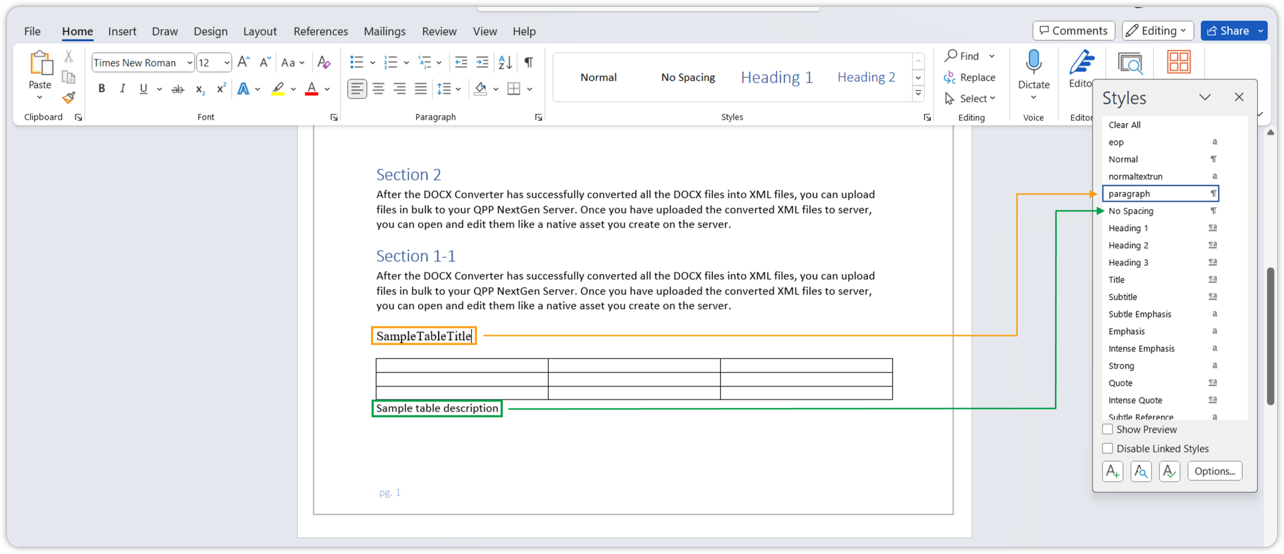
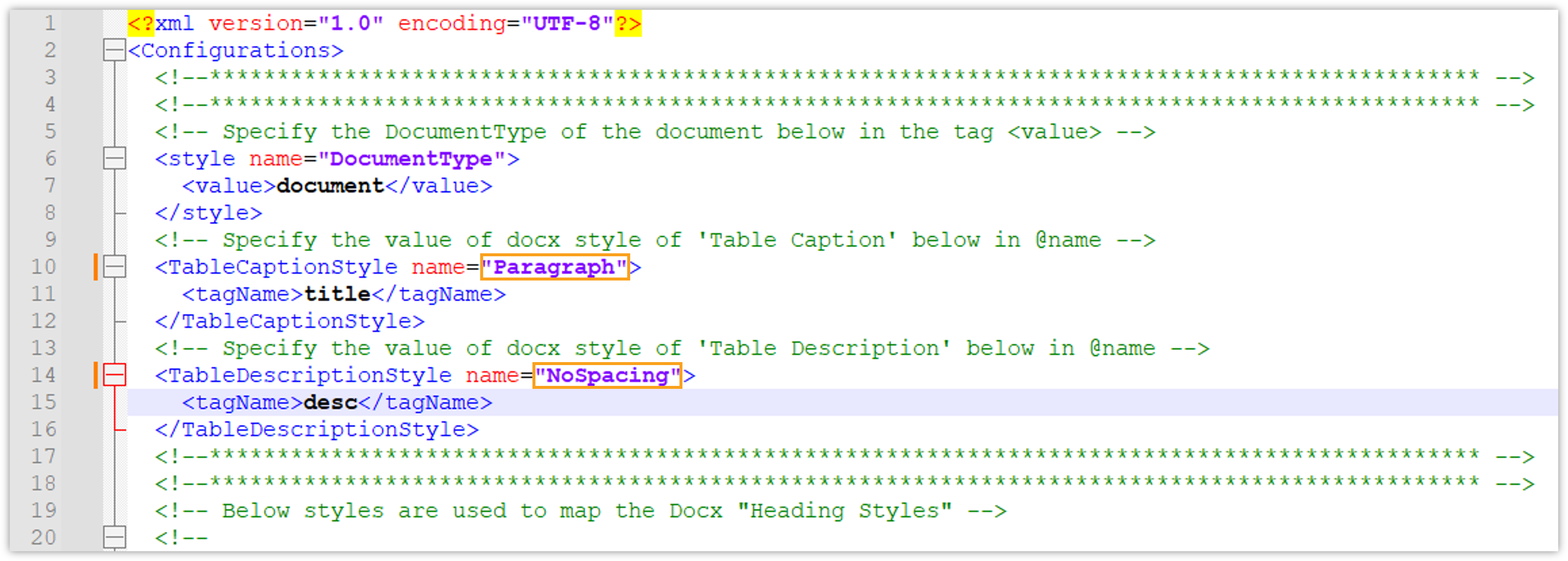
Through the properties TableCaptionStyle and TableDescriptionStyle, DOCX Converter allows you to automatically set the title and description of a table in the converted XML files from the text immediately preceding and succeeding the table in the source DOCX file.
To implement this, you have to
-
set the value of the property TableCaptionStyle as the paragraph style of the text immediately preceding the table
-
set the value of the property TableDescriptionStyle as the paragraph style of the text immediately succeeding the table