Support for Wiris Math Equations
Prerequisite
-
The DOCX Converter tool currently supports only Wiris MathType equations. If your Word documents contain other types of Math equations, you must first convert them into Wiris MathType equations before proceeding.
-
Ensure that validation is disabled in the AppConfig.xml file before performing the conversion.
-
Before starting the conversion, make sure that:
-
The Microsoft Word application is closed.
-
The QXA plugin is disabled, if you’re using it.
-
Convert MathType Equations
To convert your MathType equations into Wiris MathType equation, follow the steps given below:
-
Install MathType
-
Download and install Wiris MathType from Wiris's official website.
-
The installation will integrate MathType with Microsoft Word automatically.
-
-
Enable the MathType Add-in
-
Open Microsoft Word. Go to File > Options > Add-ins.
-
Under Manage COM Add-ins, check if MathType Add-in is enabled.
-
-
Use MathType in Word
-
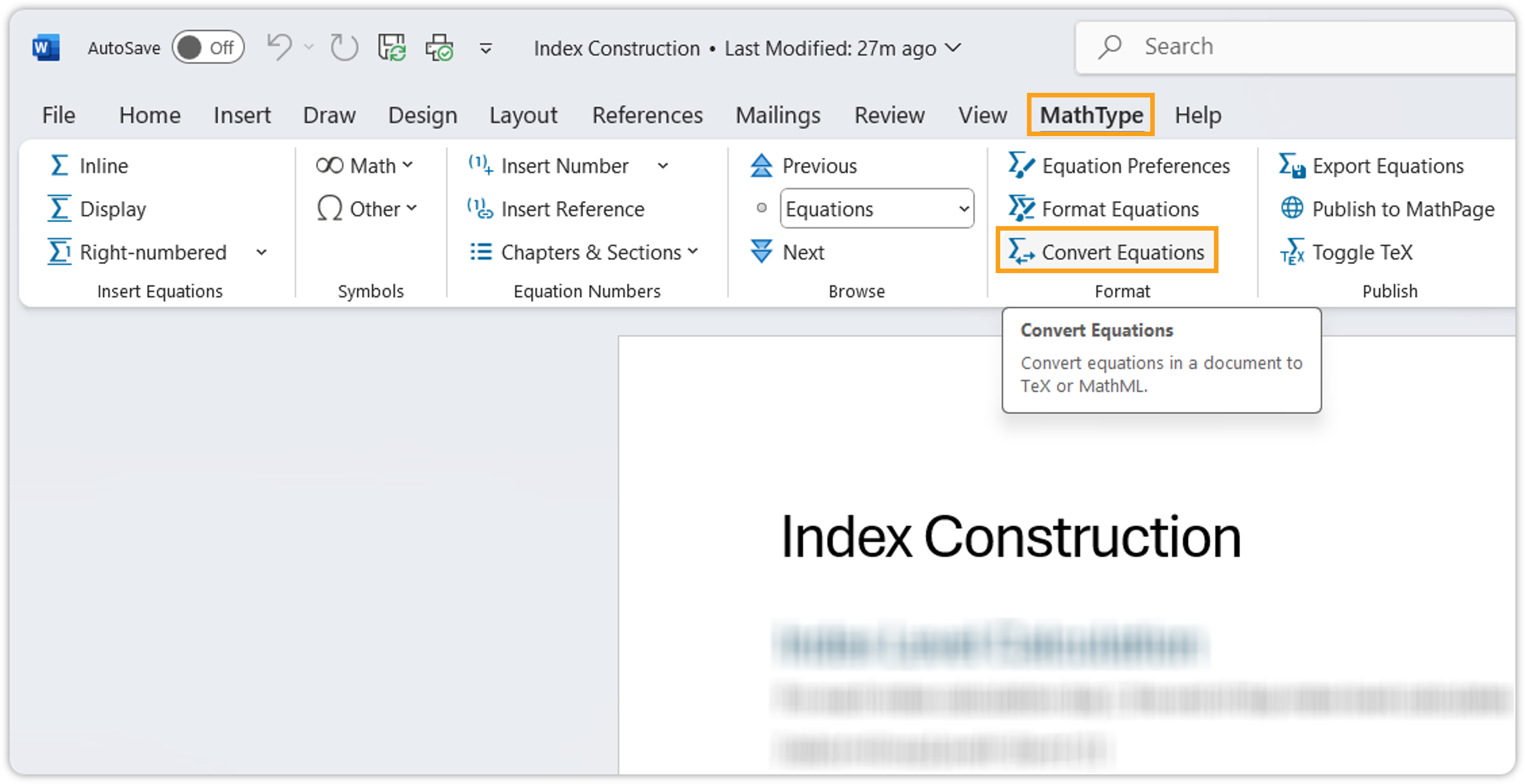
After installation, you should see a MathType tab in Word.
-
Click on MathType to insert/edit equations.
-
Once you’ve successfully installed the Wiris MathType plugin, follow the steps shown below:
-
Open the Word Document
-
Ensure that the document contains MathType equations that need to be converted.
-
-
Convert Equations to Wiris MathType Format
-
Go to the MathType tab in the Microsoft Word ribbon and click Convert Equations.
-
The Convert Equations dialog will pop up on the screen where you need to select these options: Word 2007 and later (OMML) equations, Whole document as range, and MathType equations (OLE objects). Then click Convert.
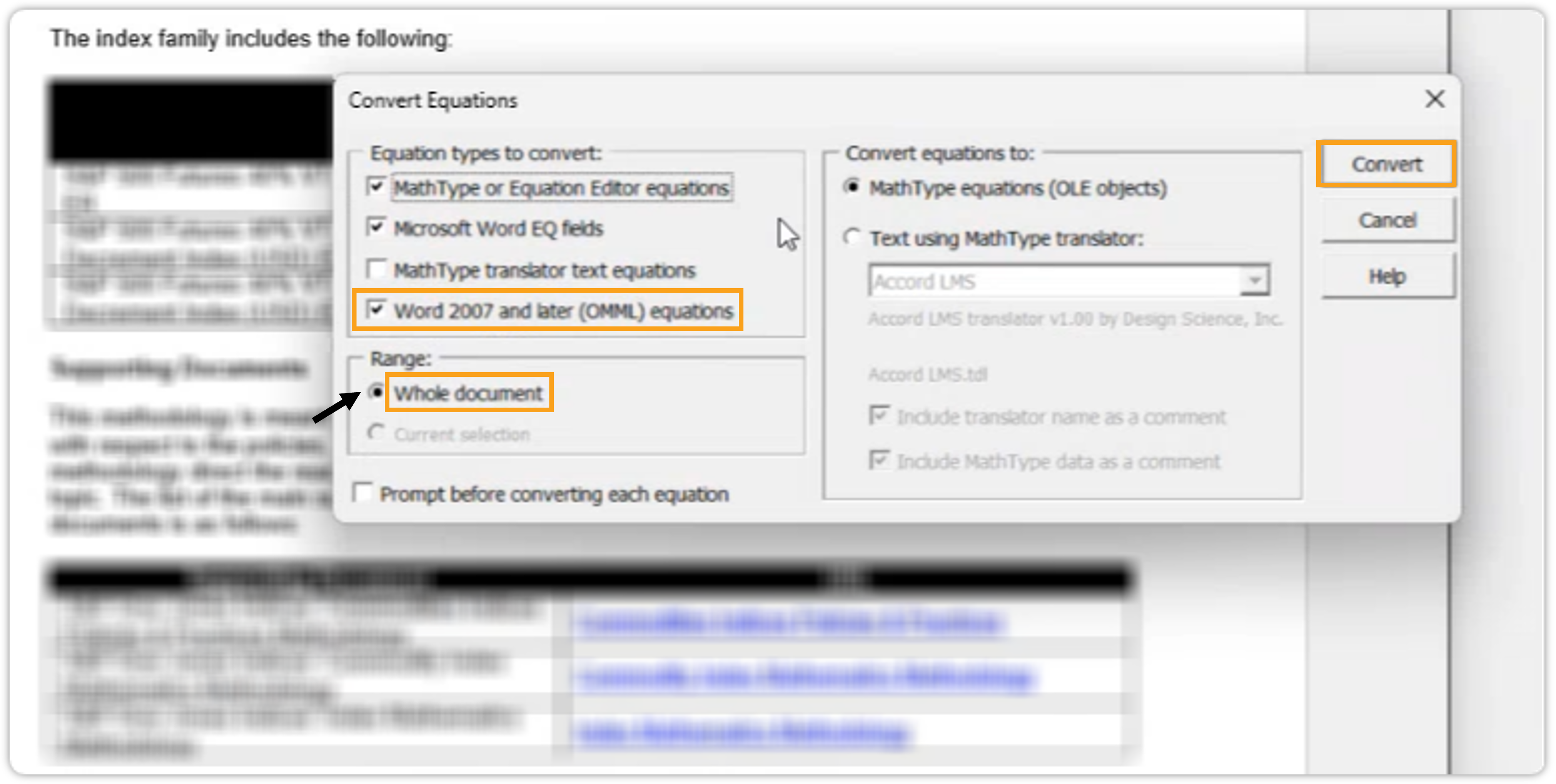 If you select Whole Document as range, the plugin will convert all the Mathtype equations present in the Word document. And, if you select Current Selector, the plugin will only convert the selected Mathtype equations.
-
-
Apply the Conversion
-
The plugin will process and convert all equations into Wiris MathType format.
-
-
Save the Document
-
Save the Word document to retain the converted equations.
-
Disable Validation in AppConfig.xml File
To disable the validation in AppConfi.xml file, follow the steps shown below:
-
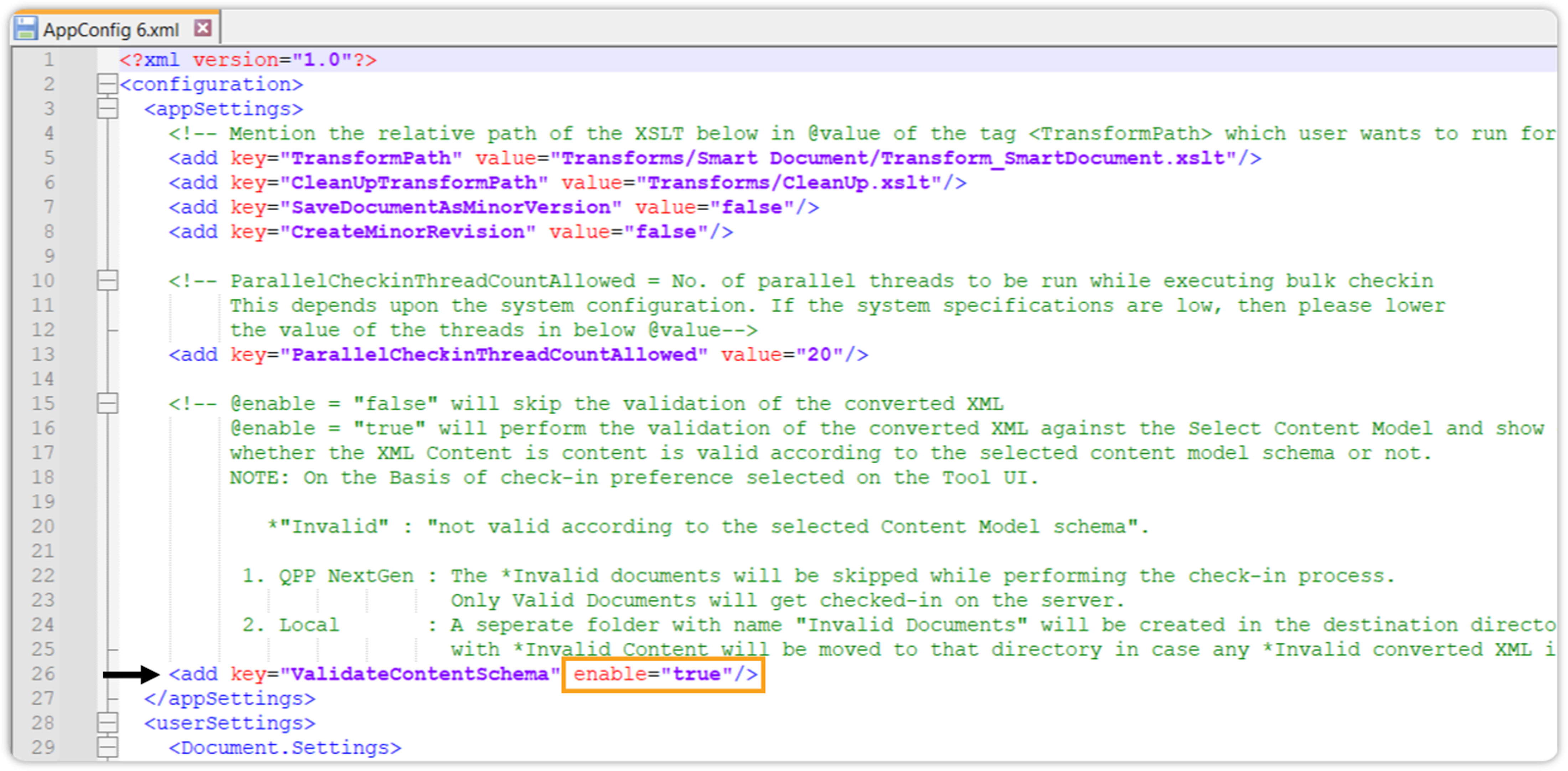
Open your AppConfig.xml file in the XML editor.
-
Search for ValidateContentSchema. By default, it’s set "true".
-
Set it to "false" and save the XML file.
-
Upload the AppConfig.xml to the dynamic configuration collection Migration Tool on your QPP NextGen Server repository.
Disable QXA Plugin
To disable the QXA plugin in Microsoft Word, follow the steps given below:
-
Open Microsoft Word application.
-
On Home, click Options to open the Word Options dialog box.
-
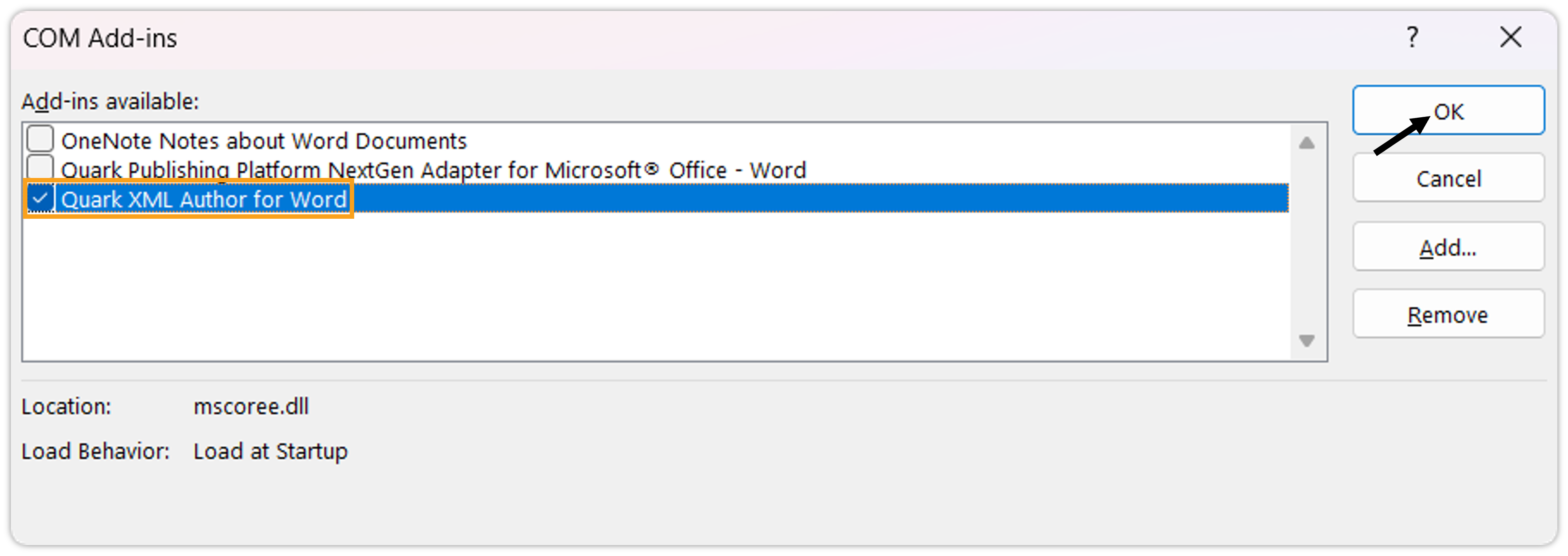
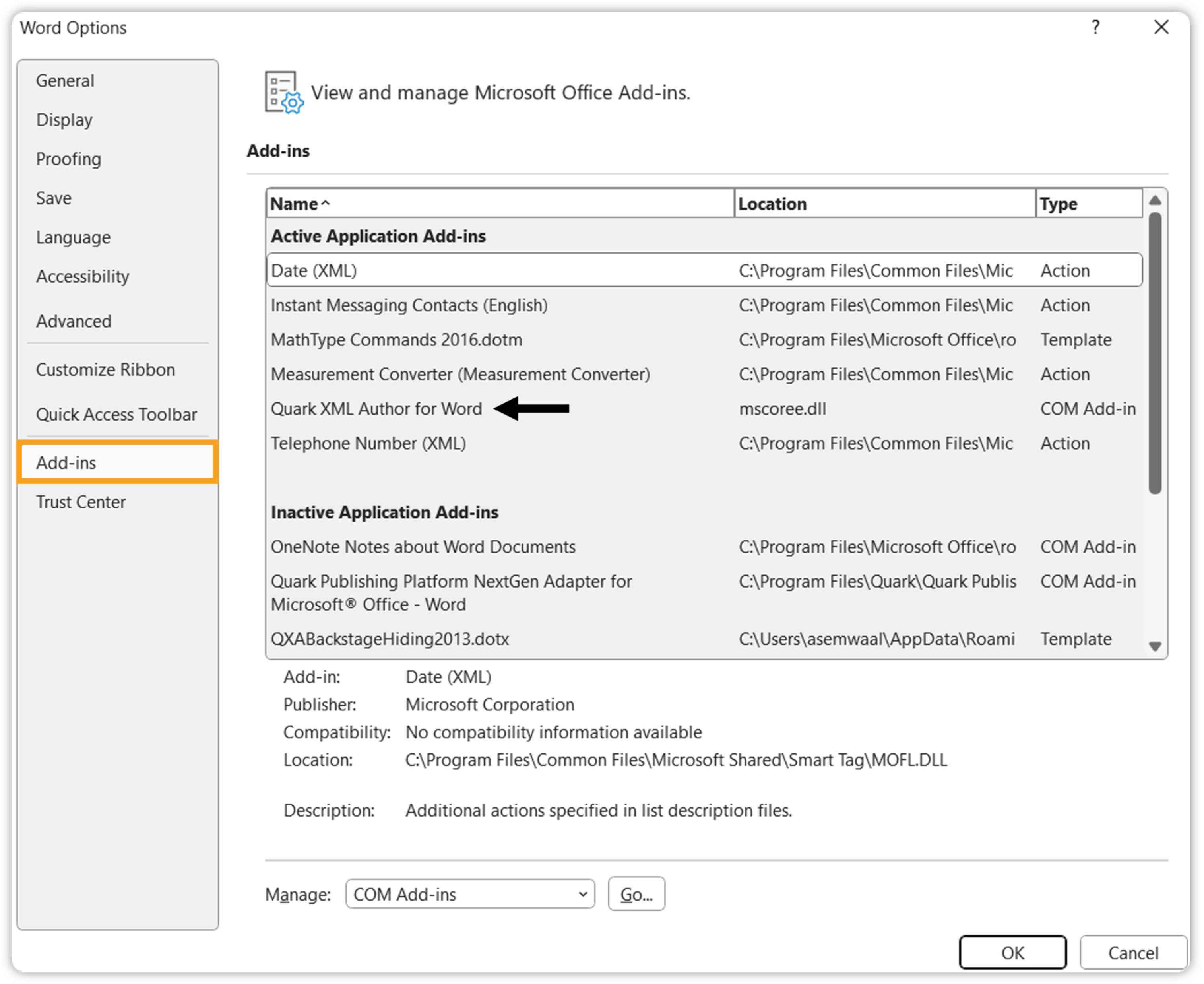
Go to the Add-ins tab, and check if the Quark XML Author is an active add-in.
-
Click Go next to Manage option.
-
On the COM Add-ins dialog box, uncheck Quark XML Author for Word, and click OK.