How to use Quarky Copilot
Quarky Copilot is designed to be intuitive and efficient, making it easy for you to find the information or assistance you need. Let’s say you want to create a document on a specific topic for your customers or readers/subscribers. To do that, follow the steps shown below –
-
Log in to the QPP-NG platform using your credentials.
-
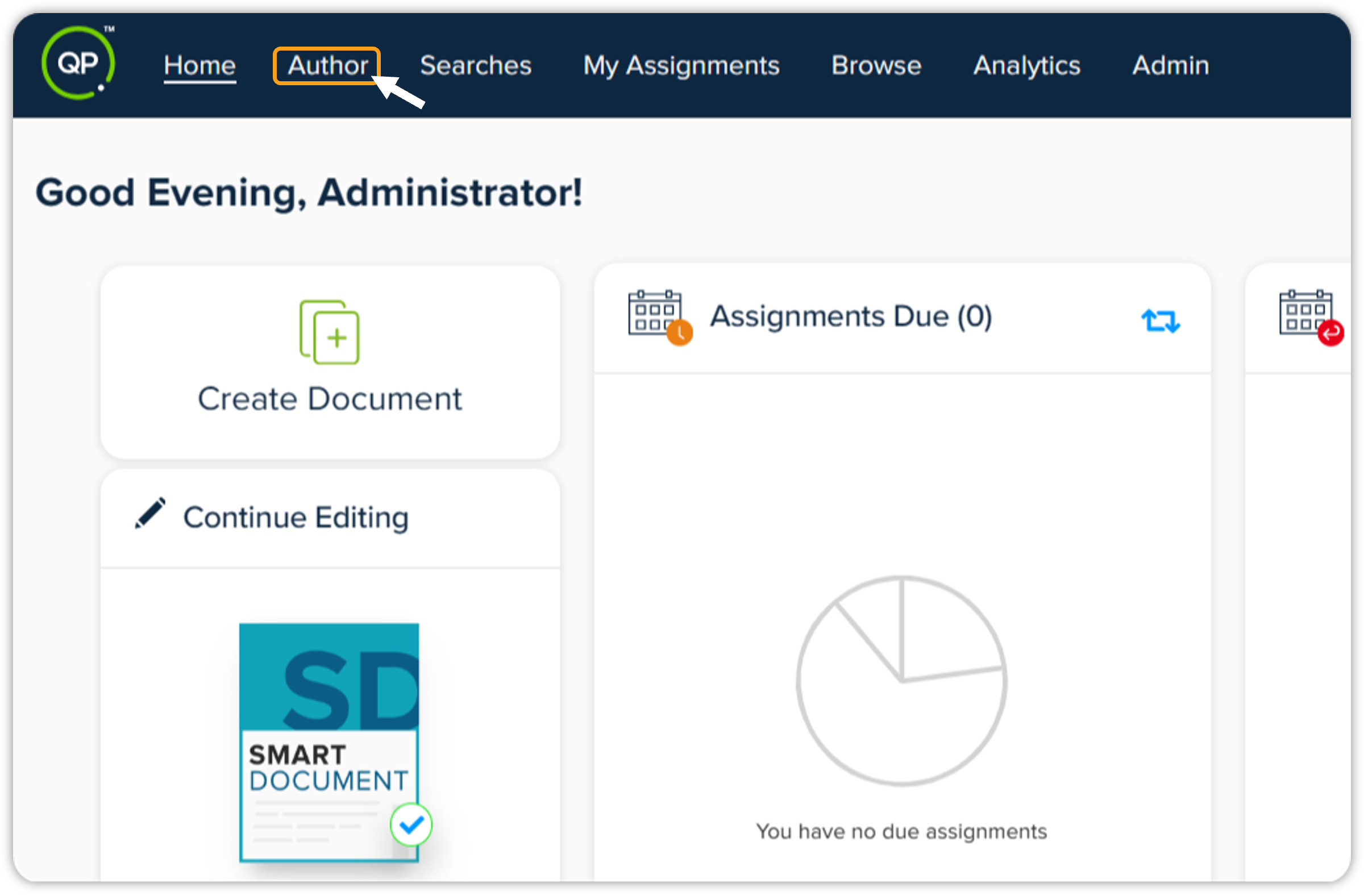
On the QPP-NG home screen, click the Author tab in the header section.
-
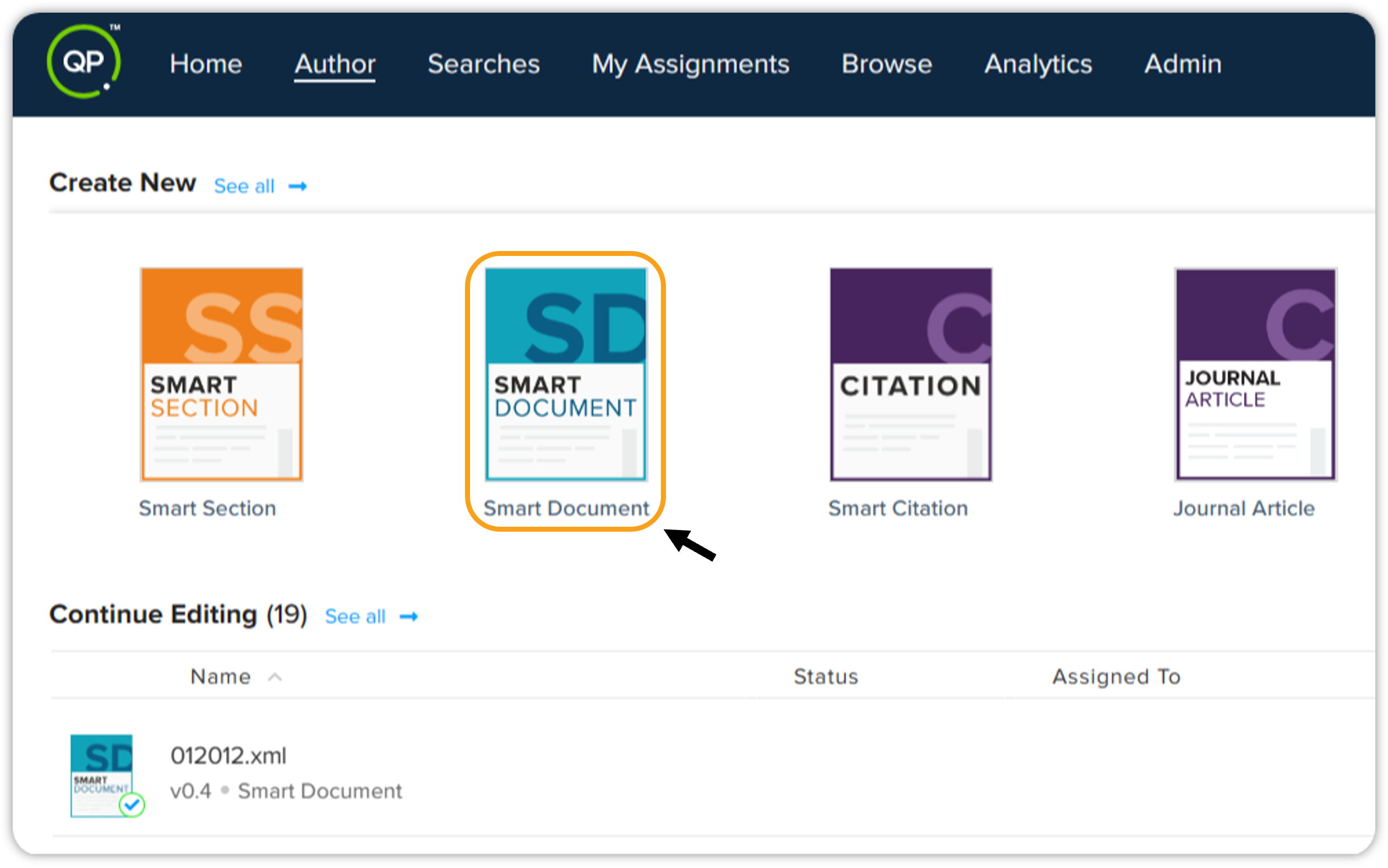
Now select the type of document you want to create, for instance, Smart Document.
-
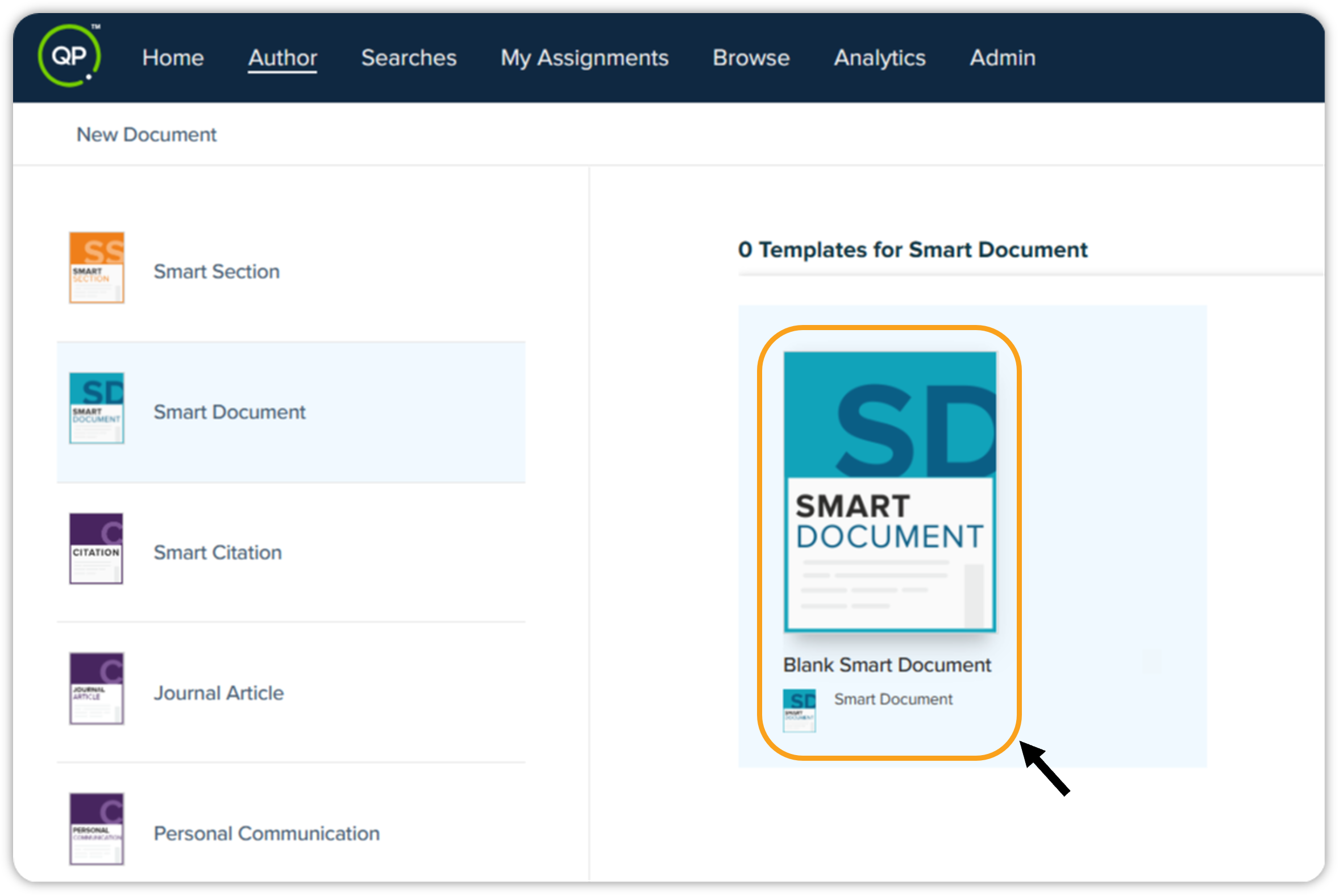
On the New Document window, double-click the Blank Smart Document.
-
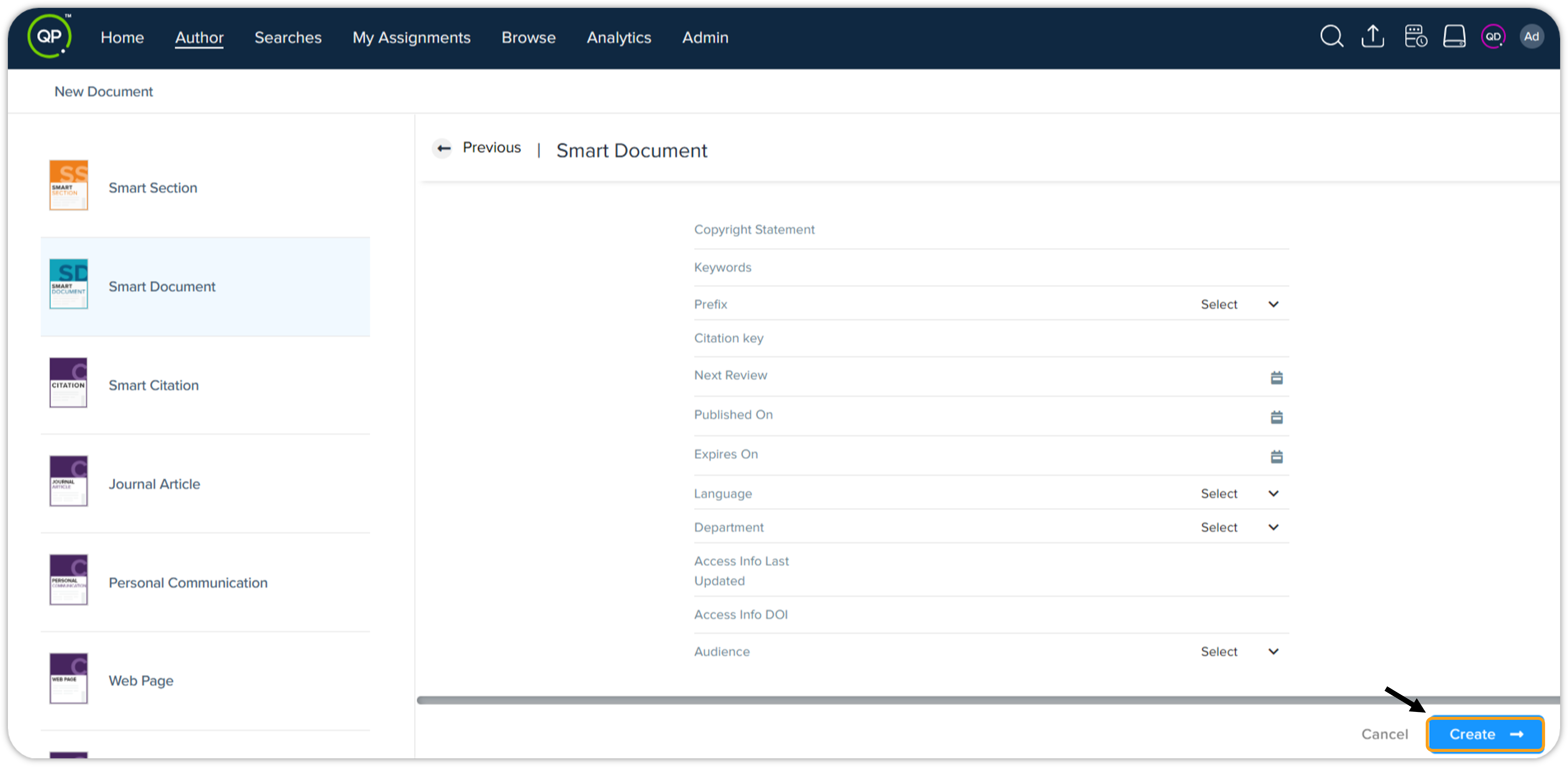
Now enter the metadata details for the smart document you are creating.
-
This will open the smart document editor on your screen. You can add content to your document and style it as desired.
-
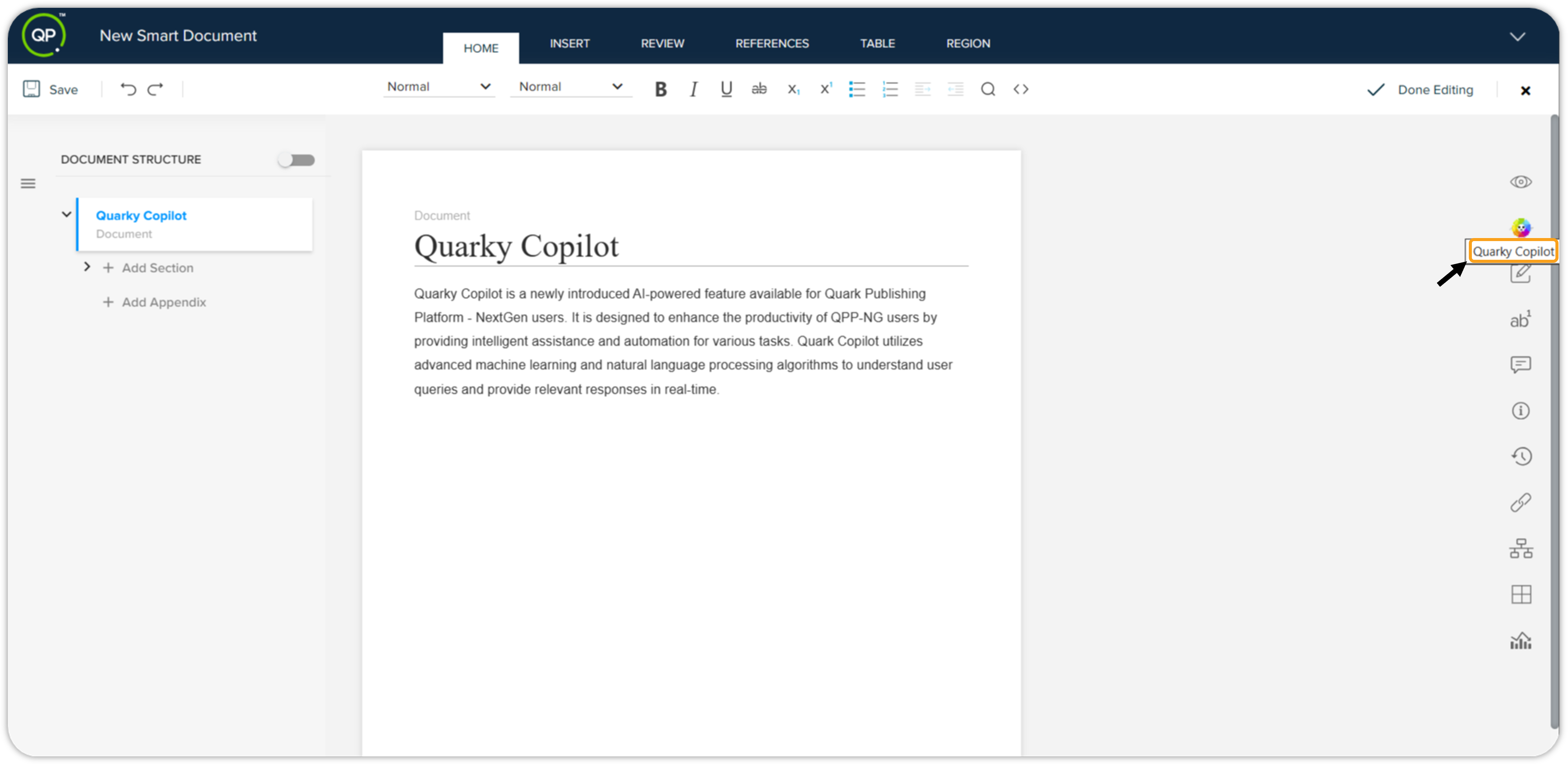
To use the Quarky Copilot, go to the App Panes section (shown vertically on the right side of the screen), and click Quarky Copilot.
-
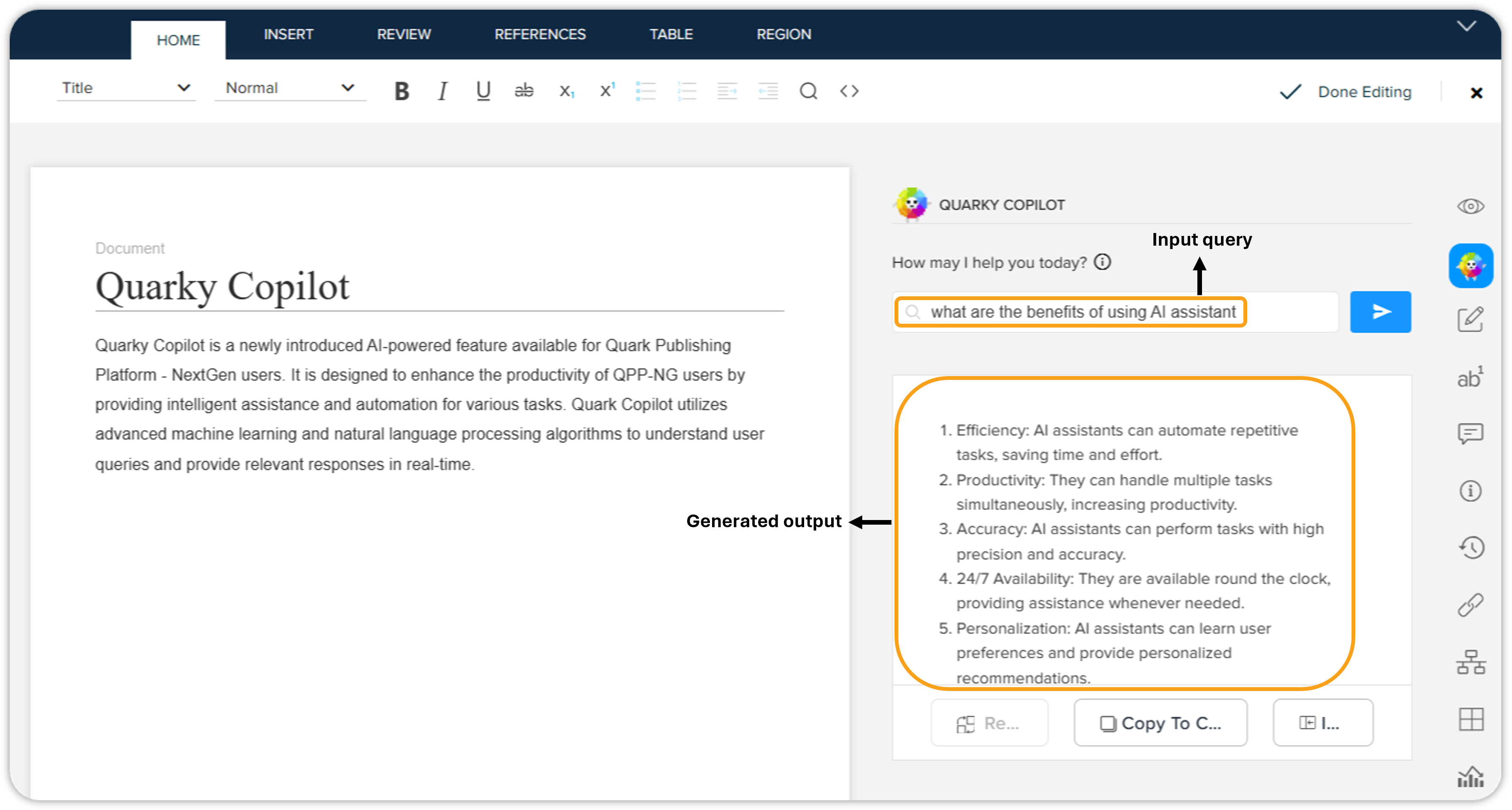
This will open the Quarky Copilot pane where you can input your query. Let’s say you want to add a section in your document explaining the benefits of using AI assistant. You can simply input a query like this – “what are the benefits of using AI assistant”. Within a few seconds, Quarky Copilot will generate quality content about the query you entered.
-
You can then click the Copy to Clipboard button to copy the generated content and paste it into the document.
-
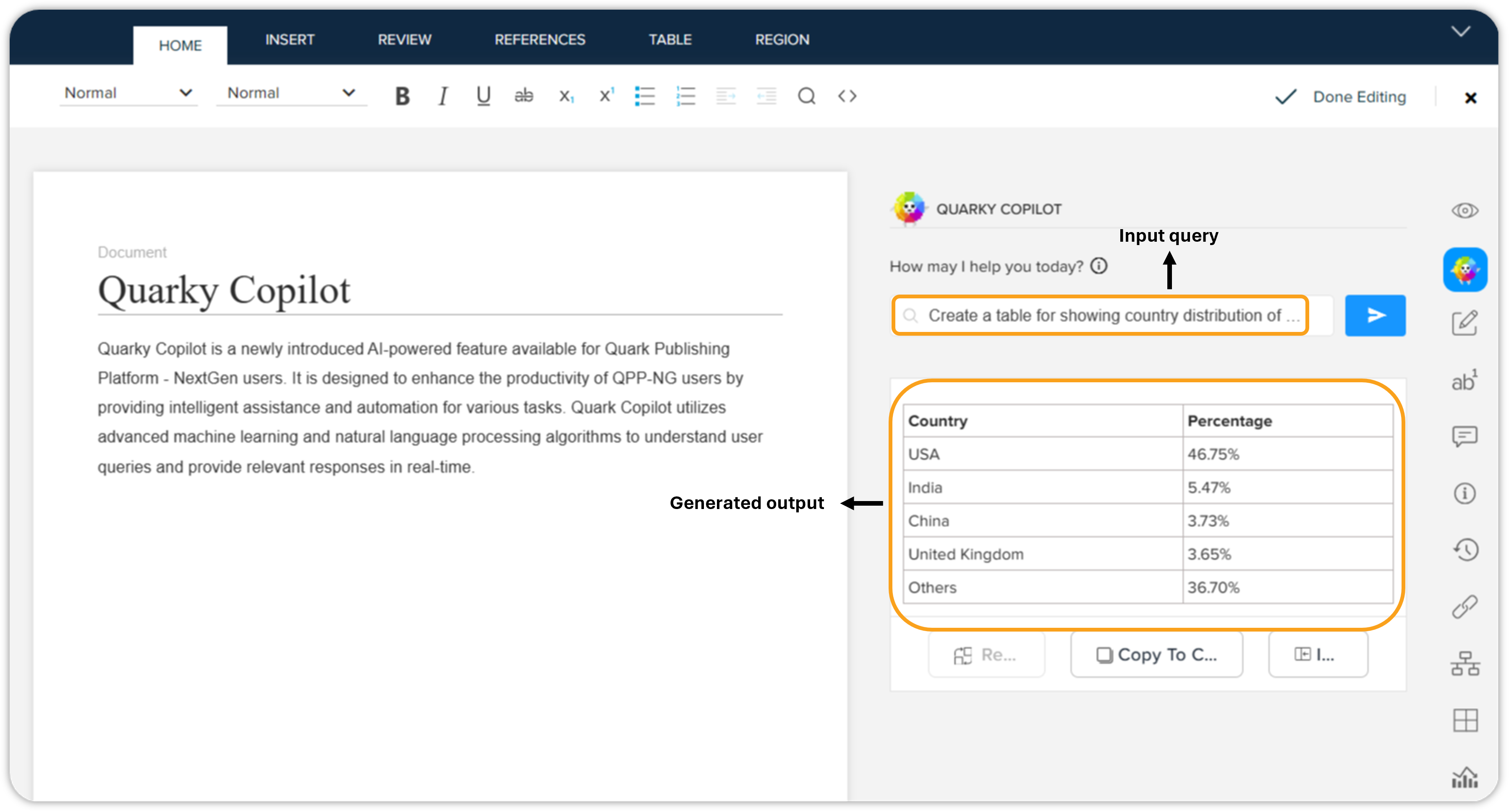
Besides content generation, you can also create tables with the help of Quarky Copilot.
-
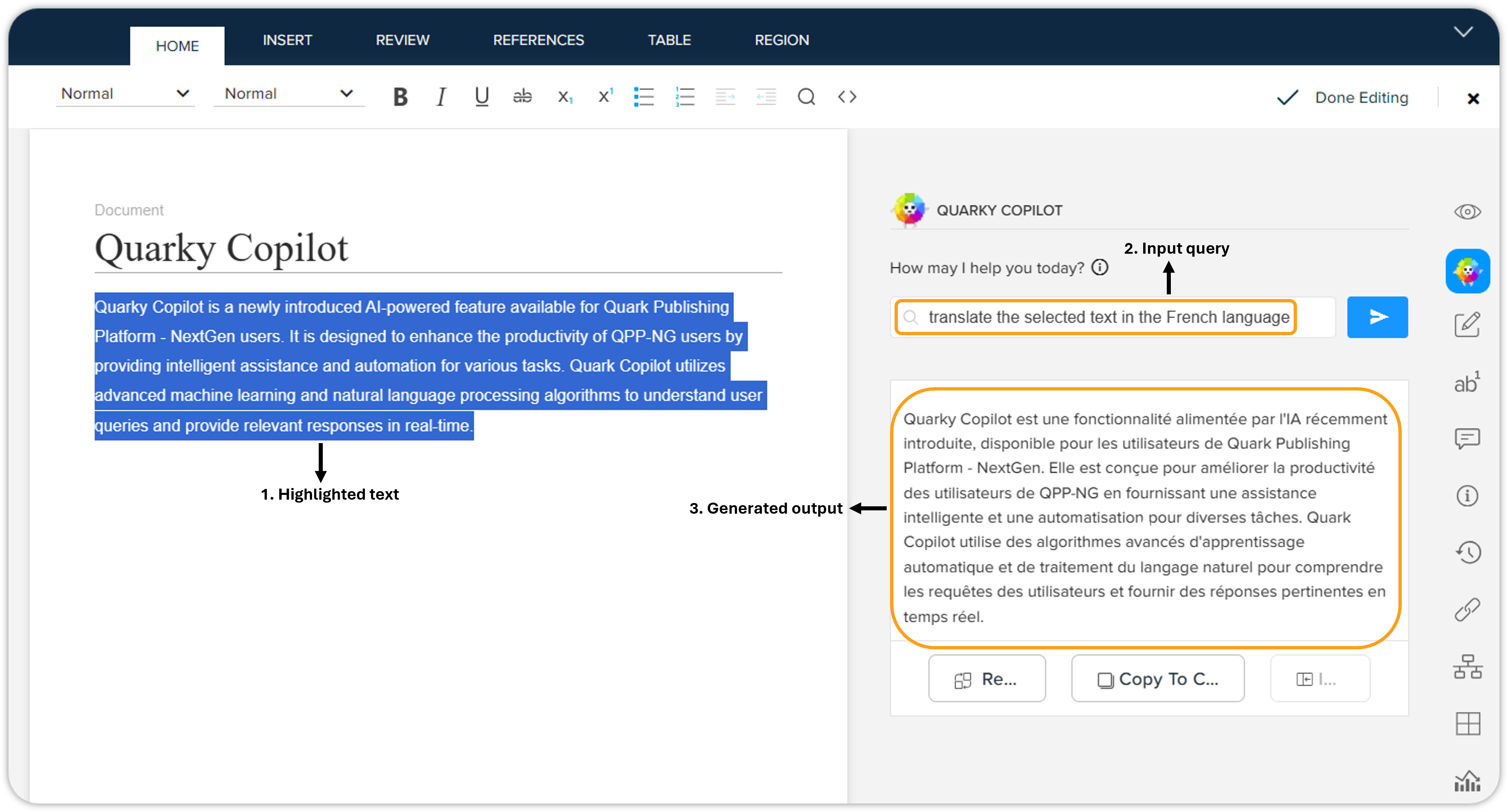
Quarky Copilot can also help you with translating the content. Let’s say you have written a paragraph in the English language, and you want to translate it into the French language. To get this done, you can simply input a query like this – “translate the selected text in the French language”. Quarky Copilot will hardly take a few seconds and get all the selected texts translated into the French language.