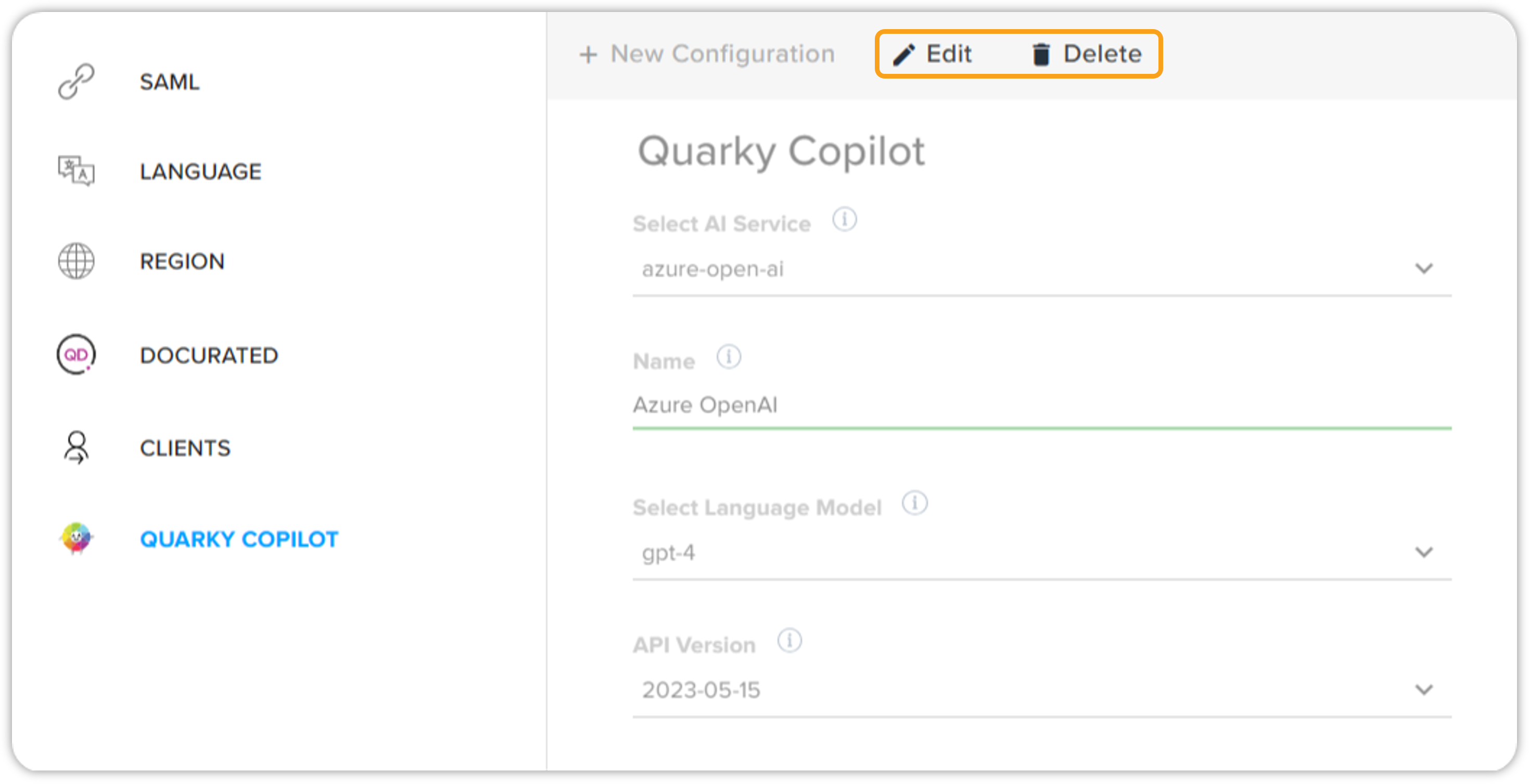
AI service configuration
Before you can start using Quarky Copilot, you must configure AI services. AI services configuration refers to the settings and parameters that determine how an AI system operates and functions. Proper configuration of AI services is critical to ensuring that it delivers accurate, reliable, and effective results. It can also help to optimize platform performance, improve scalability, and ensure that the platform is aligned with the values and objectives of the organization or individual that is using it.
How to configure AI service configuration
Configuring AI services in the QPP-NG platform is extremely easy. Please note that users with the admin license type can only configure AI services. Any admin user can easily configure Quarky Copilot AI services with the desired parameters. To do that, follow the steps shown below –
-
Log in to the QPP-NG platform using your credentials.
-
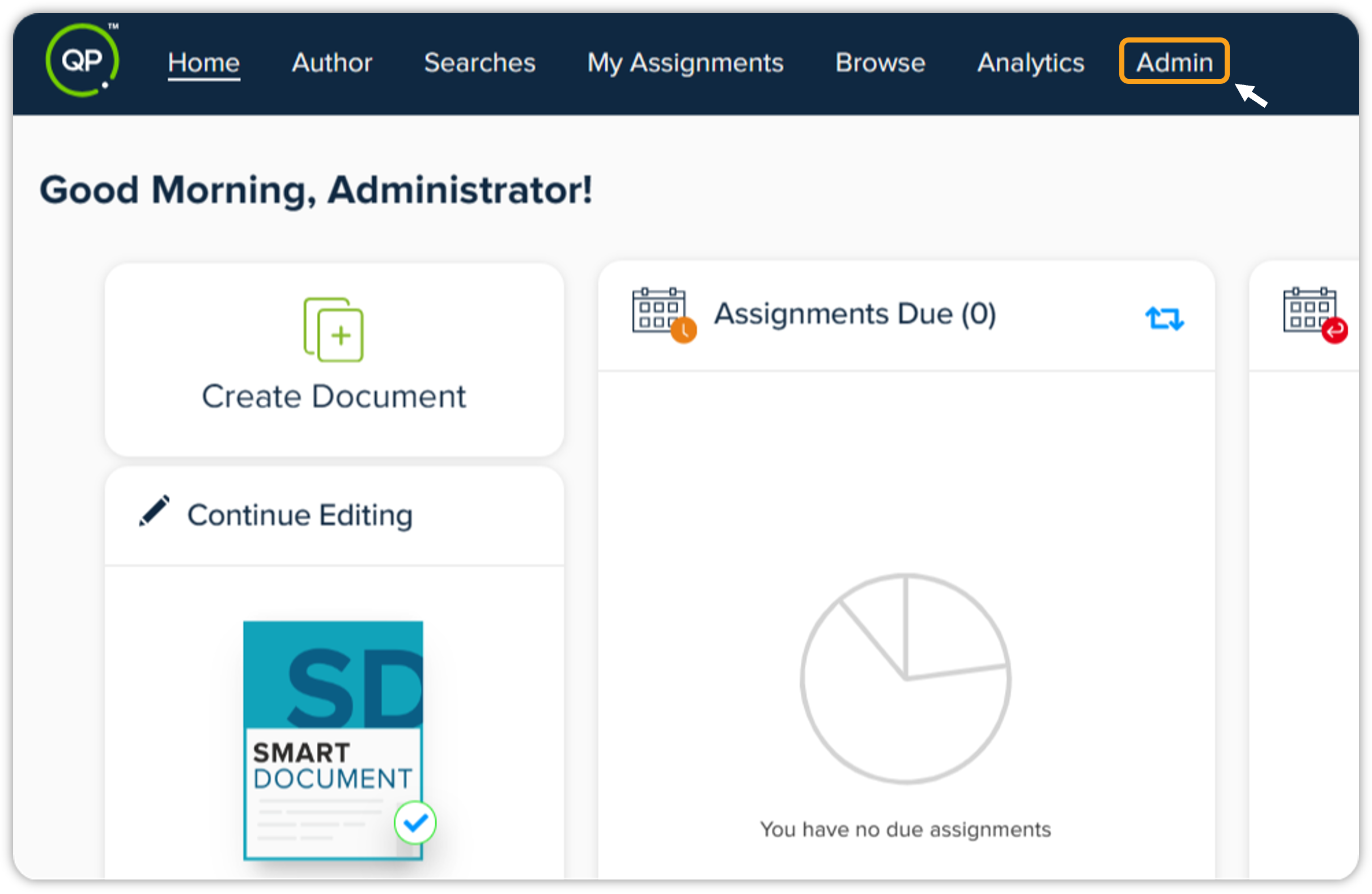
On the QPP-NG home screen, click the Admin tab in the header section.
-
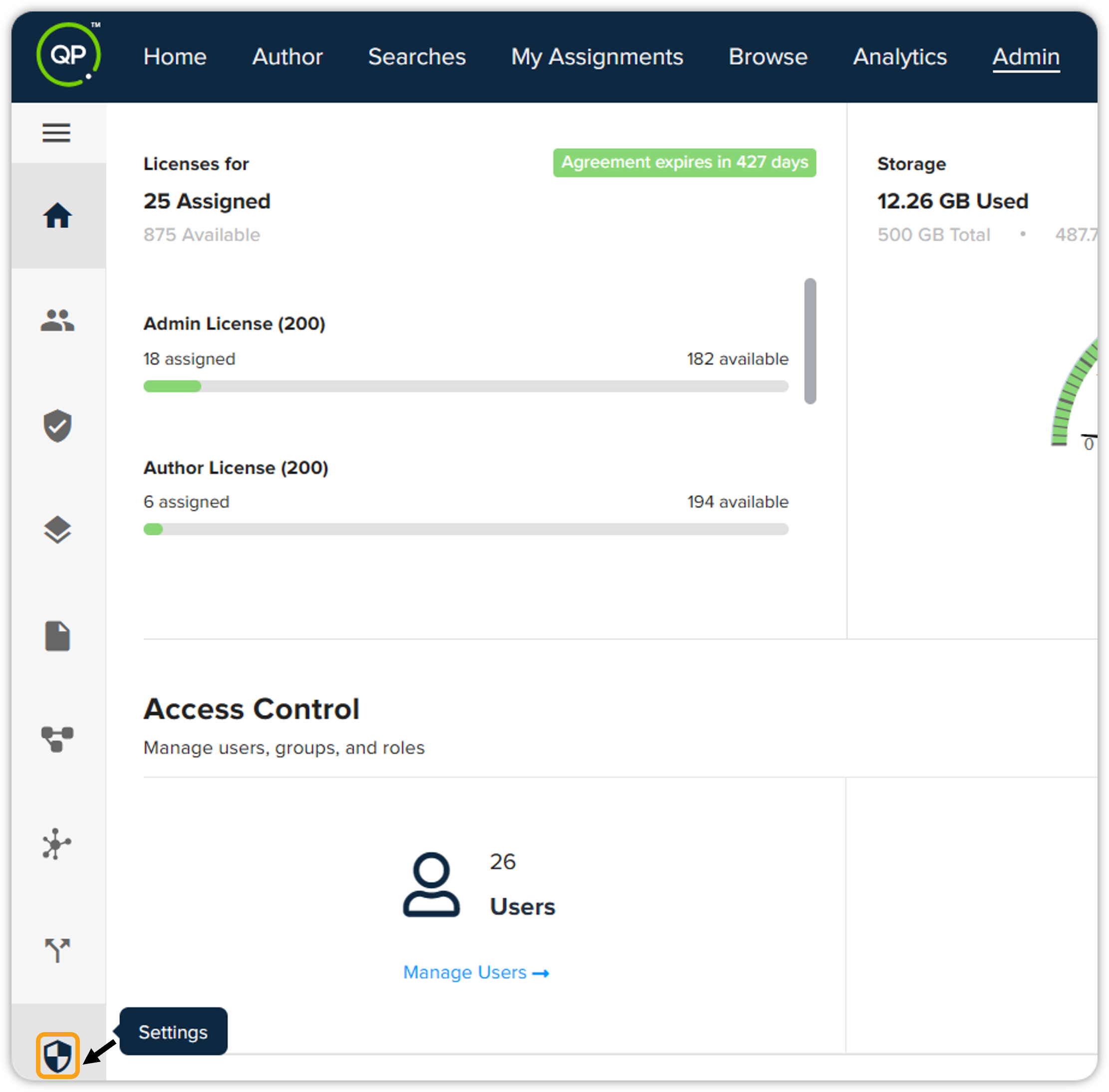
Click the Settings option in the vertical menu bar shown on the left.
-
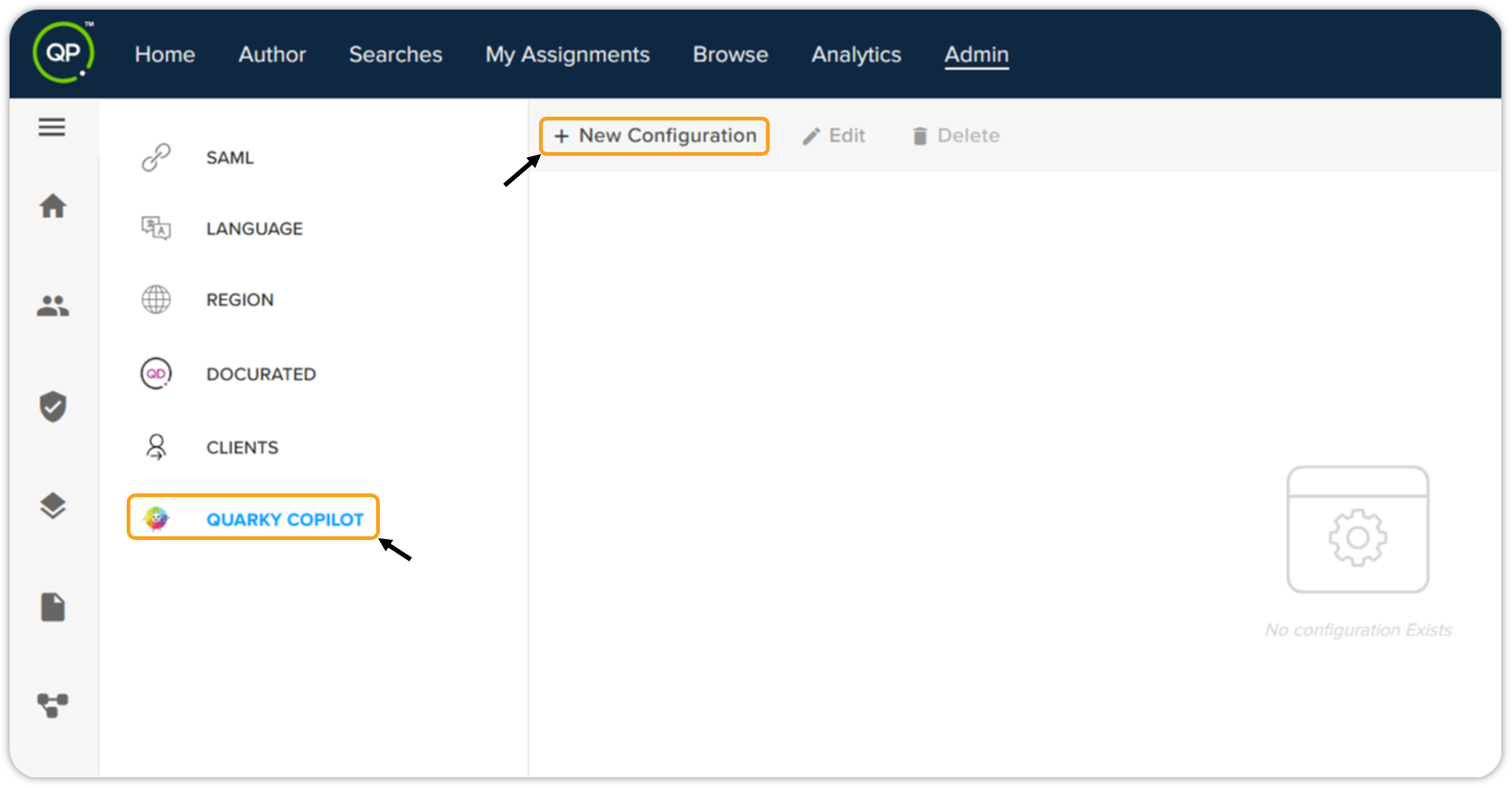
Within the settings section, click Quarky Copilot on the left and then click the New Configuration tab.
-
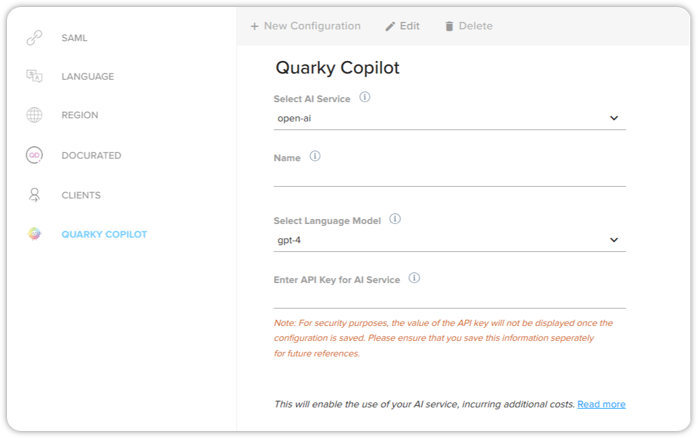
The Quarky Copilot - AI Service Configuration form will open where you need to fill in the required fields.
-
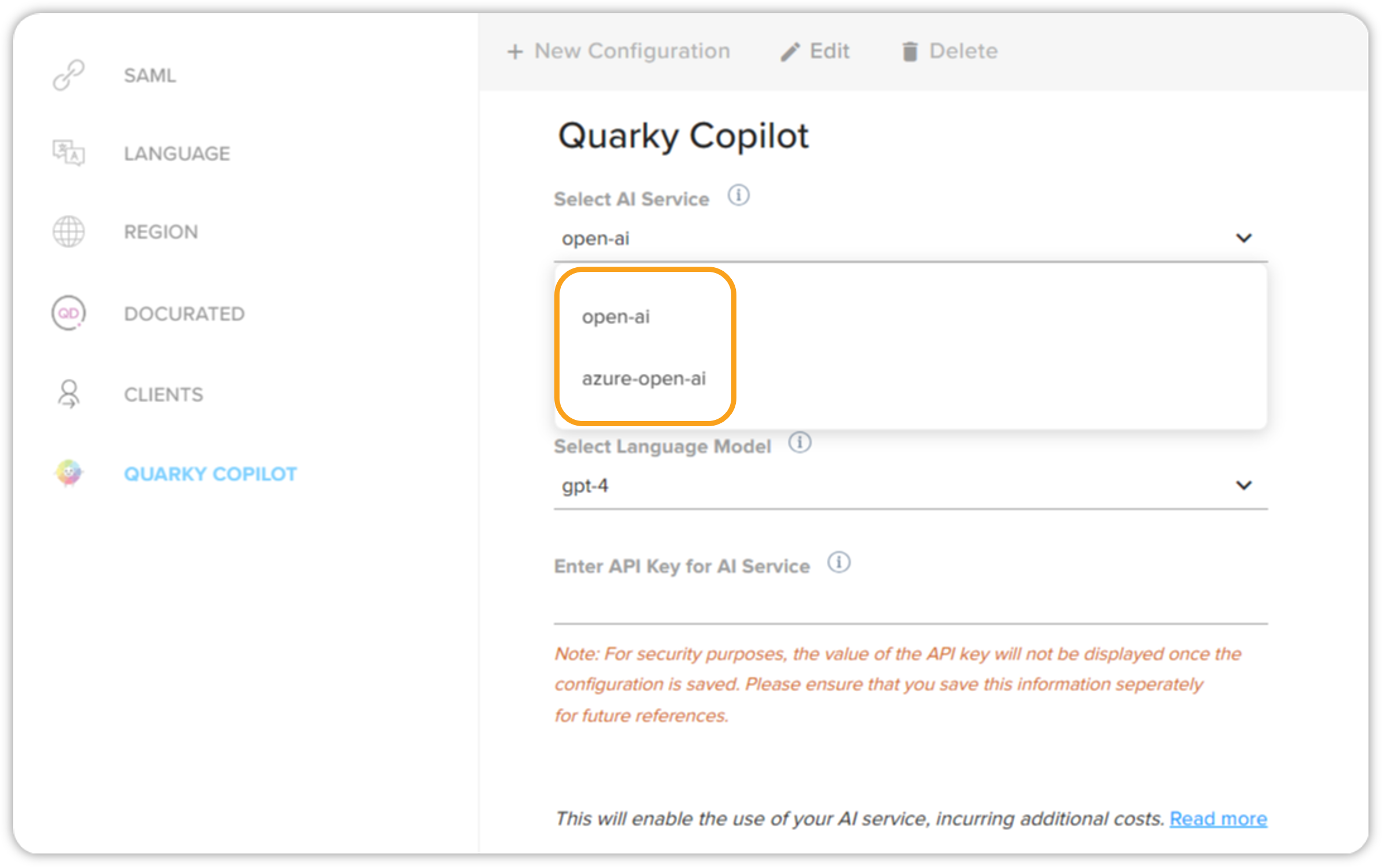
Quarky Copilot provides you with two AI service types that you can choose from – Open AI and Azure Open AI.
Configure AI service via Open AI
-
Select Open AI as your AI service provider.
-
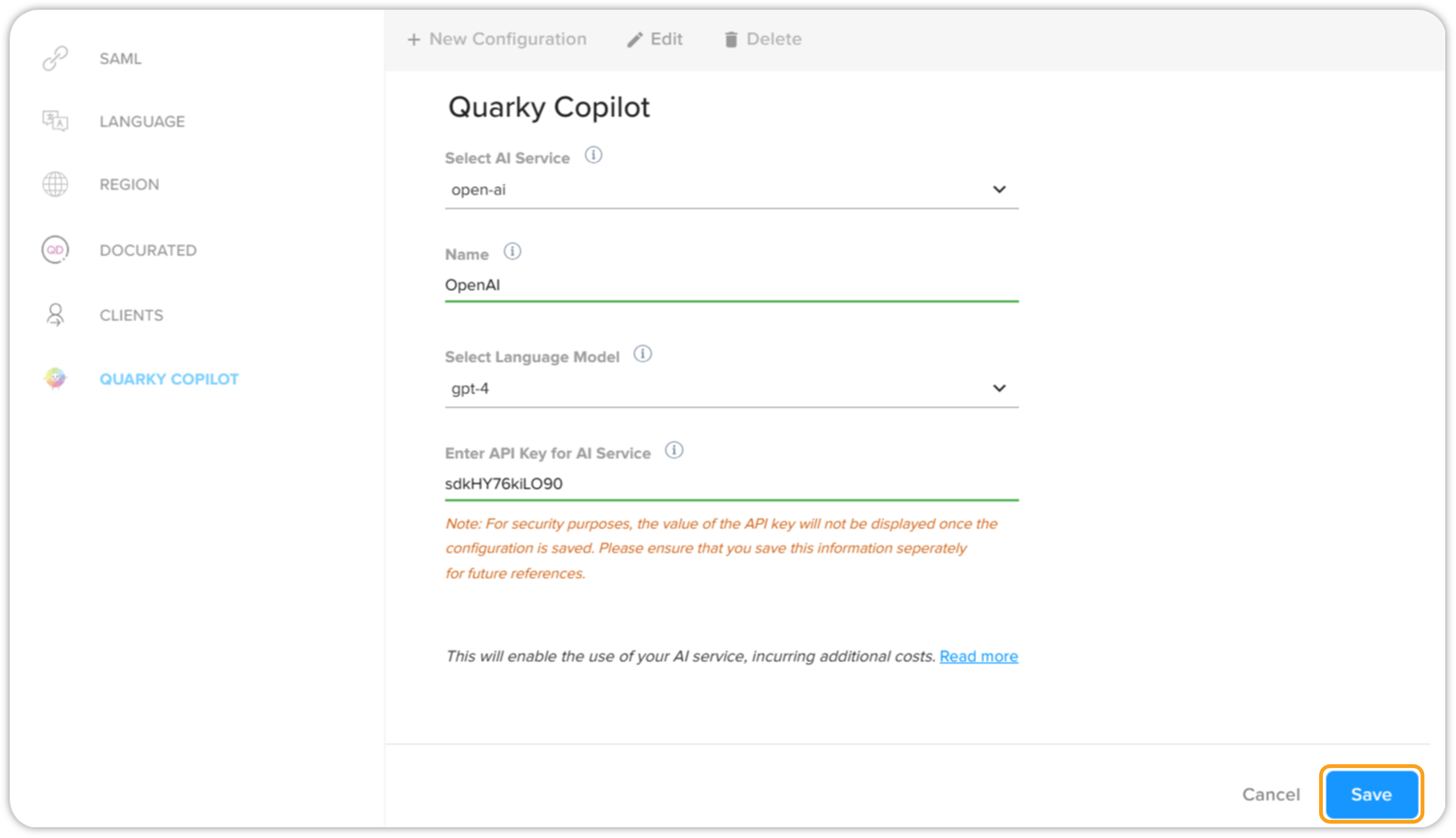
Enter a name for the AI service you’re configuring.
-
Select the desired NLP model for the AI service.
-
Now enter the API key for your AI service. Please note that the entered key can be seen only once. Make sure you save the information related to the API key as it won’t be visible again.
-
Click the read more link to read the disclaimer before you can save your AI service configuration.
-
Finally, click Save to save the AI service configuration.
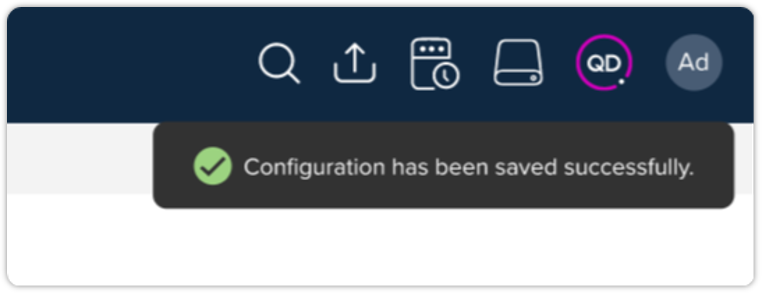
After a few seconds, you will receive an in-platform notification telling you about the successful configuration of your AI service.
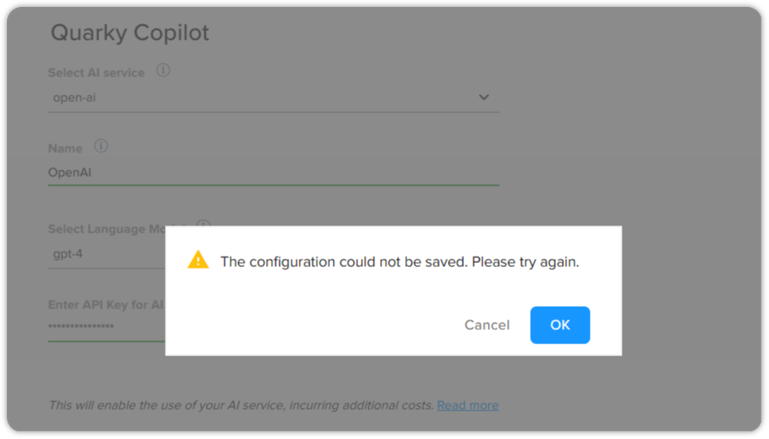
If there is any issue with the information you provided for your AI service, you will receive a notification saying – The configuration could not be saved.
Configure AI service via Azure Open AI
-
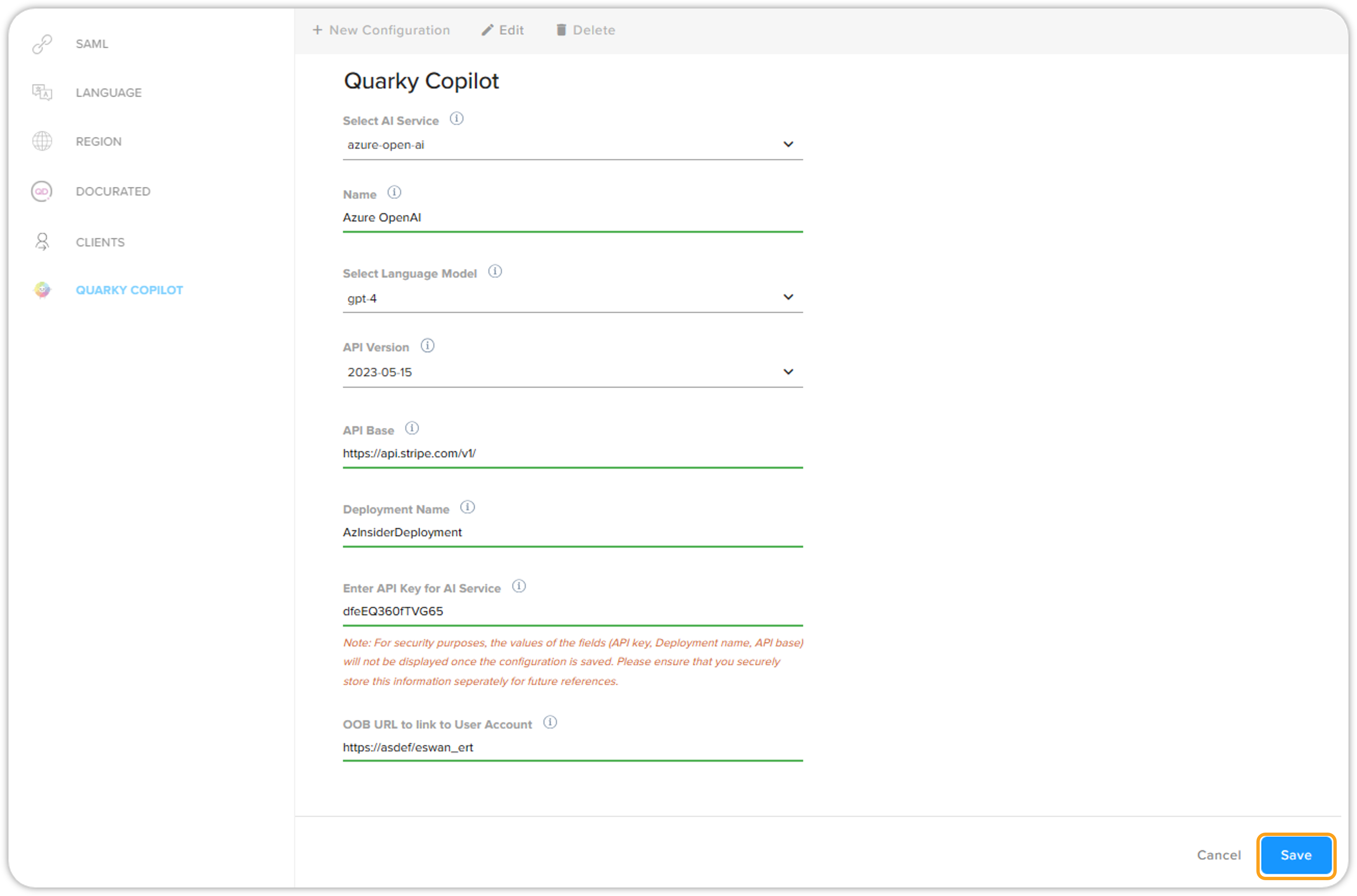
Select Azure Open AI as your AI service provider.
-
Enter a name for the AI service you’re configuring.
-
Select the desired NLP model for the AI service.
-
Enter the API base detail, API version, and deployment name for the AI service.
-
Now enter the API key for your AI service. Please note that the entered key can be seen only once. Make sure you save the information related to the API key as it won’t be visible again.
-
Now enter the URL of the user account.
-
Click the read more link to read the disclaimer before you can save your AI service configuration.
-
Finally, click Save to save the AI service configuration.
After a few seconds, you will receive an in-platform notification telling you about the successful configuration of your AI service.
If there is any issue with the information you provided for your AI service, you will receive a notification saying – The configuration could not be saved.
Edit/delete pre-existing AI services
You can also edit or delete the AI services you have previously created, but make sure you have the admin license type.