Map Metadata
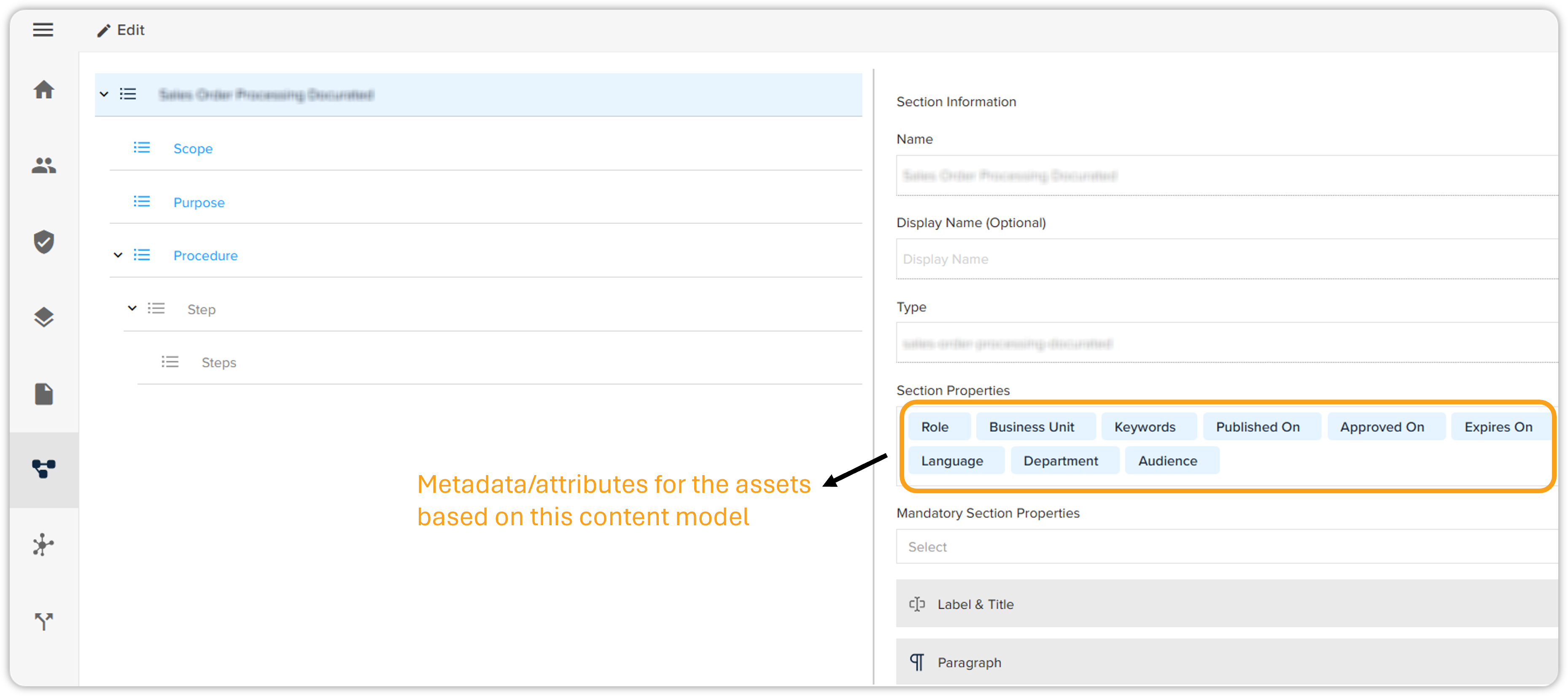
The DOCX Converter tool performs metadata mapping automatically without manual intervention. For example, let’s say your content model contains two attributes: Role and Business Unit. To pass the values of these attributes from a DOCX file to a converted XML file, follow the steps given below –
-
Create a two-column table (two columns for 'attribute name' and 'value') at the beginning of your DOCX file.
-
Then, create a table style for the table with a header, name it MetadataTable, and apply it to the table.
-
Now, add a valid value for all the attributes in the table. Sample table is shown below -
Attribute Name (Display Name)
Values
Keywords
Sample Keywords
Language
En
-
Once done, save the document and convert it via the DOCX Converter tool to successfully map the metadata to the converted XML file.
You can check the attributes associated with your content model in the field Section Properties on QPP Admin.
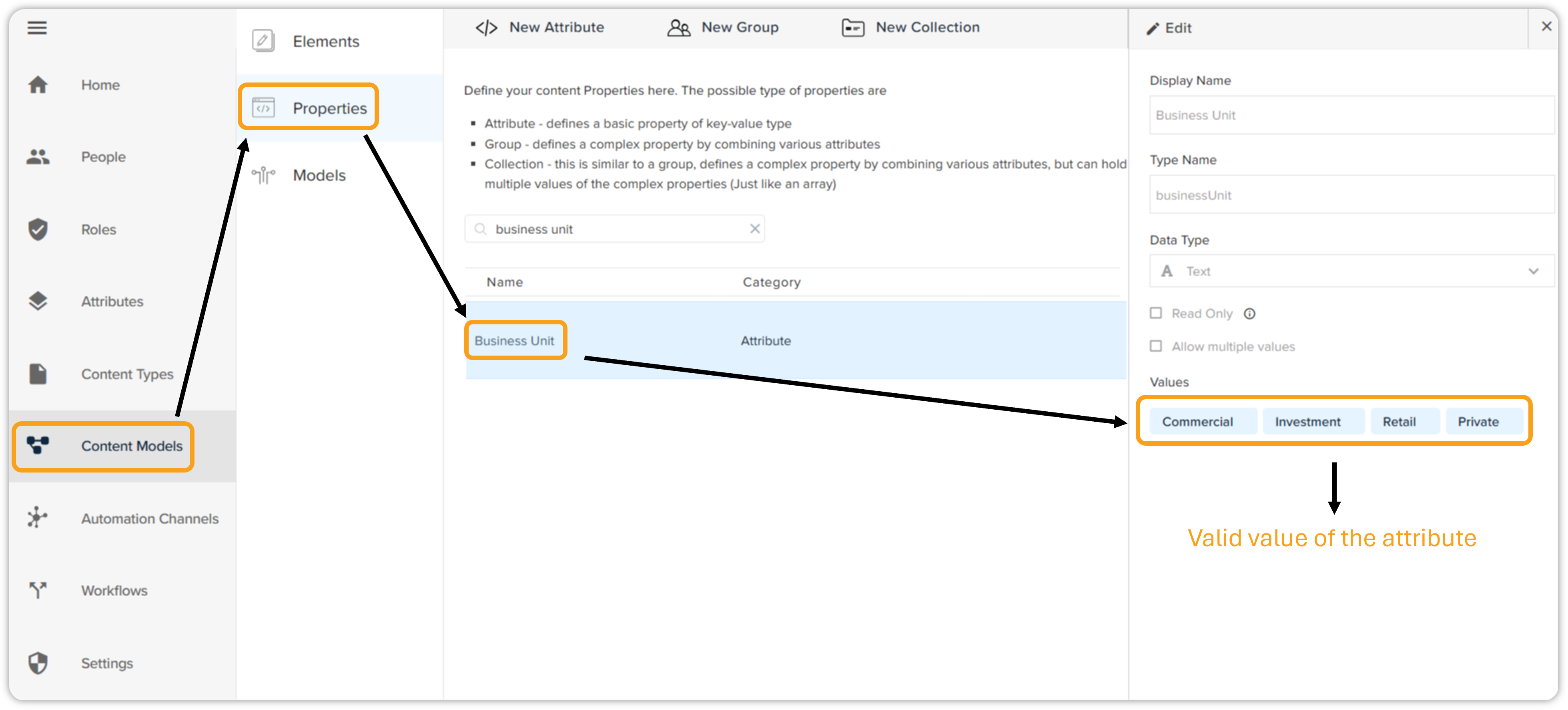
You can check the valid values of an attribute in the Properties tab on the Content Models screen.