
Log in to the Product
To be able to log in and access Docurated, you either must have the Docurated purchased or you must have a Docurated license for your Quark Publishing Platform server.
To log in to your Docurated server:
-
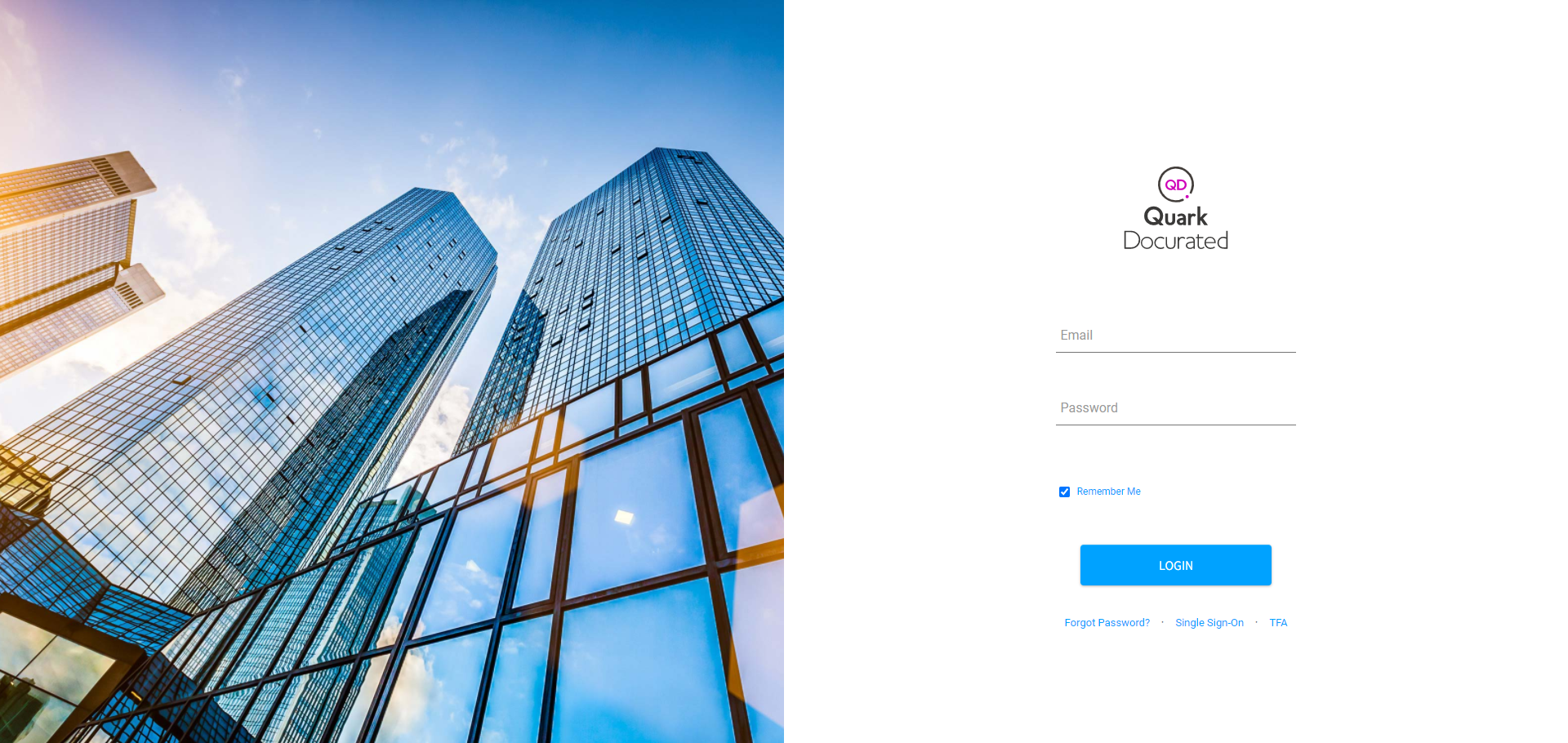
Enter the URL of a Docurated server in a browser (for example, https://<<SERVER-URL>>/login) to open the login page.
-
Enter your username and password and then click Login.
Single Sign-On
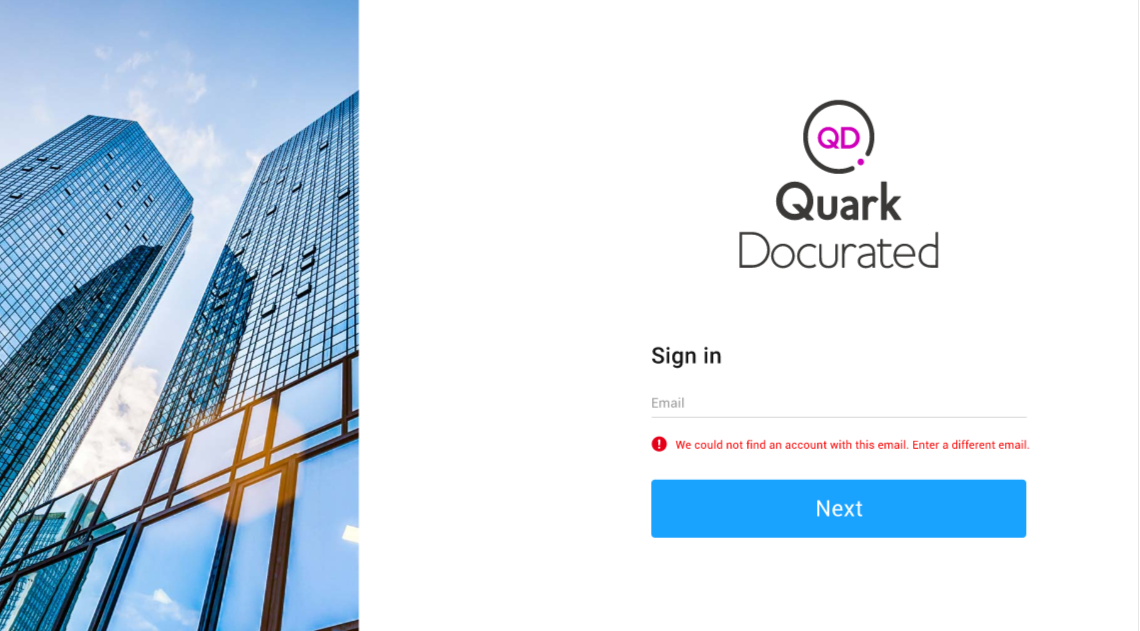
Docurated allows single sign-on if your organization supports it. Single sign-on means logging in to your Docurated server with your organization's email only and without a password.
To log in through single sign-on:
-
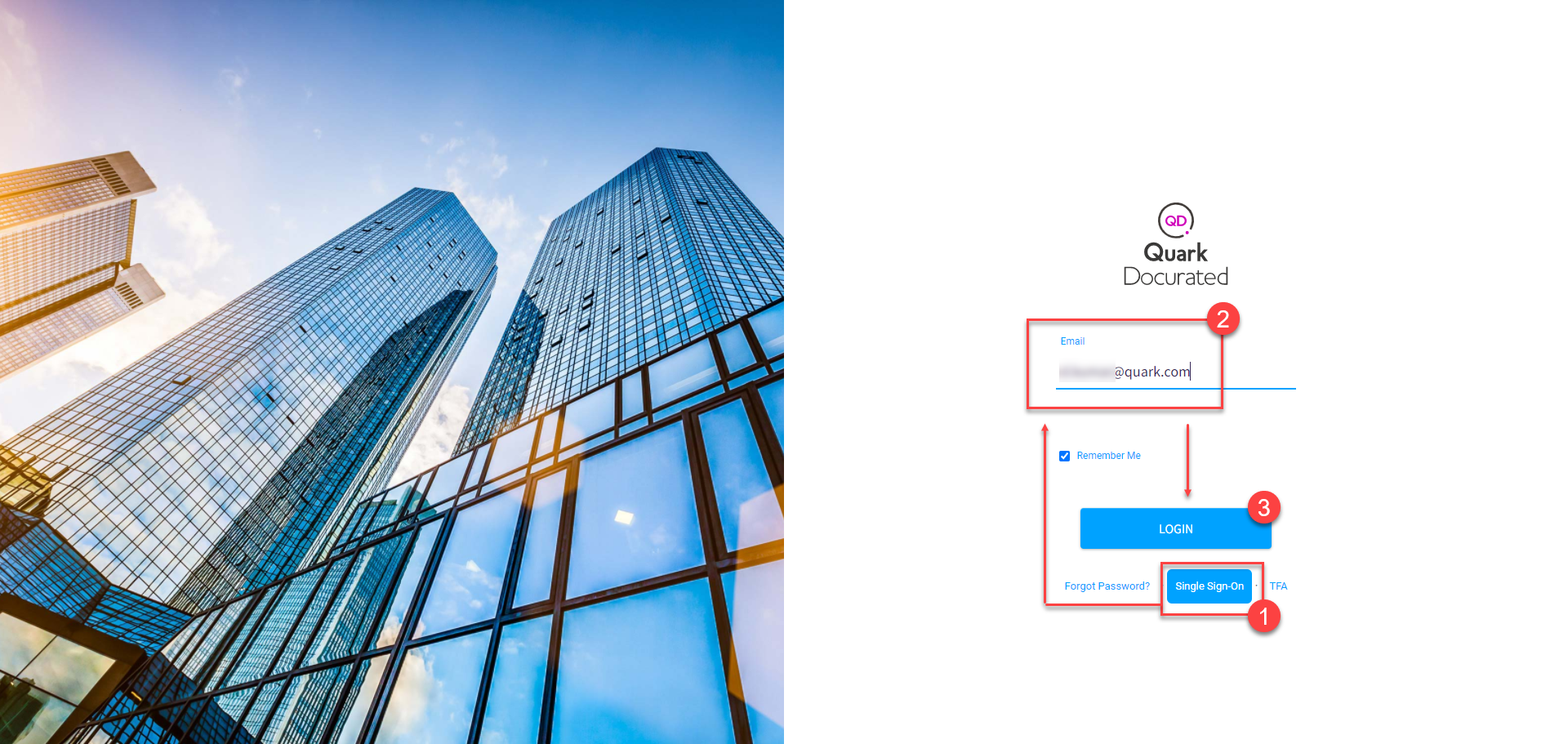
Click the link Single Sign-On at the bottom of the login form.
-
Enter your email.
-
Click Login.
Two-Factor Authentication
Quark Docurated also allows two-factor authentication on login.
To enable two-factor authentication:
-
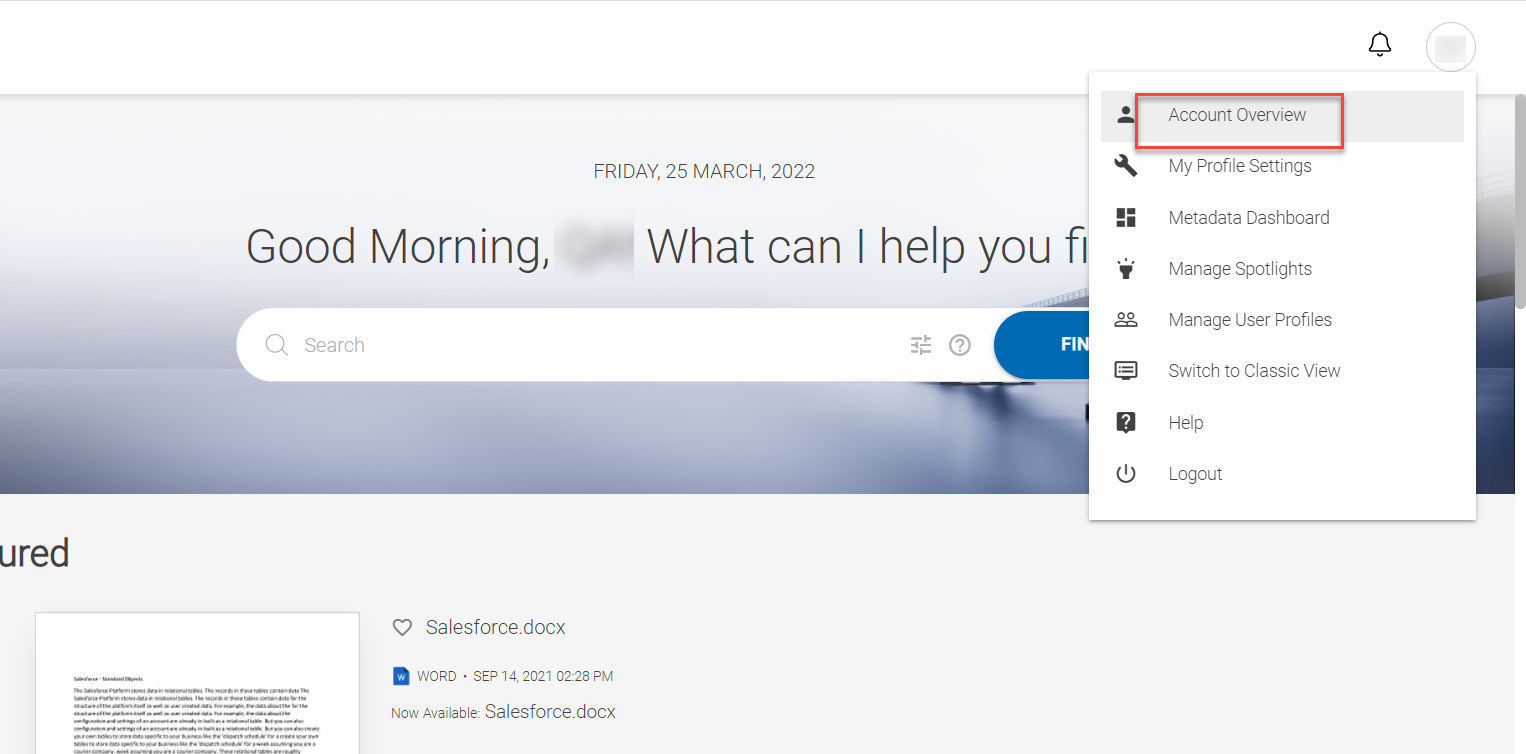
After you are logged in, click the profile icon/picture to expand the profile menu.
-
In the profile menu, click Account Overview.
-
On the Account Overview page, click Update Your Information.
-
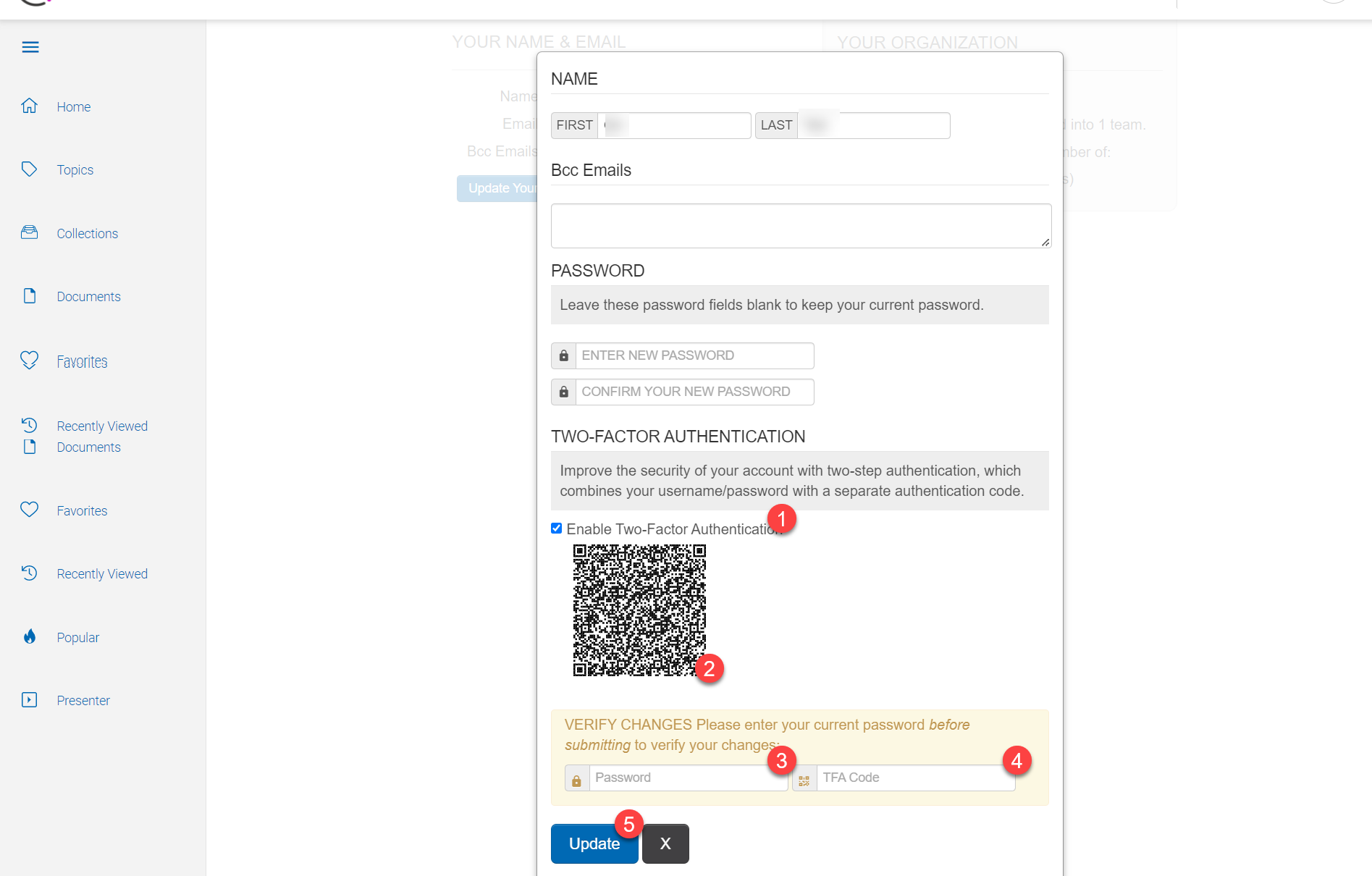
In the Update Your Information dialog:
-
Click the Enable Two-Factor Authentication checkbox to open a QR code.
-
Scan the QR code from the device through which you want to do two-factor authentication.
-
Enter your password in the Password field.
-
Enter the TFA code you have received on your device in the TFA Code field.
-
Click Update.
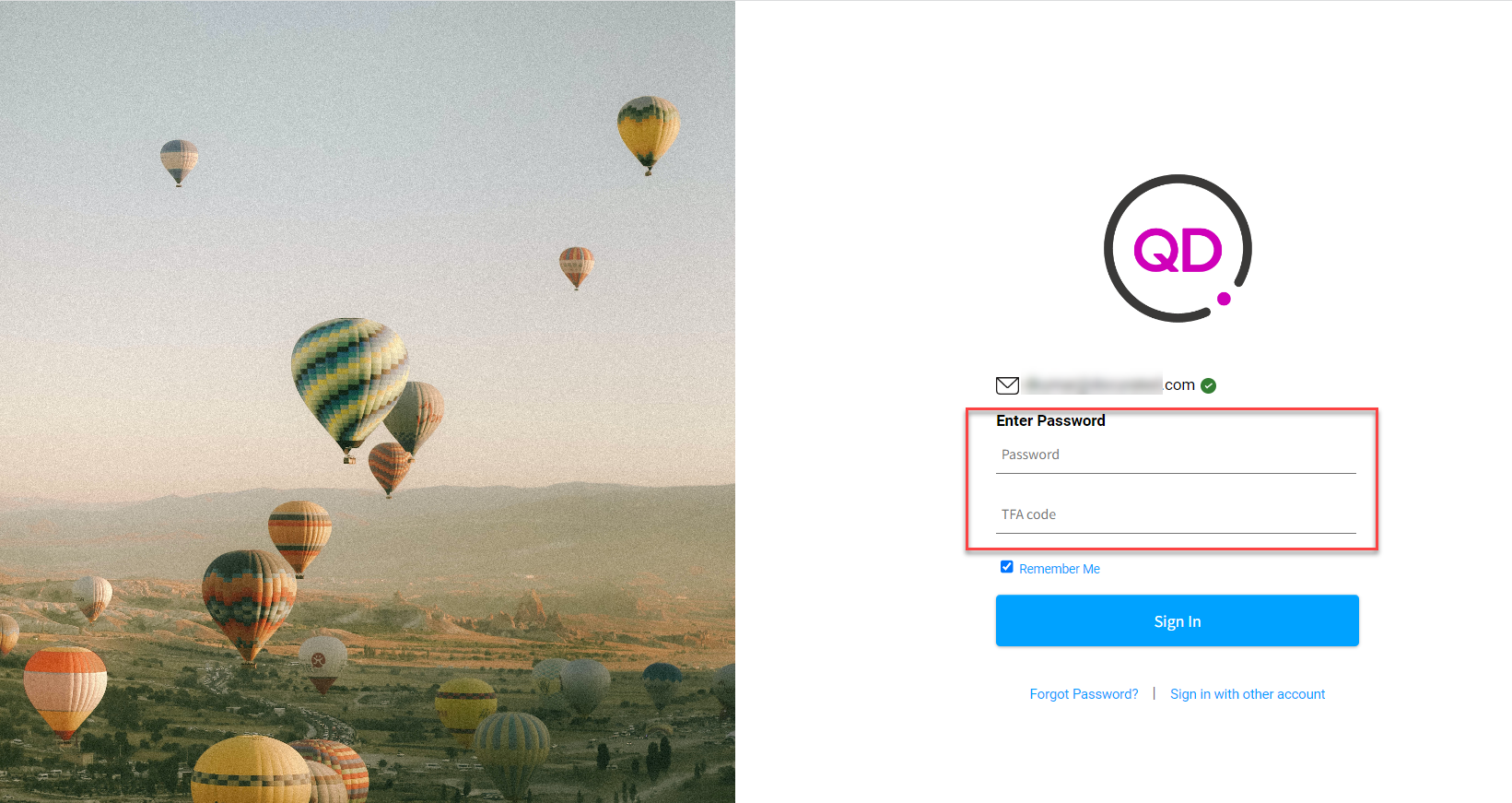
 On the Login screen, Docurated displays the input field for the TFA code only when a user has enabled the two-factor authentication mechanism.
-