
QuarkXPress Server Features
Dynamic Pagination and Flow
The Evolved Mechanics sample, demonstrating the flow automation constructs, can be downloaded from the QXPS Administration home page, using the Download SDK and Samples link.
There are three main division in the structure of any document:
-
the front page content
-
the body content
-
the back page content
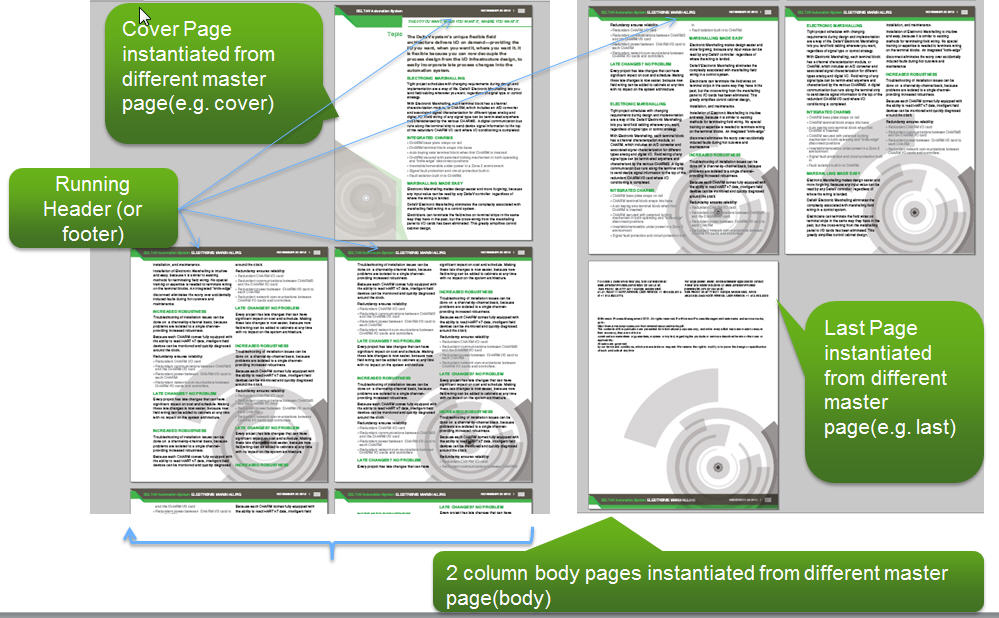
The Dynamic Pagination and Flow feature gives you the ability to define multiple page layouts in a single flow. The Page Sequences can be a logical section or a chapter comprised of a single flow. Different pages of a Page Sequence can be based on different master pages. Pages will be organized while adhering to defined constraints.
The following is a list of customer use cases that can be fullfilled using the new modifier XML markup:
-
The ability to specify running headers and running footers.
-
The ability to pre-define the sequence of the application of the available master pages on the various pages being created dynamically.
-
The ability to express/segment the flow content into logical sections.
-
Bulleted text, Section numbering, Text Styling, colors etc
-
Components that are re-usable across multiple document types. For example, disclaimers and copy right notices.
-
The ability to impose constraints on the page count (odd or even) per section, enabling you to automatically insert blank pages for print versions of documentation.
-
The ability to specify the desired page numbering formats for various sections (for example, index or glossary pages having roman numerals).
-
The ability to have repeatable interactivy aspects.
-
The ability to present tablular content in various ways:
-
inline
-
spanned across columns
-
full width spanned
-
full page - rotated / un-rotated.
-
The ability to format tables in the following various ways:
-
horizontal and vertical
-
gridlines
-
grouping headers
-
shading rows and columns
-
the inclusion of table notes with the table
-
The ability to break content across pages along with headers.
-
The ability to specify the placement of images and charts in the following scenarios:
-
inline
-
spanned across columns
-
full page
-
The ability to specify a different Table of Contents for digital and print issues.
Dynamic Pagination and Flow Problem
Consider the following pagination requirement.
The template has 5 master pages:
-
Cover - a master page for the cover page
-
Introduction - a master page for introduction page(s)
-
Section First Page - a master page for the first page of each section (a section's cover page)
-
Section Content - a master page to be used for each page that has body content
-
Back Page - a master page for the back page (a back cover)
The pagination requirement is:
-
Cover
-
Introduction
-
Multiple sections
-
Section First Page
-
Section Content
-
-
Back Page
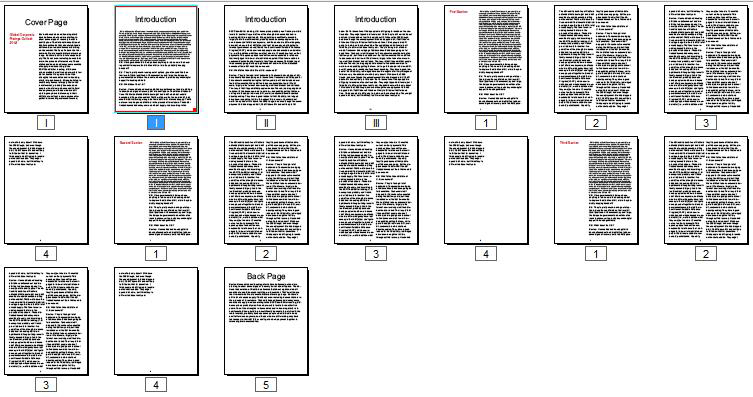
Previously, when a desktop user created this document, he accomplished this manually
by dragging and dropping the desired master pages onto each page. The user was not
able to achieve the desired pagination using the automated dynamic publishing workflows
(XML--> PDF or XML-->iPad).
Dynamic Pagination and Flow Solution
The Dynamic Pagination and Flow feature introduced in the 9.5.1 release of QuarkXPress Server, solves this problem.
New Parts of the ModifierXML:
-
The
MASTERPAGESEQUENCEelement gives you the ability to describe the use and application of master pages by the QuarkXPress Server Modifier XML processor and further by its layout engine. It also allows the user to define the pagination pattern with a name. -
The
PAGESEQUENCEelement contains the actual flow content with reference to theMASTERPAGESEQAUENCEvia a@MASTERPAGESEQUENEREFand a@MASTERPAGEREFrespectively. EachPAGESEQUENCEelement will have a certain non-variable static content segment (represented bySTATICCONTENT) containing the content that is intended to be repeated across multiple flow pages.Each
PAGESEQUENCEhas a child objectSTORYwhich acts as a container for the flow content containing multiplePARAGRAPHelements.Each
PARAGRAPHobject holdsRICHTEXTgiving you the ability to apply a wide variety of styling. -
The
SINGLEMASTERPAGEREFERENCEelement defines a sequence in which a particular master page will be applied to a singles page in a page sequence. It contains the name of the master page in the QuarkXPress template to be used. The given master page is applied to one page of a page sequence. This is useful for front matter, back matter and section start pages.The following is an example of the use of the
SINGLEMASTERPAGEREFERENCE<MASTERPAGESEQUENCE NAME="SingleMaster"> <SINGLEMASTERPAGEREFERENCE NAME="A-MasterA"></SINGLEMASTERPAGEREFERENCE> <SINGLEMASTERPAGEREFERENCE NAME="B-MasterB"></SINGLEMASTERPAGEREFERENCE> <SINGLEMASTERPAGEREFERENCE NAME="C-MasterC"></SINGLEMASTERPAGEREFERENCE> </MASTERPAGESEQUENCE>This applies the
A-MasterAmaster page to the first page,B-MasterBmaster page to the second page, and theC-MasterCmaster page to the third page and onwards. -
The
REPEATABLEMASTERPAGEREFERENCEelement defines a sequence in which a master page will be applied to multiple pages in a page sequence. It contains the name of the master page in the QuarkXPress template to be used. This is useful for constructing runs of identical pages and causes a bounded or unbounded sequence of pages to be generated using the same master page.This element is a super set of the
SINGLEMASTERPAGEREFERENCEelement. It allows an application of a particular master page uptonnumber of pages using theMAXREPEATSattribute.The following is an example of the use of the
REPEATABLEMASTERPAGEREFERENCE.<MASTERPAGESEQUENCE NAME="RepeatableMaster"> <REPEATABLEMASTERPAGEREFERENCE MAXREPEATS="5" NAME="B-MasterB"/> <REPEATABLEMASTERPAGEREFERENCE NAME="C-MasterC"/> </MASTERPAGESEQUENCE>This applies the
B-MasterBmaster page to the first 5 pages. From the sixth page onward, theC-MasterCmaster page will be applied. -
The
REPEATABLEMASTERPAGEALTERNATIVESelement defines a master page along with conditions that must be satisfied to apply the given master page on a page. It contains one or moreCONDITIONALMASTERPAGEREFERENCEelements that define the conditions.This is a super set of the first two master page sequences. It allows an application of a particular master page on even pages, a different master page on odd pages and a different master page on first and last pages.
The following is an example of the use of the
REPEATABLEMASTERPAGEALTERNATIVES.<MASTERPAGESEQUENCE NAME="ConditionalMaster"> <REPEATABLEMASTERPAGEALTERNATIVES> <CONDITIONALMASTERPAGEREFERENCE NAME="D-MasterD" POSITION="FIRST"/> <CONDITIONALMASTERPAGEREFERENCE NAME="A-MasterA" ODDOREVEN="EVEN" POSITION="REST"/> <CONDITIONALMASTERPAGEREFERENCE NAME="C-MasterC" ODDOREVEN="ODD" POSITION="REST"/> <CONDITIONALMASTERPAGEREFERENCE NAME="B-MasterB" POSITION="LAST"/> </REPEATABLEMASTERPAGEALTERNATIVES> </MASTERPAGESEQUENCE>This applies the
D-MasterDmaster page to the first page, theA-MasterAmaster page to all even numbered pages, theC-MasterCmaster page to all odd numbered pages, and theB-MasterBmaster page to the last page. -
The
CONDITIONALMASTERPAGEREFERENCEelement gives you the ability to specify the master page along with the conditions that must be satisfied to apply the given master page on a page. The following conditions may be specified:-
a page's position within a sequence
-
the odd or even page number property
-
whether or not a particular page is blank
contains the actual flow content with reference to the
MASTERPAGESEQAUENCEvia a@MASTERPAGESEQUENEREFand a@MASTERPAGEREFrespectively. EachPAGESEQUENCEelement will have a certain non-variable static content segment (represented bySTATICCONTENT) containing the content that is intended to be repeated across multiple flow pages. -
-
The
STATICCONTENTelement gives you the ability to specify content chunks that are intended to be repeated across multiple flow pages. For example, running headers or footers. -
The
SECTIONNUMBERFORMATelement gives you the ability to specify the page number format.
<PROJECT>
<LAYOUT>
  <ID UID="1"/>
  <MASTERPAGESEQUENCE NAME="APSMasterPages">
    <REPEATABLEMASTERPAGEALTERNATIVES>
      <CONDITIONALMASTERPAGEREFERENCE POSITION="FIRST" NAME="C-ArticleFirst"/>
      <CONDITIONALMASTERPAGEREFERENCE POSITION="REST" NAME="D-ArticleRest"/>
      <CONDITIONALMASTERPAGEREFERENCE POSITION="LAST" NAME="E-ArticleLast"/>
      <CONDITIONALMASTERPAGEREFERENCE BLANKORNOTBLANK="BLANK"
        NAME="F-BlankMaster"/>
    </REPEATABLEMASTERPAGEALTERNATIVES>
  </MASTERPAGESEQUENCE>
  <PAGESEQUENCE MASTERPAGESEQUENCEREF="APSMasterPages" FORCEPAGECOUNT="ENDONEVEN">
    <SECTIONNUMBERFORMAT FORMAT="NUMERIC" INITIALPAGENUMBER="1"/>
    <STATICCONTENT>
      <BOX>
        <ID NAME="logo"/>
        <TEXT>
          <STORY>
            <PARAGRAPH PARASTYLE="Article SubHead">
              <RICHTEXT BOLD="true">Article Sub heading goes here </RICHTEXT>
            </PARAGRAPH>
          </STORY>
        </TEXT>
      </BOX>
      <BOX>
        <ID NAME="title"/>
        <TEXT>
          <STORY>
            <PARAGRAPH MERGE="FALSE" PARASTYLE="NORMAL">
              <FORMAT ALIGNMENT="RIGHT"/>
              <RICHTEXT BOLD="true" COLOR="White" SIZE="14">
                Automation System</RICHTEXT>
            </PARAGRAPH>
          </STORY>
        </TEXT>
      </BOX>
    </STATICCONTENT>
    <STORY BOXNAME="flow">
      <PARAGRAPH PARASTYLE="Article Opening Paragraph">
      <PARAGRAPH PARASTYLE="Article Section Start">
      <PARAGRAPH PARASTYLE="Article Body Copy">
      <PARAGRAPH PARASTYLE="Article Body Copy">
      <PARAGRAPH PARASTYLE="Article Body Copy">
      <PARAGRAPH PARASTYLE="Article Section Start">
      <PARAGRAPH PARASTYLE="Article Body Copy">
      <PARAGRAPH PARASTYLE="Article Body Copy">
    </STORY>
  </PAGESEQUENCE>
</LAYOUT>
</PROJECT>
Landscape pagination
The support for mixed orientation in the PDF output gives you the ability to define
different page orientations in a single flow. This can be accomplished by using the
PAGESEQUENCE element of the ModifierXML. The PAGESEQUENCE element contains a new attribute ORIENTATION which allows you to specifiy a page orientation for each page in the flow. Setting
the value of ORIENTATION to Landscape would cause the contents of the STORY element of the page sequence to flow into a Landscape layout made available in the
template. The following steps allow you to achieve mixed orientation pages in the
PDF output:
-
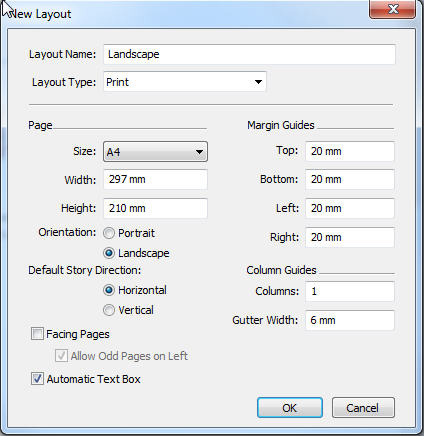
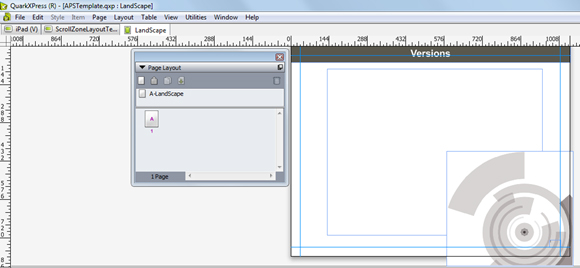
Add a landscape layout in the template, giving the page width and height as:
-
Page Height = The width of a page in portrait mode
-
Page Width = The height of a page in portrait mode
-
-
Designate the new layout as the Landscape layout by giving it the name
Landscape. -
Use this new layout to create pages with the Landscape orientation.
The following is an example of the MASTERPAGESEQUENCE to be used for Landscape mode.
<MASTERPAGESEQUENCE NAME="Landscape">
  <SINGLEMASTERPAGEREFERENCE NAME="A-Landscape"></SINGLEMASTERPAGEREFERENCE>
</MASTERPAGESEQUENCE>
The following is an example of the PARAGRAPH element with the PARASTYLE attribute set to flow. This cause the landscape flow content under the PAGESEQUENCE that has ORIENTATION set to LANDSCAPE to be flown into the flow boxes in the layout with the name Landscape.
<PARAGRAPH PARASTYLE="Flow">
  <RICHTEXT BACKGROUNDCOLOR="yellow">Text here</RICHTEXT>
</PARAGRAPH>
The following is an example of a nested PAGESEQUENCE depicting Landscape mode. The landscape flow content under the PAGESEQUENCE that has ORIENTATION set to LANDSCAPE is flown into the flow boxes in the layout with the name Landscape.
<PAGESEQUENCE ORIENTATION="LANDSCAPE"MASTERREFERENCE="Landscape">
  <STORY BOXNAME="flow">
    <PARAGRAPH PARASTYLE="Title">
      <RICHTEXT>Deliver the Benefits of Automation</RICHTEXT>
    </PARAGRAPH>
    <PARAGRAPH PARASTYLE="Flow">
      <RICHTEXT>Text Here</RICHTEXT>
    </PARAGRAPH>
    <PARAGRAPH PARASTYLE="Bulletstyle">
    <PARAGRAPH PARASTYLE="Bulletstyle">
    <PARAGRAPH PARASTYLE="Bulletstyle">
    <PARAGRAPH PARASTYLE="Bulletstyle">
    <PARAGRAPH PARASTYLE="Flow">
    <PARAGRAPH PARASTYLE="Flow">
    <PARAGRAPH PARASTYLE="Bulletstyle">
    <PARAGRAPH PARASTYLE="Bulletstyle">
    <PARAGRAPH PARASTYLE="Bulletstyle">
    <PARAGRAPH PARASTYLE="Bulletstyle">
    <PARAGRAPH PARASTYLE="Title">
    <PARAGRAPH PARASTYLE="Flow">
    <PARAGRAPH PARASTYLE="Flow">
    <PARAGRAPH PARASTYLE="Flow">
    <PARAGRAPH/>
    <PARAGRAPH/>
    <INLINETABLE TABLESTYLEREF= "quark">
      <COLGROUP>
      <THREAD>
        <TROW>
          <ENTRY>
            <PARAGRAPH PARASTYLE="TableCOntent">
              <FORMAT ALIGNMENT= "CENTERED"/>
              <RICHTEXT>Text Here</RICHTEXT>
            </PARAGRAPH>
          </ENTRY>
          <ENTRY>
            <PARAGRAPH PARASTYLE="TableCOntent">
              <FORMAT ALIGNMENT= "CENTERED"/>
              <RICHTEXT>Text Here</RICHTEXT>
            </PARAGRAPH>
          </ENTRY>
        </THROW>
      </THREAD>
    </INLINETABLE>
  </STORY>
</PAGESEQUENCE>
<!---Portrait Mode Resumed--->
<PARAGRAPH PARASTYLE="Title">
  <RICHTEXT>Text here</RICHTEXT>
</PARAGRAPH>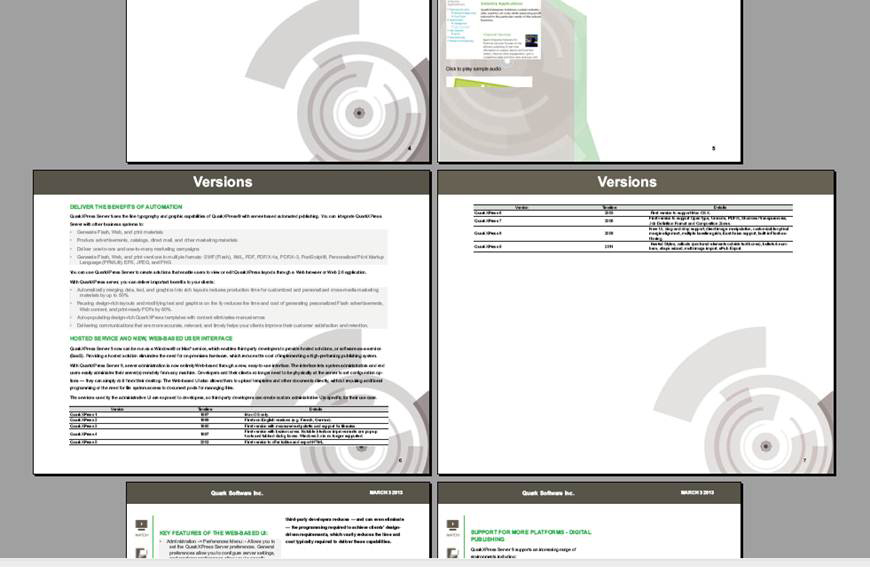
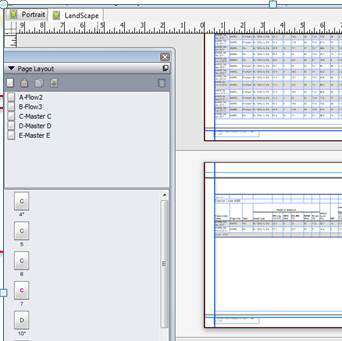
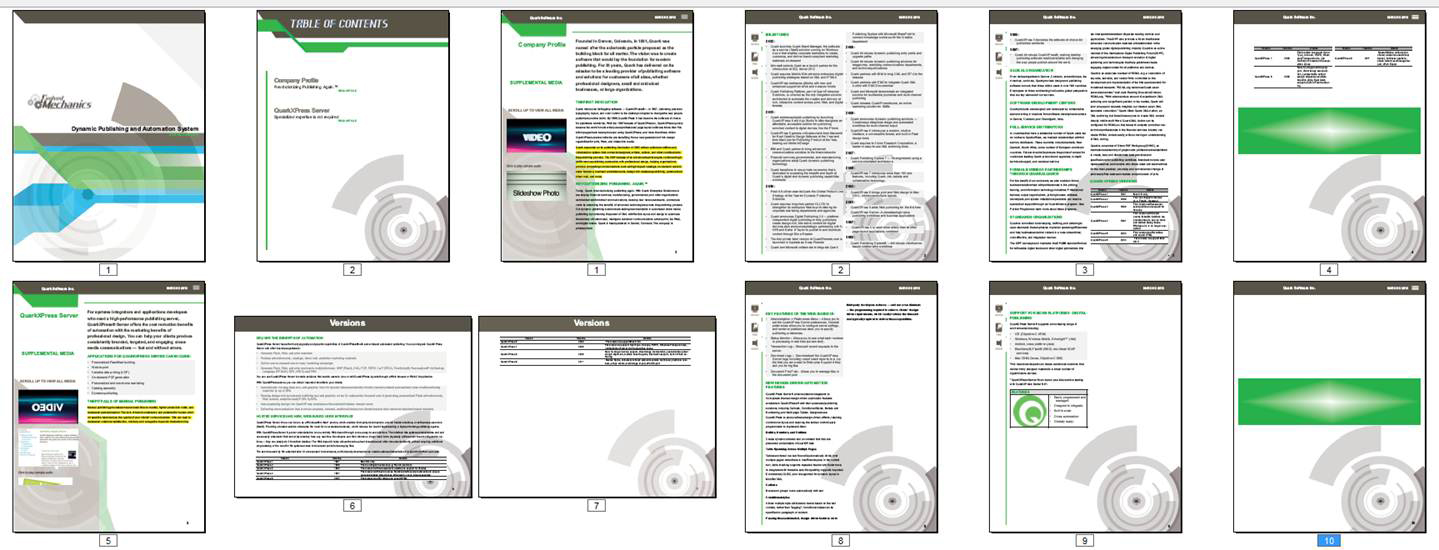
The following is an example of a PROJECT element. The landscape flow content under the PAGESEQUENCE that has ORIENTATION set to LANDSCAPE is flown into the flow boxes in the layout with the name Landscape.
<PROJECT>
  <TABLESTYLE>
  <TABLESTYLE>
  <LAYOUT>
    <ID UID="1"/>
    <MASTERPAGESEQUENCE NAME= "Cover">
    <MASTERPAGESEQUENCE NAME= "Flow">
    <MASTERPAGESEQUENCE NAME= "Flow2">
      <SINGLEMASTERPAGEREFERENCE NAME= "A-Flow2"/>
    </MASTERPAGESEQUENCE>
    <MASTERPAGESEQUENCE NAME= "Flow3">
      <SINGLEMASTERPAGEREFERENCE NAME= "B-Flow3"/>
    </MASTERPAGESEQUENCE>    <PARAGRAPH PARASTYLE="Bulletstyle">
    <MASTERPAGESEQUENCE NAME= "Disclaimer">
    <PAGESEQUENCE MASTERREFERENCE="Cover">
    <PAGESEQUENCE MASTERREFERENCE="Flow">
    <PAGESEQUENCE MASTERREFERENCE="Flow">
    <PAGESEQUENCE MASTERREFERENCE="Flow2" ORIENTATION= "LANDSCAPE">
      <STORY BOXNAME= "StoryFlow2">
        <INLINETABLE TABLESTYLEREF= "Rating">
      </STORY>
    </PAGESEQUENCE>
    <PAGESEQUENCE MASTERREFERENCE="Flow">
    <PAGESEQUENCE MASTERREFERENCE="Flow">
    <PAGESEQUENCE MASTERREFERENCE="Flow3" ORIENTATION= "LANDSCAPE">
      <STATICCONTENT>
      <STORY BOXNAME= "StoryFlow2">
        <INLINETABLE TABLESTYLEREF= "NoGrids">
      </STORY>
    </PAGESEQUENCE>
    <PAGESEQUENCE MASTERREFERENCE="Flow3" ORIENTATION= "LANDSCAPE">
      <STATICCONTENT>
      <STORY BOXNAME= "StoryFlow2">
        <INLINETABLE TABLESTYLEREF= "NoGrids">
      </STORY>
    </PAGESEQUENCE>
    <PAGESEQUENCE MASTERREFERENCE="Disclaimer">
  </LAYOUT>
</PROJECT>
The following is the resultant PDF from the above example:
Automatic callout stacking
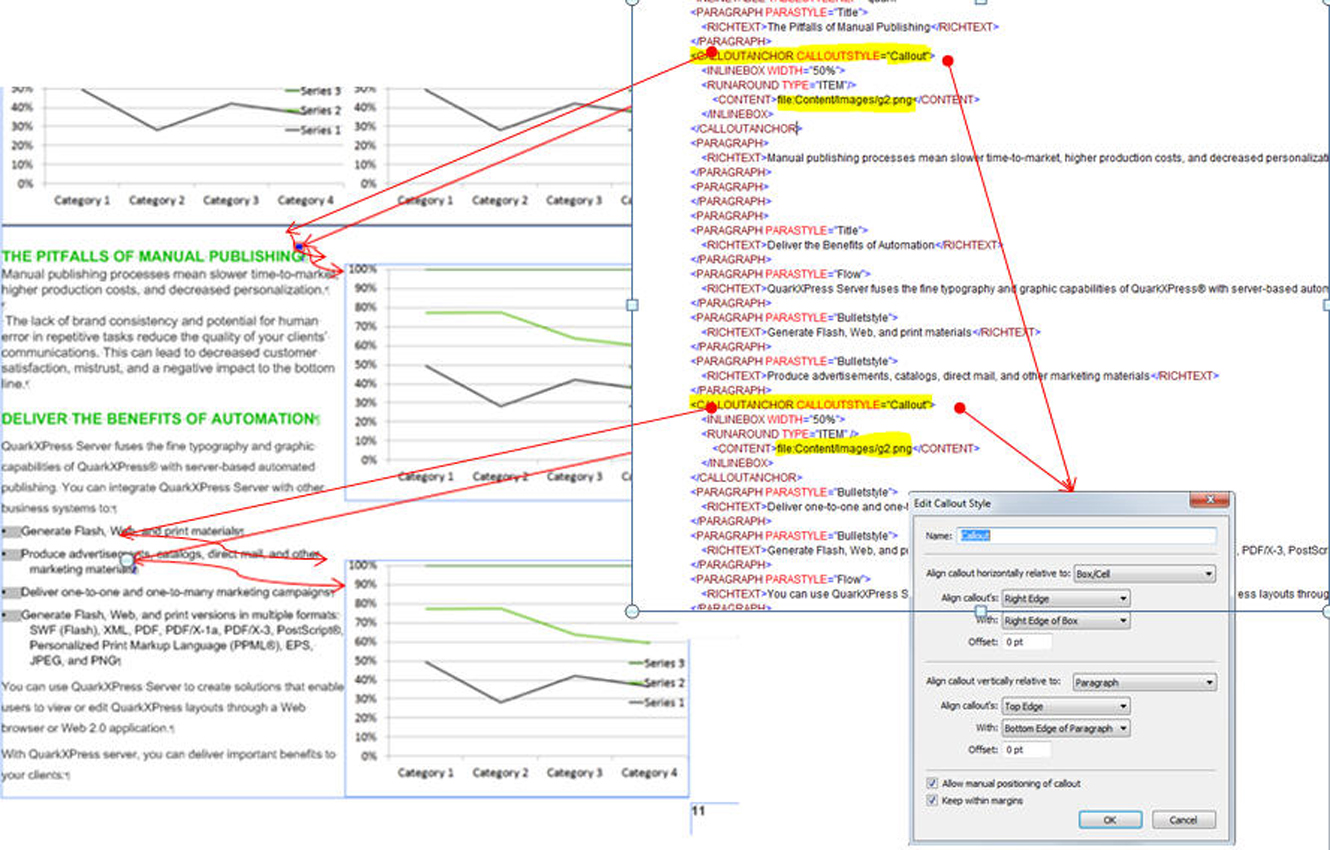
Automatic callout stacking allows for the tiling of multiple callouts. You use the
CALLOUTANCHOR element to automate your layout design. The CALLOUTANCHOR@CALLOUTSTYLE requires a callout style to be created in the template. The callout style defines
the placement of the graphics object.
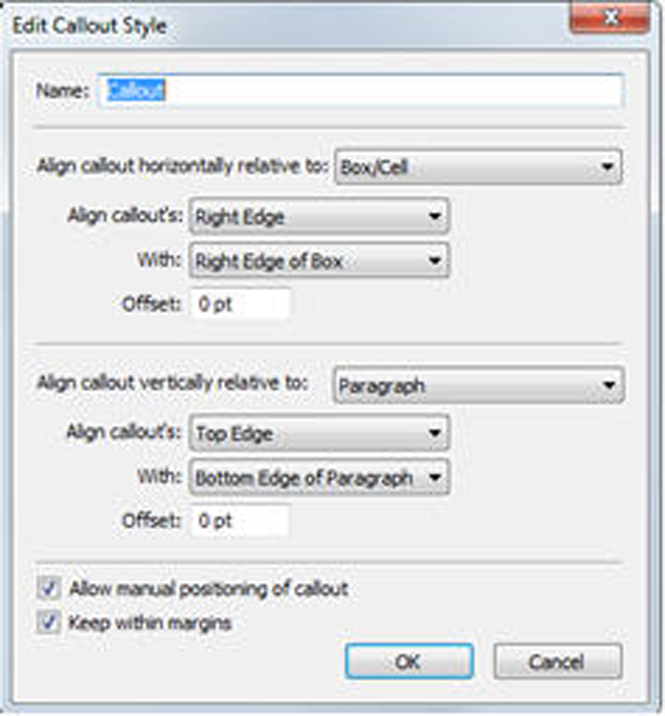
Automatic callout stacking example
In the following example the 2 graphic objects on the right side are related to the sub-sections on the left side.
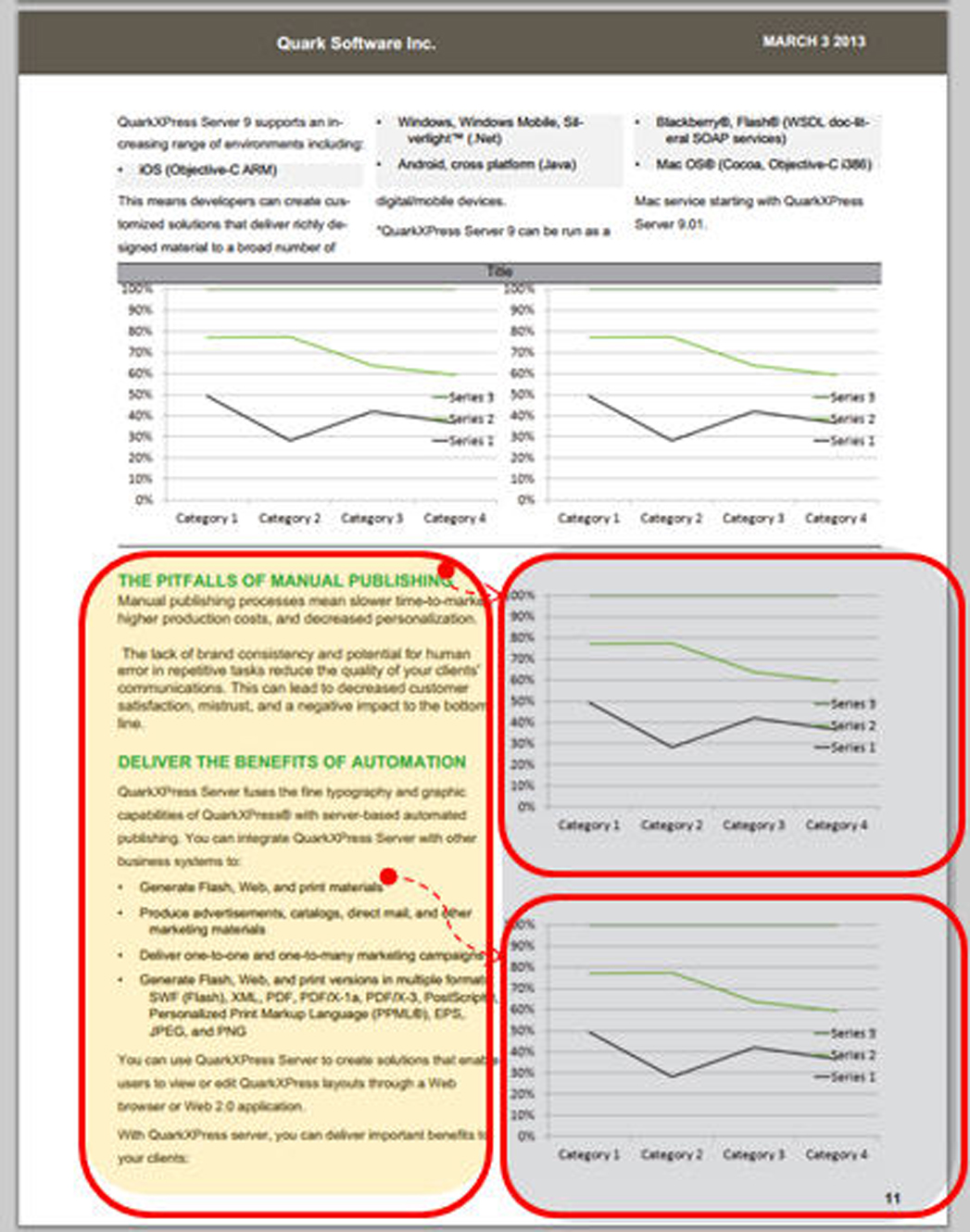
The callout anchors applied with the same callout style will be stacked automatically.
Nested anchoring
Nested anchoring allows you to anchor an item within another anchored item. This allows
for nesting of INLINEBOX and INLINETABLE elements.
Nested anchoring examples
Nesting an INLINEBOX within an INLINEBOX
Nesting an INLINEBOX within an ENTRY of an INLINETABLE
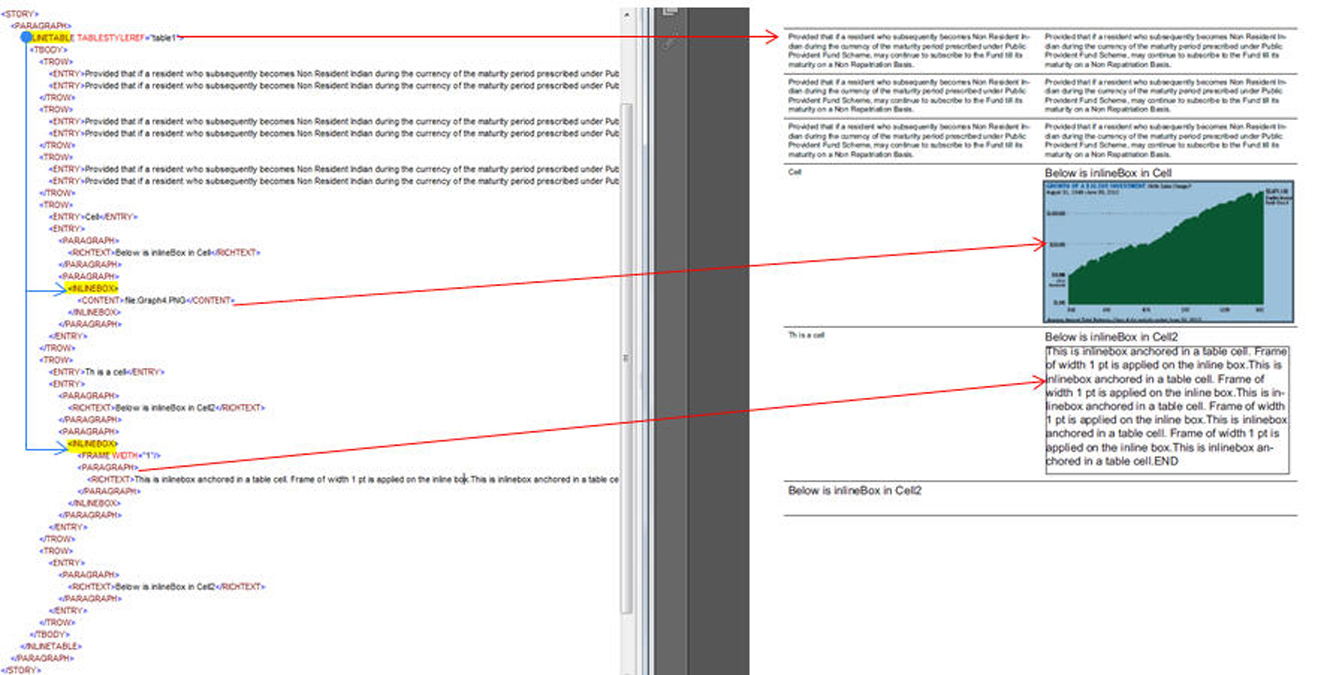
INLINEBOX within an ENTRY of anINLINETABLENesting an INLINETABLE within an INLINETABLE
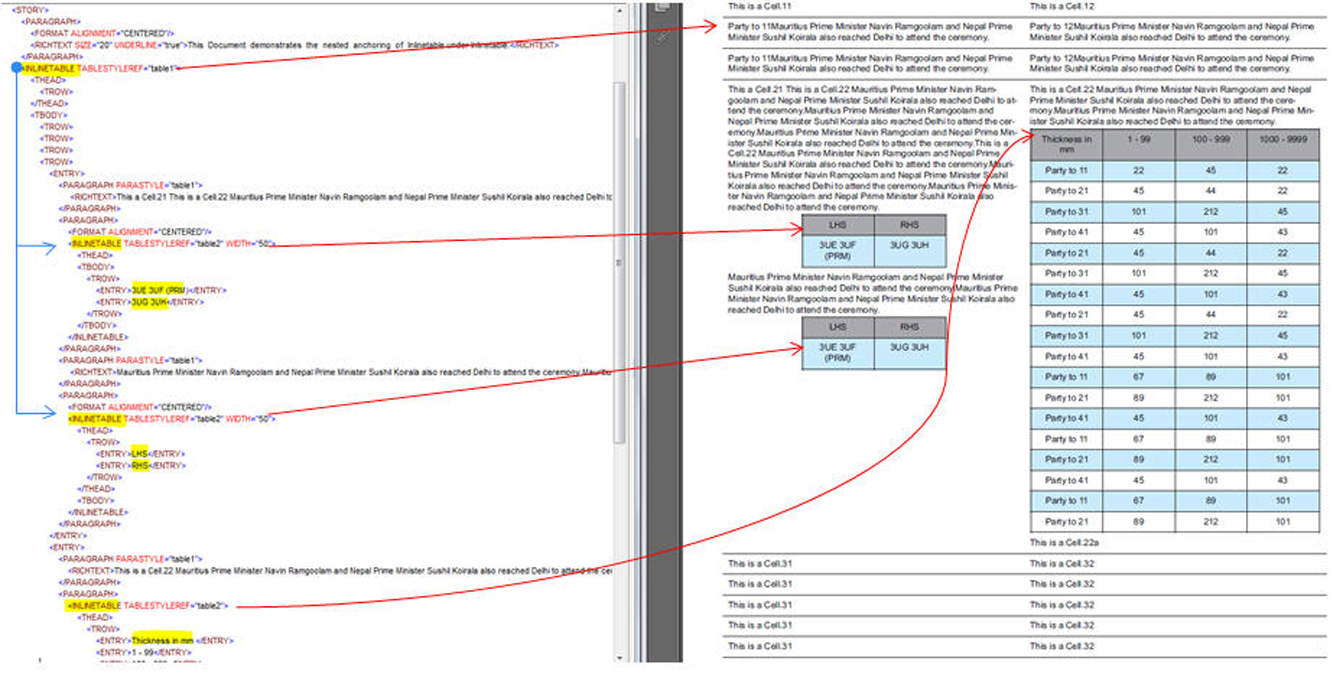
INLINETABLE within an INLINETABLE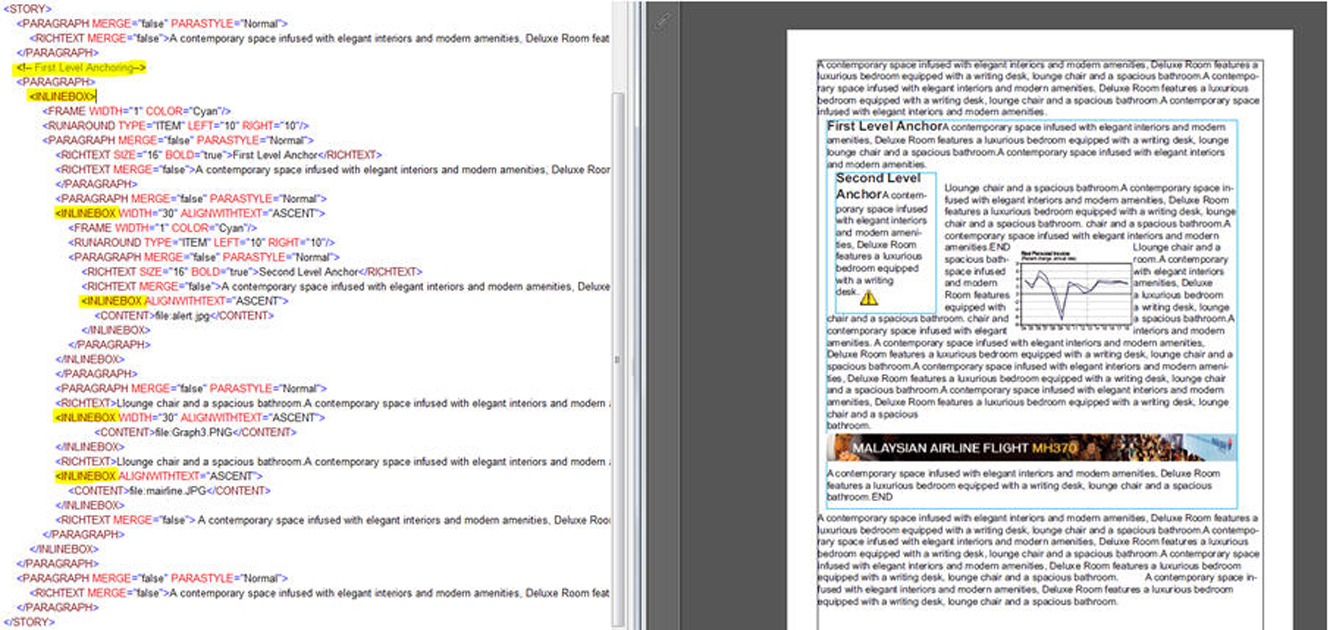
INLINETABLE within an INLINETABLENesting an INLINETABLE within an INLINEBOX
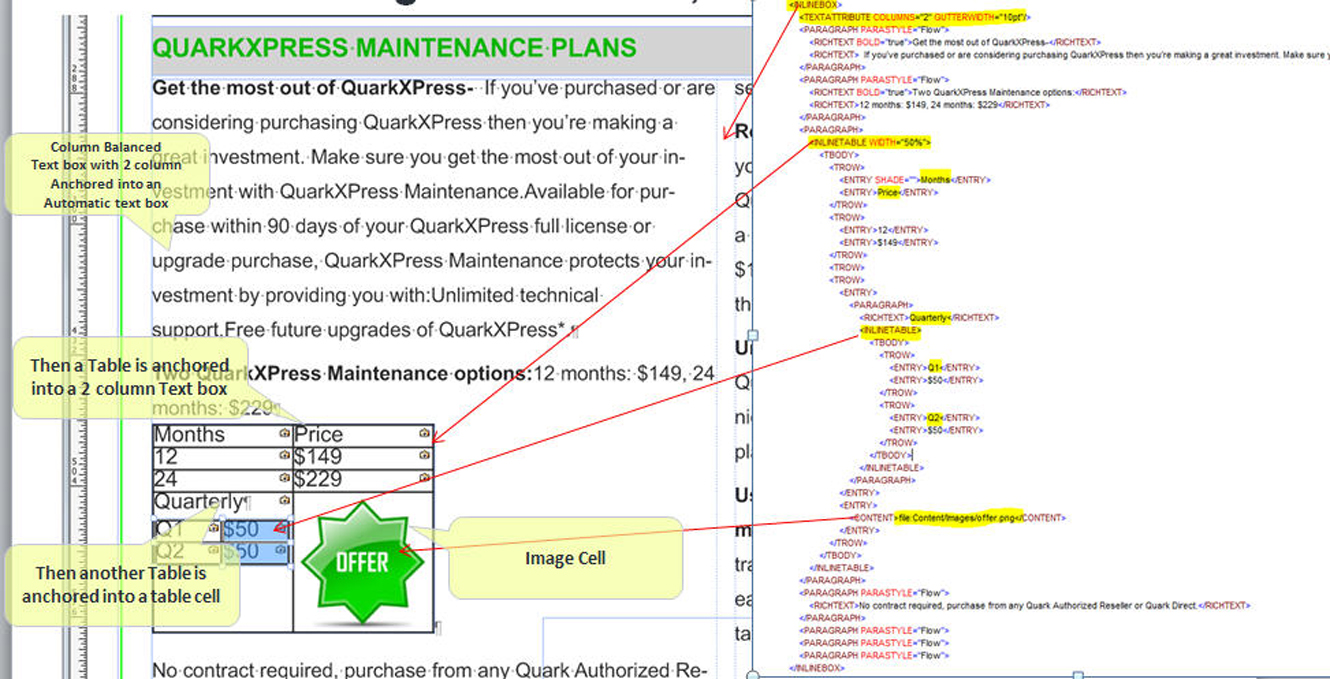
INLINETABLE within an INLINEBOXFont Management
Improved font management in multi-tenancy deployments for customer specific fonts. Fonts of different customers can be managed by creating customer specific folder (tenant id) on blob storage under "fonts" folder.
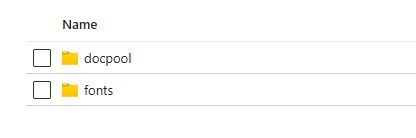
After managing fonts on blob storage, you can utilize either of two different paths to access tenant-specific fonts:
-
Azure to Local Fonts: Download all fonts from Azure to local disk once and use these fonts for your requests.
-
Azure Fonts: Use the Azure fonts with your requests.
Azure to Local Fonts
Whenever fonts are updated on Azure, you can download them to your local disk using
the following request: http://localhost:8080/download/fonts?fontsuri=fonts
After downloading, you can send the following request to use these fonts: http://localhost:8080/pdf/template.qxp?modify=file:mod.xml&tenantid=TENANT_ID&transactionuuid=TRANSACTION_UUID
Azure Fonts
You can use the following request to use the fonts directly from Azure: http://localhost:8080/pdf/template.qxp?modify=file:mod.xml&fontsuri=file:fonts&tenantid=TENANT_ID&transactionuuid=TRANSACTION_UUID