
Using Azure Blob Storage as a document pool in QuarkXPress Server
This section describes the steps necessary to use Azure Blob Storage as a docpool in QuarkXPress Server.
Define Connection String
To get the connection string for Blob Storage on the Azure portal, follow these steps:
-
Log in to Azure Portal: Navigate to the Azure portal and sign in with your credentials.
-
Navigate to Storage Account: Go to your specific storage account.
-
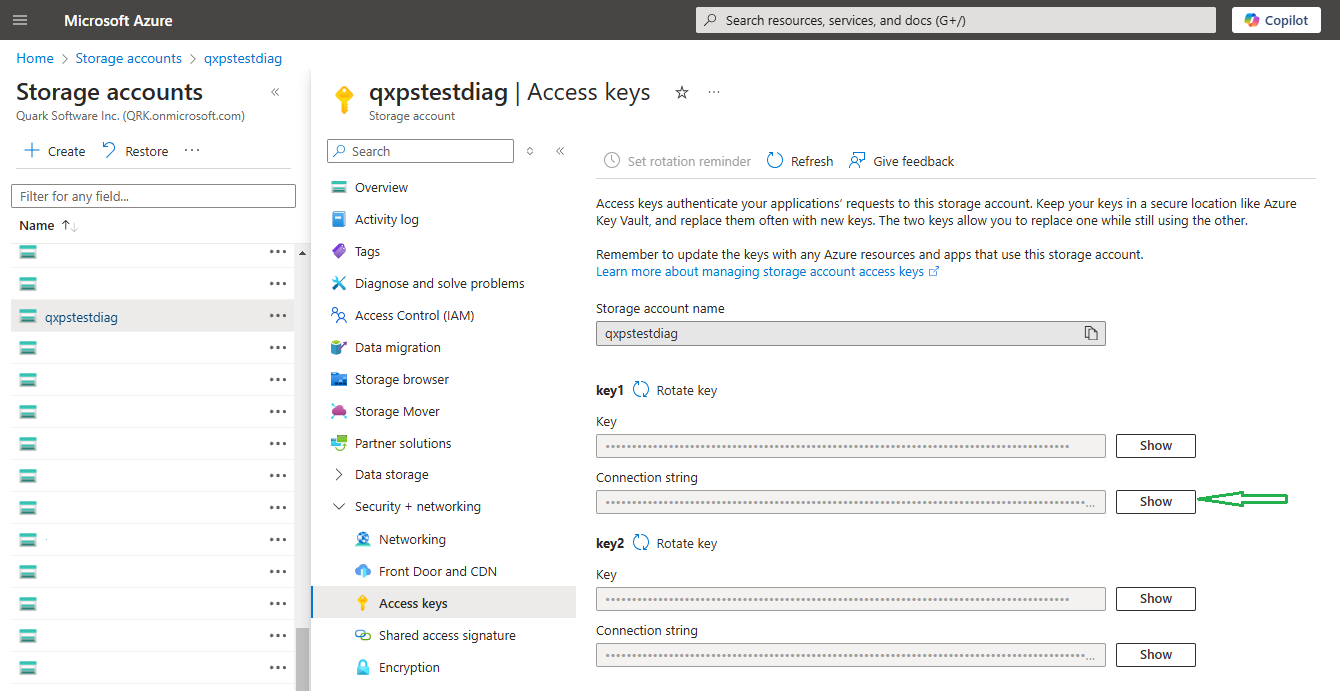
Access Keys: In the left-hand menu, under the "Security + networking" section, click on "Access keys."
-
Copy Connection String: You will see the connection strings for both primary and secondary access keys. Click the "Copy" button next to the connection string you need.

-
Paste Connection String: Paste the connection string next to the "qxps-blob-connection-string" entry in the "AZURE-BLOB.properties" file, located in the conf folder of your QXPS installation directory.

Get the Blob Storage path for docpool
To get the URL of your container from the Azure portal, follow these steps:
-
Log in to Azure Portal: Navigate to the Azure portal and sign in with your credentials.
-
Navigate to Storage Account: Go to your specific storage account.
-
Access Containers: In the left-hand menu, under the "Data storage" section, click on "Containers."
-
Select Your Container: Click on the container for which you want the URL.
-
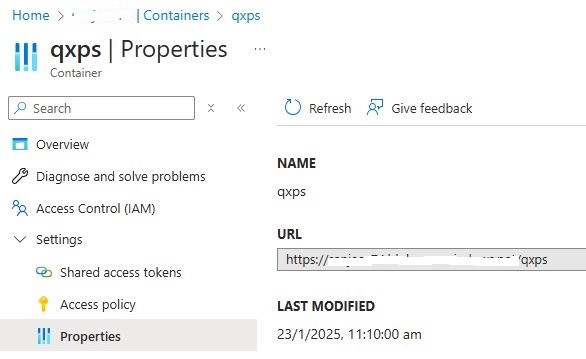
Copy URL: In the container's overview, you will see the URL under "Settings > Properties". Click the "Copy" button next to the URL to copy it.
Register Azure Blob Storage as a Docpool in QuarkXPress Server
-
Open QuarkXPress Server's web-based Admin UI.
-
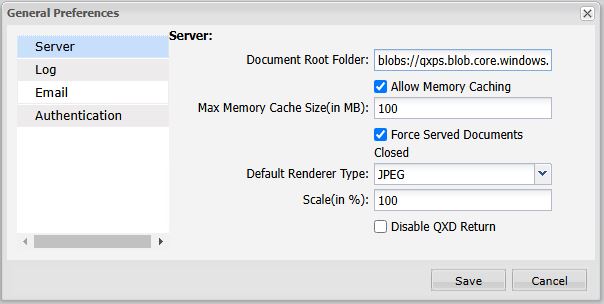
Go to Administration > Preferences > General.
-
In the Document Root Folder, specify the docpool URL:
blobs://qxps.blob.core.windows.net/qxps/docpoolChange "https" to "blobs" in the copied URL of the container and create a "docpool" folder within the container.
http://localhost:8080/setprefs?DocumentRootFolder=blobs://qxps.blob.core.windows.net/qxps/docpool