
Set-Up
The System Setup and Preferences section provides details on connecting to the repository and specifying user preferences.
Some preferences are not modifiable when a server connection is currently established. In that case, close all the open documents and then try again.
Log On to the Repository
You must be logged on to a repository to access features, such as Save to Server (check-in) or open for editing (check-out).
To set up your login information:
-
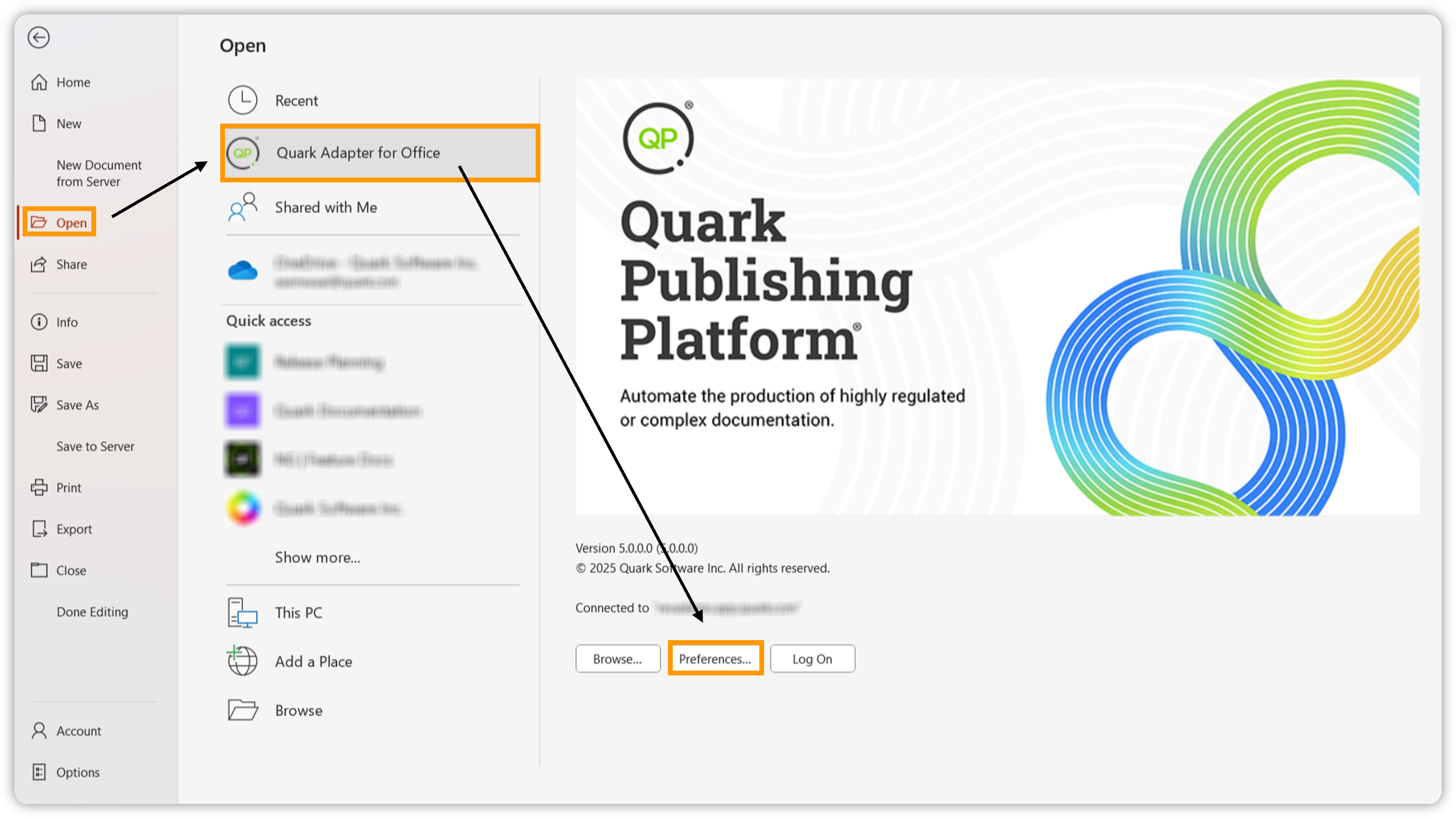
Click File > Open > Quark Adapter for Office > Preferences.
-
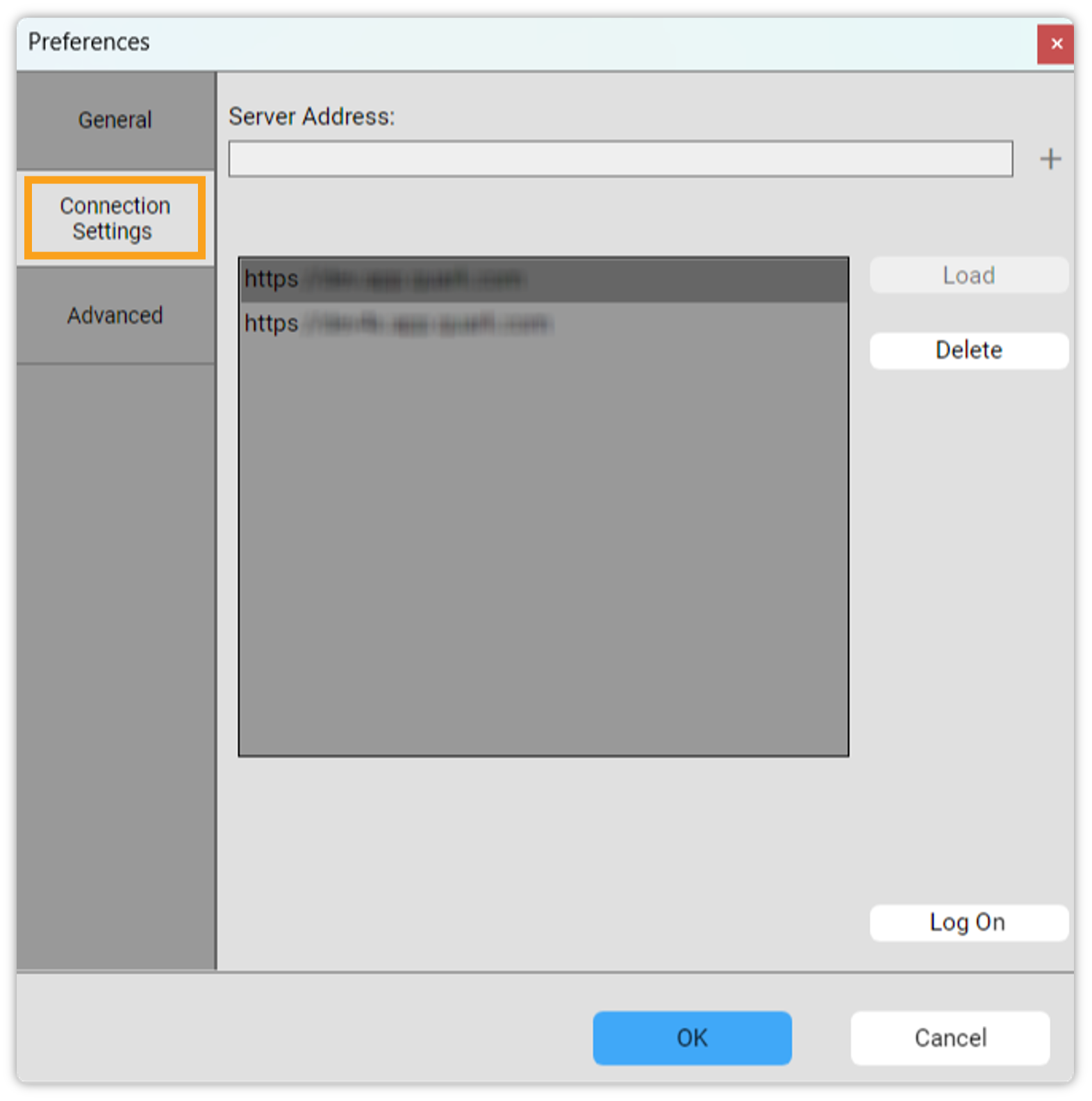
In the Preferences dialog box, select the tab Connection Settings.
-
In Connection Settings:
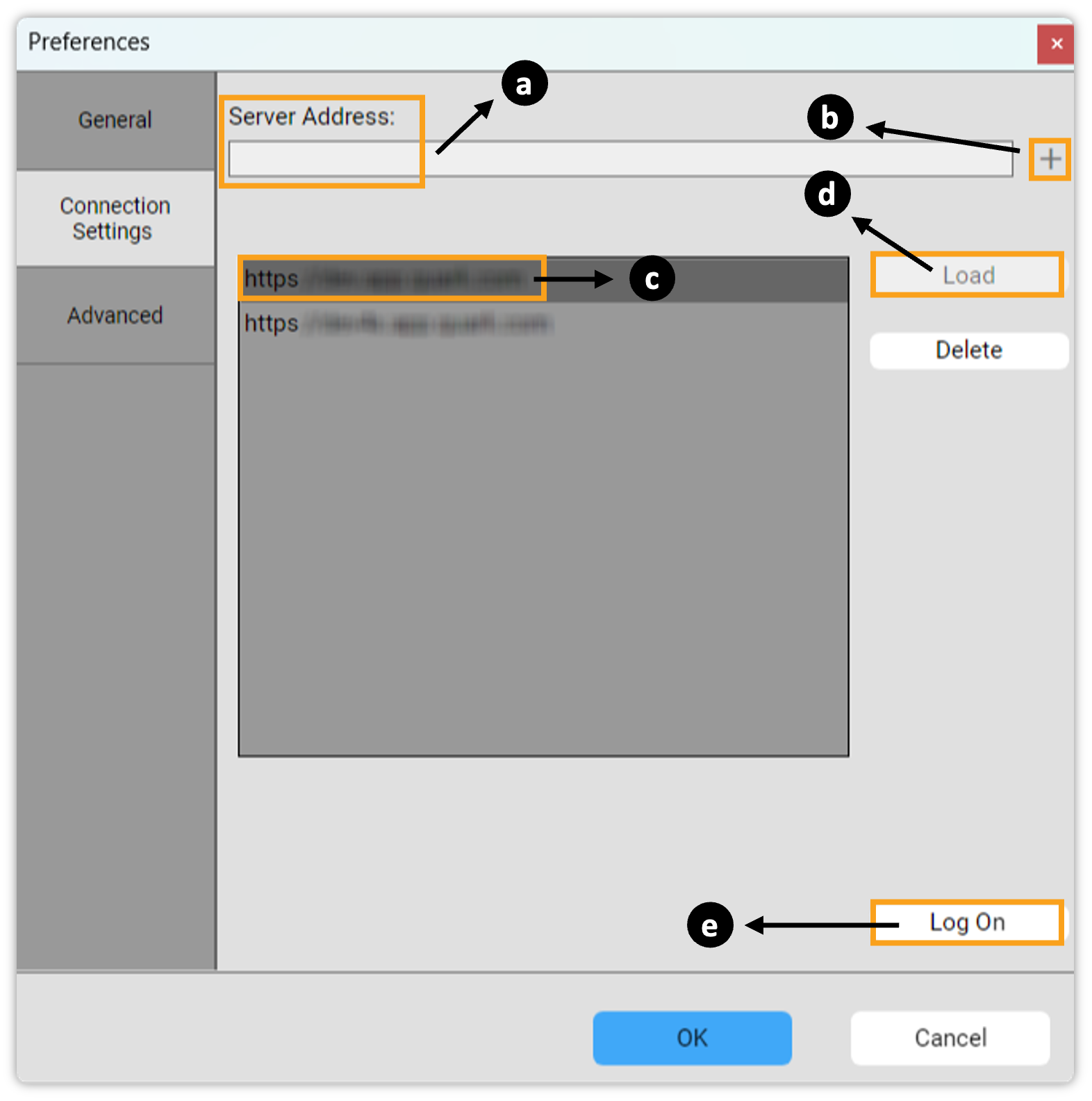
(a). Enter the URL of the server/repository you want to connect to.
(b). Click on the sign "+" to add the URL to the list of saved repositories.
(c). Select the URL of the repository you just added.
(d). Click on Load.
(e). Click on Log On to open the Log On dialog box of the repository.
-
In the Log On dialog box, enter your login information and select Login. The Log On dialog box disappears once you are logged in.

-
Click OK in the Preferences dialog box.
Set Preferences
The Preference dialog box allows you to set various settings related to documents and to the repository. Some key settings are as follows:
Set the Location of Published Documents (only applicable for Adapters for PowerPoint)
You can specify the location of published documents on your local machine.
To specify a location:
-
Click File > Open > Quark Adapter for Office > Preferences.
-
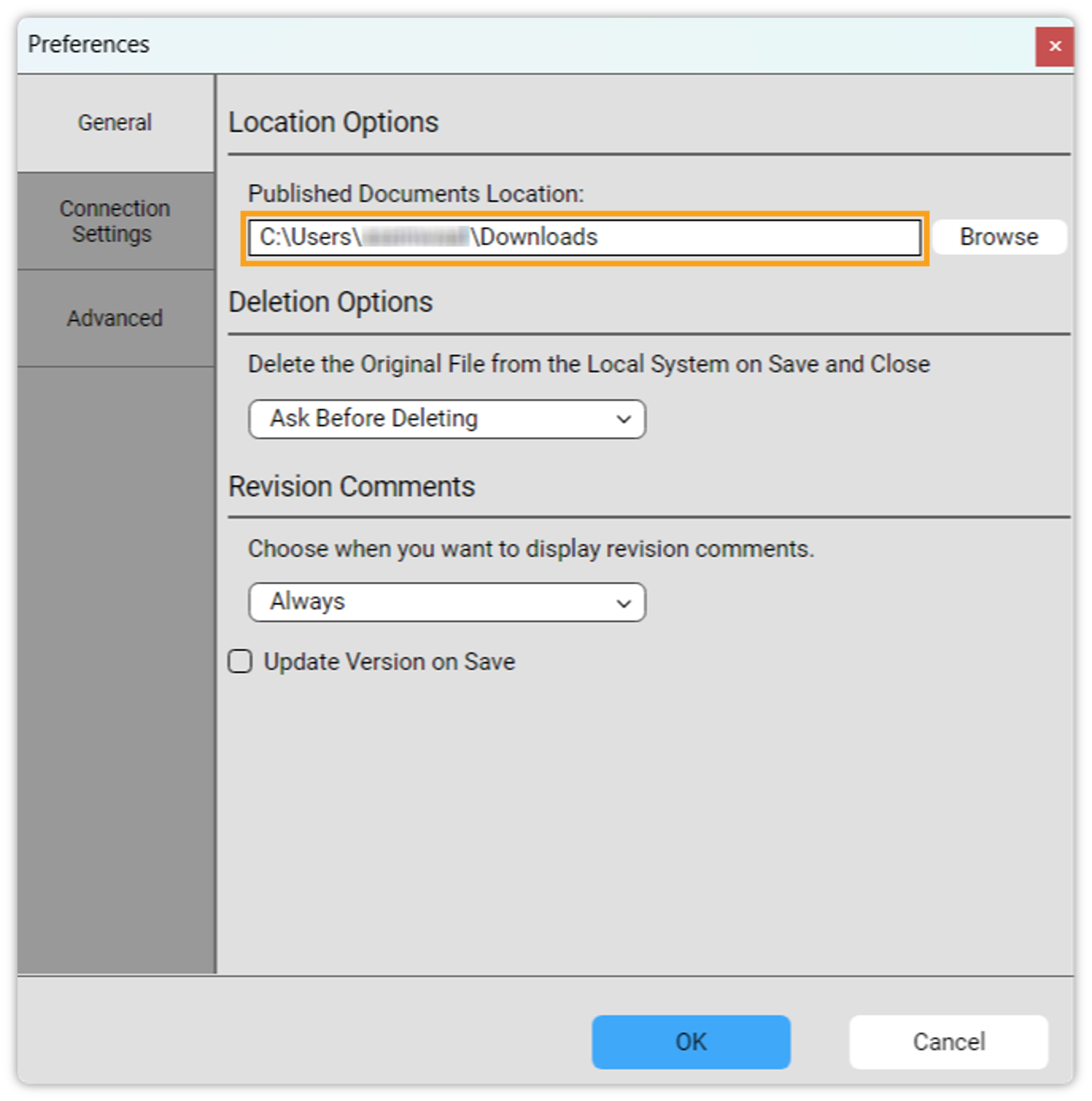
Click General tab.
-
Click Browse to navigate to the folder where you want to save published documents.
-
Click OK.
Deletion Options
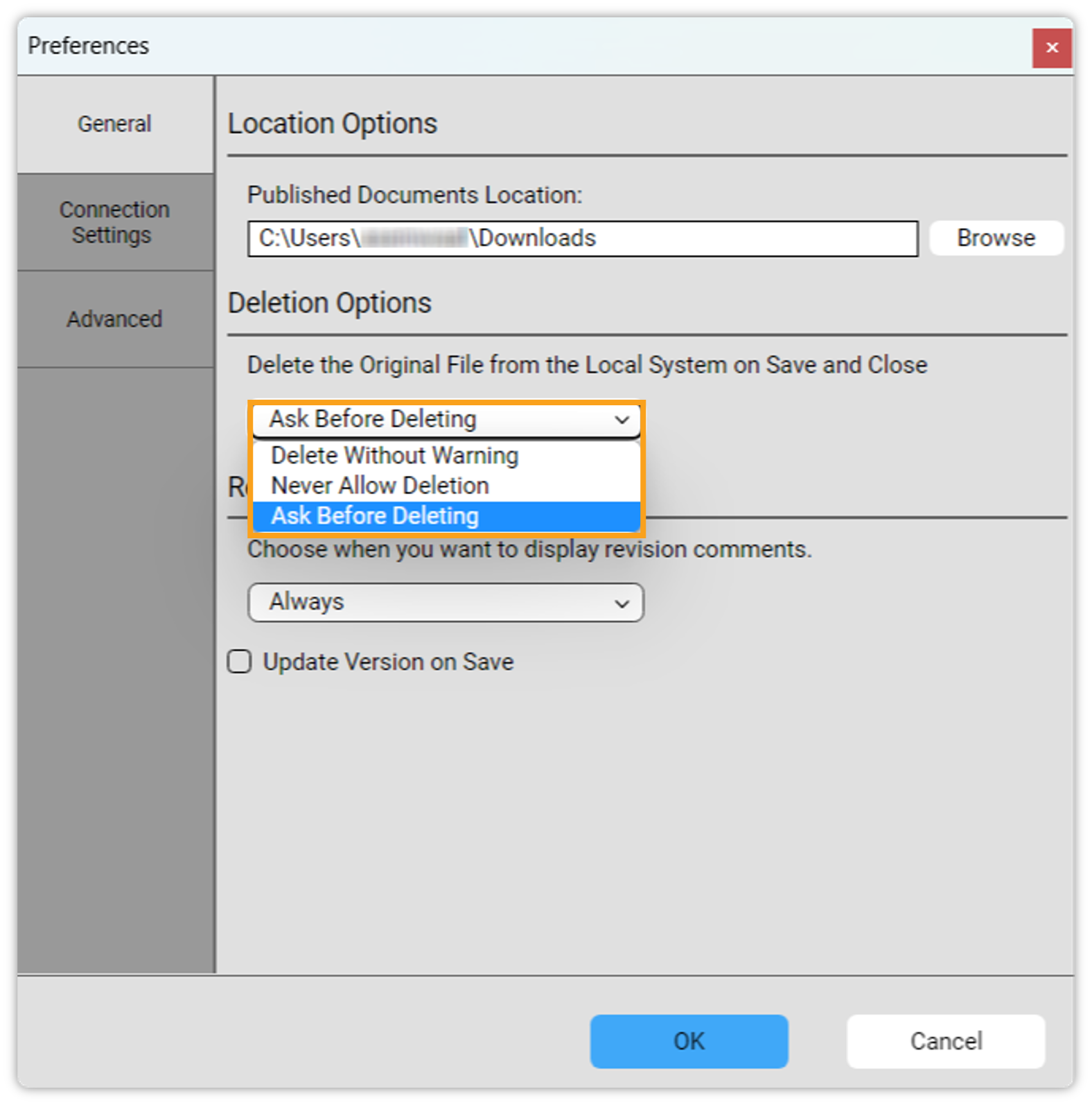
By default, Quark Publishing Platform Adapter for Office deletes the file on your local machine when you save a document to the repository. The Deletion Options drop-down menu allows you to specify how you want Quark Publishing Platform Adapter for Quark XML Author to function when you save a document to the repository.
To specify your preferences:
-
In the Preferences dialog box, select the tab General.
-
Expand the Deletion Options drop-down menu.
-
Select from one of the following options:
-
Delete Without Warning
-
Never Allow Deletion
-
Ask Before Deleting
-
Revision Comments
The Revision Comments drop-down menu allows you to specify when you want to see the revision comments. The available options are:
-
Always
-
Never
-
New Assignments Only
Update Version on Save
The Update Version on Save checkbox allows you to specify whether you want Quark Publishing Platform Adapter for Office to create a new version of the document when you save a revision through Microsoft Word’s Save option.
Reset to Default
If you want to change the preferences that you have made to the default preferences:
-
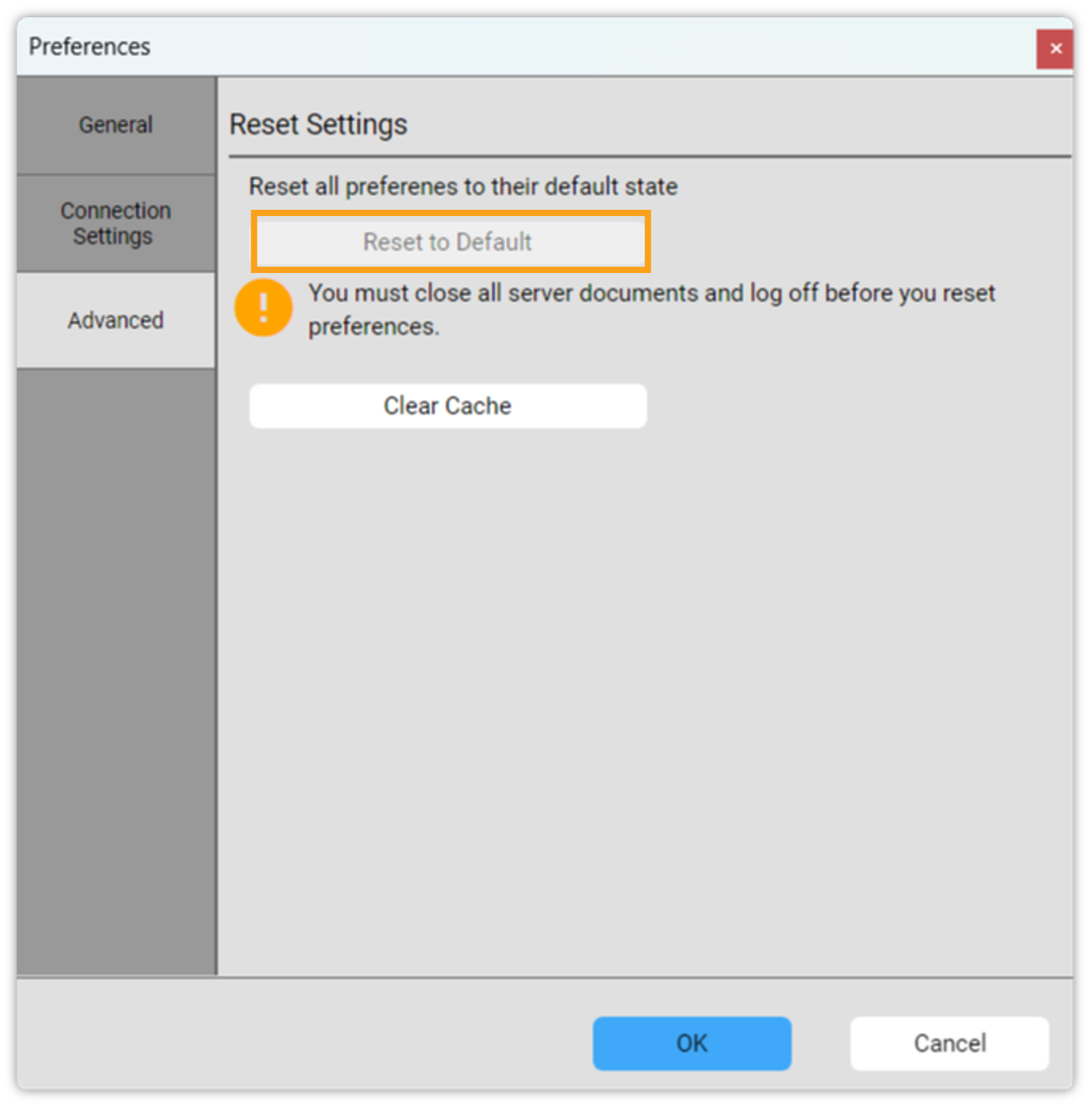
Select the tab Advanced in the Preferences dialog box.
-
Select Reset to Default and then select OK.
Clear Cache
If you want to clear the cache when you are done working with Quark Publishing Platform Adapter for Office:
-
Click the Advanced tab in the Preferences dialog box.
-
Click Clear Cache.
-
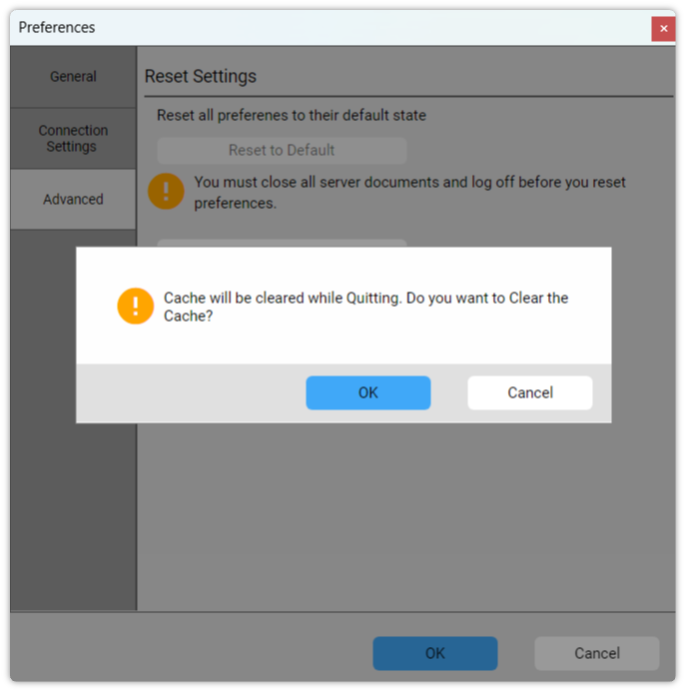
Quark Publishing Platform Adapter for Office prompts a dialog box for you to confirm the action.
-
Select OK.