
Semantic Search in AI Assistant
Previously, AI Assistant facilitated content generation only through a standard search mechanism. However, with the integration of Semantic Search in v4.0, our AI-enabled feature now offers an intuitive and context-aware search experience. Semantic Search goes beyond traditional keyword matching, allowing for a deeper understanding of the intent and meaning behind your search queries.
Semantic search empowers users to locate semantically matching information within their PDF documents using natural language queries. This capability is built on the principle of extracting content from PDFs, segmenting it into manageable fragments, and enabling intuitive, meaning-based search. Additionally, it facilitates content reuse within documents created in the Quark Publishing Platform.
What It Does Well
-
Natural Language Queries: You can search using everyday language, making it easier to find what you need.
-
Content Reuse: Once you find the right information, you can easily insert it into new documents.
Things to Keep in Mind
-
Complex PDFs: PDFs with complex layouts (such as borderless tables) may not work perfectly.
-
Split Content: If a table or paragraph spans multiple pages or columns, it may be split into parts. You’ll need to manually stitch it back together after inserting it into a document.
-
Context Awareness: The system focuses on individual paragraphs, so it might miss the broader context—especially if key terms aren't repeated in the content.
-
Similar Phrases: Relevant search results may not appear at the top when searching for phrases containing antonyms or subtle variations in wording.
-
Exact Matches: The system excels at finding meaning but is less effective for locating exact values such as numbers or IDs (e.g., case numbers).
-
Large PDF Documents: PDF content extraction is limited by file size and page count. In some cases, very large or complex documents may not process successfully.
In short, semantic search makes finding information easier and more intuitive. However, for complex documents, manual review of the inserted content by the user is highly recommended.
The Limitations and Considerations sections describe these points in more detail.
Semantic Search Configuration — Prerequisite
Before utilizing the Semantic Search functionality in AI Assistant, it's crucial to undergo the configuration process. Proper configuration ensures that you can fully leverage the capabilities of Semantic Search and receive the most accurate results.
Register a Service Provider
Service provider plays a vital role in classifying the user command and execute the classified operation. If the classified command is a search operation, AI service will require a service provider which is configured for search so that it can use the specified model to generate the text embedding.
Below is the sample payload for registering a service provider supporting the search capability –
https://host/aiintegration/api/v3/provider
{
          "provider_type": "open-ai",
          "name": "For Semantic Search-2",
          "default_configuration": {
                    "model": <generic AI Model> // e.g. "gpt-3.5-turbo"
          },
          "operation_configurations": [
                    {
                         "operation_id": "search",
                         "configuration": {
                              // Model for generating text embeddings
                              "model": "text-embedding-3-small"
                         }
                    }
          ],
          "credentials": {
                    "api_key": "<API KEY>"
          },
}
Recommendation: While 'text-embedding-3-small' is a cost-effective option, it may produce less consistent results for semantic search. For improved semantic accuracy and stability, it is recommended to use 'text-embedding-3-large' as the embedding model.
App Settings providing the defaults
AI Service needs to be configured for the default service providers for performing various AI operations.
Below is a sample payload for configuring the search –
http://host/aiintegration/api/v3/app-settings
{
          "default_service_provider_id": "<provider id returned via register provider API>",
          "version": 1, // appropriate current version
          "enable_semantic_search": true,
          "operation_settings": [
                    {
                              "operation_id": "search",
                              "service_provider_id": "<provider id returned via register provider API>"
                    }
          ]
}
Enabling Semantic Search — Quark Publishing Platform
Semantic Search is disabled by default. One needs to enable the same via an API.
Below is a sample payload for configuring collections for the search –
https://host/aiintegration/api/v4/config/semantic-search
{
          "sourceType":"HTTP",
          "collectionList" : ["Home/xxx", Home/yyy"], // List of collections to enable the Semantic Search capability
           "enableSemanticSearch":true
}Accessing and utilizing Semantic Search in Quark Publishing Platform
You can access the Semantic Search feature in Quark Publishing Platform by following these steps –
-
Log in to the Quark Publishing Platform using your credentials.
-
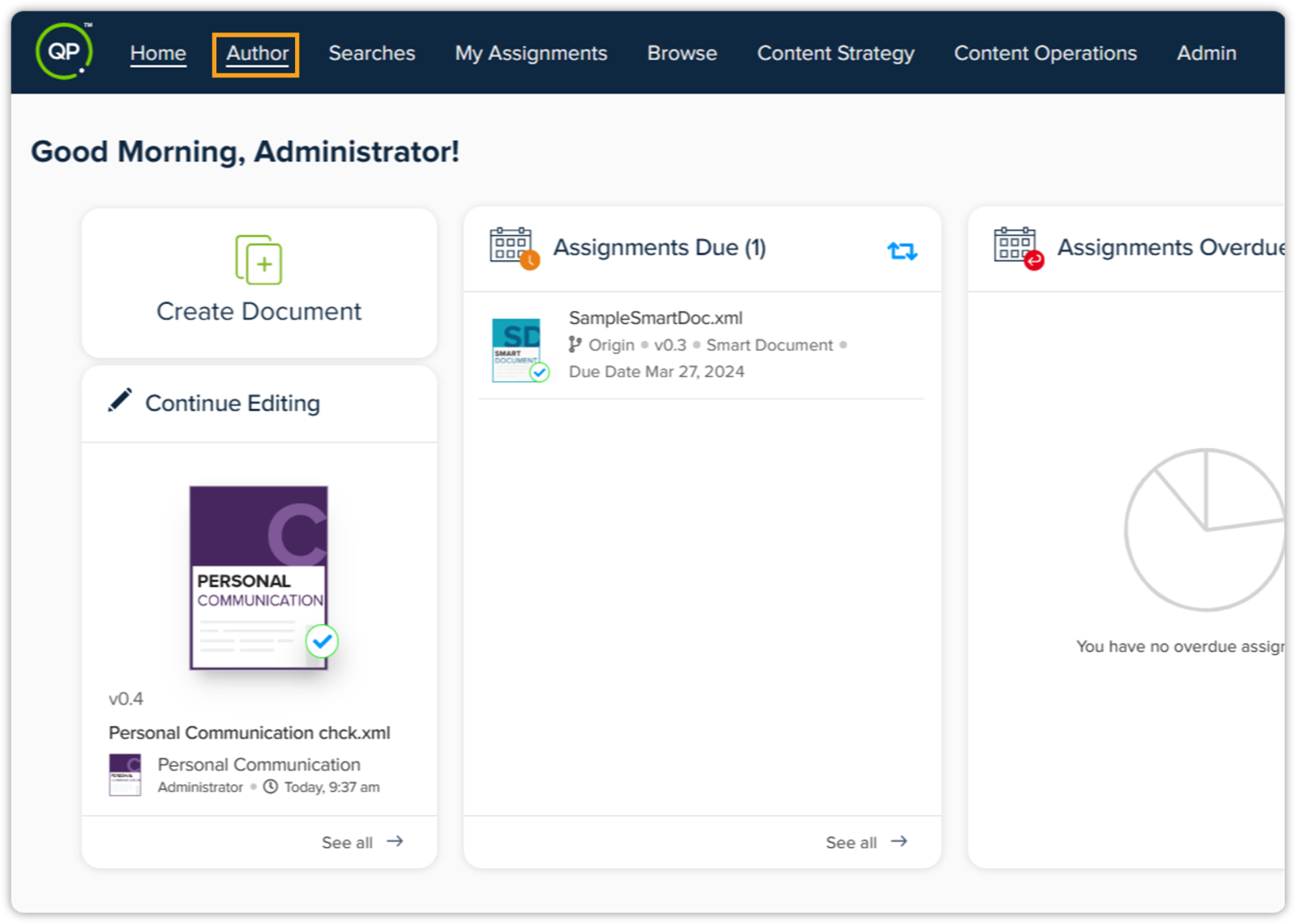
Click the Author tab in the top menu bar.
-
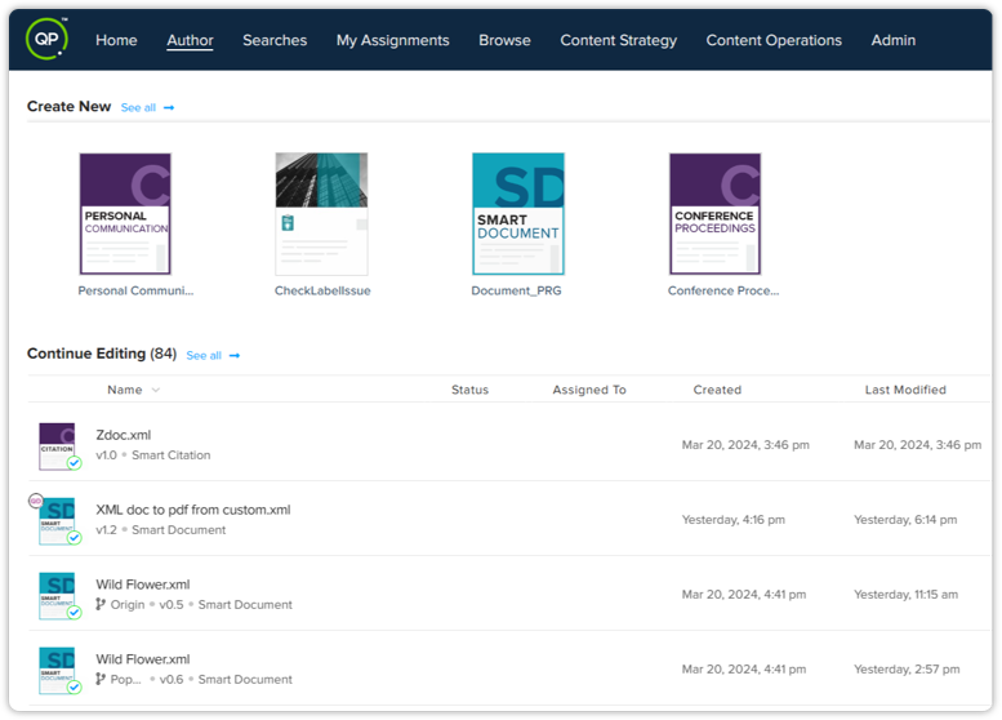
Now choose the document option — in Quark Author, decide whether you want to create a new document to leverage the Semantic Search functionality or open an existing document where you wish to use this feature.
-
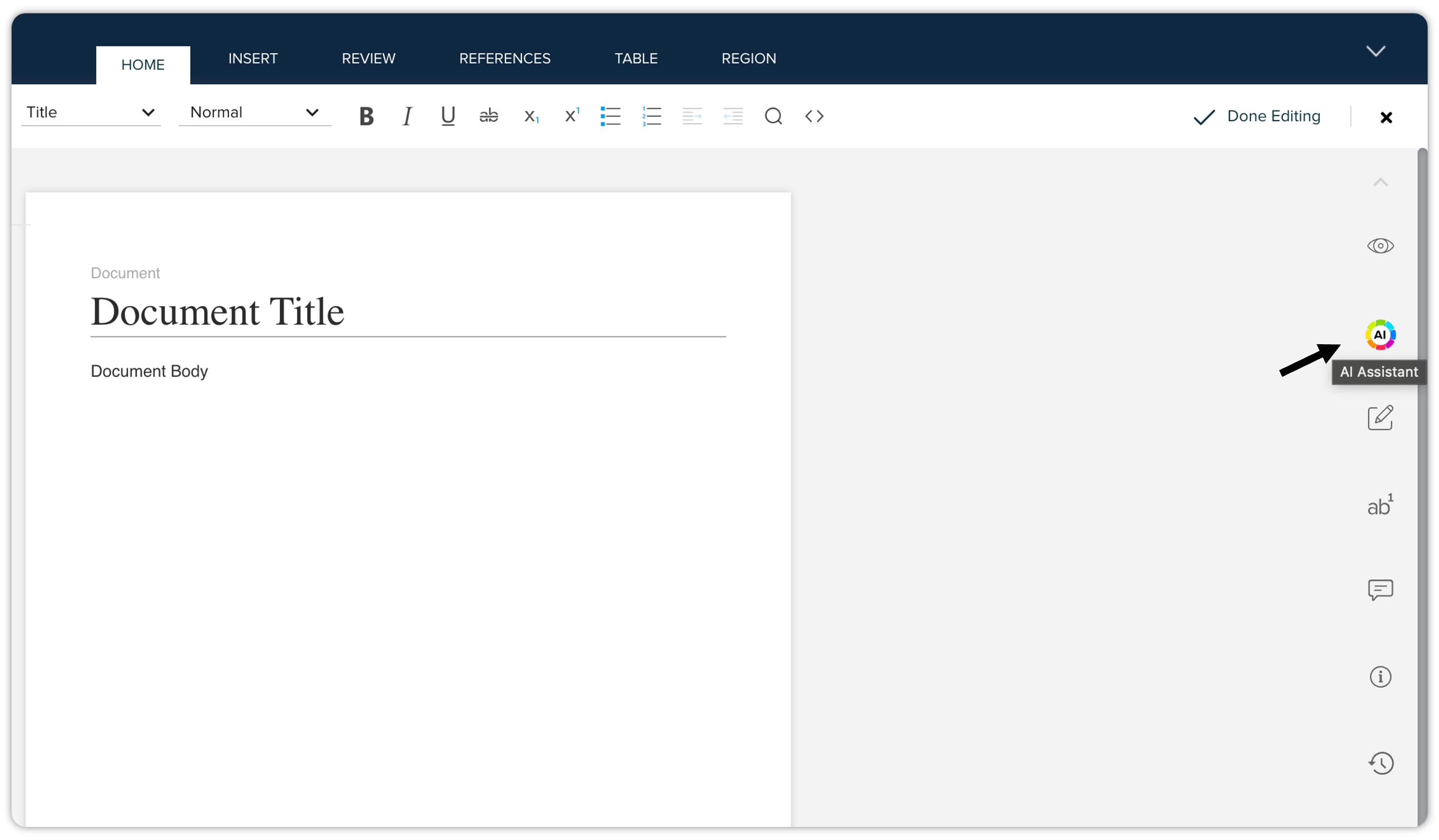
Once your document is opened, navigate to the right side of the screen to locate the AI Assistant tool.
-
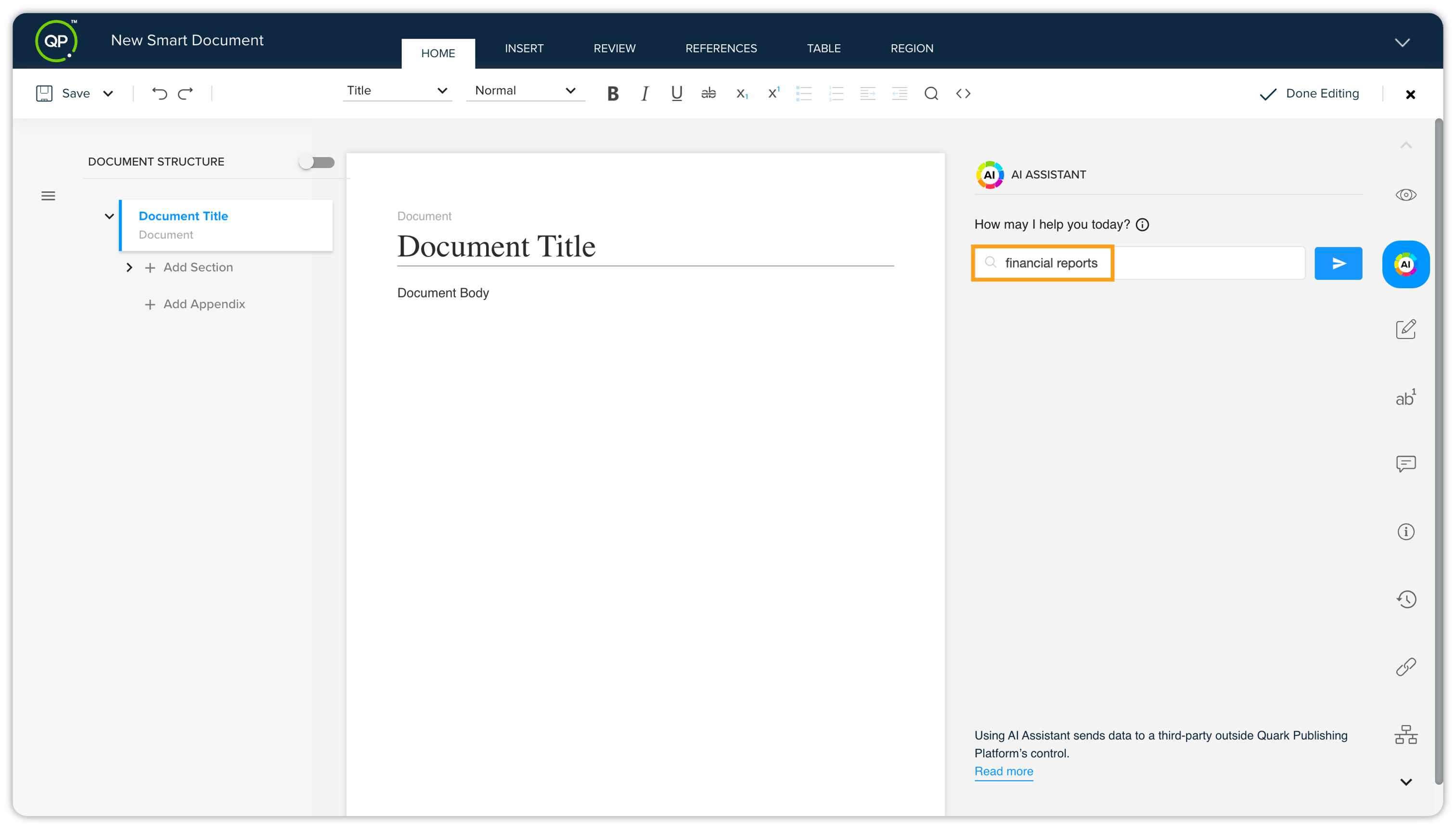
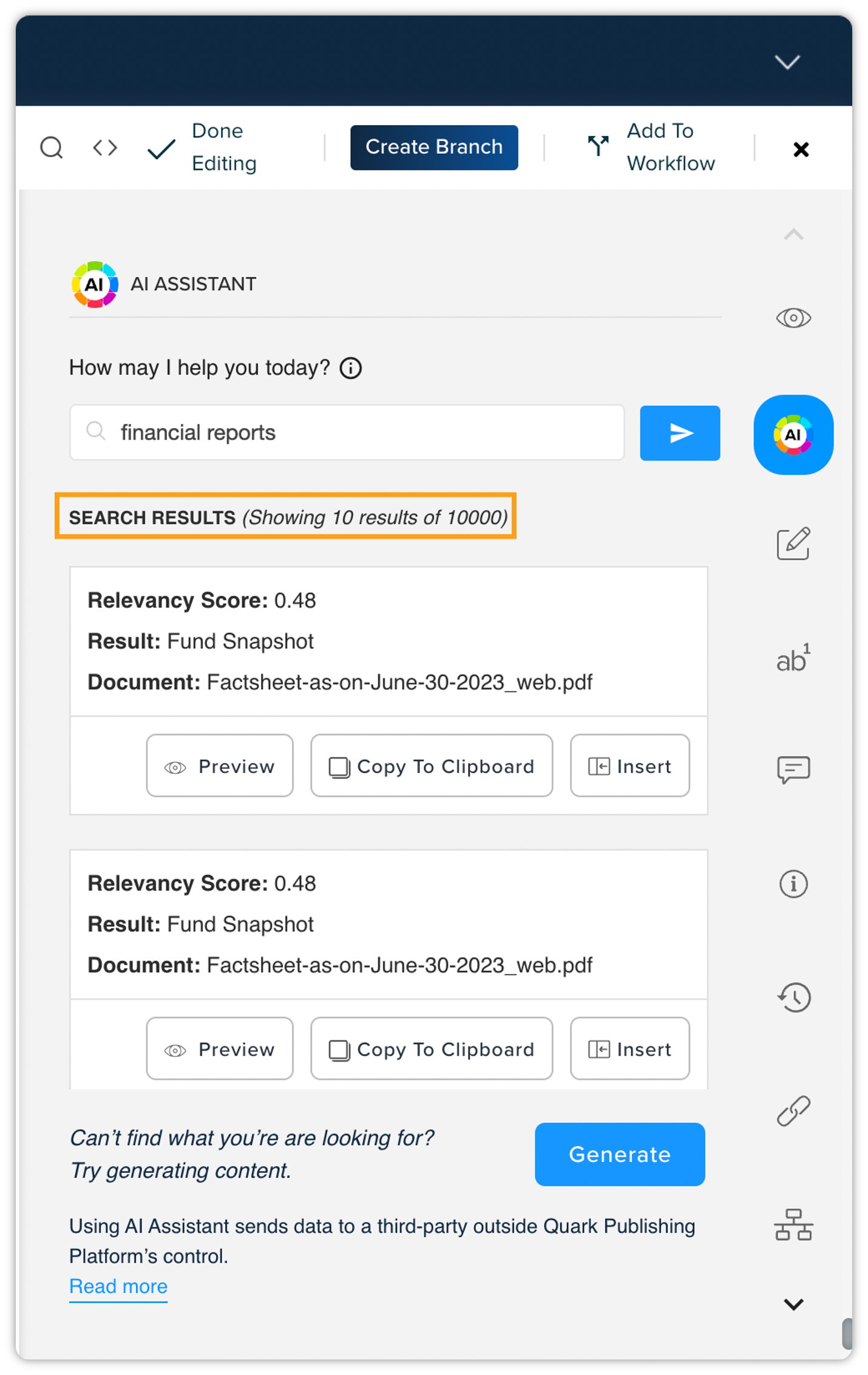
Within the AI Assistant, you will now be able to use the Semantic Search feature, designed to streamline content discovery and conversion. Enter your search queries or keywords into the Search bar within AI Assistant.
-
Within a few seconds, the results will be fetched by AI Assistant.
-
Review the search results to identify relevant unstructured content elements.
-
Utilize the provided options to seamlessly convert the discovered unstructured content into structured, reusable assets within your document.
By following these steps, you can effectively harness the Semantic Search functionality within AI Assistant, enabling you to streamline content discovery and accelerate the conversion of unstructured content into reusable formats.
Limitations and Considerations
Since the system relies on AI-driven content extraction, it inherently inherits the limitations of the underlying technologies. The following sections outline these constraints and their impact on semantic search functionality.
PDF Document Size Limits
|
Item |
Limit |
What It Means |
|
Max document size |
500 MB |
PDFs larger than 500 MB cannot be processed. |
|
Max number of pages |
400 (A4 & Letter sizes) |
PDFs exceeding 400 pages are not supported. |
Complex or Borderless Tables
Content extraction may not accurately detect tables that lack visible borders, leading to merged cells or misaligned data. For example, a table listing drug dosages without borders may be interpreted as a single paragraph. You may need to manually adjust such tables after insertion.
Multi-Page Content Handling
The Semantic Search functionality processes content on a page-by-page basis. If a table or paragraph spans multiple pages, it is split into separate fragments. For example, a three-page table on patient demographics will be divided into three fragments. You must manually merge them in Quark editors (QA and QXA) after insertion.
Formatting and Styling Limitations
At present, extracted text is provided as plain text. This means that formatting and certain structural elements are not preserved when inserting content into a document.
-
Formatting styles such as bold, italics, subscript, superscript, and similar elements are not retained.
-
Newline detection may not work correctly for complex paragraphs where boundaries are unclear.
-
Bulleted and numbered lists are flattened into regular paragraphs, losing their original list structure.
-
Advanced content types such as: Citations, Hyperlinks, Mathematical equations and formulas, are not currently supported.
Limitations Related to Search Results
Paragraph-Level Semantic Search
Embeddings are generated individually for each paragraph, without considering the broader document structure or parent section context.
-
Impact: A paragraph may be overlooked if it does not explicitly include the search term, even if it appears within a relevant section.
-
Example: A search for “adverse events in clinical trials” may not return a paragraph located in the “Clinical Trials” section if the paragraph itself doesn’t contain the term “clinical trials.” Similarly, a search for “reporting timelines” might miss a paragraph under the heading “Submission Timelines” if the paragraph text doesn’t include the word “timeline”.
Phrases Containing Words with Opposite Meanings
Semantic search may treat phrases with opposite meanings as closely related due to their linguistic similarity.
-
Impact: When searching for terms containing antonyms or nuanced distinctions, you may need to review results further down the list.
-
Example: Searching for “Non-Serious Adverse Events” might return “Serious Adverse Events” higher in the results because the model interprets them as semantically close.
Unique Identifier-Based Searches
Semantic search prioritizes meaning over exact matches, so unique identifiers such as report numbers or case IDs may not appear prominently.
Example: A search for “Case ID 12345” might not return the exact match at the top, even if it exists in the document.