
Word Reviewer
Word Reviewer for Quark Publishing Platform NextGen Adapter for Quark XML Author works in conjunction with the QPP NextGen Server and allows authors and editors to share, review, edit, and incorporate changes made to a document via comments and track changes in Microsoft Word without installing Quark Publishing Platform NextGen Adapter for Quark XML Author. This feature is particularly useful for Smart Document, as it enables multiple users to review and annotate the content while maintaining the document's XML structure.
Key capabilities of the Word Reviewer feature include:
-
Track Changes: Reviewers can suggest edits by making changes directly to the document, and authors can accept or reject these changes while preserving the document's structure.
-
Add Comments: Reviewers can add comments alongside the content to provide feedback or request clarifications.
-
Compare Versions: QXA enables users to compare different versions of the document, highlighting changes made between revisions.
-
Review Pane: A dedicated pane in Microsoft Word displays all tracked changes and comments, making it easy to navigate through the document's feedback.
-
Role-based Collaboration: Authors can assign different roles (e.g., editor, reviewer) to collaborators, controlling the level of access and permissions they have over the document.
This feature is essential for maintaining the integrity of XML structures while enabling the collaborative workflow familiar to Microsoft Word users.
Send a Document for Review
Save Document to Server
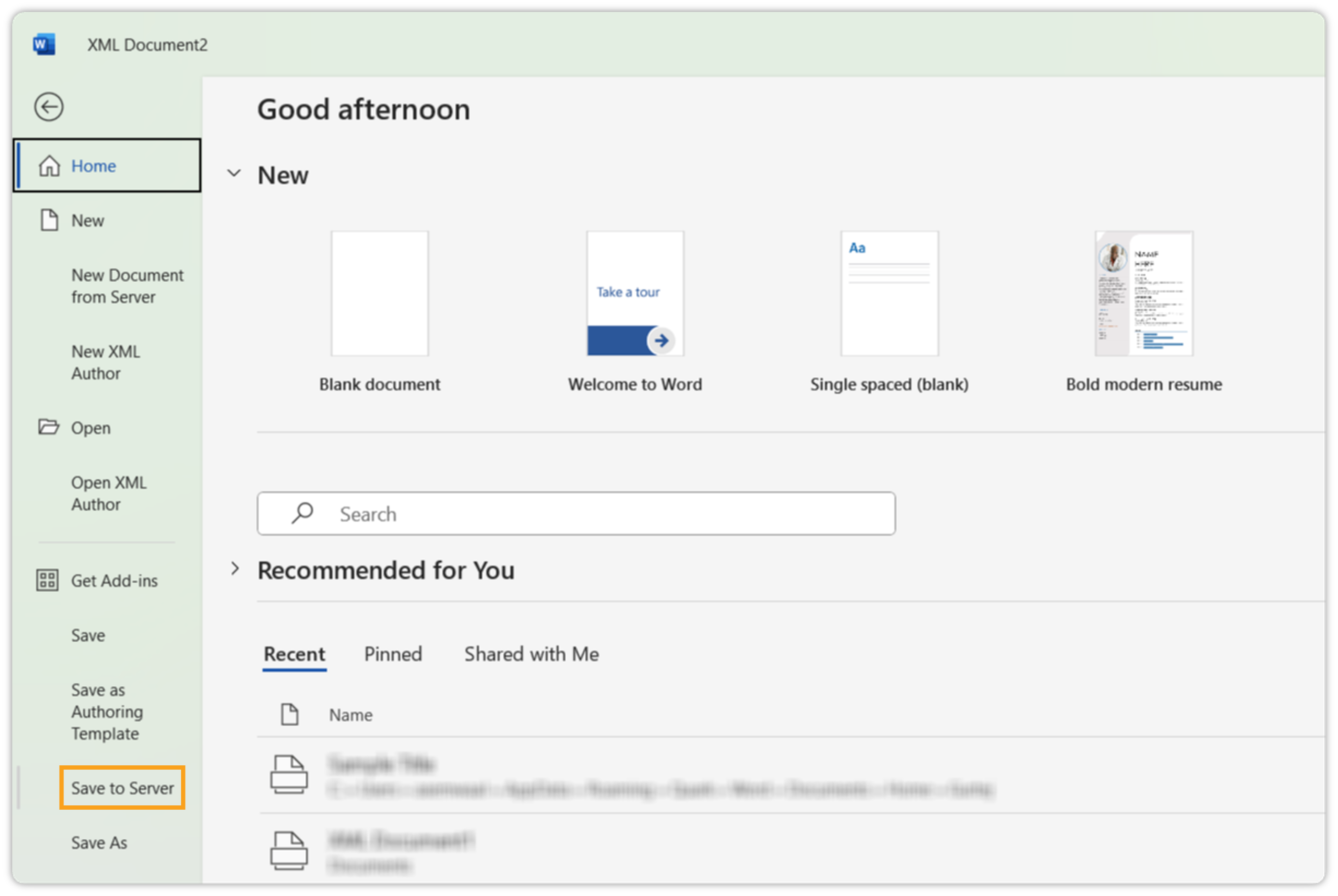
To save a document to server, follow the steps shown below:
-
Once you're done with editing, click File > Save to Server.
-
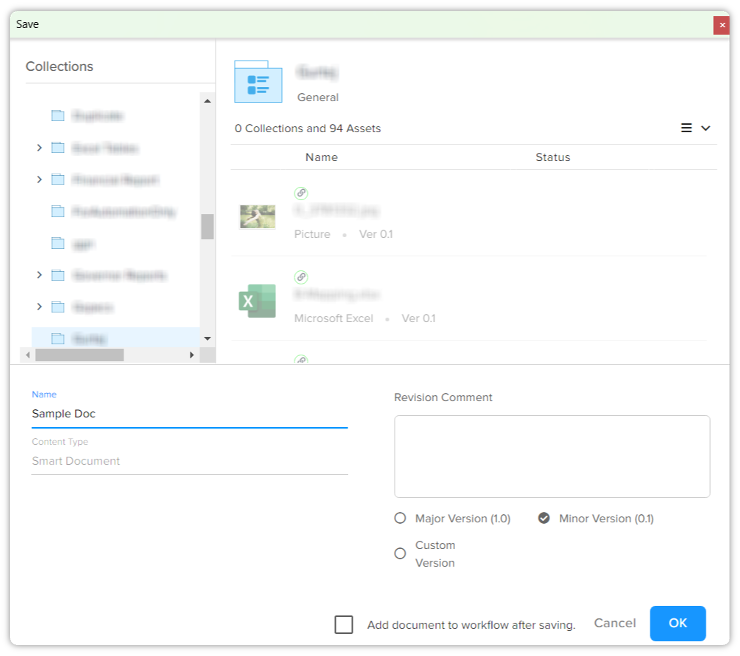
On the Save dialog box, select the collection path where you want to save your document. Also, name it, define the version, and choose whether you want to add the document to workflow after saving.
-
Click OK.
Once the document is saved to the server, you can send it for review. To do that, follow the steps shown below:
-
Click File > Send for Review.
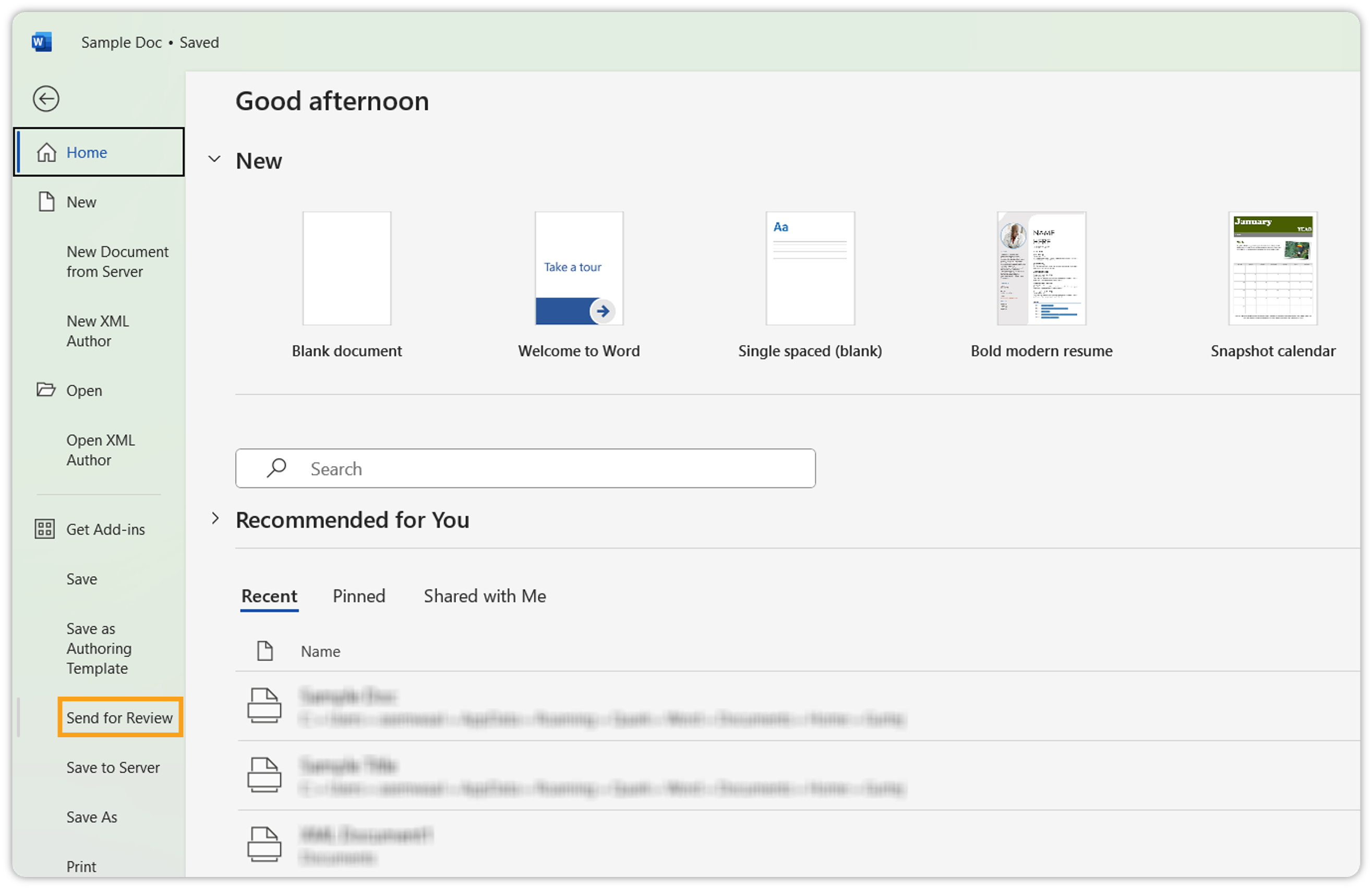 Quark Publishing Platform NextGen Adapter for Quark XML Author will prepare a Microsoft Word copy of the document for you to send for review.
-
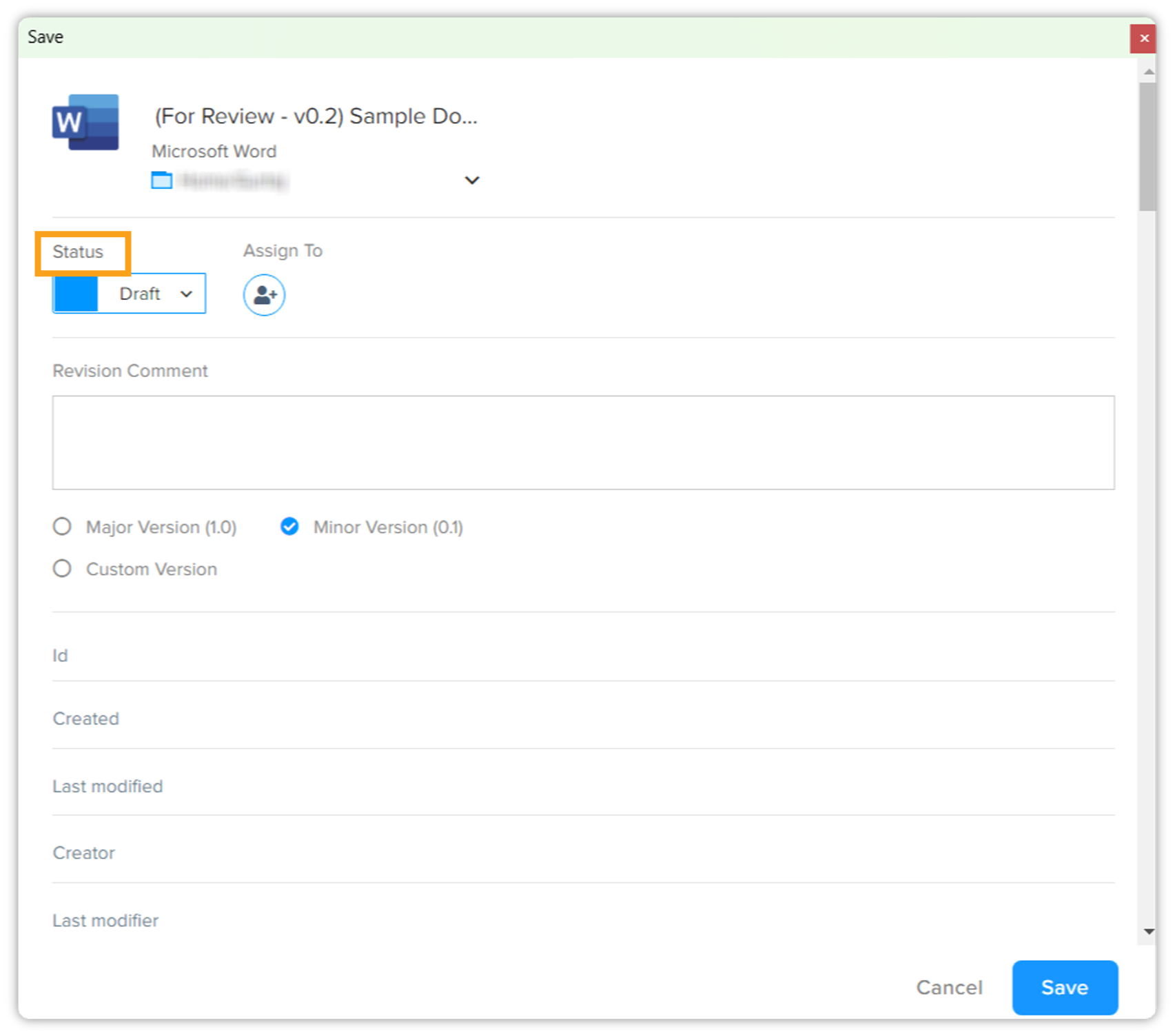
On the Save dialog box, select the workflow status Draft.
-
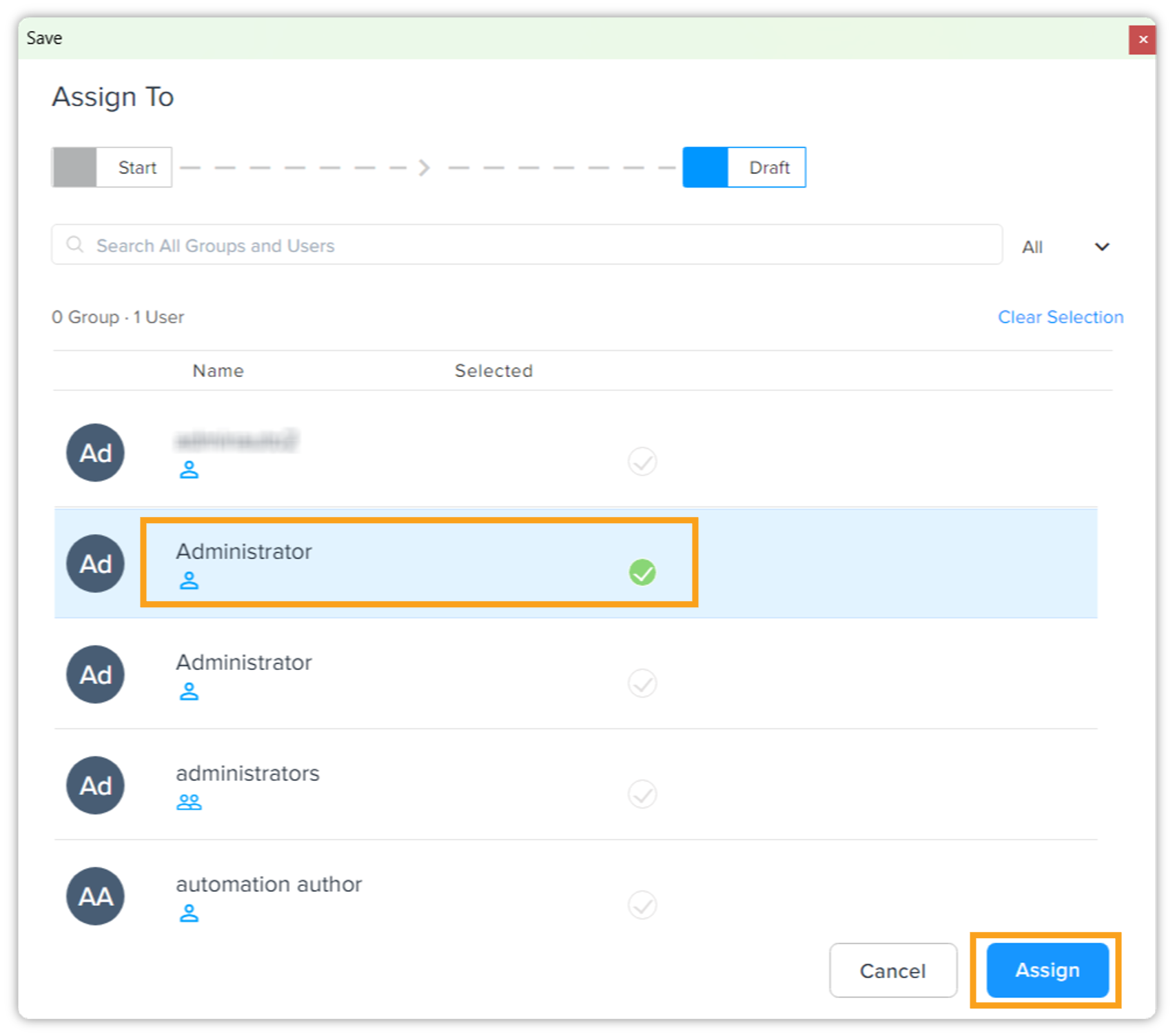
Click Assign To and select the reviewer(s) who will review the document. Click Assign.
-
Click Save.
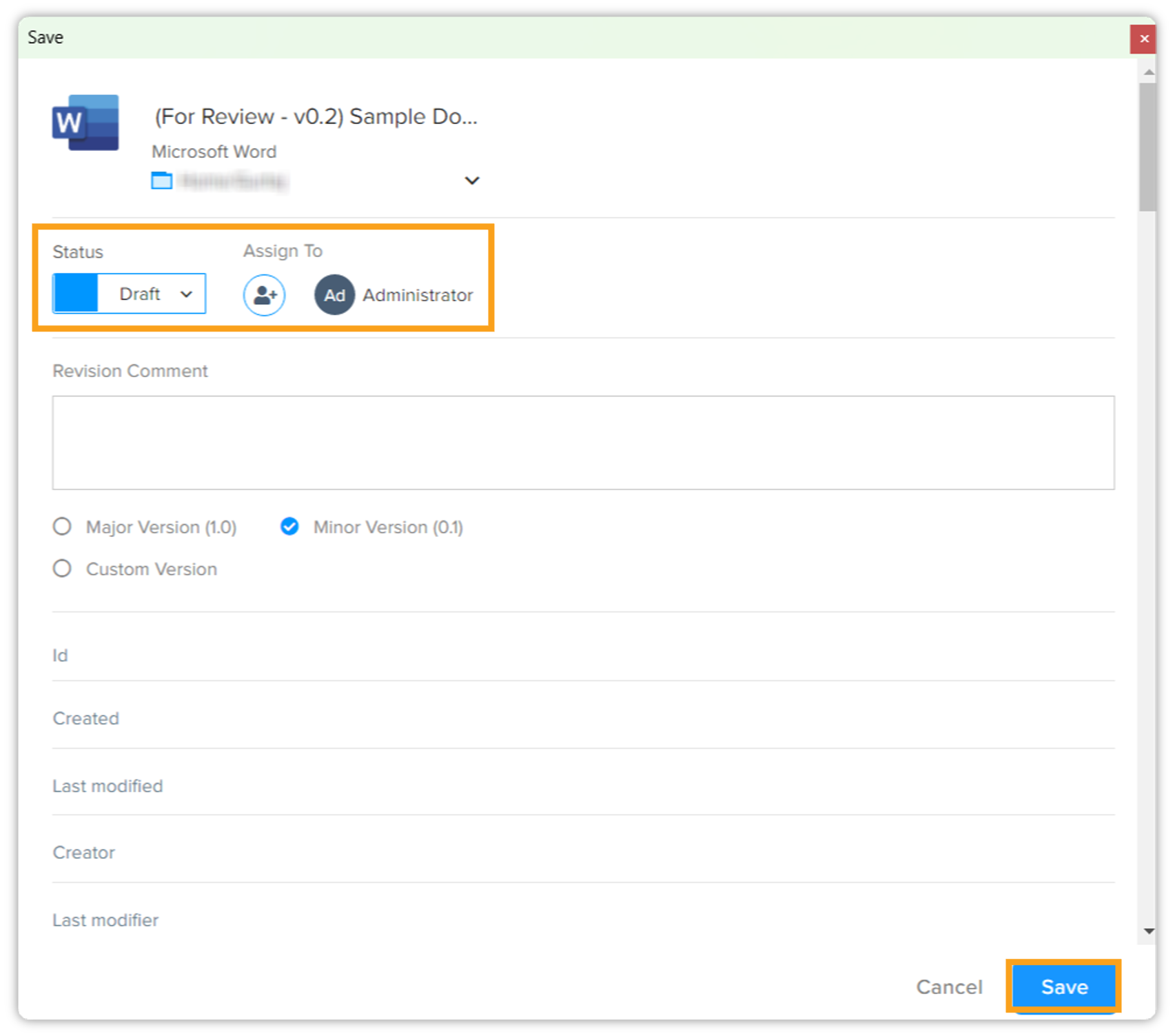
Quark Publishing Platform NextGen Adapter for Quark XML Author closes both the .docx file and the XML document and checks in both to the repository.
Review a Document
Now comes the part when a reviewer will review the document. A document that is sent for review can be reviewed in two ways:
-
Either by using Quark Office Adapter for MS Word
-
Or, standalone MS Word
Review a document in MS Word using Office Adapters
To review a document in MS Word using Office Adapters, follow the steps shown below:
-
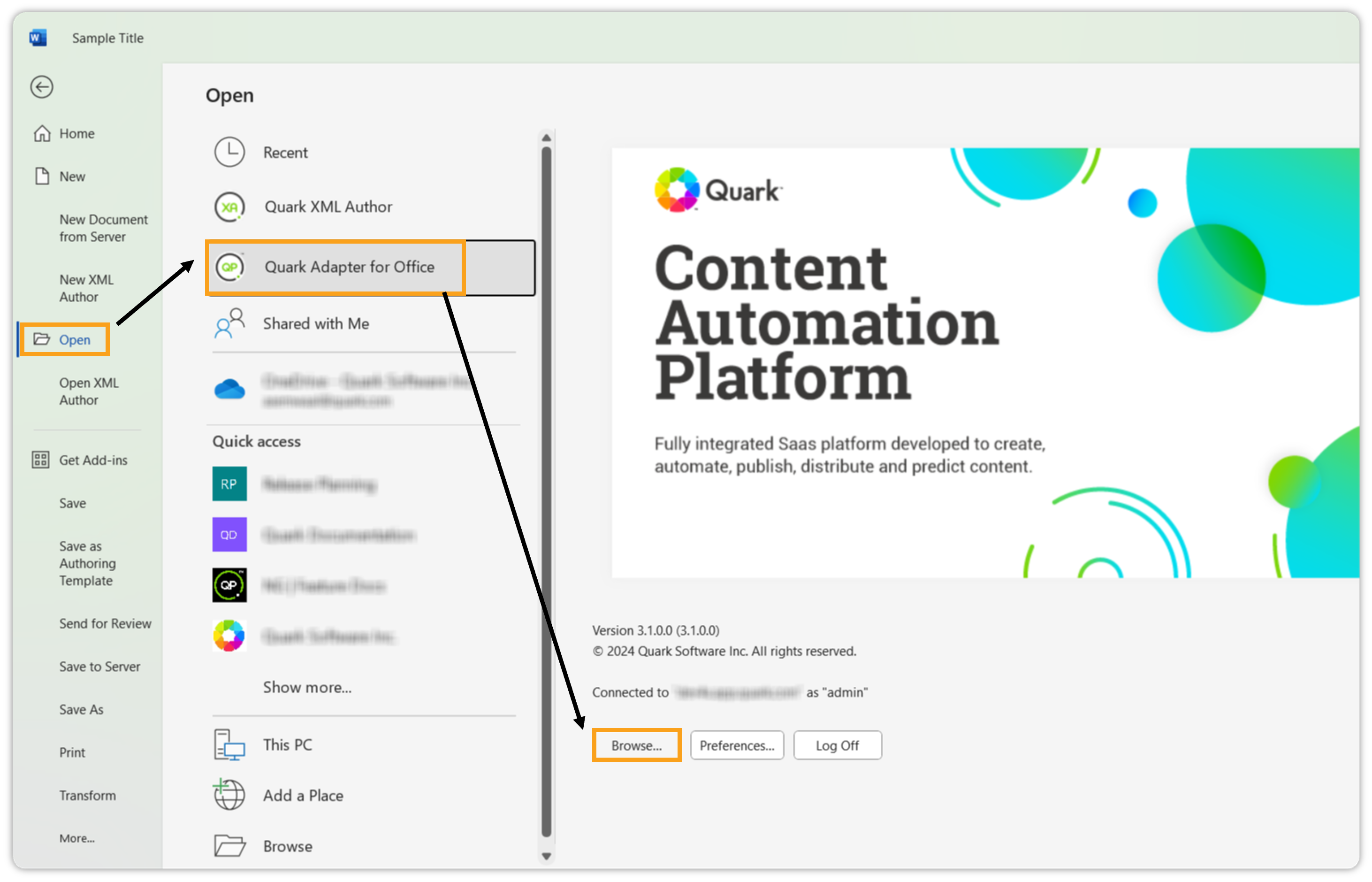
Click File > Open > Quark Adapter for Office > Browse.
-
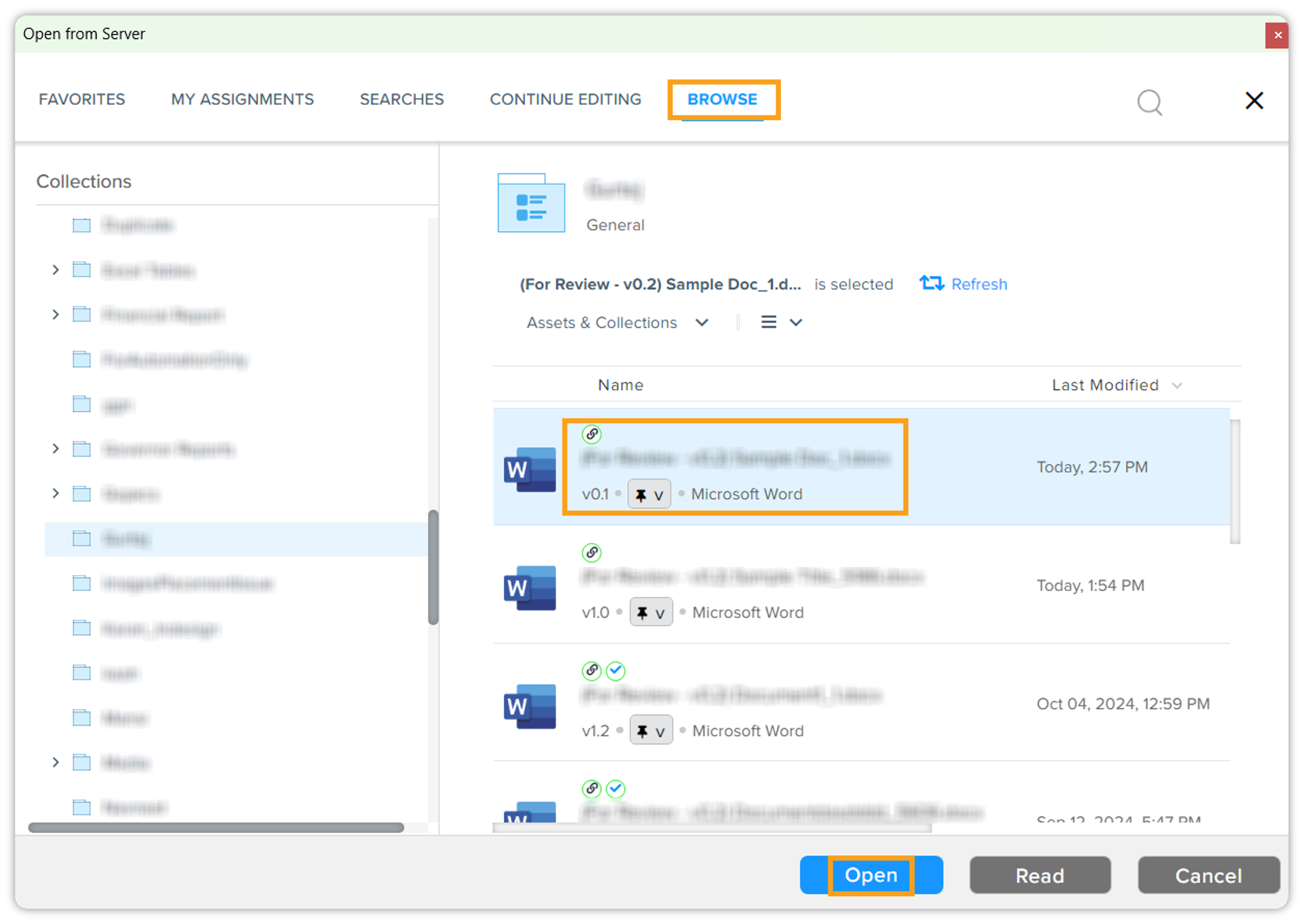
On the Open from Server dialog box, click Browse tab and then select the document you want to review. Click Open.
-
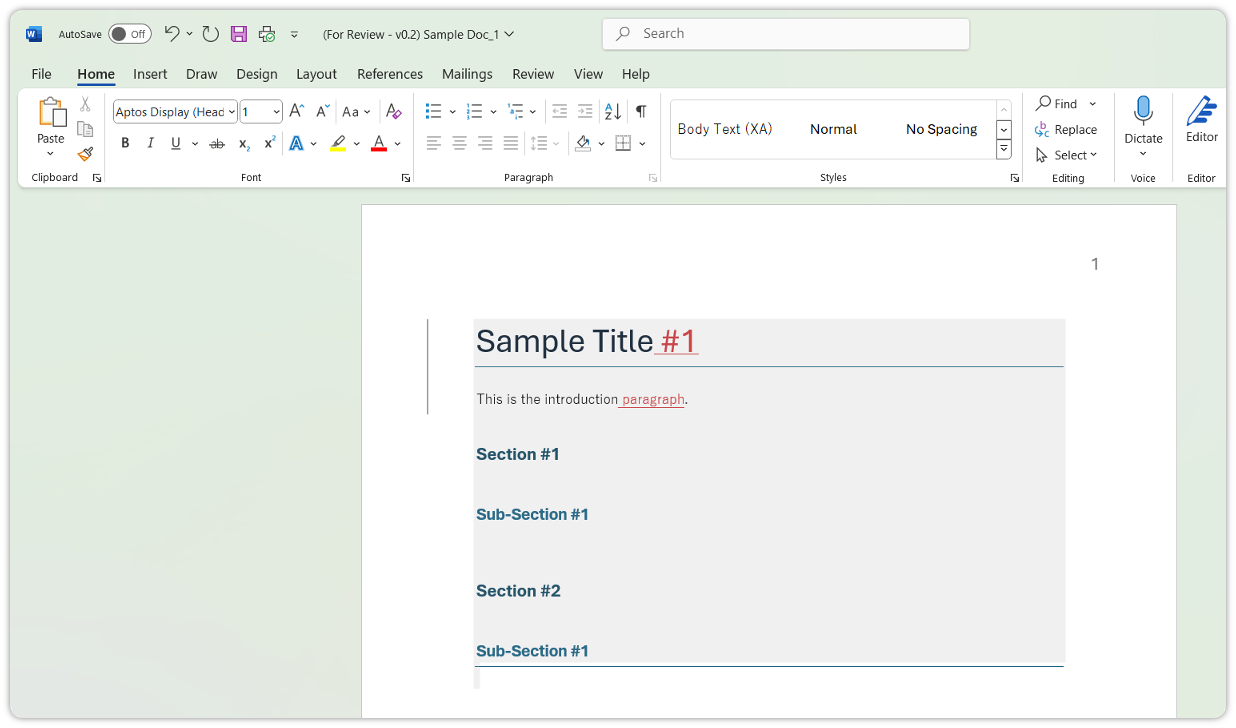
Now review the document, and make the desired changes. The changes (addition of content or removal) will be highlighted.
-
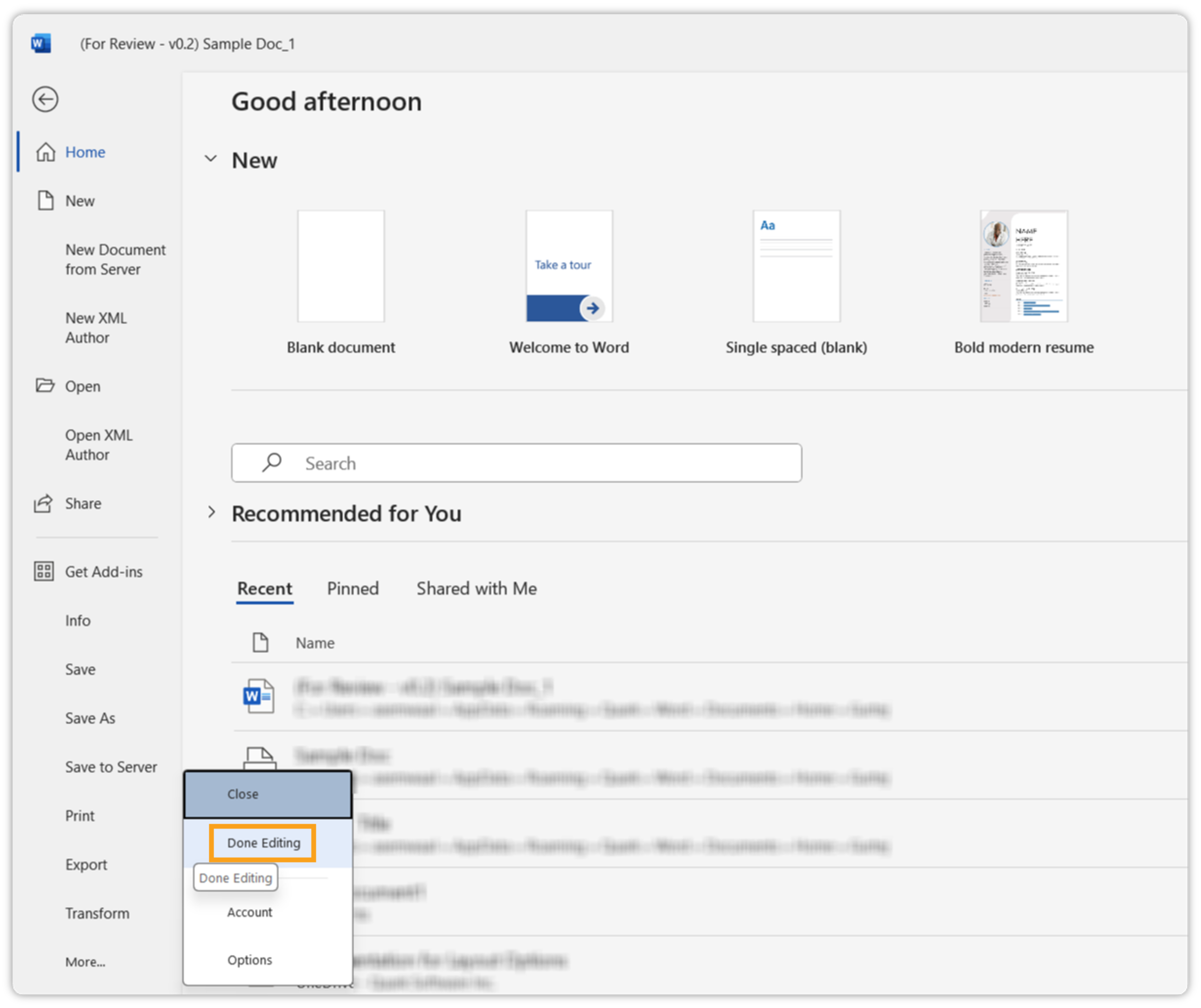
Click Save > More > Done Editing.
-
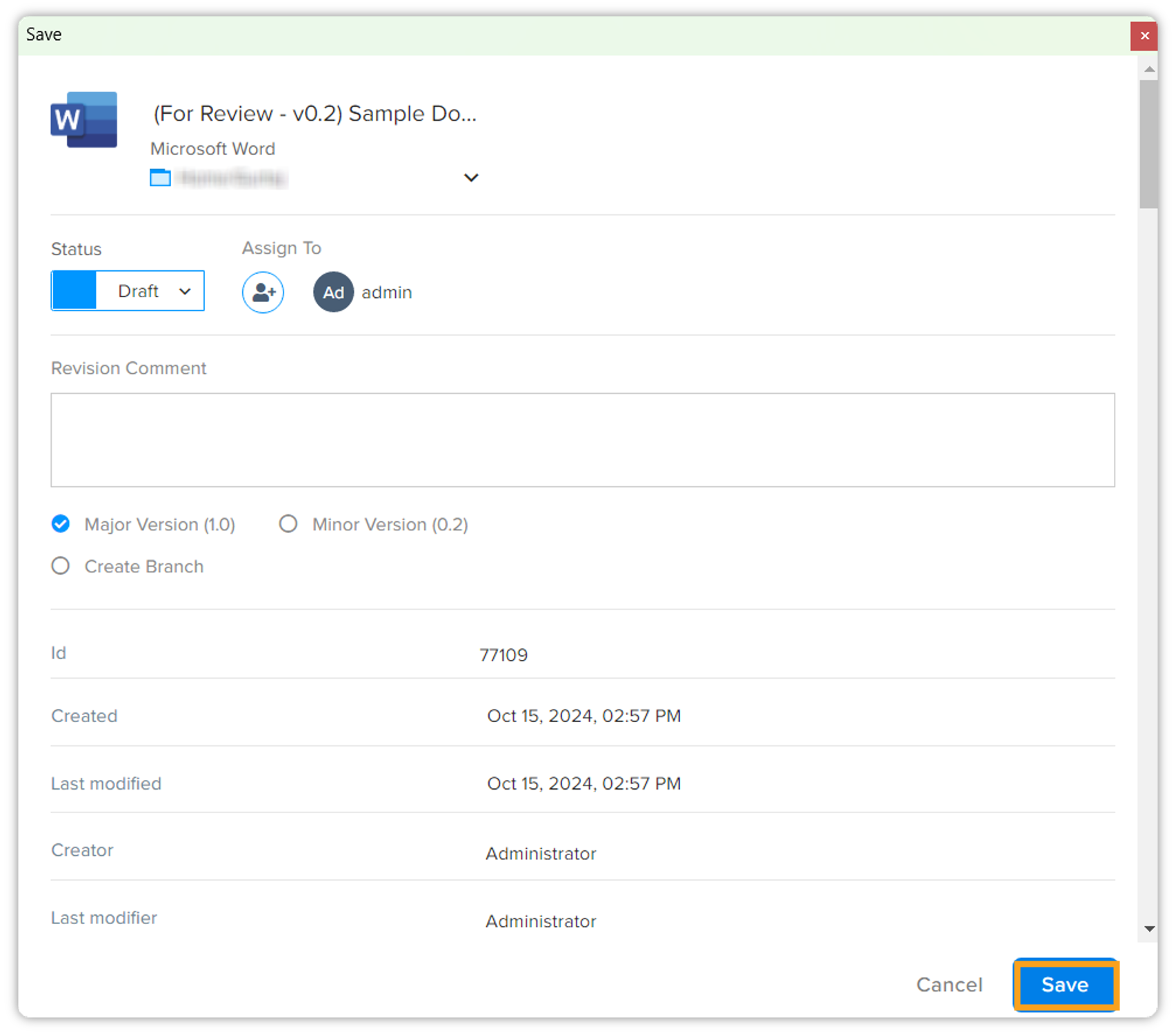
Clicking Done Editing will open the Save dialog box, click Save. You can also add revision comment.
Review a document in Microsoft Word
The reviewer needs to follow the below steps to review a document in Microsoft Word.
-
Open the server in a browser window.
-
Login to the server (as the user who has been assigned the document for review).
-
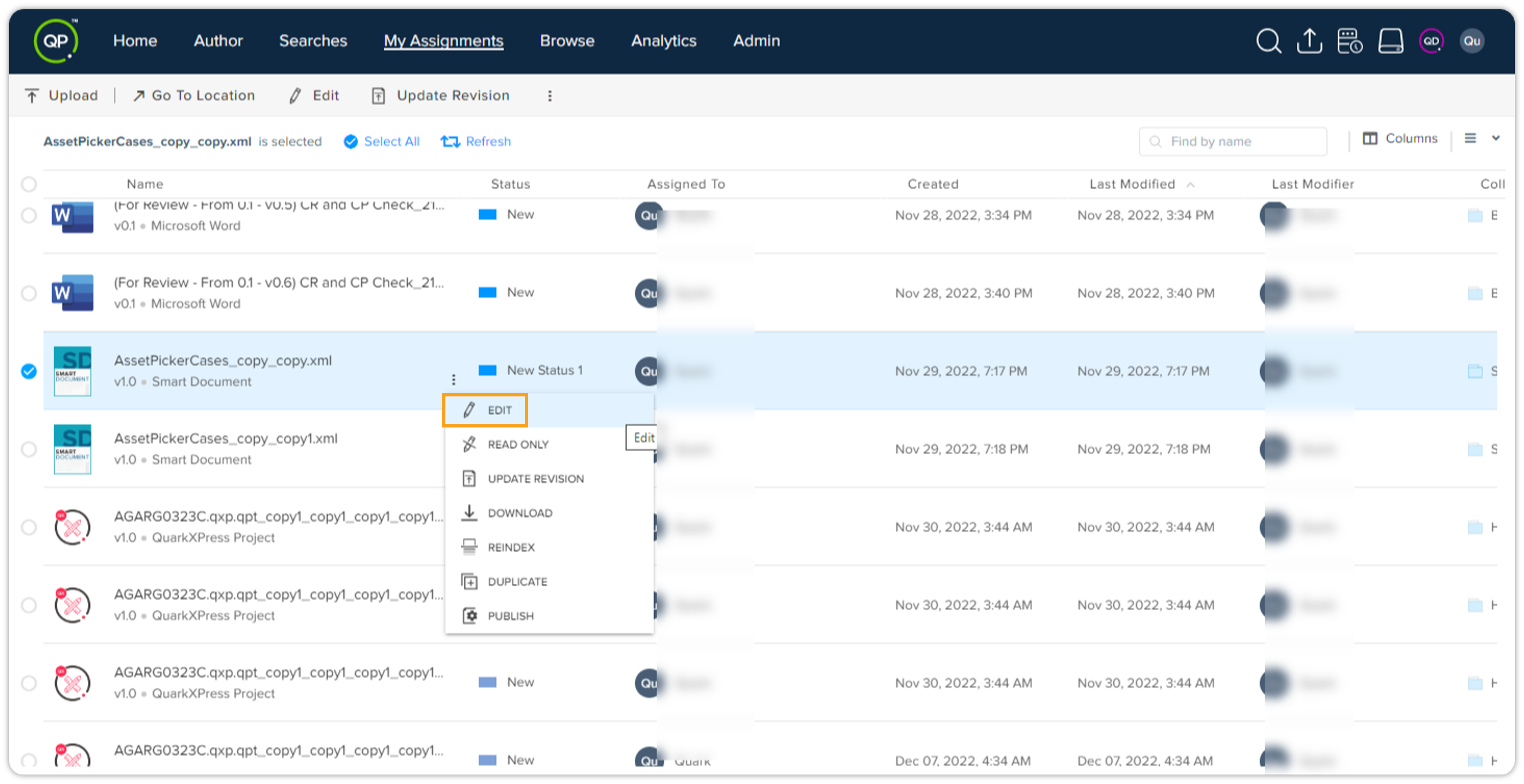
In the tab My Assignments, select the document that you want to review.
-
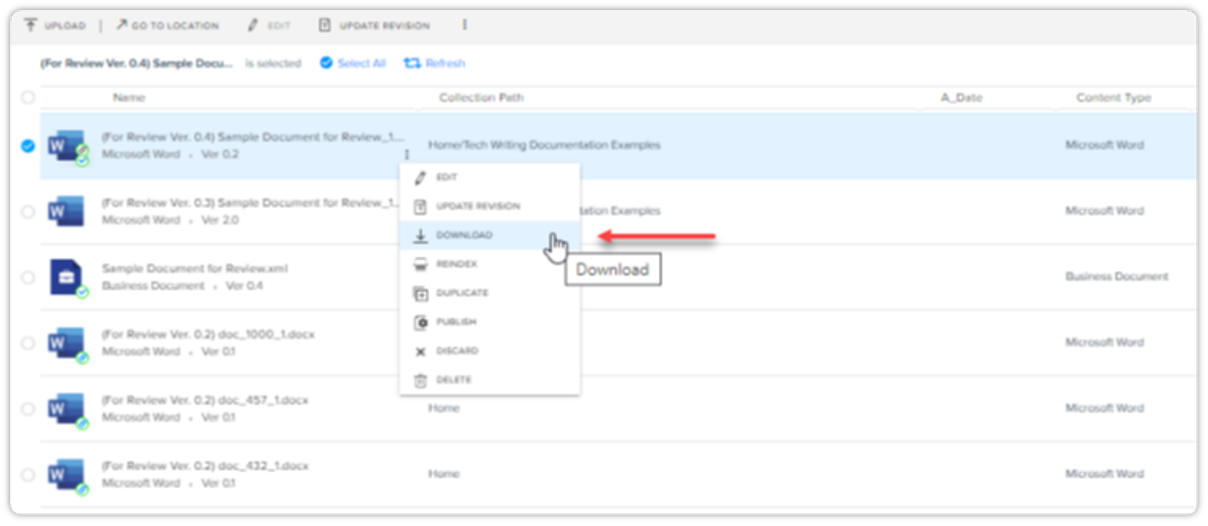
Select the kebab menu icon
 next to the file name and then select Edit to check out the document for editing.
-
Select Download and then select a location on your local machine where you want to store the document.
You can also share this file to external reviewers by email or SharePoint. -
Go to the location on your local machine where the downloaded document has been stored and open the document in Microsoft Word.
-
Make your edits.
-
Select File > Save and then close the file.
-
Reviewer can send back the file by mail or on SharePoint.
-
Go to the browser window where you have opened the server, select the kebab menu icon
next to the file name, and then select Update Version. 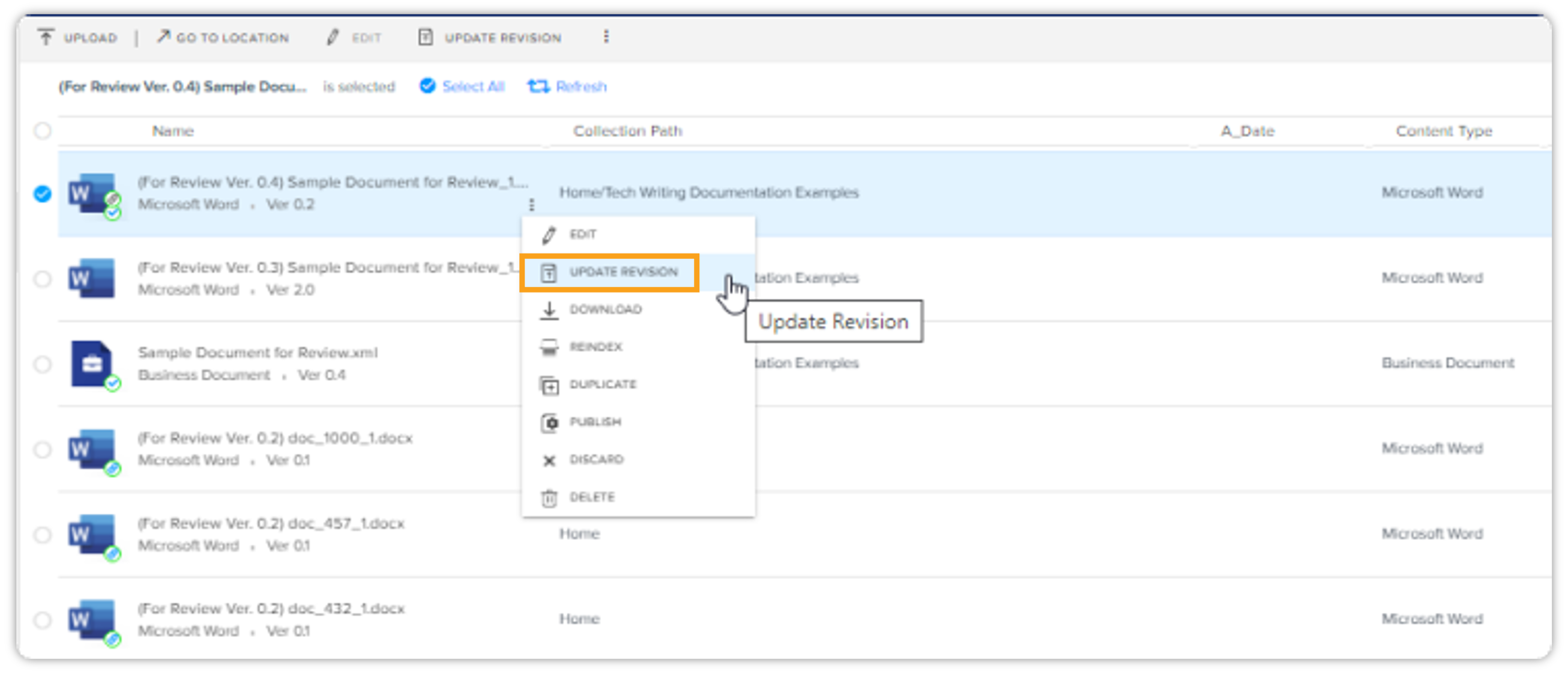
-
Select the document file you've updated and saved on your local machine, and then select Open.
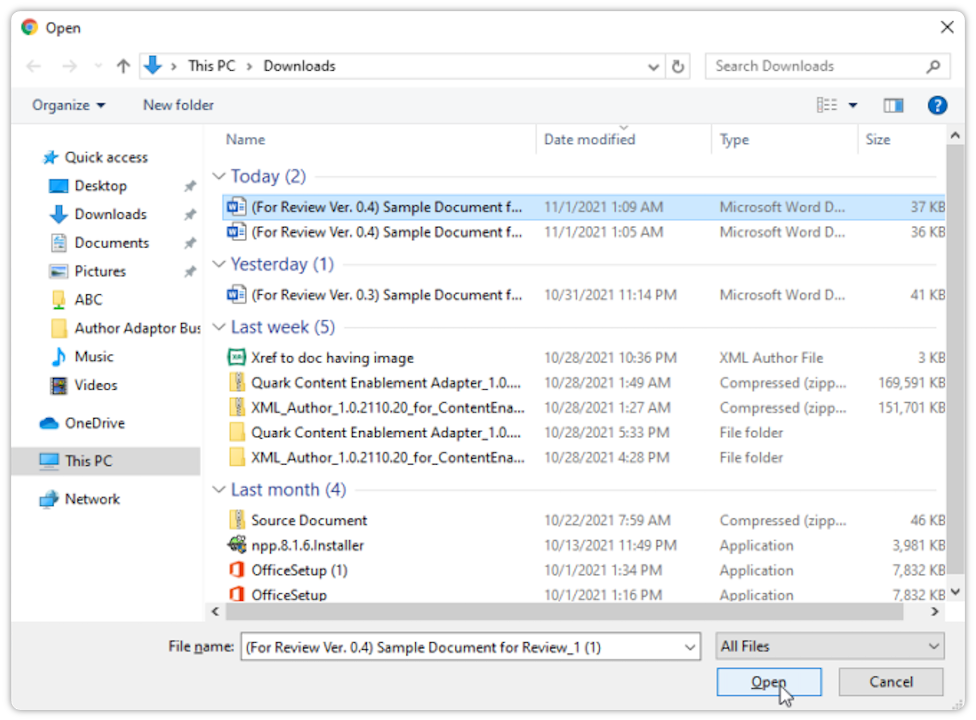
-
Select Save in the dialog box Save in the browser window.
Quark Publishing Platform NextGen Adapter for Quark XML Author updates the copy of the document on the server with reviewed copy on the local machine, and also changes the status to "review complete" if required.
Open a Reviewed Document
To open the corresponding XML document of a reviewed Microsoft Word document:
-
Select File > Open > Quark XML Author > Browse.
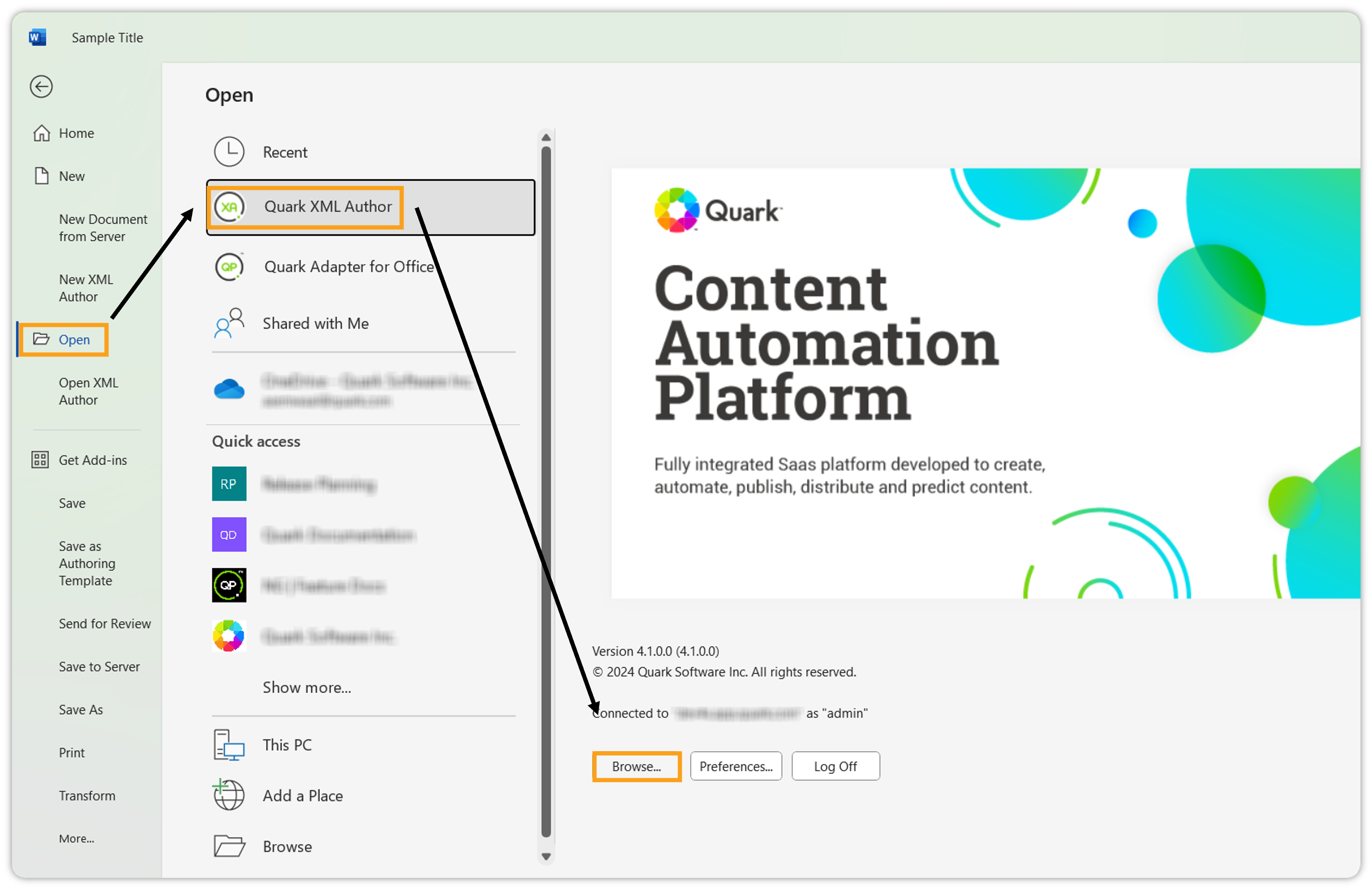
-
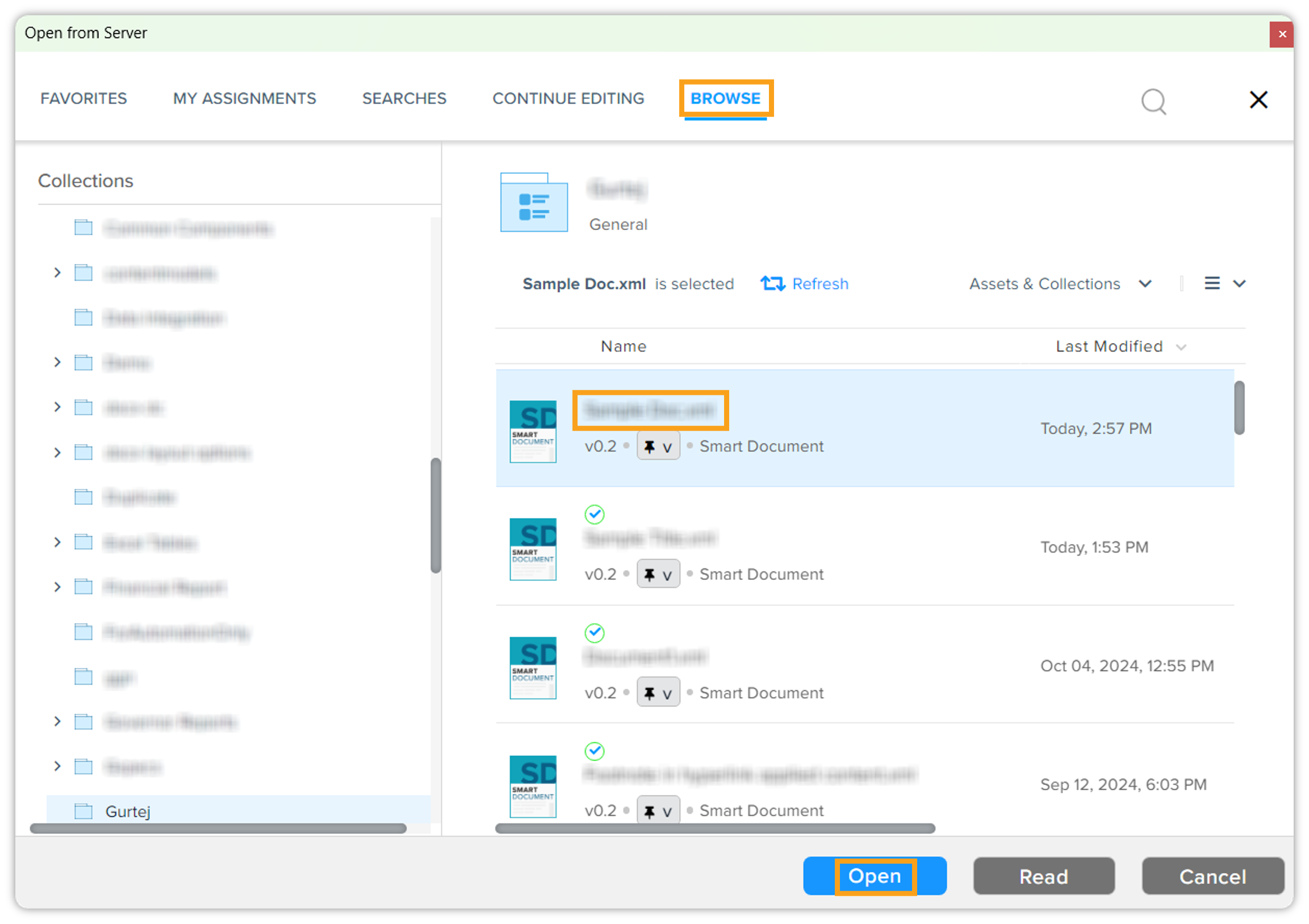
On the Open from Server dialog box, select the reviewed file and then select Open.
-
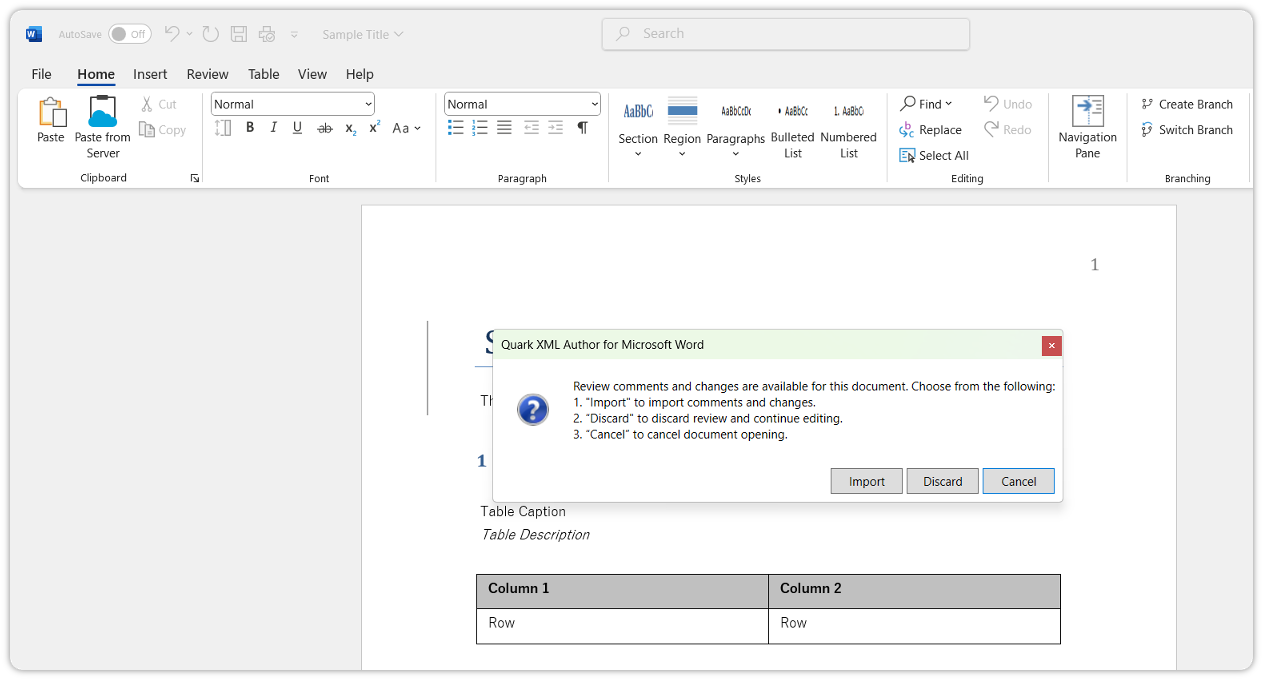
In the dialog box Quark Publishing Platform NextGen Adapter for Quark XML Author for Microsoft Word, select Import (if you want to import the changes made by a reviewer) or Discard (if you don't want to import changes made by a reviewer).
Quark Publishing Platform NextGen Adapter for Quark XML Author opens the XML copy of the document for you to do further editing.