
Update Quark Publishing Platform v15.x to v16.x
For details on updating from v15.x to v16.x, refer to Getting Started with Quark Publishing Platform.
QPP server v16.x is also supported on Red hat Linux Enterprise edition 7.7(Maipo).
Upgrade Server
To update the Quark Publishing Platform server:
-
Take a backup of the old server files.
-
Uninstall the old server.
-
Install the new server.
For more information, see Getting Started with Quark Publishing Platform.
Upgrade Database
To update the database from Quark Publishing Platform v15.x to Quark Publishing Platform v16.x:
-
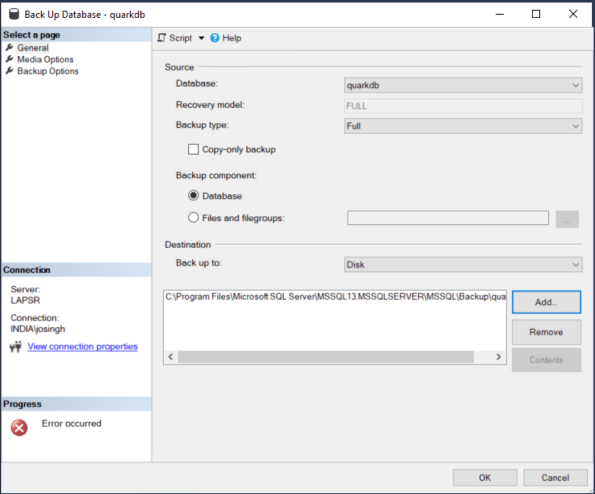
Take a backup of the old database.
-
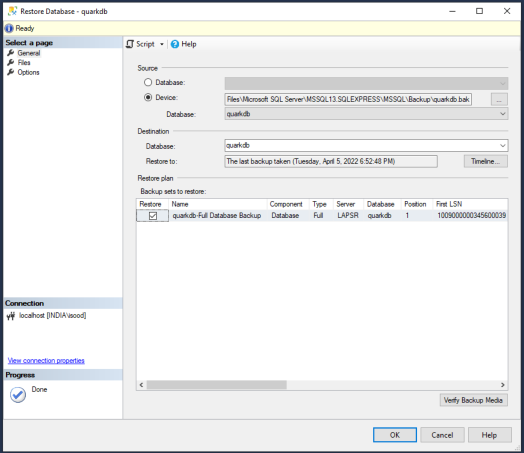
Restore the backup on a different MSSQL server.
-
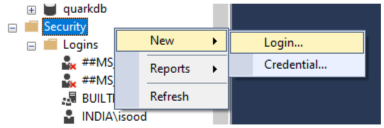
When you restore the backup to a different MSSQL server, you need to create a database user login again.
-
Enter the new user login information.
Use the same username and password as the database name and password. For example, "quarkdb".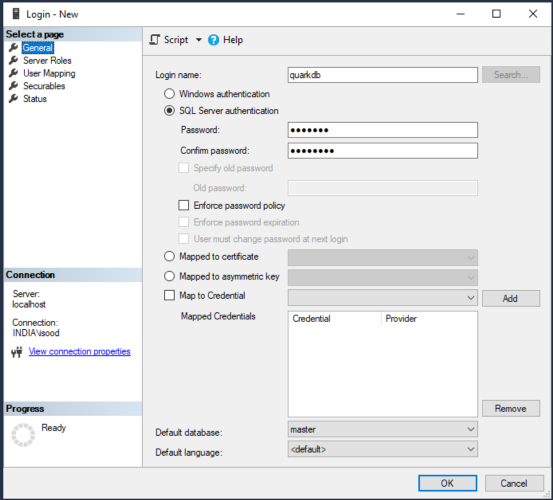
-
Assign server roles.
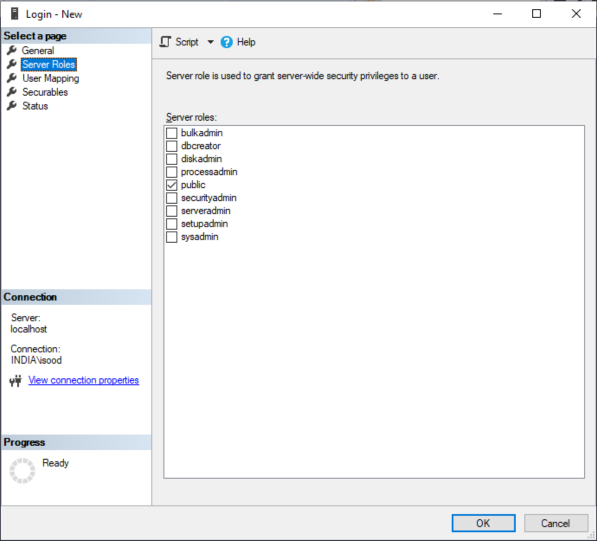
-
Set the user mapping and role membership for quarkdb and then select Ok to create the database login.
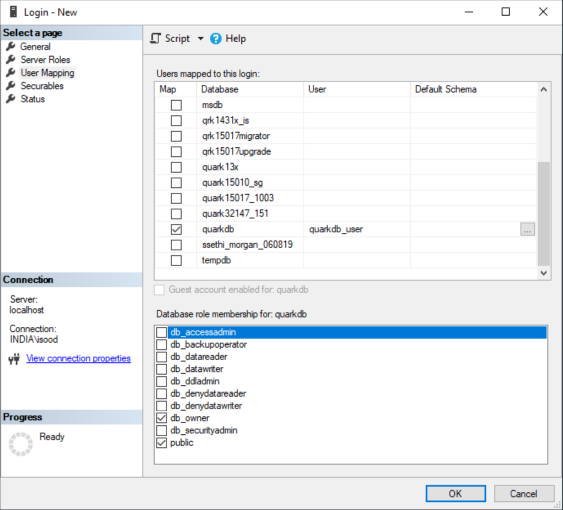
-
-
Start the new Quark Publishing Platform server to check if the server identifies the database.
If the restored database was on an older version of Quark Publishing Platform server, the logs display the following incompatible schema error.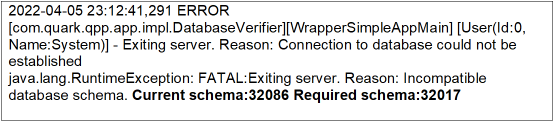
-
Migrate the database to the new version by either using the file Update.bat or Updater.exe.
-
Copy the database folder from that Installer to the machine where MSSQL server is hosted.
-
Open CMD and navigate to the Update Directory where Update.bat is stored. (<QPP v16.x INSTALLER Dir>\Database\sqlserver\Update)
-
Verify Java is installed (java -version).
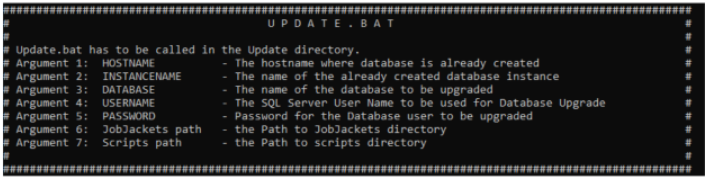
-
Run Update.bat with parameters (parameters need to space separated) - Update.bat <HOSTNAME> <INSTANCE NAME> <DATABASE> <DB USERNAME> <DB PASSWORD> <JOB JACKET PATH> <SCRIPT PATH>
In case no separate directory is used Jobjacket or script, we can use dot (.) (Usually with v15.x version of QPP, Jobjacket and Scripts do not exist separately in the local directory and are already present database. -
Wait for successful DB migration (Done will be shown as command line after successful migration).
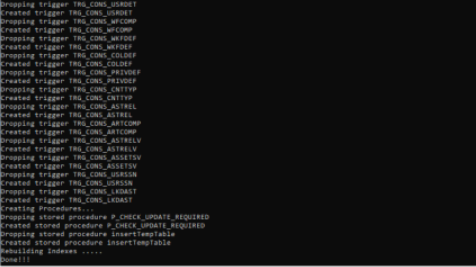
-
-
Restart Quark Publishing Platform server services.
As a recommended practice, verify that the logs do not show database schema compatibility error.
Upgrade Database using Updater.exe
-
Copy the Updater.exe along with the SQL server folder into the server where the database is hosted.
-
Run the Updater.exe.
-
Select Next.
-
Choose SQL Server on the installer screen and select Next.
If the latest version of MS SQL Server is installed on the system, please ignore the popup “SQL Server 2005/2008” and select Ok. -
On the next installer screen, fill in the database details and then select Next.
-
Provide the path to the folders Job Jacket and Scripts Directory and then select Next.
If these folders are not available, do not edit the default values. -
Click Update on the next screen.