License Management in QuarkXPress CopyDesk
QuarkXPress CopyDesk can be purchased as a perpetual license. The email-based licensing model allow new and existing users to start using QuarkXPress CopyDesk using email credentials without the need for activation through the validation code process.
Quark License Management Console
No matter if QuarkXPress CopyDesk users own 1 or 10 licenses, it is easier to manage every single one of them through a dedicated web-based license management console. The new, in-product license management console will provide a central location with complete control to manage and view all the QuarkXPress CopyDesk licenses, add/remove users, activate/deactivate devices, and assign users as needed.
Licensing Model
-
Customer will receive login credentials on email to activate QuarkXPress CopyDesk, with a link to a web-based licensing console
-
Customer can manage the volume of licenses from a single dashboard
-
Validation code is no longer required for activating QuarkXPress CopyDesk
-
No need to get in touch with tech support for activation
Viewing License Information
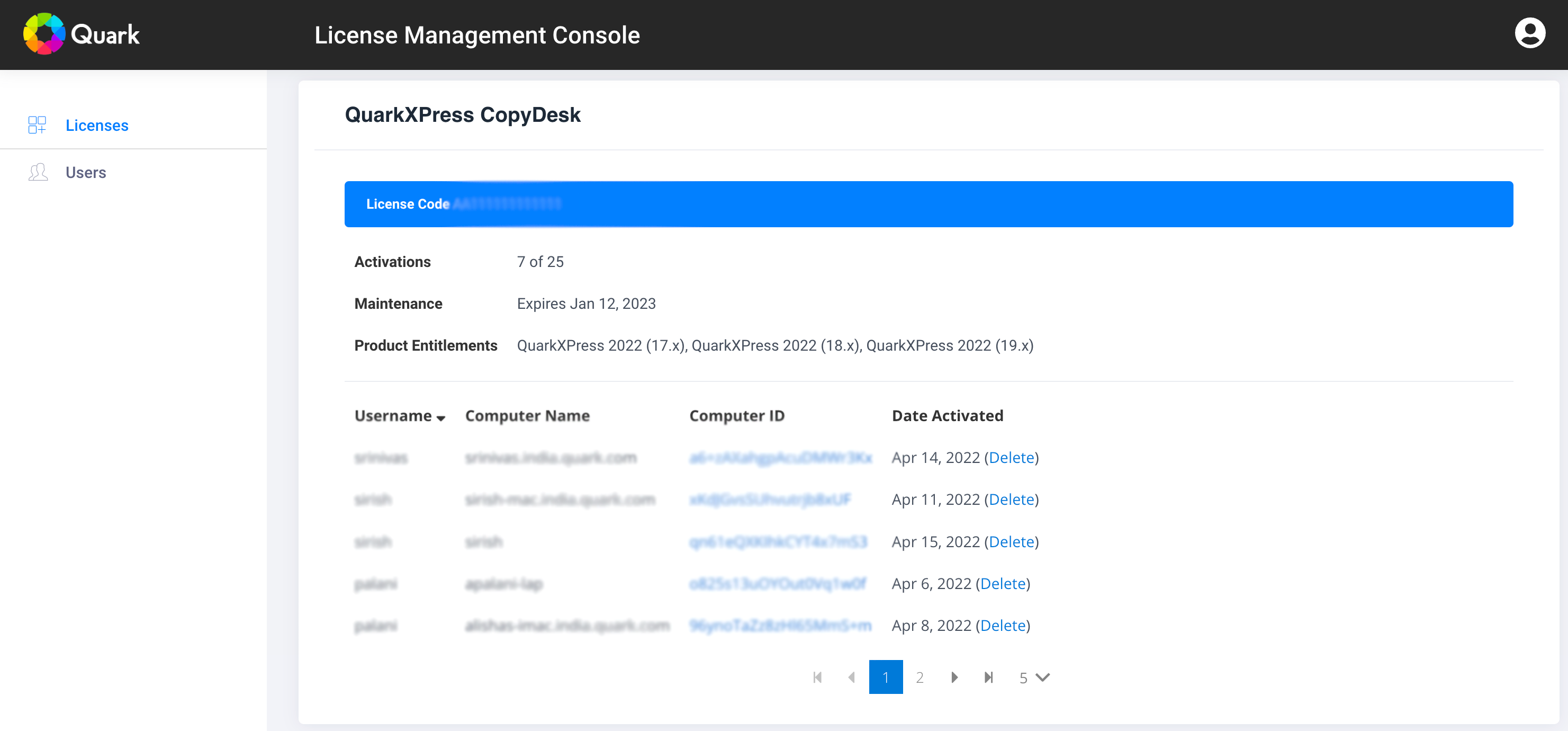
View detailed license information for QuarkXPress CopyDesk, including Maintenance expiration dates and active machines.
Viewing Active Assigned Users
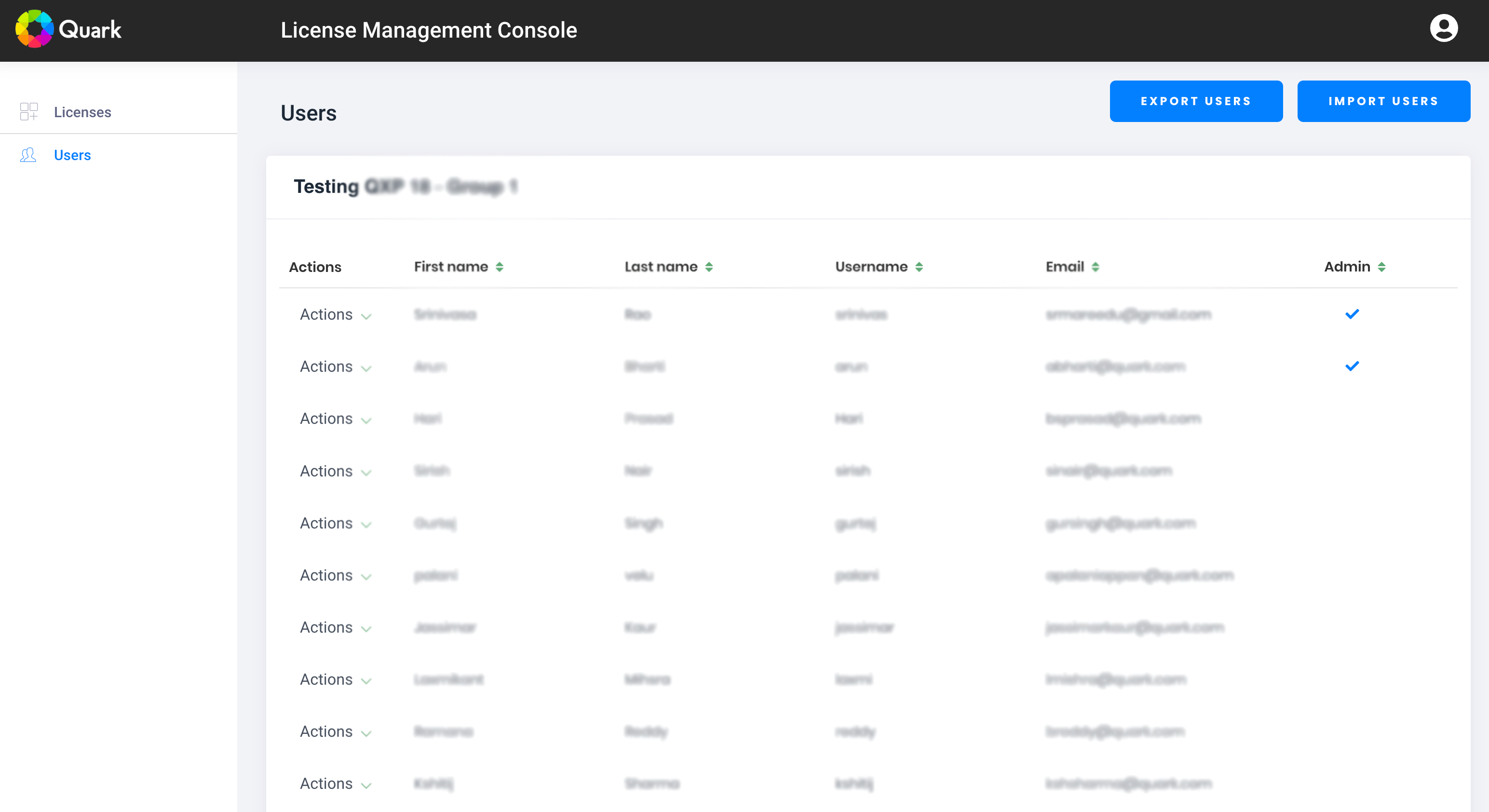
Manage user assignments for individual licenses by assigning and controlling their access as per business requirements.
Adding New Users
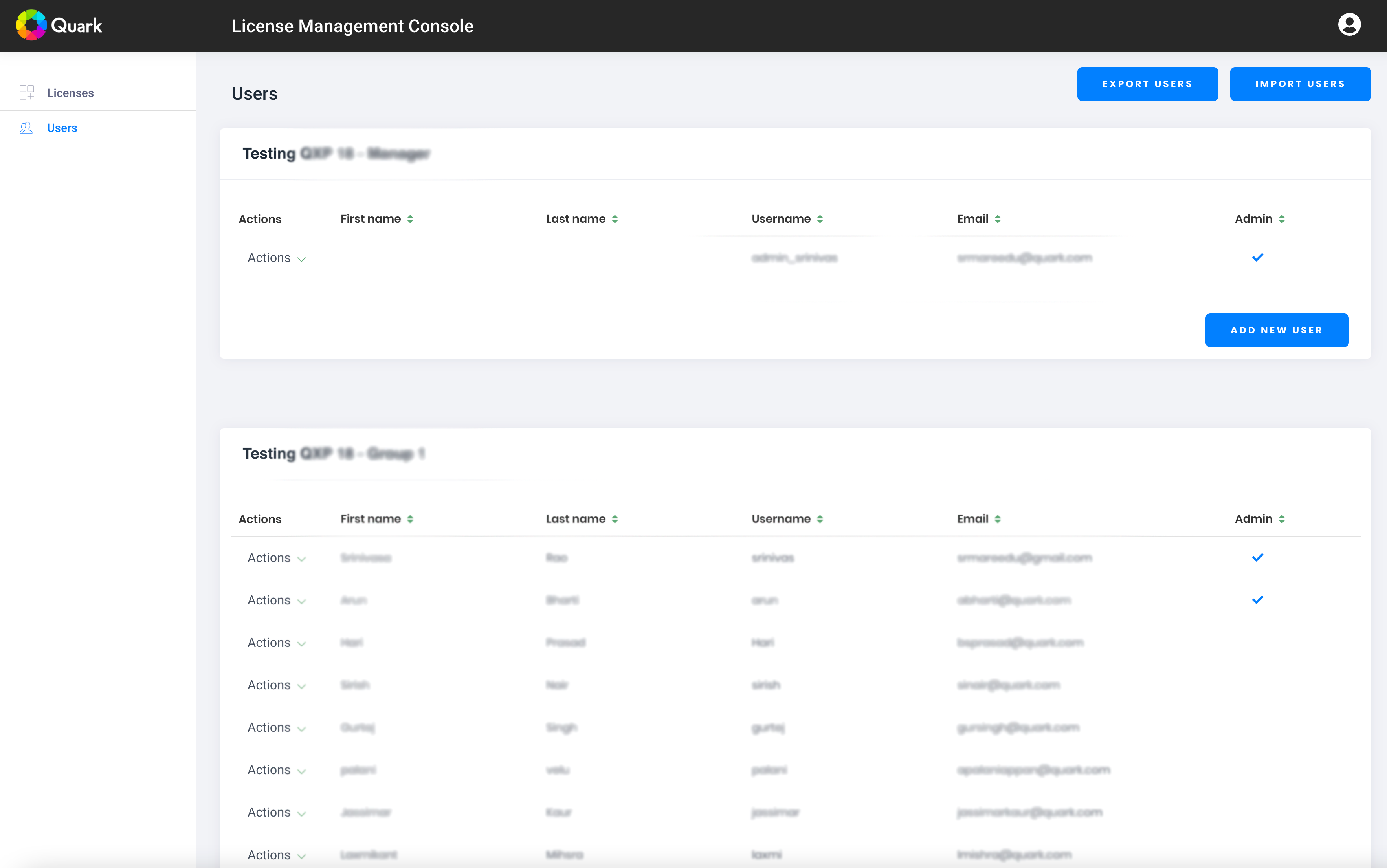
Quickly add new users to the license group to allow QuarkXPress CopyDesk access.
Deactivating Users
When required, you can deactivate a user from the Licenses dashboard by deleting his license entry.
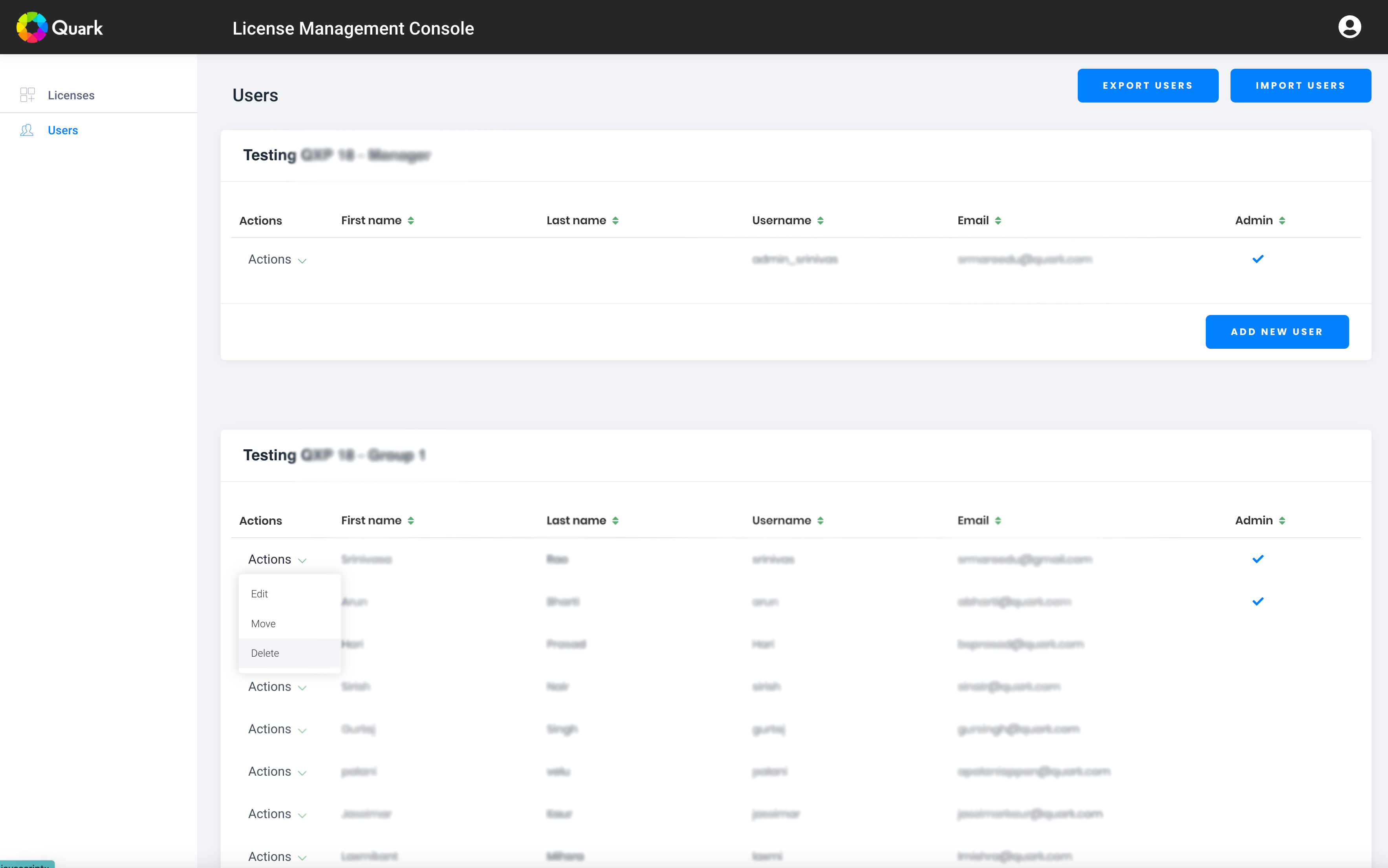
Removing Users
From the Users dashboard, you can delete a user after deactivating the user from the Licenses dashboard.
User-Based Activation
QuarkXPress CopyDesk does not rely on validation codes. Instead, users will activate the software with a username and password. After logging in, they will have access to the User Console and view information such as:
-
Total Activated and Available Licenses
-
Expiration Date of Maintenance Subscription
-
Link to Download QuarkXPress CopyDesk
-
List of Active Users/Computers
Managing Licenses in QuarkXPress CopyDesk
In QuarkXPress CopyDesk, you can manage licenses to different members of your team through the Manage Account option in the Help menu (Windows OS) and QuarkXPress CopyDesk menu (macOS) which will redirect you to the license management portal (https://myaccount.quark.com/account/login) or by directly accessing the portal through web. Once you log in to the portal, you can edit your password and profile.
In the Licenses pane, you can view the details about the number of Activation of QuarkXPress CopyDesk, and the Maintenance Date of these products. You can find the details of the user assignments along with the computer name, computer ID and date of activation for both the products. In case you are an admin user, you can delete a user assignment and that license will be automatically returned to the pool.
In the Users pane, you can find details of all the registered users in your organization. In case you are an admin user, you can add new users or delete existing users or change their privileges.
In-App License Transfer
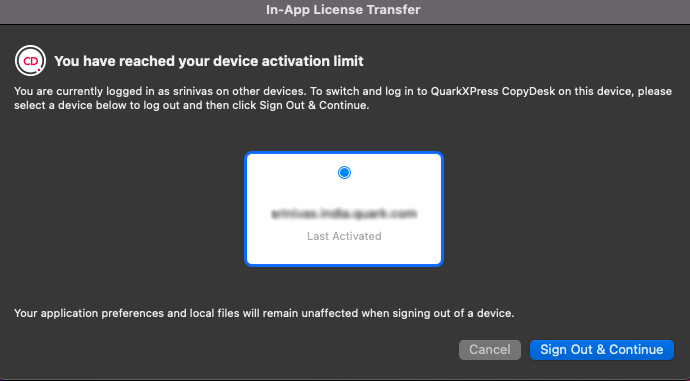
Previously to v19.1, when a user was not able to activate due to limitations in the number of activations in use, the Administrator had to deactivate users’ licenses from the Admin Portal of the License Management Console and then allow the current user to activate his application.
Now, allows the license transfer to be done from within the application. When a user exceeds the device activation limit, a dialog displaying already-activated devices appears, allowing them to deactivate any of the already signed-in devices and sign into another device. Thus, making it easy to log in and out across devices.
To sign in to a new device:
-
Launch . (Enter your Username and Password).
-
If you have exceeded the device activation limit, you will be asked to select a device to sign out of from the list of already signed-in devices.
-
Select the device name and click OK.
-
You will be signed out from that device and can continue using on the current device.