
Activation
After you have installed QuarkXPress CopyDesk, you must activate the software. Activation is a process that authorizes QuarkXPress CopyDesk to run indefinitely on the computer on which it was installed till the application has deactivated.
When you launch the QuarkXPress CopyDesk application after installation, the QuarkXPress CopyDesk Activation dialog will be displayed. In the QuarkXPress CopyDesk Activation dialog, you can choose the product configuration: Free Trial, QuarkXPress CopyDesk.
Free Trial
If you select a Free Trial configuration, you do not need to input a validation code or sign on credential, you can just click Continue to proceed.

You are free to use the QuarkXPress CopyDesk application for 7 days, but some functionalities such as Save, Print, Export will be restricted. On launching the application, a trial screen will be displayed to indicate the number of days remaining in the trial. Whenever you will try to use save, print and export functionalities in a free trial version, an alert to unlock the functionality will be displayed.

You can choose the Activate QuarkXPress CopyDesk option in the alert and the QuarkXPress CopyDesk Activation dialog will be displayed. Likewise, you can choose to Activate QuarkXPress CopyDesk application from Help menu (Windows OS) and QuarkXPress CopyDesk menu (macOS). If the QuarkXPress CopyDesk license is deactivated, the application goes into a free trial mode. For more information on the restricted functionalities, see “Free Trial mode”.
QuarkXPress CopyDesk
If you select 'QuarkXPress CopyDesk configuration, you need to activate it through the email-based activation procedure which you have received in the welcome mail after you click Continue.
You can also choose to Activate QuarkXPress CopyDesk application from within the application through the Help menu (Windows OS) and QuarkXPress CopyDesk menu (macOS).
In the next window, you have to enter your login credentials that has been shared within the email.

Proxy Settings
In case you are working behind a proxy firewall, you can define the Proxy Settings while configuring your product through QuarkXPress CopyDesk Activation dialog. You can select the Proxy Settings option and this will invoke the Proxy Settings dialog.
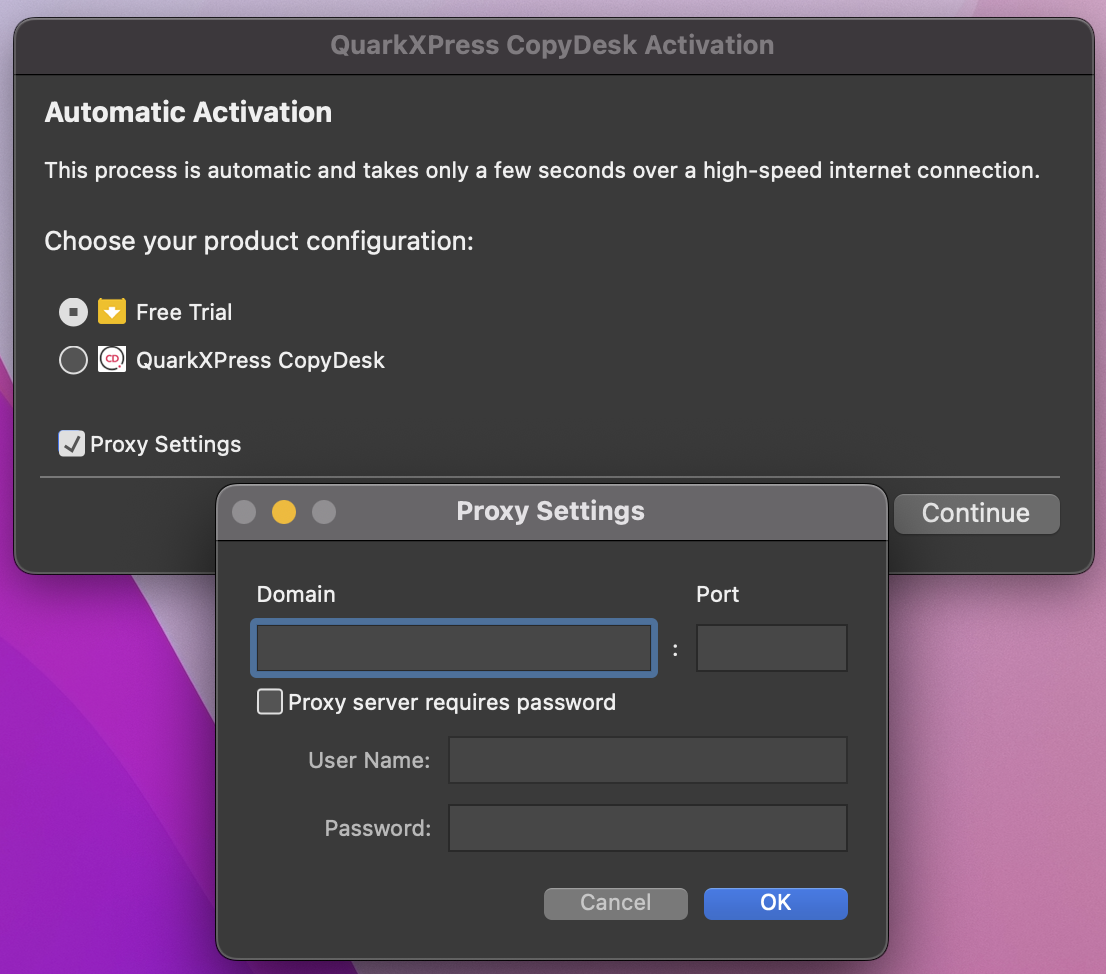
You can define the proxy settings including IP/Domain, port, username and password will be saved in the xml file. Also, you can connect to the proxy server by manually specifying the proxy server values in the xml file. The saved proxy values will get removed from the xml file if you uncheck proxy settings in QuarkXPress CopyDesk Activation dialog.
Offline Activation
There are organizations where users have restricted internet access, and they are required to use QuarkXPress CopyDesk in offline mode. To cater to their needs, there is an offline activation option available in QuarkXPress CopyDesk. On launching QuarkXPress CopyDesk application in offline mode, an 'Other Activation Options' button will be displayed.

On clicking this button, the Offline Activation dialog will be displayed.

The user is required to input the license code and generate its corresponding activation certificate. The user has to copy and share activation certificate with Quark Support Team. In response, the Quark Technical Support Team will share license against that activation certificate. The user is required to paste the license and click Activate to activate his copy of QuarkXPress CopyDesk.
Reactivation
After activation, QuarkXPress CopyDesk verifies the validity of the activation key each time it is launched. If QuarkXPress CopyDesk detects that the activation data has been modified or is missing or corrupt, the application displays the QuarkXPress CopyDesk Activation dialog and prompts you to reactivate QuarkXPress CopyDesk. You can uninstall and reinstall an activated copy of QuarkXPress CopyDesk on the same computer as many times as you want without reactivating the application. If the activated copy of application is moved to different location, then on launching the application, the activation dialog will be displayed again.